Access Permissions
Setting permissions
By default all projects can be viewed by everyone who is logged in to DSN, as long as they know the link (or project ID or alias). In order to see the project in DSN, you need to be its owner, editor or viewer. Project owner can set permission levels and transfer ownership by editing the project and navigating to "Access" tab.
Permissions are assigned to people by their DSN ID, which is LDAP id for adobe employees or an email for users with non-Adobe emails. Roles can also be assigned to groups by email domain. Specifying user ID as @adobe.com will affect all users with email from this domain.
User roles
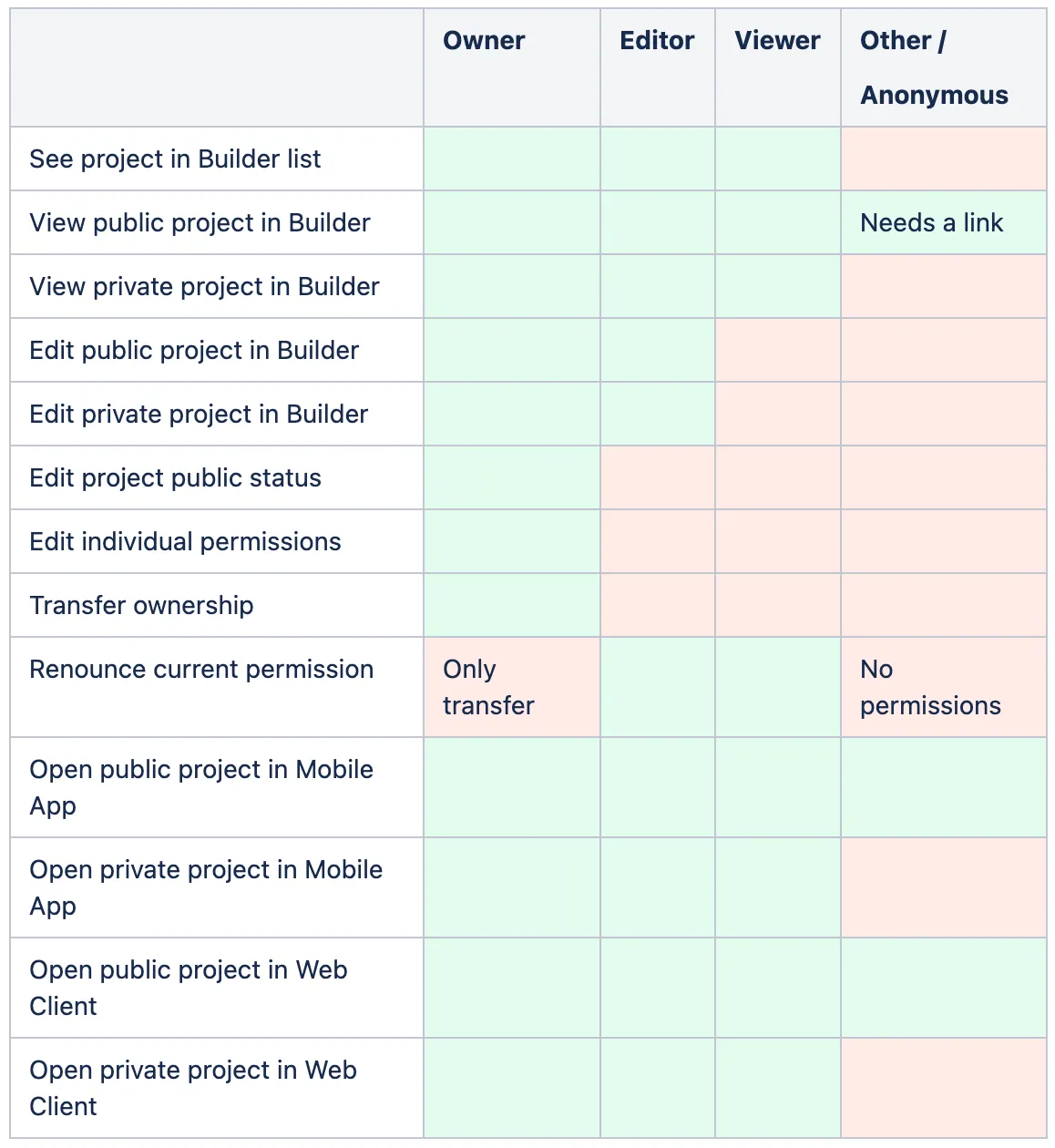
- Owner
- sees the project on Experience Builder home page in 'My Projects' section
- only one per project
- has full editorial access
- can set public visibility status
- can add individual user permissions
- can delete/archive project
- can transfer ownership to another user (becomes editor afterwards)
- Editor
- sees the project on Experience Builder home page in 'Shared with me' section
- can edit project content
- cannot change permissions and public status
- cannot delete/archive project
- can renounce view & edit permission
- Viewer/Observer
- sees the project on Experience Builder home page in 'Shared with me' section
- can view project details
- can duplicate project (create a new project based on this one)
- cannot edit project in any way
- can renounce view permission
- will be asked for password daily, if project has password set
- Other (no permissions or an anonymous user in Web/Mobile Client)
- can view if 'Everyone can view' option hasn't been disabled
- cannot see project on Experience Builder home page
- will be asked for password daily, if can view and project has password set
Permission Matrix
Setting password
It is possible to set password on web projects (Website, Microsite). This can be used to additionally limit access. This does not impact security significantly, but can be used for
- improved perception of Microsite page for security-sensitive clients
- more flexible access setup for large receipient groups
Owners and editors will not be asked for a password. Keep this in mind if you want to check a recently added password. Only viewers and others (if everyone can view this project).
In order to check a password as an owner/editor, generate a shared link and open it in a new incognito window.