How to set up external website demo?
This way of demoing should be used only for non-DSN web pages. If you have build the website with DSN, please read Retail demo environment to connect your Data Collection property.
Instructions
This process consists of 4 stages:
- Creating a Launch property through Demo System Dashboard
- Injecting Launch property into the website
- Modifying a Launch property to match your scenario
- Updating Profile Viewer fields to match your scenario
We will use https://us.coca-cola.com/ as an example.
You will need Adobe Experience Platform Debugger in order to do this demo. You can download the plugin from here:
Chrome: AEP Debugger for Chrome
Firefox: AEP Debugger for Firefox
1 Creating Data Collection property
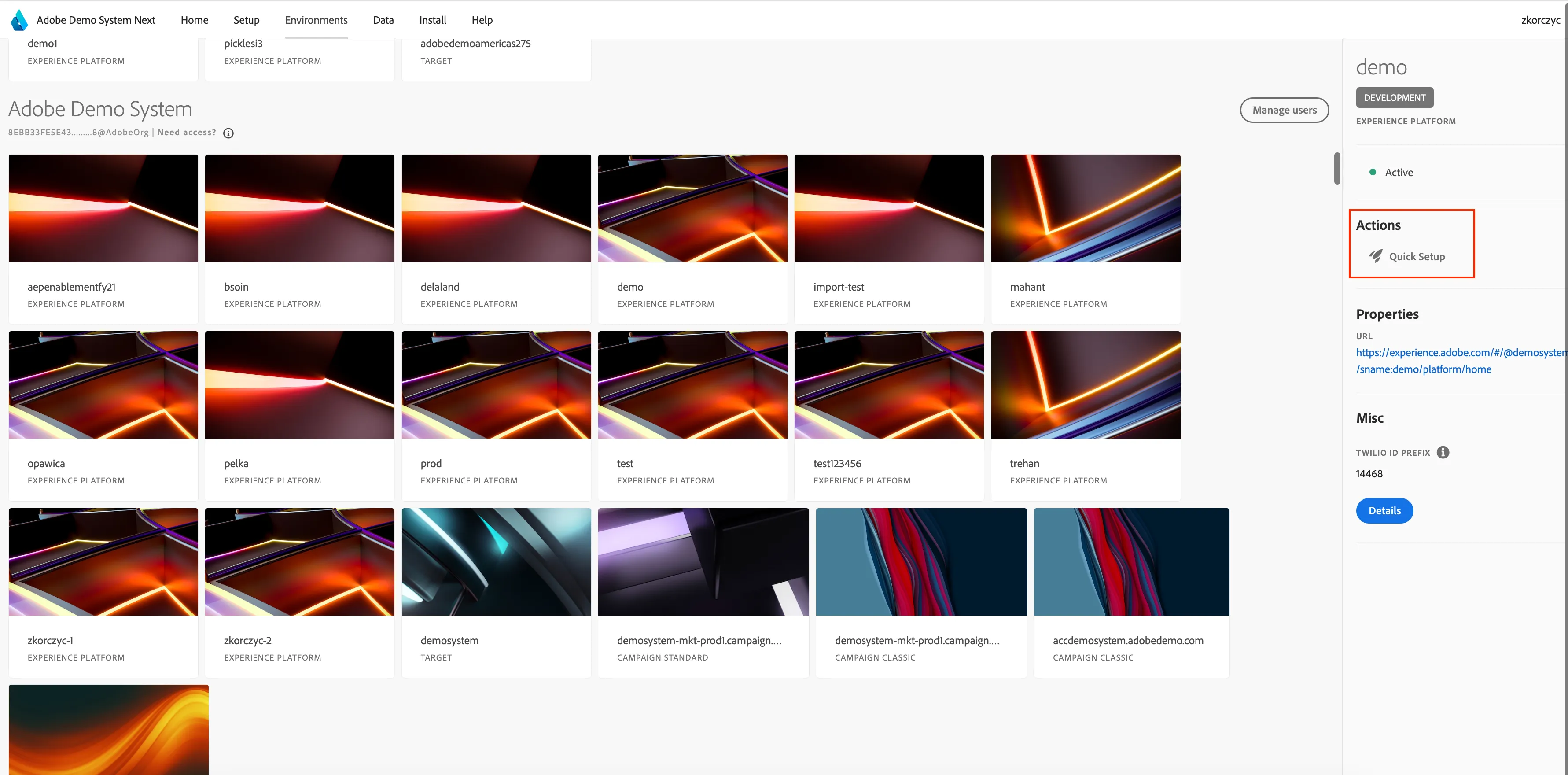
Go to the environments section in DSN https://dsn.adobe.com/environments and the sandbox you will be using for your demonstration. Click "Quick Setup" from the navigation on the right.
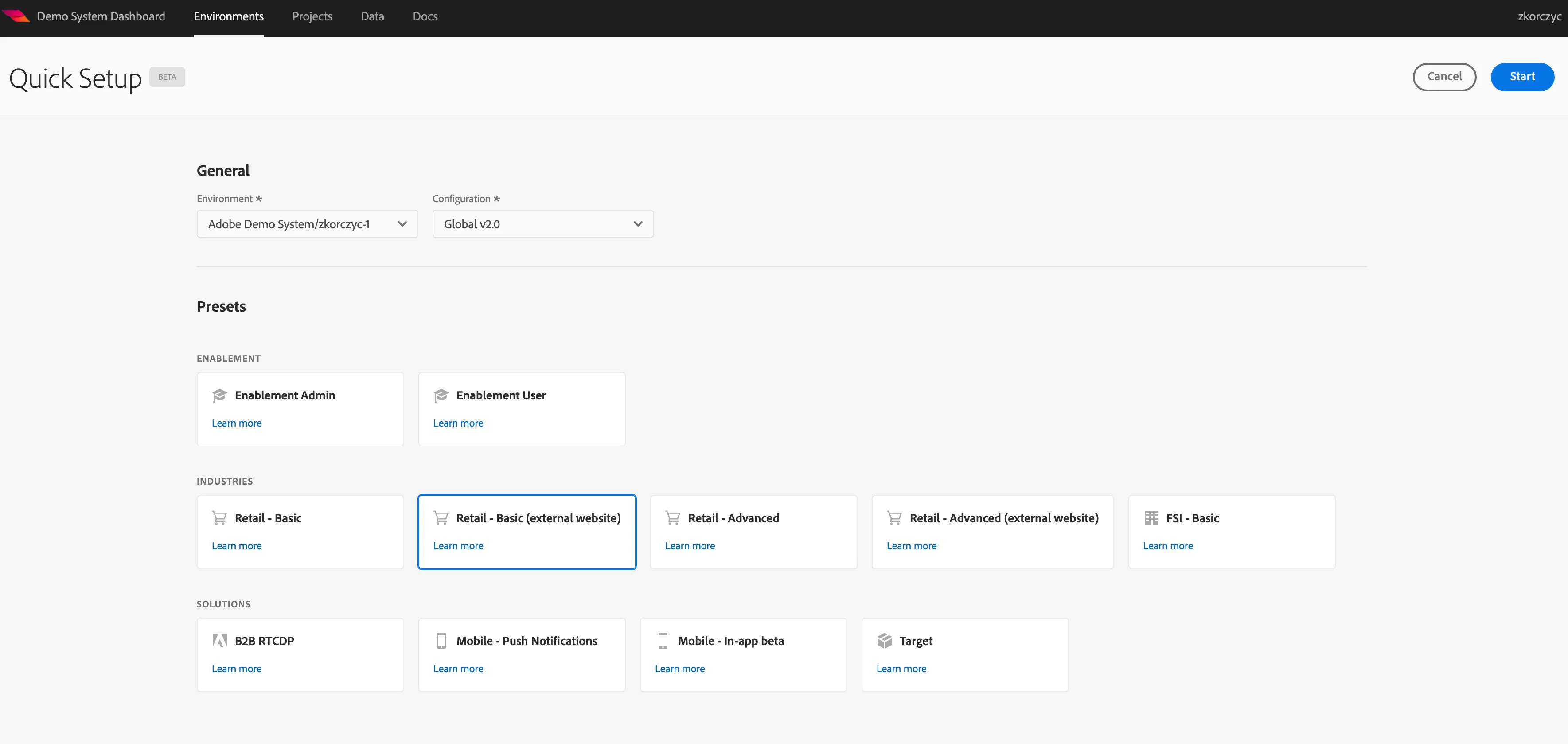
On the quick setup screen, Select the "Retail - Basic (External Website)" Preset. Click "Next"
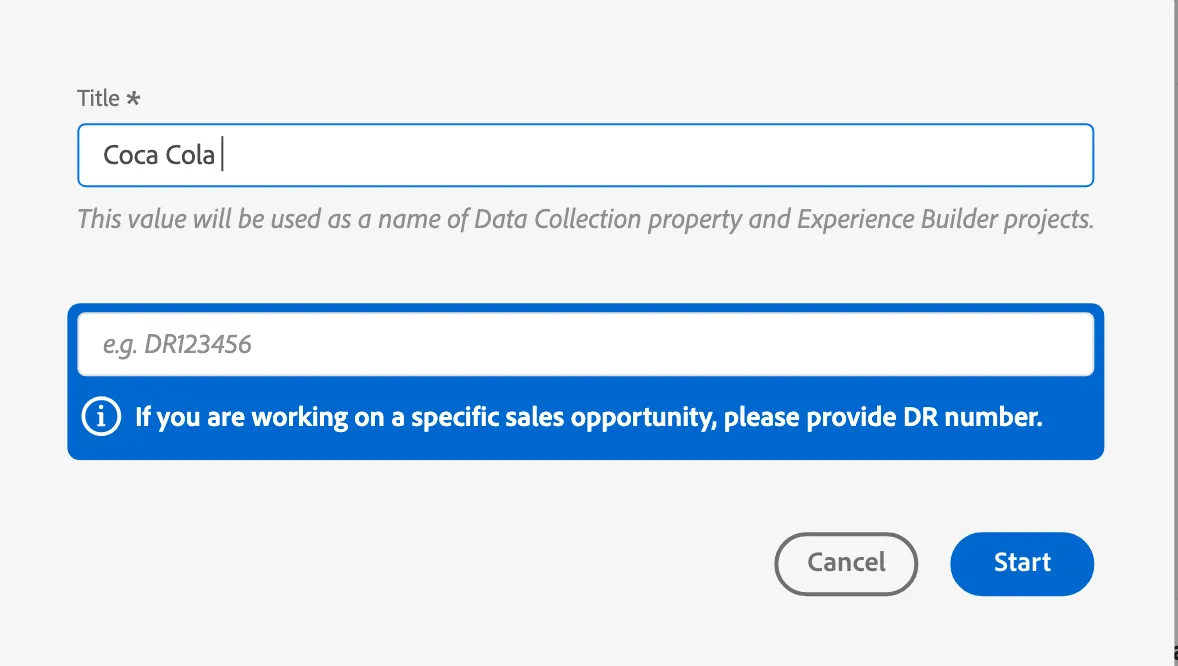
Enter a configuration name (e.g. your customer's name), this will be used as a name for your Launch property. Please provide a DR number if this is a demo for customer. Click "Start" and wait few minutes
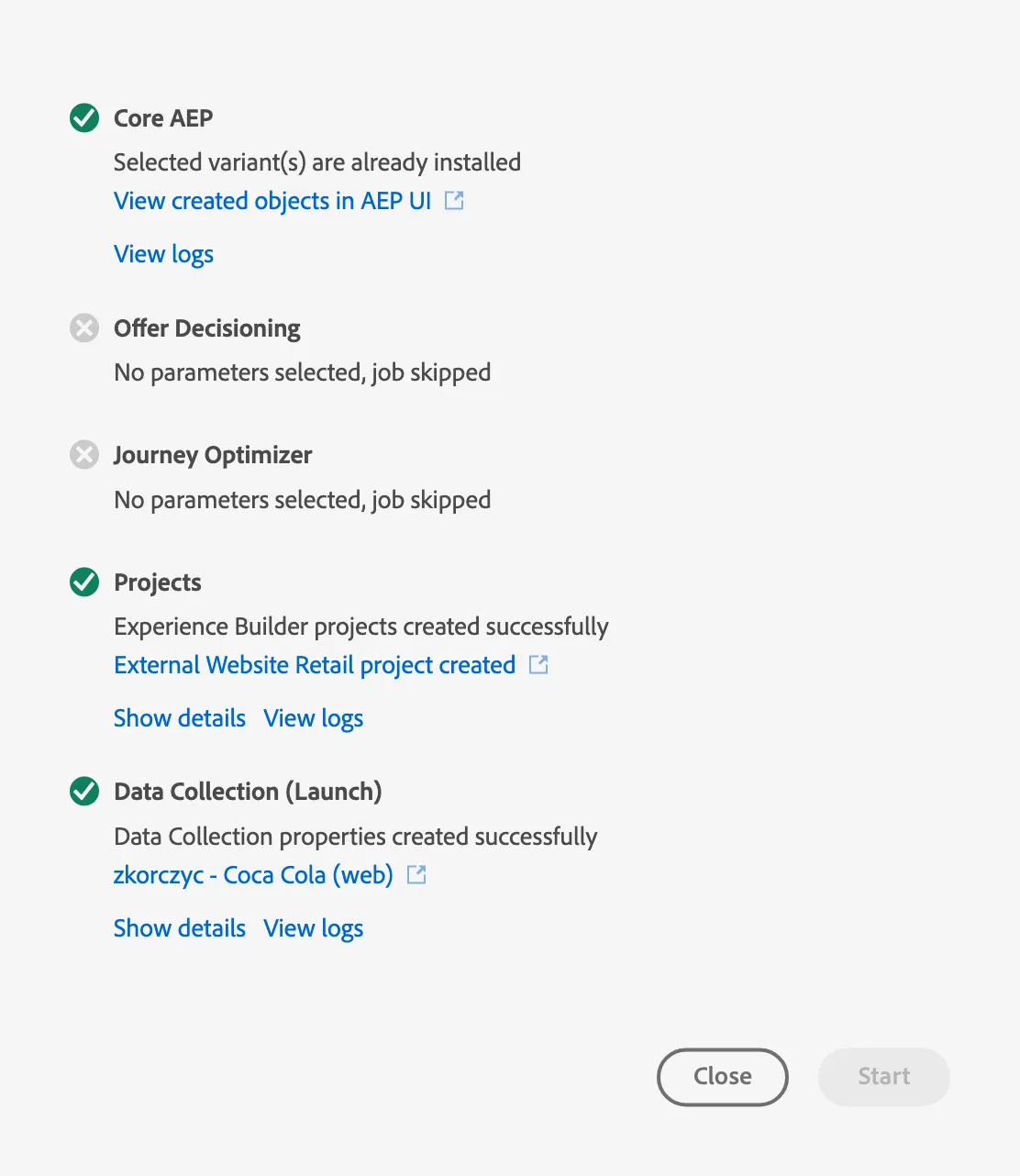
You can click on the Data Collection property link to go to Data Collection as it will be needed in the next step
Add Data Collection property to the website
Go to experience.adobe.com, switch to Data Collection. Make sure you are using the right org and search for the Tag with the name you provided in the configuration above

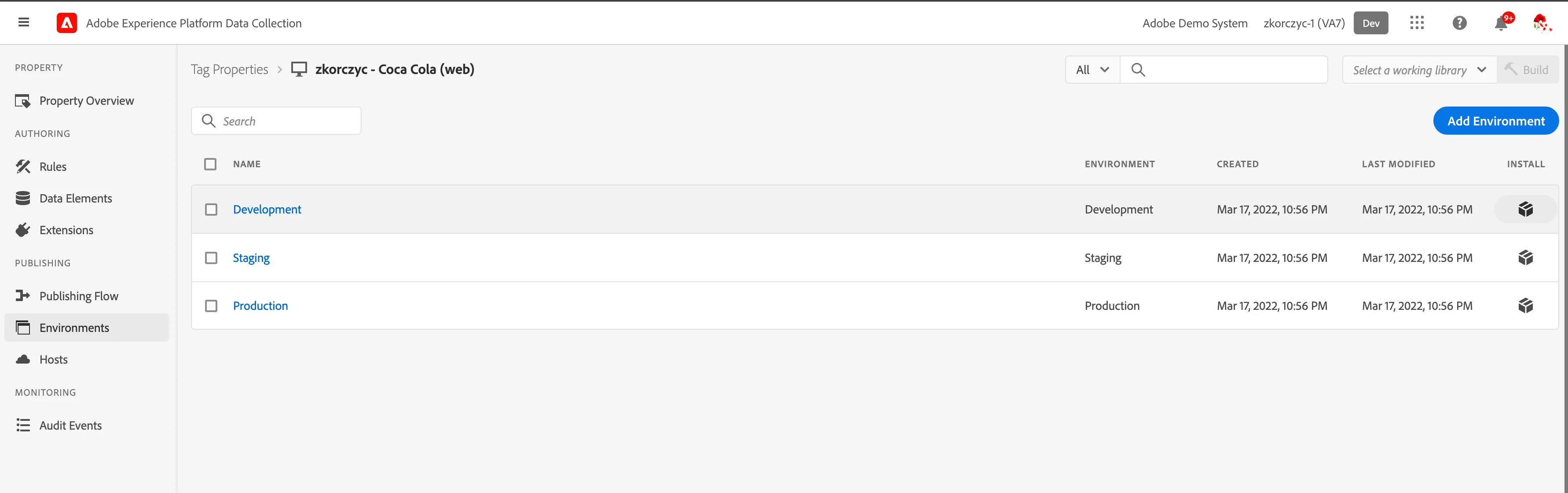
First, you'll need to get the embed code of your Launch property: go to
Environments, click the package icon in the Development row and copy the whole <script src="//assets.adobedtm.com/... value.
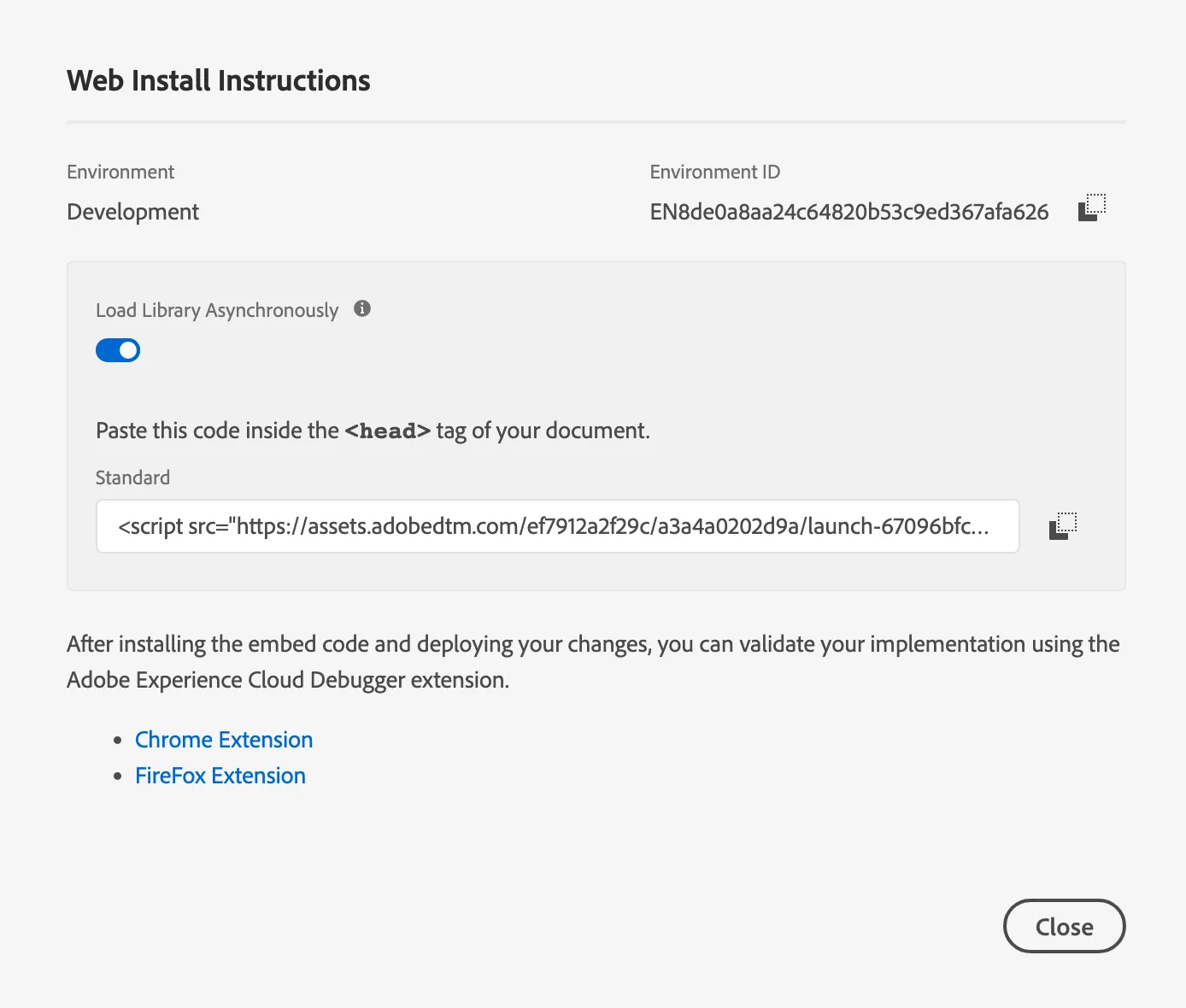
Navigate to your customer website, in this case it is https://us.coca-cola.com/ Open the AEP Debugger Plugin. Make sure that the message at the bottom says: Connected and the dot has green color. If it is not, do not close the debugger but refresh the page in the background.
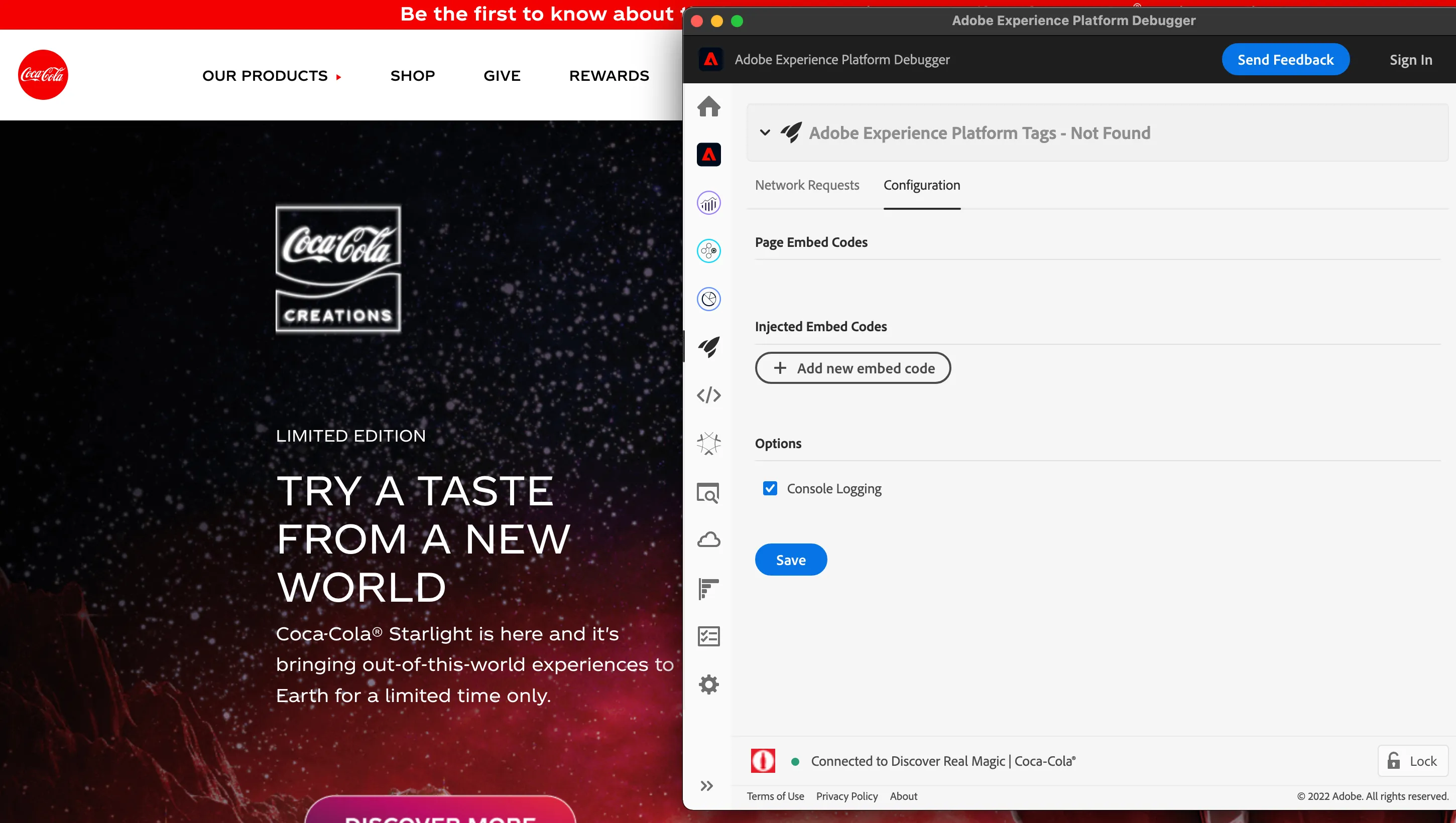
Click the Experience Platform Tags section and switch to the Configurations tab. Click Add new embed codebutton. Paste the embed code into the text field. "Apply" and Click "Save".
If the page already has a Tag (and Coca Cola website has one already), the add new functionality won't work - use replace option instead of add.
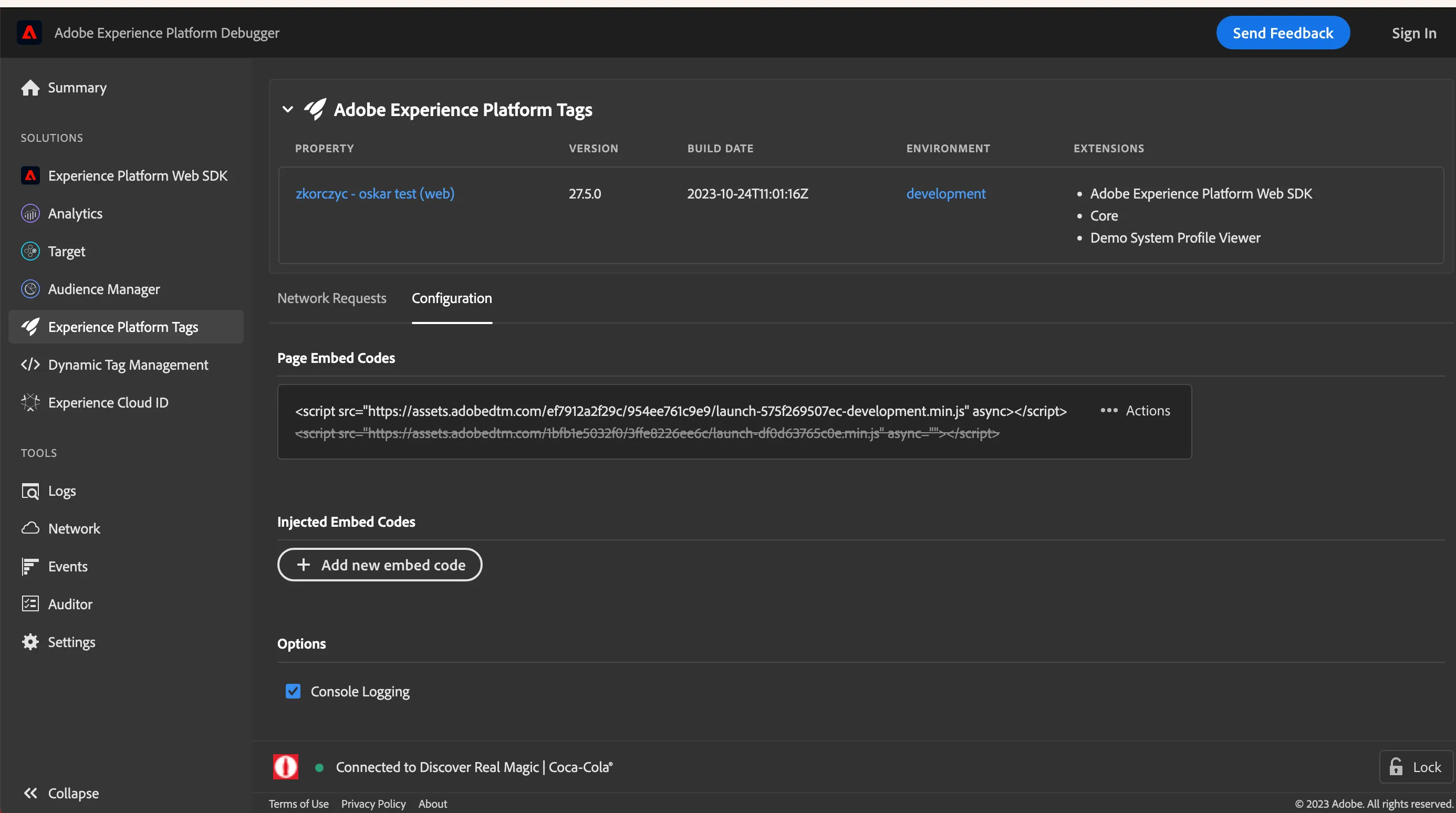
If the page already has a Tag, use replace option instead of add.
Keep the Adobe Experience Debugger plugin minimized. Do not close it as then the ingestion won't work.
The page in main browser window should reload and you should see the small AEP icon in top-left corner.
Click the AEP icon in the top-left corner, it should open the Profile Viewer component. You are ready to go!
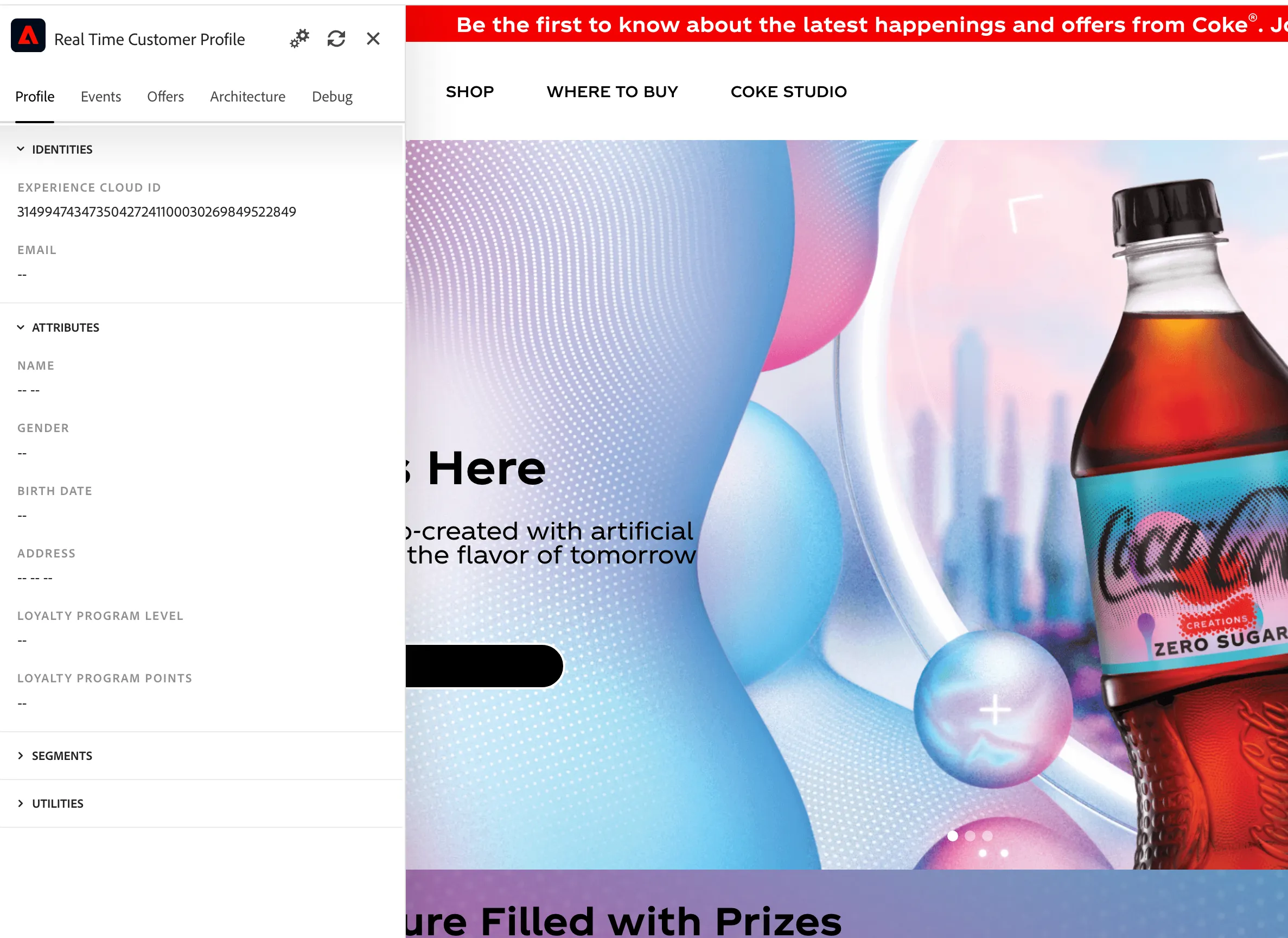
Send Experience Events (Page Views) to AEP
Page Views experiene events will work by default on every page. You can observe them in Profile Viewer Events tab, while you are browsing the website.
Click few pages, the events panel will start filling with page view data
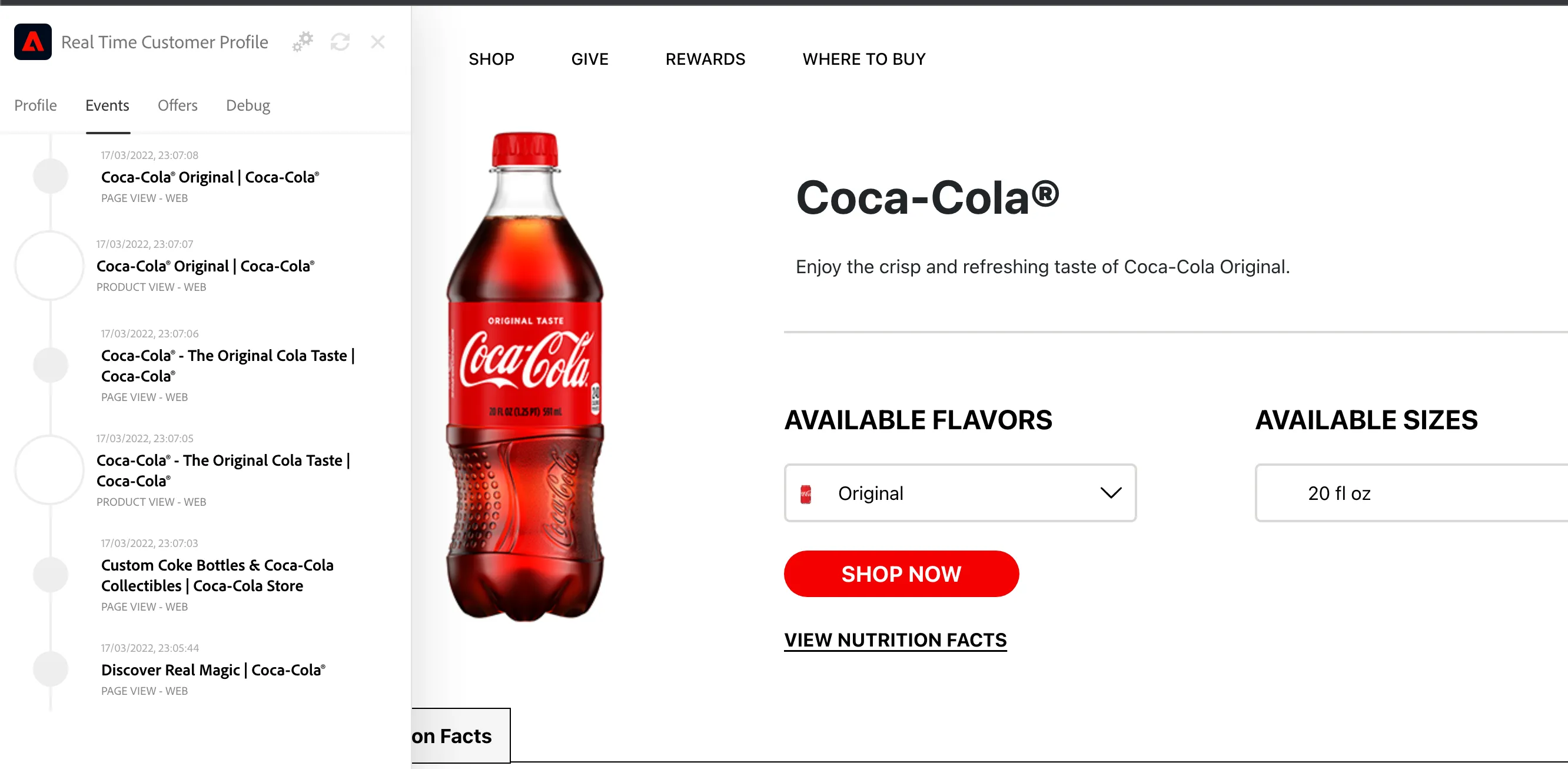
Simulate Registration on the web page
You have several ways to simulate Registration on a customer web page. In this scenario we will use the simplest one. If you would like to learn more about different possibilities to authenticate on a web page please read "Registration/Sign In" section.
Open profile viewer and expand "Utitilies" section on the "Profile" tab
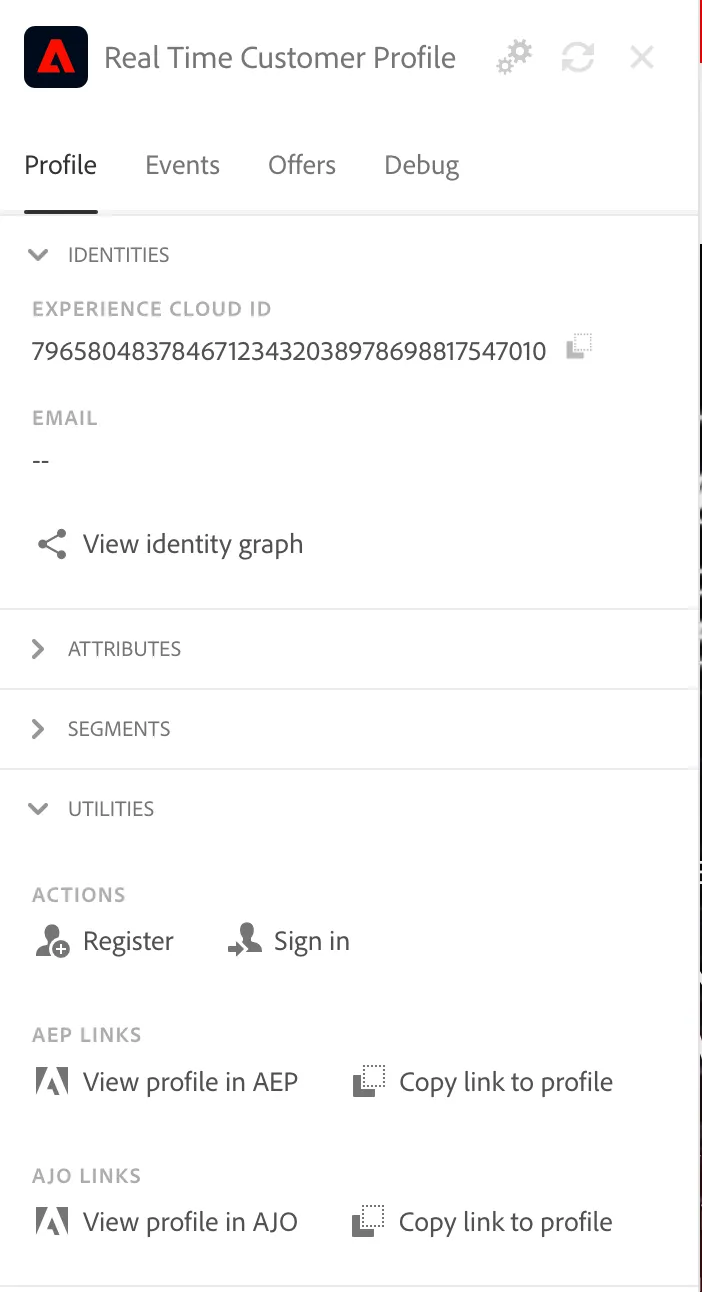
Click the "Register" Action a pop up will show up
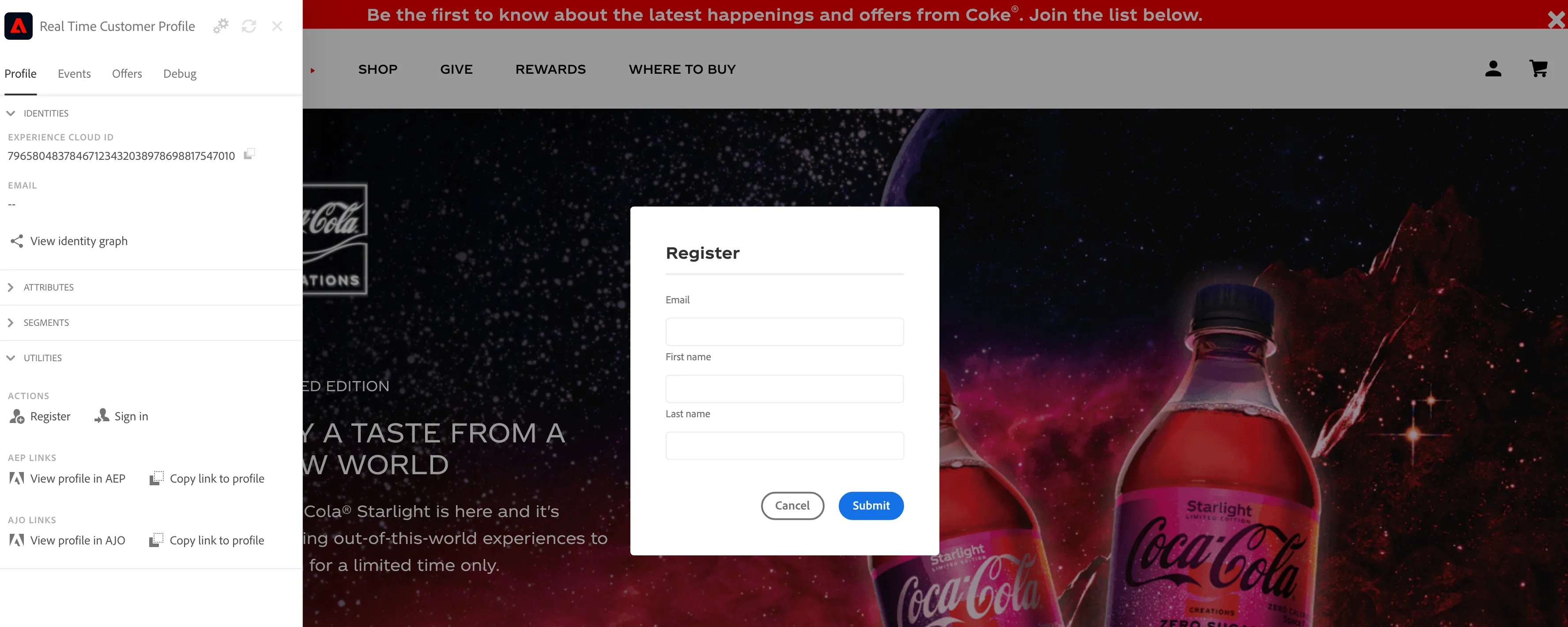
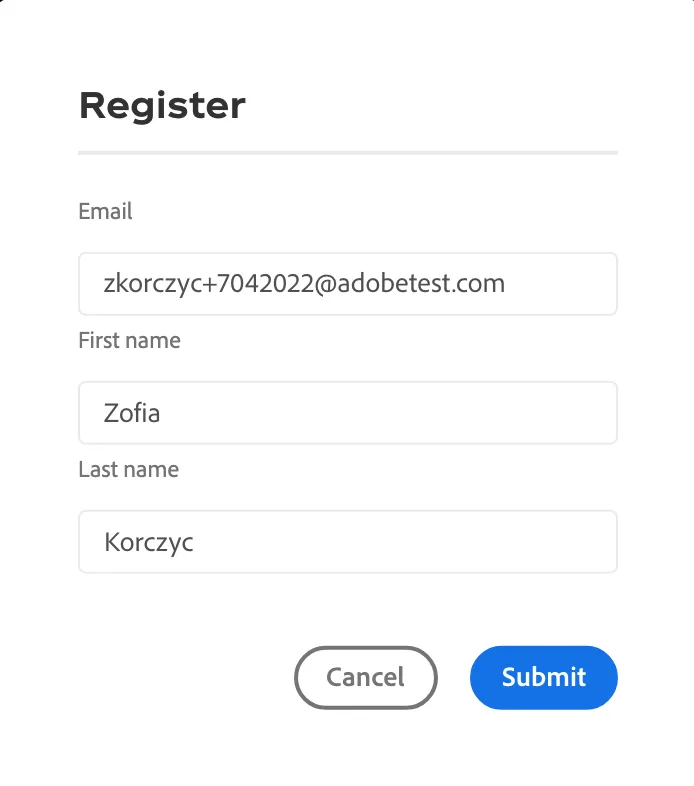
Enter the email, first name and last name. Click "Submit". Request will be send to AEP with a new profile information. If this profile already exists in AEP, both profiles will be merged. (You can also use login for existing profiles)
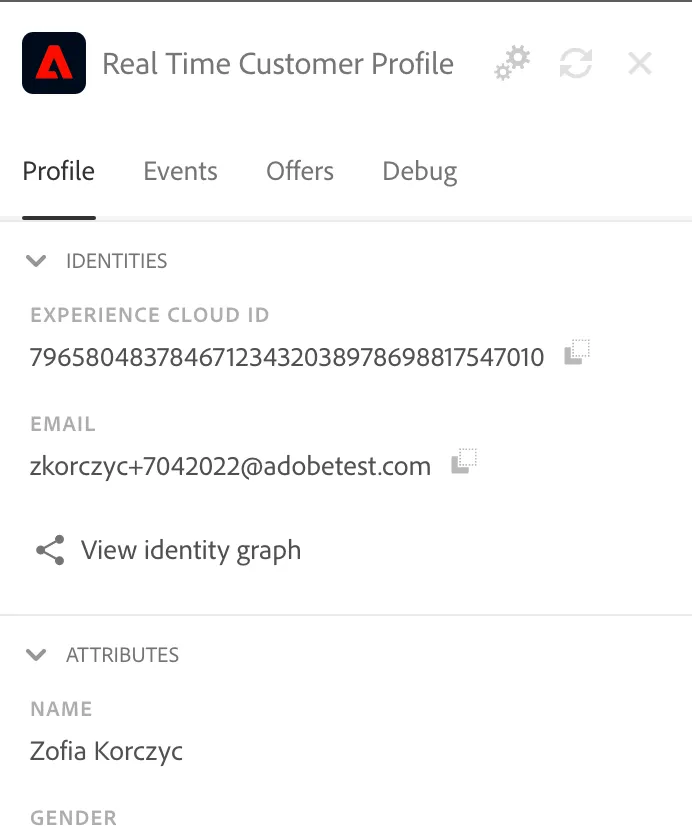
After few seconds the profile details should be visible in the profile viewer.
Review and Modify Launch property
In the example below we will show you how to customize the Launch property to track Product Views. For more scenarios please check the "Features" section.
Adding Product Views Events.
If you want you can hide page views and focus only on product views (How to do that you will learn in this section )but we need to prepare the product views experience events first.
Find your Data collection property. Go to the Rules and find the "Product View" rule
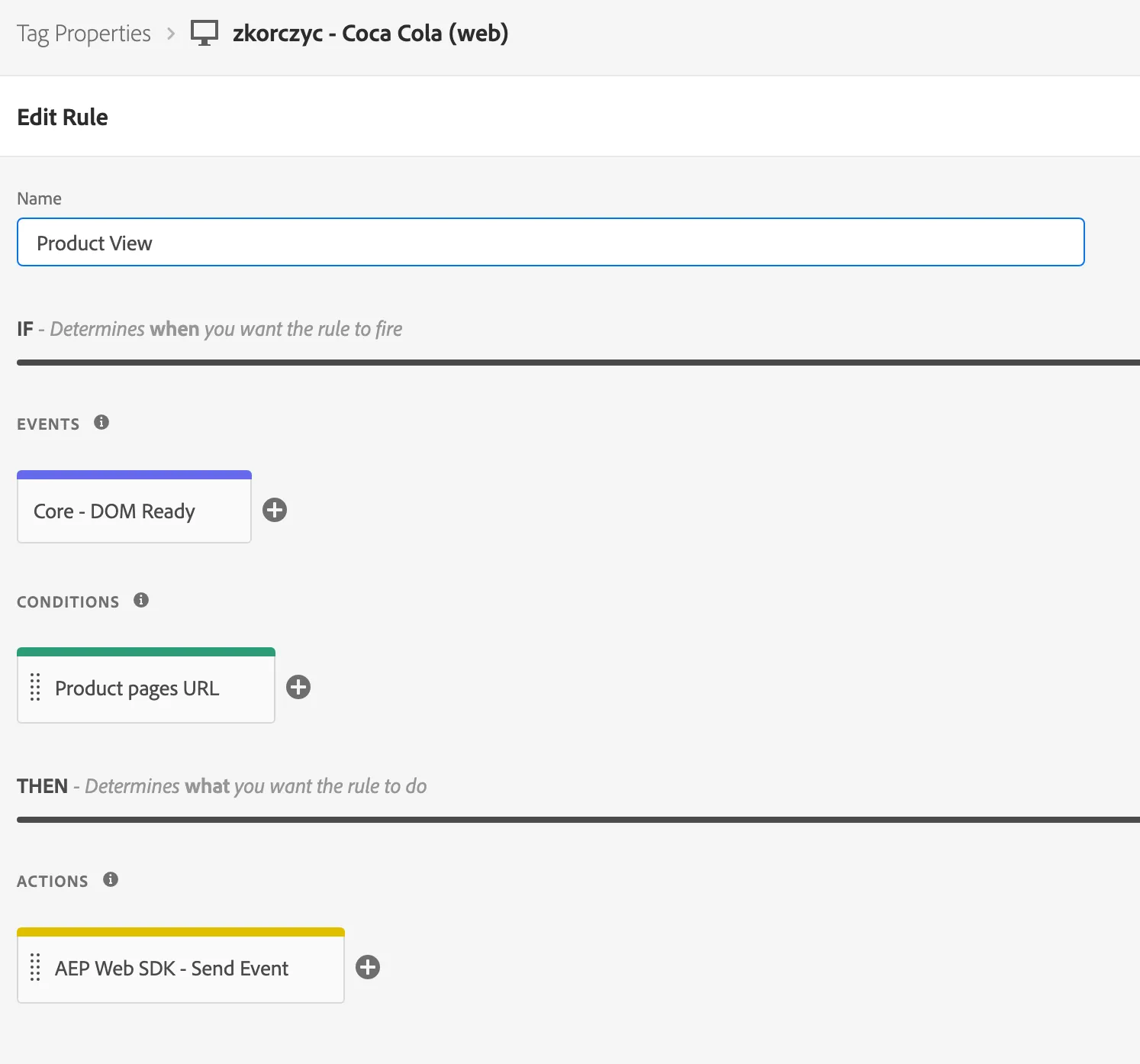
Open the "Product Pages URL" condition.
You will need to update the paths to match your website so that the rule is triggered on product pages.
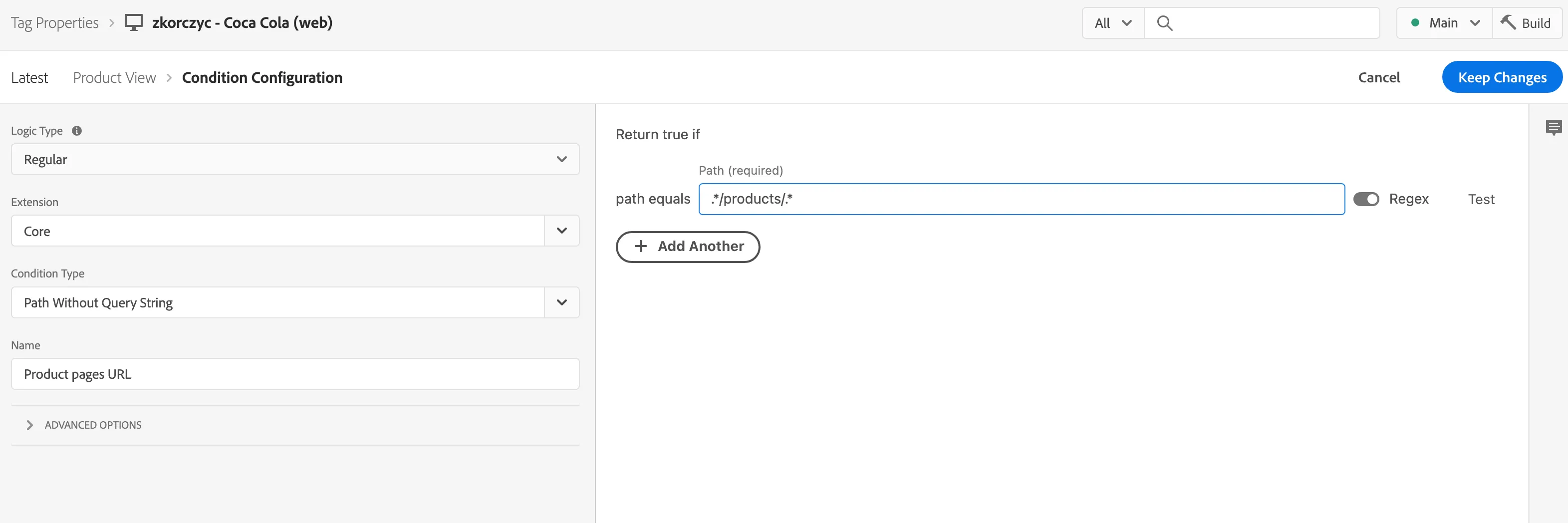
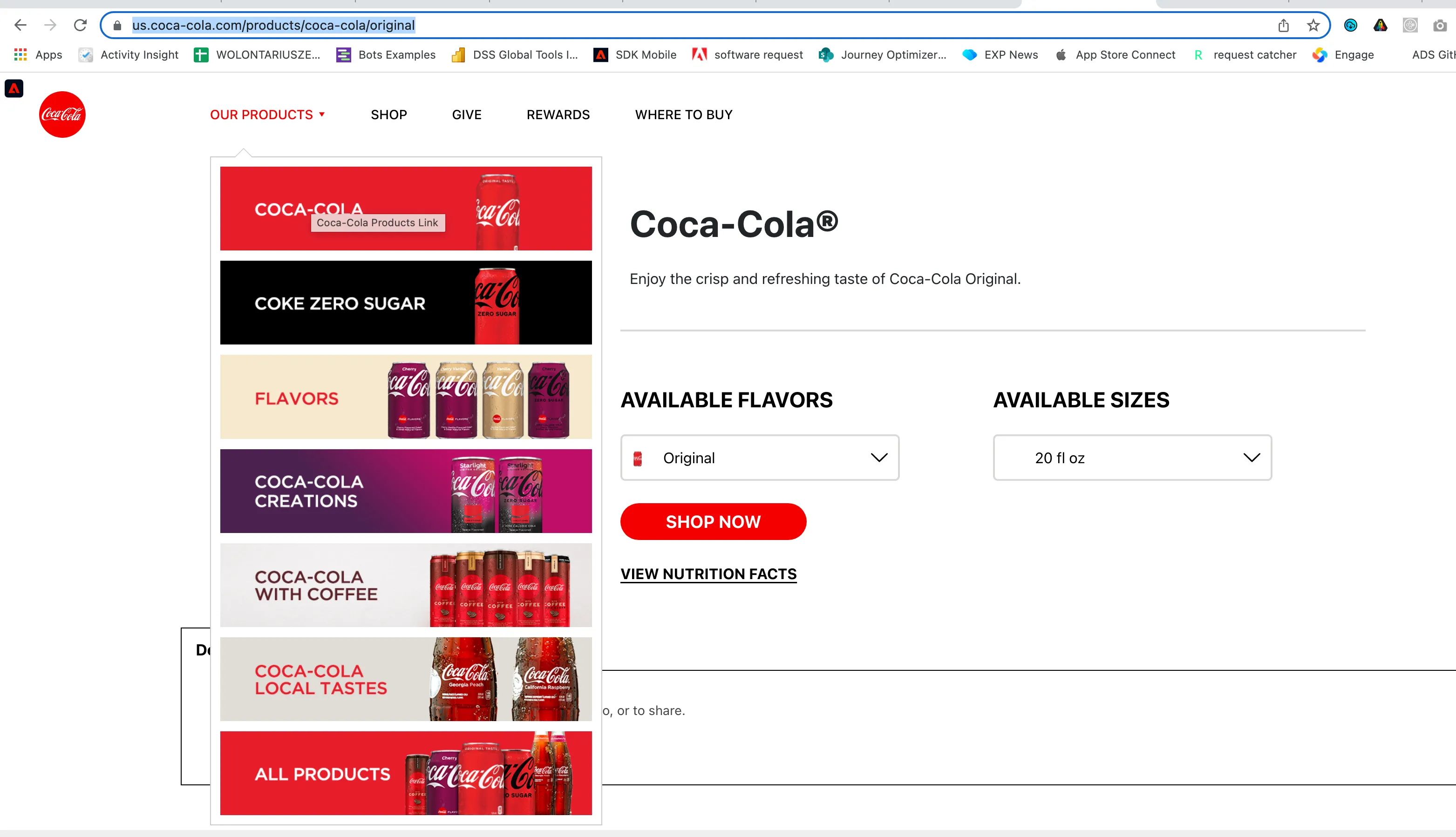
Go to the coca-cola page and try to make a decision what might be a product in case of your story and this page.
For the purpose of this exercise the products will be items when you click "our products" like https://us.coca-cola.com/products/coca-cola/original or https://us.coca-cola.com/products/coca-cola-flavors/cherry. Common pattern for this urls is the word: "products" in the URL. Always search for the pattern that is common, it can be "shop" or "items", analyze your product urls
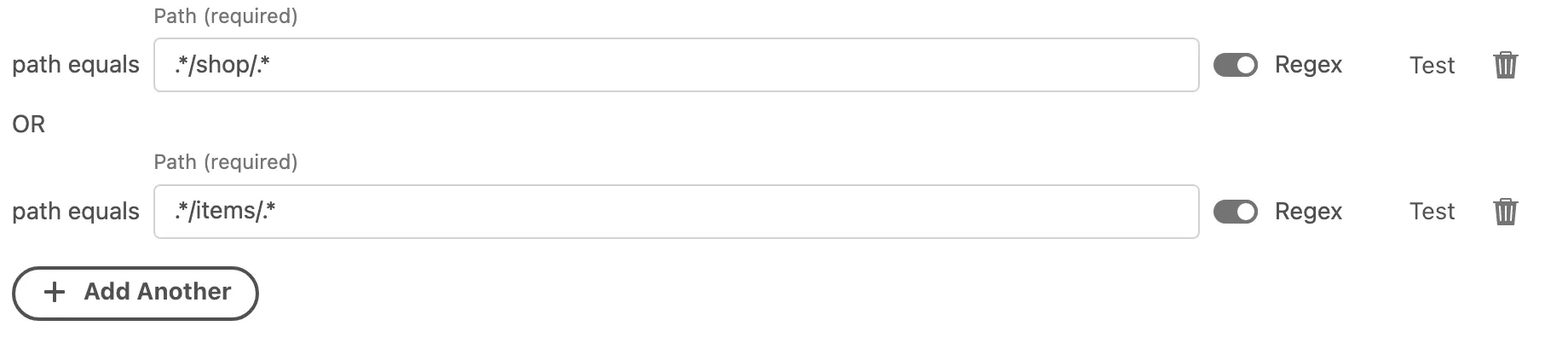
We need to update the path equals but in this case the default value already matches the product pages so leave it as it is. On the screenshots on the left you will see another examples for cases like "shop" and "items".
Always remember to check the "Regex" switch and add .* before and after your sentece. It will make the condition generic enought to match the url you want.
You might need to modify the product image data element (Product Name will work on every page by default). In case of Coca-Cola page the image works by default but same pages requires modification and we will do that for practice.
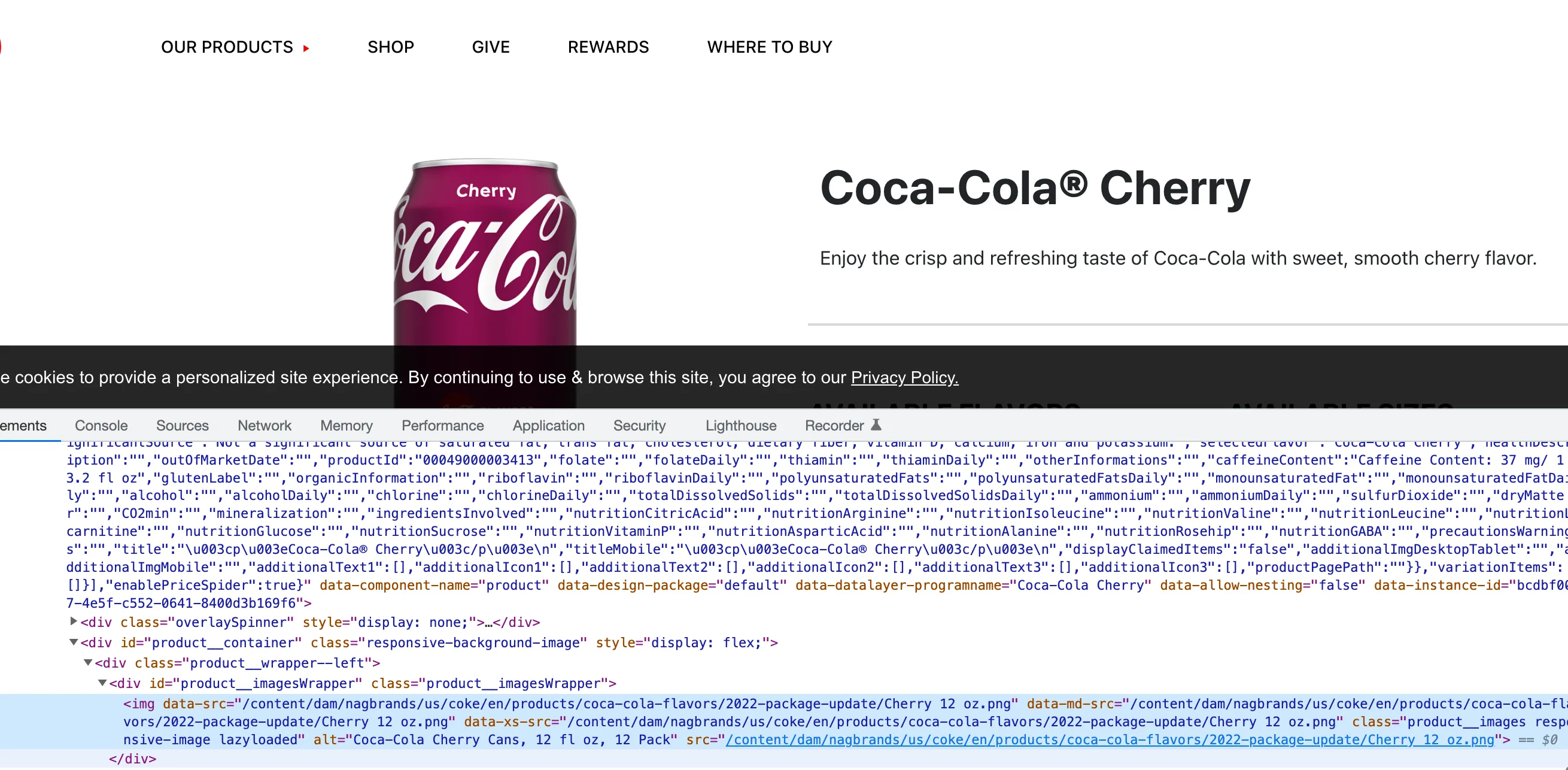
Identify the image which is a product image on your product page. In this case e.g. https://us.coca-cola.com/products/coca-cola-flavors/cherry
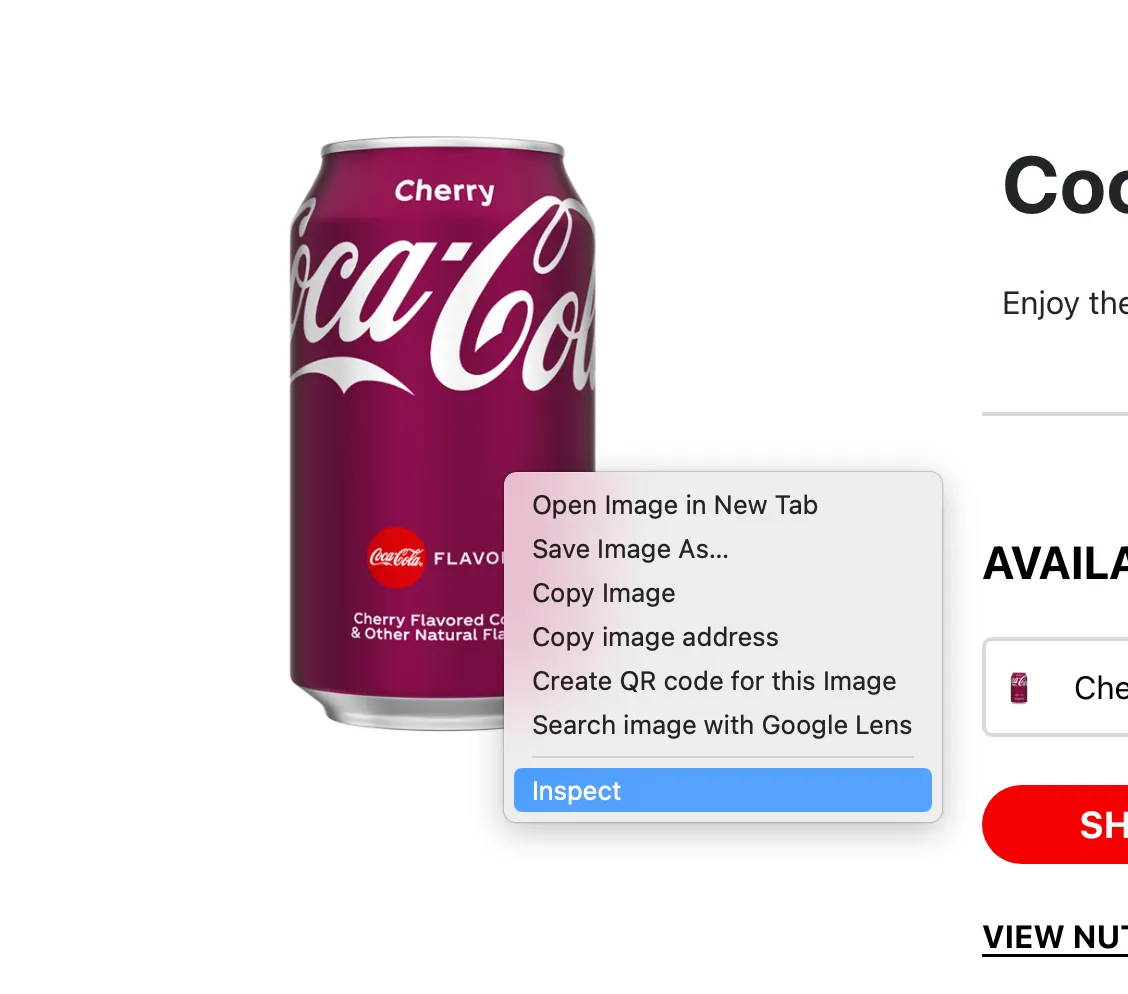
The console will open with highlighted element. Right click on it and select "Copy"->"Copy Selector"
Go back to Data Collection (launch) and find data element "Product - Image". Open it.
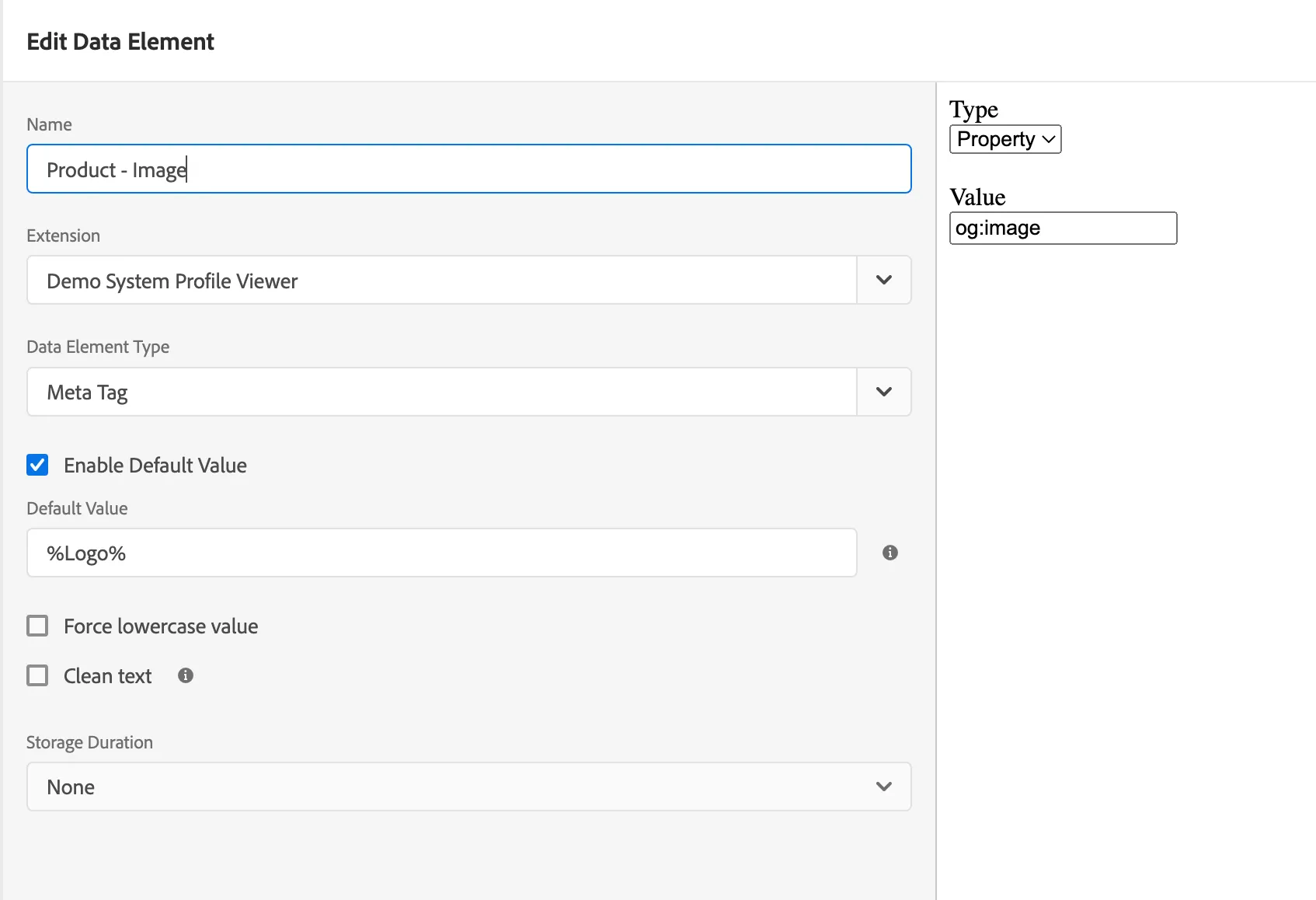
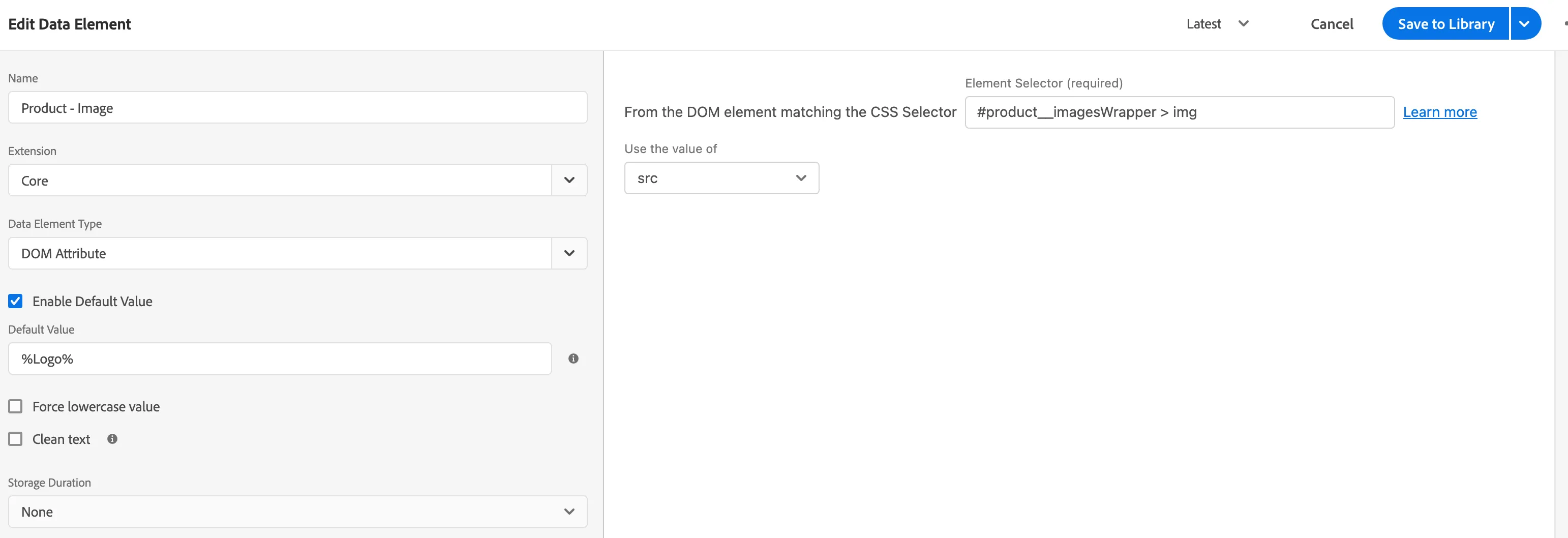
From the dropdown "Extension" choose "Core"
From the dropdown "Data Element Type" choose "DOM Attribute".
Paste the copied code in the "From the DOM element matching the CSS Selector" field and choose value "src". Remember to "Save and build the library"
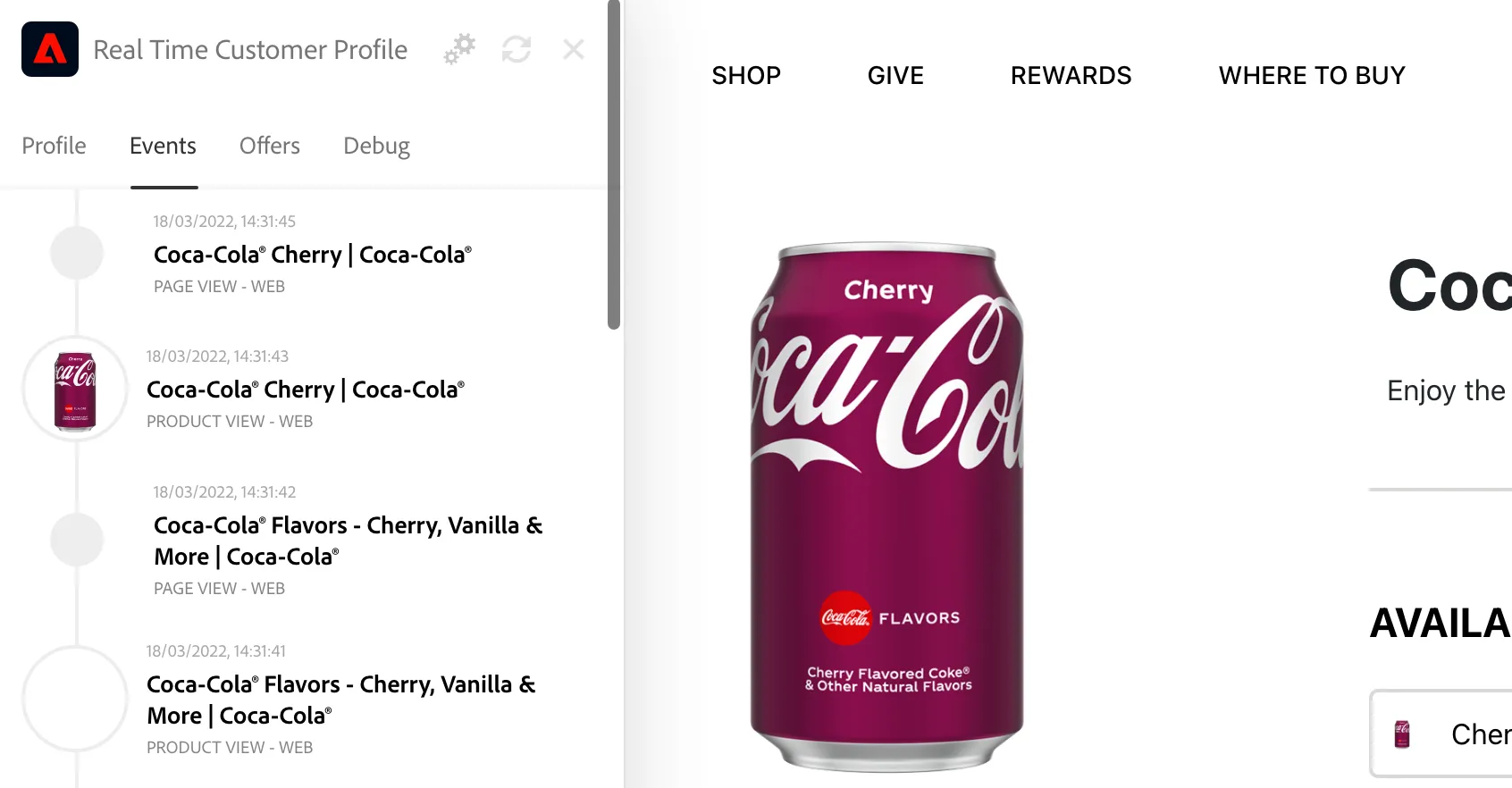
Refresh the coca cola page, you should see product view in the events tab with an image
Review and modify Profile Viewer fields using Experience Builder (optional)
You can modify the profile and events displayed in profile viewer. Read the following article to do the changes Profile Viewer Extension