Add Web In-App message
AJO web in-app messages are notifications or announcements visible within the AJO web application. Much like their mobile counterparts, these messages inform users about updates, new features, promotions, or pertinent information concerning the web application. They aim to engage users and prompt them to take actions like exploring new features or participating in promotions, all directly within the web application.
High-Level Instructions
- Ensure you have the latest DSN schemas and a vertical website set up, such as Luma.
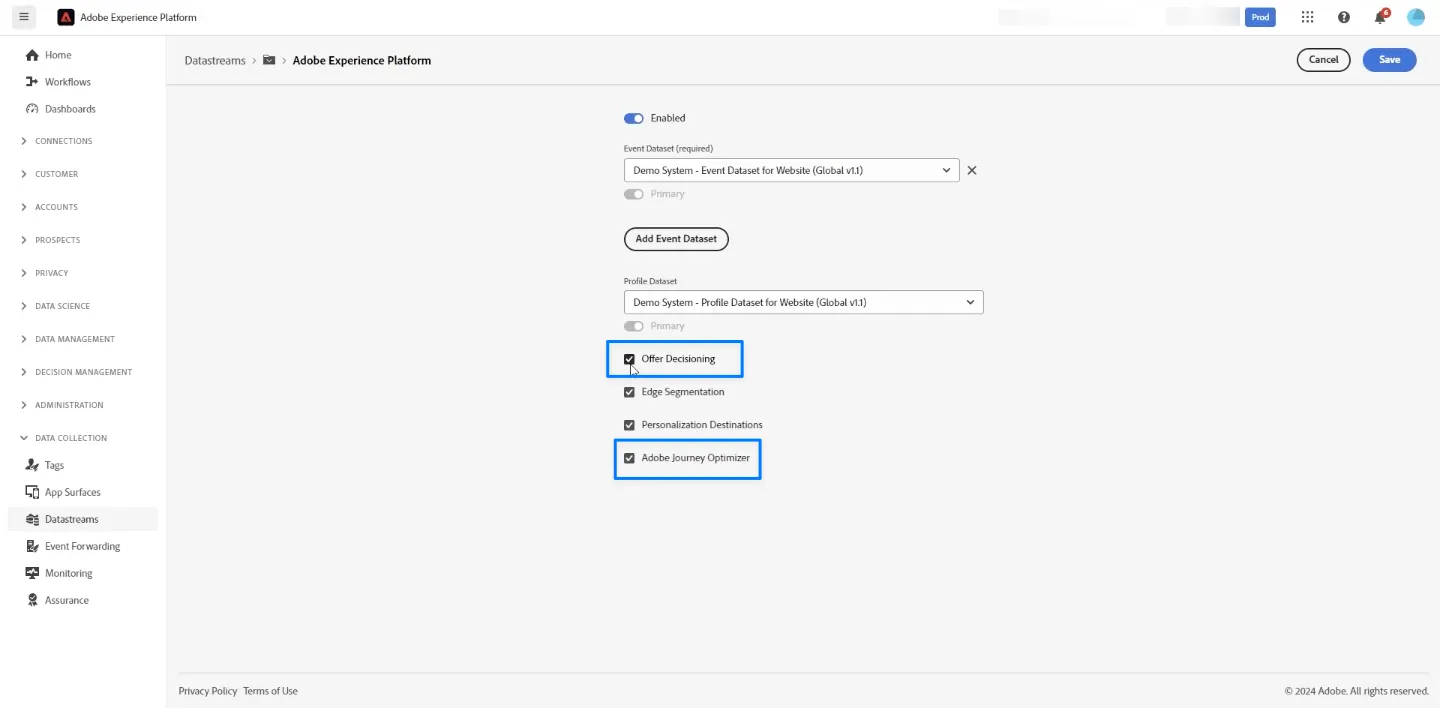
- With AEP Data Collection, edit the website datastream to include Offer Decisioning and Adobe Journey Optimizer.
- Create the new in-app campaign in AJO and create the channel configurations as mentioned below.
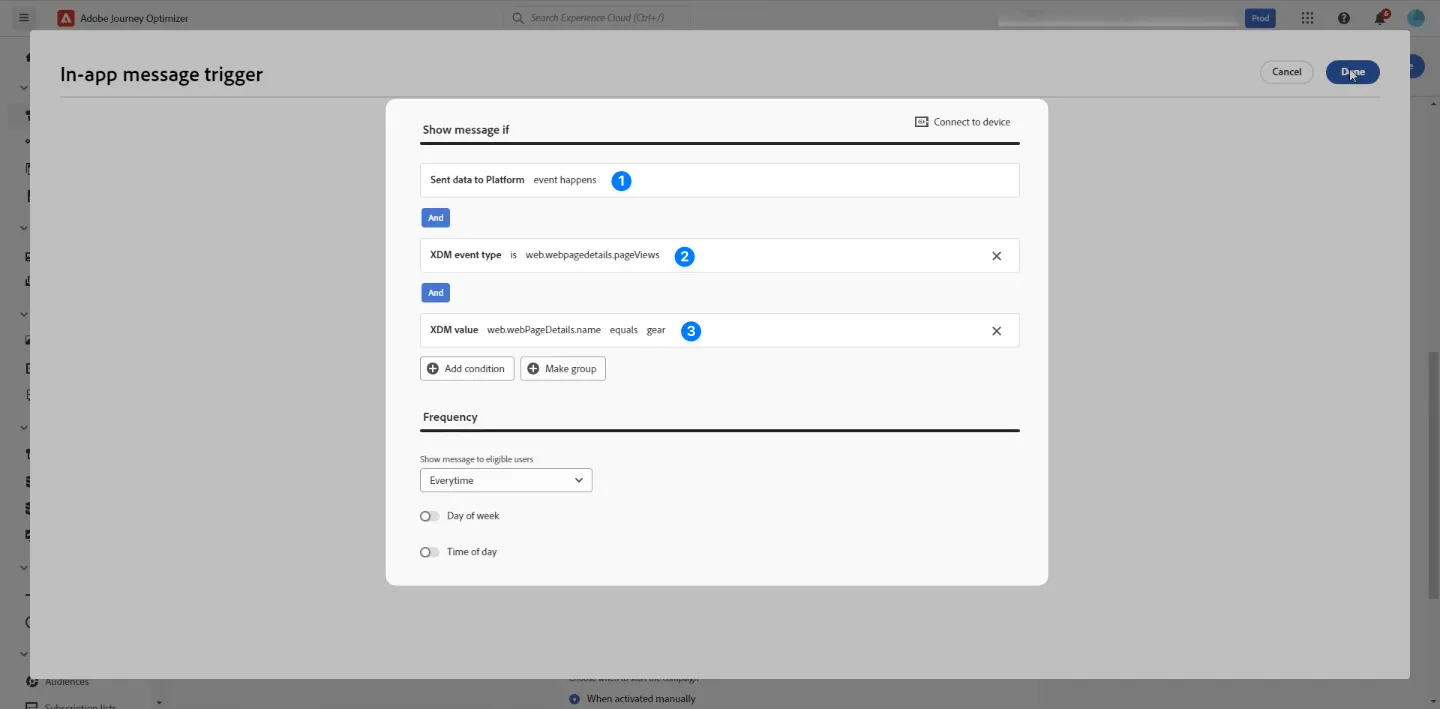
- Set the triggering criteria to: (Sent data to Platform event happens) AND (XDM event type is web.webpagedetails.pageViews)
- Activate the campaign. It will take a few minutes, but the in-app message should start appearing. Start the user experience with the exact URL that matches the base URL. For example, dsn.adobe.com/web/abc-1234 rather than dsn.adobe.com/web/abc-1234/home
Create a Web In App Surface (Example Steps)
You can follow the steps below to create an in-app channel configuration for your website and a specific page which is mandatory step to show web in-app message.
- Go to the AJO and Channel > Channel Configurations.
- Click on Create Channel Configuration.
- So, in our case, we wanted to display a web in-app message when the customer visited the help page on their website.
- So we will provide a name, Description, and Select Channel - In-app messaging, Marketing action - Cross Site targeting, Onsite personalization, Onsite Advertising, Select platform as web. Under Web, select Single Page and put the page URL for the help page where you want to display the in-app message.(https://www.vodafone.de/privat/hilfe.html)
To trigger on just a specific page
Follow the steps above. For example, the full triggering criteria could look like:
A triggering rule example like below:
(Sent data to Platform event happens) AND ( XDM value web.webPageDetails.name contains Vodafone Help or Vodafone-Hilfe)
Step-by-step guide
Below are the steps to implement AJO Web in-app messages using the Demo System Next web projects.
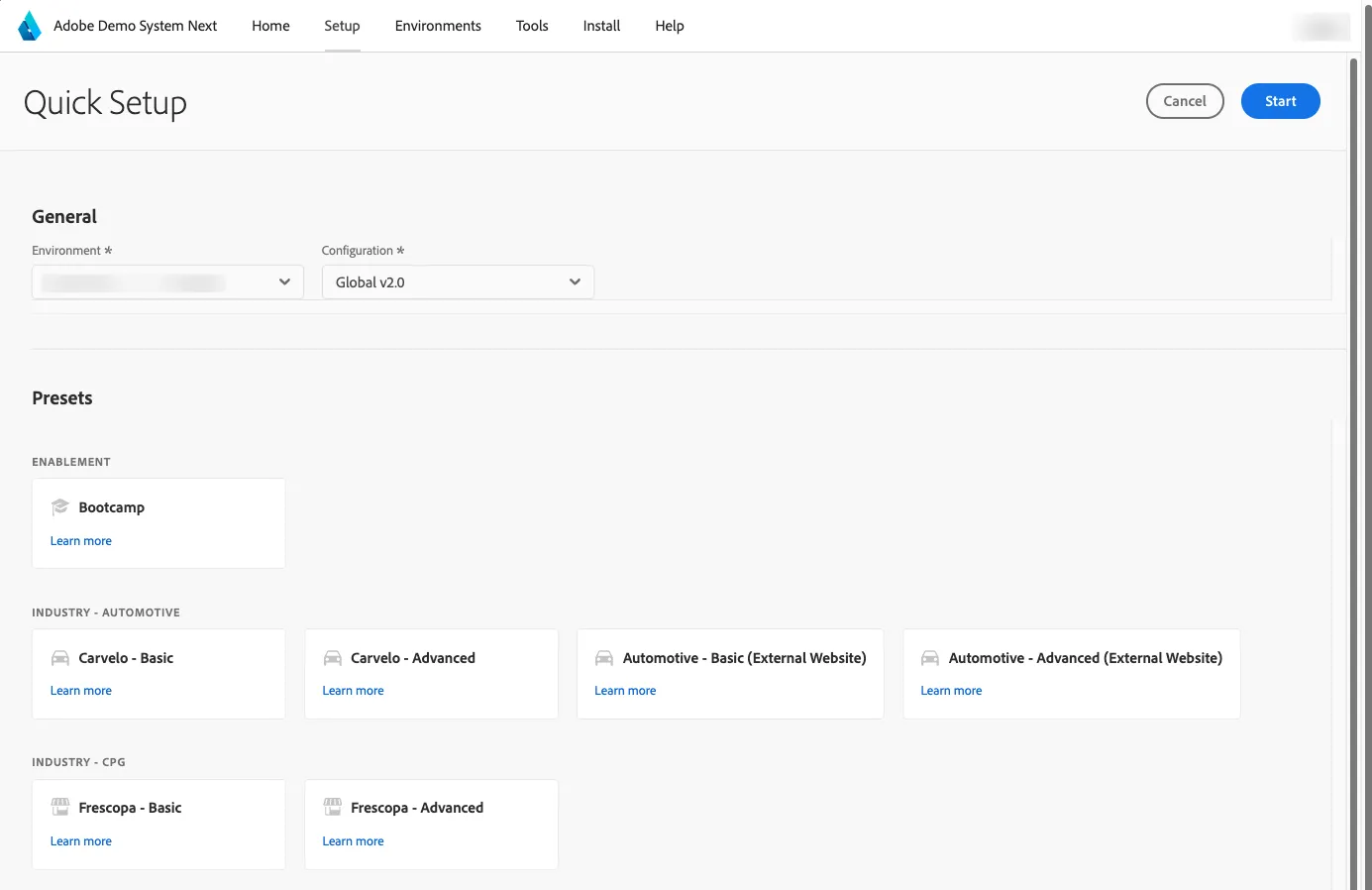
1. Create a new Luma web project using the Quick Setup and selecting the Luma - Basic preset
2. Open the Home menu of your Experience Platform sandbox and navigate to Datastreams. Edit the Service Adobe Experience Platform, check Offer Decisioning and Adobe Journey Optimizer, and then Save.
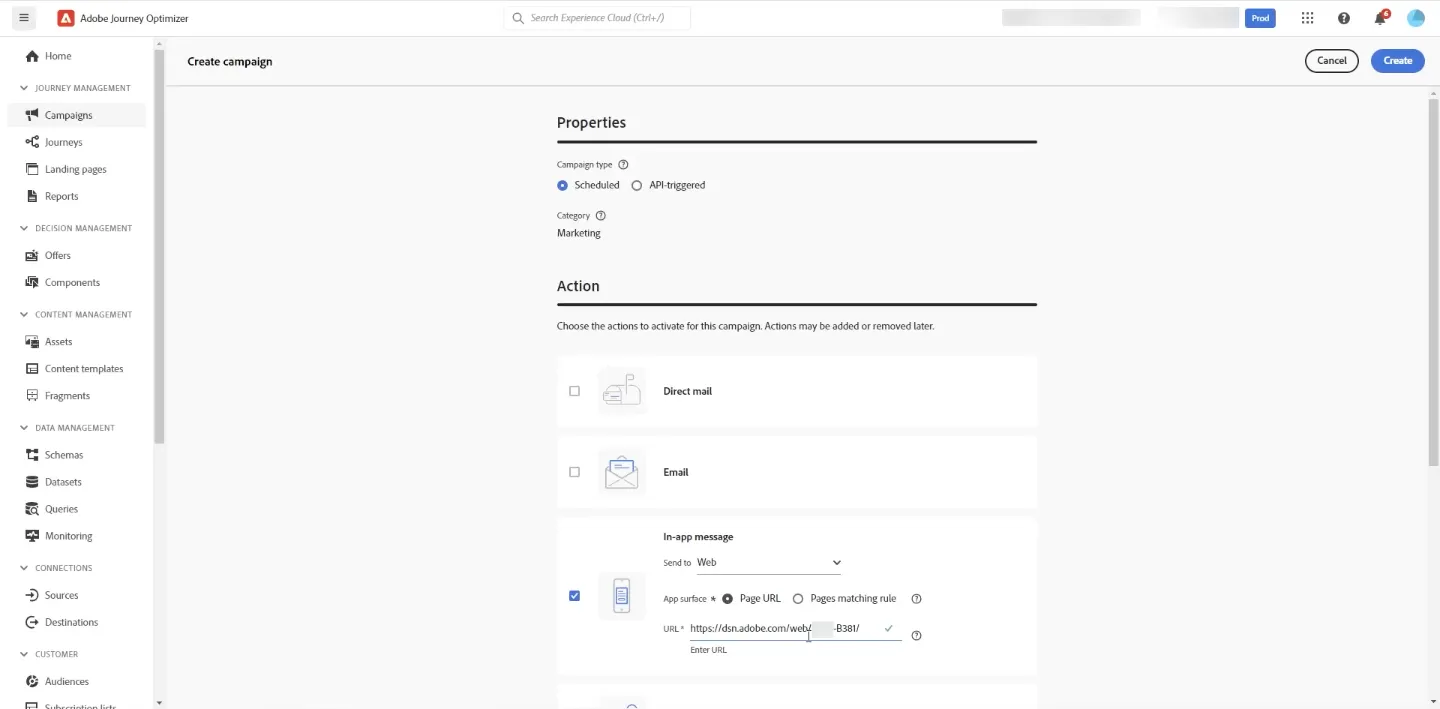
3. Navigate to Journey Optimizer using the solution switch (top right) and create a new Web In-app message Campaign. On the app surface, select the App Surface you created above. Click Create
4. In the Audience section, enter a name, e.g., Sample In-App Flash Sale, and keep it for all app users using the ECID identity type.
Edit the Triggers, set the Show message If as follows:
(Sent data to Platform event happens) AND (XDM event type is web.webpagedetails.pageViews) AND (XDM Value web.webpagedetails.name equals gear)
5. Edit your in-app message content by adding the Media URL, Header, Body, Buttons, and select a Message Layout
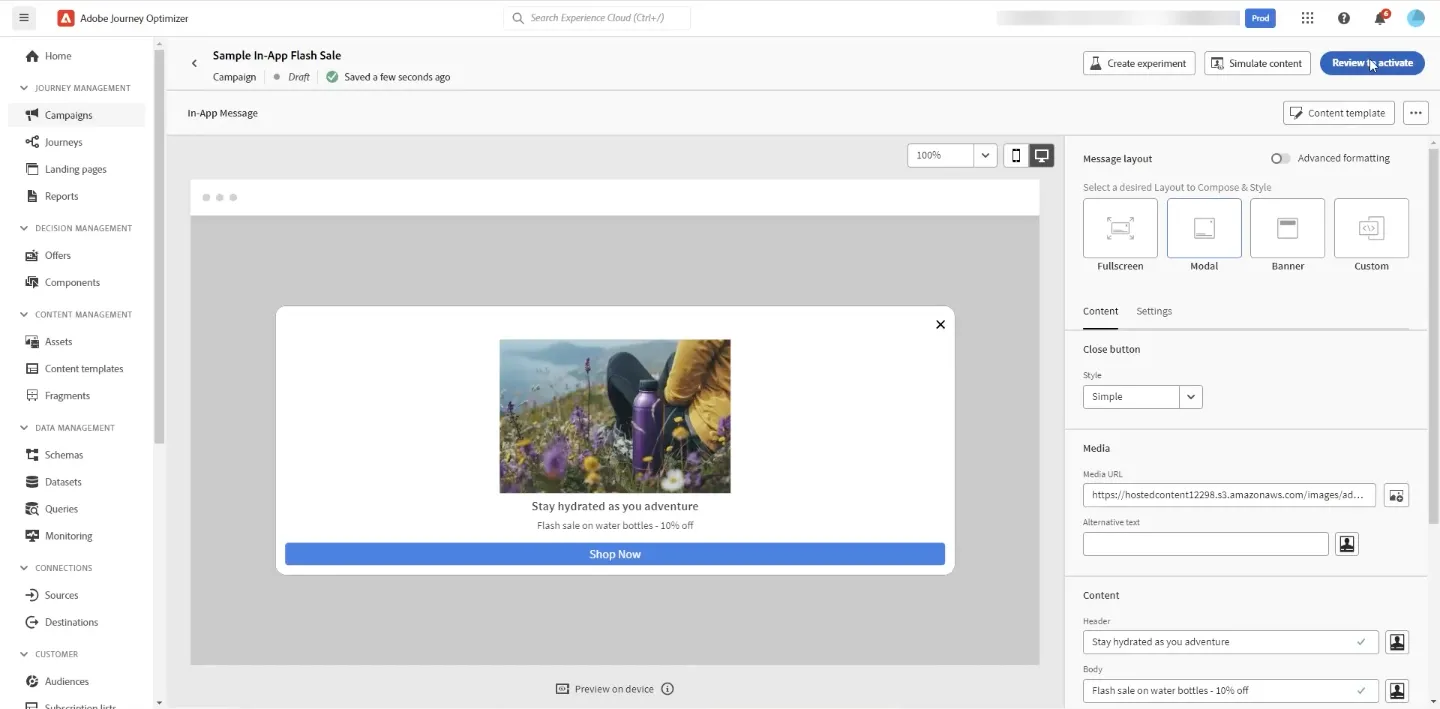
5. Edit your in-app message content by adding the Media URL, Header, Body, Buttons, and select a Message Layout. Click on Review to Activate.
Note: It may take a few minutes to be activated.
6. Open your DSN Luma Web project, e.g., dsn.adobe.com/web/abc-1234, and navigate to the Gear page; you should see the in-app message.
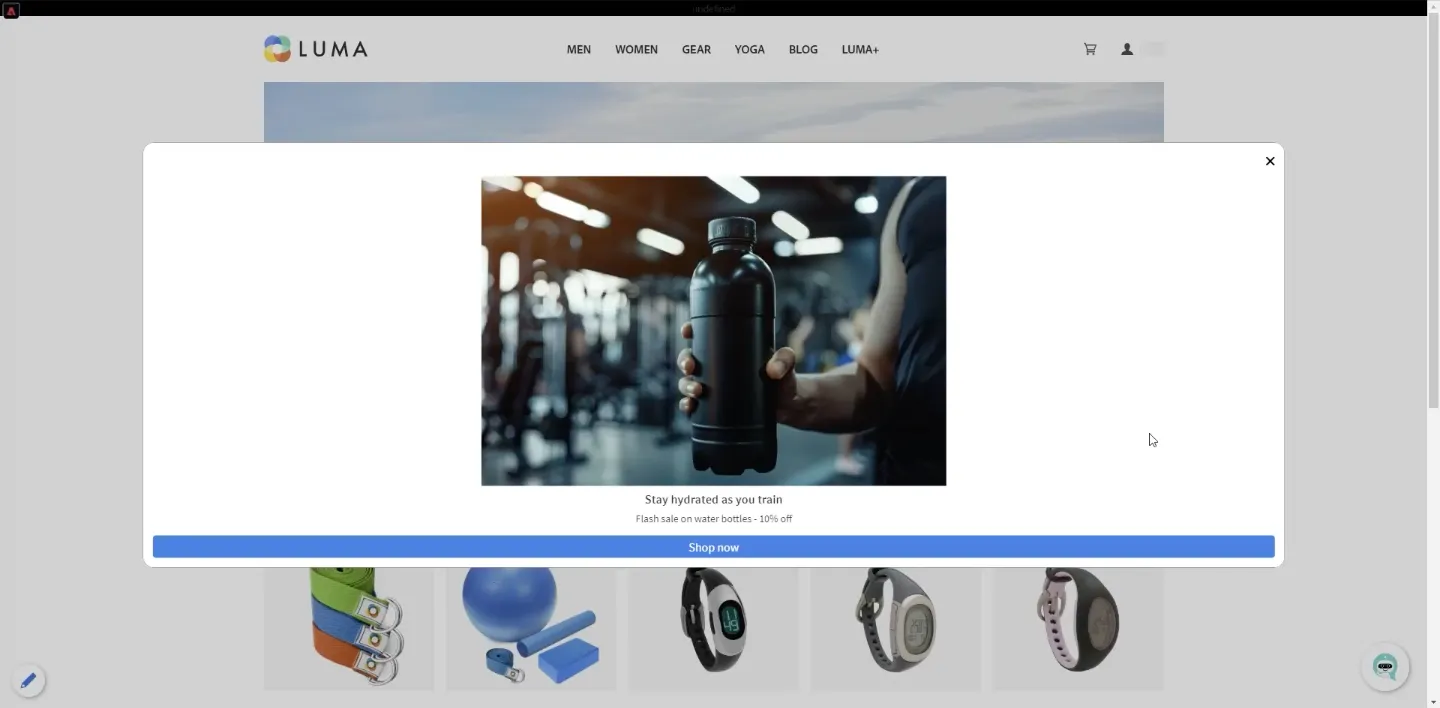
Demo Scenario to show In-App message in DSN public projects: