AJO Loyalty Tab
Overview
The Profile Updater tool now includes a dedicated AJO Loyalty tab, giving users direct visibility into a customer's loyalty challenge activity — without needing to leave the Profile Updater experience. This tab surfaces all challenges associated with a searched identity, shows real-time task progress, and allows users to enroll (Sign Up) or withdraw a customer from a challenge directly from the UI.
This documentation covers the UI layout, navigation flow, and behavior of each new element introduced with this release.
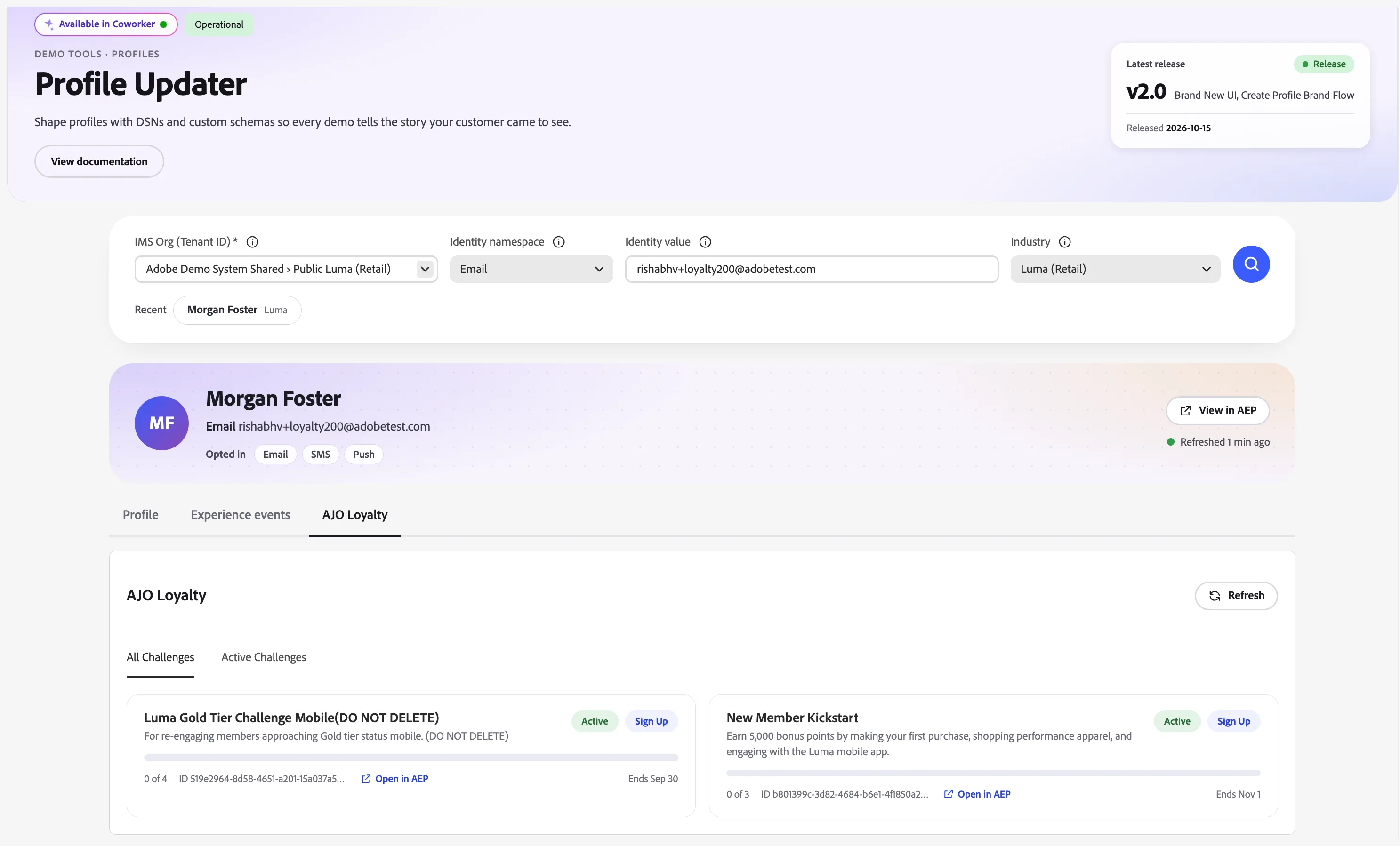
1. Accessing the AJO Loyalty Tab
The AJO Loyalty tab sits alongside the existing Profile and Experience events tabs at the top of the Profile Updater results view.
Steps to access:
- In Environment Details, select the appropriate IMS Org (Tenant ID) — e.g. Adobe Demo System Shared > Public Project - Luma.
- In Search by Identity, provide:
- Identity namespace (e.g. Email)
- Identity value (e.g. [email protected])
- Industry (e.g. Luma (Retail))
- Click the search (magnifying glass) icon.
- Once the profile resolves, select the AJO Loyalty tab from the tab bar (Profile / Experience events / AJO Loyalty).
The AJO Loyalty tab is scoped to the identity searched above — it displays challenge data specific to that customer profile within the selected IMS Org.
2. Sub-Tabs: All Challenges vs. Active Challenges
Within the AJO Loyalty tab, two sub-tabs organize challenge data by status:
Sub-tab | Description |
|---|---|
All Challenges | Displays every published challenge available to the customer, regardless of enrollment or completion status. Useful for browsing the full challenge catalog and enrolling the customer in new challenges. |
Active Challenges | Displays only the challenges the customer is currently enrolled in (status: sent/in-progress). Useful for tracking ongoing progress and managing existing enrollments. |
Each sub-tab renders a table with the following columns:
- Challenge Name — the display name of the challenge, prefixed with a star icon.
- Link — an expandable chevron (>) that reveals the accordion of tasks for that challenge.
- Challenge ID — the unique GUID identifying the challenge in AJO.
- Challenge Status — the current lifecycle status of the challenge (e.g. published, sent).
- Action — a button to Sign Up or Withdraw the customer.
- Link — a shortcut icon, presumably linking out to the challenge detail/launch view in AJO.
3. Viewing Challenge Tasks
Each challenge row can be expanded to reveal its associated tasks, using a standard accordion interaction pattern.
Steps:
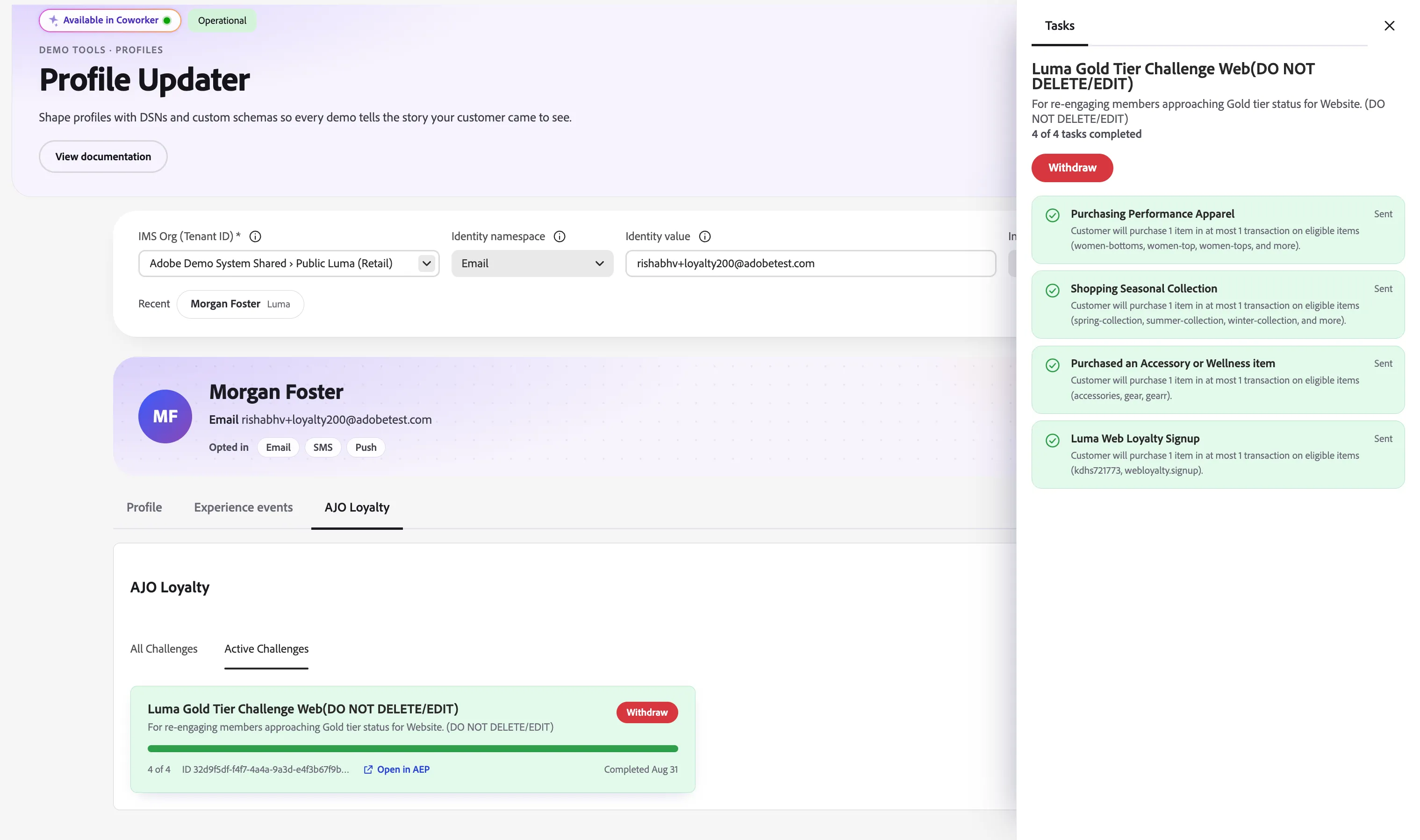
- Click the card for a challenge.
- The right drawer display a nested table of Tasks, with columns:
- Task Name
- Status
- Description
Example — card click for challenge:
Luma Gold Tier Challenge (DO NOT DELETE/EDIT)
Task Name | Status | Description |
|---|---|---|
Purchasing Performance Apparel | sent | Customer will purchase 1 item in at most 1 transaction on eligible items (women-bottoms, women-top, women-tops, and more). |
Shopping Seasonal Collection | sent | Customer will purchase 1 item in at most 1 transaction on eligible items (spring-collection, summer-collection, winter-collection, and more). |
Purchased an Accessory or Wellness item | sent | Customer will purchase 1 item in at most 1 transaction on eligible items (accessories, gear, gearr). |
Challenge Signup | sent | To implicitly opt in a challenge. |
This gives users a granular, task-level view of exactly what a customer needs to do (or has done) to complete a given challenge.
4. Sign Up and Withdraw Actions
Each challenge row includes an action button that toggles based on the customer's current enrollment state:
Button | Appearance | Behavior |
|---|---|---|
Sign Up | Green pill button | Shown when the customer is not yet enrolled in the challenge. Clicking it enrolls the customer and moving the challenge into the customer's Active Challenges list. |
Withdraw | Red pill button | Shown when the customer is currently enrolled in the challenge. Clicking it removes the customer from the challenge, halting any further task progress tracking. |
Flow:
- From All Challenges, a customer not yet enrolled will see a Sign Up button next to each available challenge.
- Once signed up, that challenge moves into (or becomes visible under) Active Challenges, and its action button switches to Withdraw.
- Withdrawing from a challenge removes it from Active Challenges and resets its action button back to Sign Up under All Challenges.
5. Progress Indicators — Tasks
To make progress instantly scannable, individual tasks use color and iconography to reflect their state:
- In progress or completed tasks are shown with:
- A green checkmark icon next to the task name.
- A light green row background.
- Not-yet-started tasks appear with the default (white/grey) row styling and no checkmark.
This lets users quickly see, at a glance, which specific actions a customer has already fulfilled within a challenge without needing to cross-reference status fields.
6. Progress Indicators — Challenges
The same visual pattern is applied at the challenge level once all of its tasks are complete:
- When every task within a challenge shows a green checkmark (i.e., all tasks are complete), the parent challenge row itself is updated to reflect completion:
- A green checkmark appears next to the challenge name.
- The entire challenge row is highlighted with a green background.
This provides a clear, top-level signal — without needing to expand the accordion — that a customer has fully completed a given challenge.
Example — completed challenge (collapsed view):
✅ Luma Gold Tier Challenge (DO NOT DELETE/EDIT) — highlighted green — Status: sent — Action: Withdraw
7. Summary of Visual States
Element | State | Visual Treatment |
|---|---|---|
Task row | Not started | Default background, no checkmark |
Task row | In progress / completed | Green background + green checkmark |
Challenge row | Not enrolled | Default background, Sign Up button |
Challenge row | Enrolled, tasks incomplete | Default background, Withdraw button |
Challenge row | Enrolled, all tasks complete | Green background + green checkmark, Withdraw button |
8. Notes for Users
- The All Challenges view is best for discovering and enrolling customers into challenges they haven't yet joined.
- The Active Challenges view is best for monitoring ongoing progress on challenges a customer is currently participating in.
- Challenge and task data reflect live status from AJO — refreshing the search will pull the latest state.