Content Cards on a Website
Content Cards are a digital messaging feature that allows brands to deliver persistent, non-intrusive, and engaging messages directly on the website. These cards present personalized, rich media content, such as offers, updates, or recommendations, without interrupting the user's flow. They stay visible on the website until the user interacts with them.
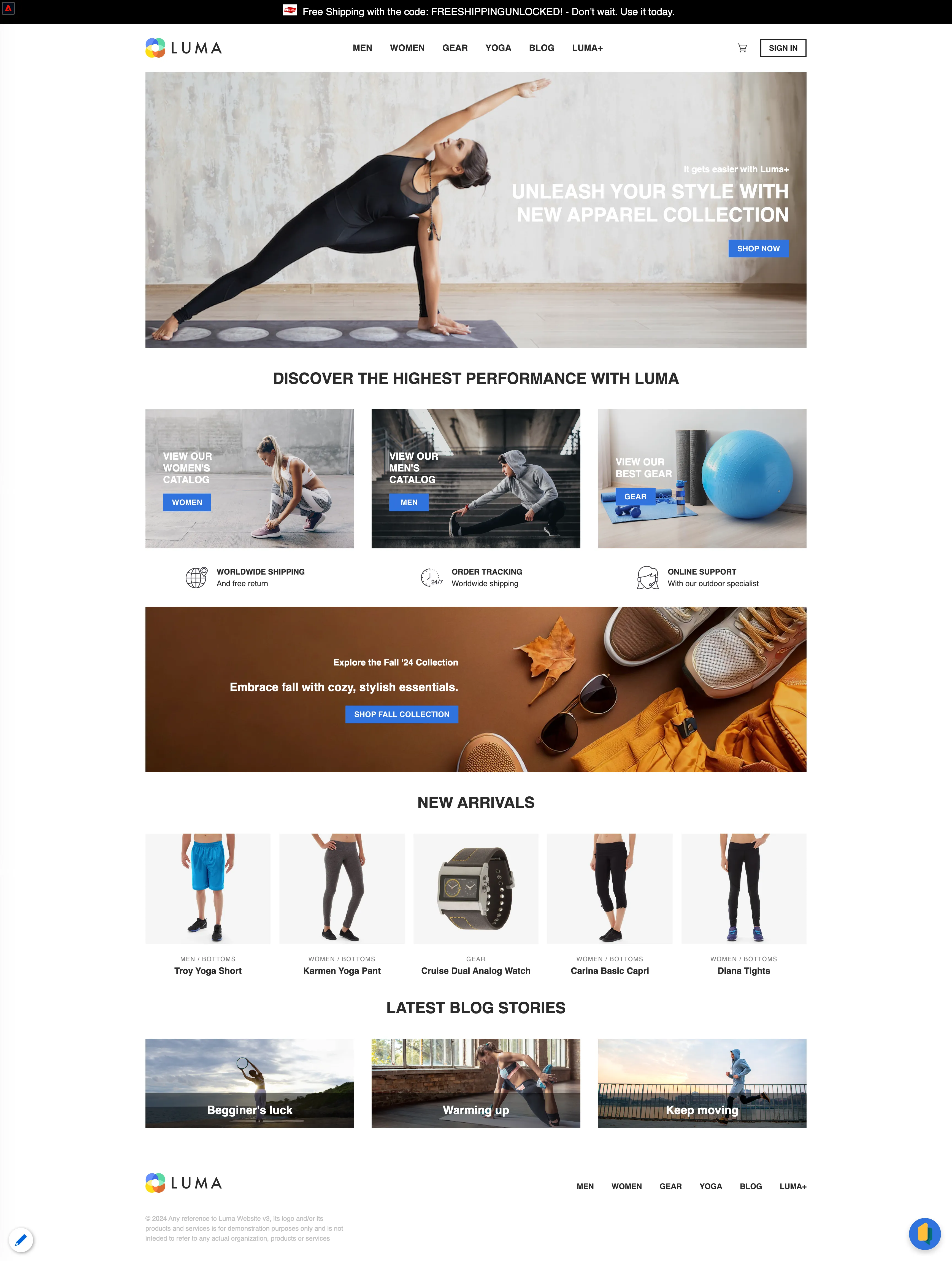
To see the live working example of this scenario visit the Luma home page https://dsn.adobe.com/web/luma3. Scenario description is here Content Cards in Luma
Prerequisites:
- Create a web project using DSN Quick Setup (Example: https://dsn.adobe.com/docs/retail-demo-environment)
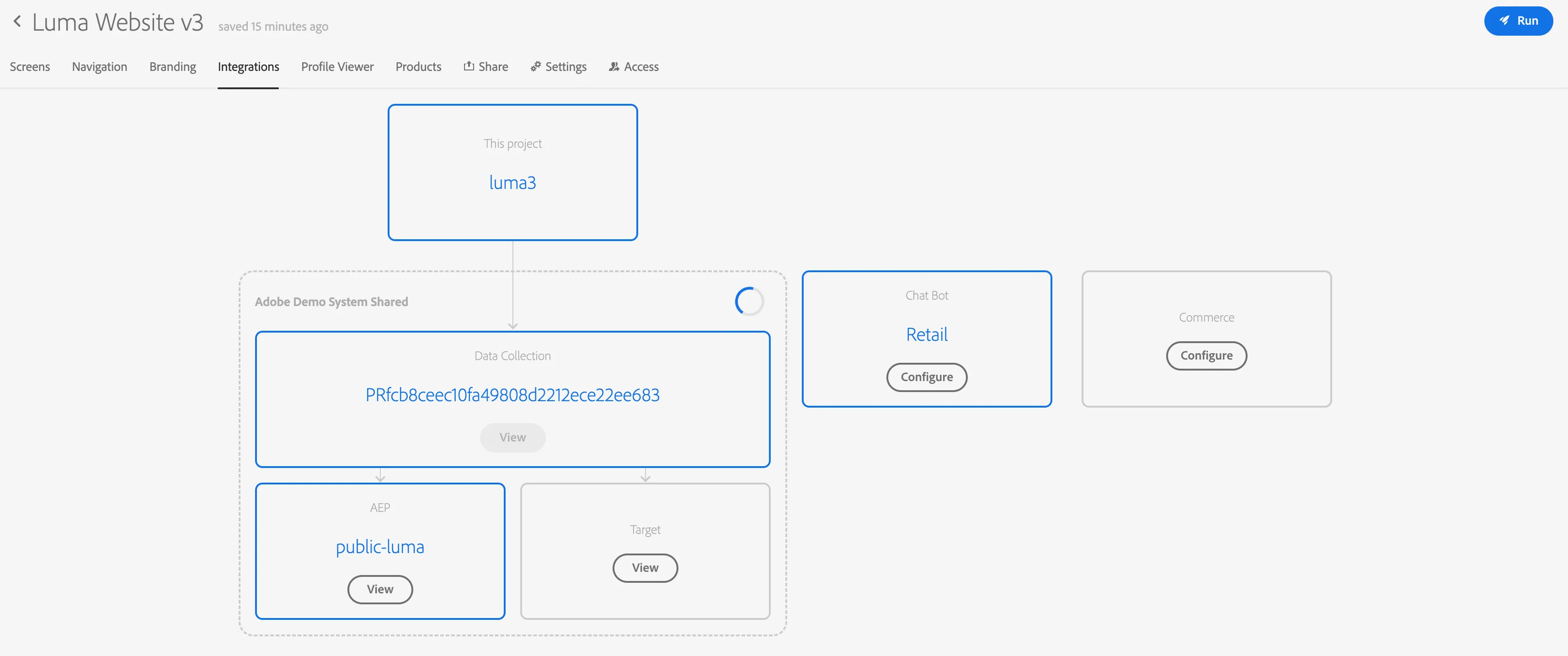
- Make sure the project is connected to Data Collection on the project integrations tab
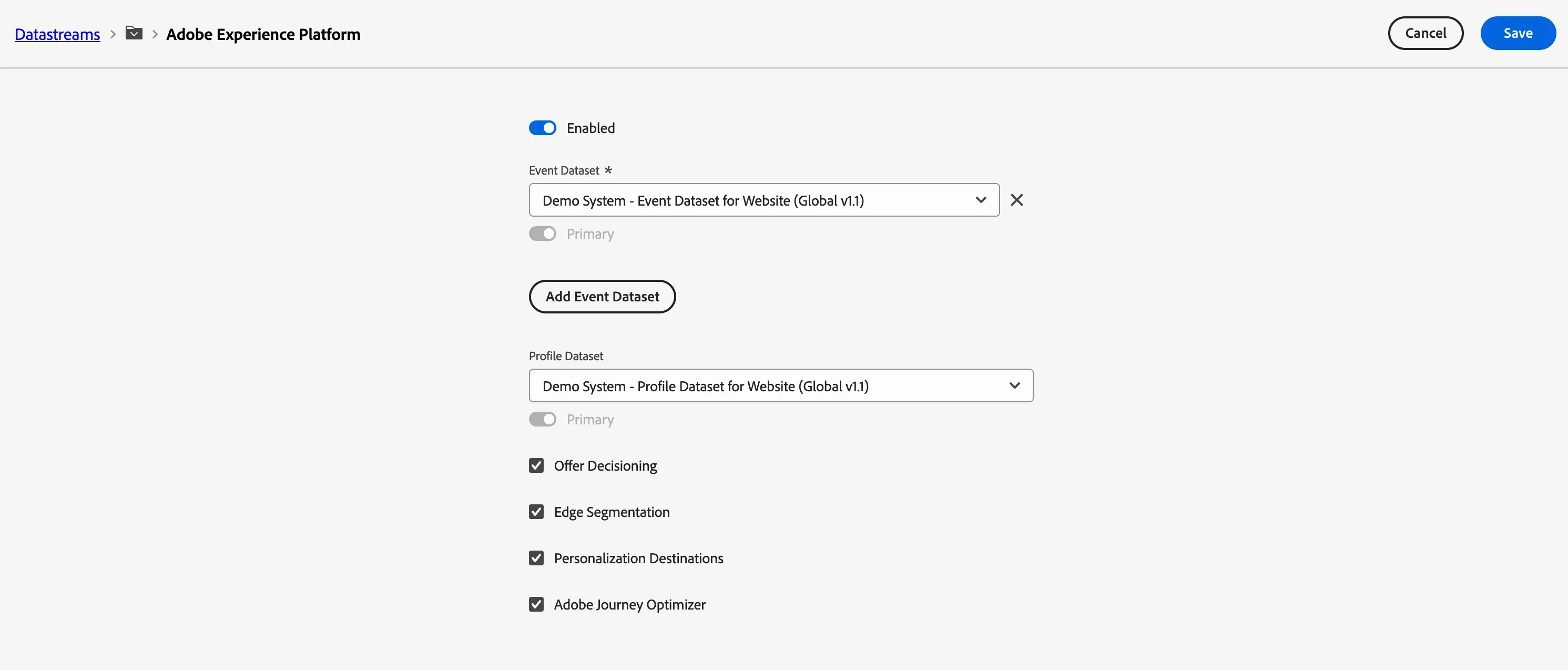
- Ensure the Data collection datastream has the Adobe Journey Optimizer checkbox checked for the Experience Platform.
Setup:
Create a content card configuration
- Navigate to Channels > Channel Configurations menu.
- Click Create channel configuration.

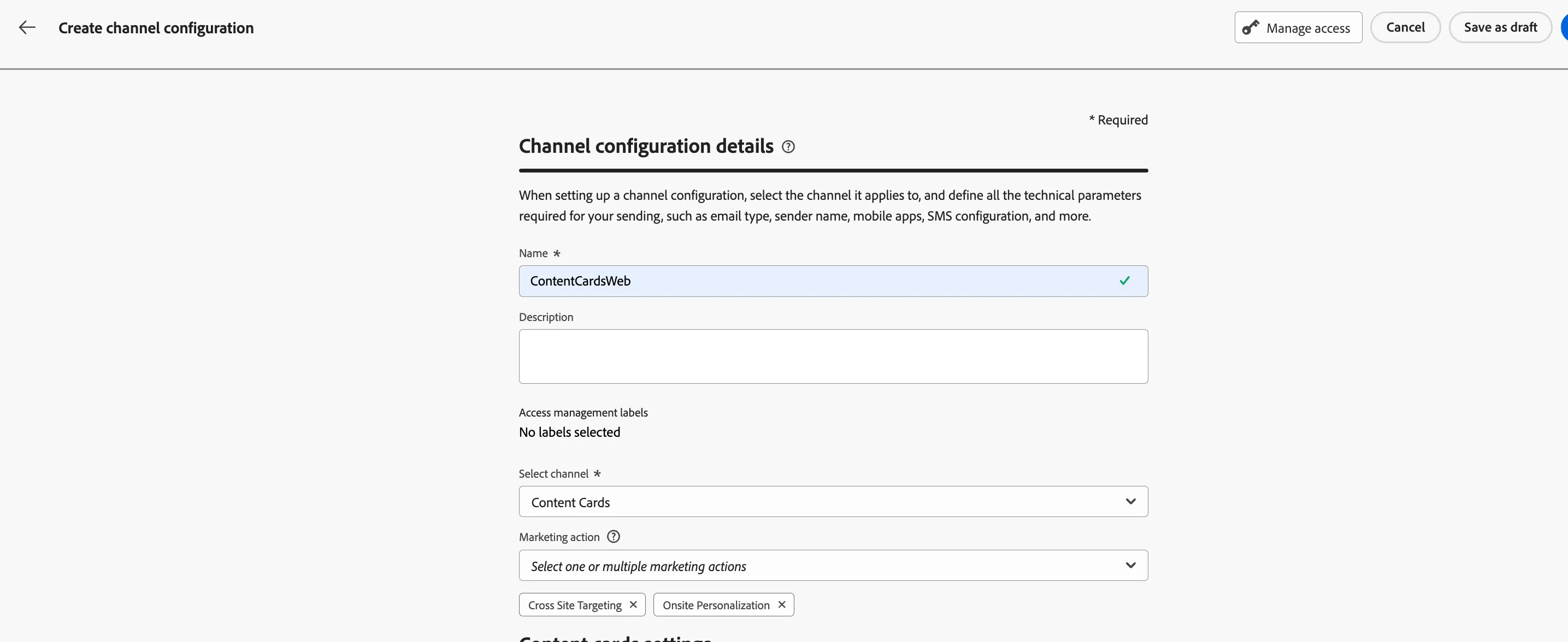
2. Enter Configuration Details
- Provide a name and an optional description for the configuration.
- Note: Names must start with a letter (A-Z) and can only contain alphanumeric characters, underscores (_), dots (.), and hyphens (-).
3. Choose the Content Cards channel for the configuration.
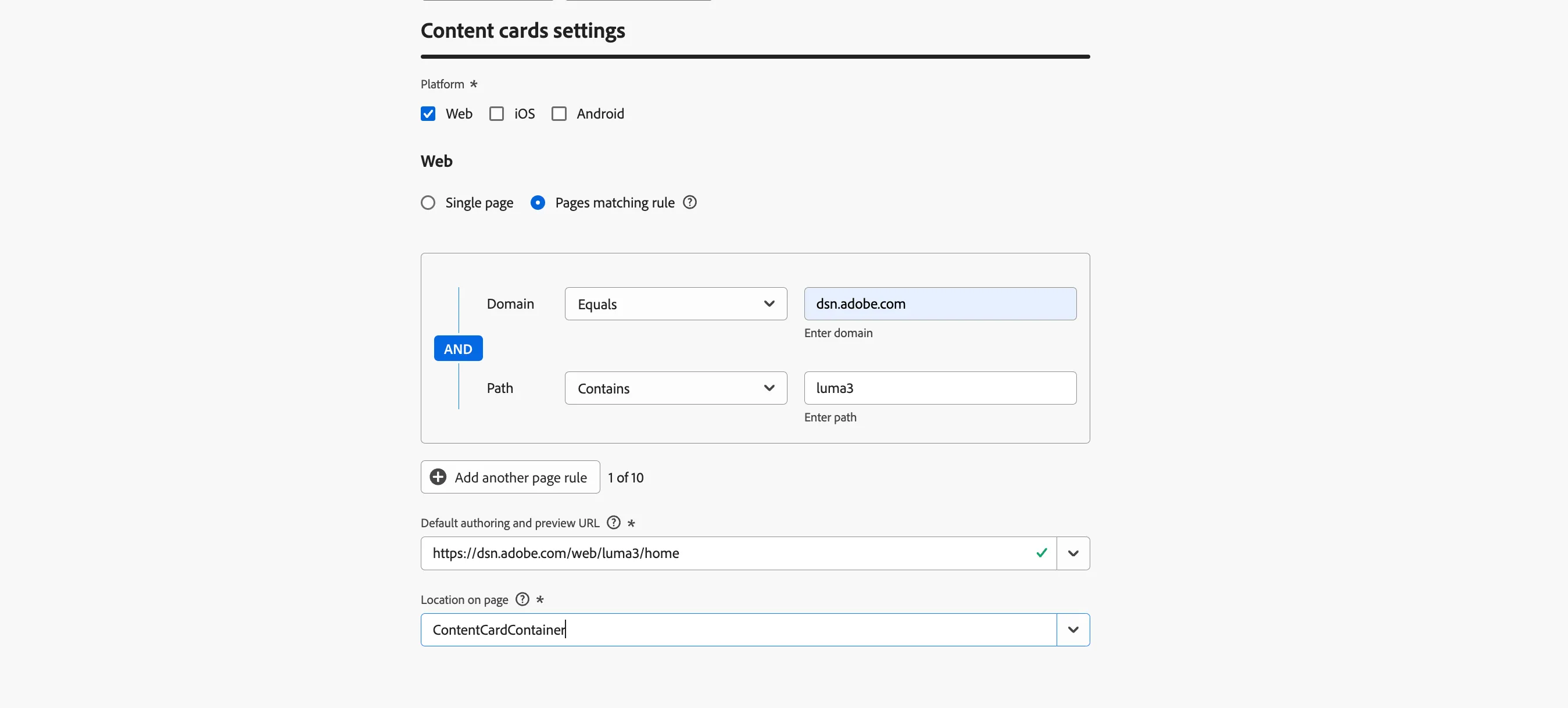
4. Choose the platform: Web where the content card experience will apply:
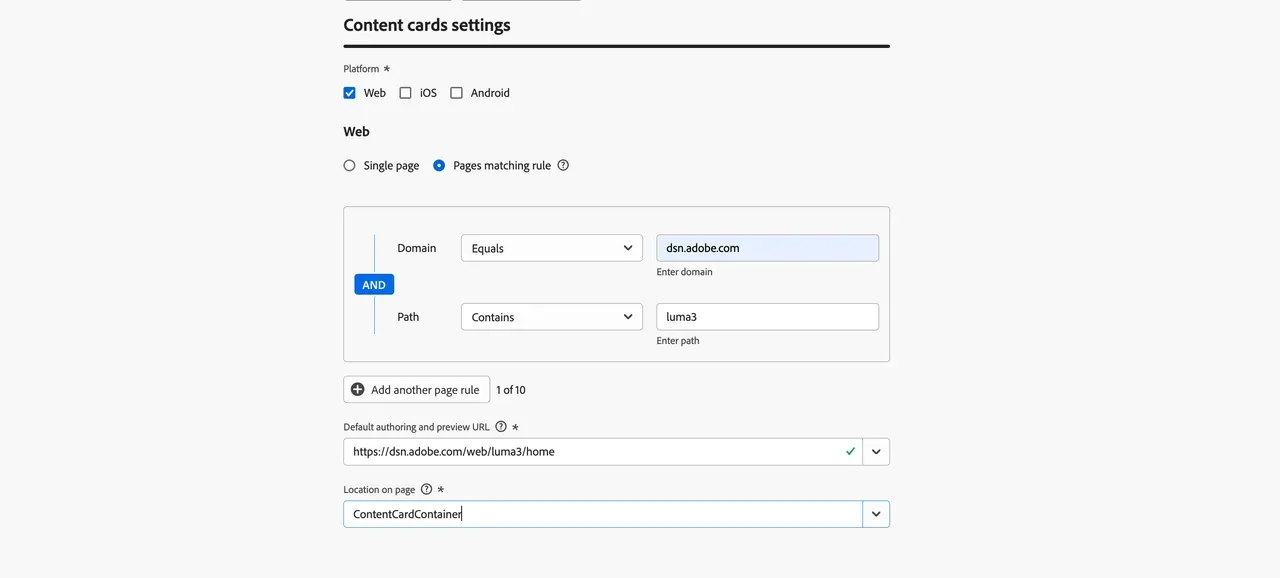
- Specify a Page URL to target a single page.
- Or, create a Pages matching rule to apply changes to multiple URLs that meet the rule. This is useful for making global changes across a website, such as updating a hero banner or adding an image across product pages.
Location - ContentCardContainer as seen in the screenshot below is the unique identifier for the content card.
5. After configuring the settings, submit your changes.
Once completed, you can use your new configuration when creating a Content card experience.
Create content cards
To begin building your content cards through a campaign, follow these steps:
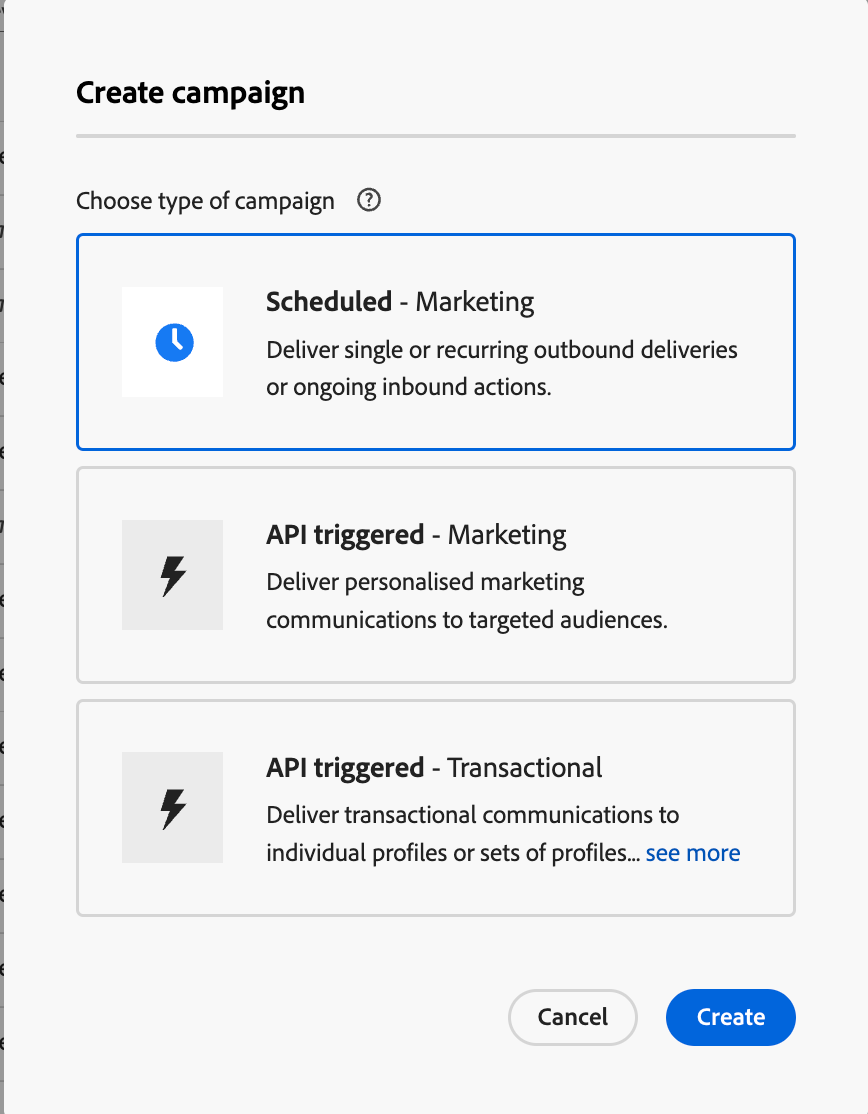
- Navigate to Journey Management> Campaigns. Create a Campaign.

2. Select Campaign Type as "Scheduled"
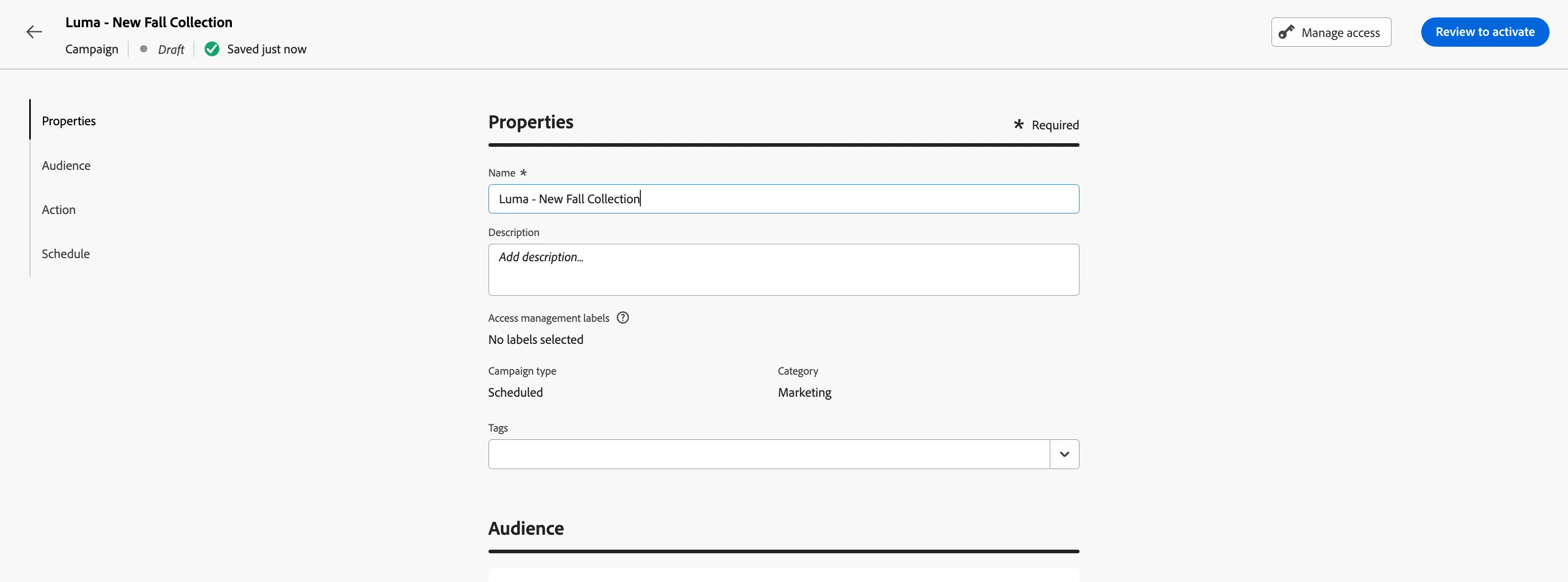
3. Define Campaign Properties:
- In the Properties section, provide a name and description for the campaign.
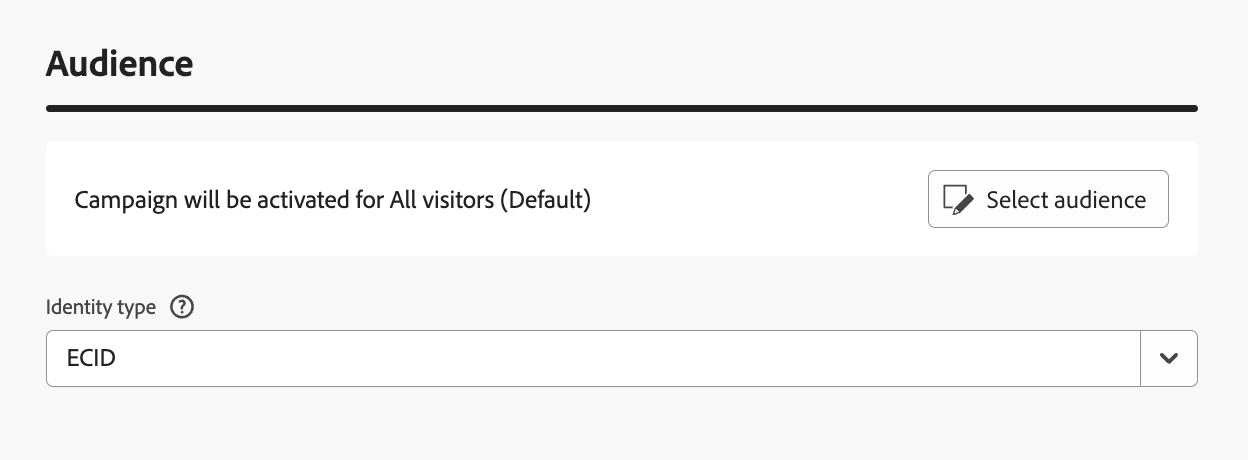
4. Choose Your Audience:
- In the Audience section, click Select Audience to choose from the available Adobe Experience Platform audiences.
- In the Identity namespace field, select the appropriate namespace to identify individuals in the segment.
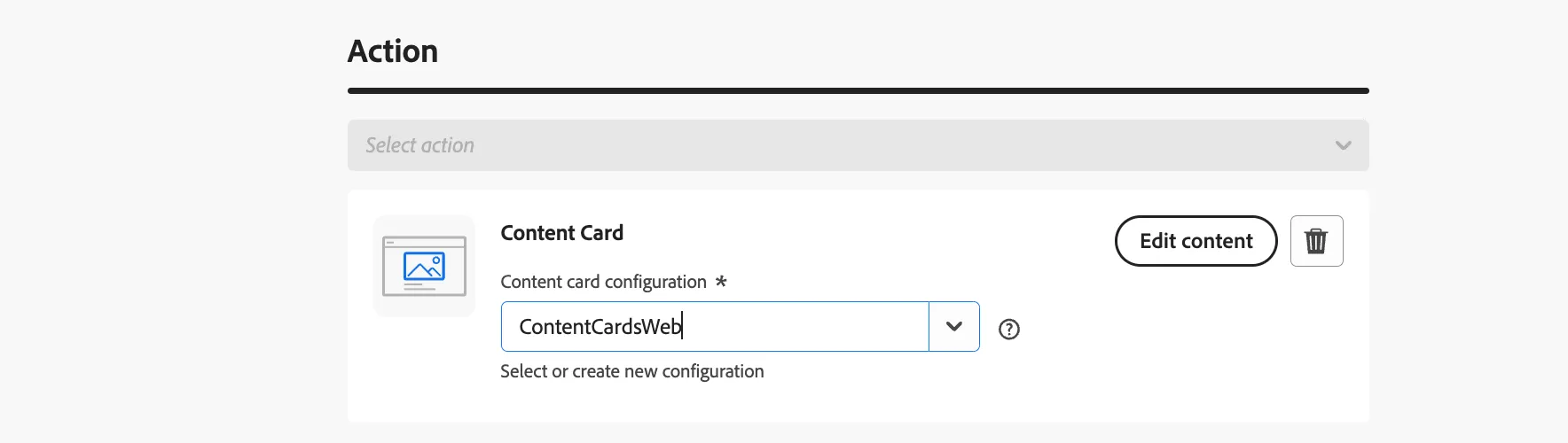
5. Choose the Content card action for the campaign.
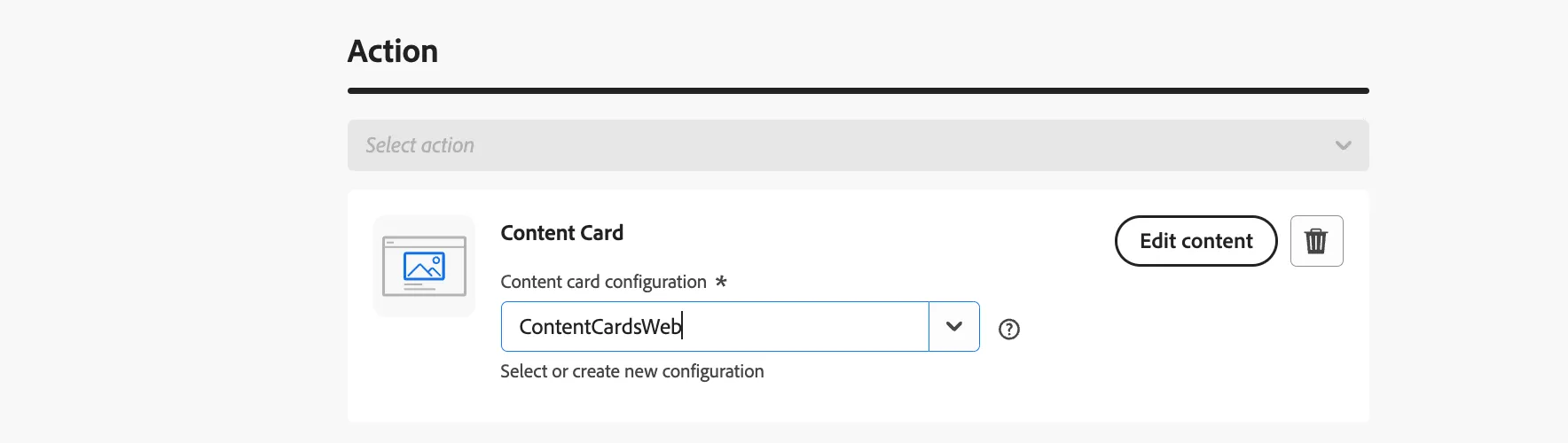
6. Select or Create a Content Card Configuration
In our case, select an existing content card configuration- ContentCardsWeb
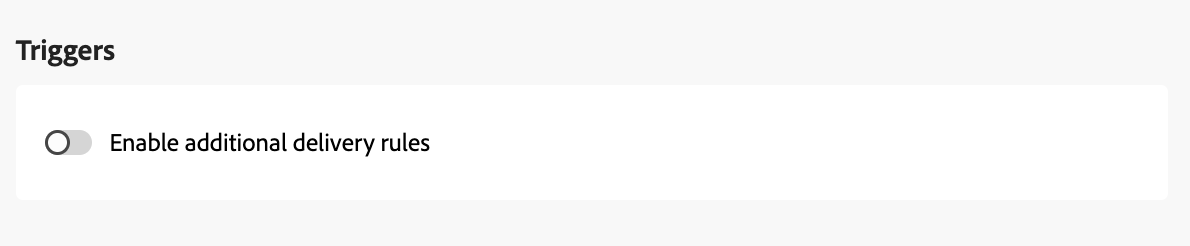
7. Enable Additional Delivery Rules (Optional):
- If needed, toggle Enable additional delivery rules. You can then click Edit triggers to define the events and criteria for message delivery using the rule builder.
Let's keep the triggers empty.
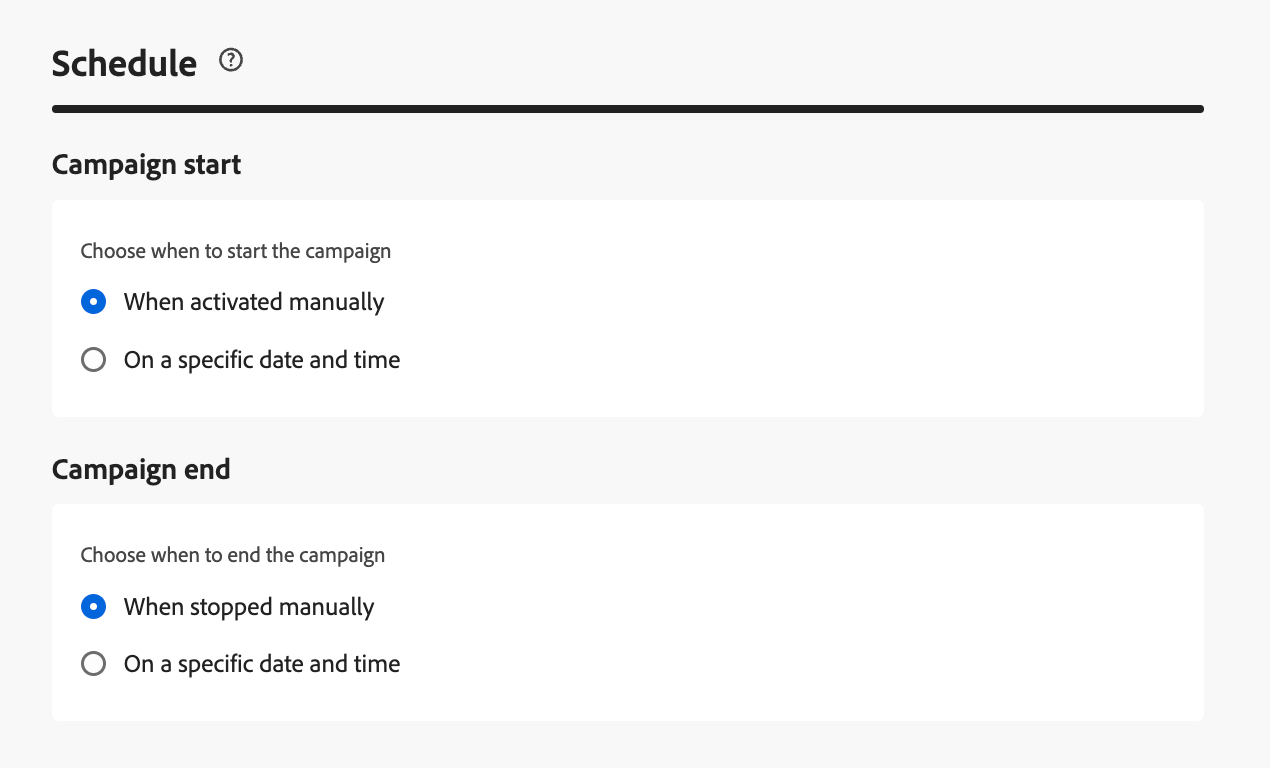
8. Set your campaign to run on a specific date or recur at regular intervals
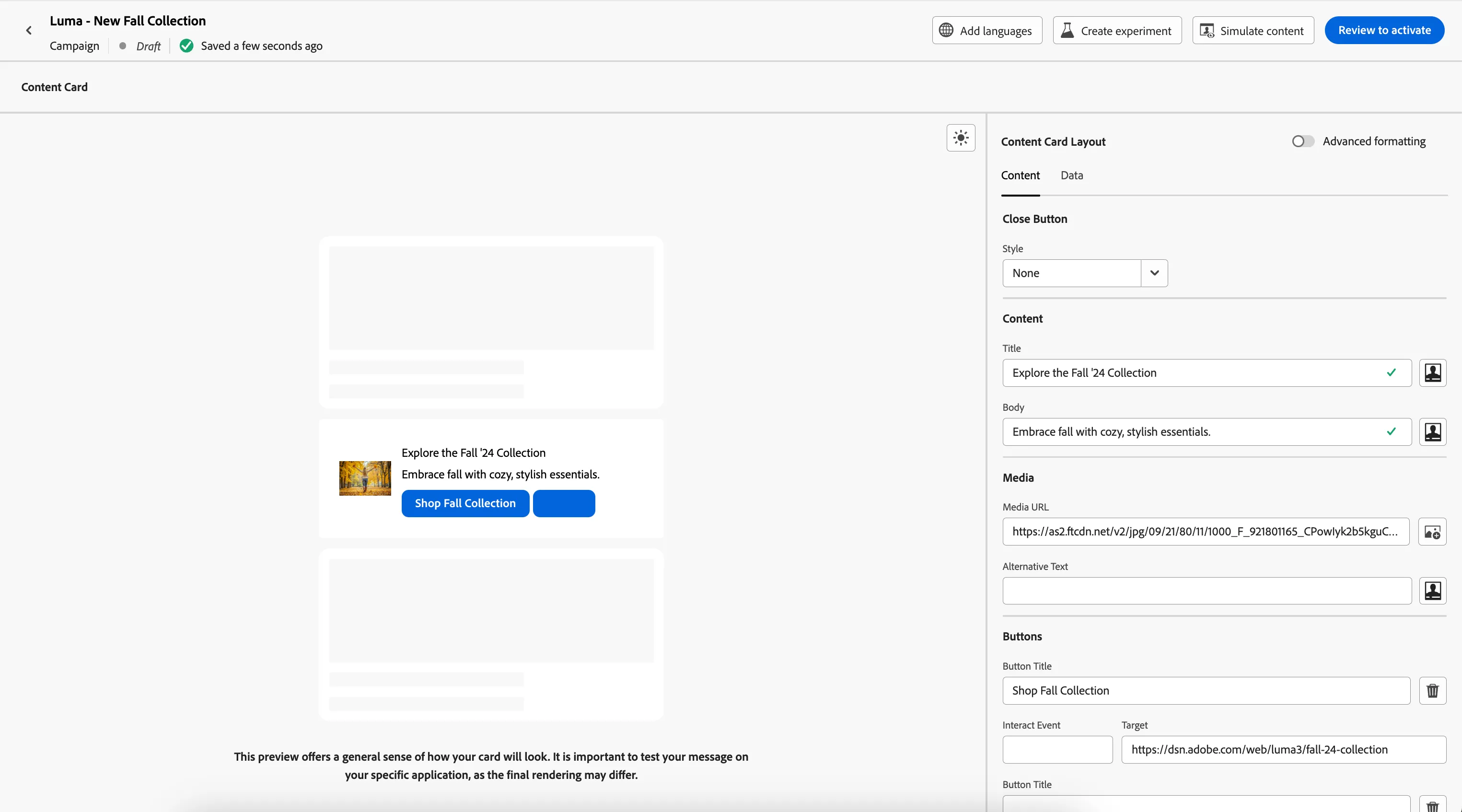
9. Begin creating the content by clicking Edit content.
Target: To provide the target value, it has to be a page URL. Example:
Go to your target page and copy the link from the URL.
Provide sample content as below:
Title: Explore the Fall '24 Collection
Body: Embrace fall with cozy, stylish essentials.



Button Label: Shop Fall Collection
Update the AEP Data Collection tag property configuration
To display the Content Cards on the DSN web project, you will have to update the rule in the tag property.
Update the Tag properly Web view rule
- Go to your web project --> integrations and open your Data Collection property
- Using the menu, click on Rules
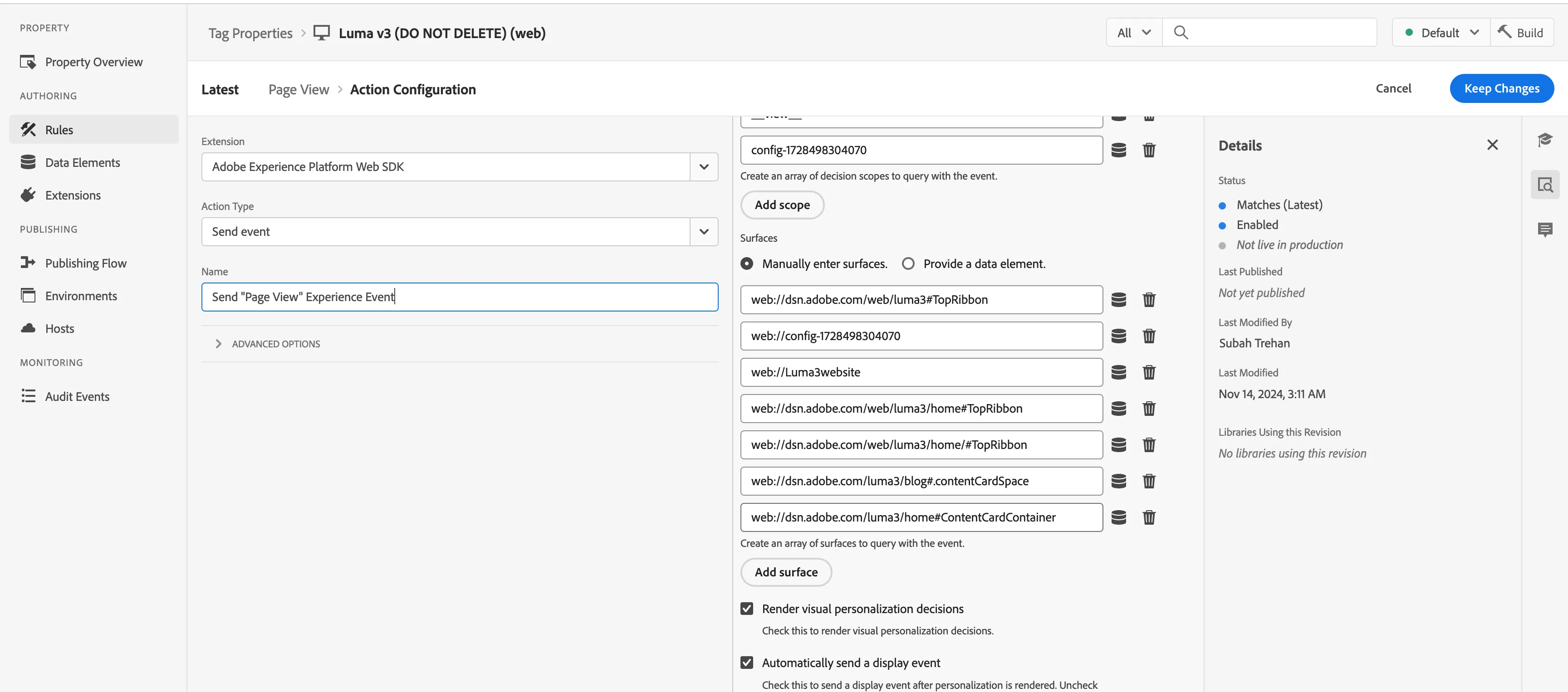
- Click on the rule Page View to edit the configuration. Click on the action - 'Send "PageView" Experience Event'. Add a surface under surfaces - for example -web://dsn.adobe.com/luma3/home#ContentCardContainer. When you are using your custom project it would be web://dsn.adobe.com/projectName/page#location. This location needs to match the location specified when creating the channel configuration.
-
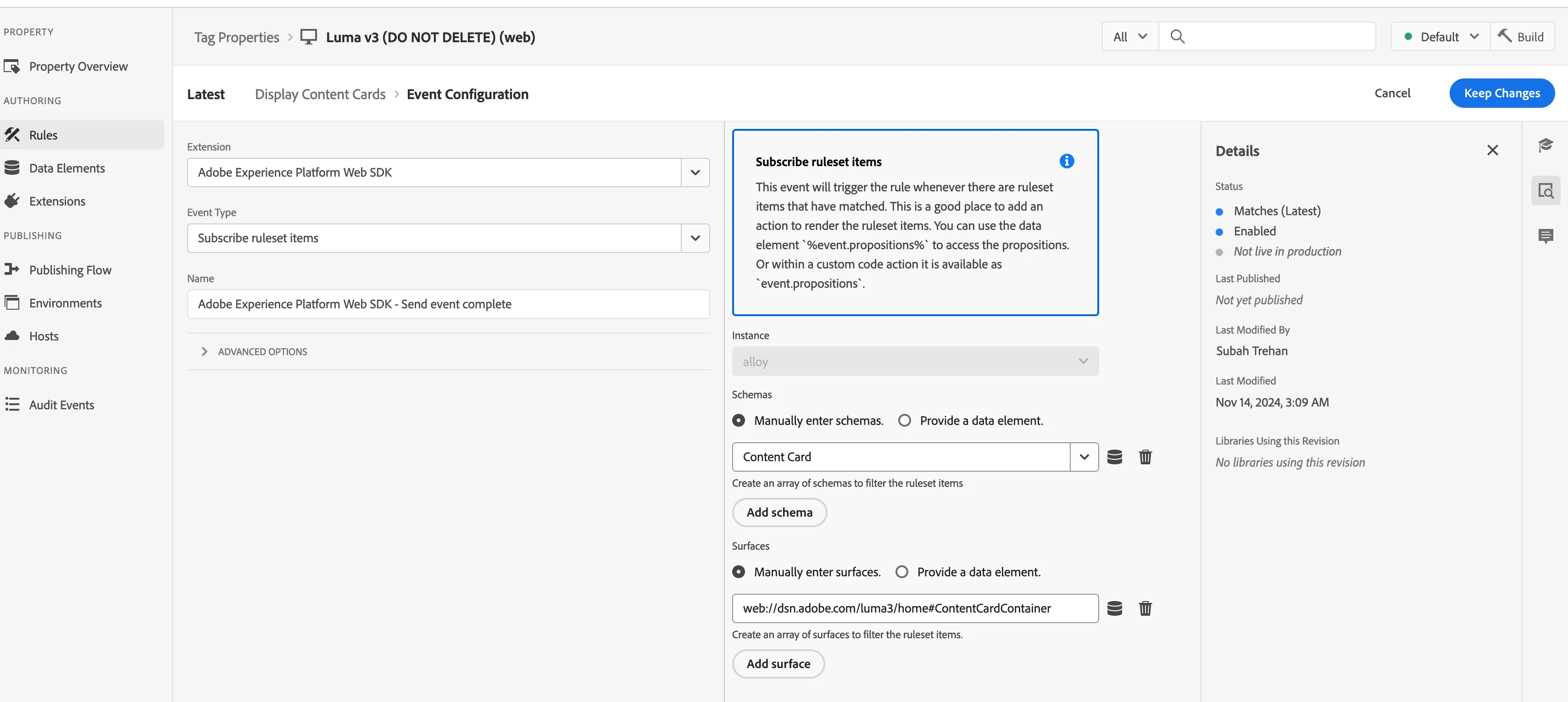
Following steps 1-6 are temporary. The Rule: Subscribe ruleset items will be part of the Luma preset soon and these docs will be updated.
- In the Events, click on the + button to add an event.
- Select Extension and set it to Adobe Experience Platform Web SDK, set Event Type to Subscribe ruleset items and Name to Adobe Experience Platform Web SDK - Send event complete. On the right side, under Schemas, select Manually Enter Schemas and select Value - Content Card. Under surfaces, provide surface name as done in the previous step.
- In the Actions, click on the + button to add a new action
- In the action, set the Extension to Core, the Action Type to Custom Code, set the name to Display Content Card, set the language to JavaScript then click on Open Editor
- Copy and paste the following code in the Data Collection code editor, make sure to update the ID in the code on line 23 which should be the same as provided on the website configuration page.
if (!Array.isArray(event.propositions)) {
  console.log("No personalization content");
  return;
}

console.log("##Received response##", event.propositions);

event.propositions.forEach(function (payload) {
  payload.items.forEach(function (item) {
    if (!item.data || !item.data.content || item.data.content === "undefined") {
      return;
    }
    const { content } = item.data;
    const { title, body, image, buttons } = content;
    const titleValue = title.content;
    const description = body.content;
    const imageUrl = image.url;
    const buttonLabel = buttons[0]?.text.content;
    const buttonLink = buttons[0]?.actionUrl;
    const html = `<div  class="Banner Banner--alignment-left Banner--verticalAlignment-middle hero-banner ContentCardContainer"  oxygen-component-id="cmp-0"  oxygen-component="Banner"  role="presentation"  style="color: rgb(255, 255, 255); height: 300px">  <div class="Image" role="presentation">    <img      src="${imageUrl}"      alt="UNLEASH YOUR STYLE WITH NEW APPAREL COLLECTION banner"      style="object-fit: cover; height: 500px"    />  </div>  <div class="Banner__content">    <div class="Title Title--alignment-right Title--textAlignment-right">      <div class="Title__content" role="presentation">        <strong class="Title__pretitle">${titleValue}</strong>        <h2>${description}</h2>      </div>    </div>    <div class="Button Button--alignment-right Button--variant-cta">              <button          class="Dniwja_spectrum-Button Dniwja_spectrum-BaseButton Dniwja_i18nFontFamily Dniwja_spectrum-FocusRing Dniwja_spectrum-FocusRing-ring"          type="button"          data-variant="accent"          data-style="fill"          onclick="location.href='${buttonLink}'"        >          <span            id="react-aria5848951631-49"            class="Dniwja_spectrum-Button-label"            >${buttonLabel}</span          >        </button>            </div>  </div></div>`;
    if (document.querySelector(".ContentCardContainer")) {
      const contentCardContainer = document.querySelector(
        ".ContentCardContainer"
      );
      contentCardContainer.innerHTML = html;
      contentCardContainer.style.height = "300px";
    }
  });
});
Configure Website for Content Cards
- Open web project in builder configuration.
- Navigate to the Home screen(or any screen)
- Add module - Banner under General category.
- Click on the component and open the right sidebar. In the Styles section - provide value for Custom CSS Classes as ContentCardContainer.
The class name must match the id used in the script code mentioned above, to render the card in the
In our case: ContentCardContainer is the location on the page where Content Cards will be rendered.
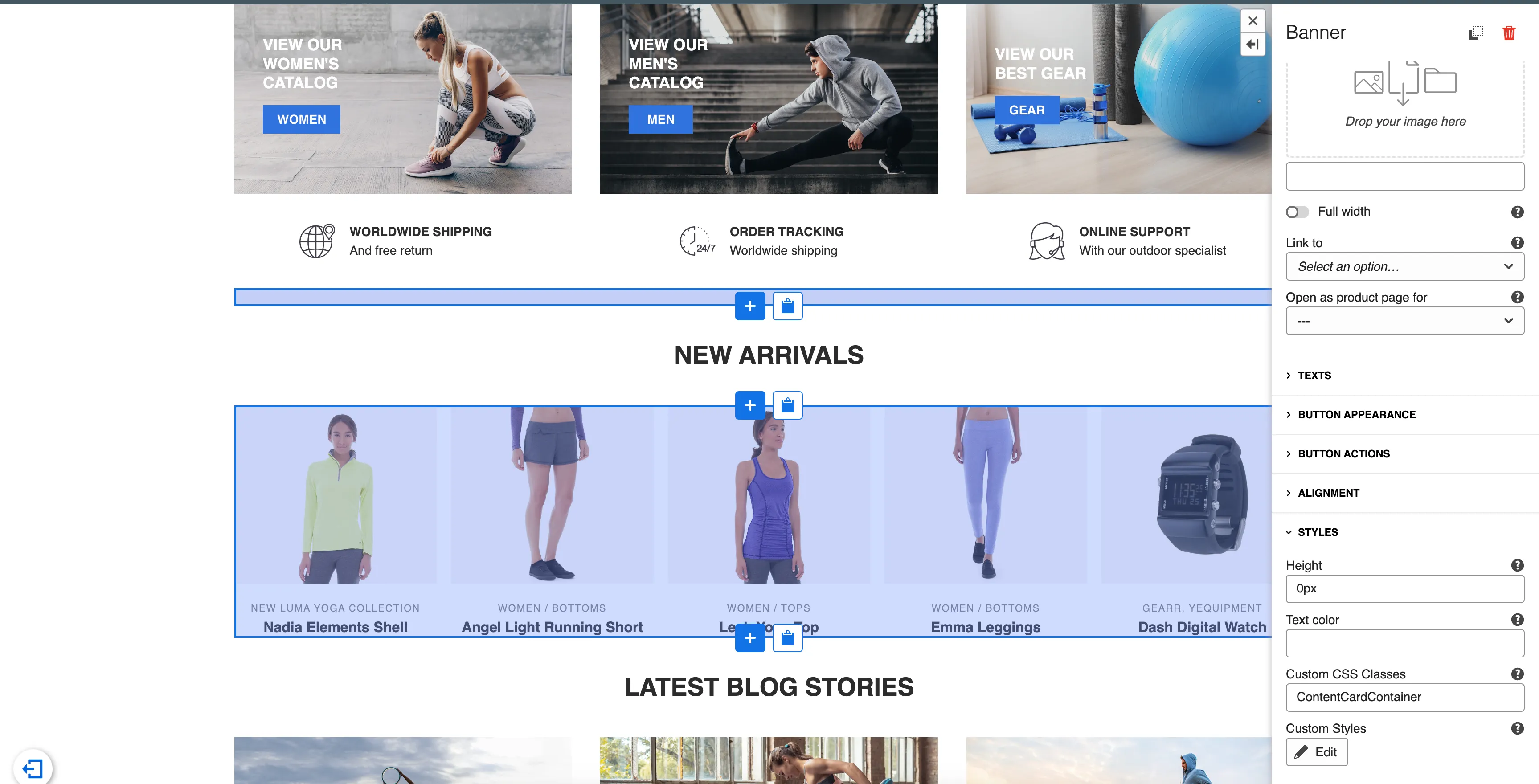
5. Open the website. Navigate to the home screen. The content card should be rendered in the place you have added the banner.