External Website
When to use
This project type allows you to showcase AEP features on existing, live customer's website. To learn more about the configuration please follow this article: External Website Demo Setup
It is recommended to create a new project along with the appropriate Data Collection Tag Property via Quick Setup.
Do not use this project as a standalone one. It will be created automatically once you will prepare your Launch property to be used on customer website.
More details here: How to set up Profile Viewer Use Case on External Website
Templates
Configuration of common retail-oriented Identities, Profile Attributes and Events. Can be modified into any other vertical.
Tabs
Profile Viewer
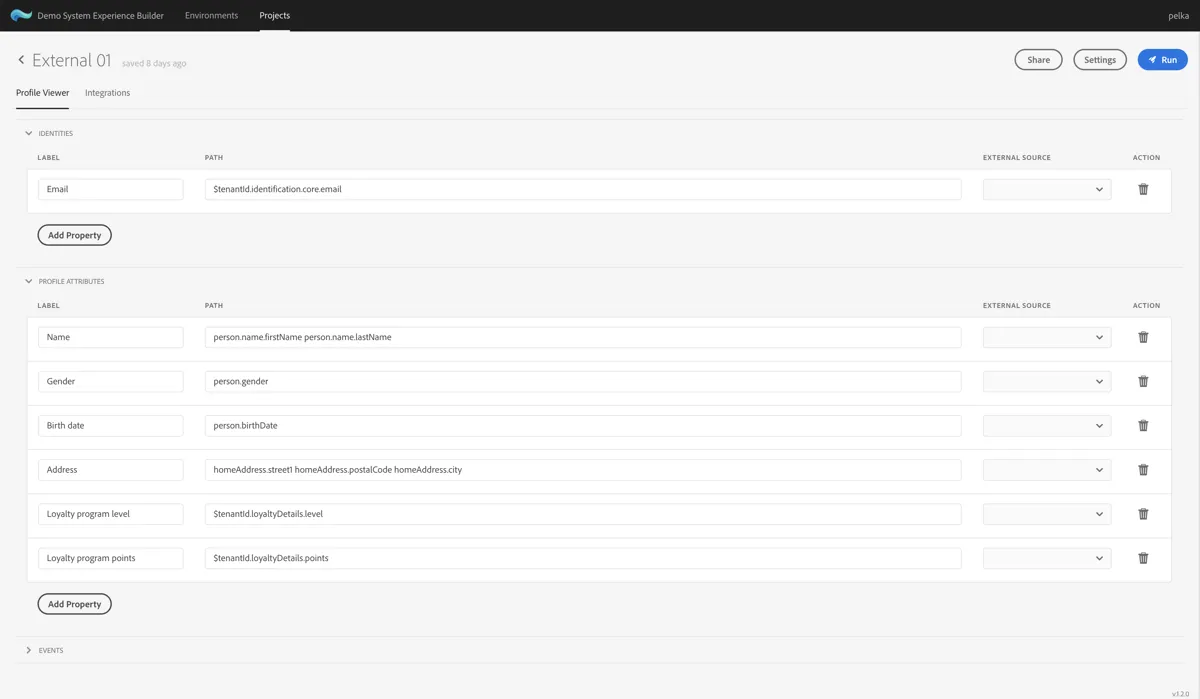
Allows to configure which identities, profile attributes, and events should be displayed in the left-hand side Profile Viewer on the website. External Source dropdown can be used to indicate that a given property comes from outside AEP, eg. from MS Dynamics, Google, Salesforce, SAP, etc.
Integrations
Integrations tab contains fields for connecting to your AEP sandbox. If this project has been created via Dashboard External Website configuration, these fields will already be pre-populated, to link to your AEP.
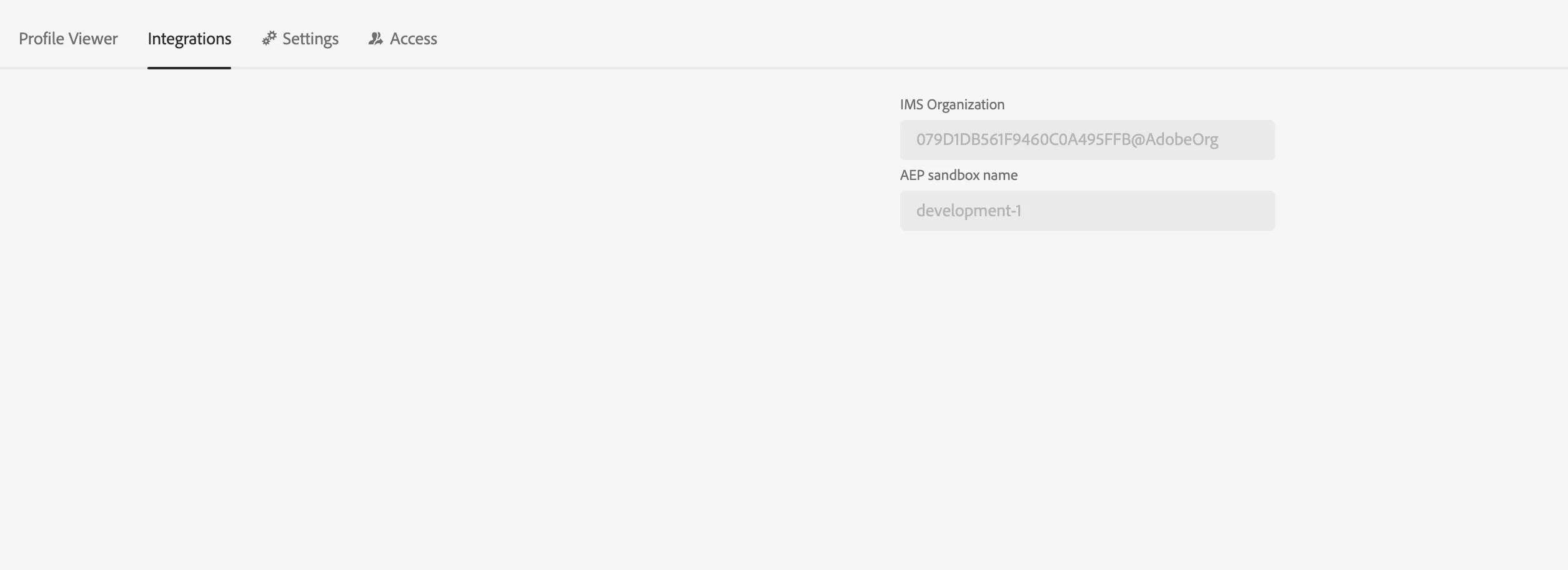
You are good to go. Everything is already integrated and you can link Launch Property to an external website with AEP Debugger. After that, it's just a matter of tweaking selectors for Data Elements and Rules in Launch and selecting what should appear in Profile Viewer component.
Sharing
You can share your Experience Builder project for others to see/use/modify (based on their permissions). This option is available in dialog opened by clicking "Share" button on the top of project details page in Experience Builder. You can also copy project's url from browser's address bar instead.
Additional settings
No project-specific additional settings.