Inbox
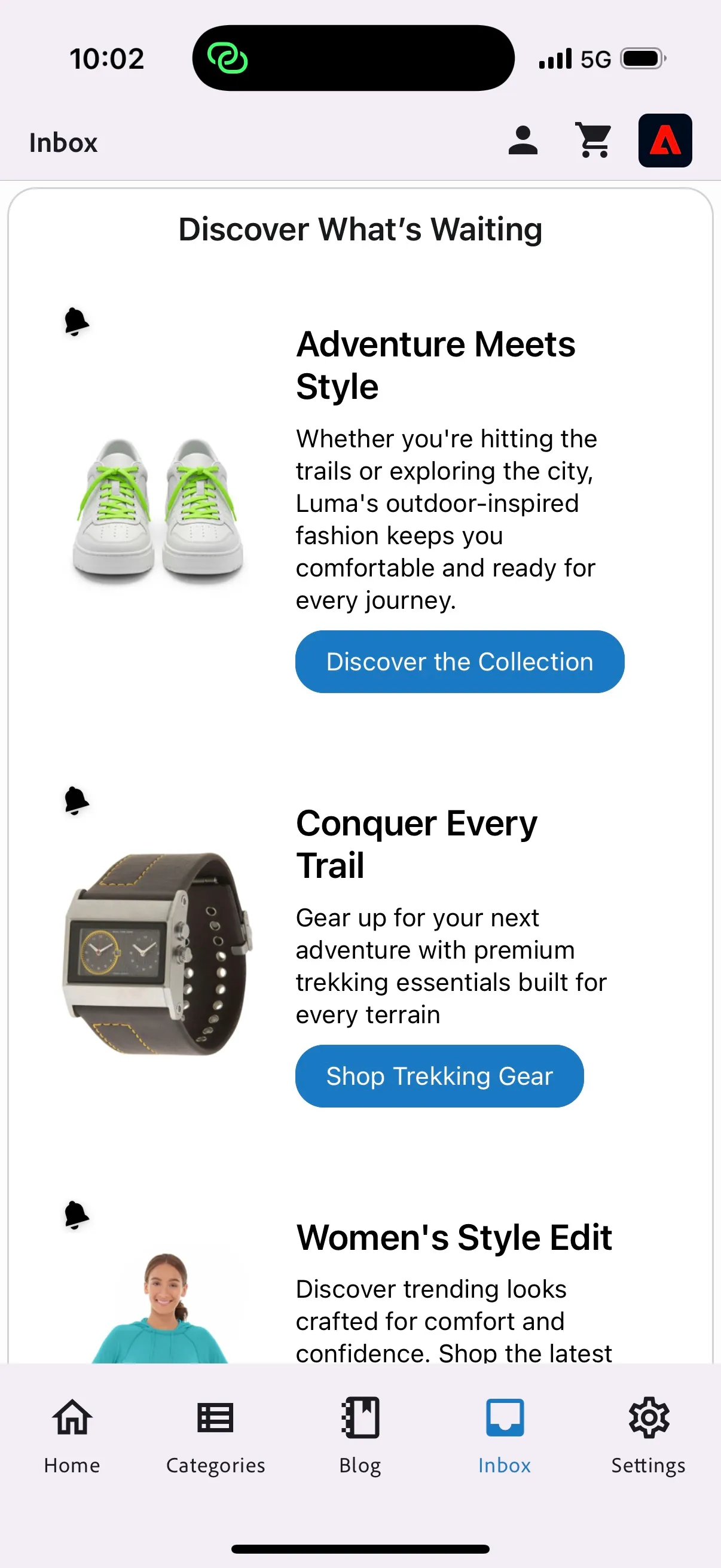
The Inbox channel in Adobe Journey Optimizer delivers persistent marketing messages directly within mobile apps or websites. Unlike push notifications or in-app messages that disappear after a single interaction, Inbox messages remain accessible until the user removes them or they expire — giving customers a dedicated mailbox for brand content they can return to at any time.
Key Capabilities
Persistent messaging — content stays in the inbox until removed or expired
Read-status tracking — messages tracked as read/unread per device
Centralized location — a dedicated mailbox within your app or website
Built on Content Cards — configured via AJO Content Card action type
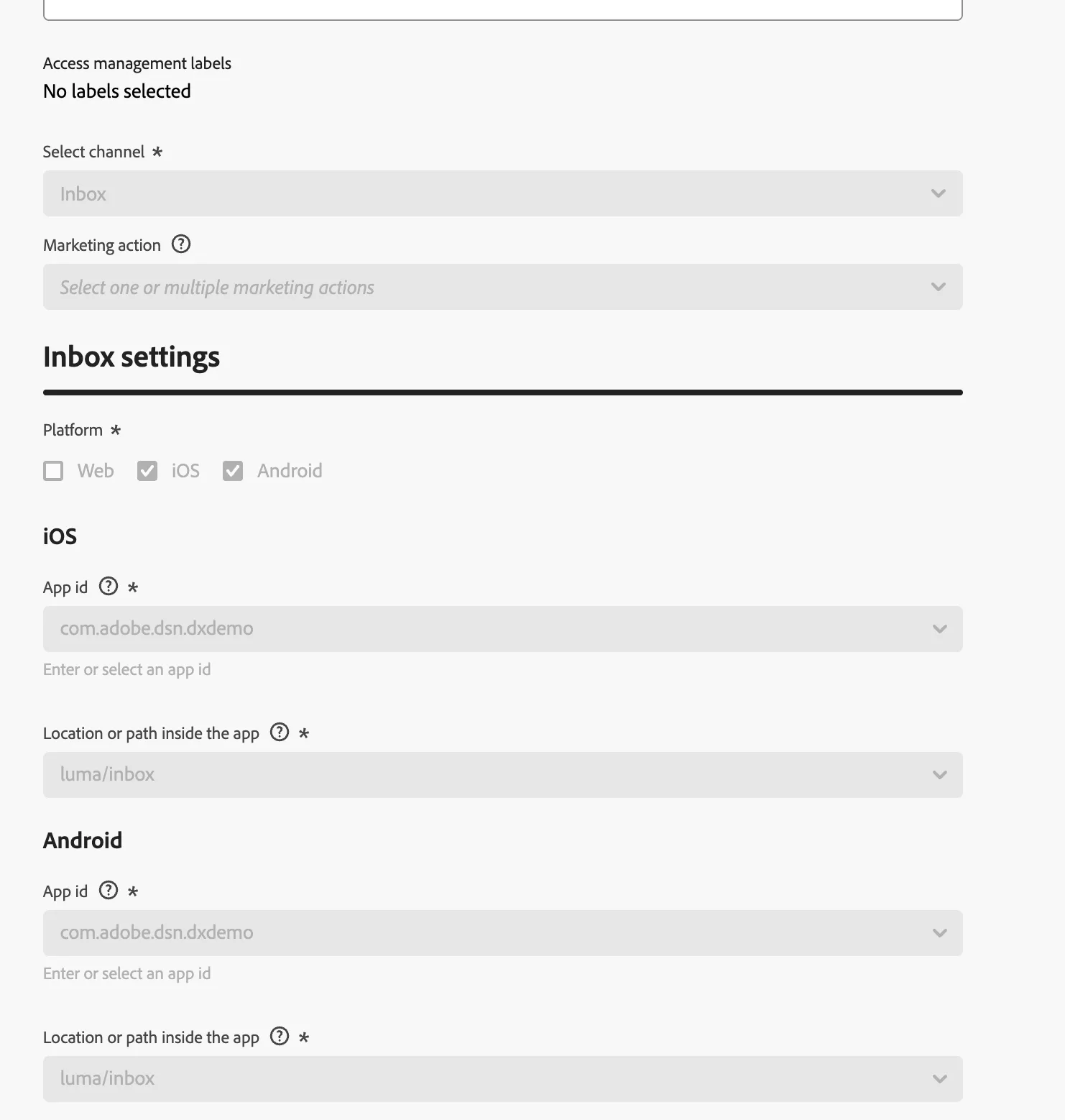
Step 1 — Configure the Inbox Channel
Before creating any campaign, a channel configuration must be set up to define where and how the Inbox appears in your app or website.
Navigation: Channels > General Settings > Channel Configurations > Create Channel Configuration
• Enter a configuration name (must start with a letter; alphanumeric, underscores, dots, hyphens allowed)
• Select Inbox as the channel type
• Assign a marketing action to link consent policies
• Choose the platform: iOS, or Android
• For Mobile — provide the App ID - com.adobe.dsn.dxdemo , Location : luma/inbox
• Save and submit the configuration
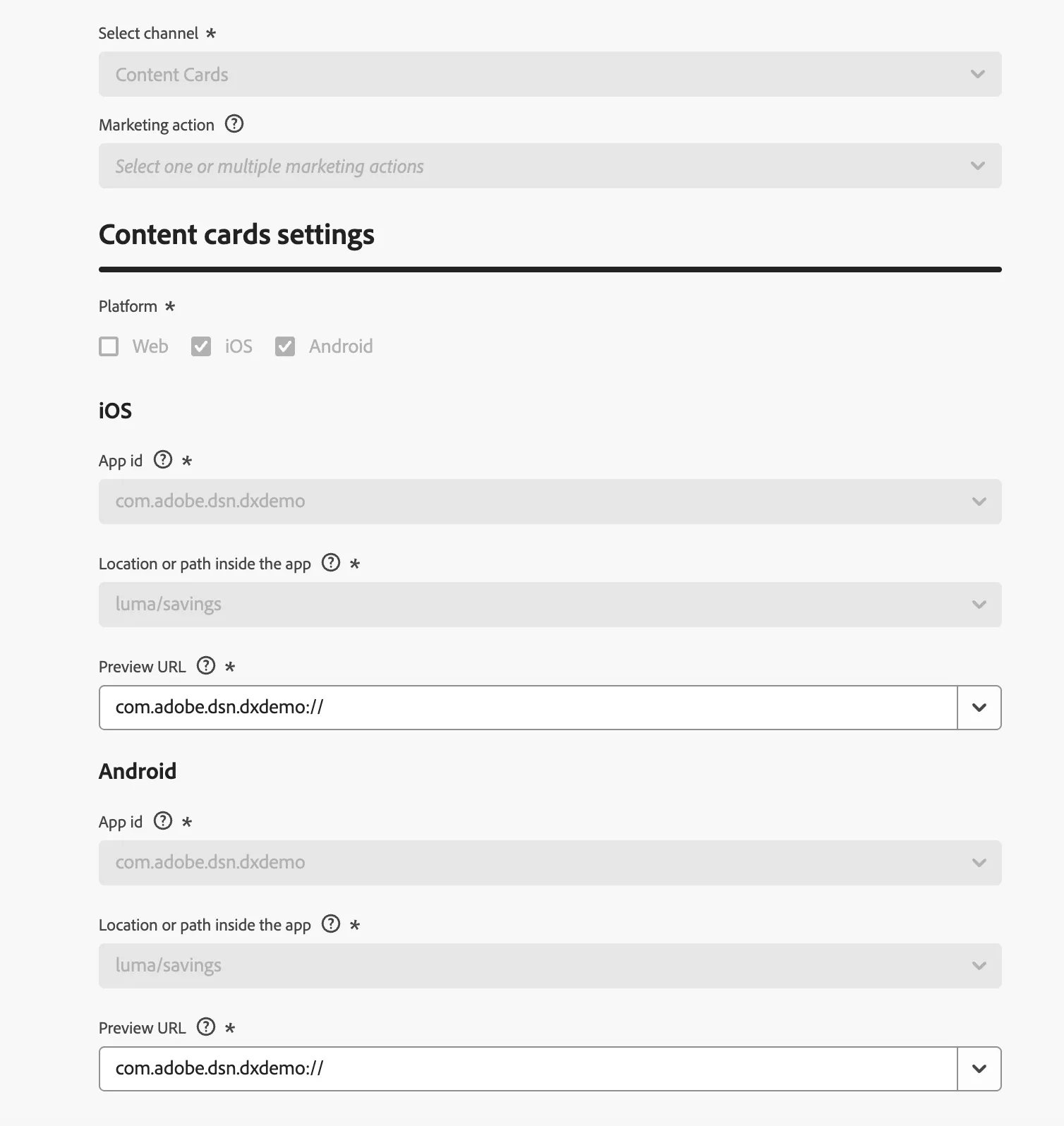
Step 2 — Configure the Content Card Channel
Navigation: Channels > General Settings > Channel Configurations > Create Channel Configuration
• Enter a configuration name (must start with a letter; alphanumeric, underscores, dots, hyphens allowed)
• Select Content Cards as the channel type
• Assign a marketing action to link consent policies
• Choose the platform: iOS, or Android
• For Mobile provide the following details:
App id : com.adobe.dsn.dxdemo
Location : luma/savings
Preview URL: com.adobe.dsn.dxdemo://
Step 3 — Design your Inbox
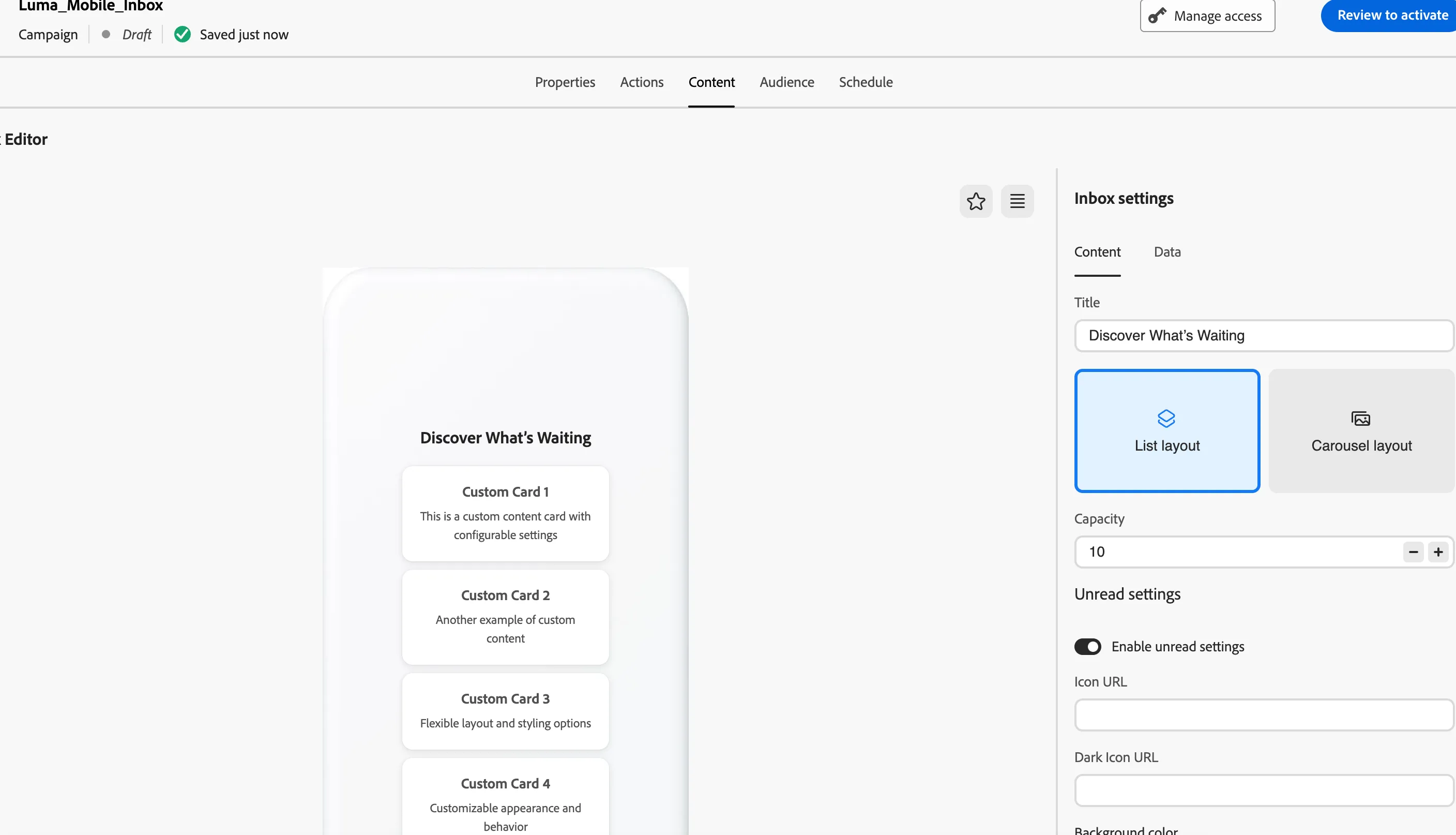
The Inbox Design step configures how the inbox container looks and behaves — independent of individual card content. These settings apply to the inbox as a whole.
To create a message inbox through a campaign, follow these steps:
• Select campaign type: Scheduled
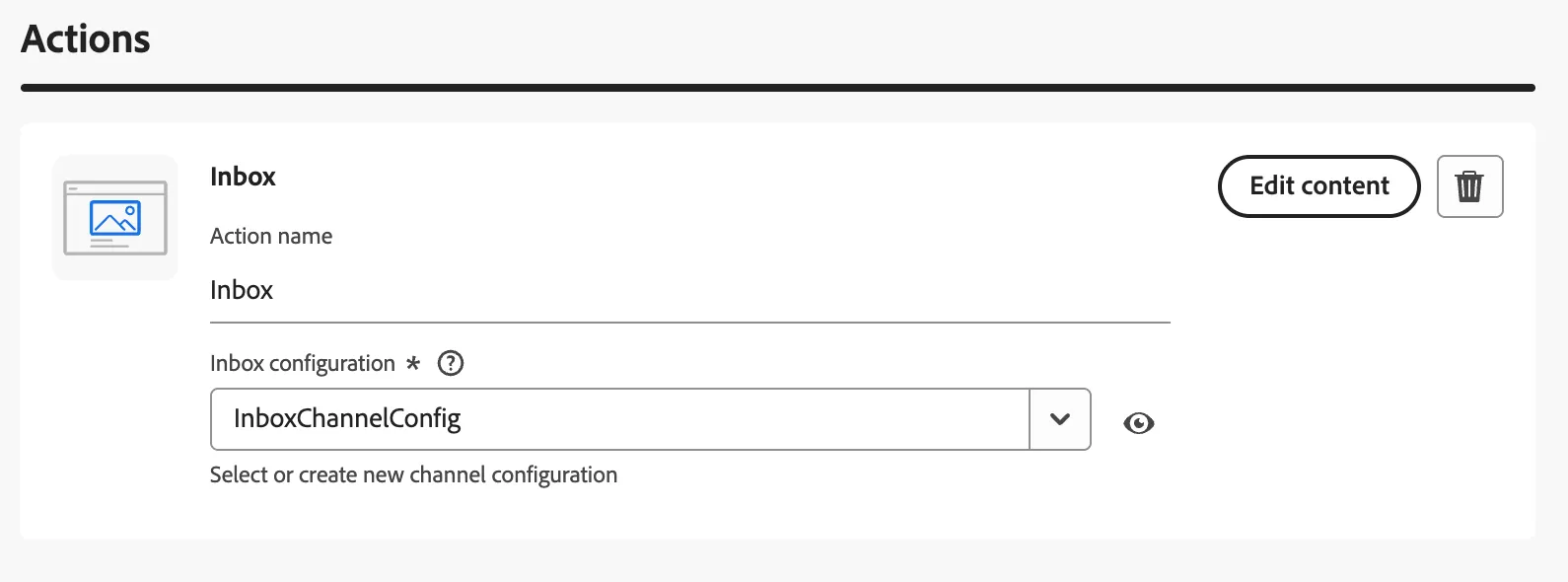
• Under Action, choose Inbox
• Select the channel created in Step 1
• Access the Content tab to design your message using the content designer
Container Title — Set the display name shown at the top of the inbox (e.g. "Your Messages")
Layout — Choose between List layout (vertical scrollable list) or Carousel layout (horizontal side-to-side navigation)
Capacity — Specify the maximum number of content cards the inbox is configured to hold at one time
Unread Indicators
• Icon Image URL — URL for the unread dot or badge icon (supports a dark mode variant)
• Background Color — set separate colors for light mode and dark mode
• Icon Placement — choose the position of the unread indicator via dropdown
Empty State
• Message Text — text shown when the inbox has no active cards
Step 4 — Create the Content Card Campaign
Each Inbox content card is delivered through a Campaign. You can use a Scheduled campaign (time-based).
Navigation: Campaigns > Create Campaign
• Select campaign type: Scheduled
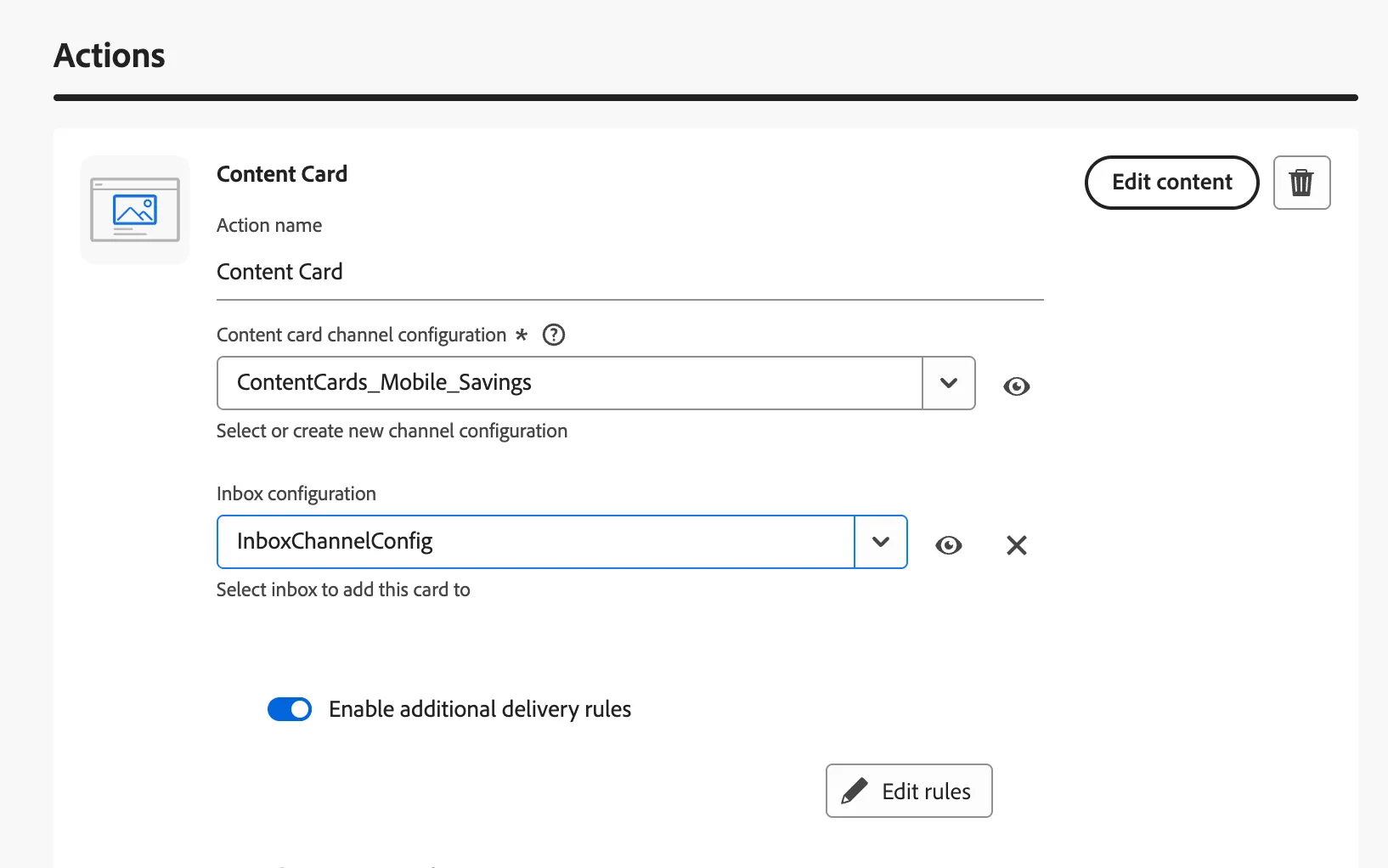
• Under Action, choose Content Card
• Select the Inbox channel configuration created in Step 1
• Set the campaign name and optional description
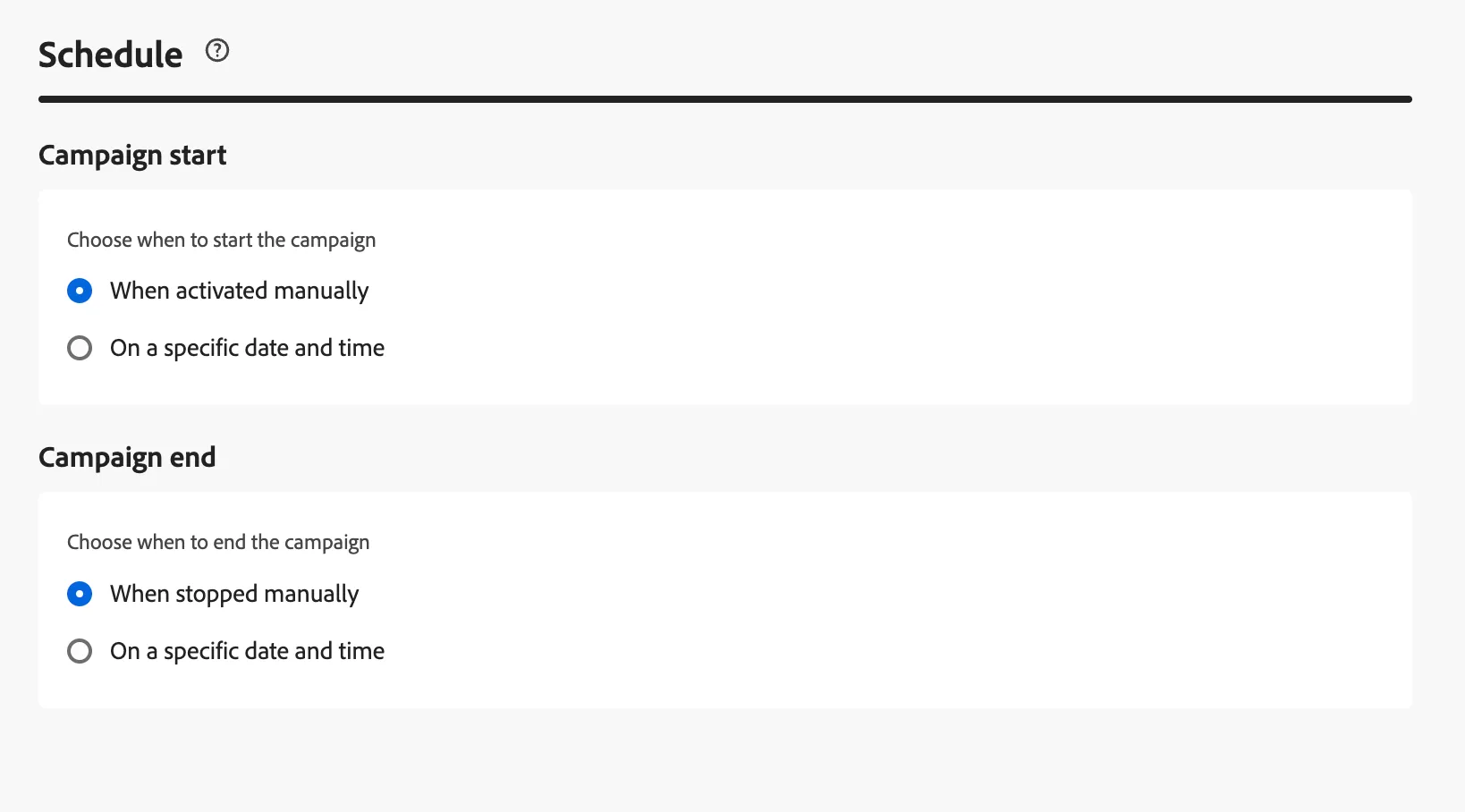
• Define start and end dates (for Scheduled campaigns)
• Set a frequency cap — limit how many times a card is shown per user per day/week
Step 5 — Author the Content Card
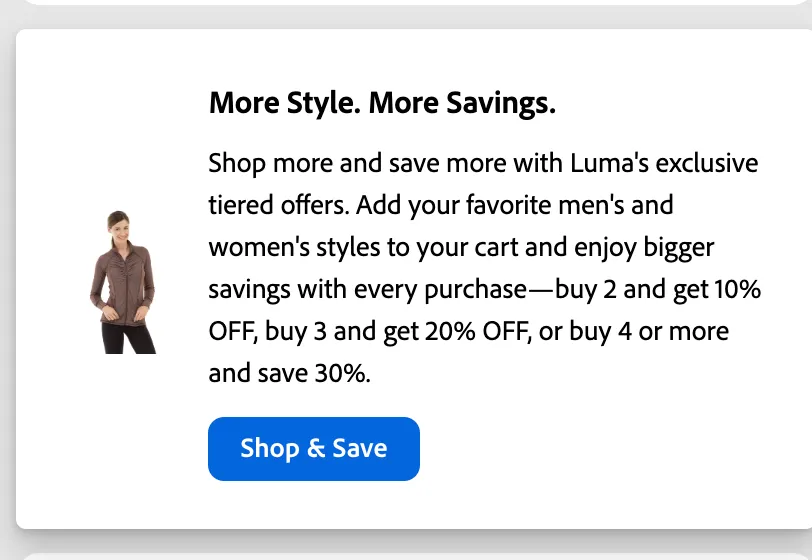
The Content Card editor lets you define all visible fields of the card. These fields map directly to what appears in the Luma app Inbox.
Content Fields:
• Title — the bold headline shown at the top of the card
• Body / Description — the main message text below the title
• Media URL — a hosted image displayed alongside the card content
• Button Title — the CTA text shown on the action button
• Target — the deep link or URL the button opens
More Style. More Savings.
Shop more and save more with Luma's exclusive tiered offers. Add your favorite men's and women's styles to your cart and enjoy bigger savings with every purchase—buy 2 and get 10% OFF, buy 3 and get 20% OFF, or buy 4 or more and save 30%.
Shop & Save
com.adobe.dsn.dxdemo://women
Step 6 — Review & Activate
Once content and rules are configured, review the campaign summary and activate to begin delivering cards to the Inbox.
• Use the Review screen to validate content, audience, schedule, and channel configuration
• Click Activate to publish the campaign — cards will appear in the user's Inbox at the next app open