Payors Members Journey - Insurance
Business Objective
This demonstration showcases and highlights how the Adobe Experience Cloud enables health insurance organisations to acquire new and retain existing members. The demonstration begins at the onset of a prospective member’s journey, the awareness and acquisition phases, and then proceeds into onboarding, and continues into member retention.
Persona Intro:
Kathryn: prospective member, is retiring soon, and nearing Medicare eligibility
Scenario
- On her smartphone, Kathryn visits the ExpNews page and sees an ad about "Know the basics about Medicare before you buy". She falls into the "California visitor segment" as she is visiting from California so from now on she will be targeted based on this segment.
Open https://dsn.adobe.com/web/exp-news https://dsn.adobe.com/web/exp-news/home and click on the ad "Know the basics about Medicare before you buy"
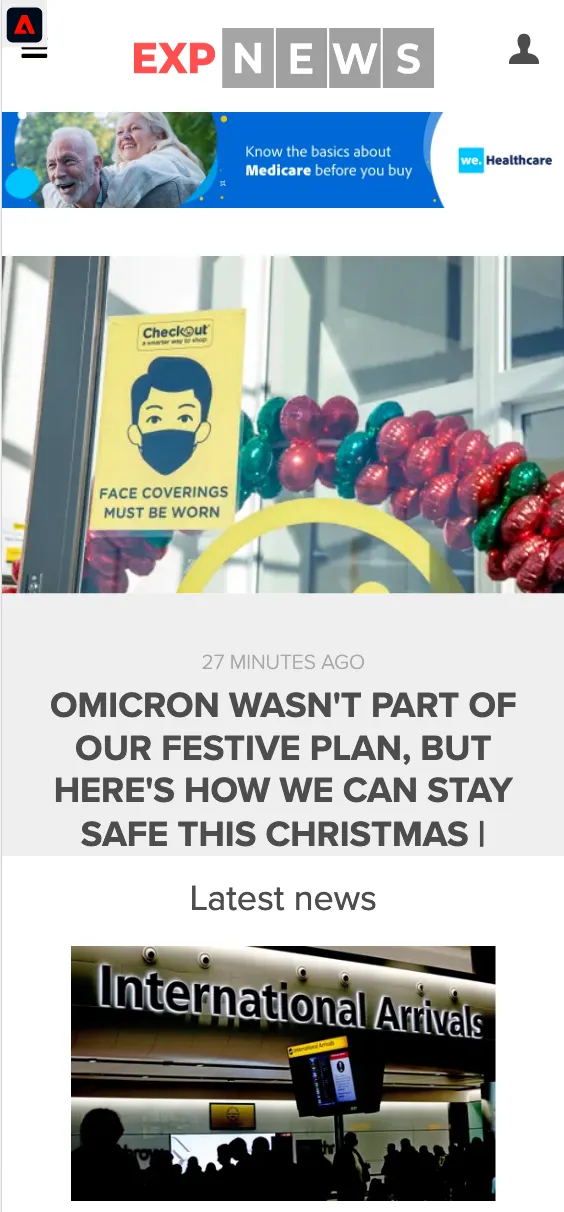
2.She clicks on the ad and is brought to the Medicare page https://dsn.adobe.com/web/we-healthcare/medicare-insurance-basics?state=CA. Banner on this page is personalised for California visitors.
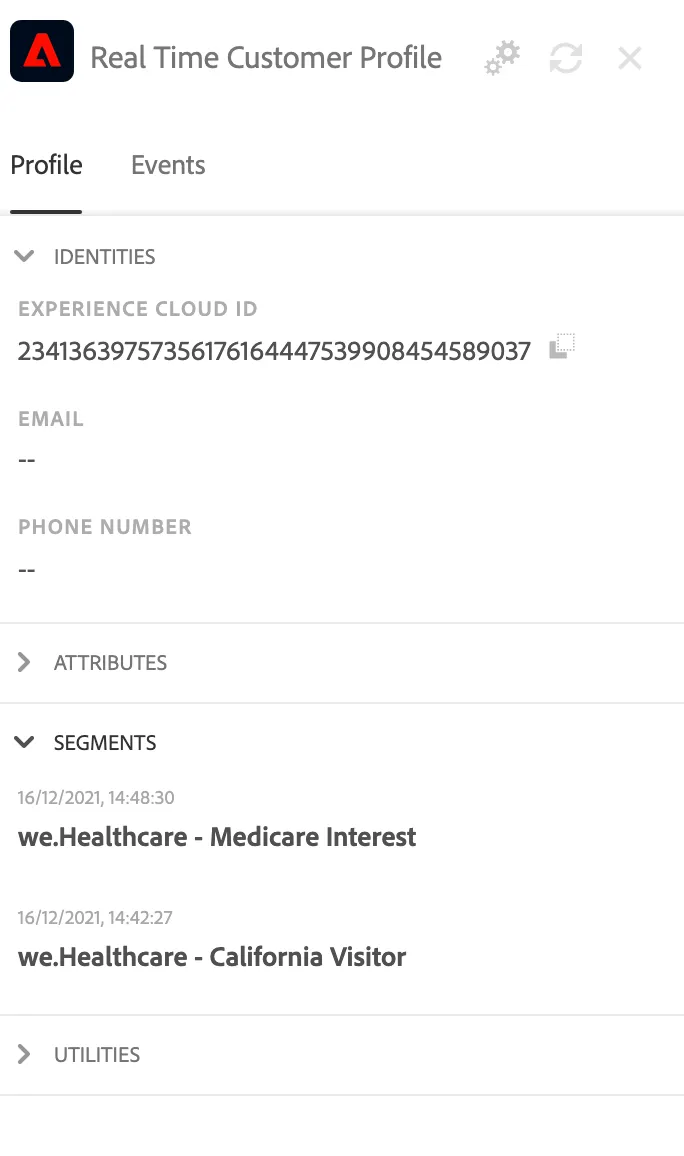
She has been assigned to "weHealthcare - California Visitor" segment based on the URL parameter "state=CA" that mocks geofencing.
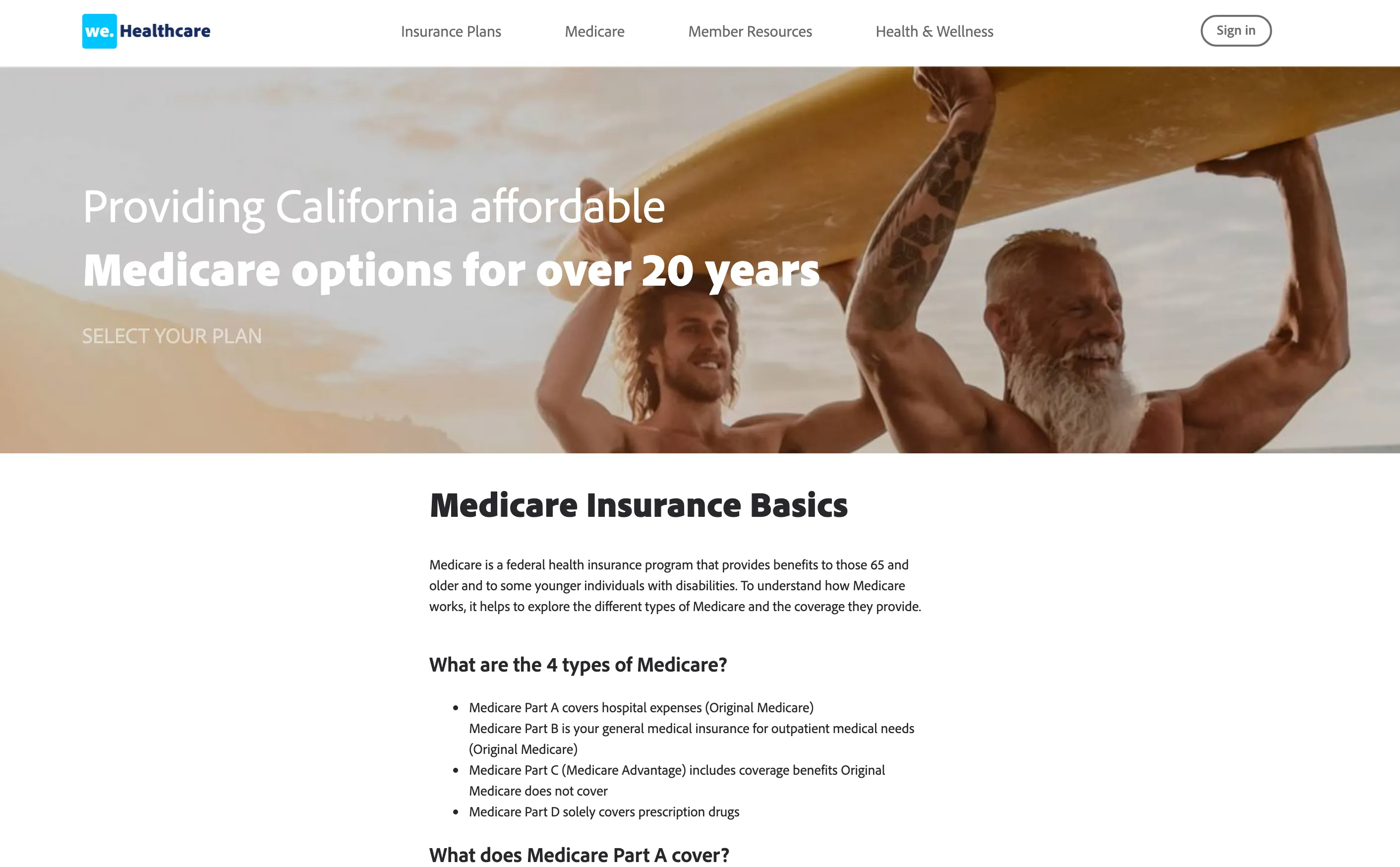
3.Kathryn browses Medicare Insurance Basics content across the page, scrolls down and clicks on "Learn More" link under "Medicare Annual Enrollment Period" and browses that page.
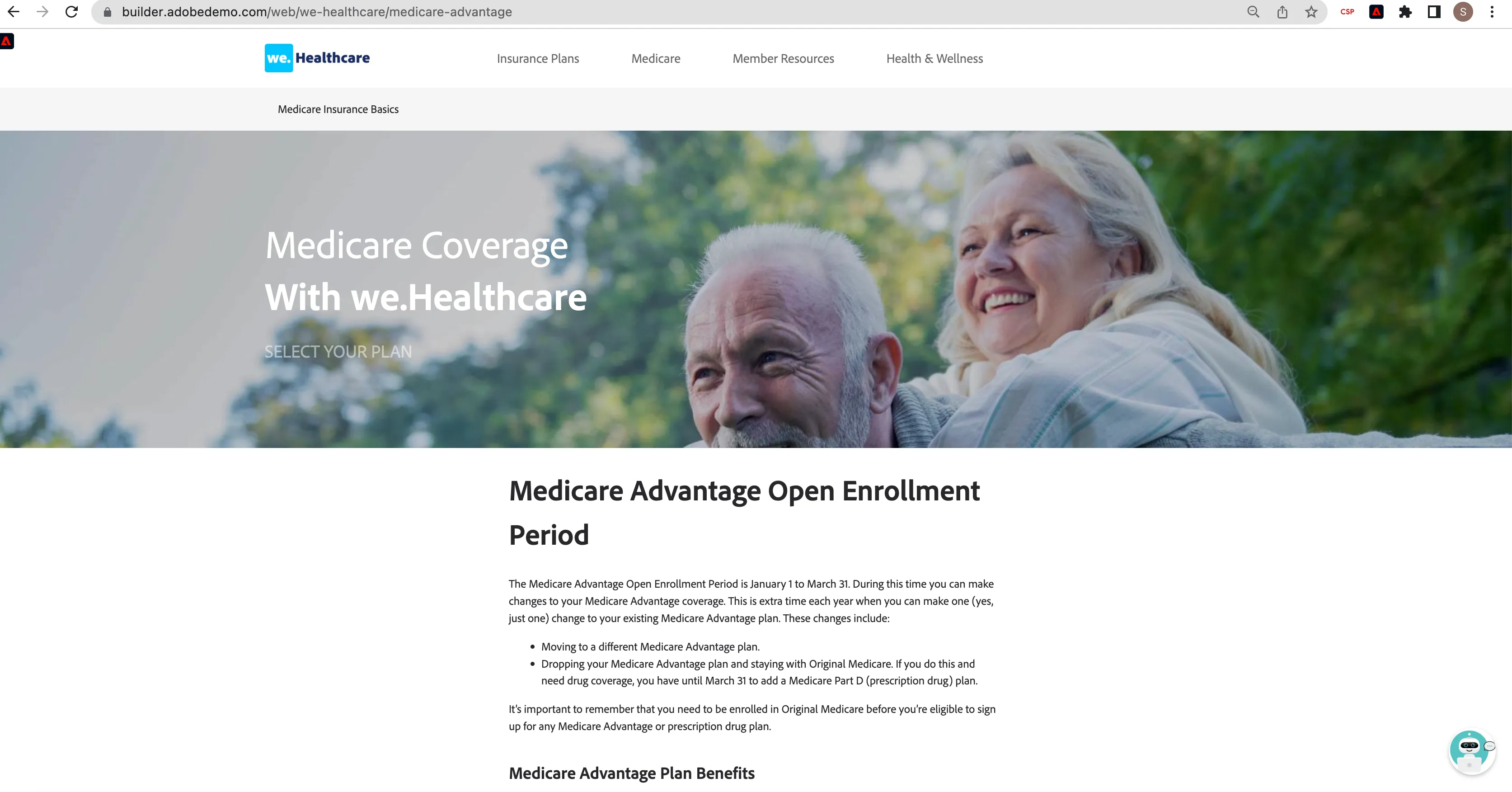
Click on the "Learn More" link on https://dsn.adobe.com/web/we-healthcare/medicare-insurance-basics "Medicare Annual Enrollment Period". She is redirected to Medicare Advantage Page She falls into "Medicare Interest" segment. Open the profile viewer and see the segments she is qualified for.
4. At the bottom of the Medicare Advantage page, she sees an option to join we.Healthcare Medicare newsletter series.
Provide email address and submit the form. She falls in to "Medicare Newsletter Subscriber" segment.
At this point, in order to show identity stitching, you need to switch devices (eg. from mobile to laptop) or browsers. If you use the same browser, make sure your new session doesn't carry over the previous profile data. It's also a good idea to open https://dsn.adobe.com to log in before continuing the script.
5. Some time later on laptop, she receives first Medicare Newsletter.
Email is sent immediately after submitting. Make sure it didn't end up in SPAM.
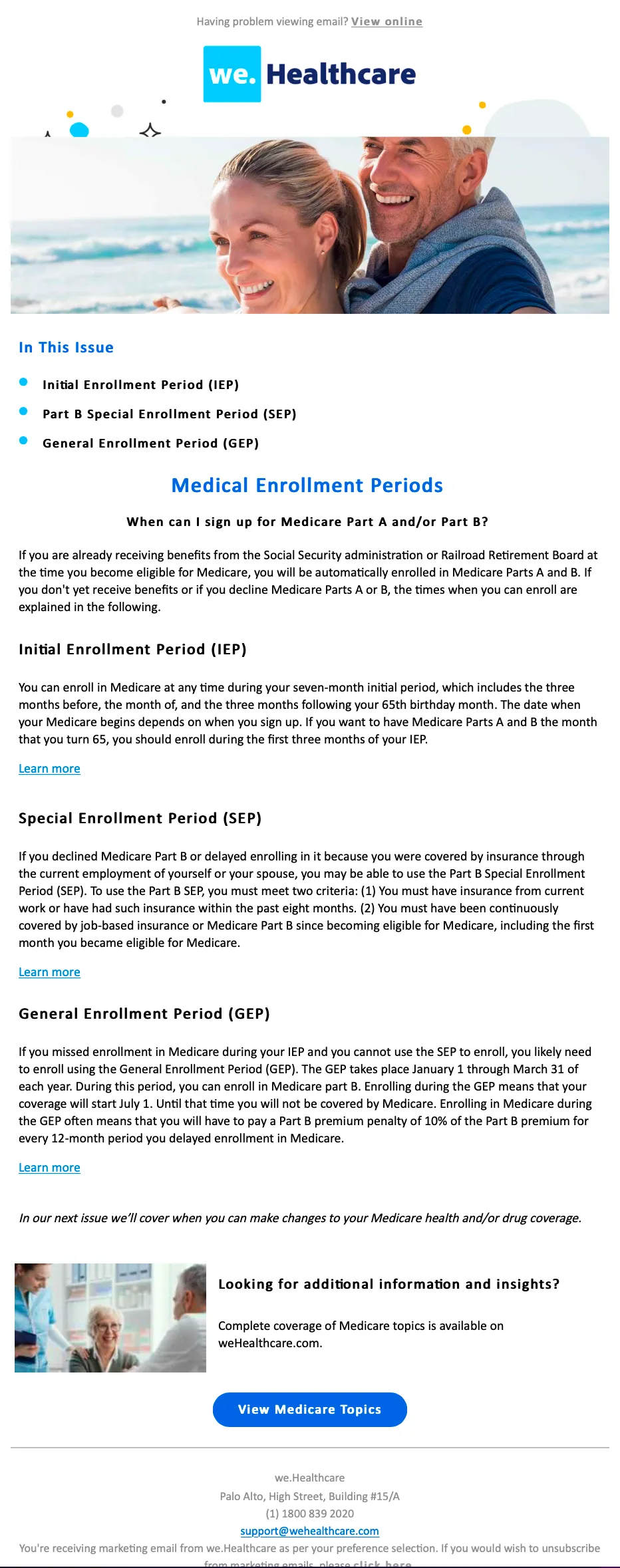
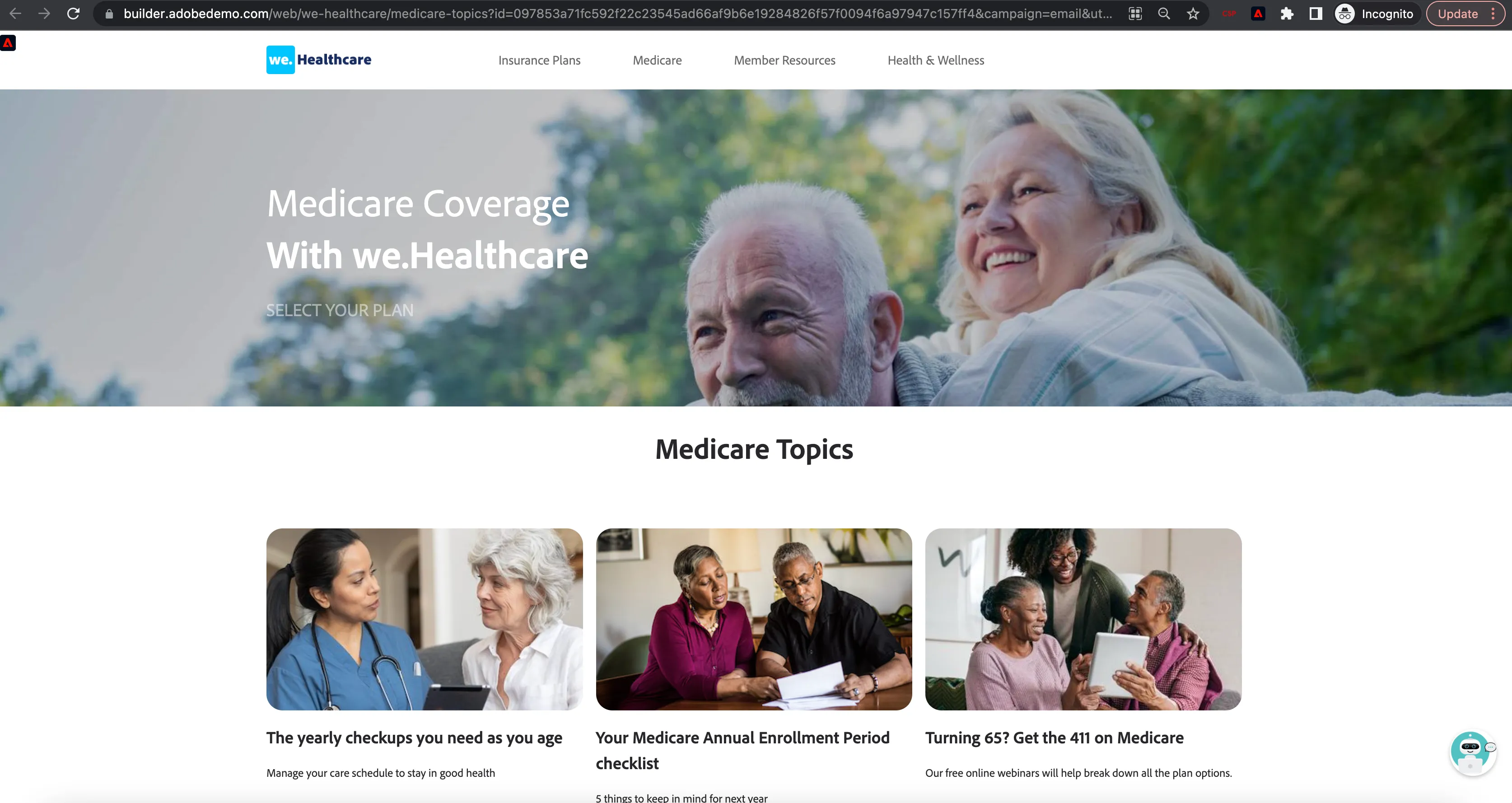
6. She selects link and is navigated to we.Healthcare Medicare Topics home page on the laptop. Now have a new device and second ECID.
Click or copy/paste link from email "View Medicare Topics". Be careful not to open the link in a wrong window, eg. non-private one. Profile may be stitched to wrong profile then. Link will navigate you to FAQ page: https://dsn.adobe.com/web/we-healthcare/medicare-topics Open the Profile Viewer and refresh it after few seconds to see the profiles merge (two ECIDs, email, segments from previous profile).
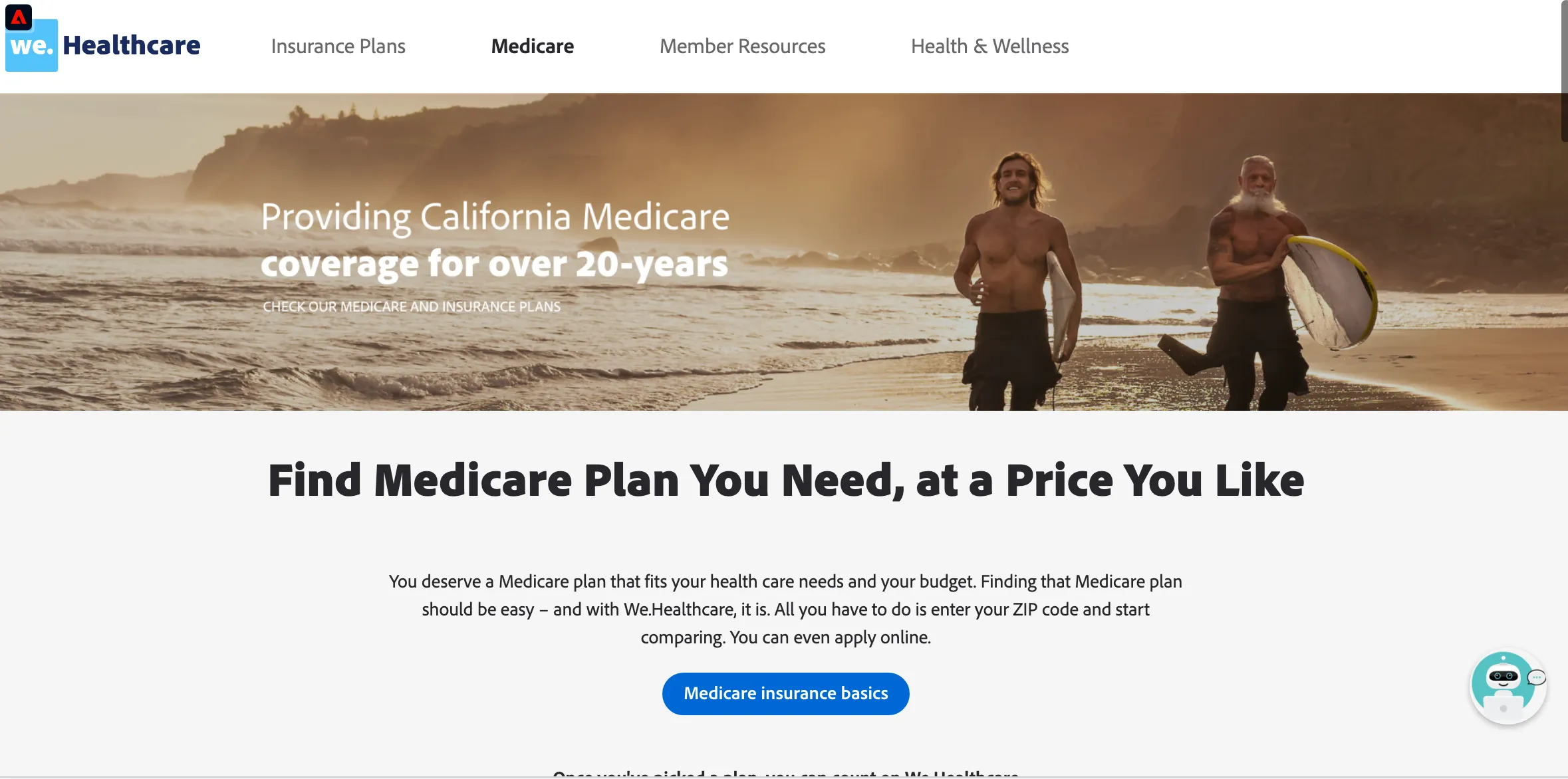
7. She goes through the content and then goes back to the Medicare Home Page. The hero banner on this page is personalised based on Kathryn’s location (California).
Click on "Medicare" in the top navigation. A personalised banner is presented based on the her location (California).
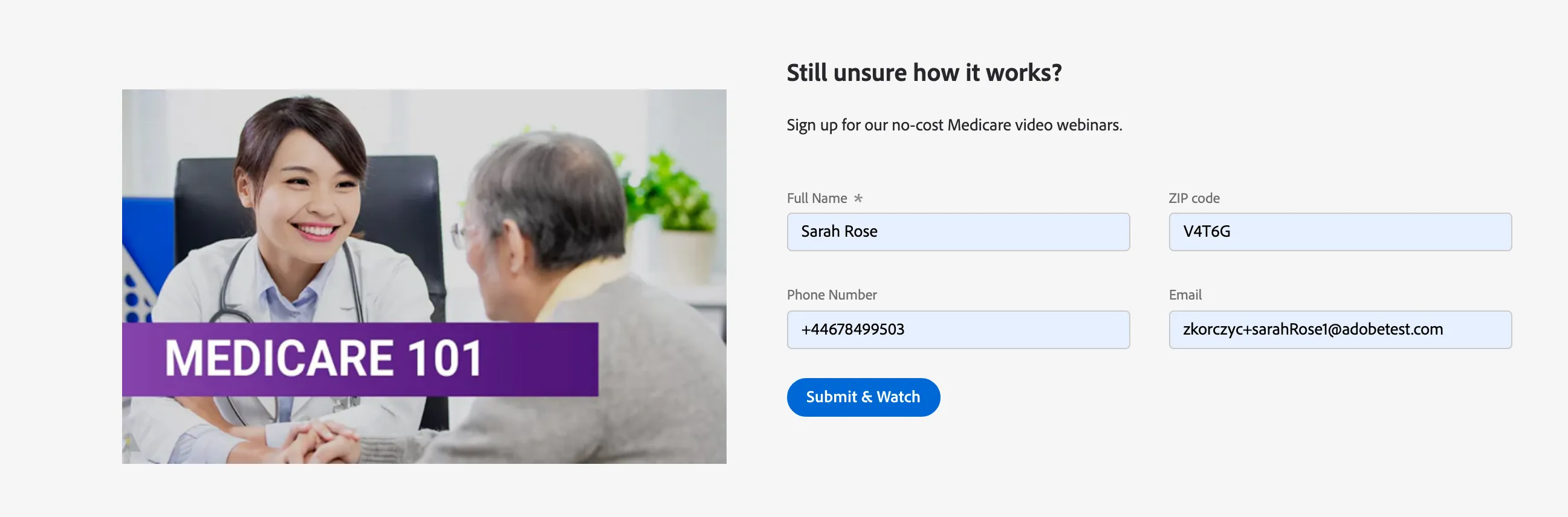
8. Kathryn browses the content on this page. She sees an option to watch a free Medicare 101 video. She provides the required details.
Browse the page and scroll down to see the Medicare 101 video and provide details and click on "Submit & Watch". Provide your real phone number (with country prefix) to get an SMS in later steps. Use additonal numbers after + sign in order to avoid stiching profile with previous phone numbers. e.g. +48123456778+001 - where +48123456789 is your real number
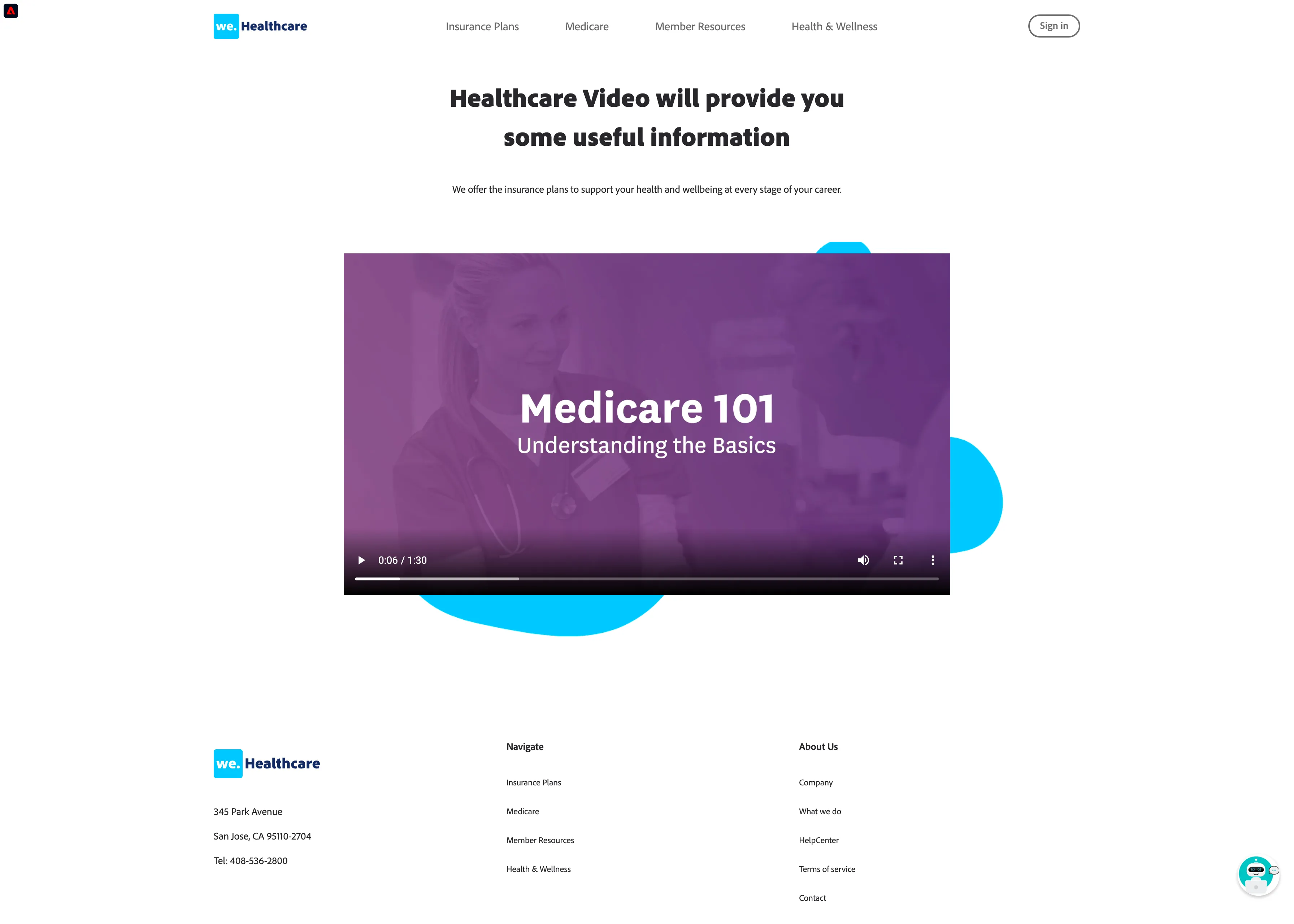
9. She is redirected to the video page, which she watches.
Start the video to simulate interaction with the webinar.
She then falls into "Viewed Medicare 101 Video" segment.
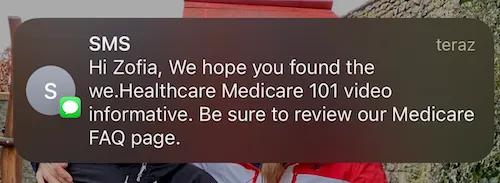
10. She also receives text message about having watched webinar: “We hope you found the we.Healthcare Medicare 101 video informative. Be sure to review our Medicare FAQ page.”
11. She is feeling a bit saturated with info and step away from laptop.
Sometime later, Kathryn is feeling more informed now and confident with we.Healthcare and is ready to explore plan options.
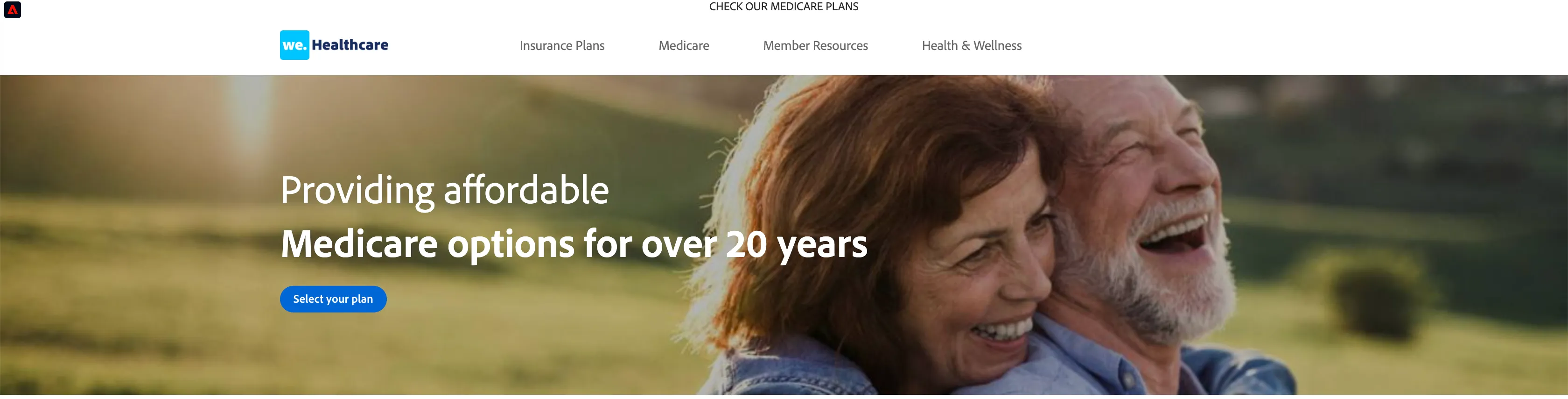
Goes to we.Healthcare home page by typing-in home page URL into browser and sees a personalised hero banner with Medicare content: Find a Plan.
Visit the home page https://dsn.adobe.com/web/we-healthcare/home and present the hero banner personalised based on Kathryn's interest. Clik on "Select your plan"
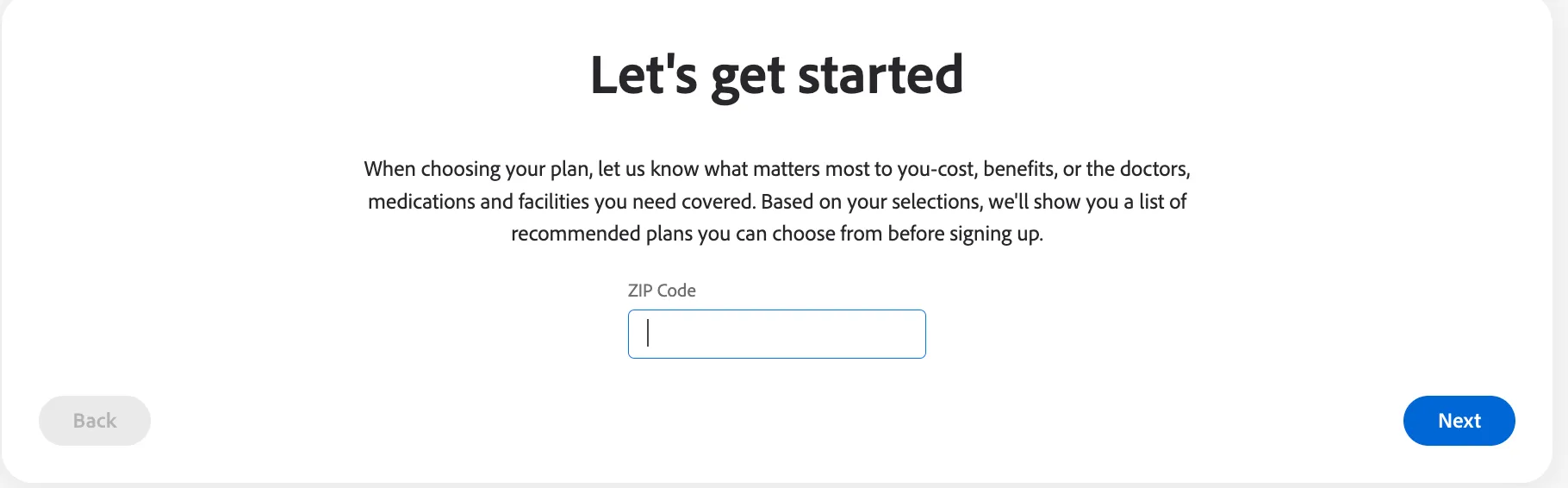
12. She is presented with a questionnaire so recommended plans can be provided.
Provide answers to the questions and click on Next. At the end click on submit to see recommended plans.
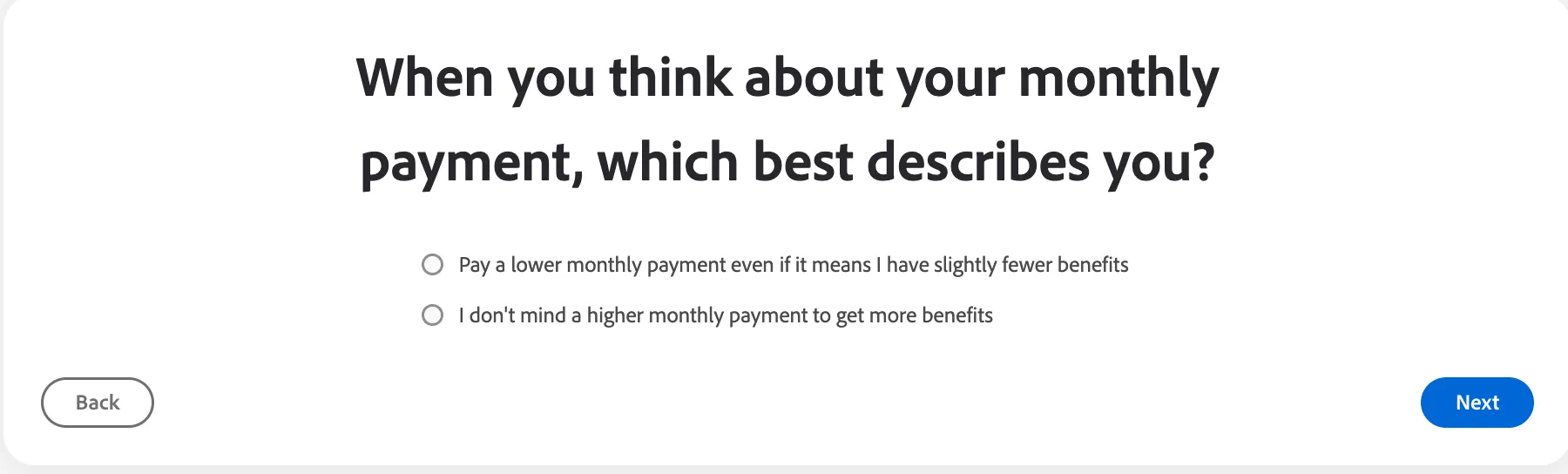
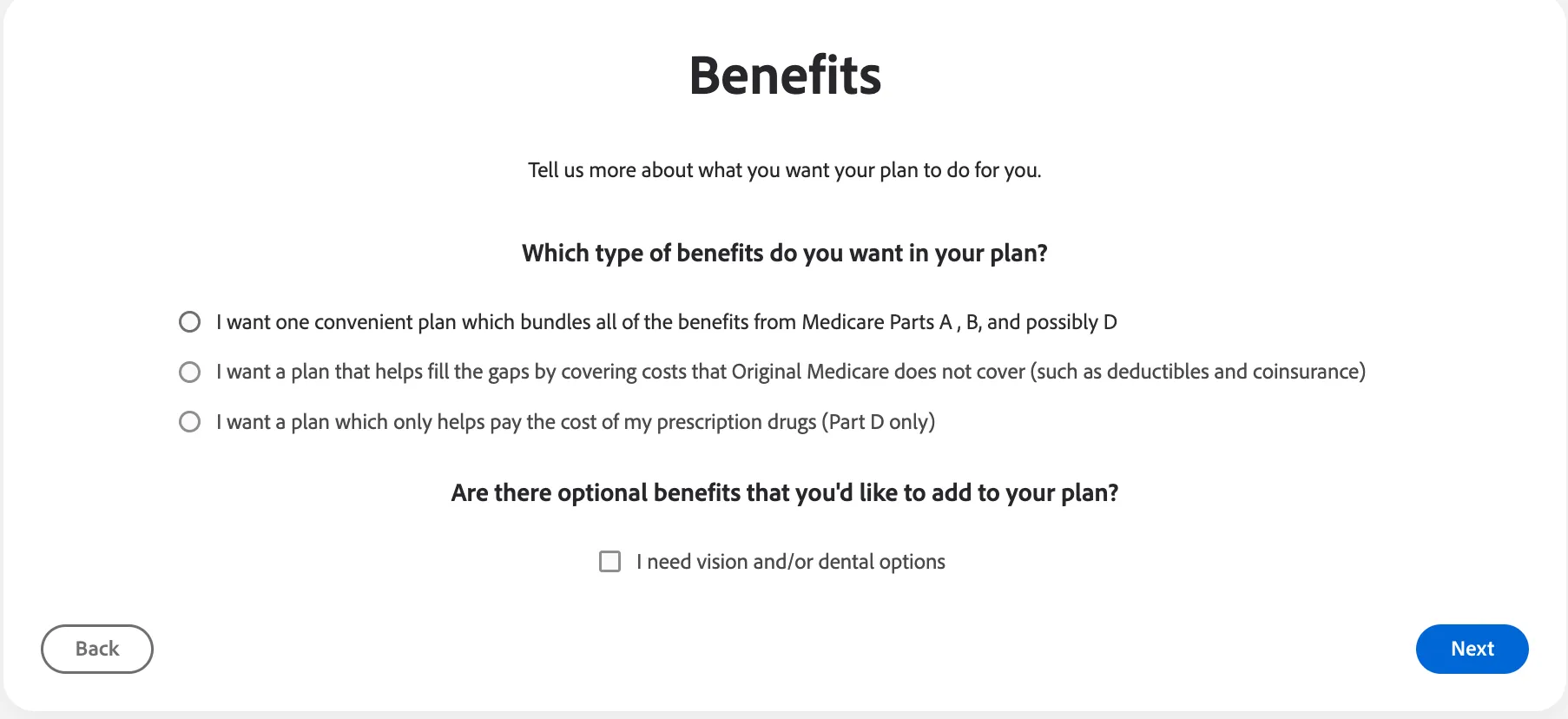
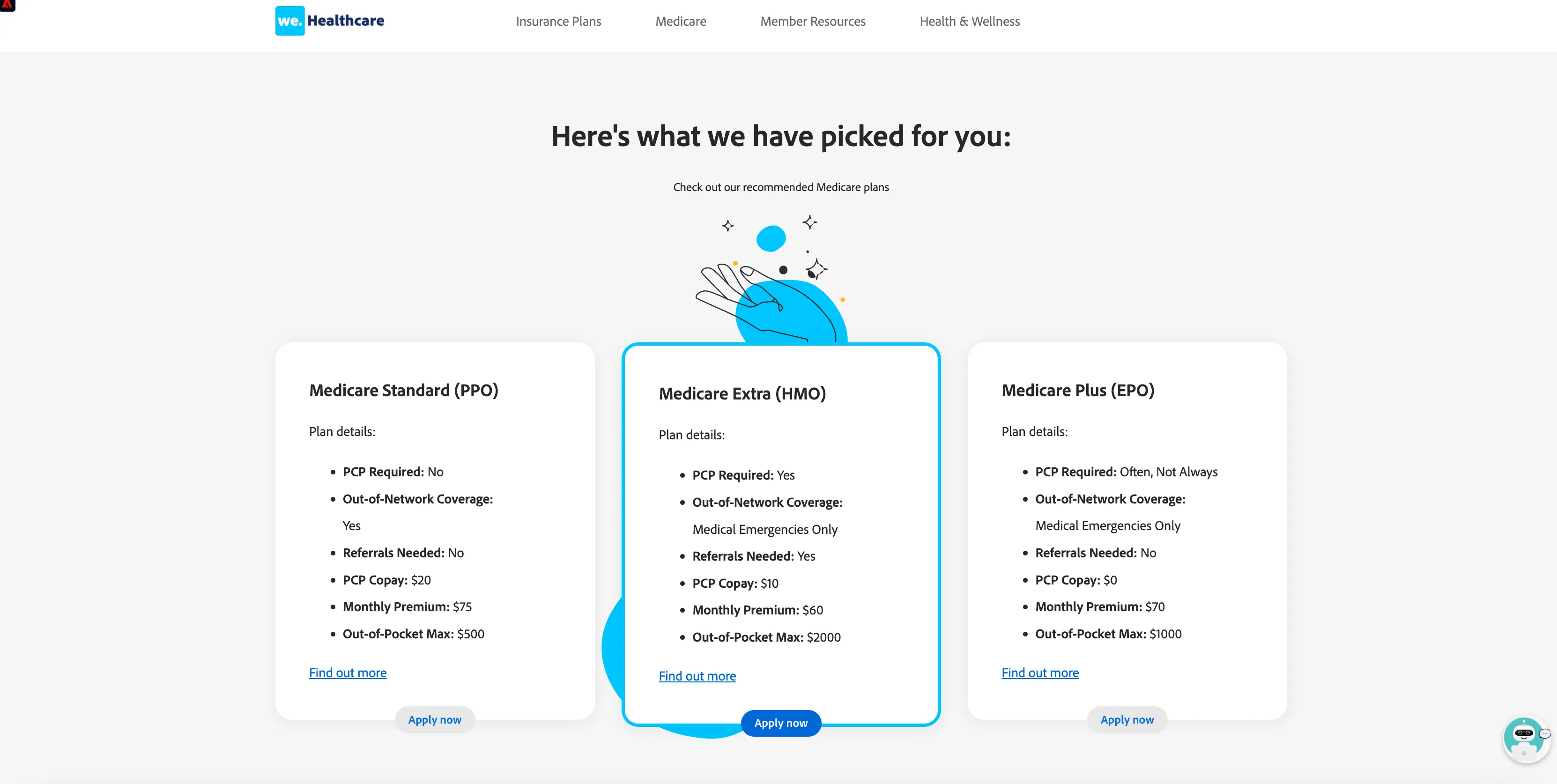
13. When she is done, she is presented with a list of recommended plans.
She completes the wizard and She falls into “we.Healthcare - Completed - Find a Medicare Plan Wizard” segment.
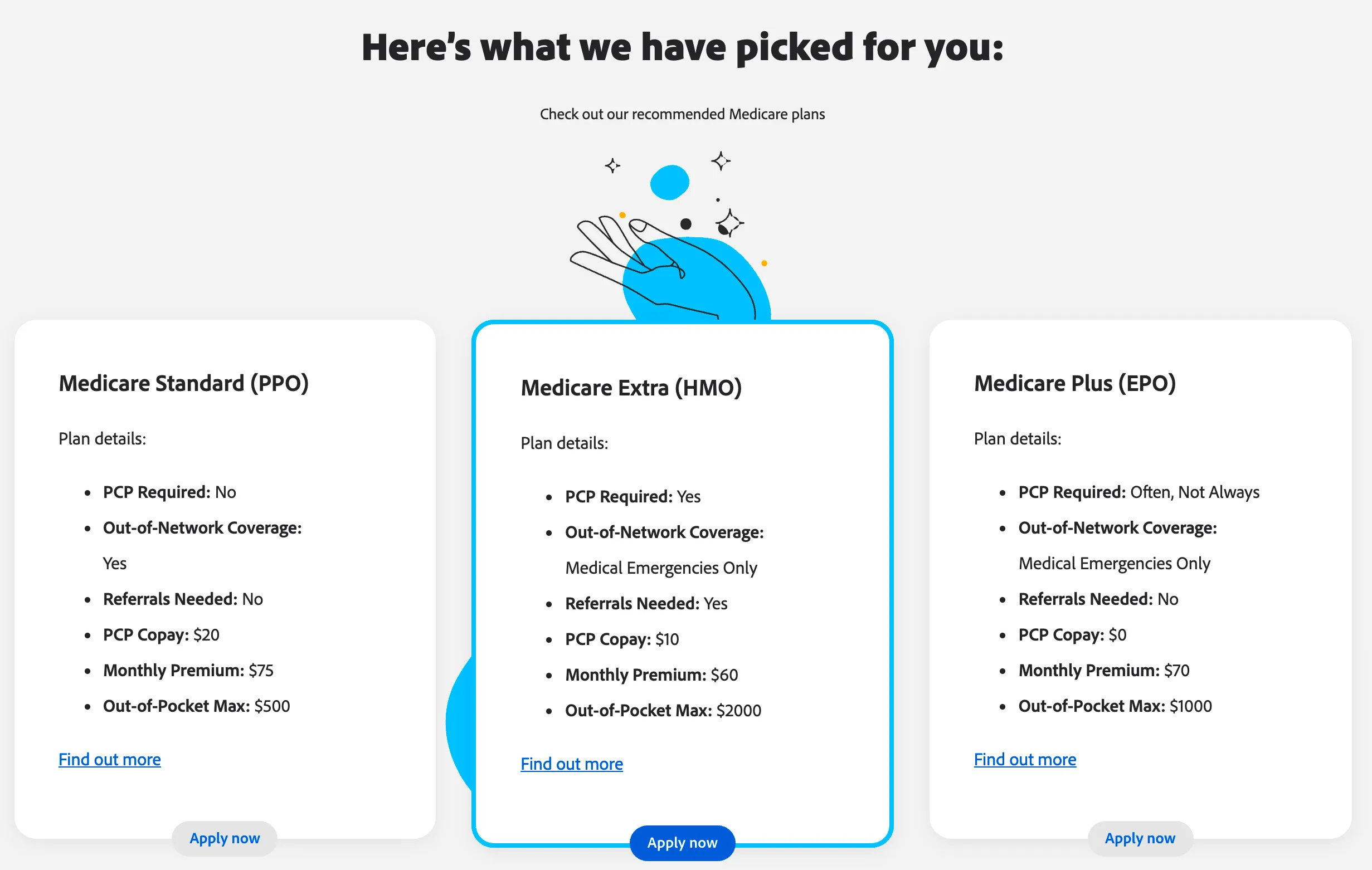
14. After viewing the list of recommended plans, Kathryn leaves sites (bounces) without making a plan selection.
Kathryn receives a retargeting message on her phone and inbox to return to we.Healthcare and complete the selection process. Kathryn clicks on the link.
On the last screen, do not apply for plan and leave the site. Wait for some time and an email will be received asking to complete selection process.
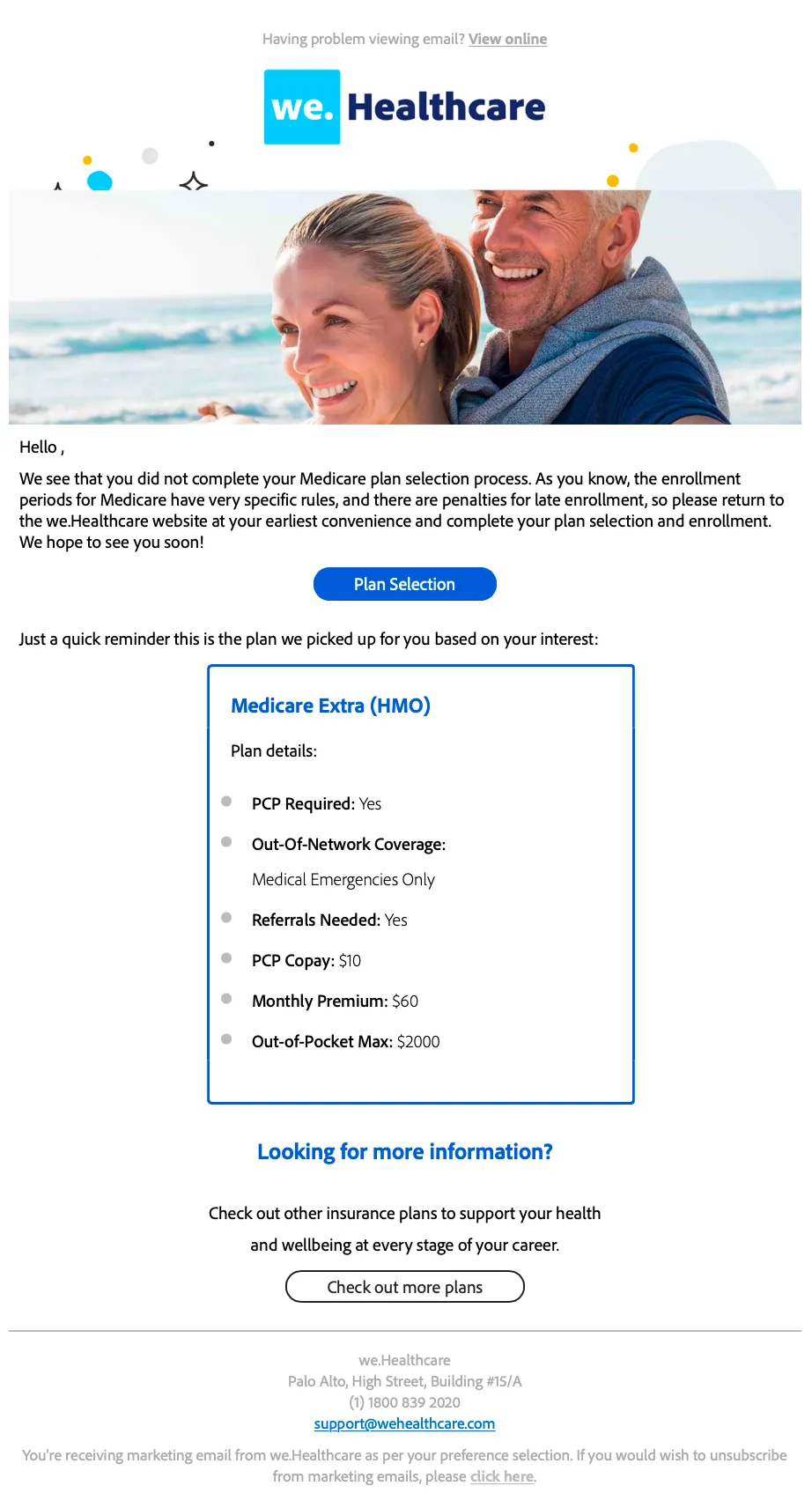
15. She reads the mail and click on the link.
Click on link in mail "Plan Selection" and is redirected to page with Recommended plan(https://dsn.adobe.com/web/we-healthcare/medicare-plan-recommendations)
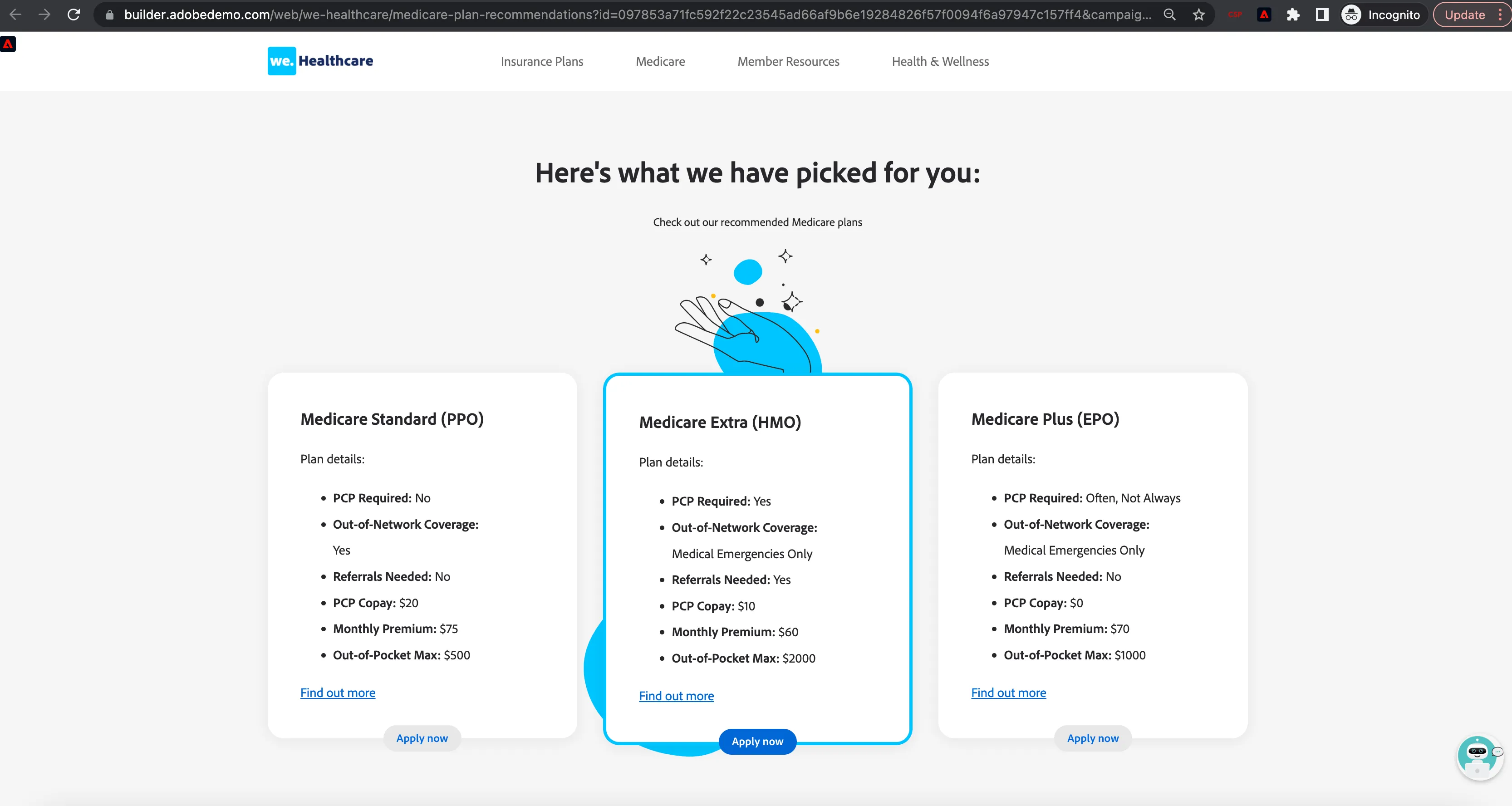
16. While considering her plan options, Kathryn has a question. She interacts with a chat bot to get an answer.
Click on the bot icon at the bottom right corner to start the conversation.
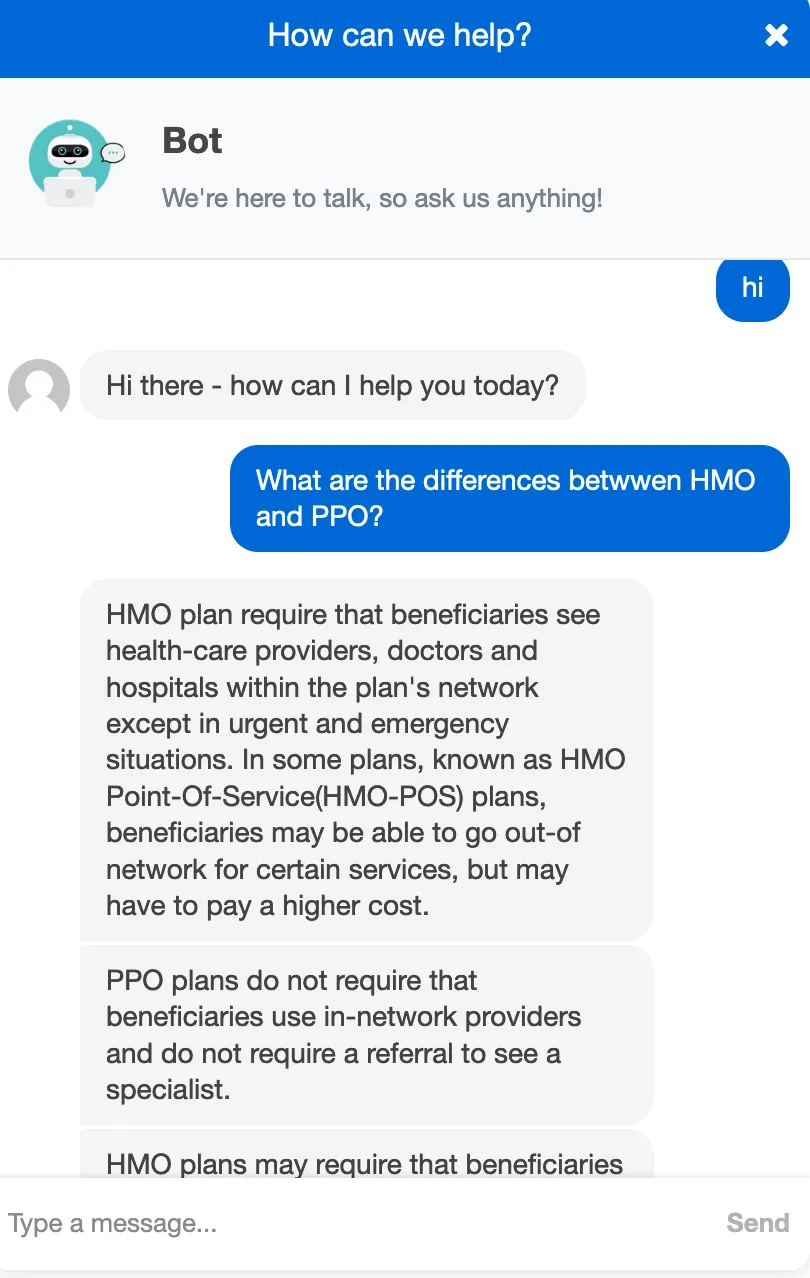
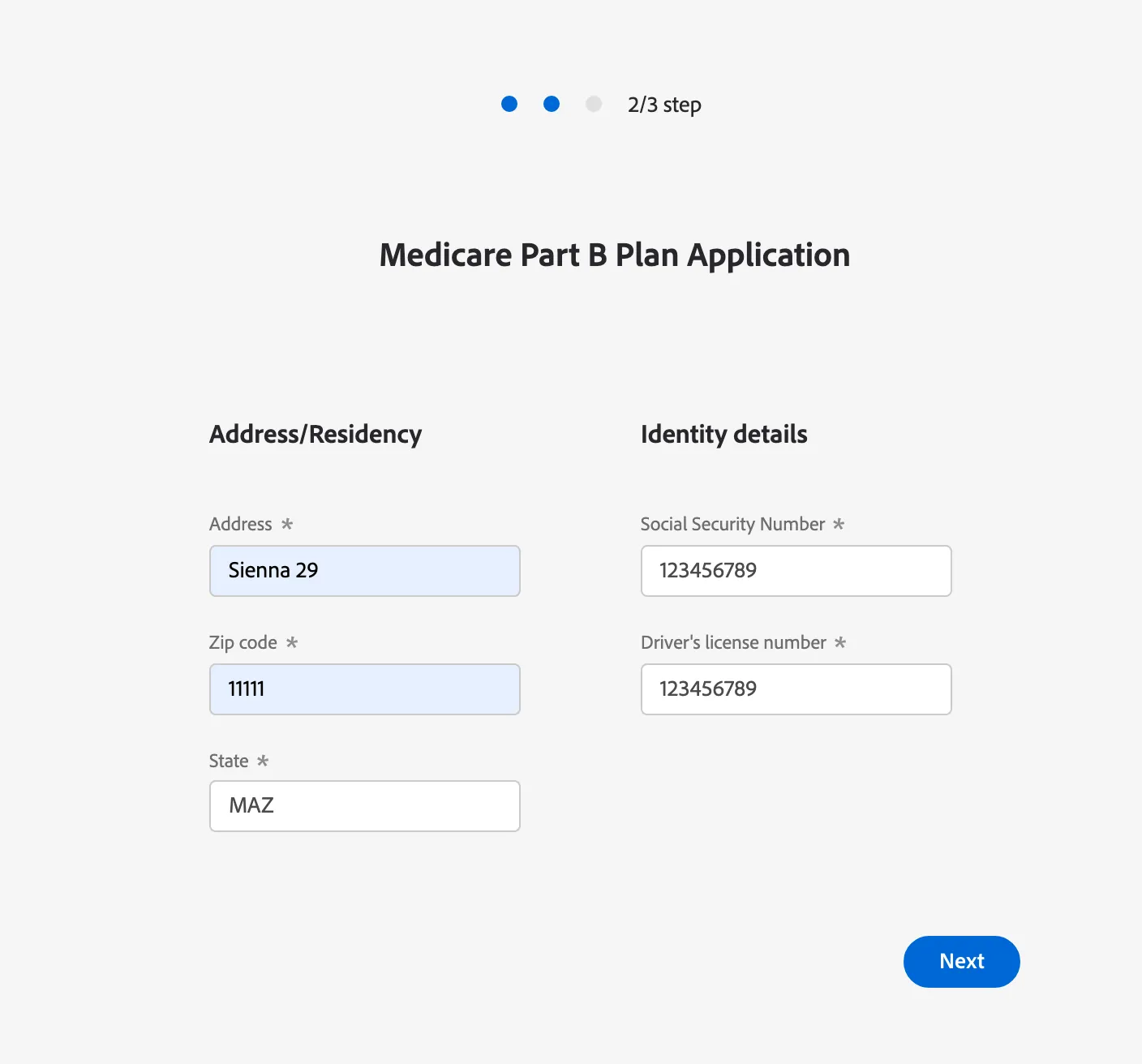
17. She finally selects a plan to enroll in. She is cleared after talking with bot. She completes and submits enrollment form on the page.
Click on "Apply Now" on the HMO plan on the page.Complete the form and after submitting the form, AEP profile is updated with some of the enrollment data. She now falls into “Existing Member” segment.
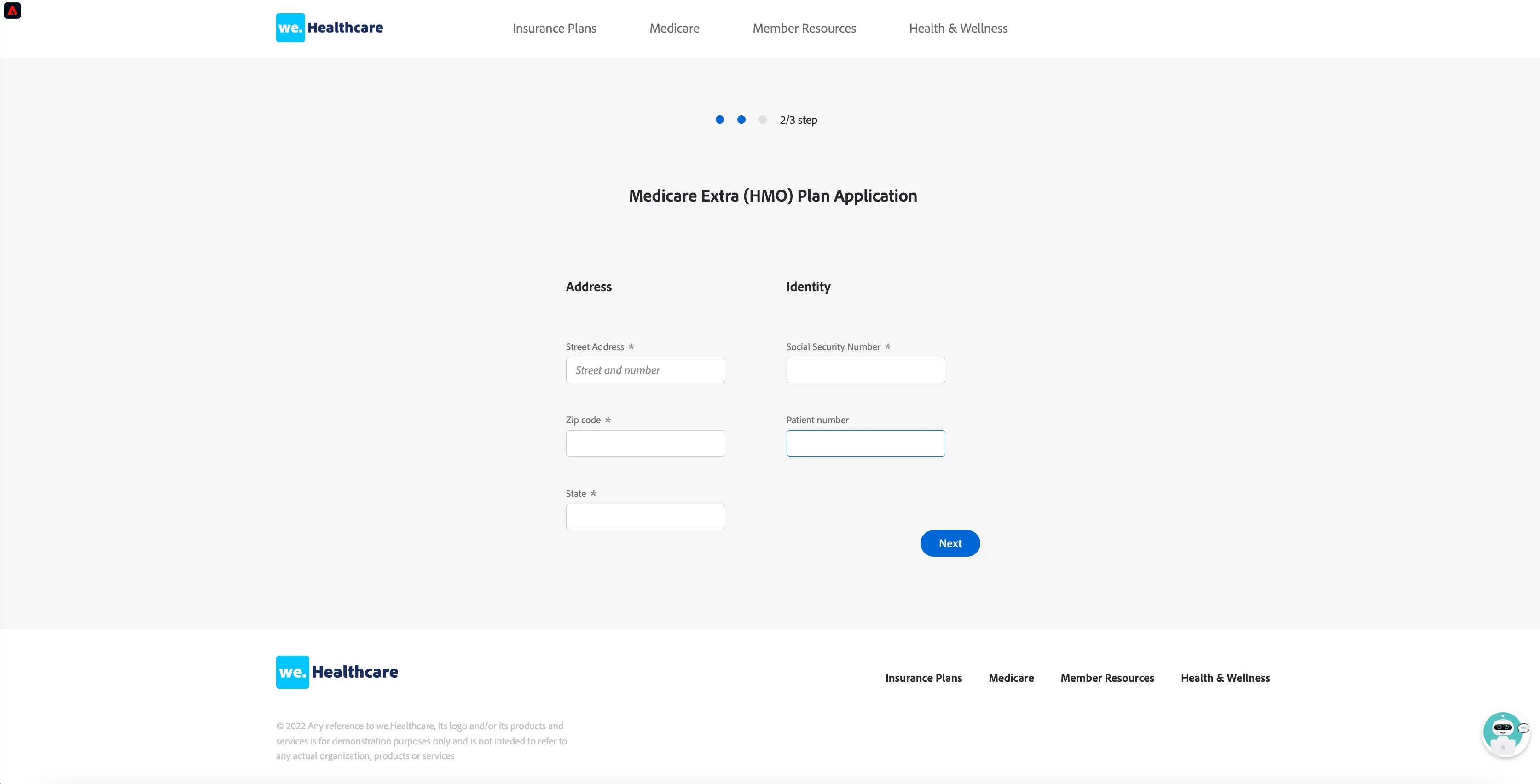
18. Once she enrols for the plan, she receives welcome email with onboarding checklist.
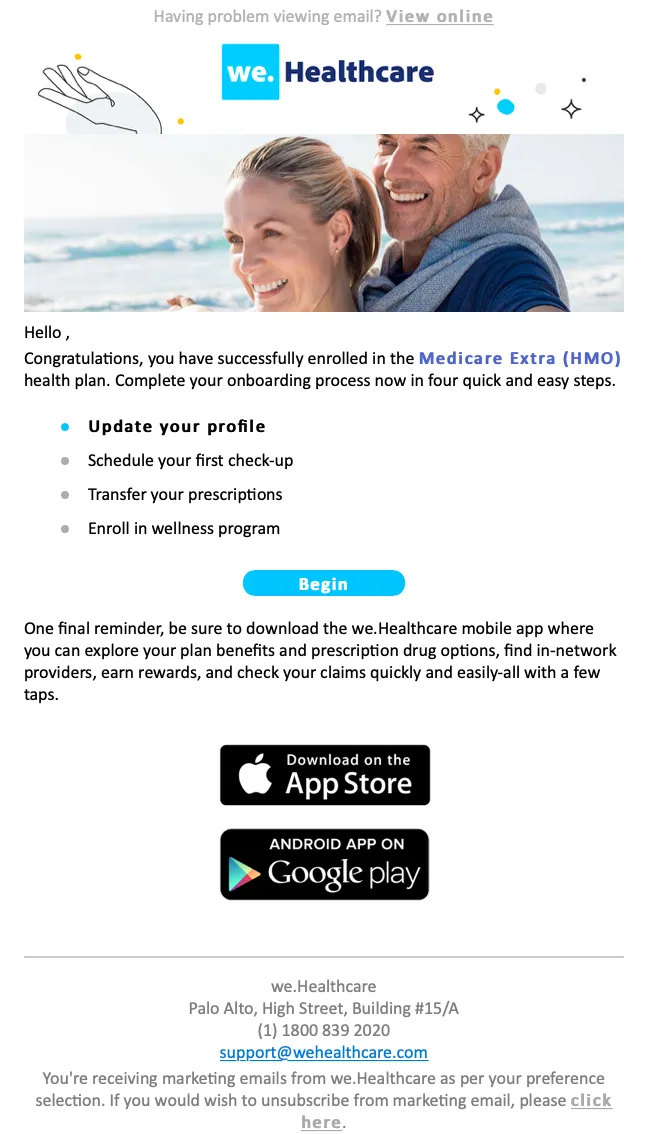
19. She clicks on "Begin" in the email received to start the onboarding and is redirected to the page where she needs to provide some extra details.
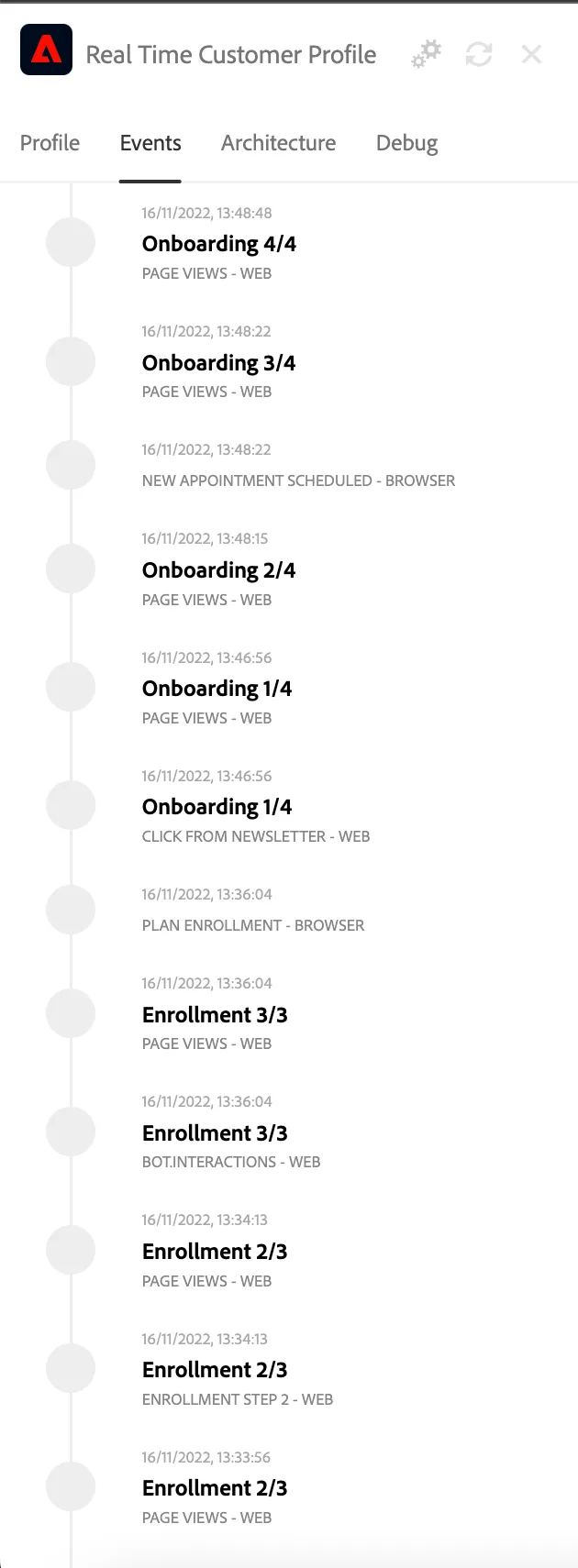
Open the profile viewer and show how the profile was merged with all we know already about Kathryn. You can also go to the AEP Profile and show all interactions there.
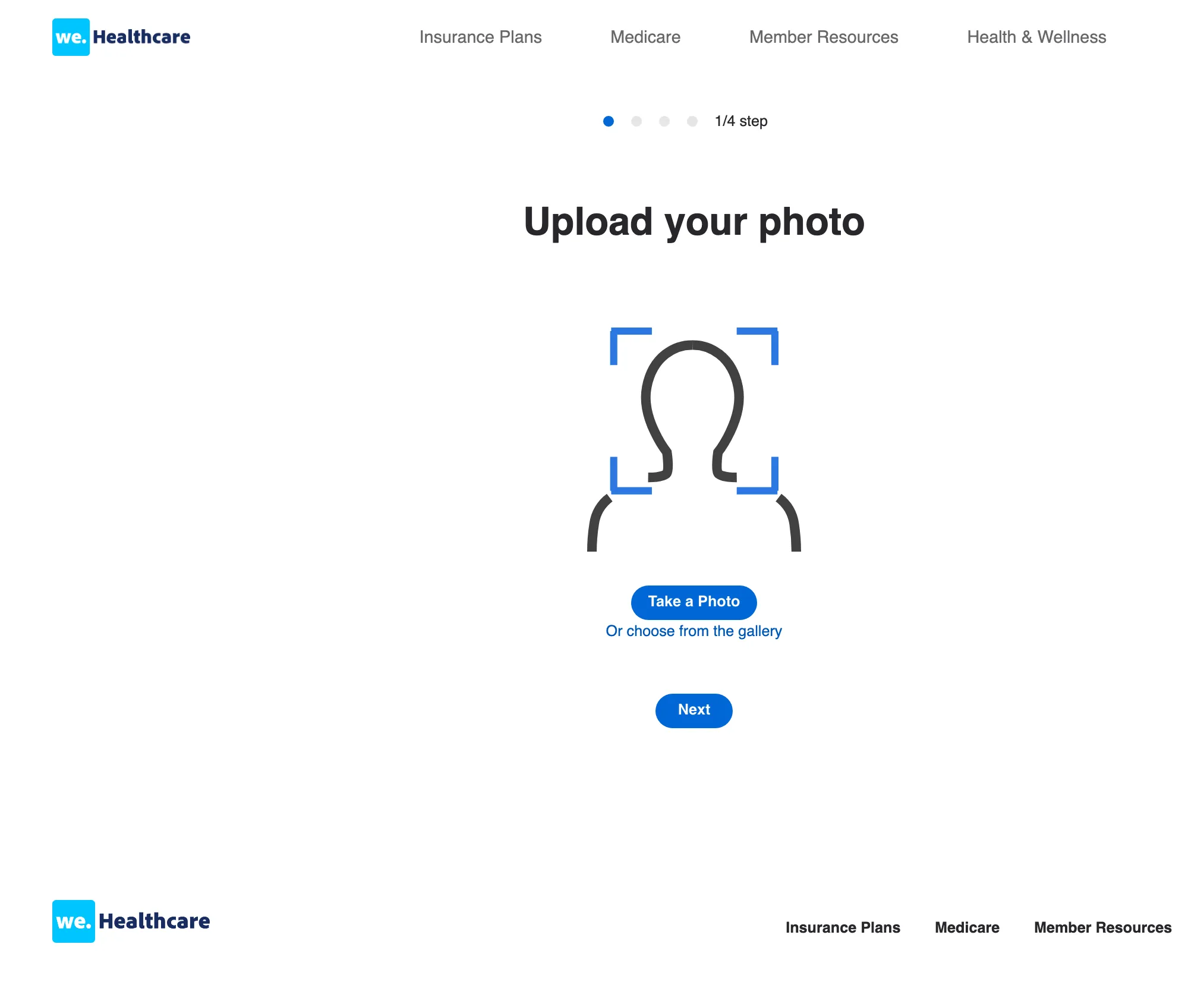
20. Sarah goes through the onbording. She can upload her photo at step first
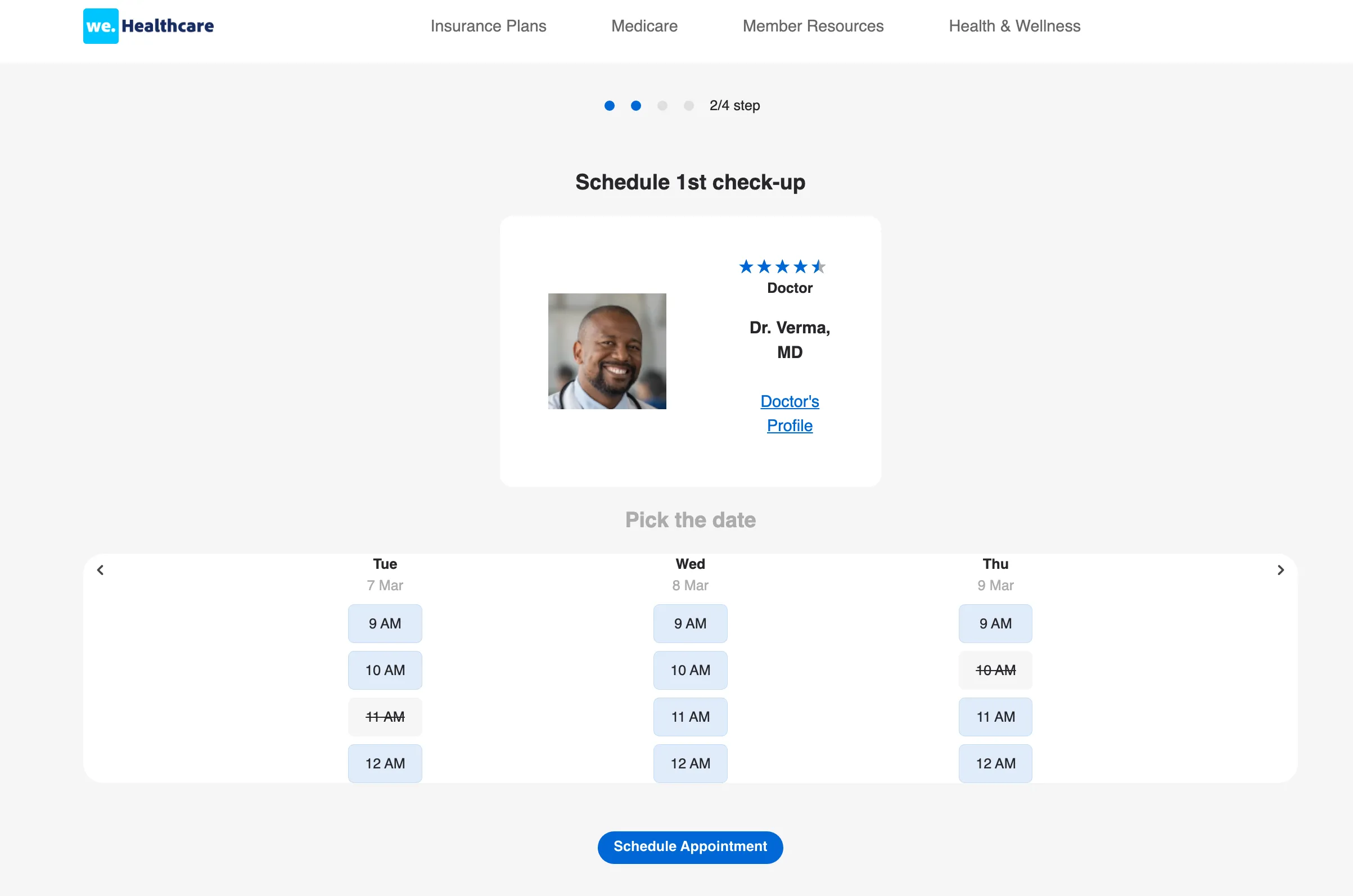
21. She also schedules her first doctor appointment. As a confirmation she will recieve an email.
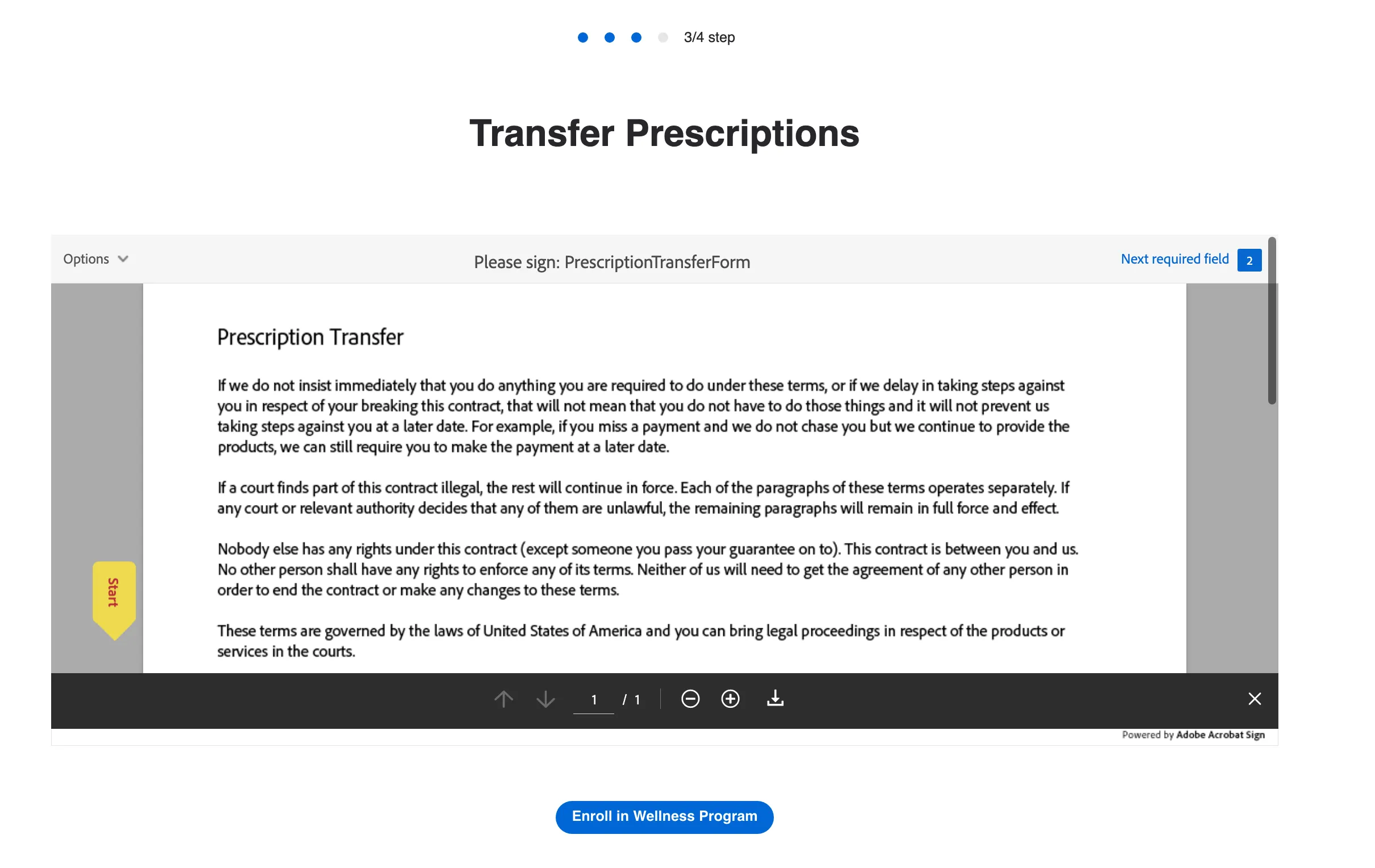
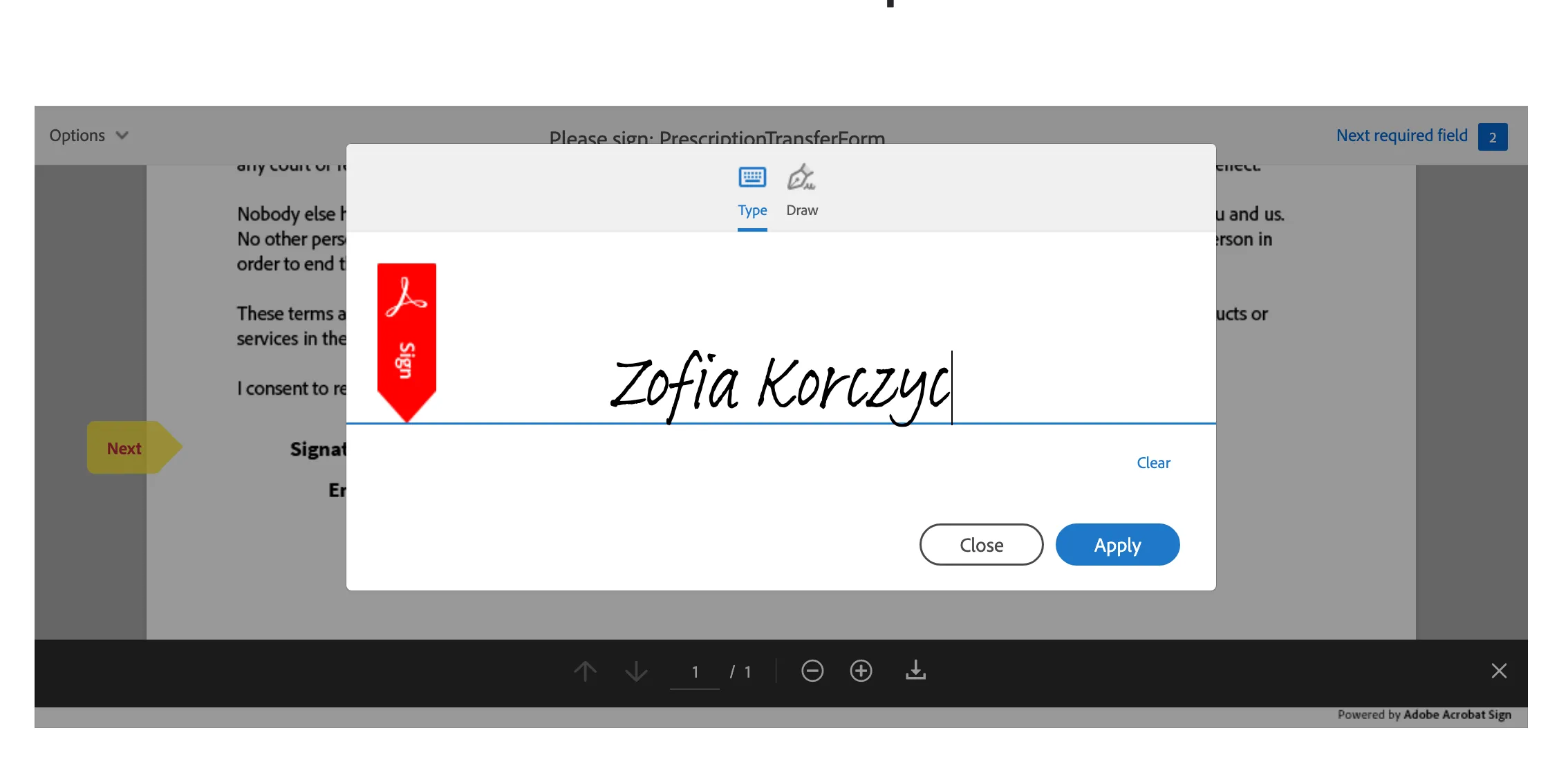
22.At step 3 of onboarding, Sarah can use Adobe Sign to transfer prescriptions.
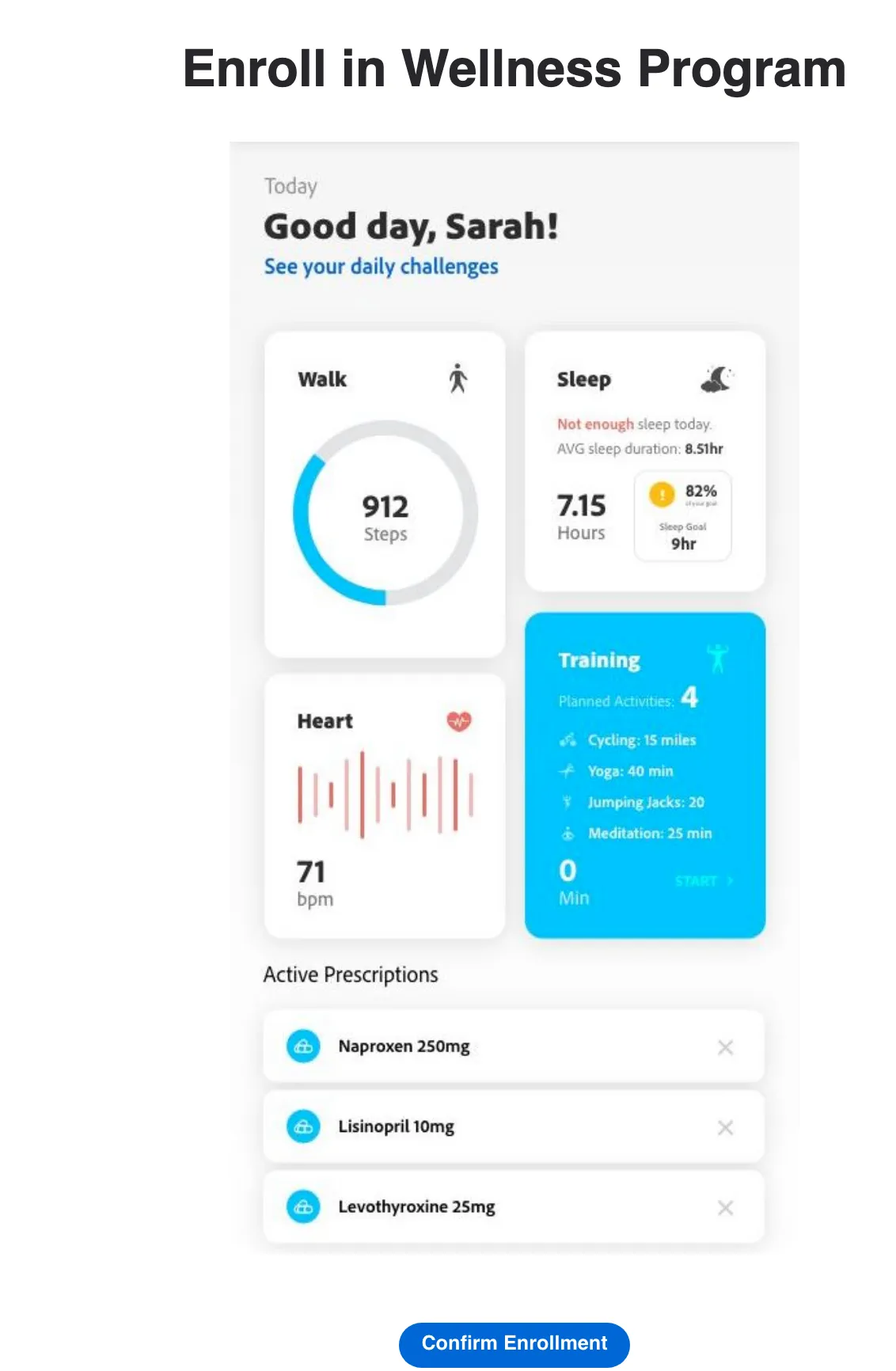
23 As a last step she can susbscribe to the wellness Program
- One item in the checklist is to download the mobile app. Kathryn downloads the mobile app and logs in with the email address.
- She logs into mobile app using email address. Her profile is merged with data that we already know about her from her previous actions. She is added to a segment "Has Mobile App
Download the app from https://dsn.adobe.com/install . Open the app and on the settings screen select "We.Healthcare" project. Log in to the app with the same email as used in the story above.