Set up deep links in the push notifications and in-app messages
Set up a deep link in a push notification message
In the message under the section of "On click behavior" select "Deeplink" and enter the URL to a specific screen, which should open after clicking on the push notification.
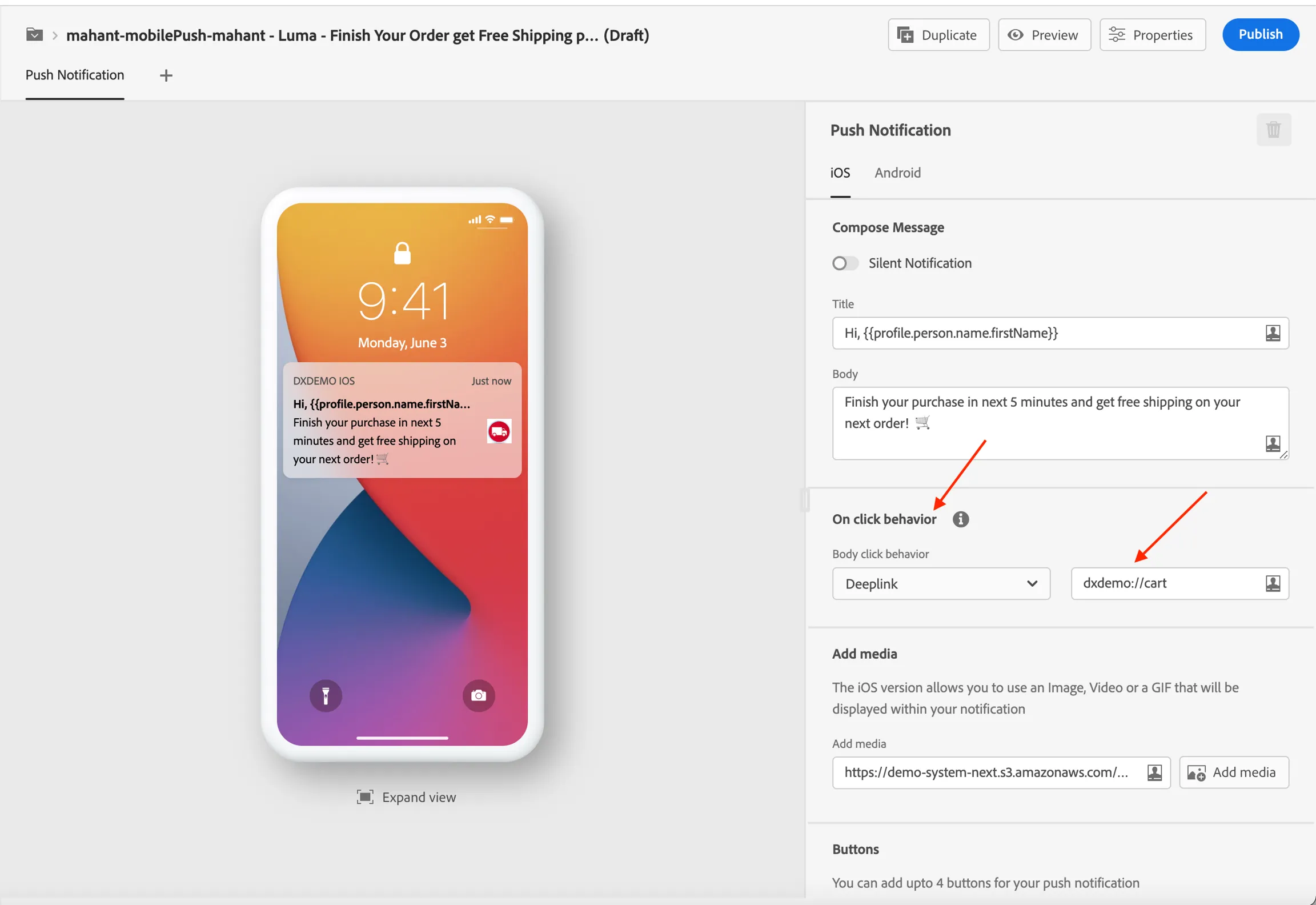
URL for push notifications form like - dxdemo://screenTitle
You can deep link to an internal app screen or any external URL. To form this please follow the below steps.
Deeplink internal app screen :
The path of the app screen depends on the screen title in your project.
Open your project in the Demo System Experience Builder and get the screen title by clicking on the pencil icon and form this URL like - dxdemo://screenTitle
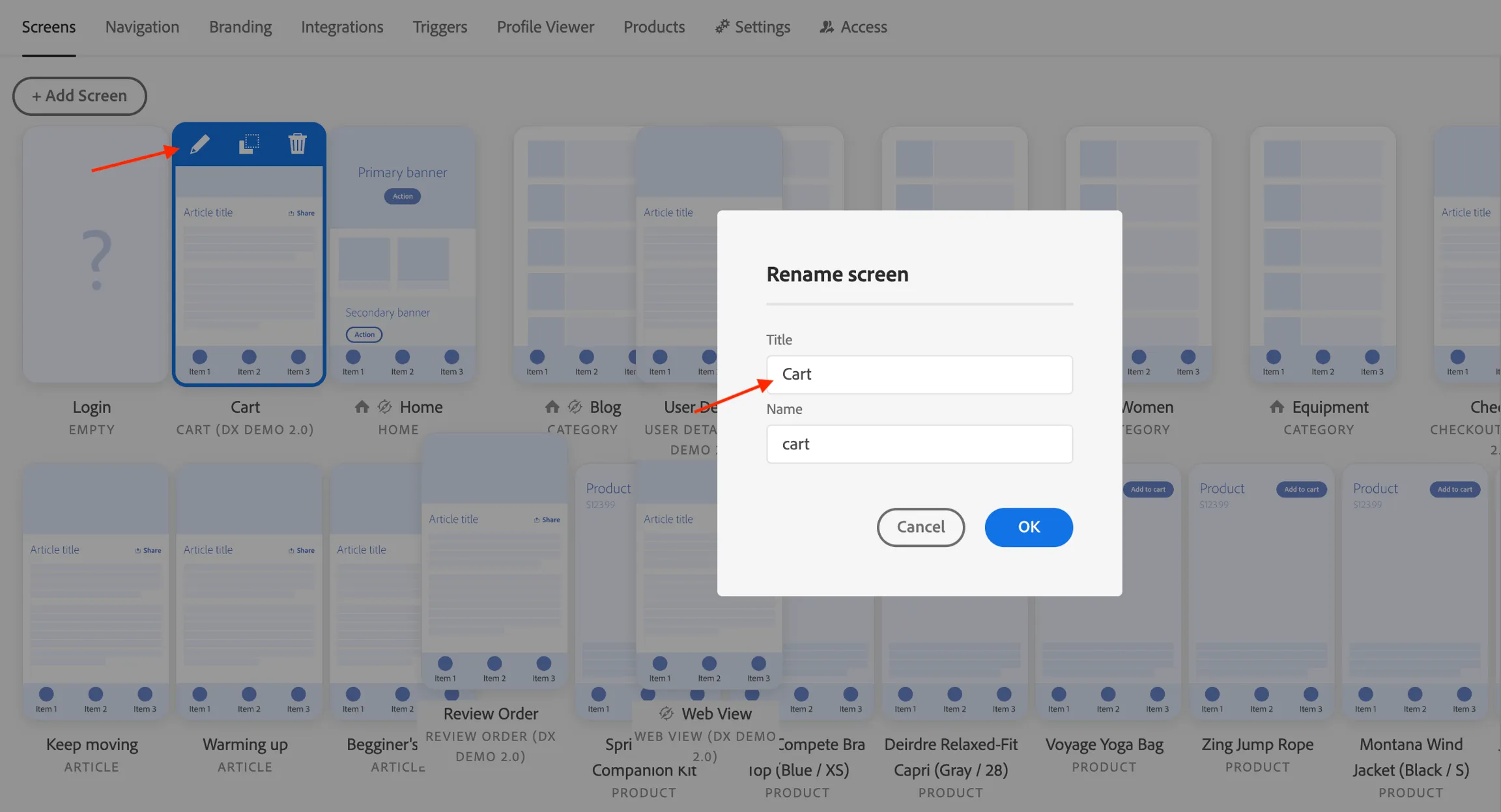
ex- dxdemo://Products,dxdemo://Men,dxdemo://Women
Deeplink external URL :
Currently, we are supporting this feature using a webview screen.
Create a webview screen if it is not present in your project, otherwise, you can use the existing webview screen.
To create a webview screen, click on "Add screen".
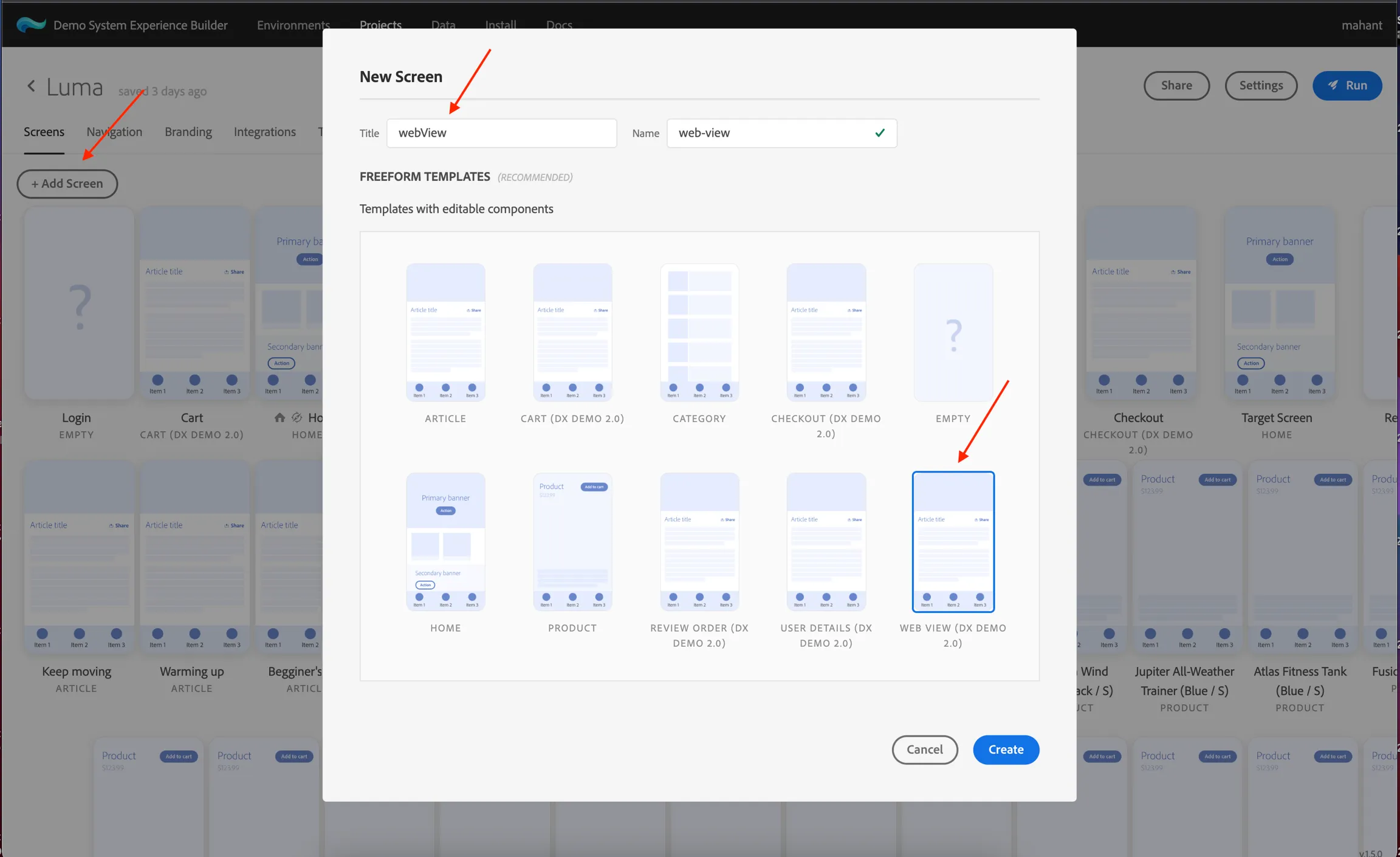
select the webView screen and click on edit content and under the URL section add the desired external URL.
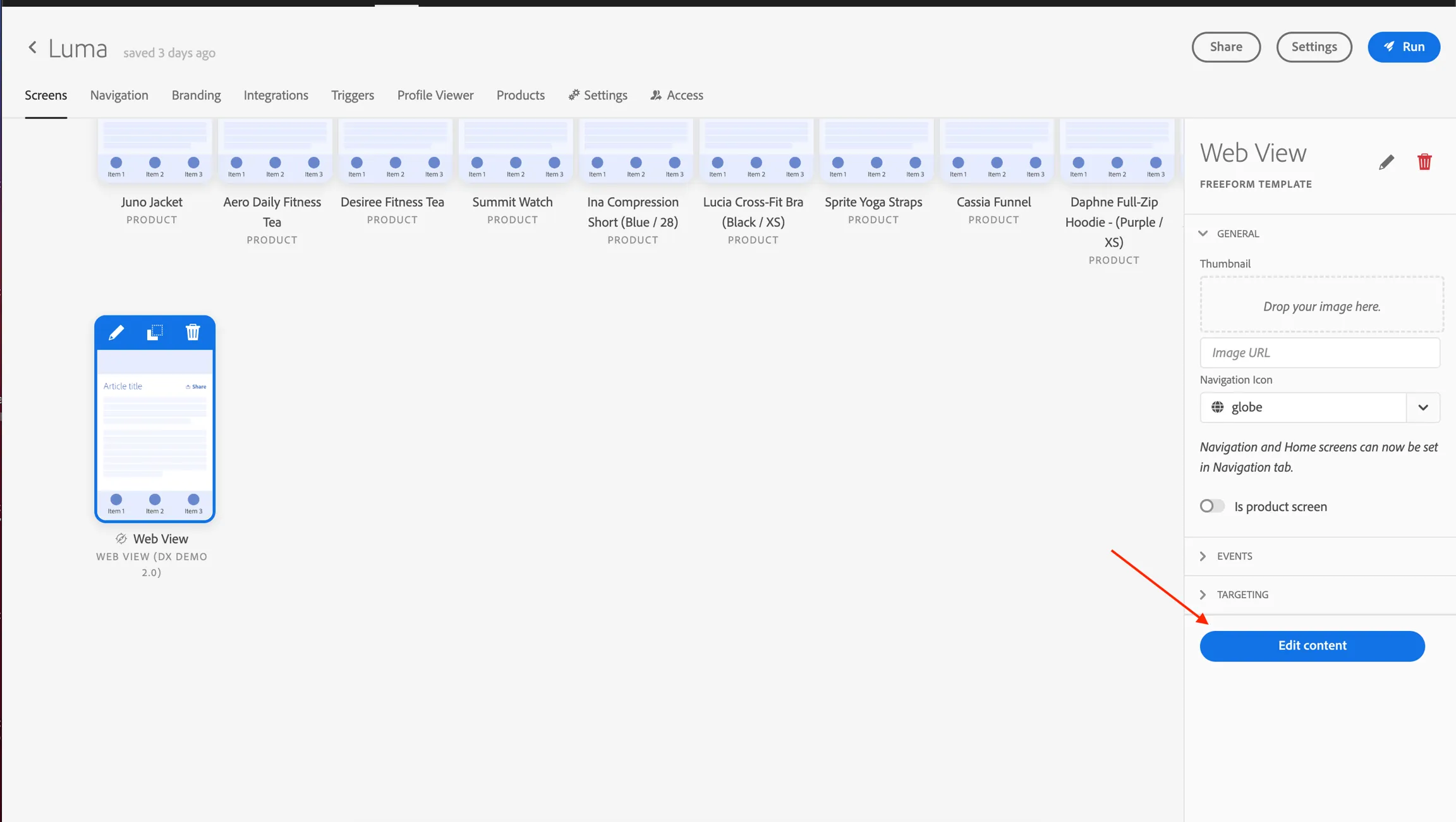
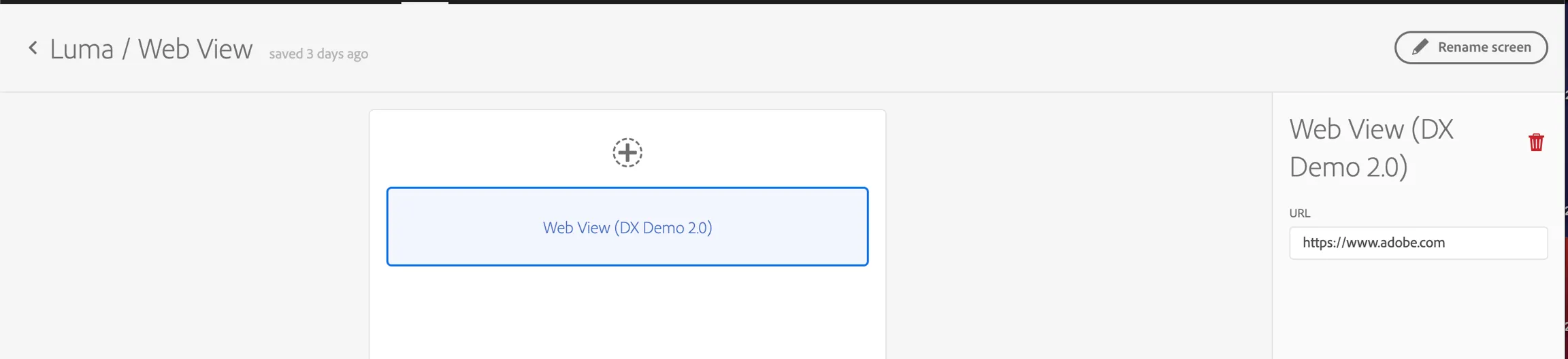
After that follow the same steps mentioned above in the "Deeplink internal app screen" to form the URL and add the Deeplink URL in the Message like - "dxdemo://webView".
The external URL given in webView should start with http:// or https://.
Ex- External URL is- https://www.adobe.com/
when you receive push notification deep links behave like below:
- If the Mobile App is closed and push receive then on click push it opens this URL in webview.
- If Mobile App is open and push receive it opens this URL in webview.
Set up a deep link in the in-app message
In the message, specify the target URL to a specific screen, which should open after clicking on the button in the in-app message.
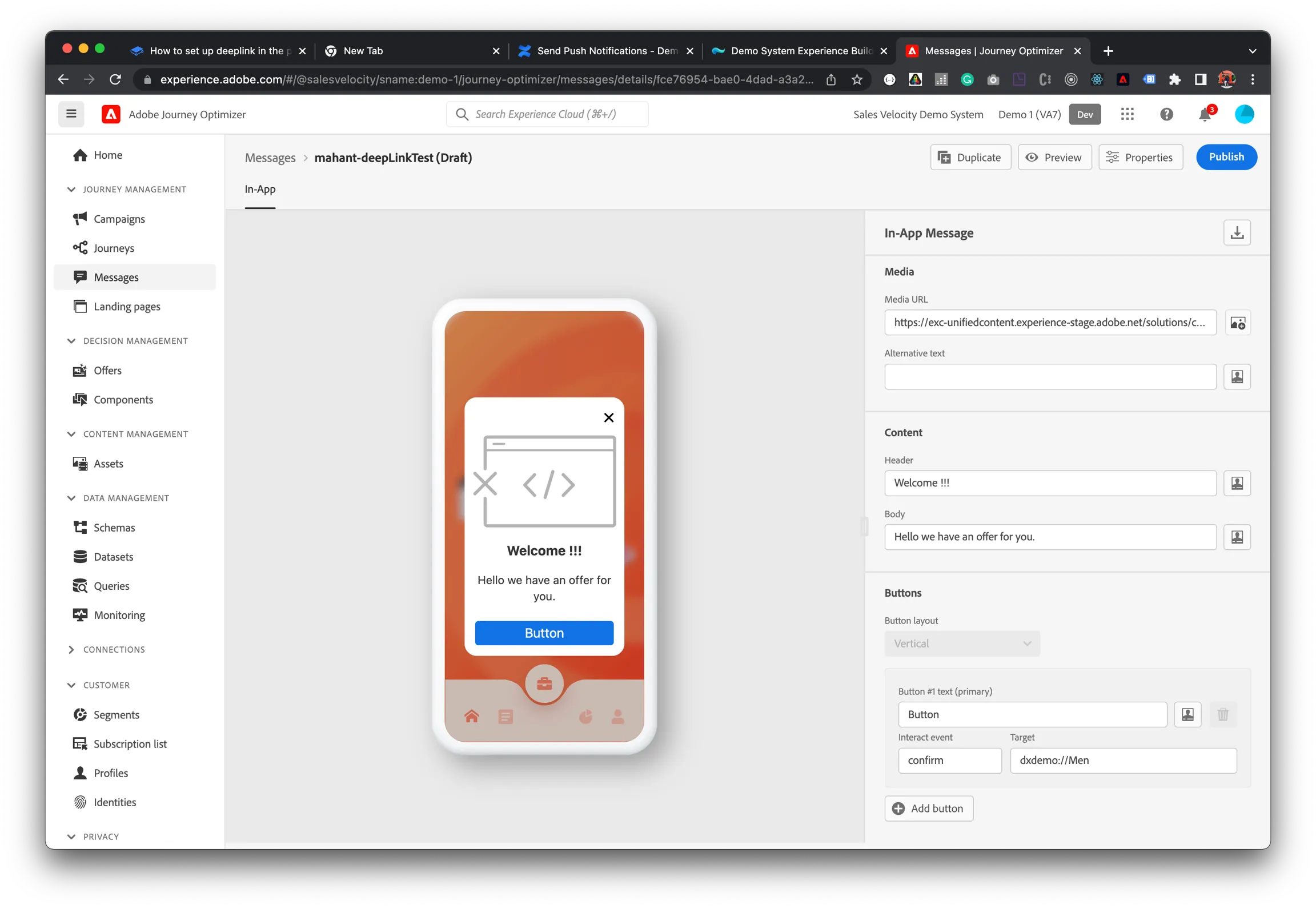
URL for in-app message form like - dxdemo://Tabs/AllScreens/screen title
You can deep link to an internal app screen or any external URL. To form this please follow the below sections.
Deeplink internal app screen :
The path of the app screen depends on the screen title in your project.
Open your project in the Demo System Experience Builder and get the screen title by clicking on the pencil icon.
dxdemo://Tabs/AllScreens/screen title
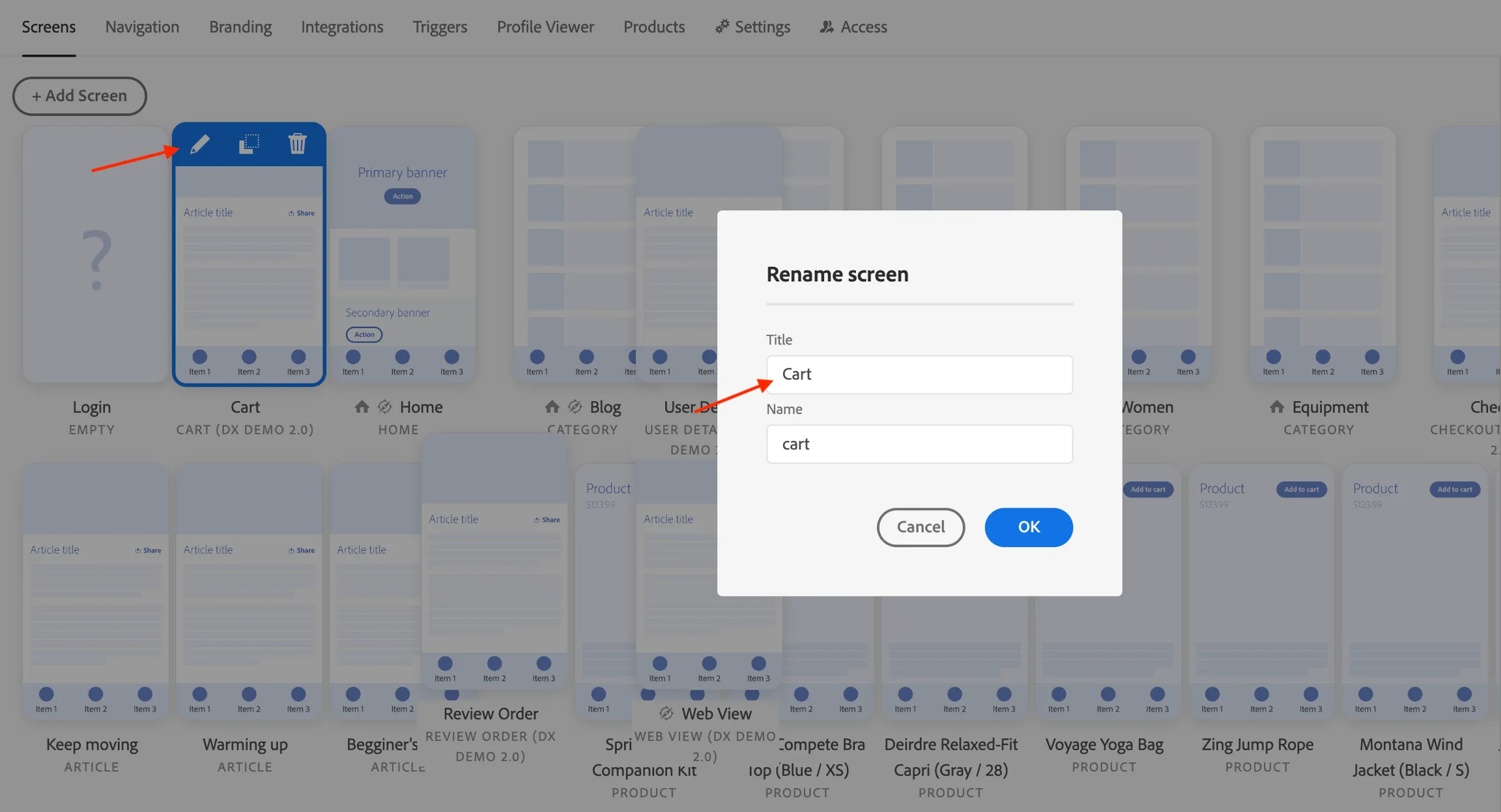
ex- dxdemo://Tabs/AllScreens/Products, dxdemo://Tabs/AllScreens/Men
Deeplink external URL :
Currently, we are supporting this feature using a webview screen.
Create a webview screen if it is not present in your project, otherwise, you can use the existing webview screen.
To create a webview screen, click on "Add screen".
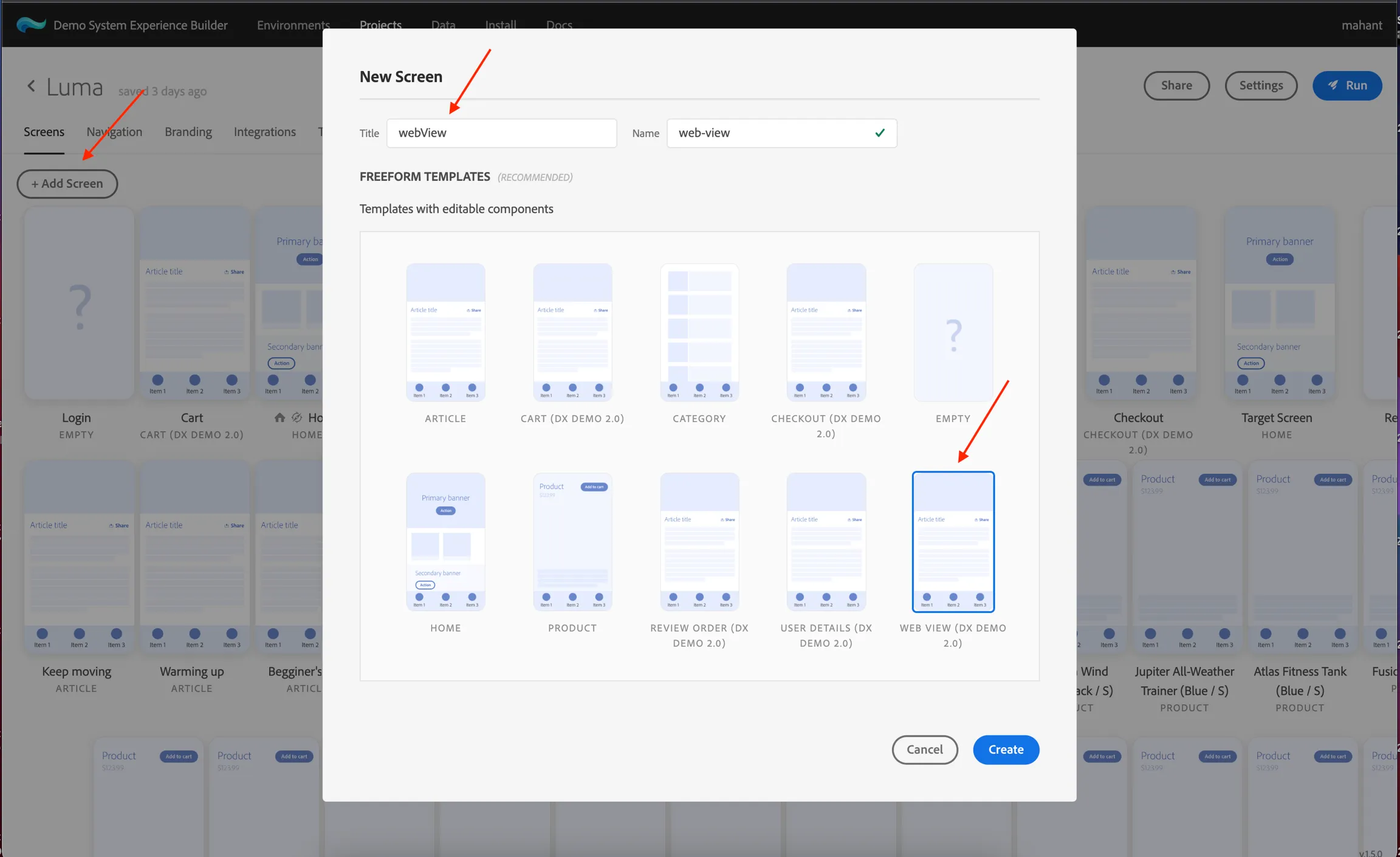
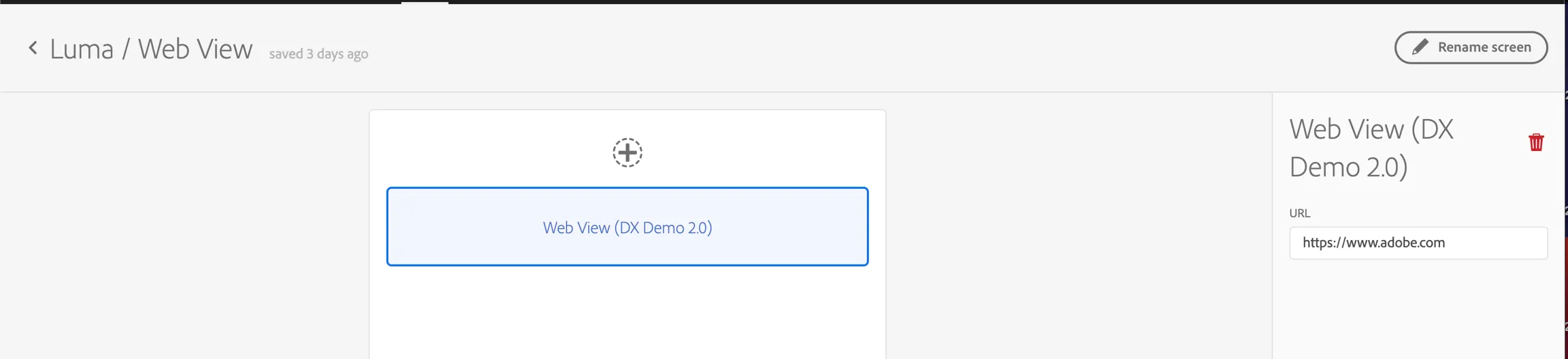
After that follow the same steps mentioned above in the "Deeplink internal app screen" to form the URL and add the Deeplink URL in the Message like - "dxdemo://Tabs/AllScreens/webView".