Step 1 - Preparing Demo Environment
3 min
PREREQUISITES
- Access to Adobe Experience Platform:
- Access to Adobe Experience Platform Launch:
- AEP Sandbox visible in Demo System Next - environments section
If you don't have access to any sadnbox contact your org admin or reach out to us
Email: [email protected]
Slack: #demo-system-next
You can use tool called Quick Setup to prepare your environment for further work. Depending on your needs you can:
- automatically create AEP schemas, datasets and vertical specific field groups
- prepare website and mobile app as a front end demonstration platforms
- create Data Collection property to connect front-end assets with backend (Target, AEP, Campaign etc)
- create sample Journeys which you can use as a base for your specific journeys that will allow you interact with customer in more direct way
- create sample offers and decisions for ODE - can be also used as a base to demo Offer Decisioning combined with website, mobile app or just sample api examples.
- generate sample rich profiles to focus more on RTCDP part of the platform
- configure Marketo connection to demonstrate B2B capabilities
Steps
- Do you need first to reset the sandbox? If yes, check the sandbox reset checklist
- Go to https://dsn.adobe.com/environments and select environment you want to use.
- Click on it and select Quick Setup from the naviagation on the right
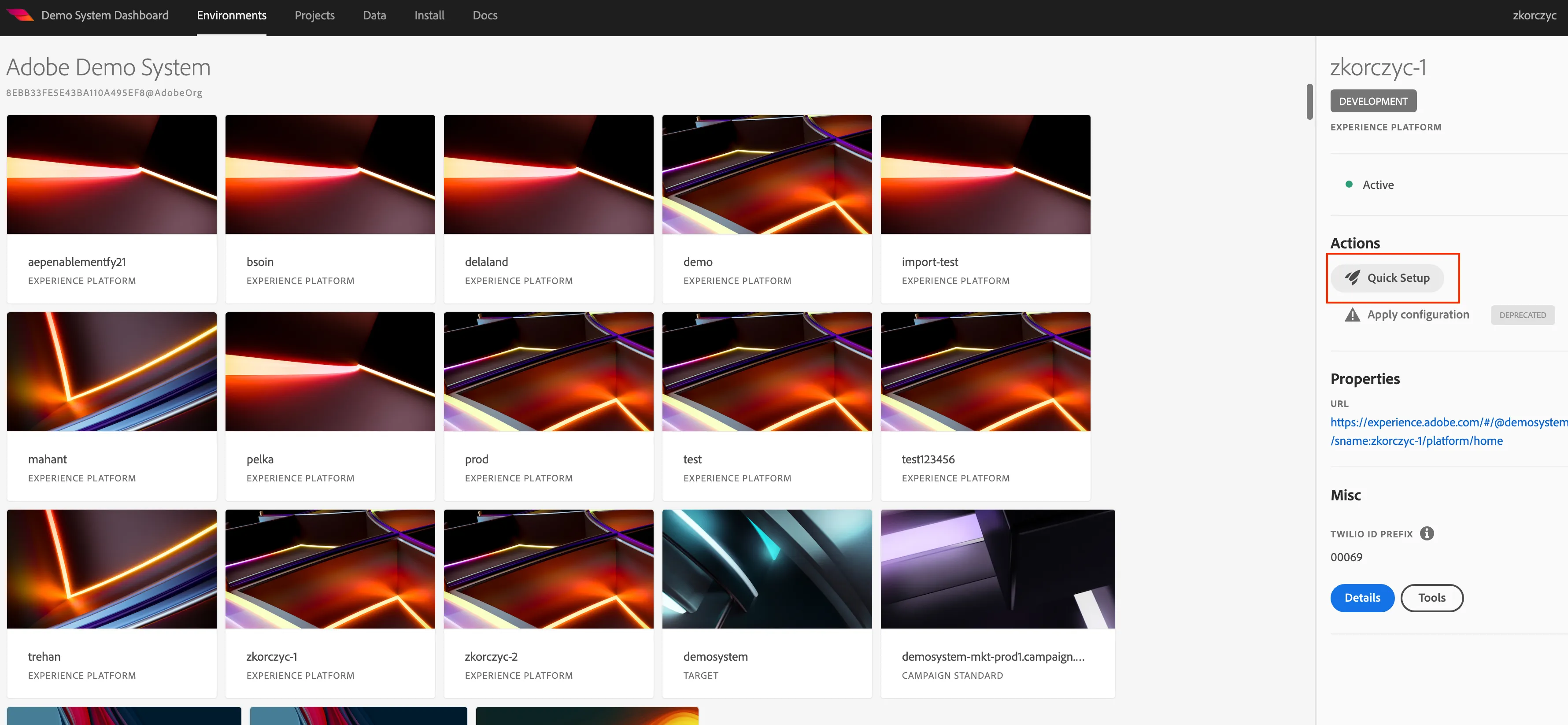
3. On the next screen make sure your environment is selected or if you have access this page directly from navigation, select your environment.
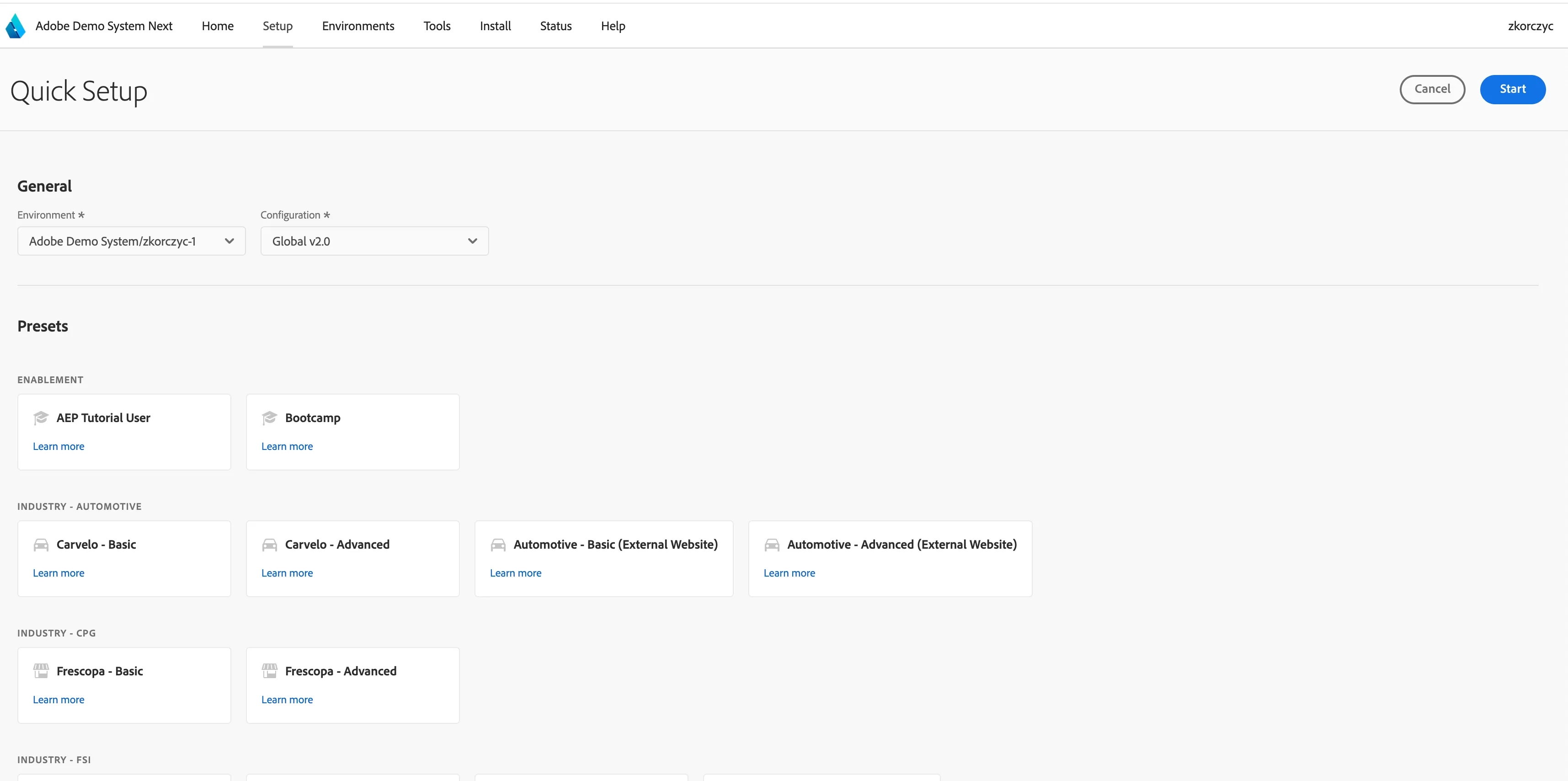
You can choose from multiple presets prepared for 11 different verticals. In this tutorial we will use Luma - Retail preset Retail demo environment
Learn more about another presets in this document Quick Setup