Step 2 - Send live data to AEP using Website
After successful configuration in Quick-Setup a mobile app and website project should be created for you to use.
In this scenario, we are basing our approach on the Luma example.
Go to https://dsn.adobe.com/ and open your workspace.
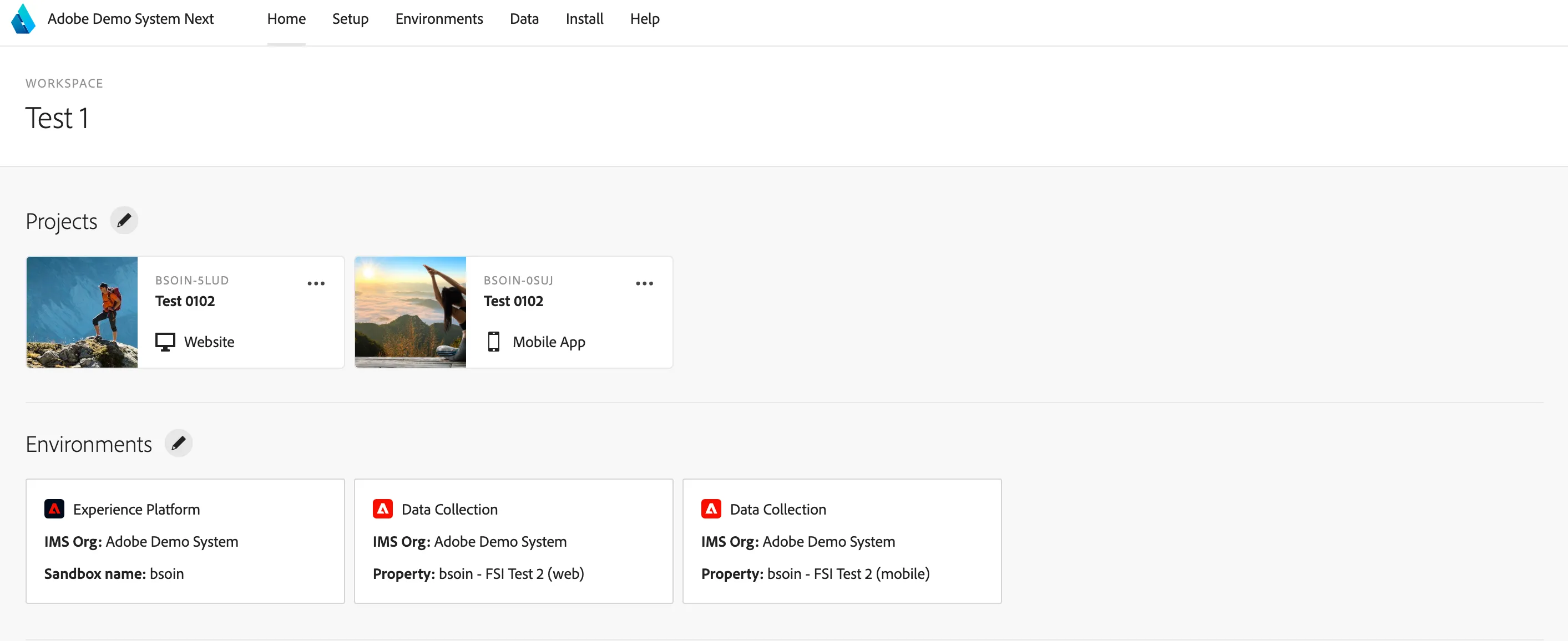
You should see two project for web and mobile. Name of both should have the Title you provided during the initial configuration
Configure website project
Click on the website project and edit it. Switch to the integrations tab
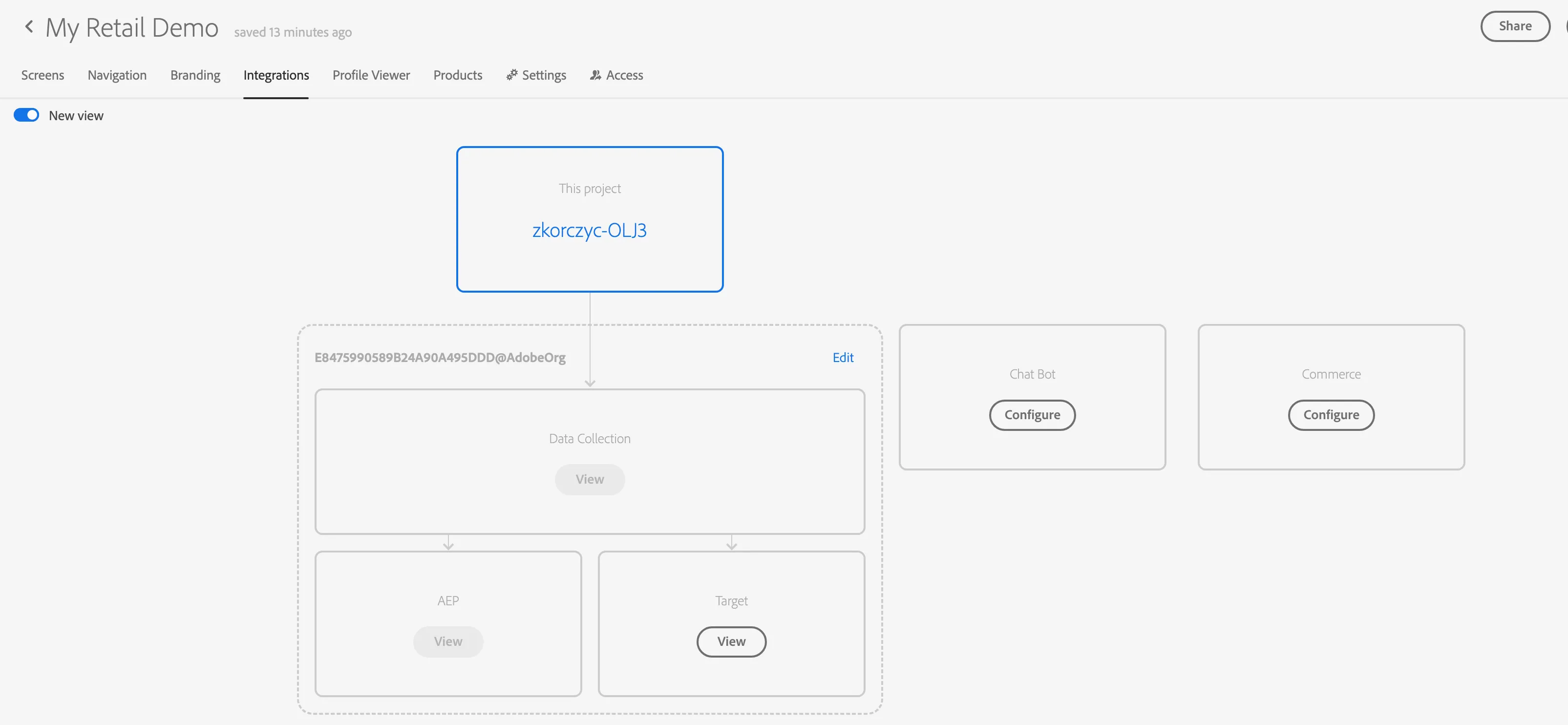
Click Edit to select the Data Collection that was created in quick-setup. Data Collection points to the AEP sandbox to which the data will be sent to.
Select the property with (web) and the same name as your project.
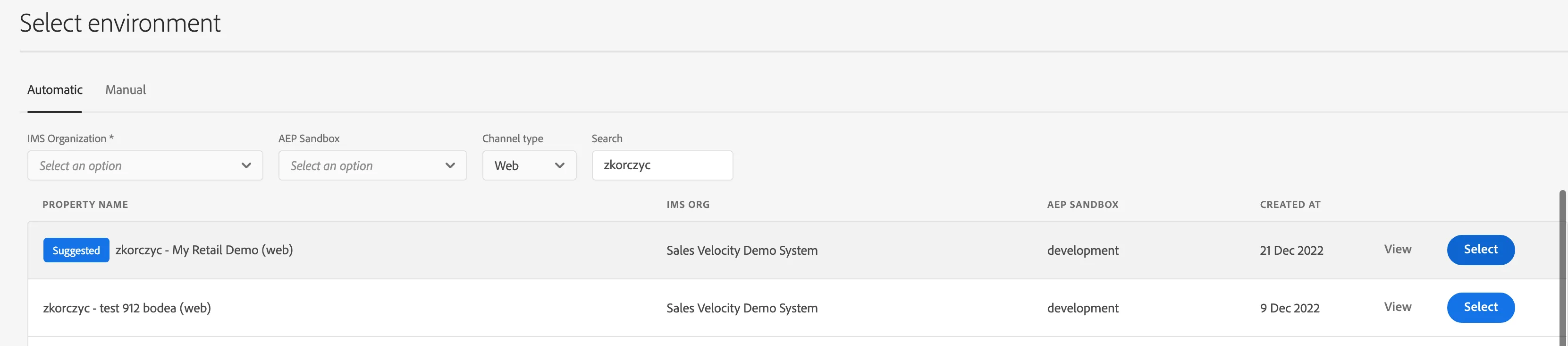
Click "Save"
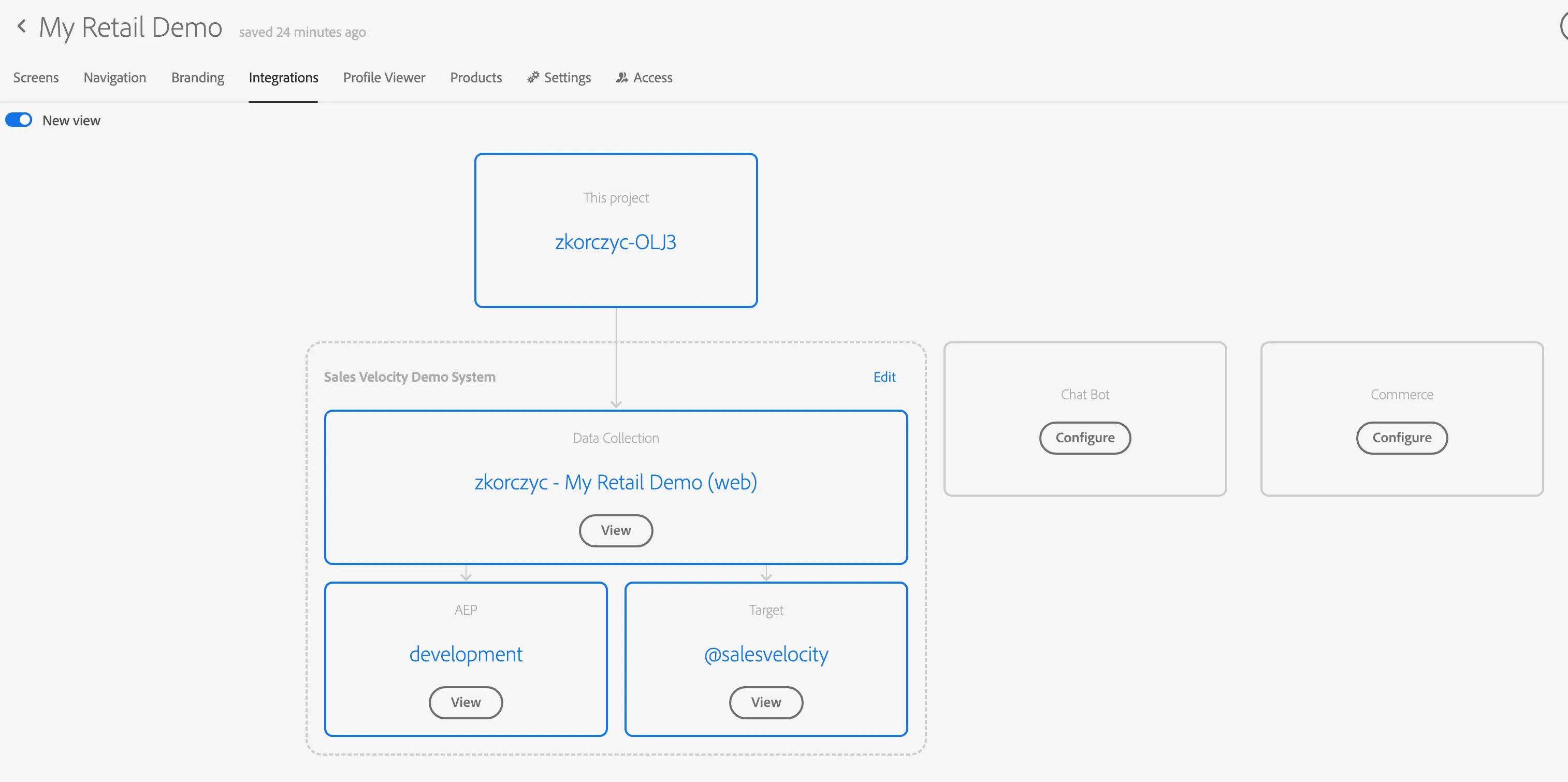
Your website project is ready to use.
Configure mobile project
Go back to your workspace and click on the mobile project
Switch to the integrations tab:
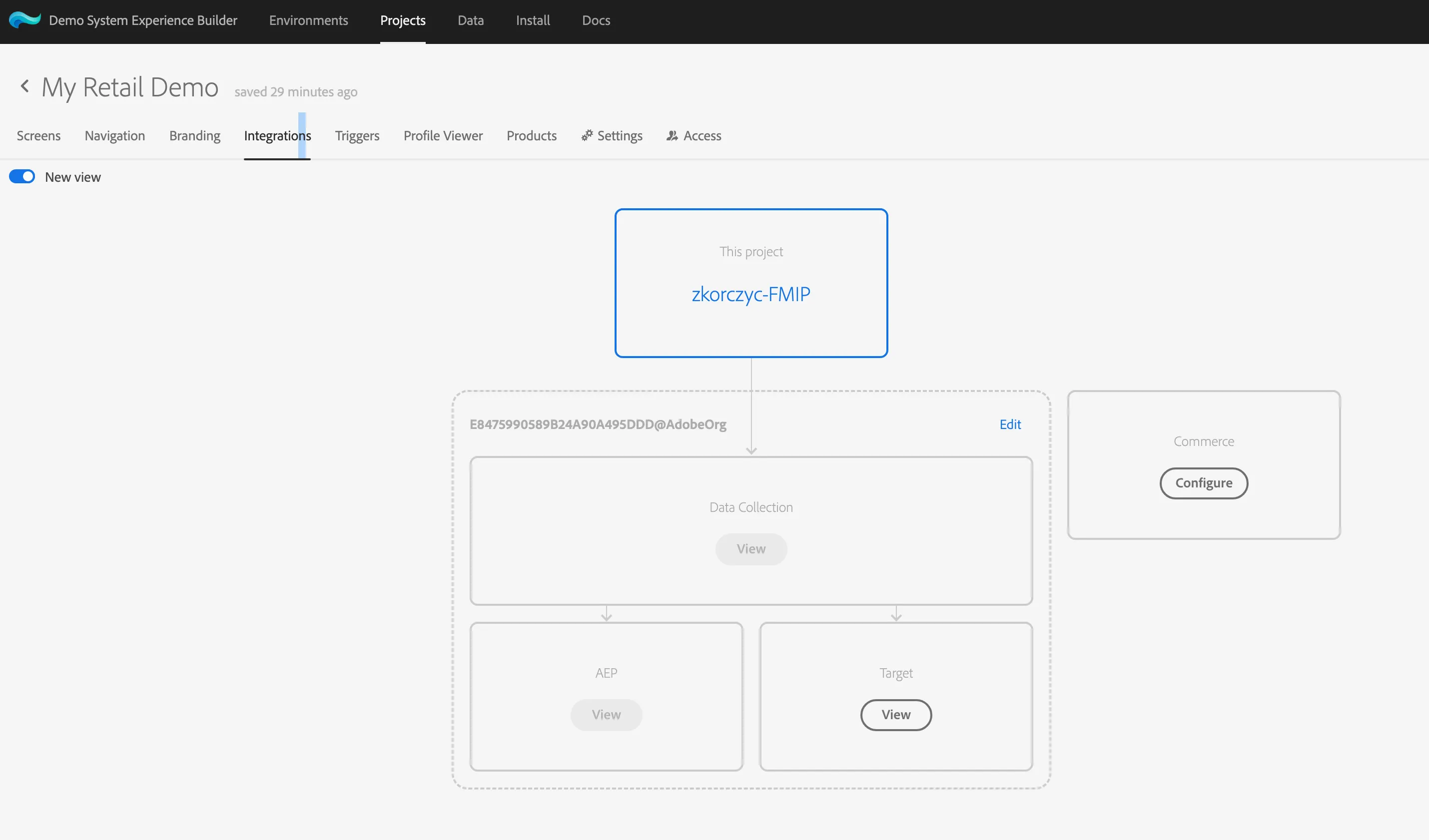
Click Edit to select the Data Collection that was created in quick-setup. Data Collection points to the AEP sandbox to which the data will be sent to.
Select the property with (web) and the same name as your project.

Click "Save"
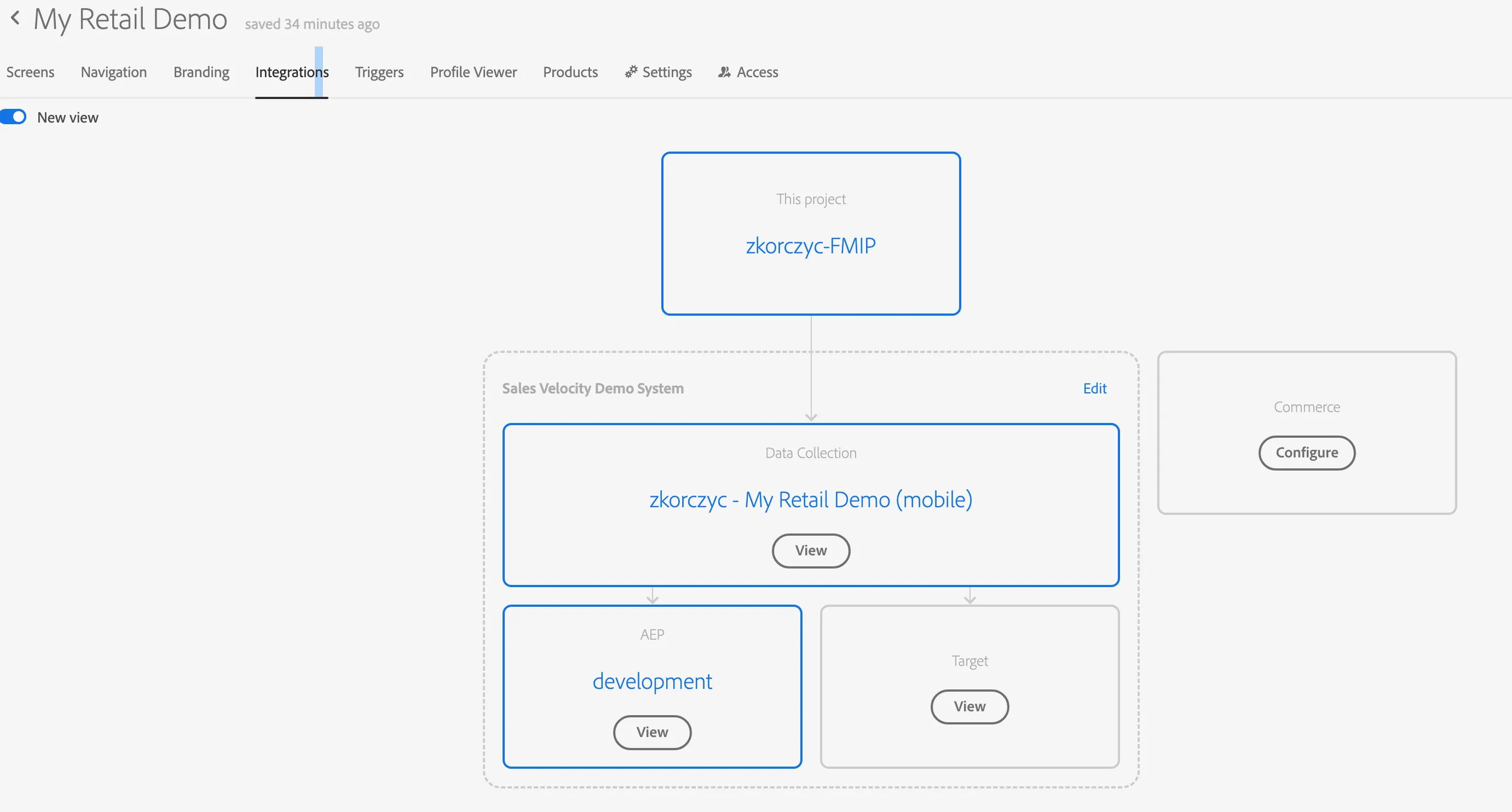
Your mobile project is ready to use.
You can now share your workspace/projects with others