Unified Profile and Data Collection
Luma wants to learn more about their customers, their online and offline behaviour. They are adding AEP and Data Collection tag to their website and mobile app to gather information about what the users are looking at on the web page and mobile app, observe the purchase funnel and use this information to deliver more relevant and personalised experience.
PREREQUISITES
- Start on a new incognito window or reset profile using profile viewer to generate new ECID on the browser for new user
- Start a new mobile session by using the "Reset Profile" button on the settings tab to start with a fresh ECID
- Prepare second user and ingest the data to the platform to have a profile to demo profile attributes, computed attributes, ML scores and segment membership from batch segmentation
DEMO GUIDE
Showcase we can personalize for brand new user
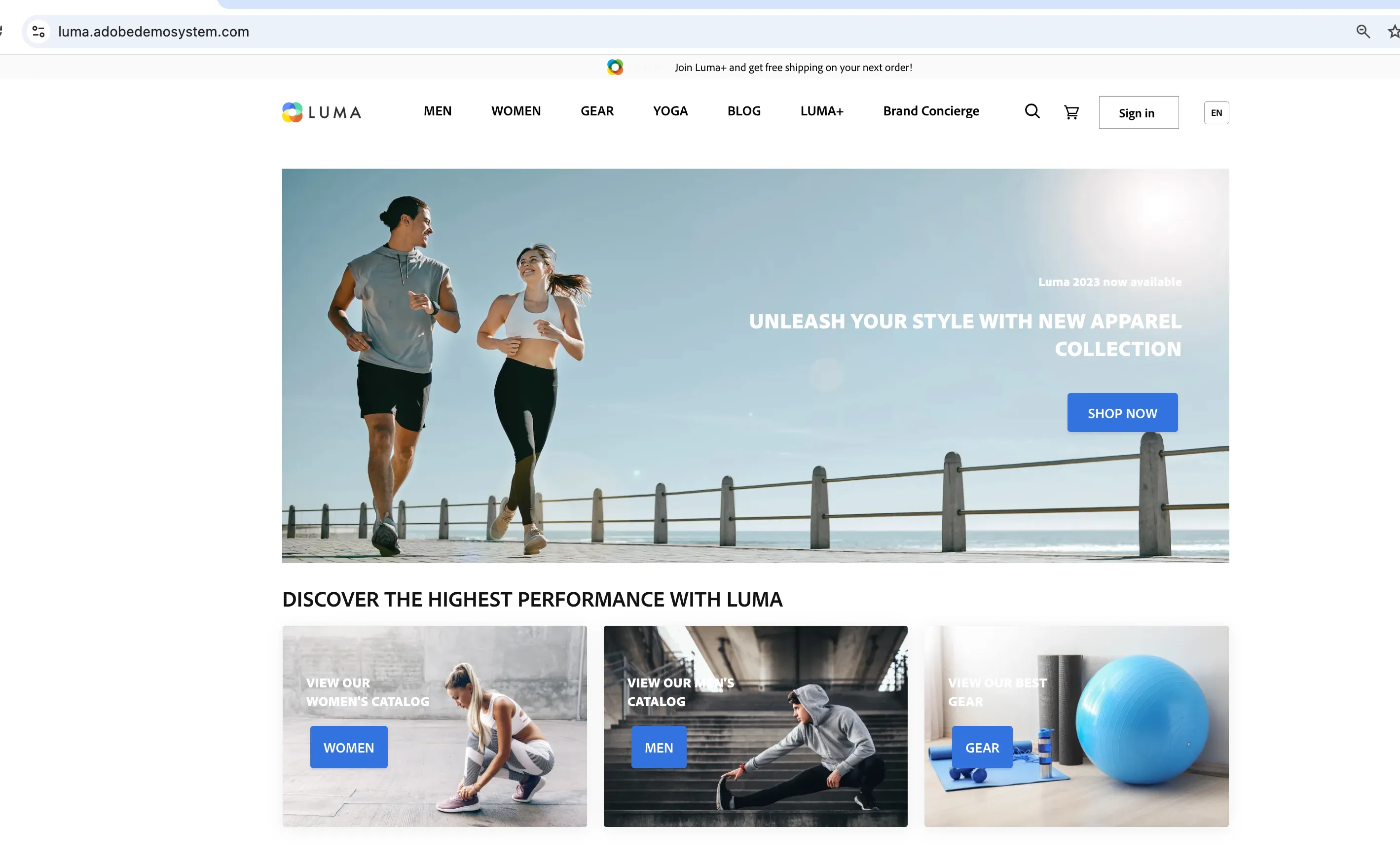
- Open the Luma website as anonymous user: https://luma.adobedemosystem.com
2. Navigate to any Women category page
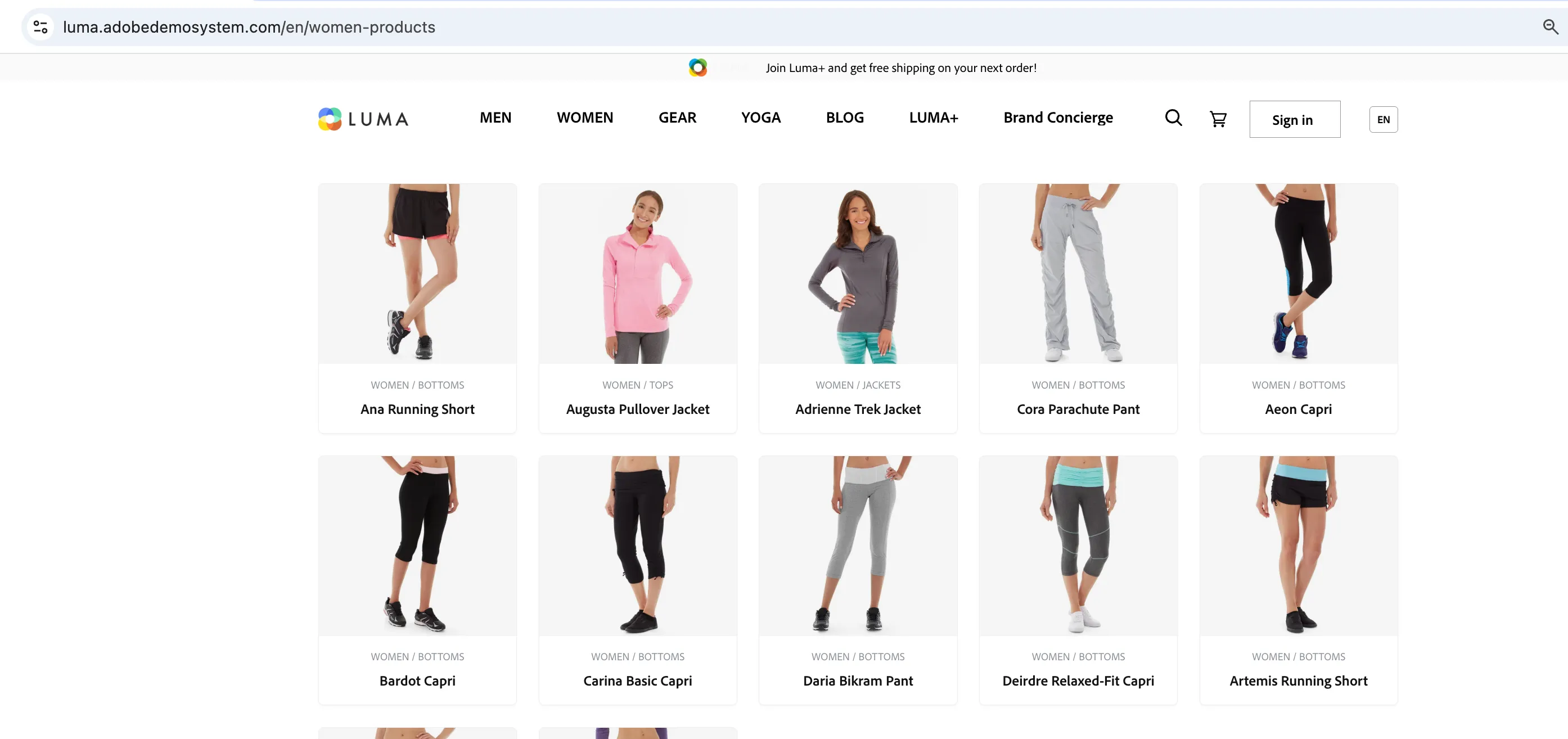
3. Browse any product
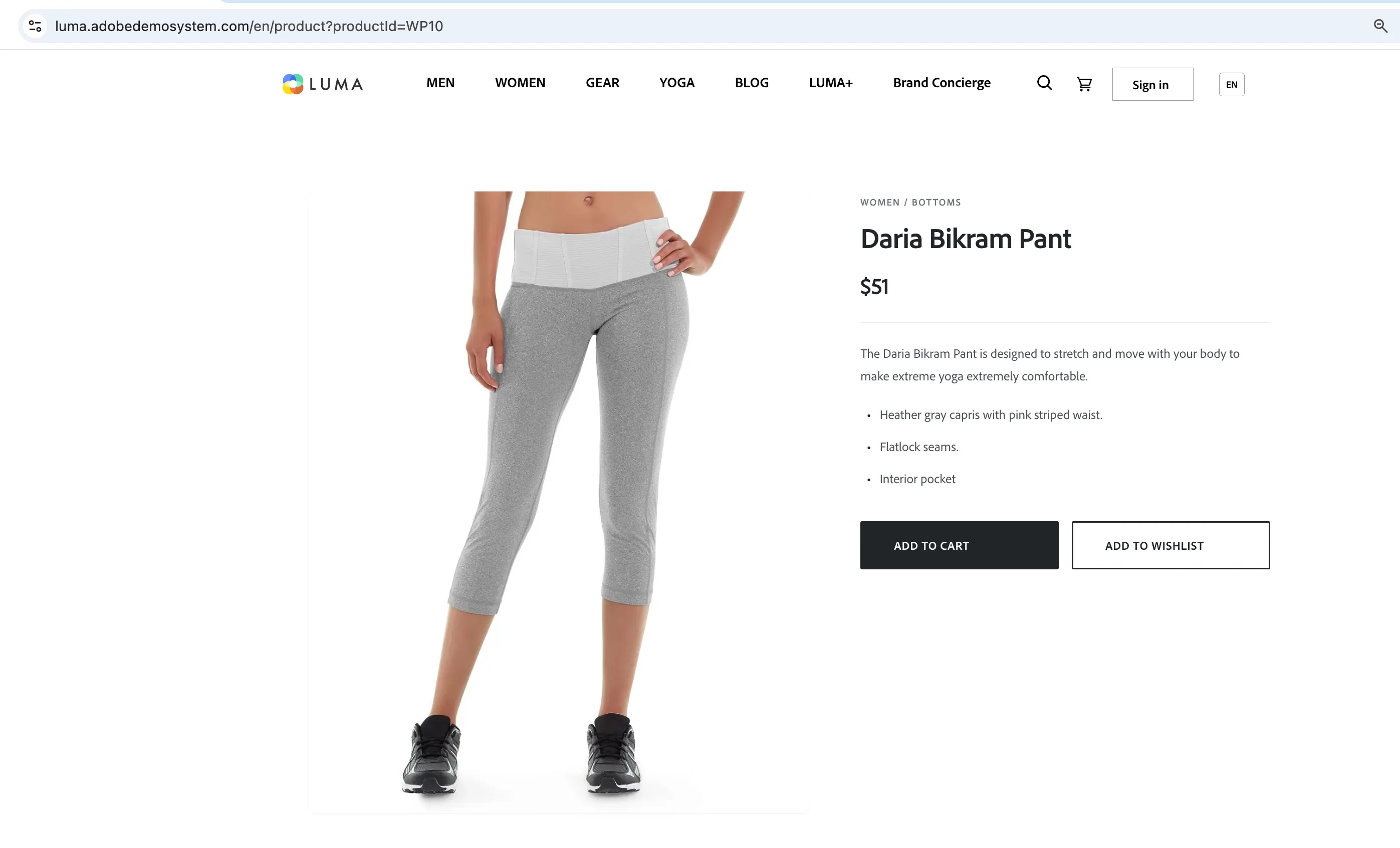
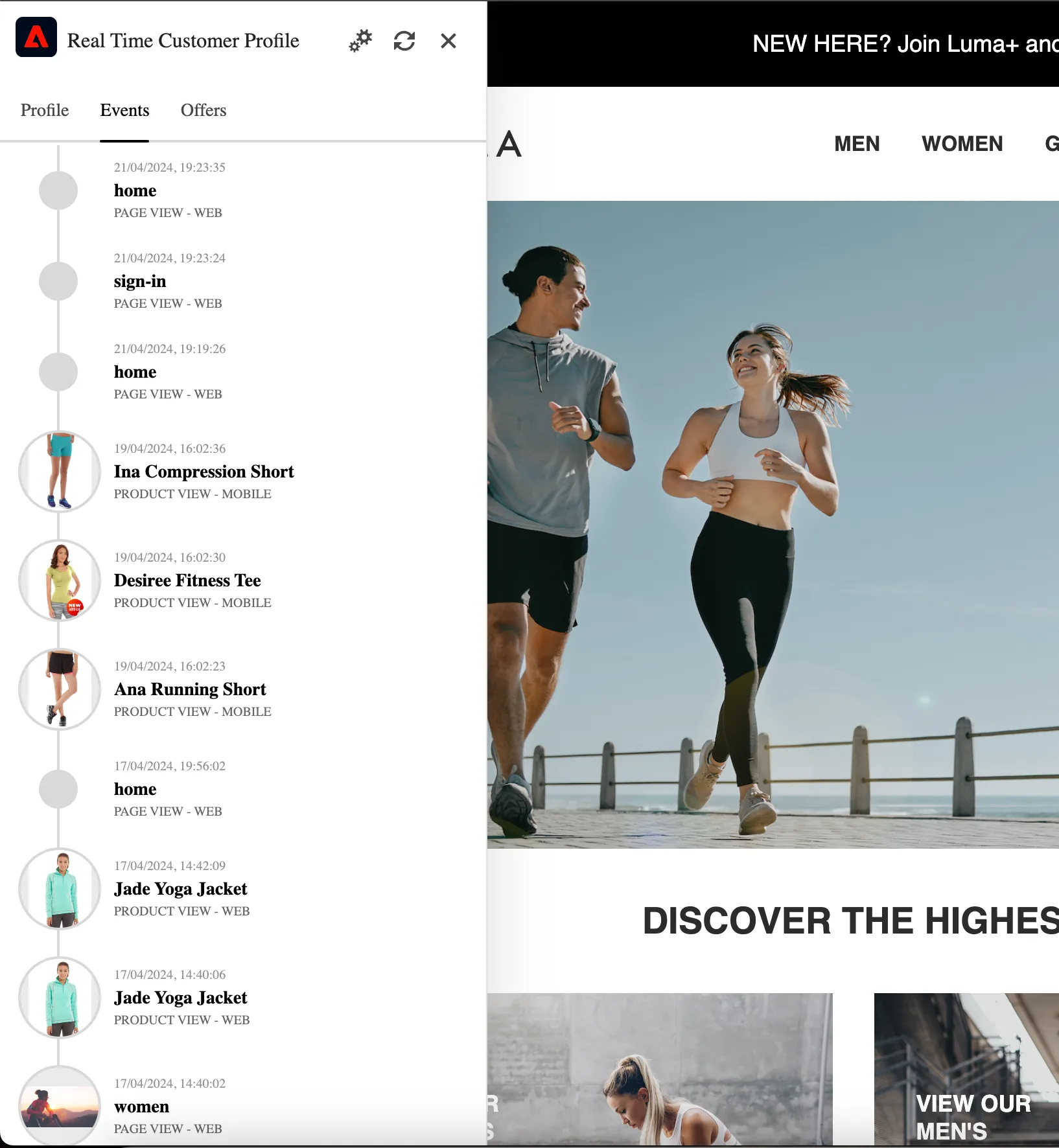
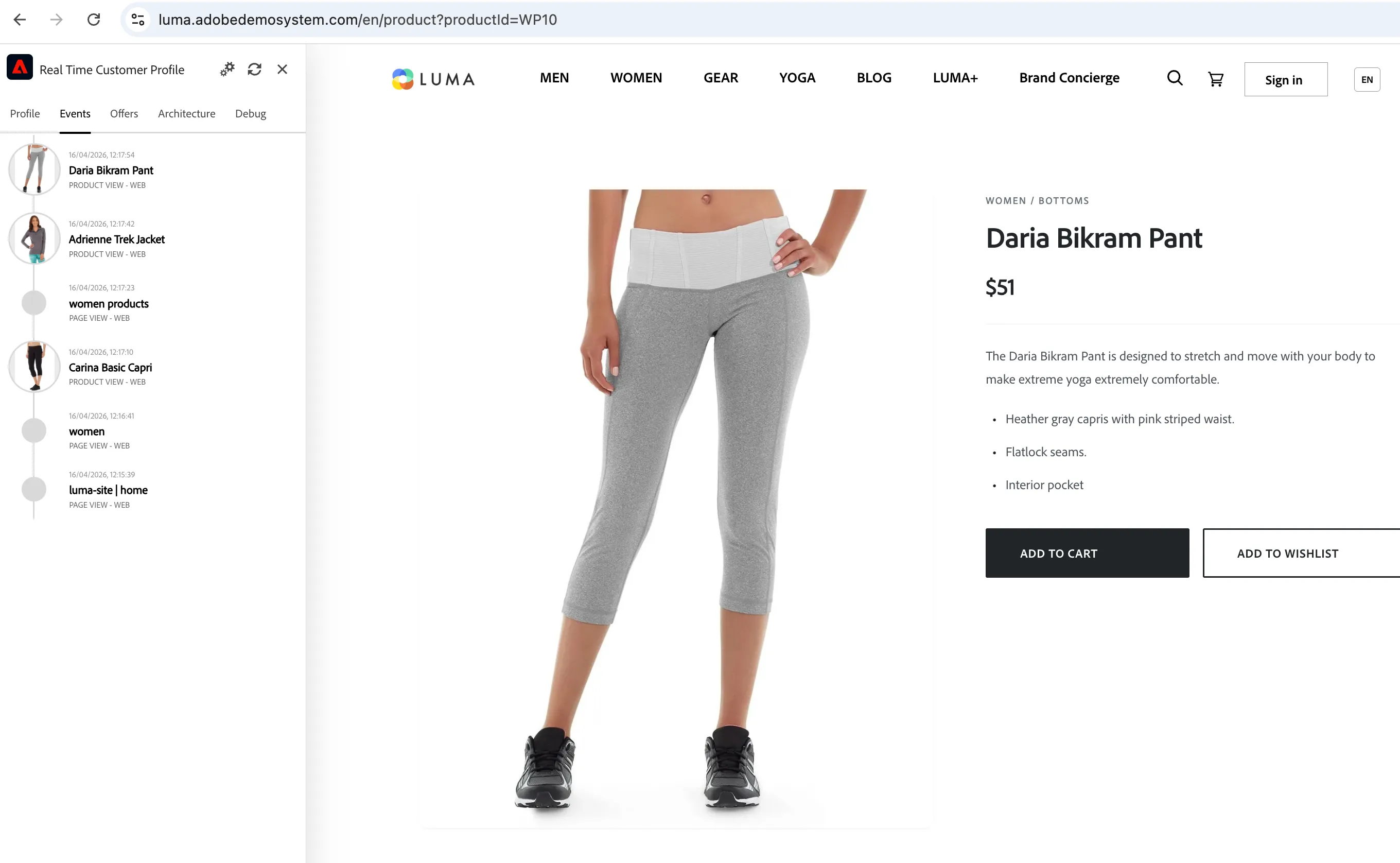
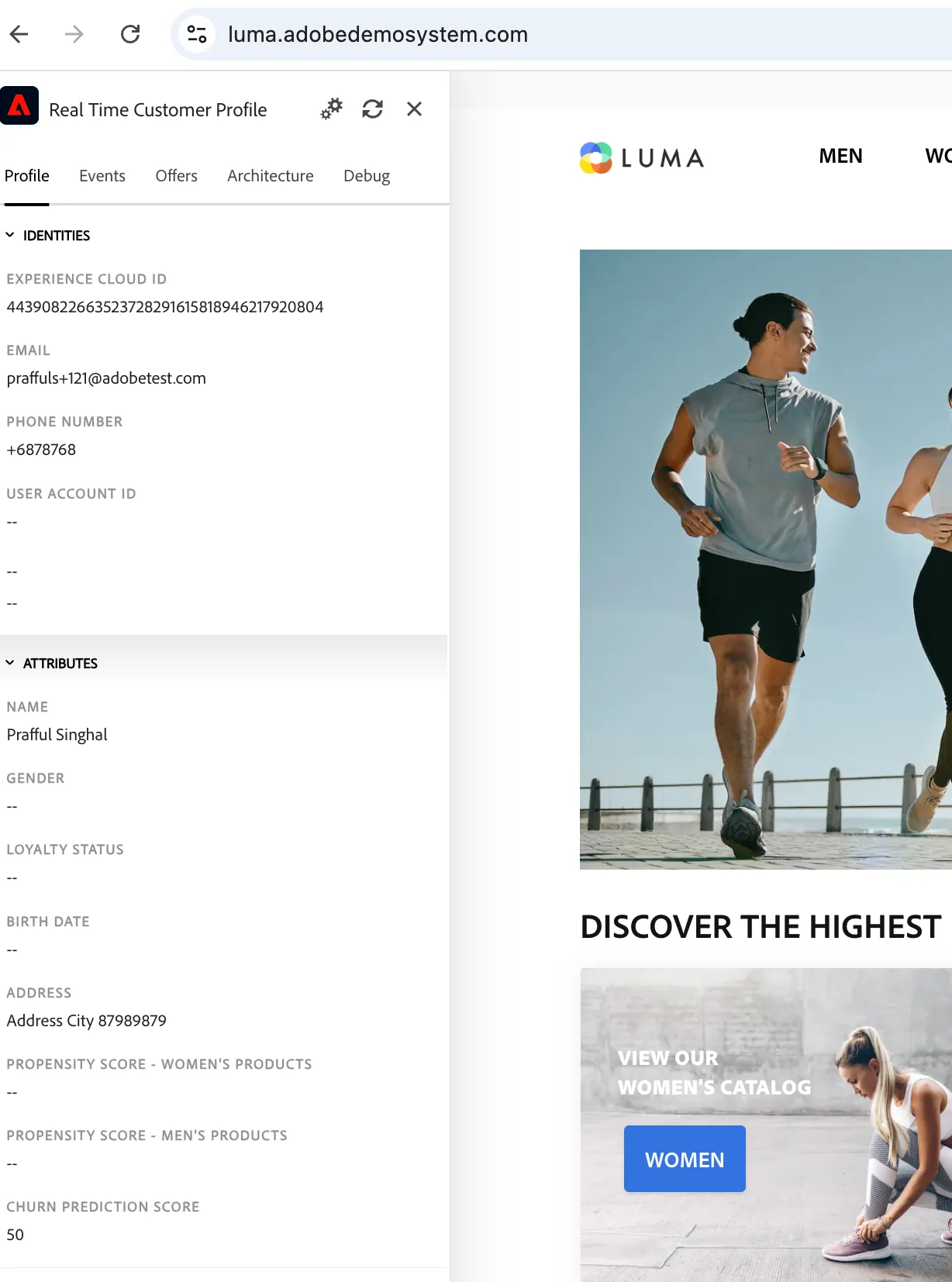
4. Open profile viewer. The product view event will be visible in the Experience Event Section
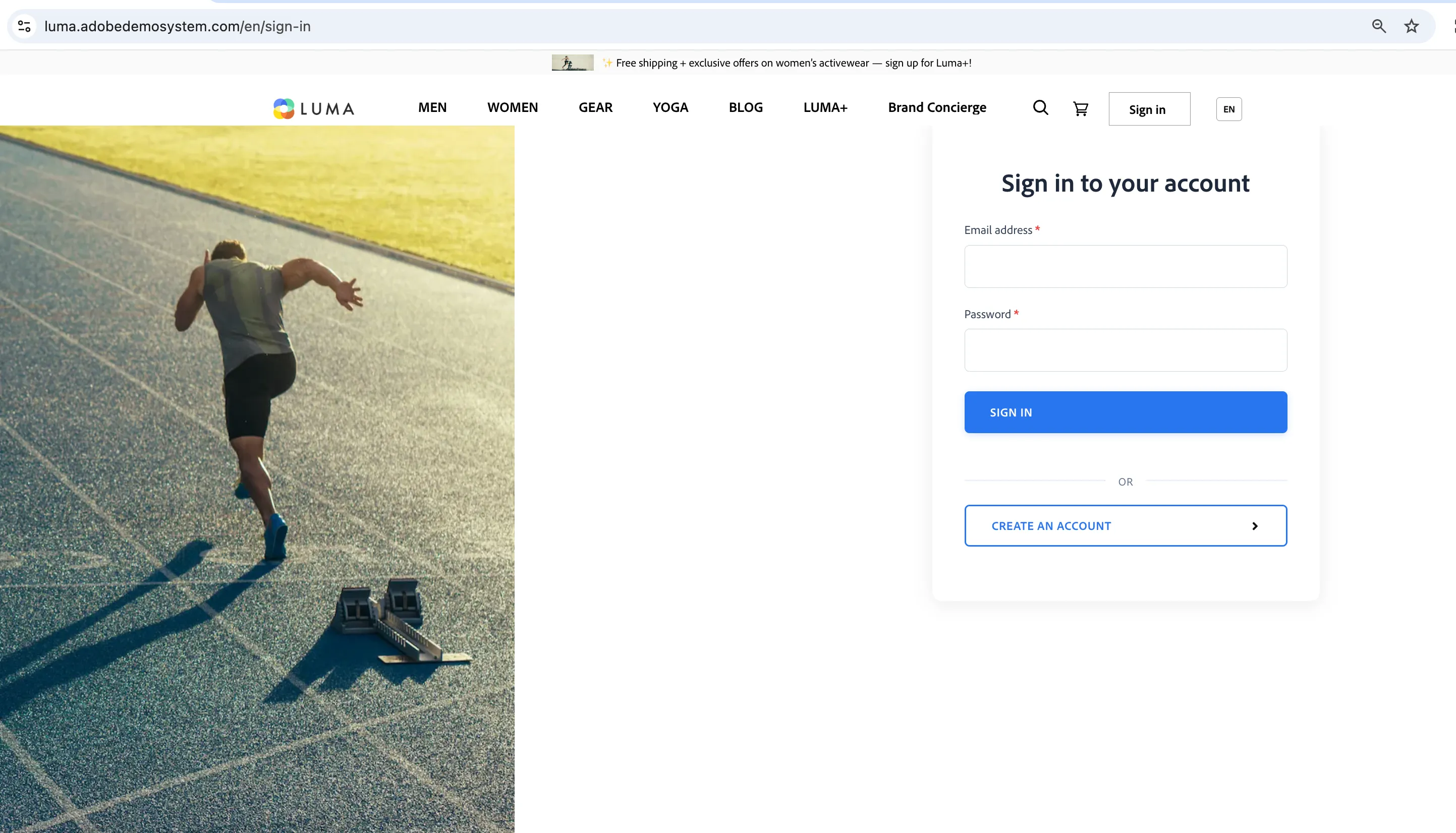
5. Click on the "Sign in" button in the top right corner.
Note: We are in implementation phase of Sign-in direct functionality. Please proceed with Registration first and use same account for Sign-in.
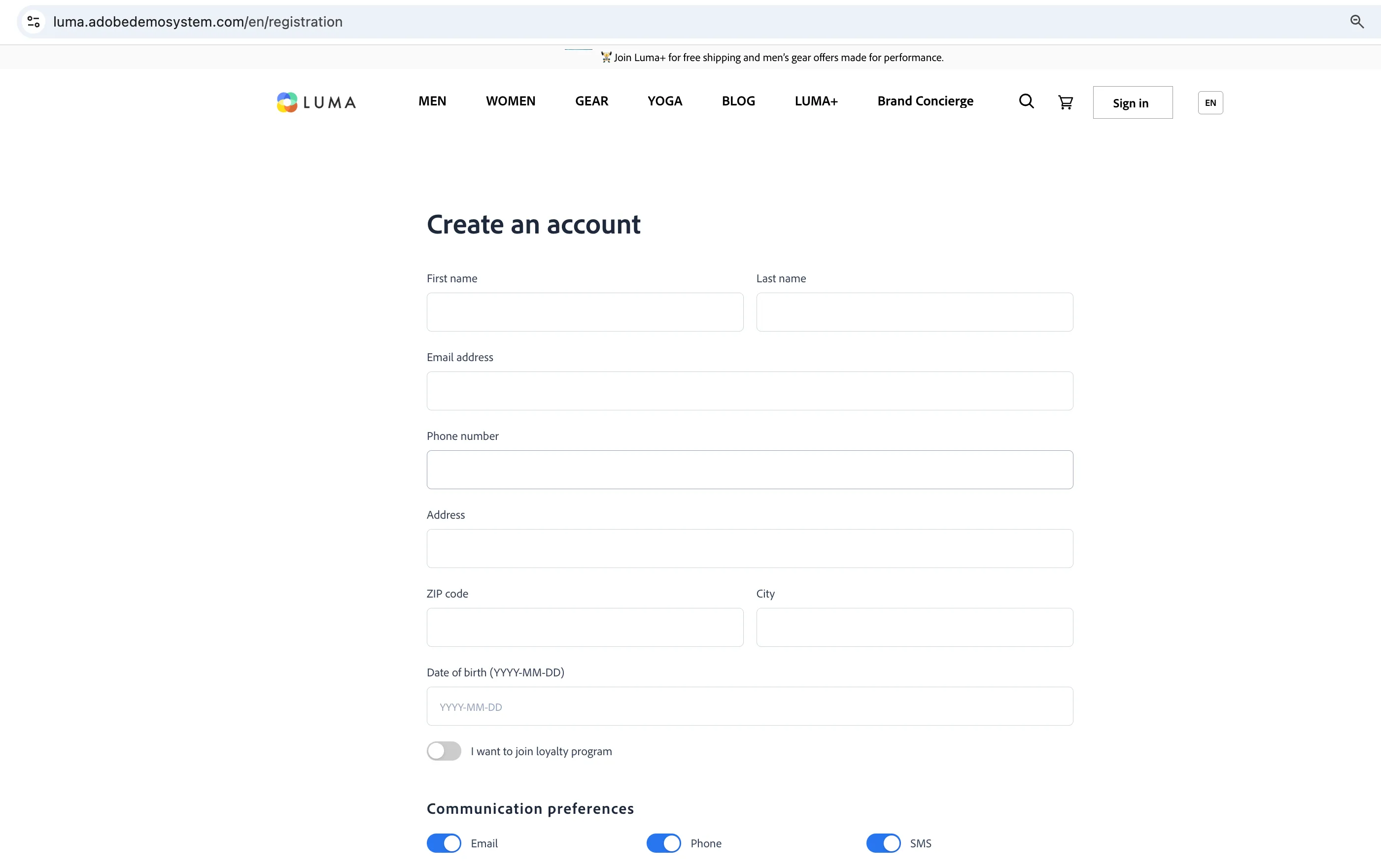
6. Fill the required fields and click "Register".
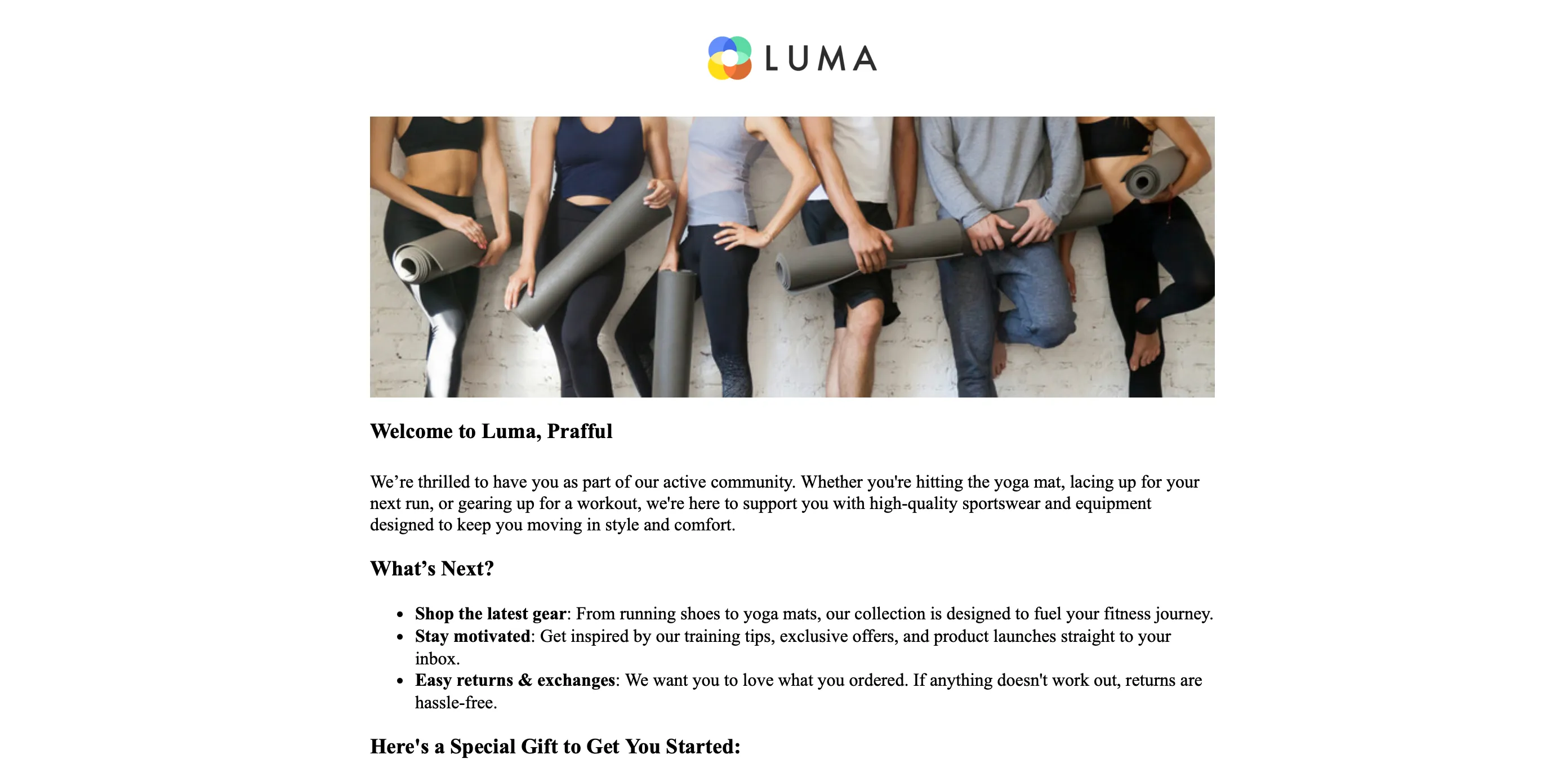
7. Open profile viewer - Profile details should be visible there. You will also get an email with Registration Confirmation - check the "Triggering Journeys - Registration" scenario to learn more.
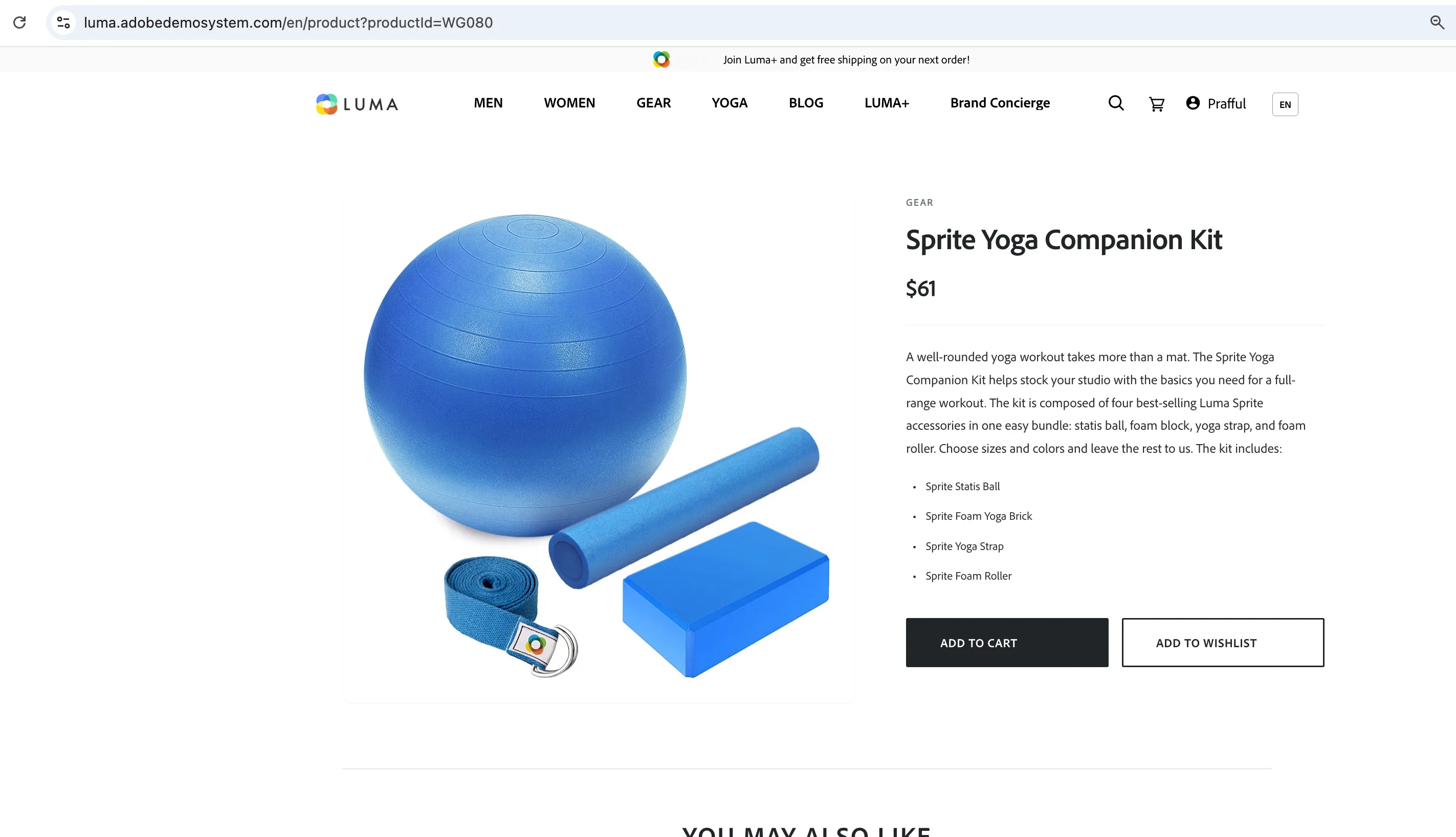
8. Open again any product. Add it to the cart.
9. Click on the cart icon in the top right corner
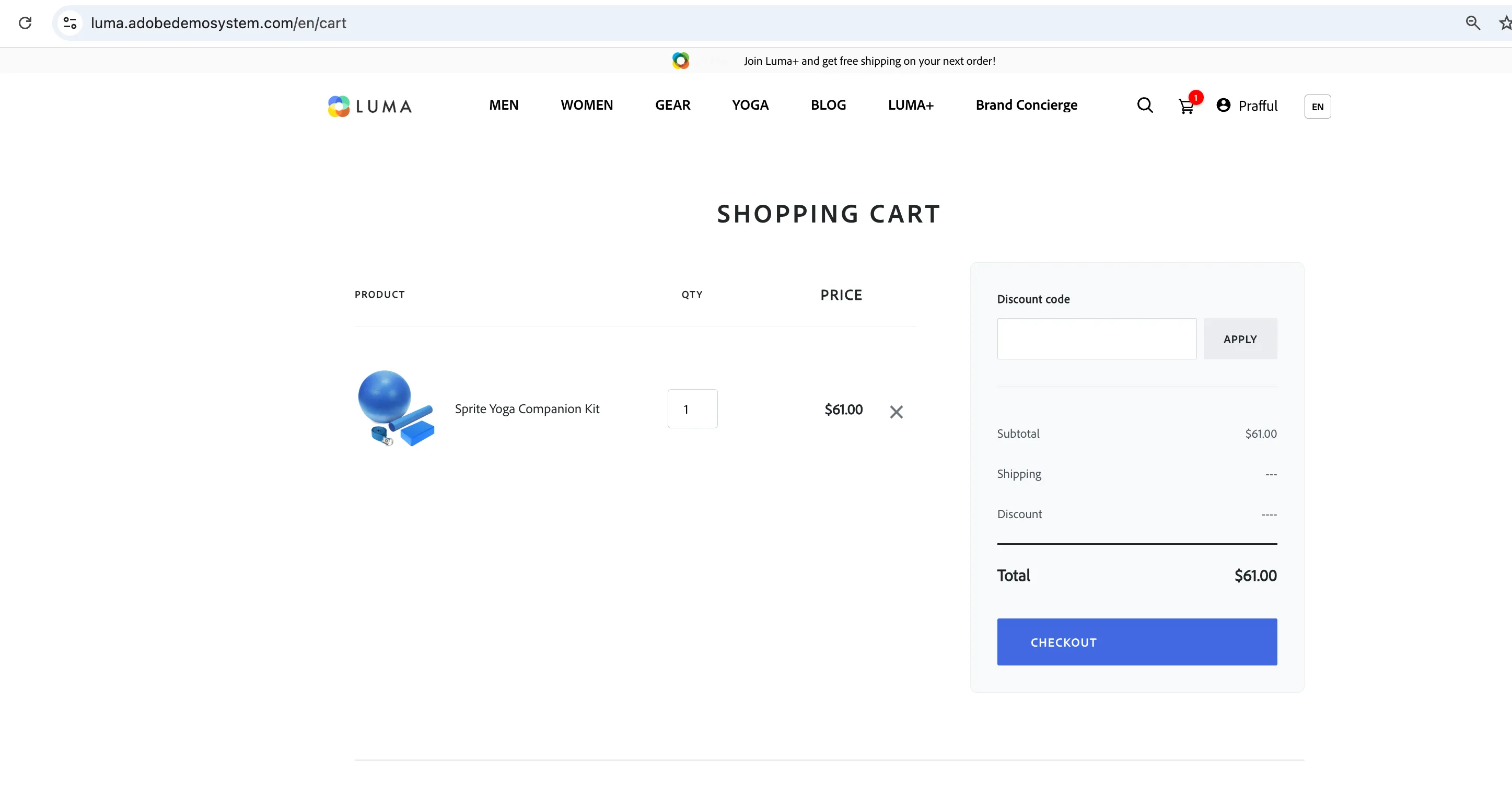
10. Proceed with the checkout process
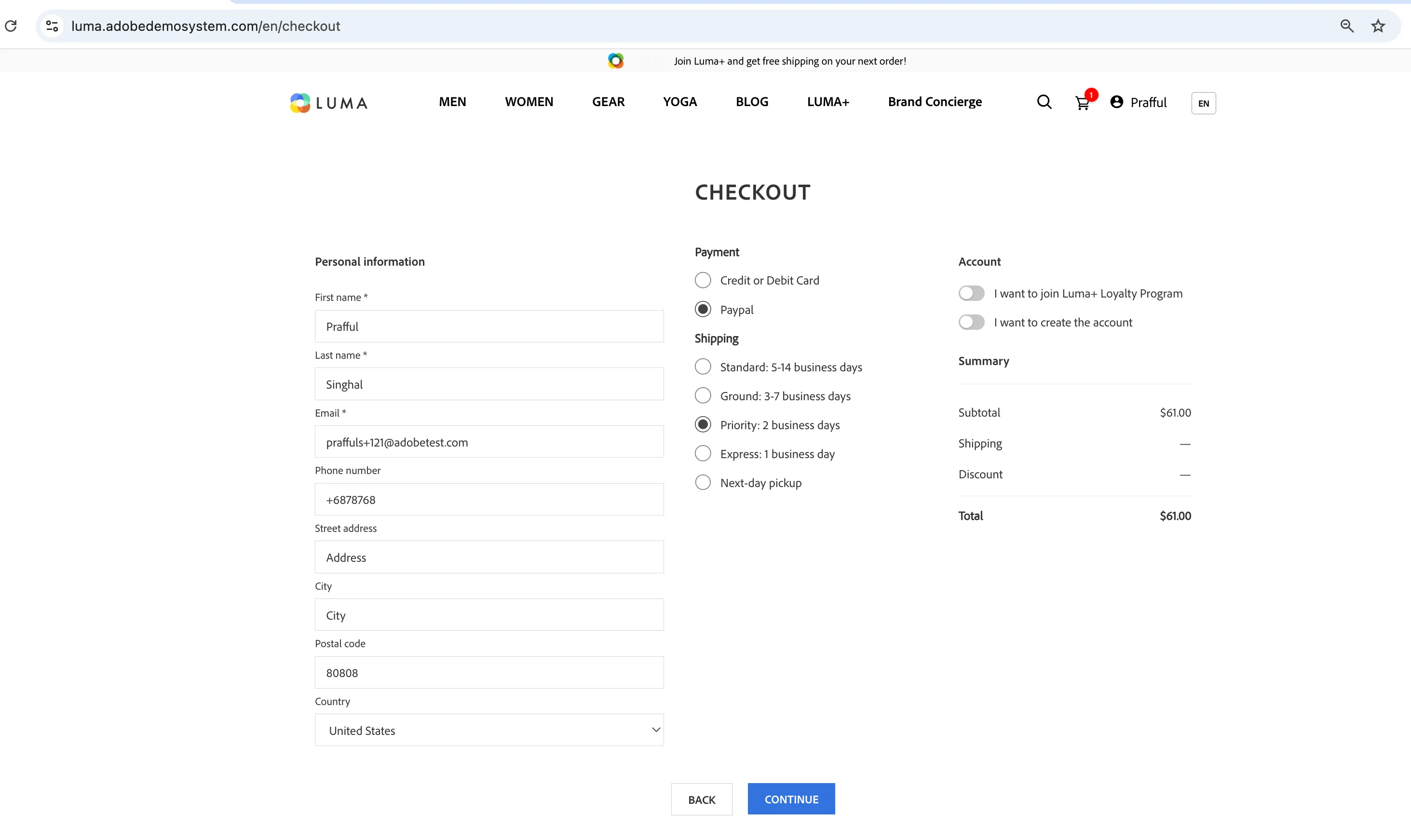
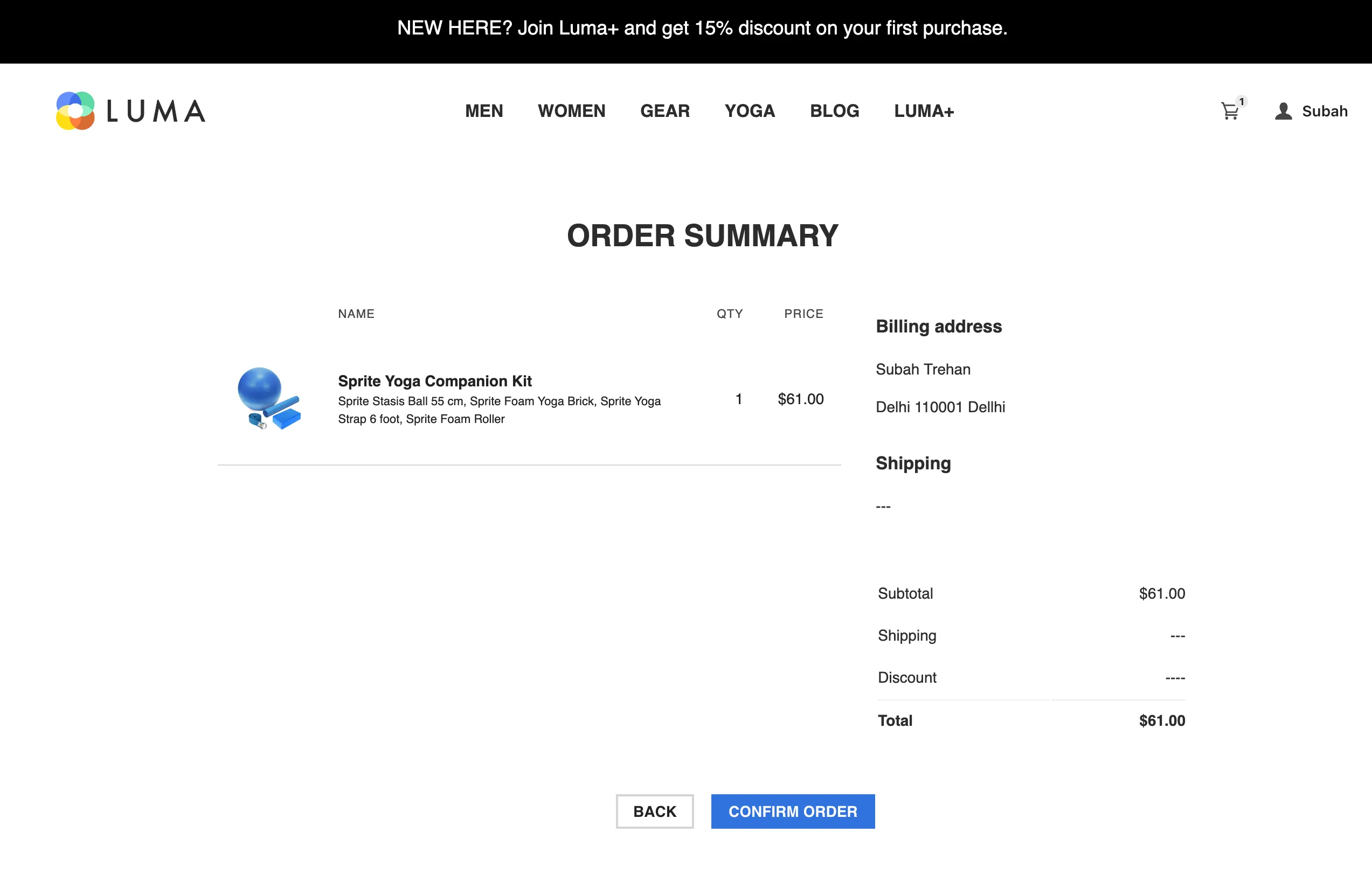
11. Review your order. If you won't click the Confirm Order button fast enough you will get an email message (Check the Cart Abandonment scenario). Click "Confirm order"
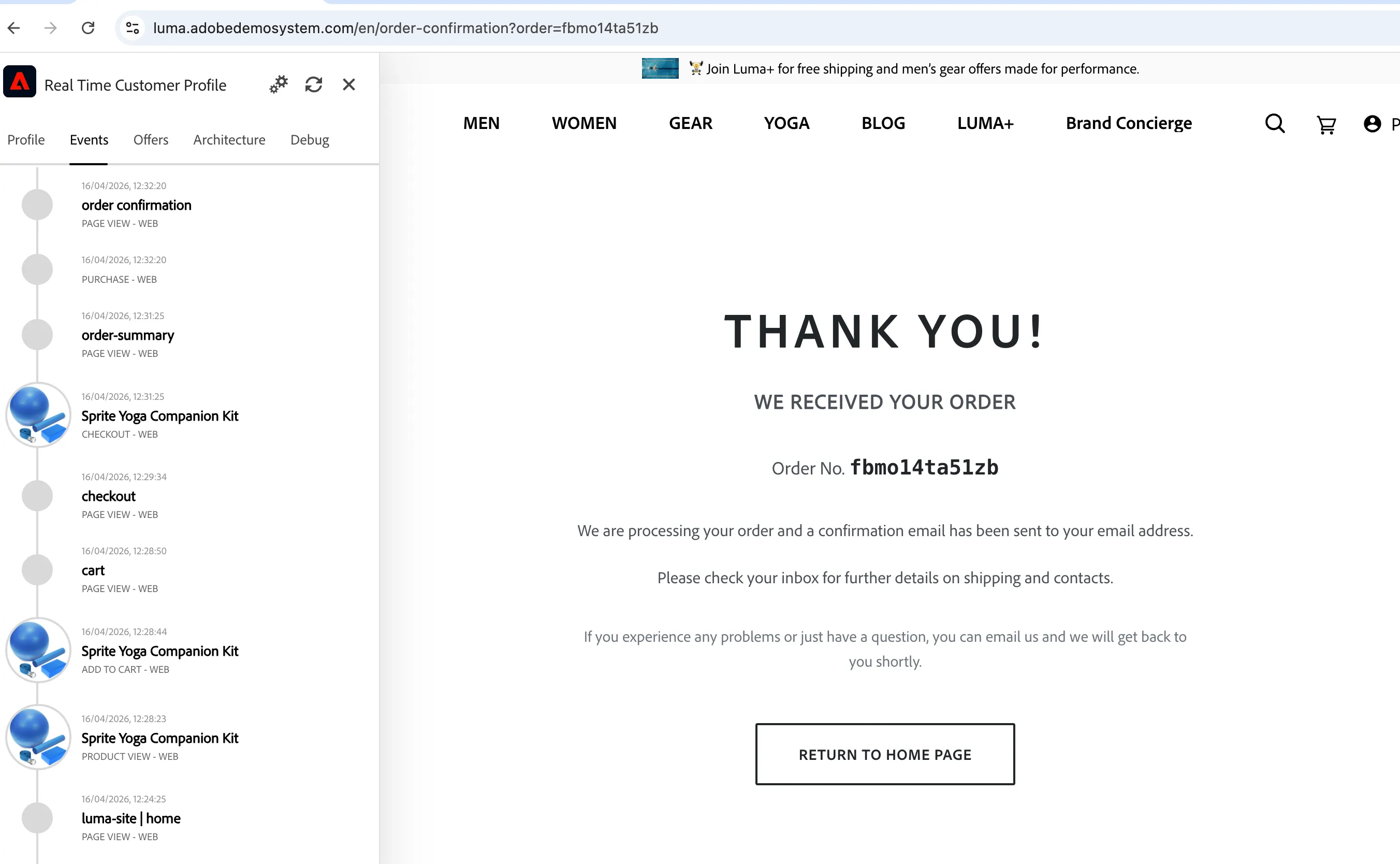
12. Open profile viewer. The "add to cart", "purchase" and "checkout" events will be visible there.
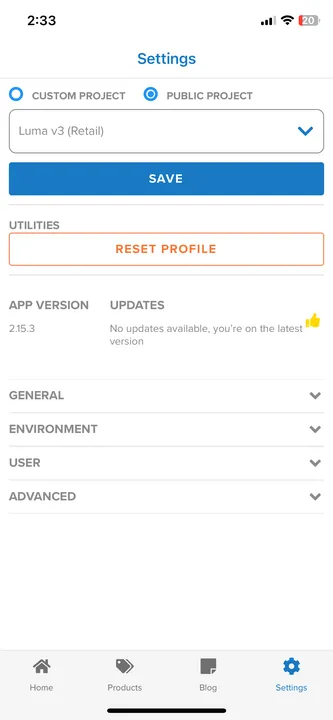
13. Open the mobile app on your phone. Make sure you are connected to public Luma project (Go to settings screen to check).
14. Browse any product, add it to cart.
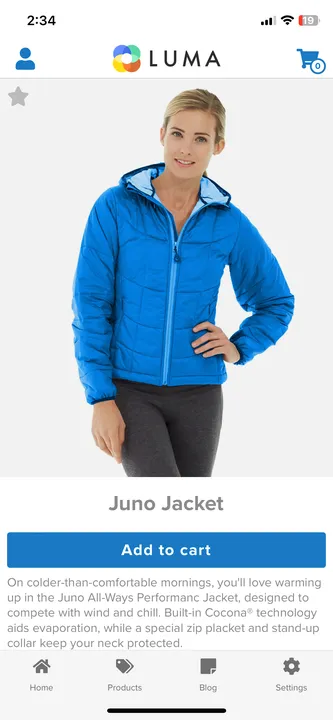
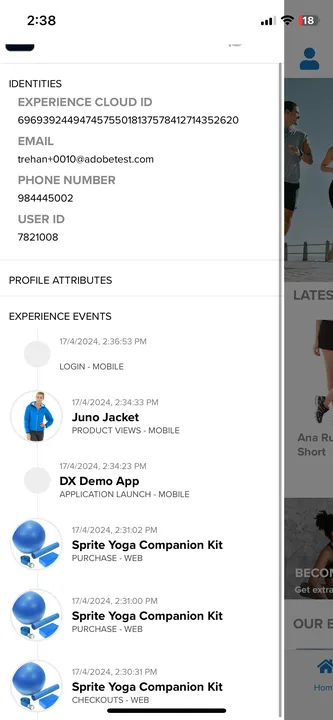
15. The "product view" and "add to cart" events be visible in the Profile Viewer (swipe from left to right to see it). Close Profile Viewer.
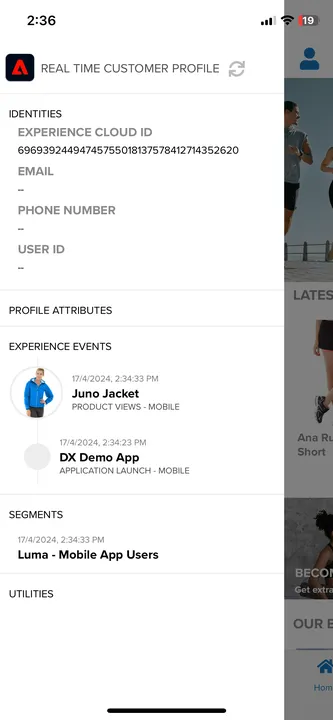
16. Click the user icon in the top left corner to login. Use the same email address as you used on the web page.
17. Both, web and mobile, profiles will be merged. You should see all profile details experience events and segments shared between the devices.
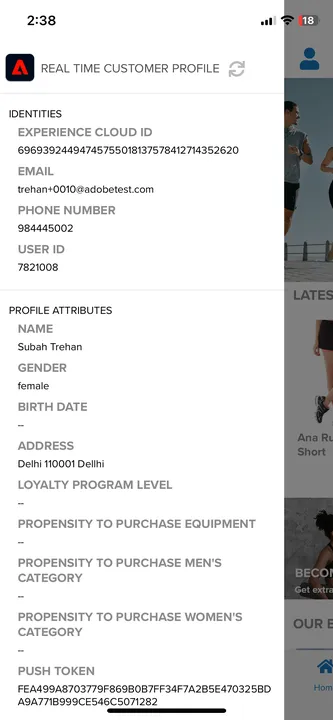
18. If there were segments in the web page "Interested in Women's/Men's category" - the app will be updated with personalisation activity.
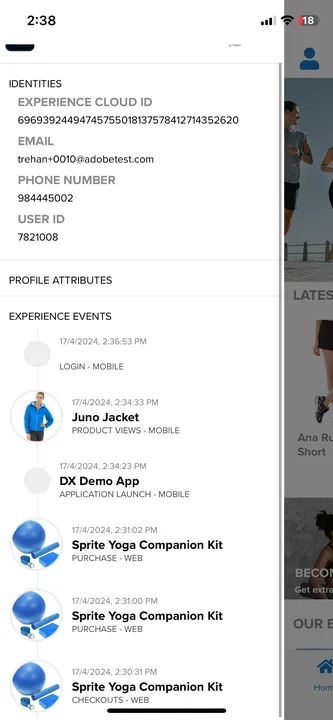
19. Refresh the web page - all mobile interactions will be visible there