Using DSN Tools in Claude.ai
We plan to document how to use DSN tools with Claude. This page will include setup instructions and some example use cases.
This guide walks through connecting Claude to the Adobe-CoreTech/Sales-Velocity-CT GitHub repository so its plugins (Demo System Next, Livedemos, DSC, LLMO, Strategic Knowledge, SVDS Taskmanager, Zoltar Answer, etc.) become available in your workspace.
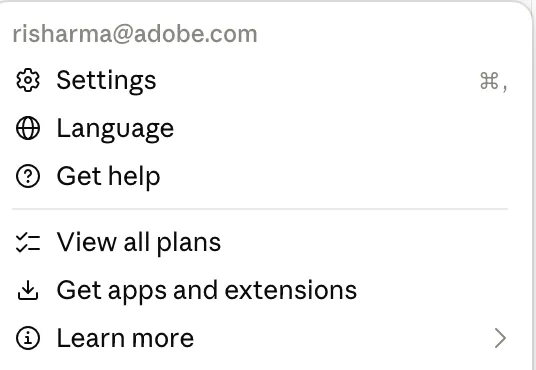
Step 1: Open Settings
Click your profile menu in the top corner and select Settings.
Step 2: Go to Plugins
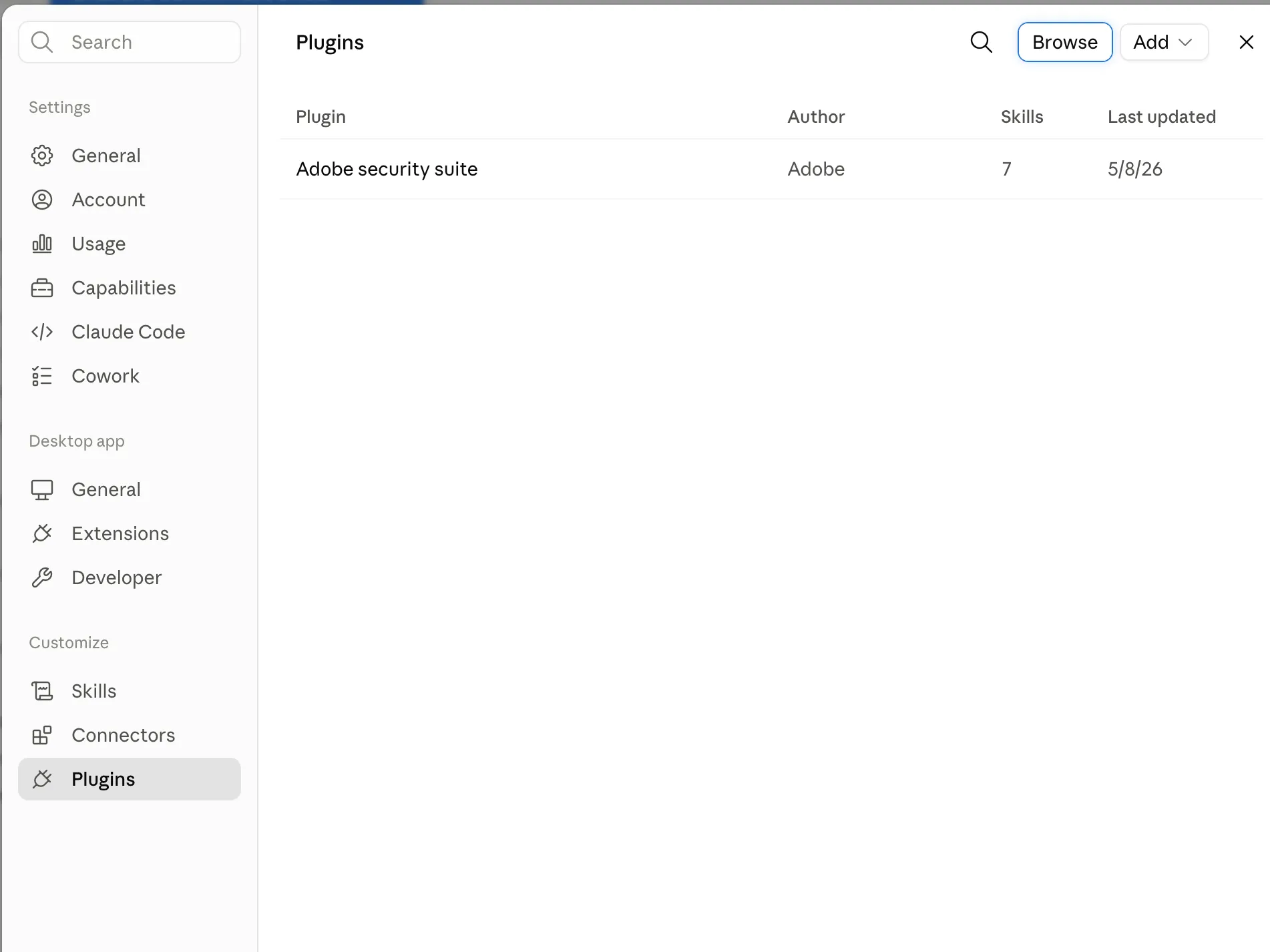
In the Settings sidebar, under Customize, click Plugins.
Step 3: Add a Plugin Source
On the Plugins page, click the Add dropdown (next to Browse) and choose the option to sync a plugin repo from GitHub
Step 4: Point It at the Repo
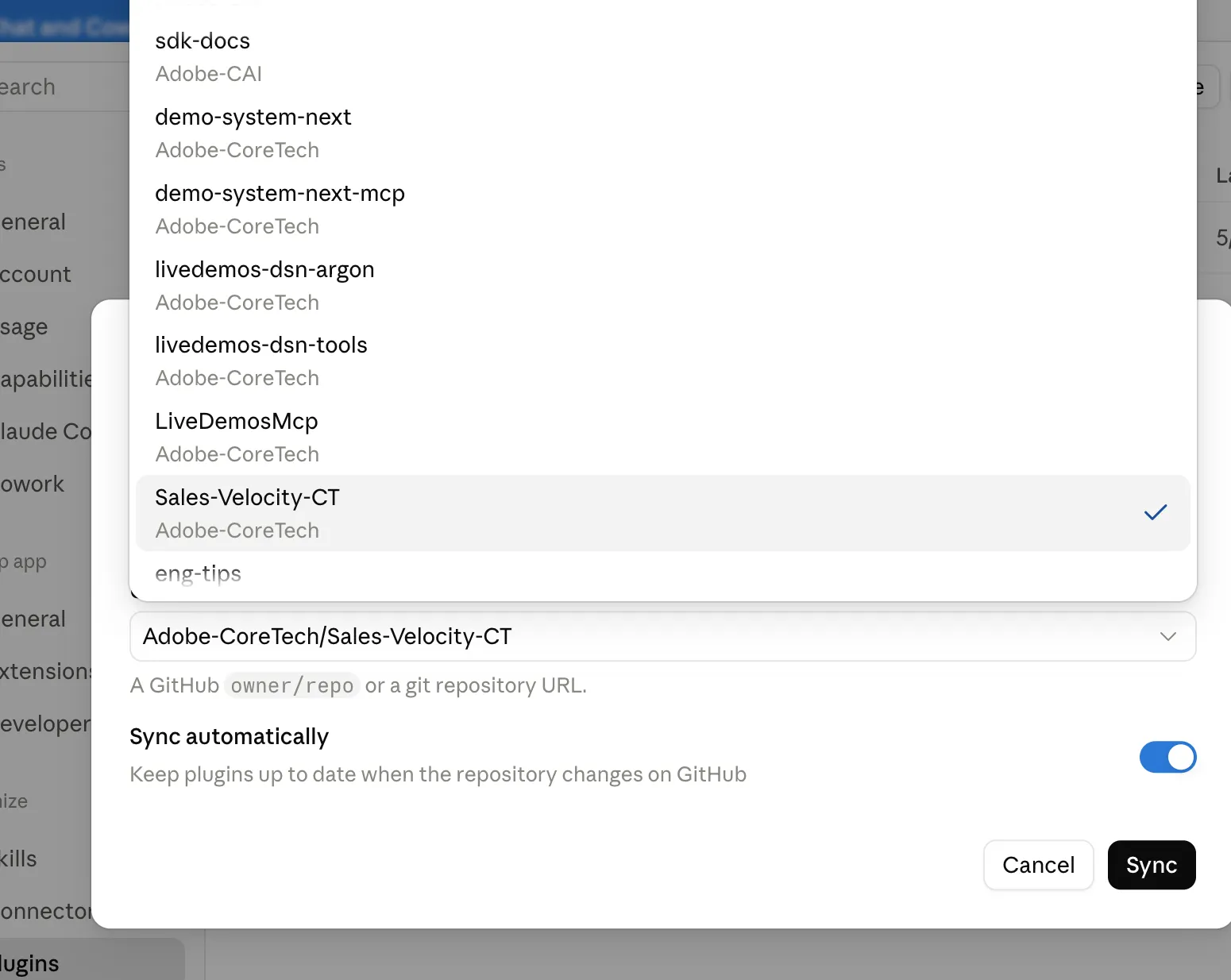
A dialog opens asking for a GitHub owner/repo or git URL: https://github.com/Adobe-CoreTech/Sales-Velocity-CT
- In the org/repo picker, select Adobe-CoreTech.
- Choose the Sales-Velocity-CT repository from the list (you'll also see related repos like demo-system-next, livedemos-dsn-tools, LiveDemosMcp, etc. — those are separate; this one is the parent org repo).
- Confirm the field shows:
- Leave Sync automatically turned on so plugins stay up to date whenever the repo changes on GitHub.
- Click Sync.
Step 5: Verify the Plugins Appear
Back on the Plugins page, you should now see entries under the Personal tab, for example:
Plugin | Author | Skills |
|---|---|---|
Demo system next | Sales Velocity CT | 1 |
Livedemos | Sales Velocity CT | 2 |
(Additional plugins from the same repo — Dsc, Llmo, Strategic knowledge, Svds taskmanager, Zoltar answer — will also be listed and available to add individually.)
Step 6: Review and Install a Specific Plugin
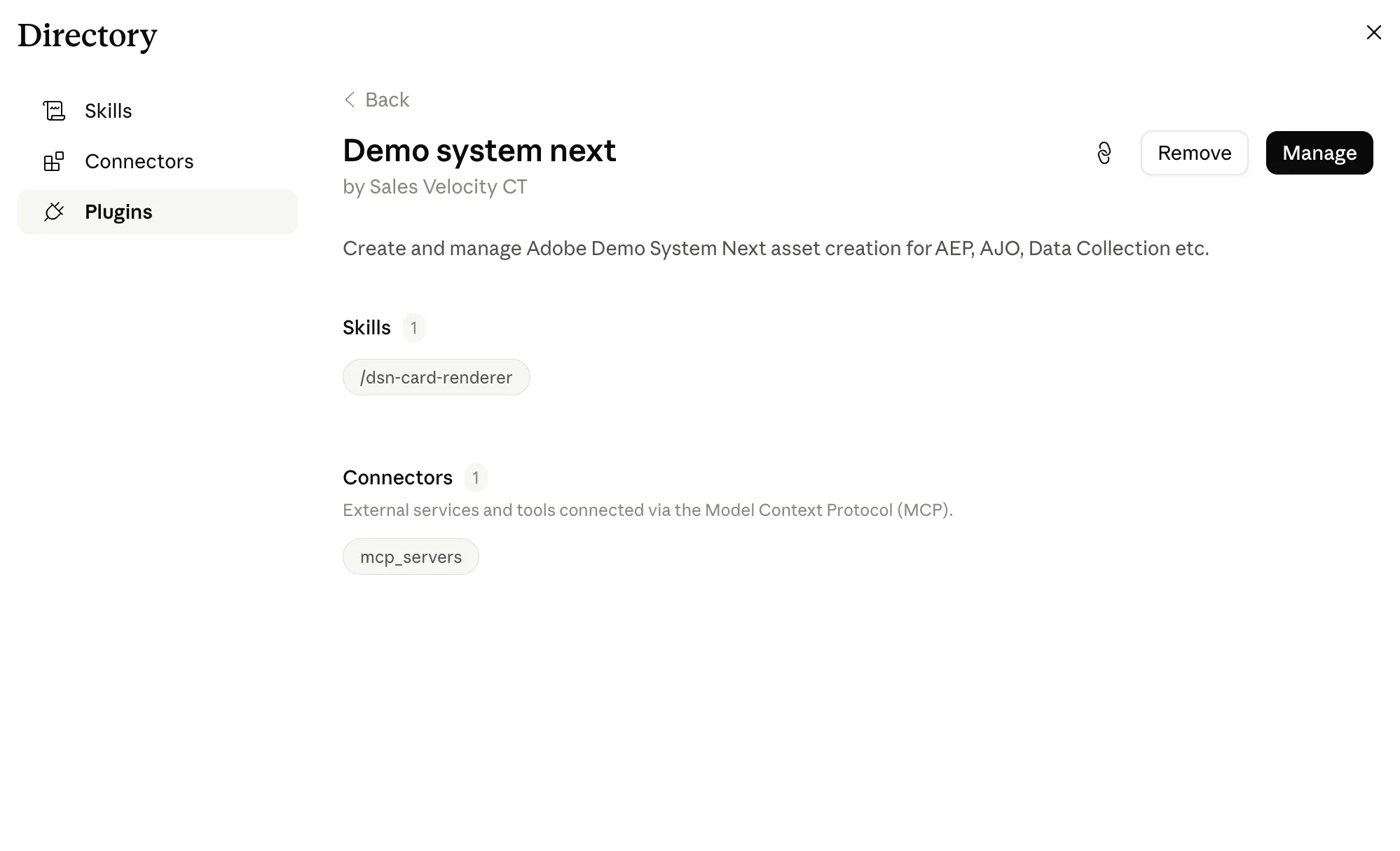
Click into any plugin (e.g., Demo system next) to see its details:
- Description — what it does (e.g., "Create and manage Adobe Demo System Next asset creation for AEP, AJO, Data Collection etc.")
- Skills — the specific commands it exposes (e.g., /dsn-card-renderer)
- Connectors — any MCP servers it needs (e.g., mcp_servers)
Click Install to add it to your workspace. Once installed, the card shows Remove and Manage buttons instead, confirming it's active.
Notes
- Plugins under Personal are only visible to you; your org admin controls what appears under Your organization.
- If a plugin needs a connector (MCP server), you may be prompted to authenticate that connector separately the first time you use a tool from the plugin.
- To update later, just re-sync — with Sync automatically on, changes pushed to the GitHub repo will flow through without manual re-syncing.
-
-
USE CASES
Please follow doc for the use cases/capabilties