Using the Live Demos Demo Pilot
Capture your customer site’s assets
The Adobe Live Demos Demo Pilot lets you capture a customer site’s images, logo, theme, and products. Use the steps below to quickly customize your Demo System Next web and mobile projects with these customer-specific assets.
Step 1 - Create a new Demo Pilot Project
- Navigate to https://livedemos.adobe.com/content/livedemos/home.html
- Click on Create Workspace
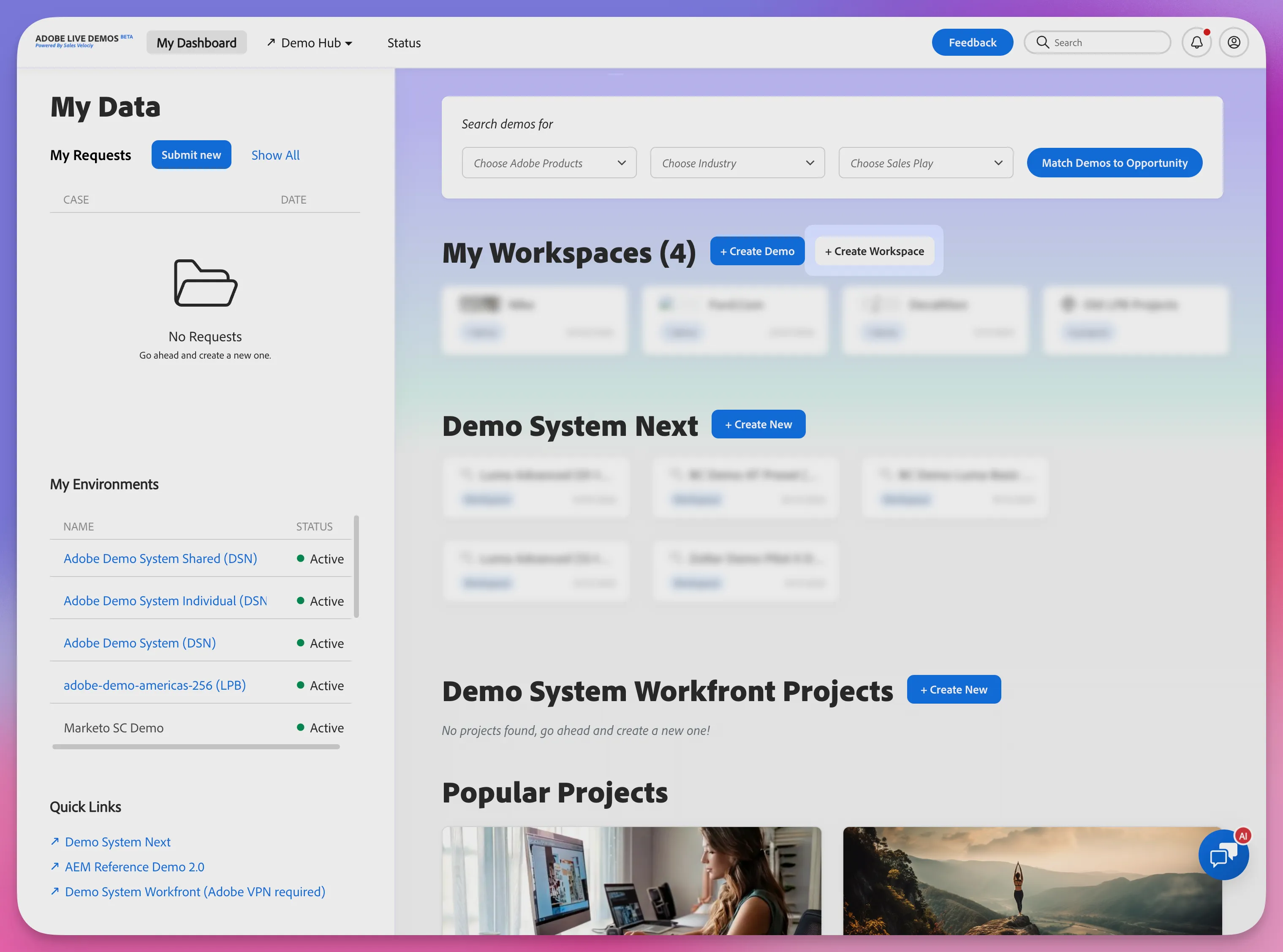
Step 2 - Capture Customer site's images, logo
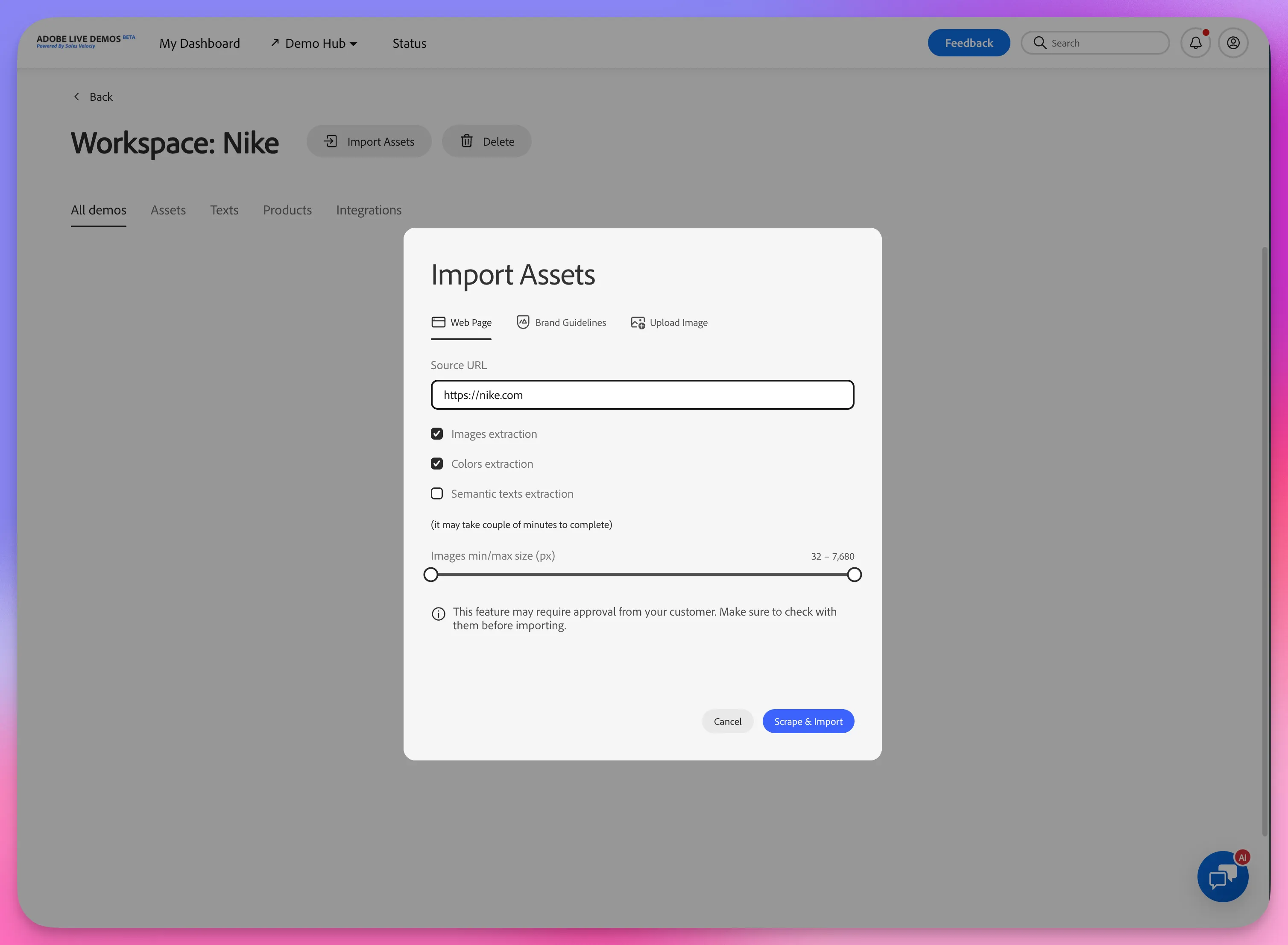
- In your new Project, click on Import Assets
- Enter your the customer website then click on Scrape & Import
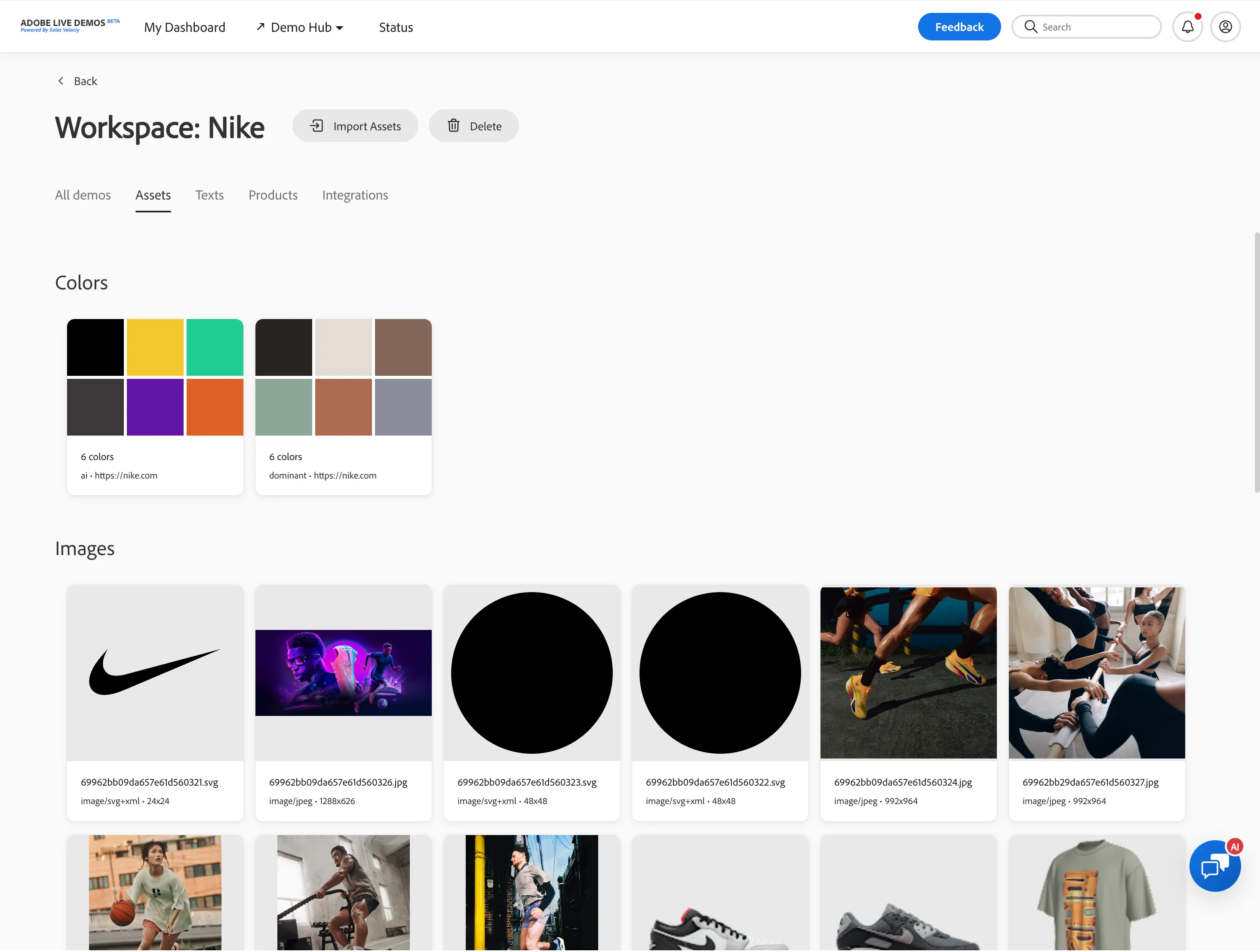
- When the job completes, the page automatically refreshes and displays the imported customer assets.
Step 3 - Capture Customer site's products (Optional)
- In your Workspace Dashboard, click on Products
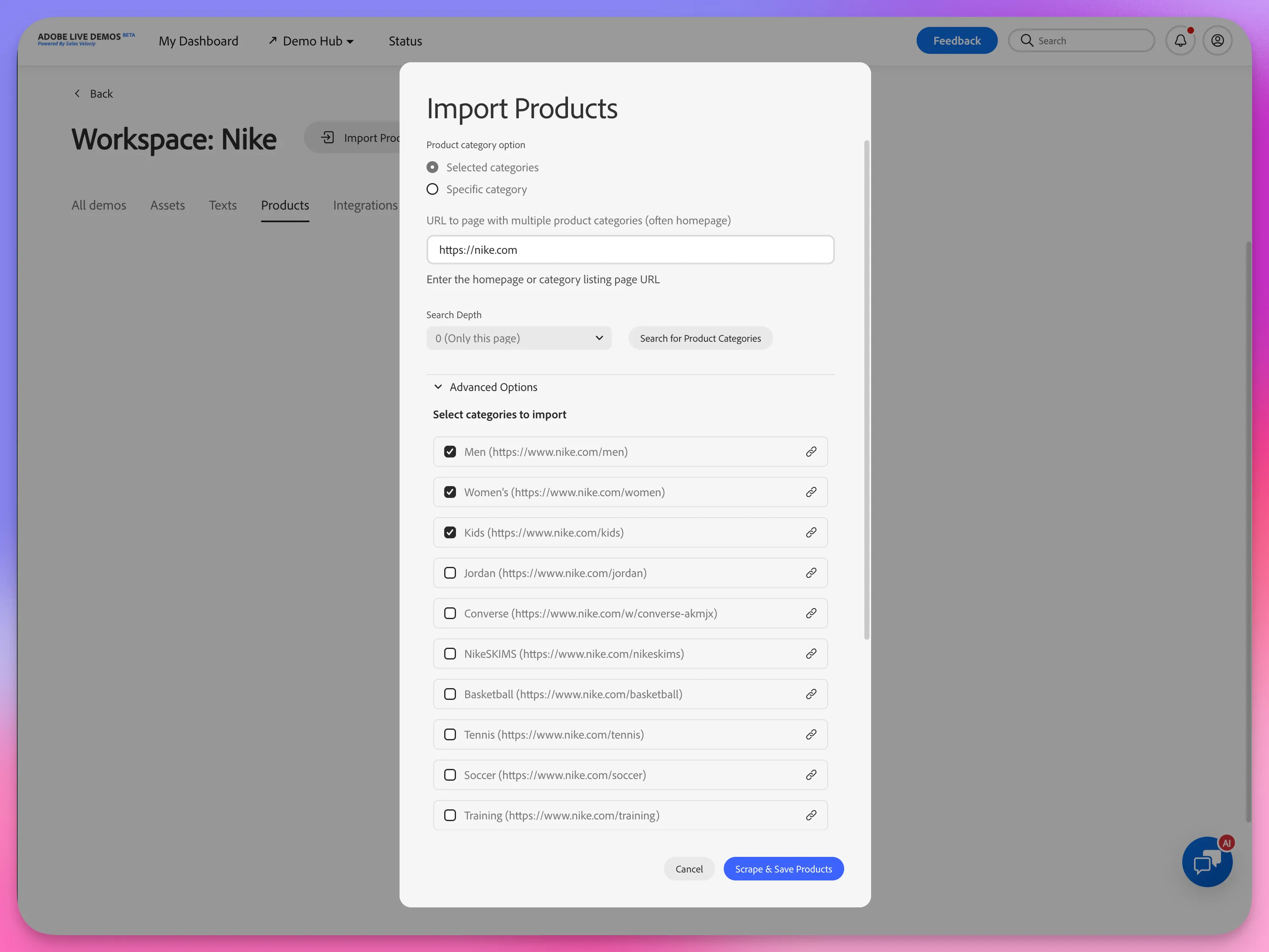
- Click on Import Products
- Search for categories using the website URL, select the desired categories, then click Scrape & Save products
- When the job completes, the page automatically refreshes and displays the imported products.
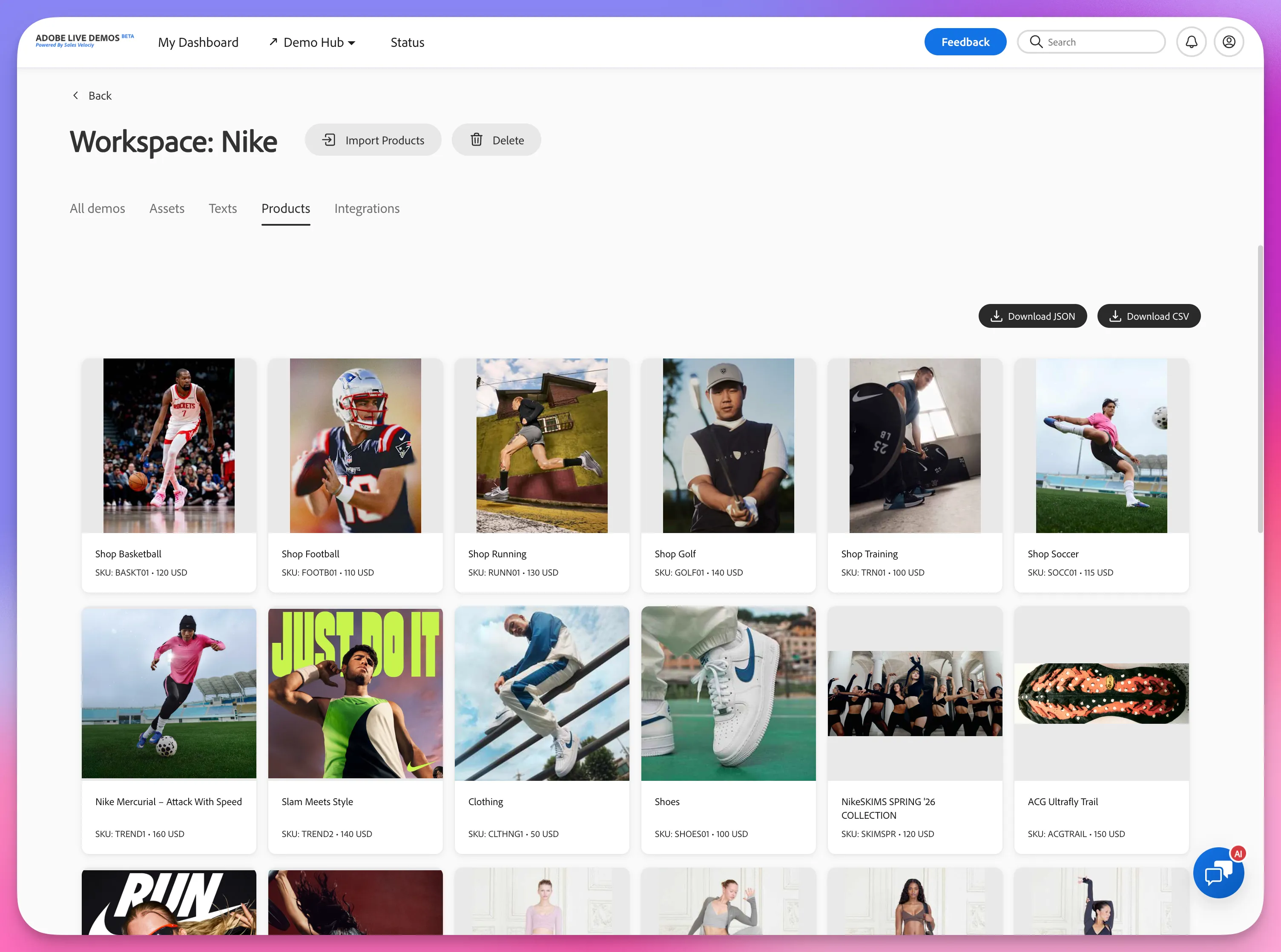
You now have the assets needed to customize your DSN Web and Mobile projects.
Customize DSN projects with your customer’s own assets
Before starting the steps below, ensure you’ve created a new workspace using one of the available presets (for example, Luma Advanced).
Step 1 – Open your DSN Workspace
- Navigate to https://dsn.adobe.com
- Open your DSN Workspace
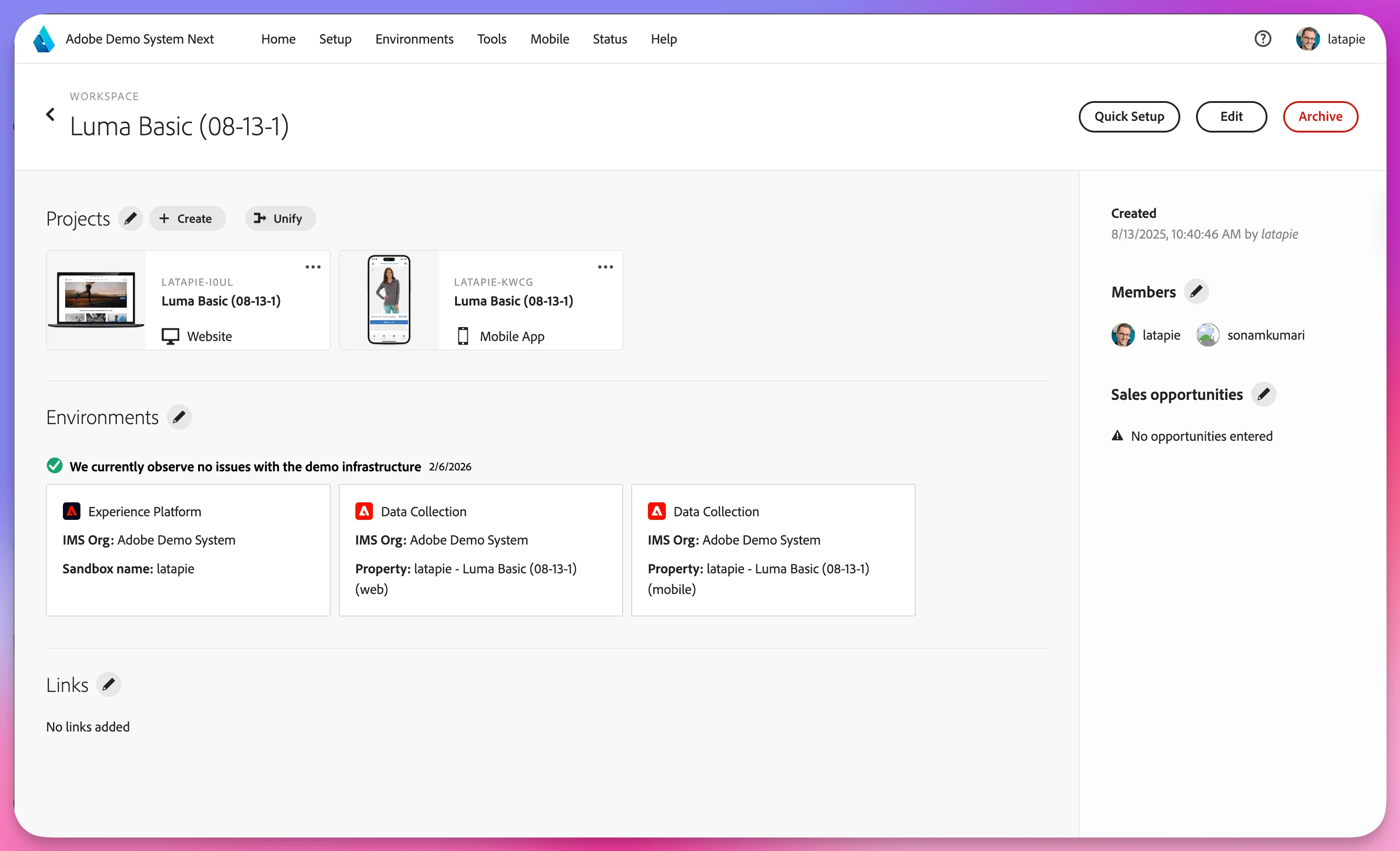
Step 2 – Update DSN web and mobile project branding and products
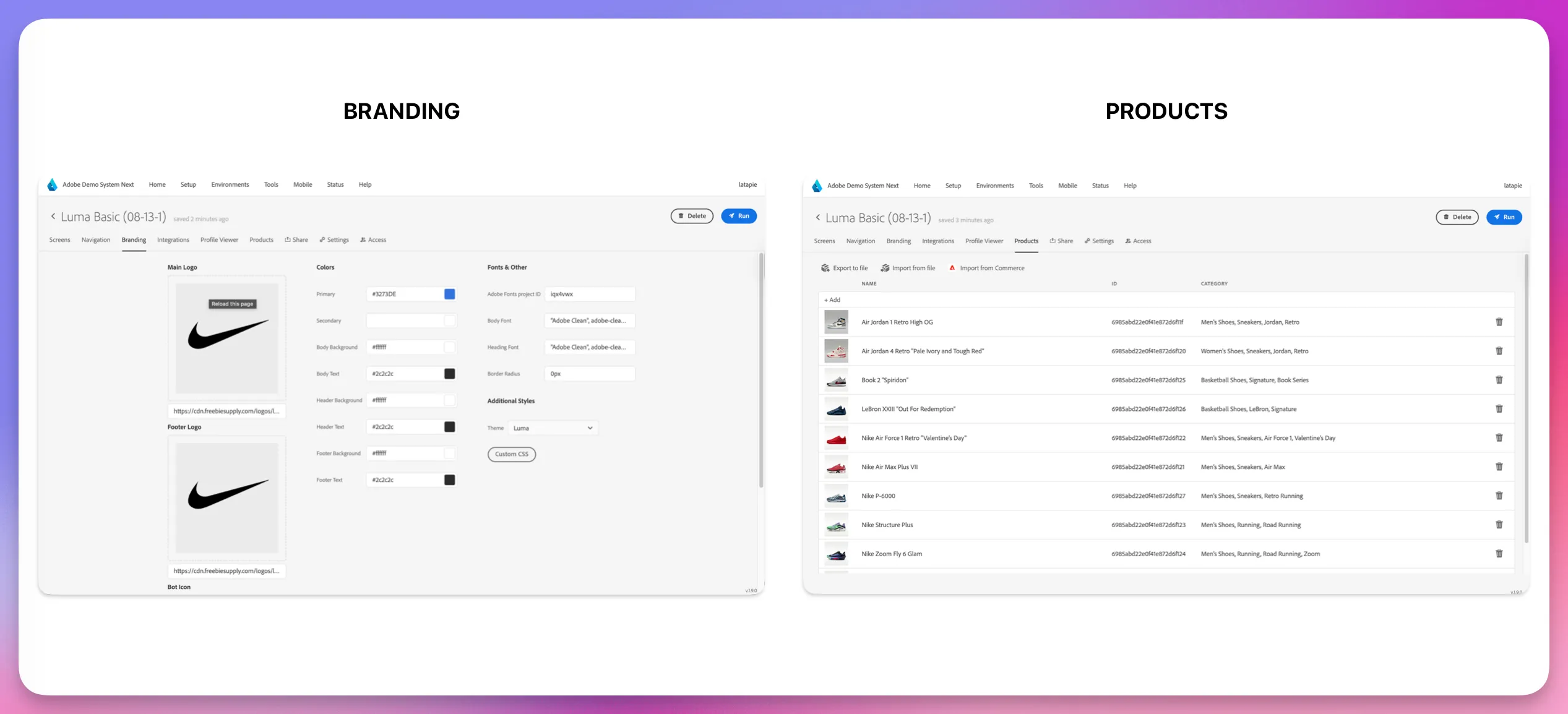
The new Unify feature lets you use a guided wizard to update branding and products across multiple DSN projects. In this example, you’ll use it to transform the Luma demo into a customer-specific experience.
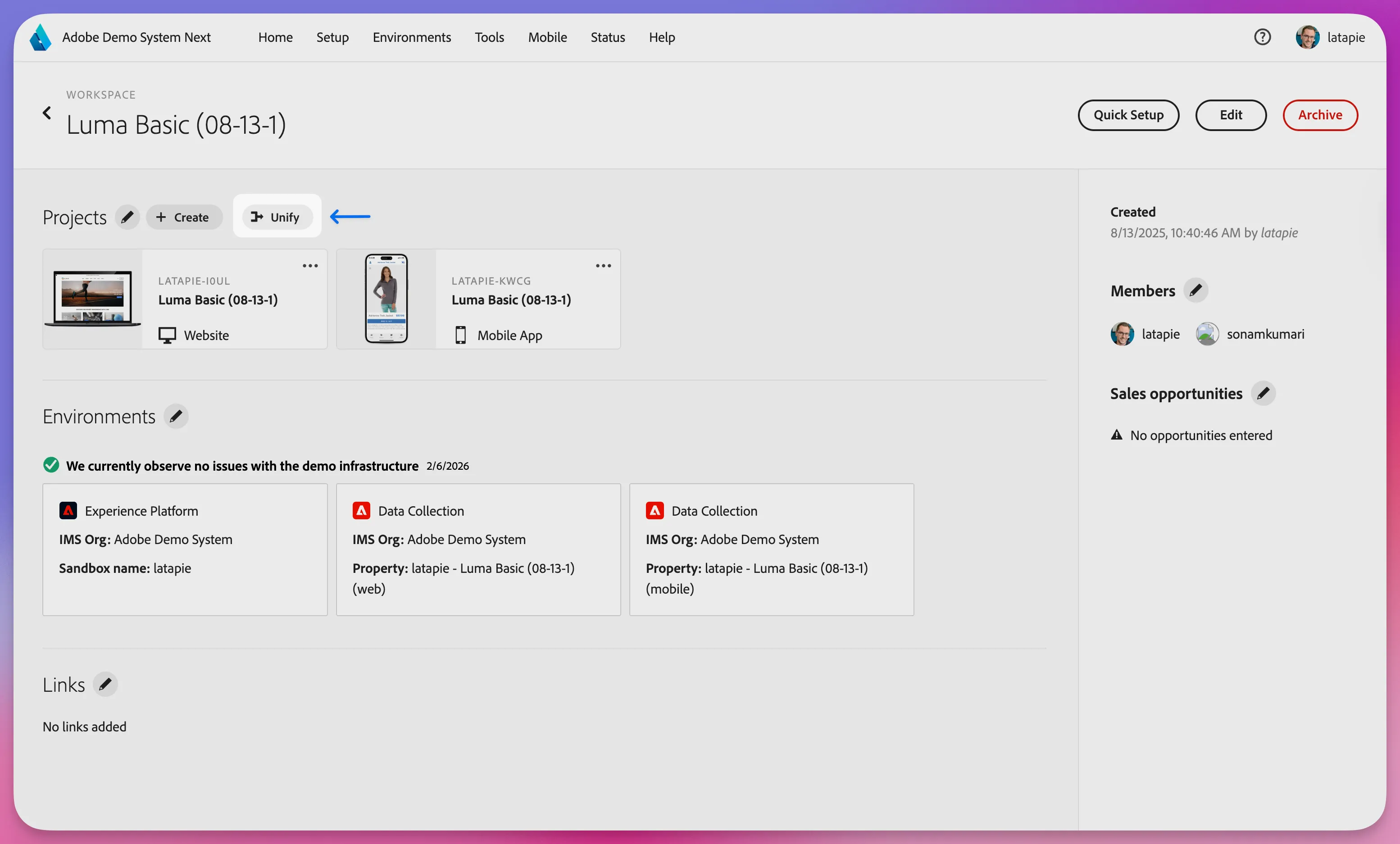
- Click on Unify then select your web/mobile projects
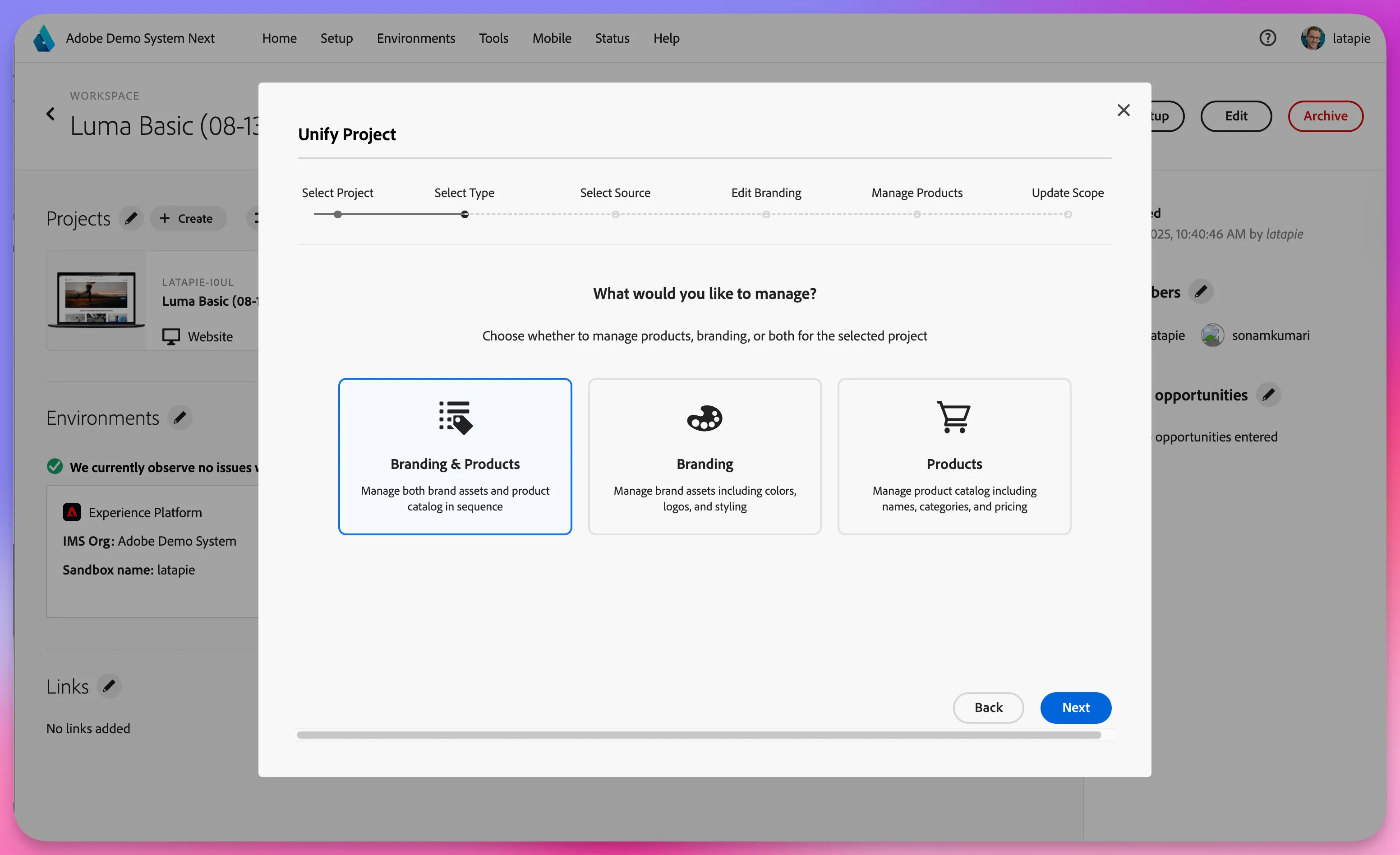
- Select Branding & Products
- Click on Import from Live Demos
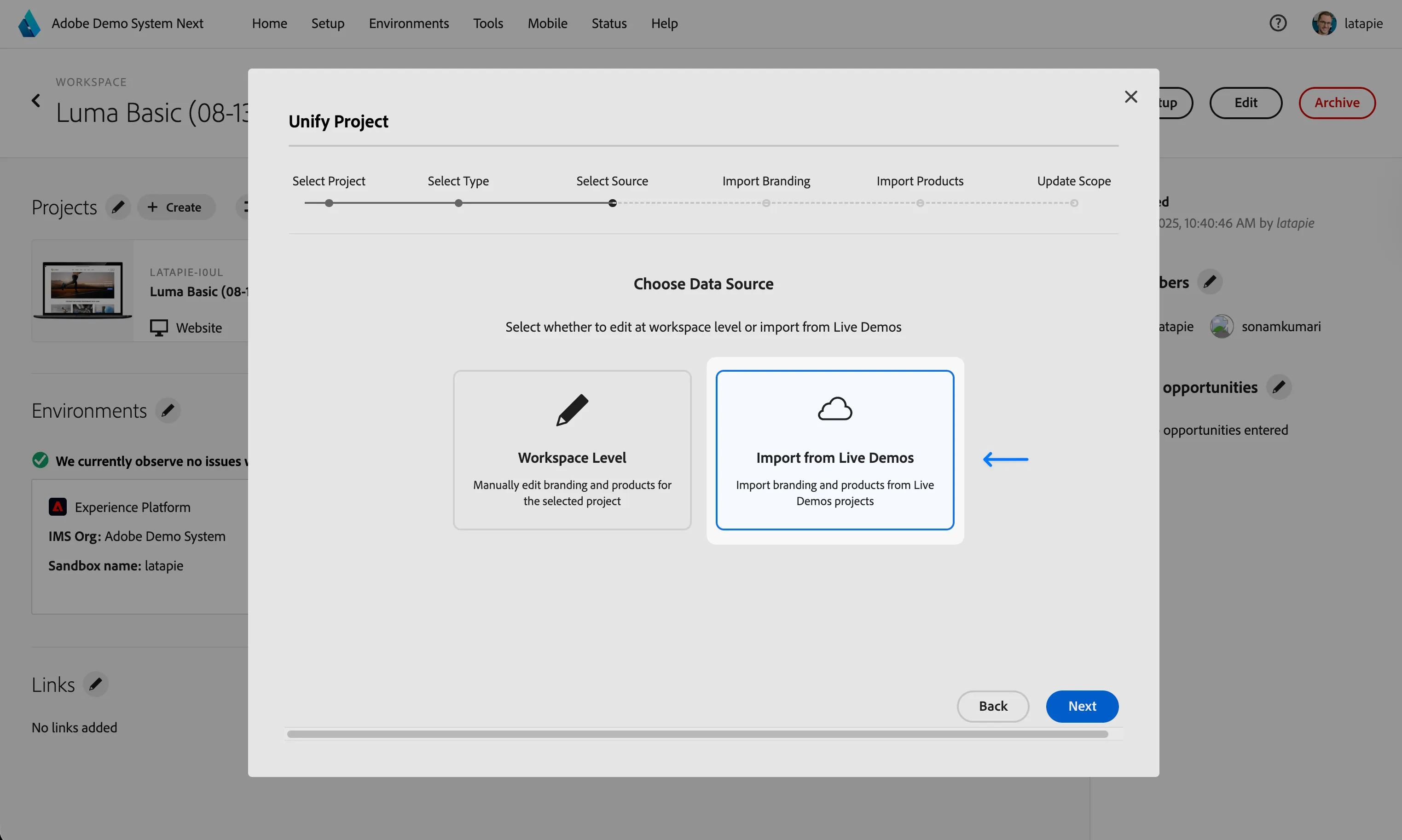
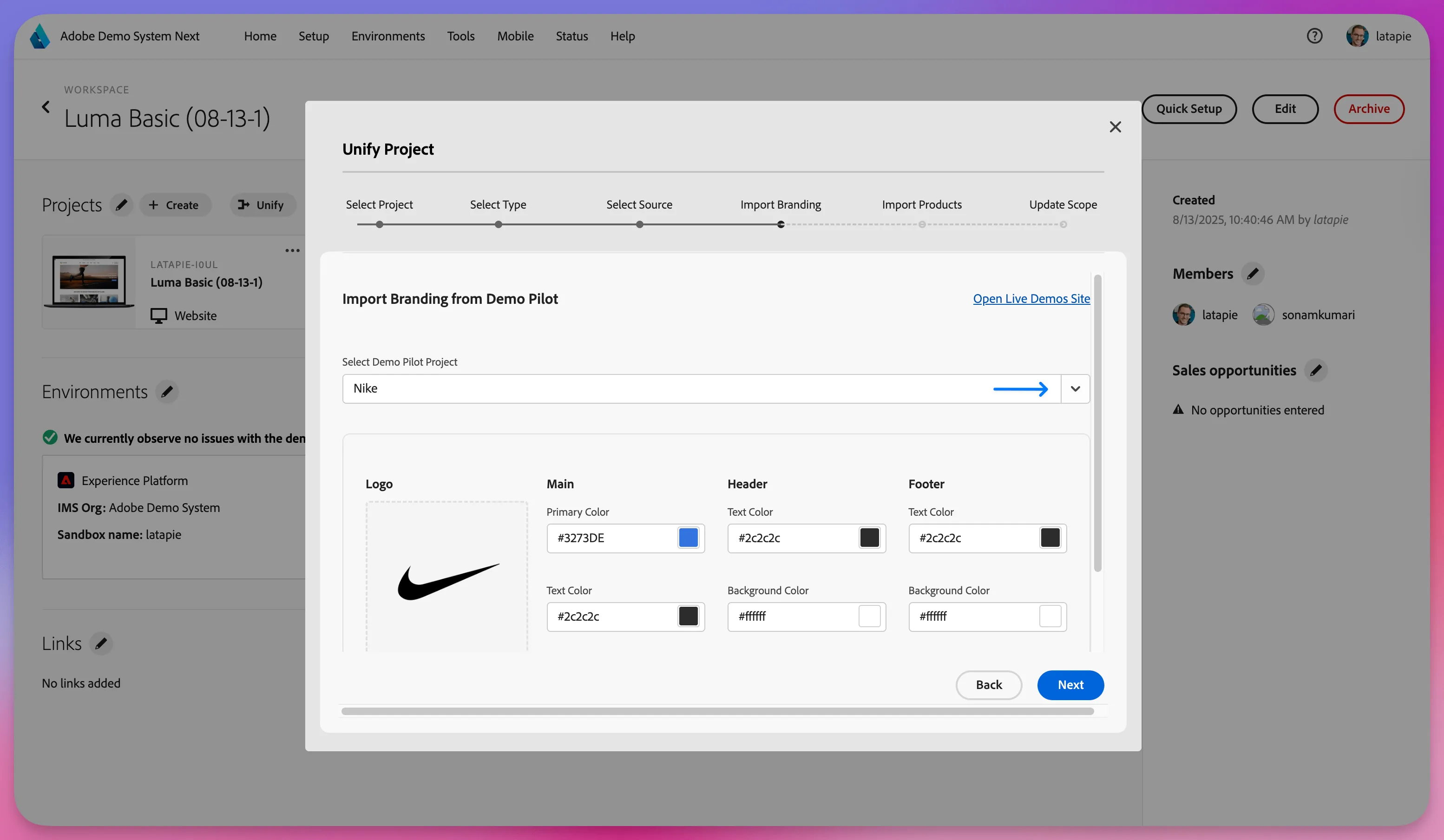
- Select your Demo Pilot project, then review and adjust the brand details as needed
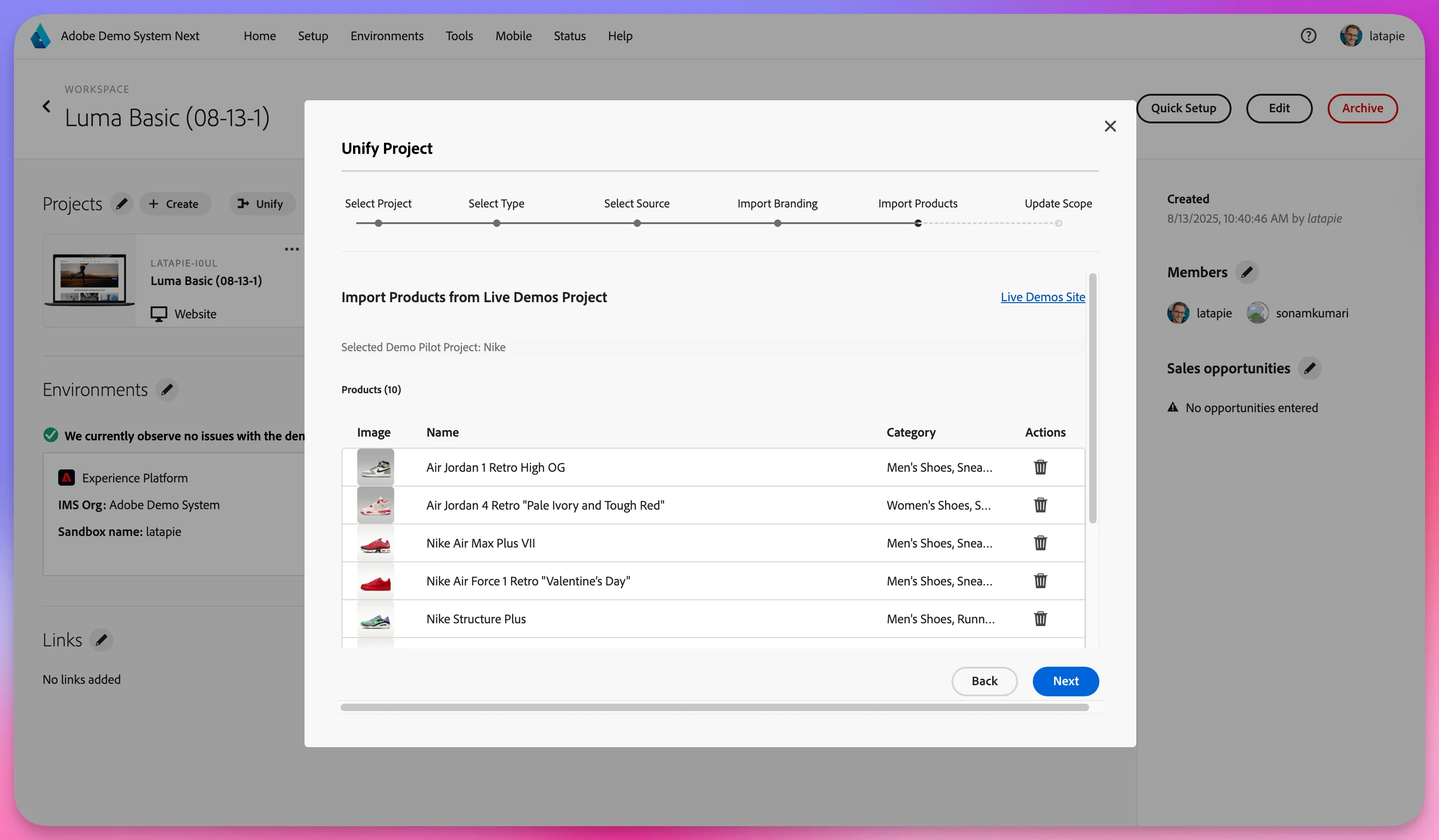
- Review the products to be imported, make any adjustments if needed, and click Next
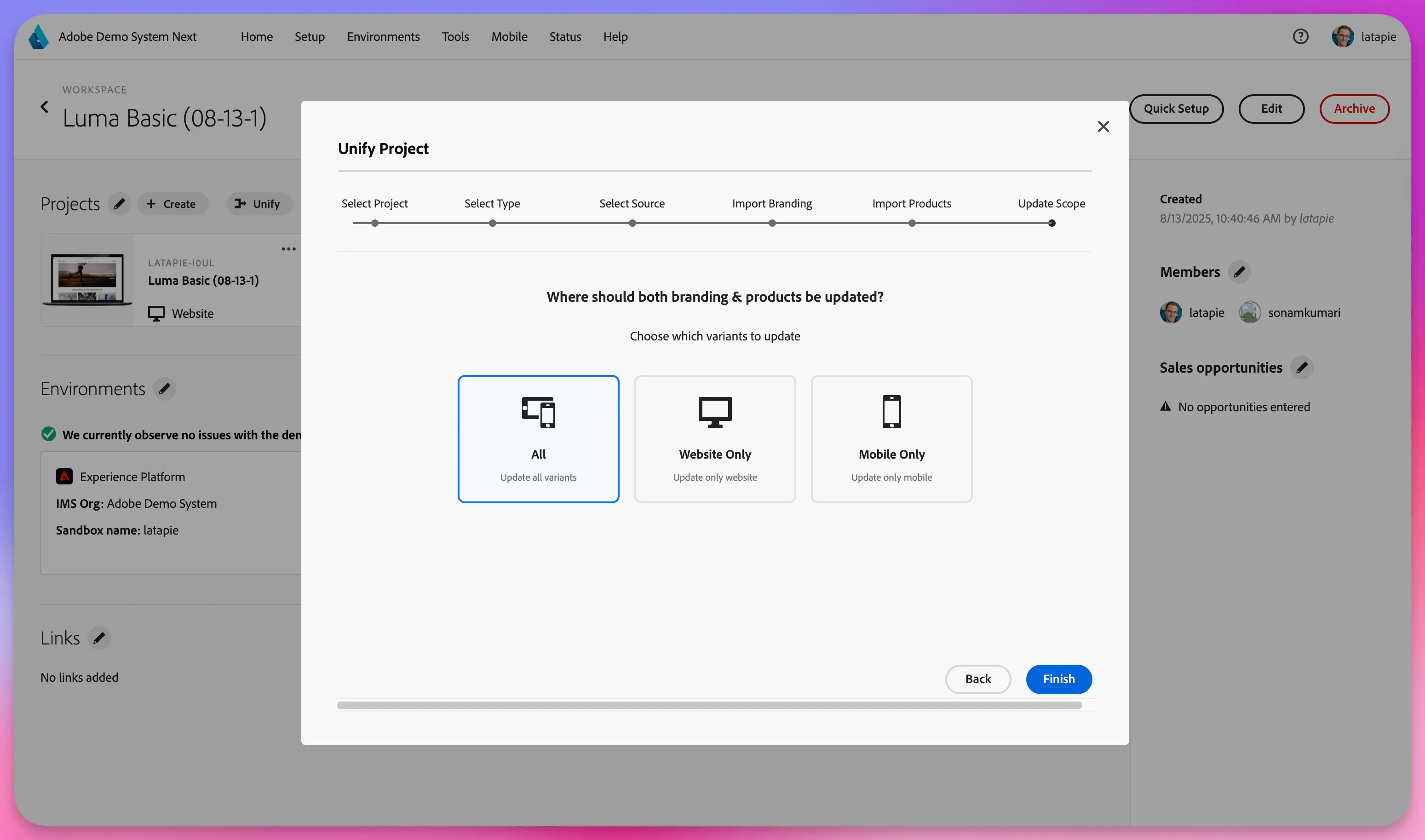
- By default, both web and mobile projects are selected for update, but you can change these options
- Click on Finish
Your web and mobile project branding and products are now customized with your customer’s assets. 🎉
Step 3 – Update your DSN project content using your customer’s asset library
You can further refine the demo by updating the website and mobile app content in the DSN web and mobile project editors using your customer’s asset library.
- Navigate to https://dsn.adobe.com
- Open your DSN Workspace
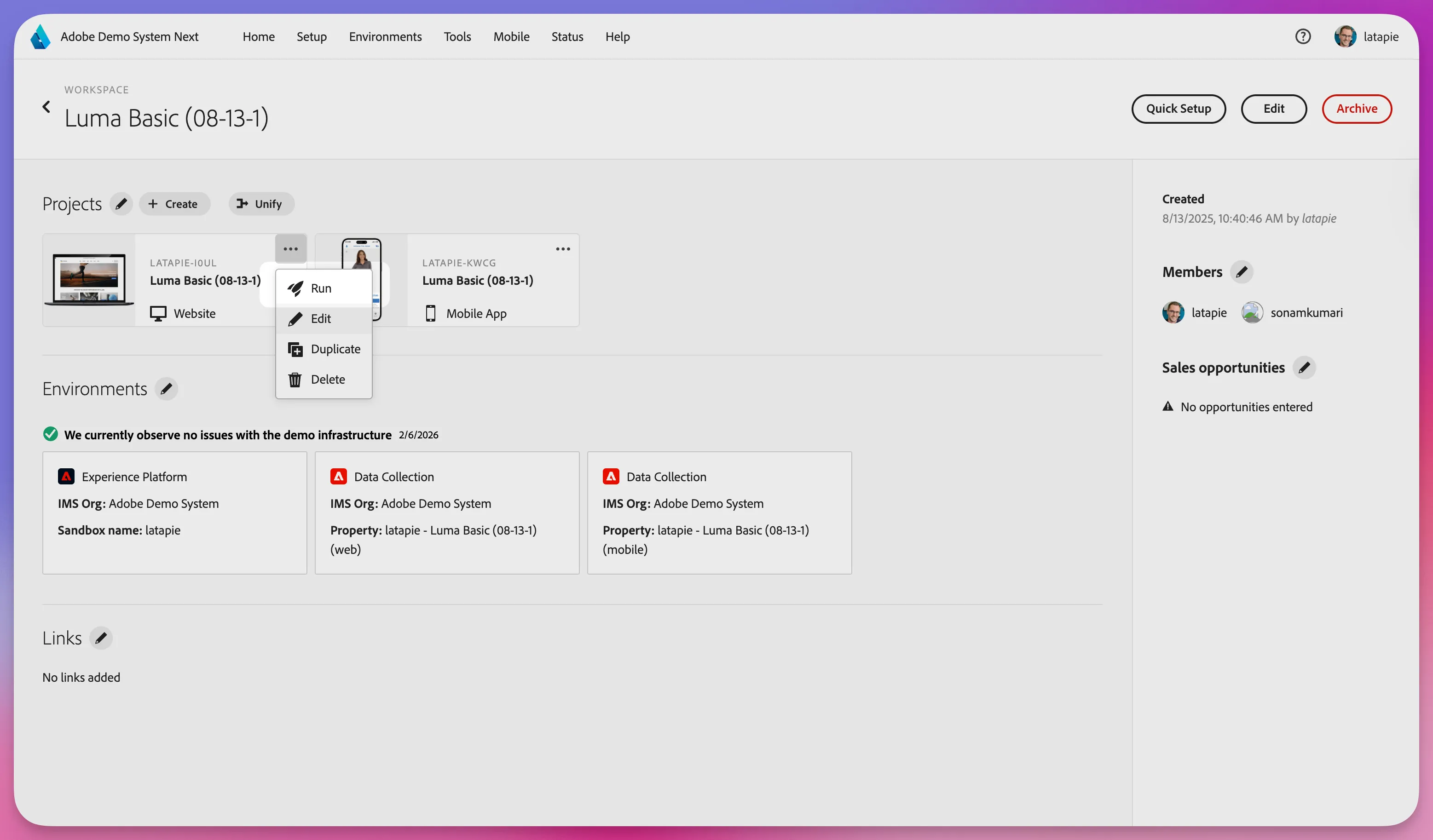
- On the Web or Mobile project, click on the "..." then click on Run
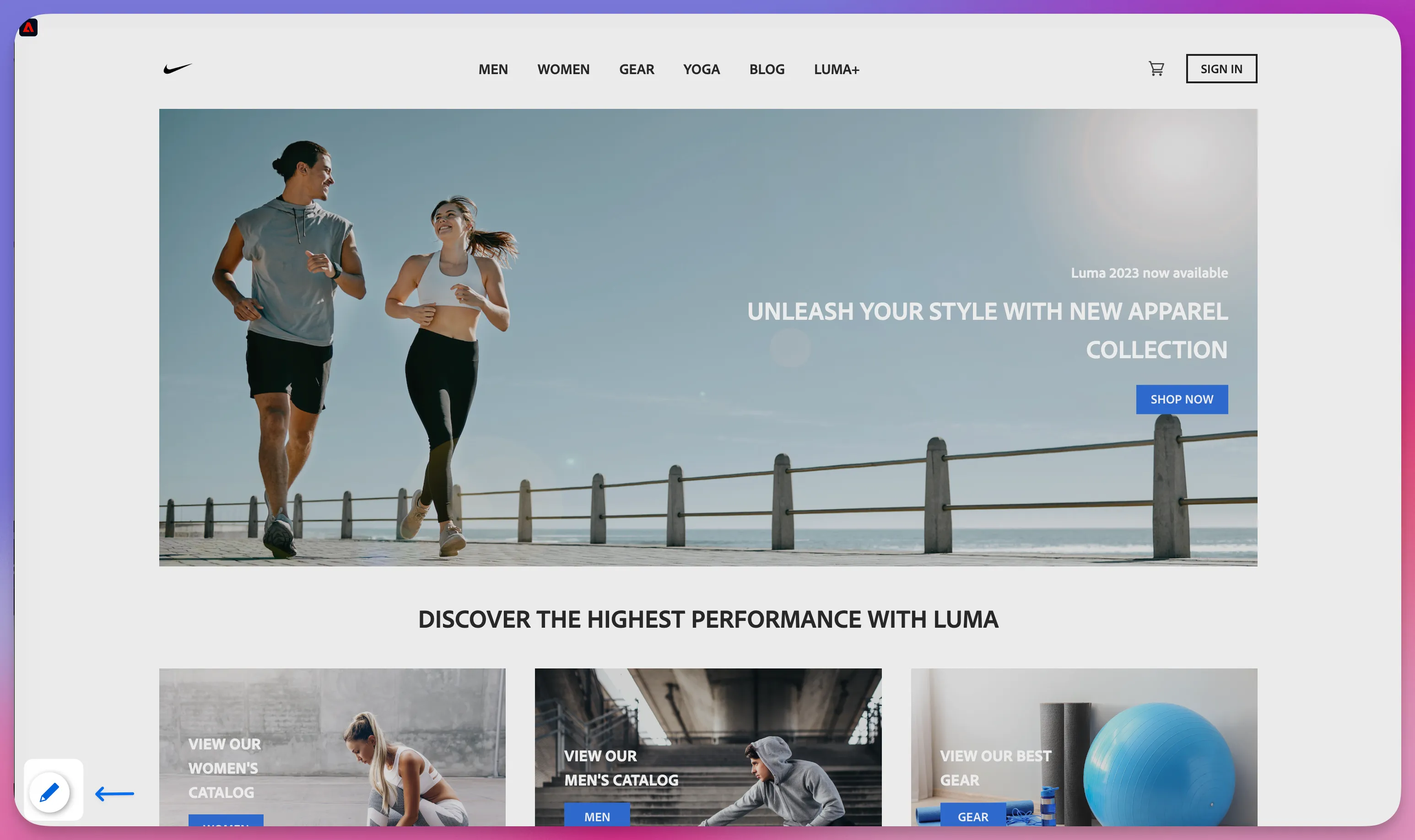
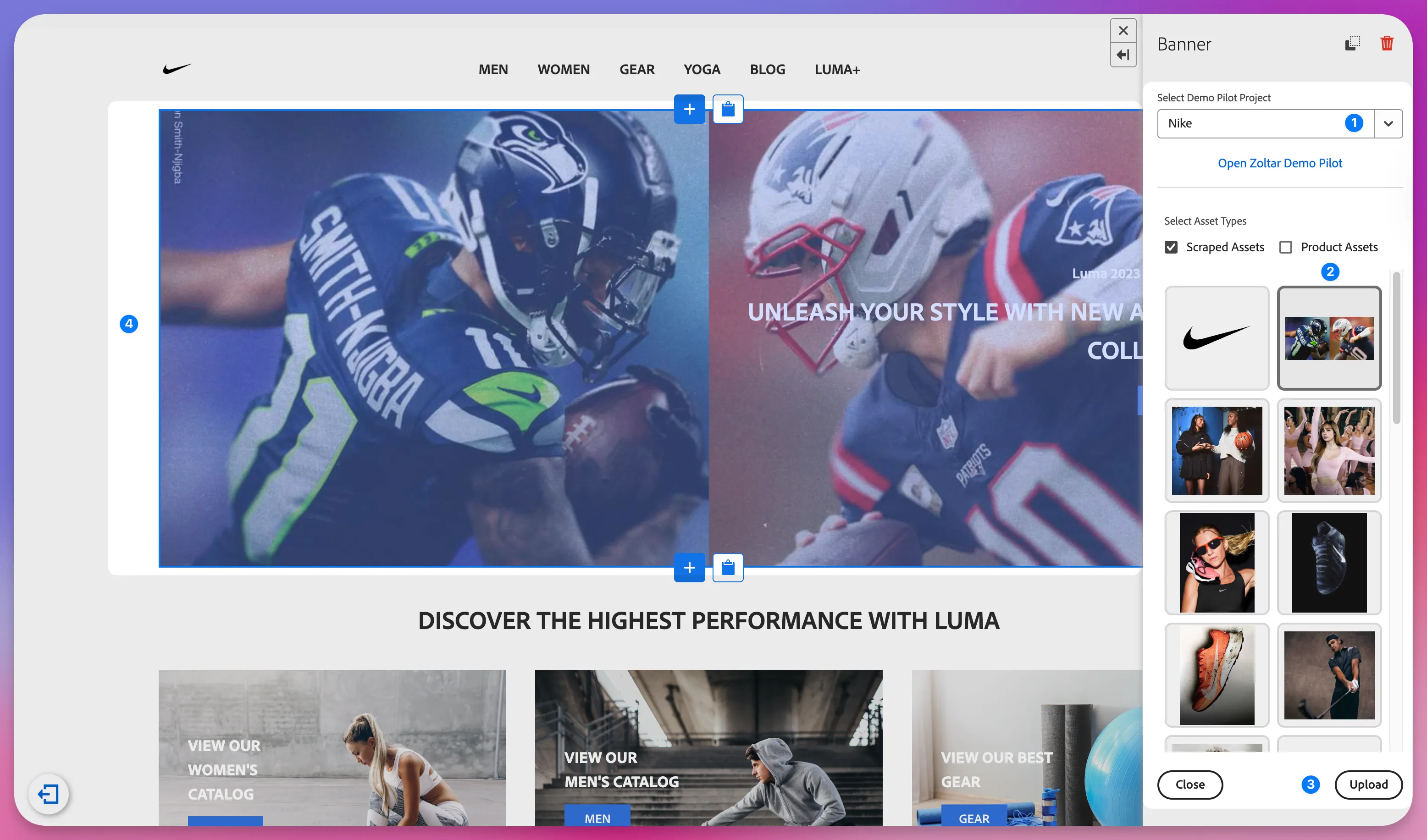
- Once the Web project is loaded, enable the Edit mode
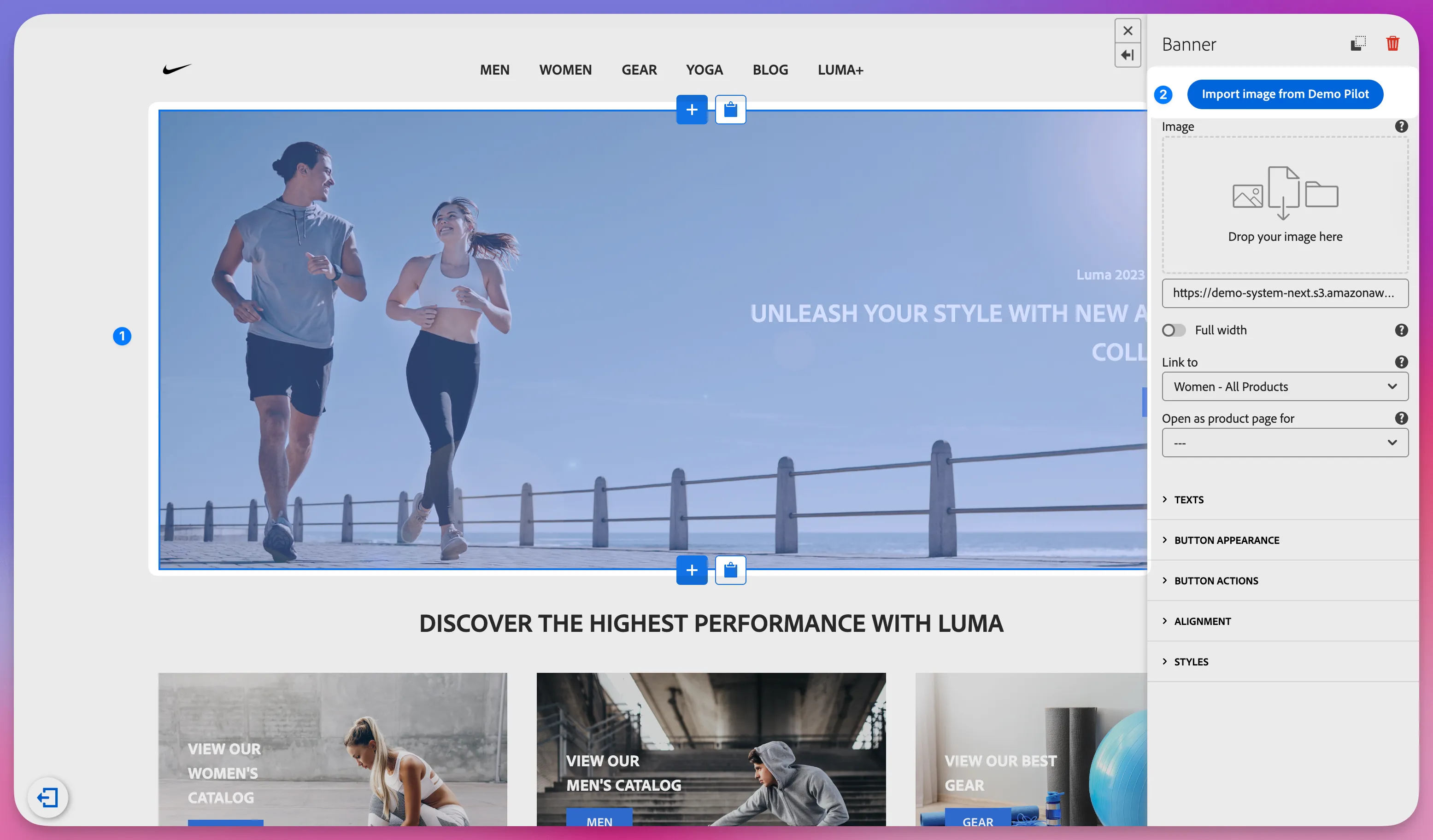
- Select an image in the project content
- Click on Import image from Demo Pilot
- Select your Demo Pilot project e.g. Nike
- Select your customer image
- Click on Upload to replace the image
- The original image will be replaced with your customer asset
You’re now ready to further tailor the web and mobile projects so they fully reflect your customer’s branding and specific use cases. 🚀