AJO Web Push
This feature allows your web app to receive messages pushed from a server, even when the website is not currently loaded in the browser.
This document describes how to implement Web Push Notifications using:
- Adobe Experience Platform Web SDK (Data Collection)
- Adobe Journey Optimizer (AJO)
Generate VAPID Keys
Install web-push globally
npm install web-push -g
Generate VAPID Key Pair
web-push generate-vapid-keys
Important
- Store the Private Key securely
- Use the Public Key in Web SDK configuration
- Use both keys in AJO Push Credentials
The Service Worker JavaScript file must be added to the website to enable Web Push functionality. This has already been implemented on our website.
Configure Push Credentials in Adobe Journey Optimizer
- Go to Administration → Channels → Push Credentials
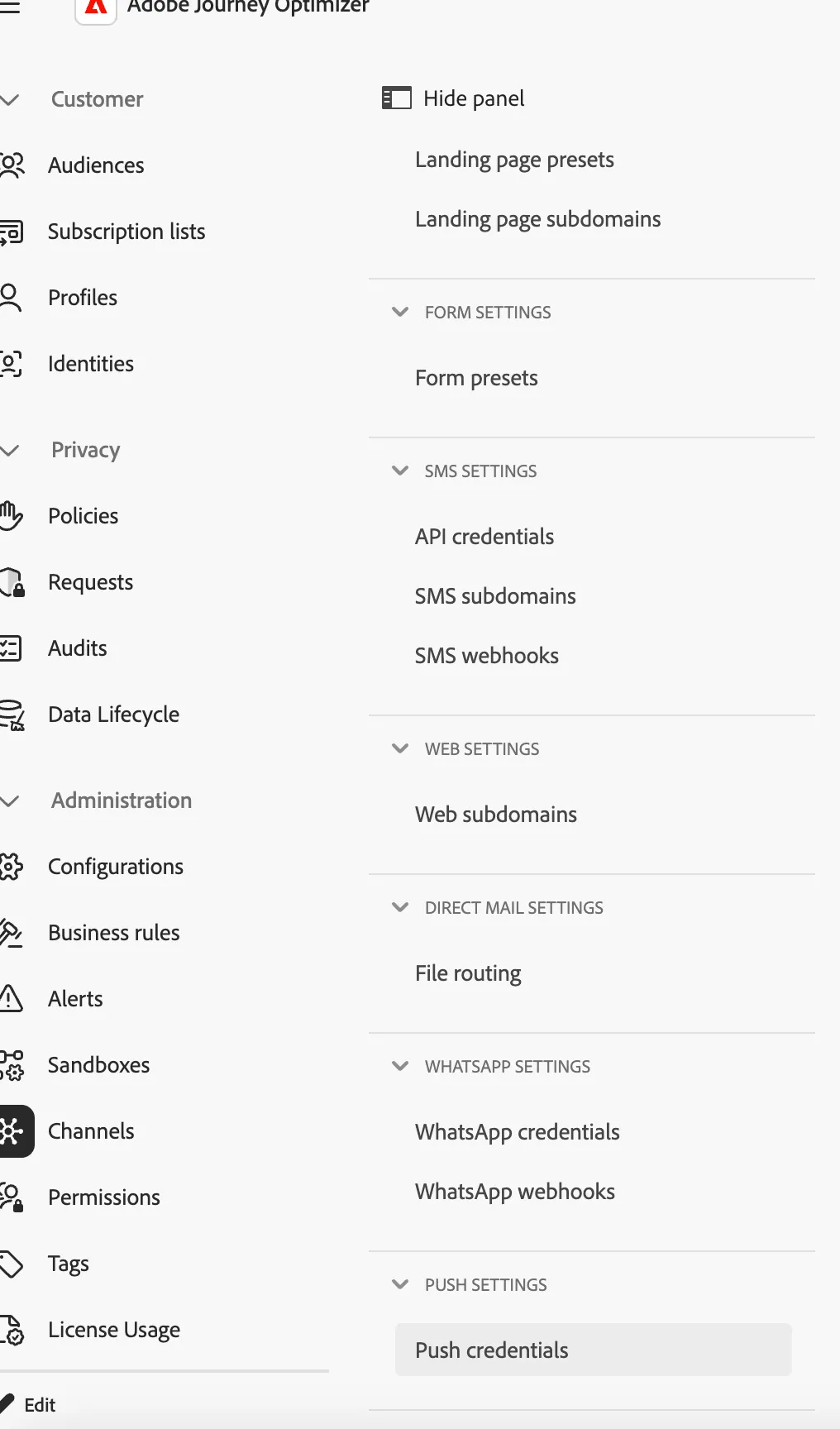
- Click on Create push credential

- Provide details.:
- Select Web in platform
- VAPID Public Key
- VAPID Private Key
- Application ID - It can be any unique identifier. eg web-push-projectname
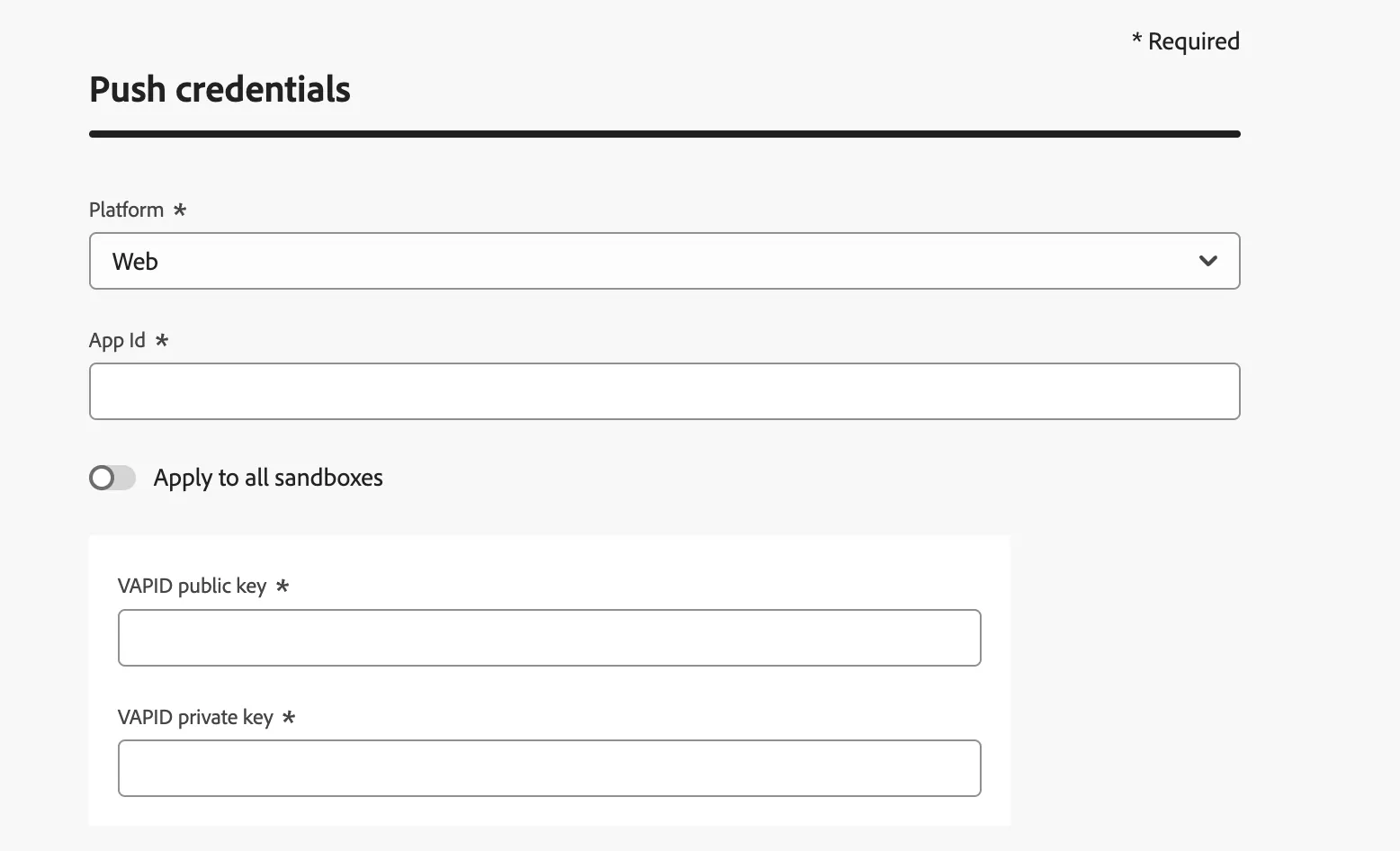
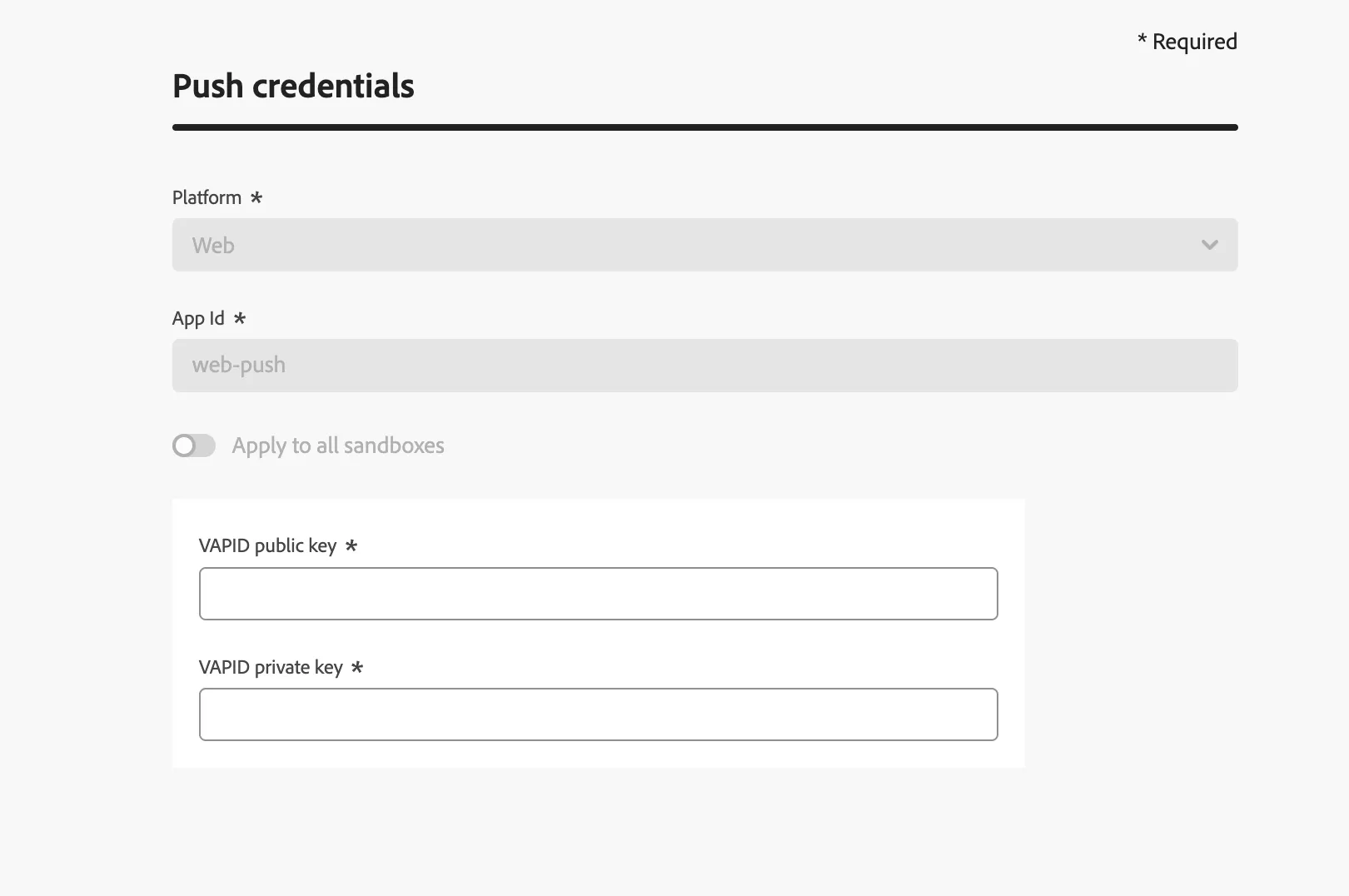
- Click on Submit
Create Web Push Channel
- Go to Channels ->Channel Configurations
- Click on Create Channel Configuration.

- Provide details.
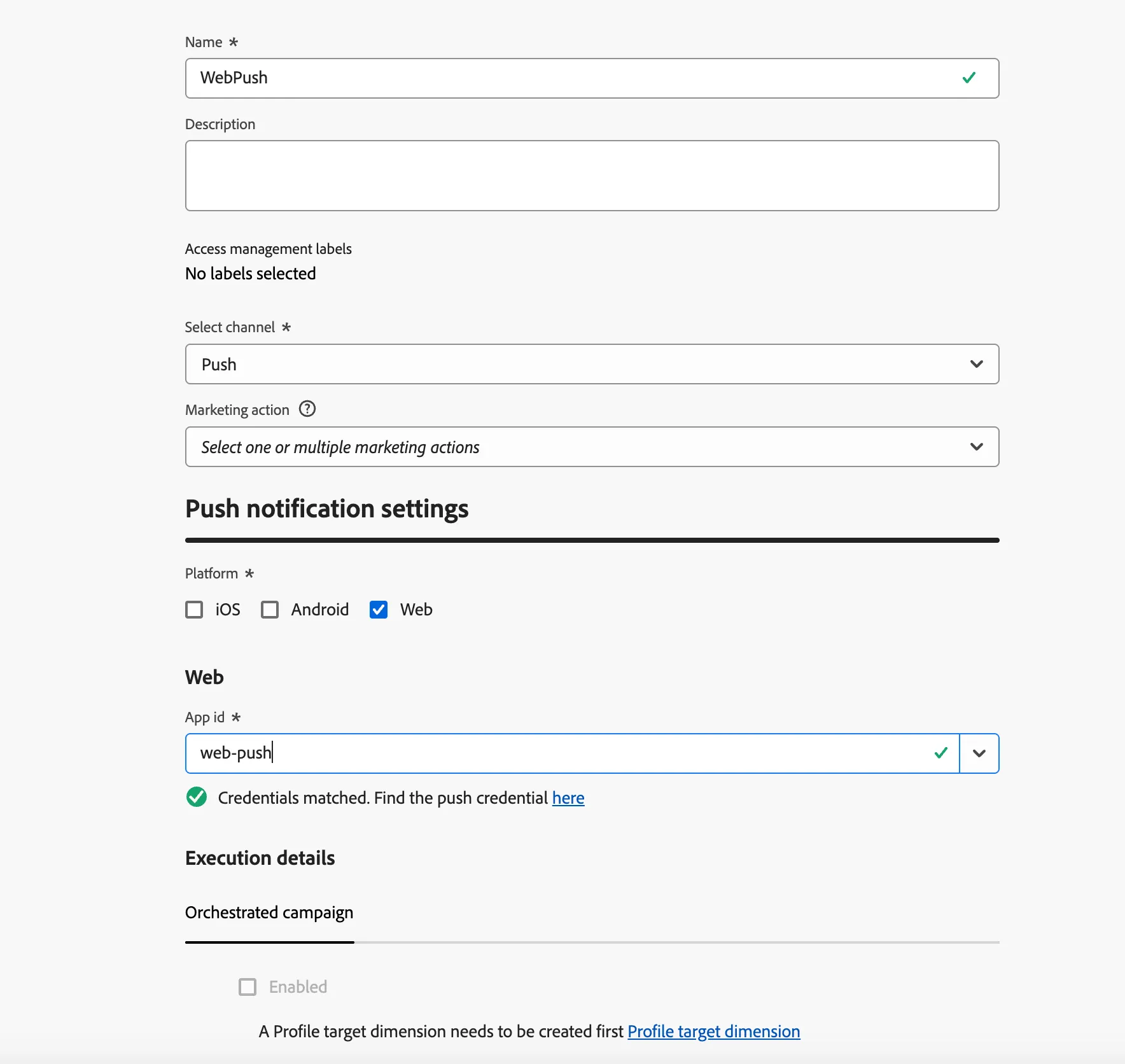
Associate: Push Credentials created above
- Click on Submit.
Configure Web SDK (Data Collection)
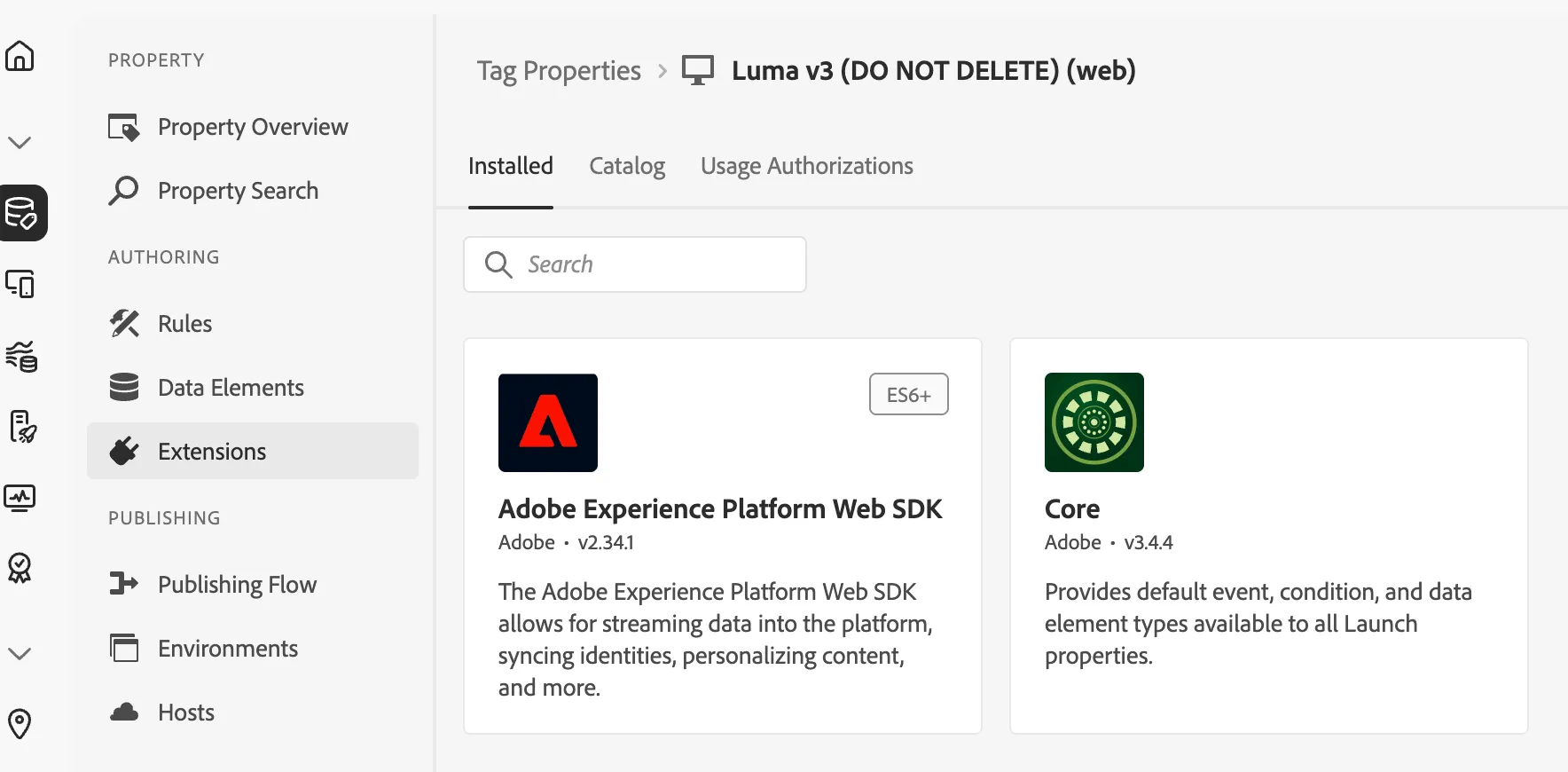
- Go to Tags. Choose the property that was created as part of your project.
- Go to Extensions.
- Click on Adobe Experience Platform Web SDK. On the right side, click on Configure.
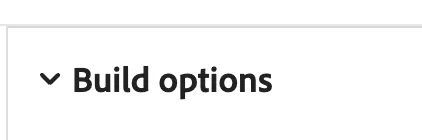
- Under Build options, Enable Push Notifications.

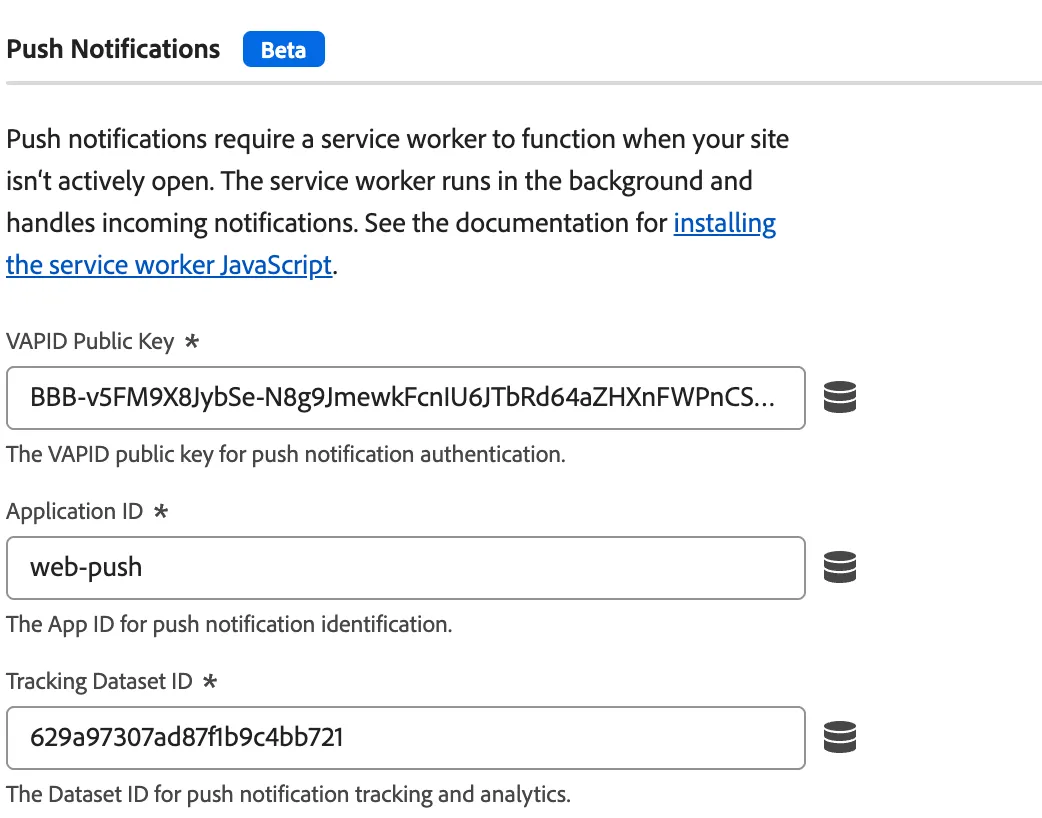
- Scroll down and provide details.
- VAPID Public Key
- Application ID: The app ID used when saving the VAPID keys inside Adobe Journey Optimizer -> Channels -> Push Settings -> Push Credentials
- Tracking Dataset ID: The ID of the system dataset with the name "AJO Push Tracking Experience Event Dataset". Get this from Adobe Journey Optimizer -> Datasets.
- Save the extension.
- Create a rule to capture push subscription.
Click on Add rule.
Provide details:
Name: Web Push
Events: Core - Page Bottom
Actions: Core - Custom Code.
Add the code below:
navigator.serviceWorker
  .register("/web/alloyServiceWorker.js", { scope: "/web/" })
  .then(() => navigator.serviceWorker.ready)
  .then(() => {
    if (Notification.permission === "granted") {
      alloy("sendPushSubscription");
    } else if (Notification.permission === "default") {
      return Notification.requestPermission().then(permission => {
        if (permission === "granted") {
          alloy("sendPushSubscription");
        }
      });
    }
  })
  .catch(err => console.error("Push setup failed:", err));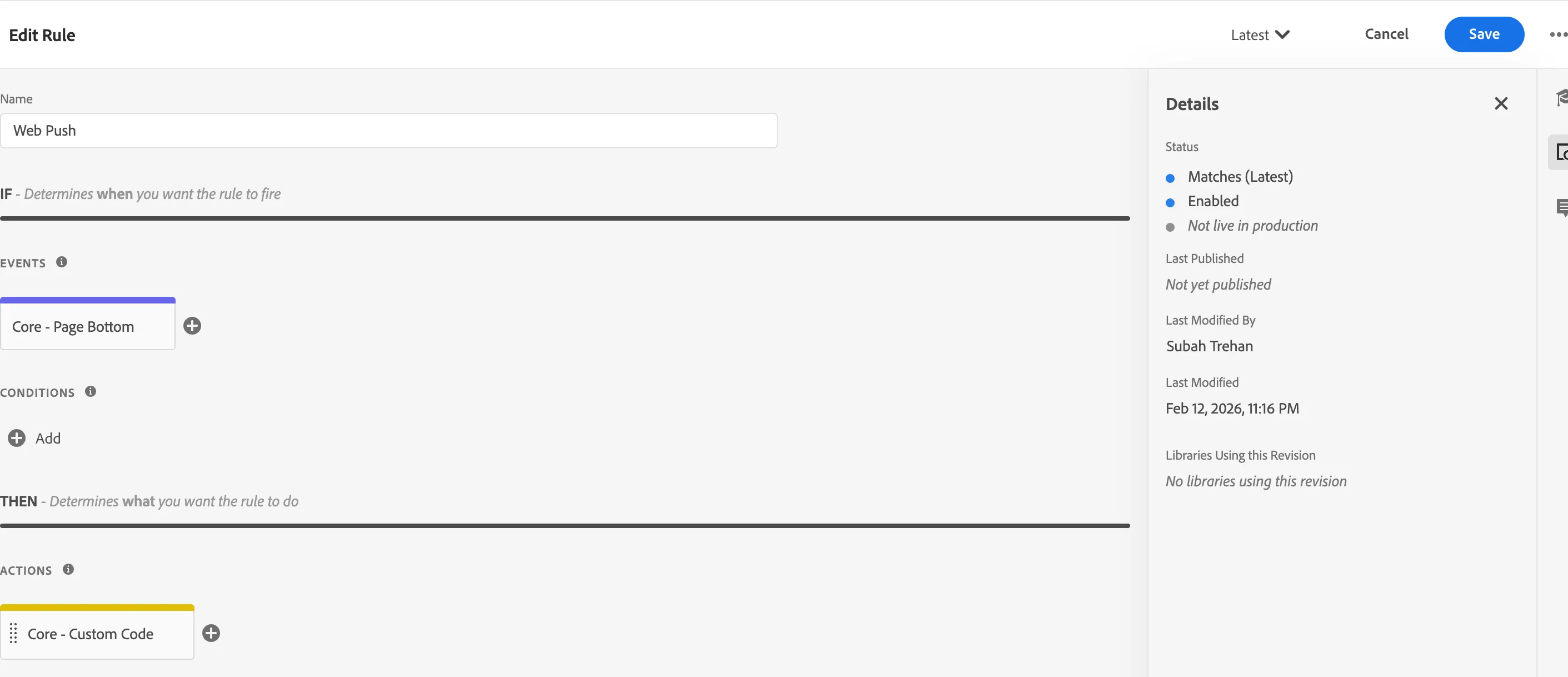
- Click on Save. Publish the property.
Create Web Push Campaign
- Go to Campaigns. Click on Action
- Click on the Create Campaign button
- Provide details.
- Name
- Select the Action, which isthe channel configuration created above
- Audience
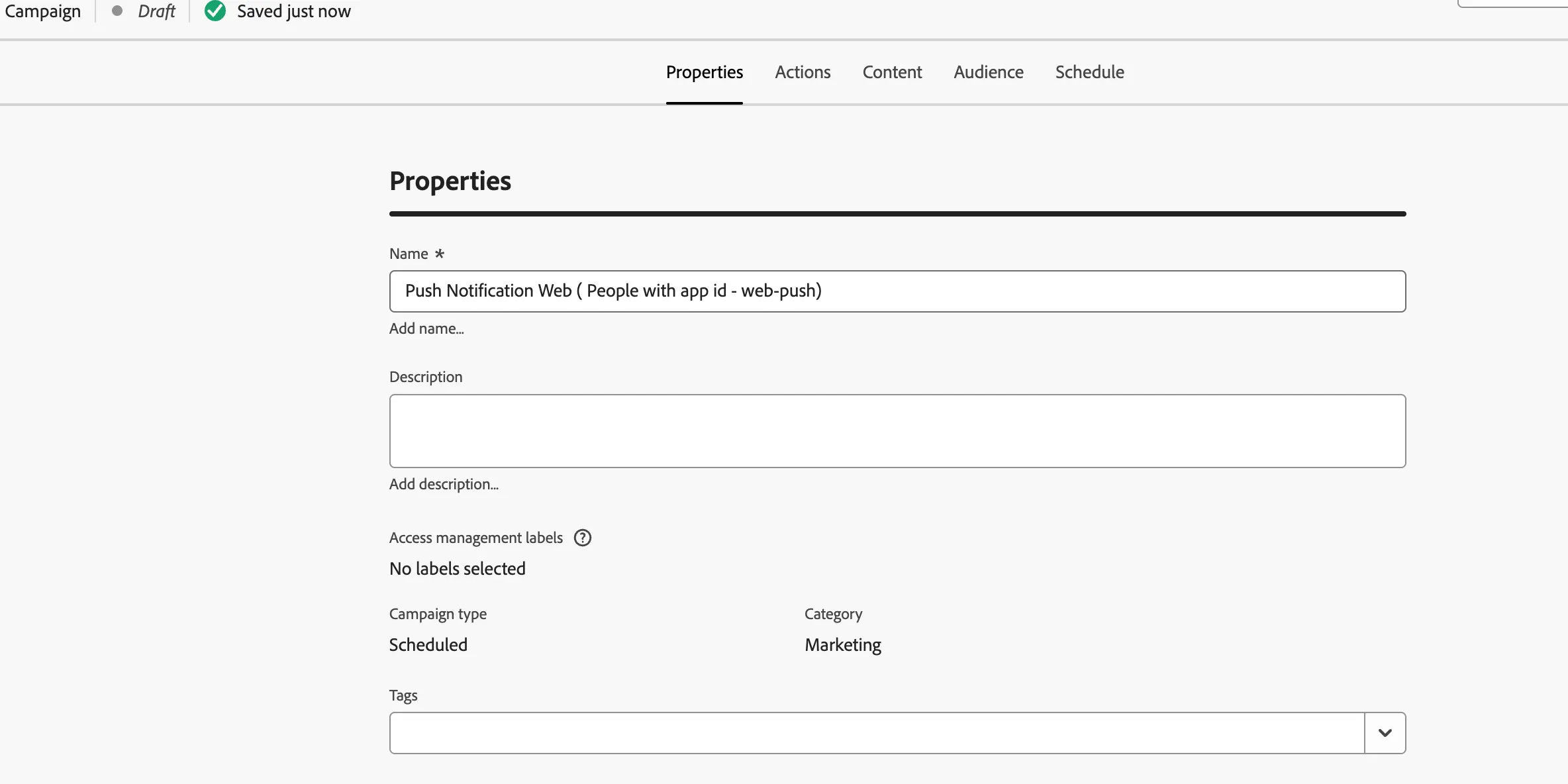
- Configure content
Title: Sale: 30% Off Today Only!
Body: Your favorite activewear just got lighter on your wallet. Shop before midnight!
Body click behavior
Add media:

Click on Review to activate. Click on Activate.
It should now send Push to the audience.
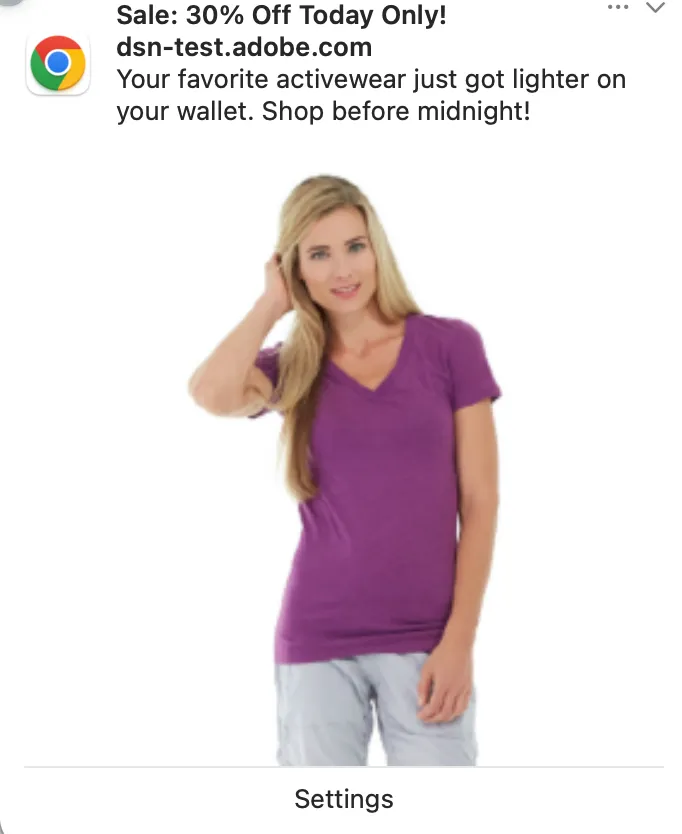
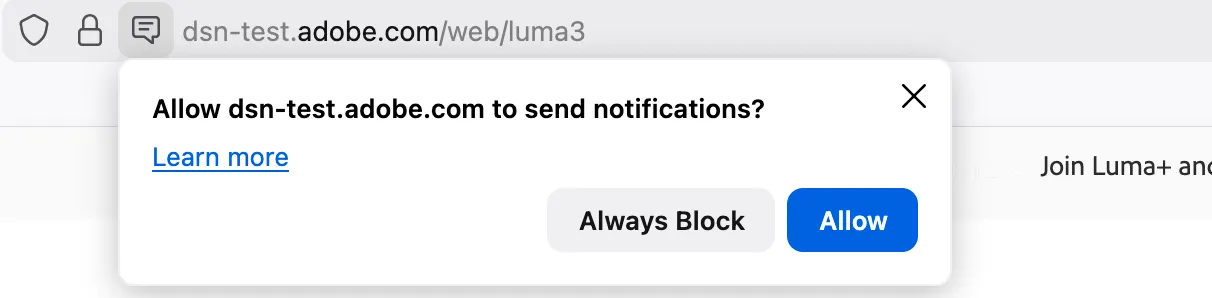
Allow Notifications:
🔧 Chrome Push Notification
- Open Chrome → click 3 dots (⋮) → Settings
- Go to Privacy and security → Site Settings
- Look for your domain: Under Notifications:
- Change to Ask(default)
- This enables the site to request notification permission
- Refresh your website and try subscribing to push notifications again

🔧 Firefox Push Notification
- Open your website in Firefox
- Look at the left side of the address bar → you may see an information icon

- Click the icon → click Allow
Luma — Web Push Journey (Men Category Interest)
Luma uses this Journey in Adobe Experience Platform Journey Optimizer to send targeted Web Push notifications to users who have:
- Registered (opted-in) for Web Push notifications
- Shown interest in the Men’s category on the website
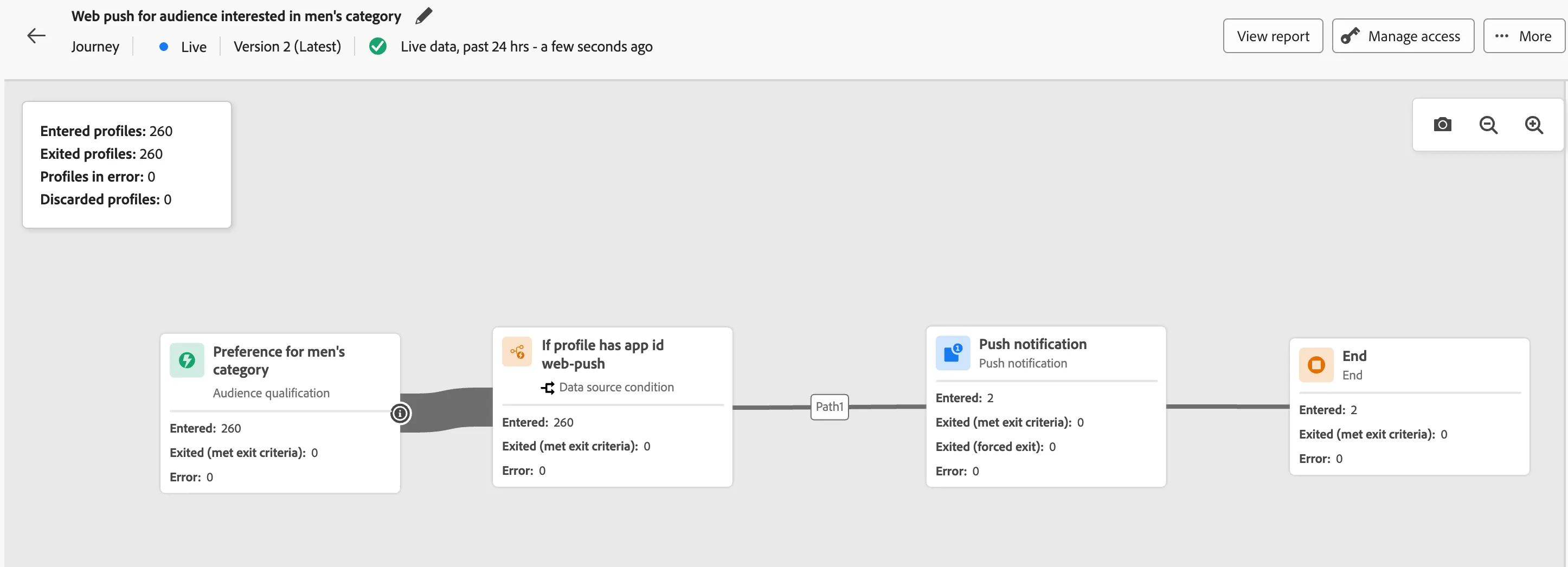
Refer to this link for the journey - Web push for audience interested in men's category