Experiment Accelerator: Email, Target & Mobile
Introduction
Adobe Journey Optimizer Experimentation Accelerator is an AI-driven solution designed to empower marketers and experimentation teams to collaborate effectively in one centralized workspace. This solution helps teams streamline experimentation workflows, maximize conversion rates, and accelerate revenue growth by leveraging advanced automation and predictive insights.
How to
- Define success metrics while designing.
- Meaningful labels to experiment rule and context, which will be helpful for deriving a hypothesis.
- Use contextual image, subject line, and valid links to collect meaningful interaction data. Enabling a better insight summary.
- Capture engagements >~500 and/or >~1000 targets (for Journeys/Campaigns)
- Once experimentation insights are available, define the hypothesis for the treatments and associate images to graphically represent results.
Email Implementation
For email implementation, we will demonstrate in the ADSS Luma Public Project, but if you want to implement the same in your sandbox, then please follow the given steps:
Objective:
- Brand: Luma
- Hypothesis: If we use Informative and Urgent language in the emails with the Winter and Sports offer, which variant will yield more clicks.
- Control: NA
- Variant 1( Winter Offer 50%): New version with Informative/Urgent language with the Winter offer.
- Variant 2( Sports Offer 50%): New version with Informative/Urgent language with Sports offer.
- Primary Metric: Clicks
- Result: TBD
- Action: Consider rolling out the variant and running follow-up experiments to test similar approaches in other areas.
Steps:
Go to ADSS > Public Luma AJO
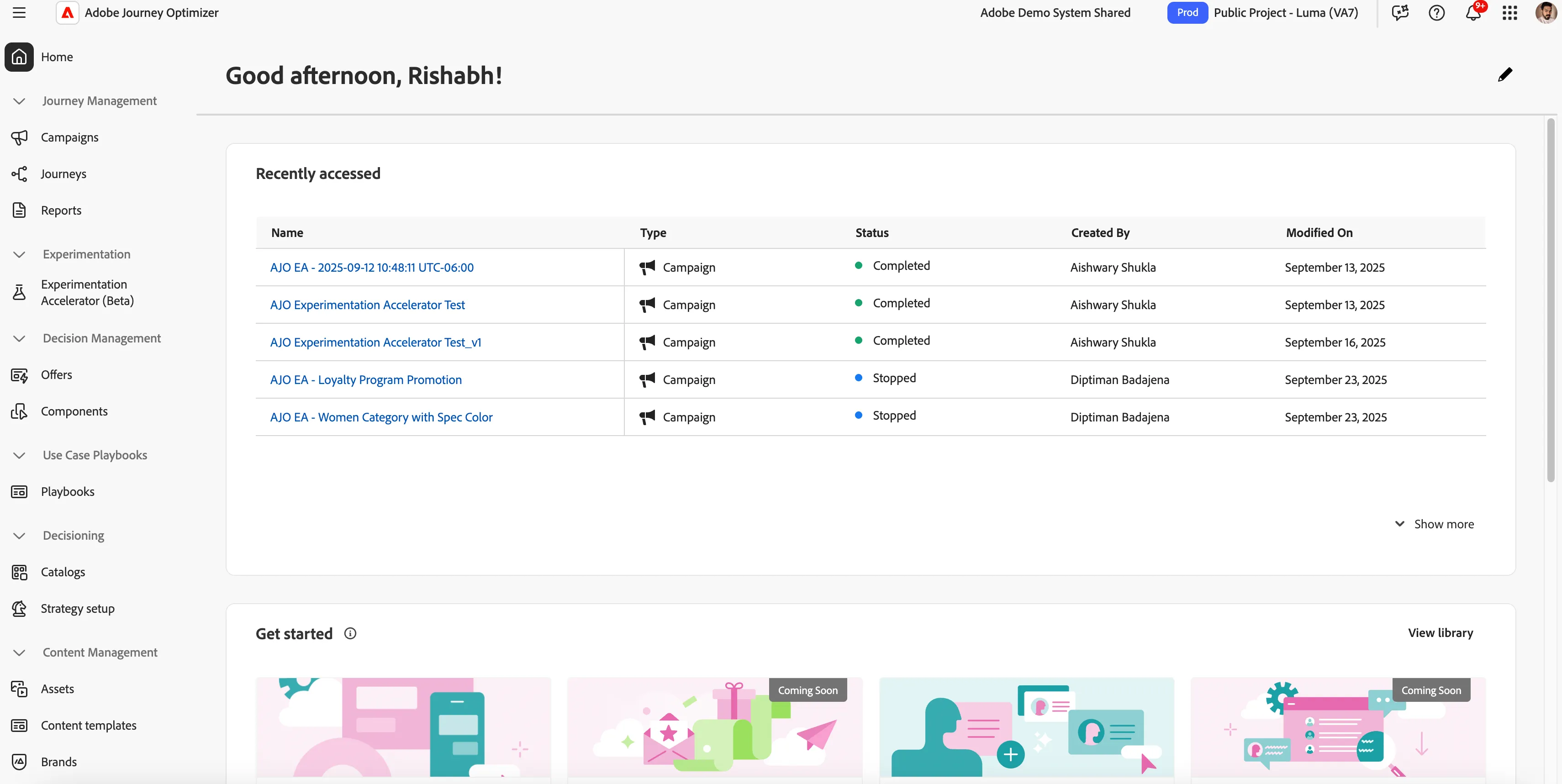
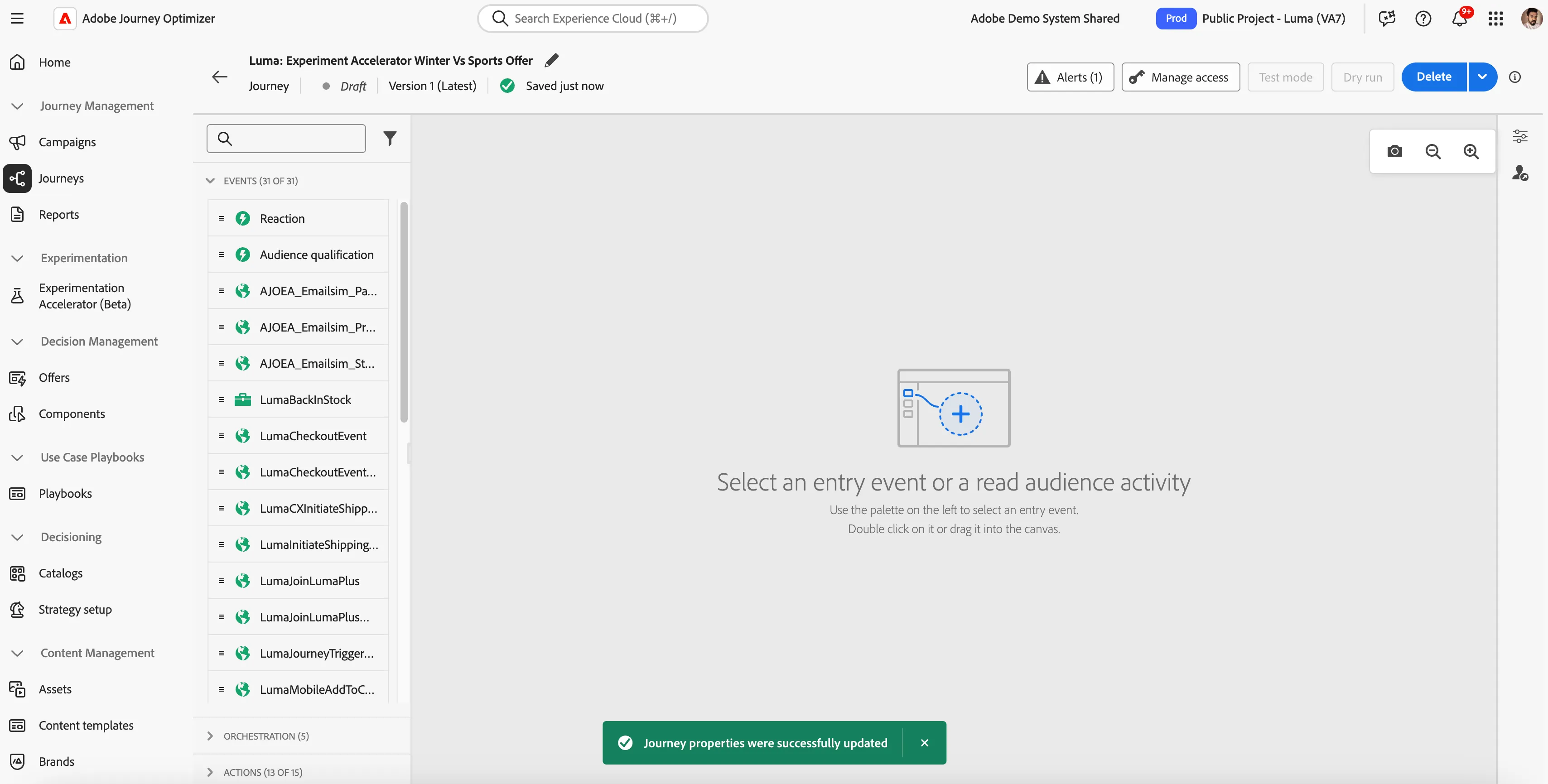
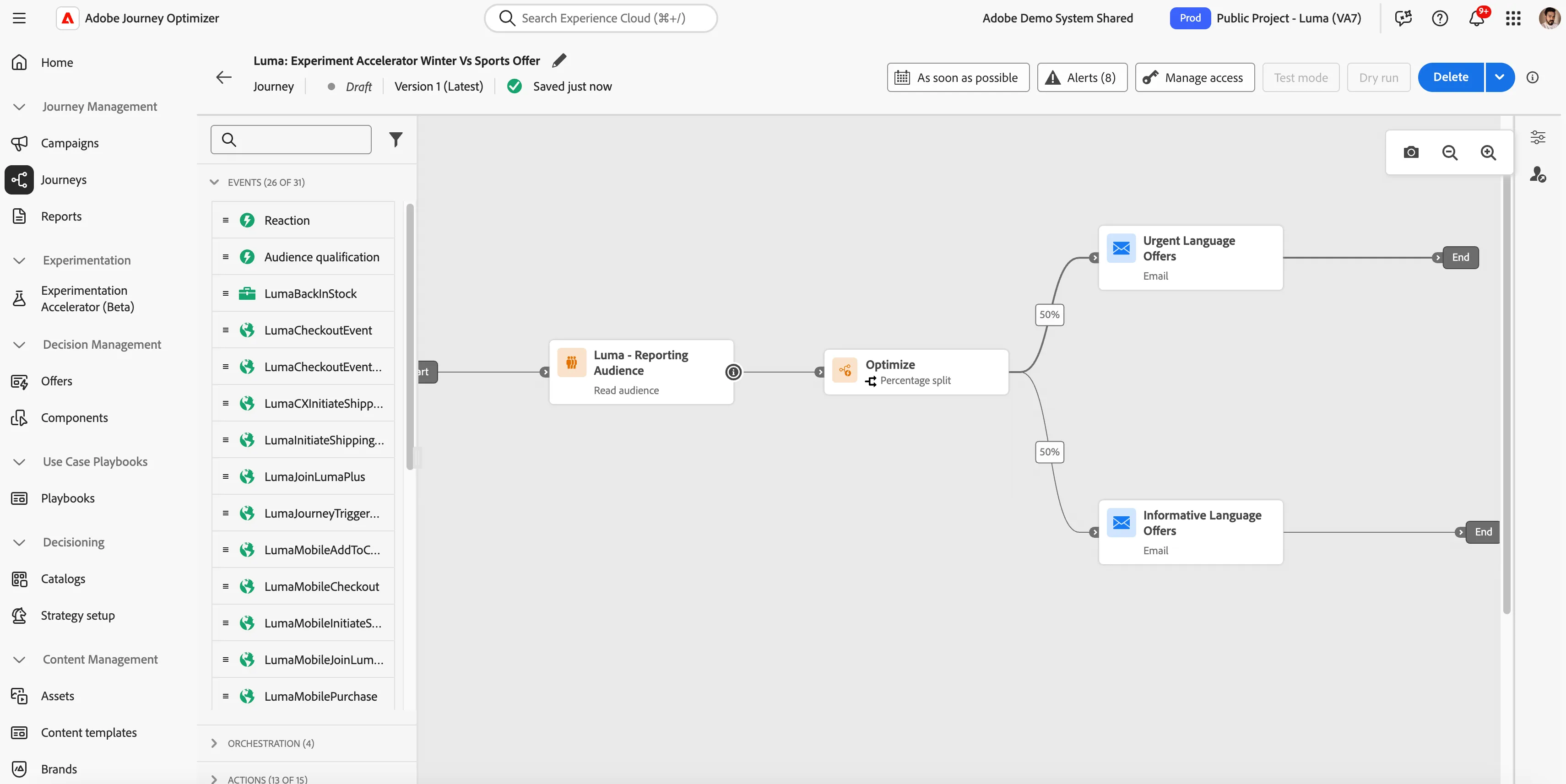
Now, from the left rail, click on Journeys > Create new Journey and provide a name, Luma: Experiment Accelerator Winter Vs Sports Offer.
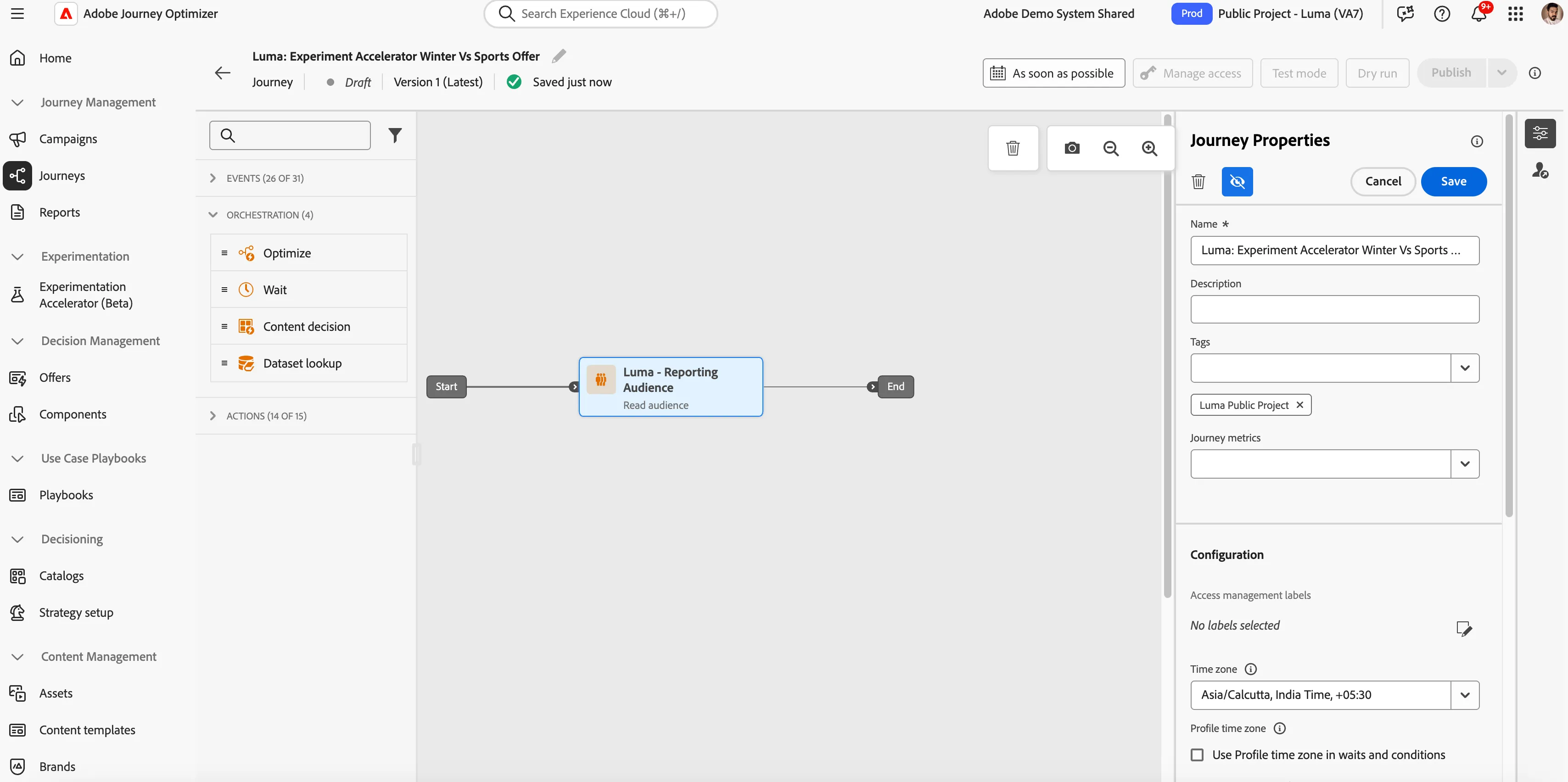
Now, for this demonstration, we are using Luma Reporting Audience (you can create your own audience based on different attributes and scenarios). Now, from the left rail, drag and drop the read audience action and select Luma Reporting Audience.
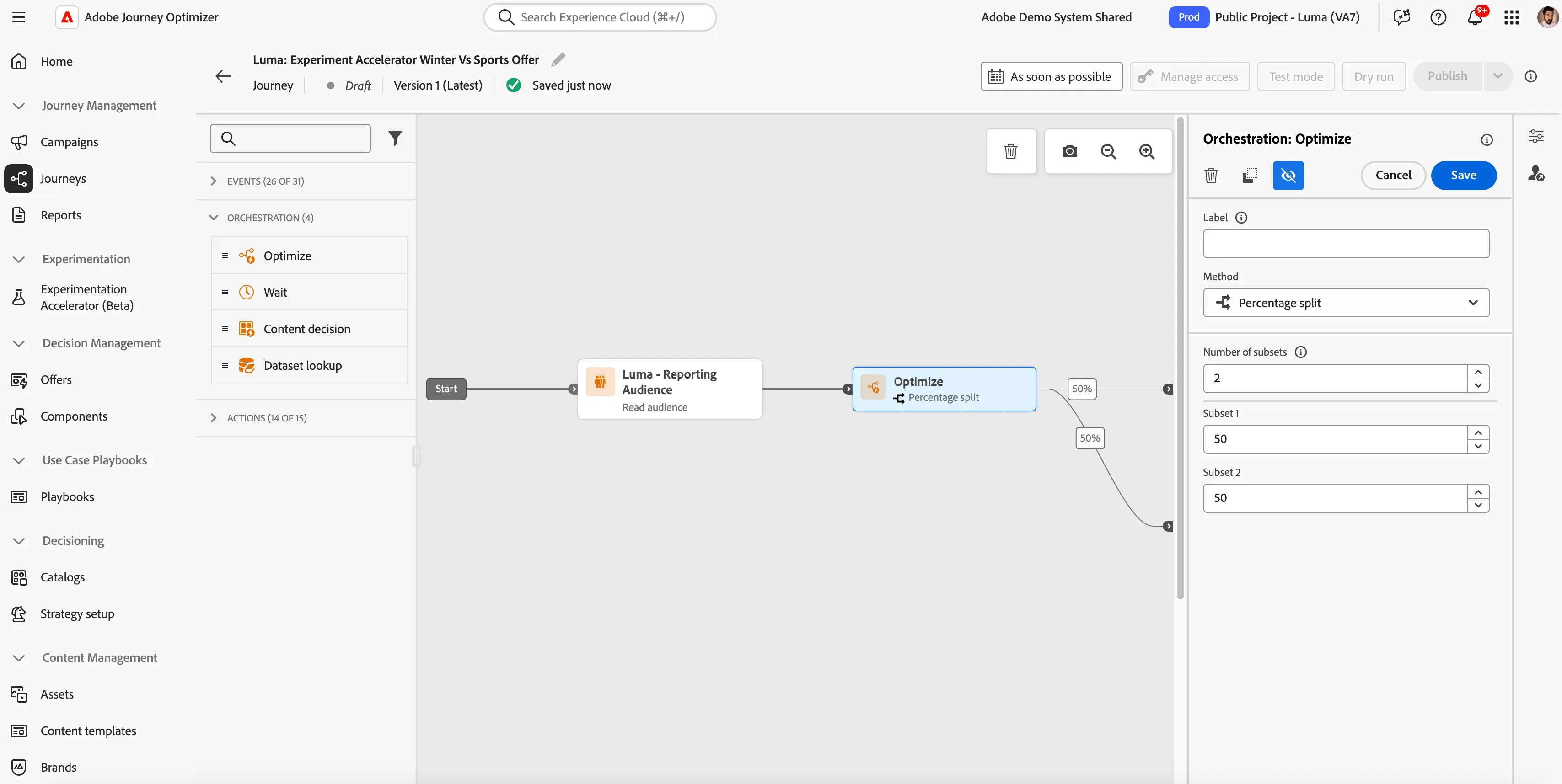
As we need to perform experimentation, we need to split the audience as per our objective mentioned above. Drag and drop the optimize action from the left rail and select the method percentage split with 2 subsets, 50% each.
Now, drop the email action on both paths and provide a proper name as per the above Objective.
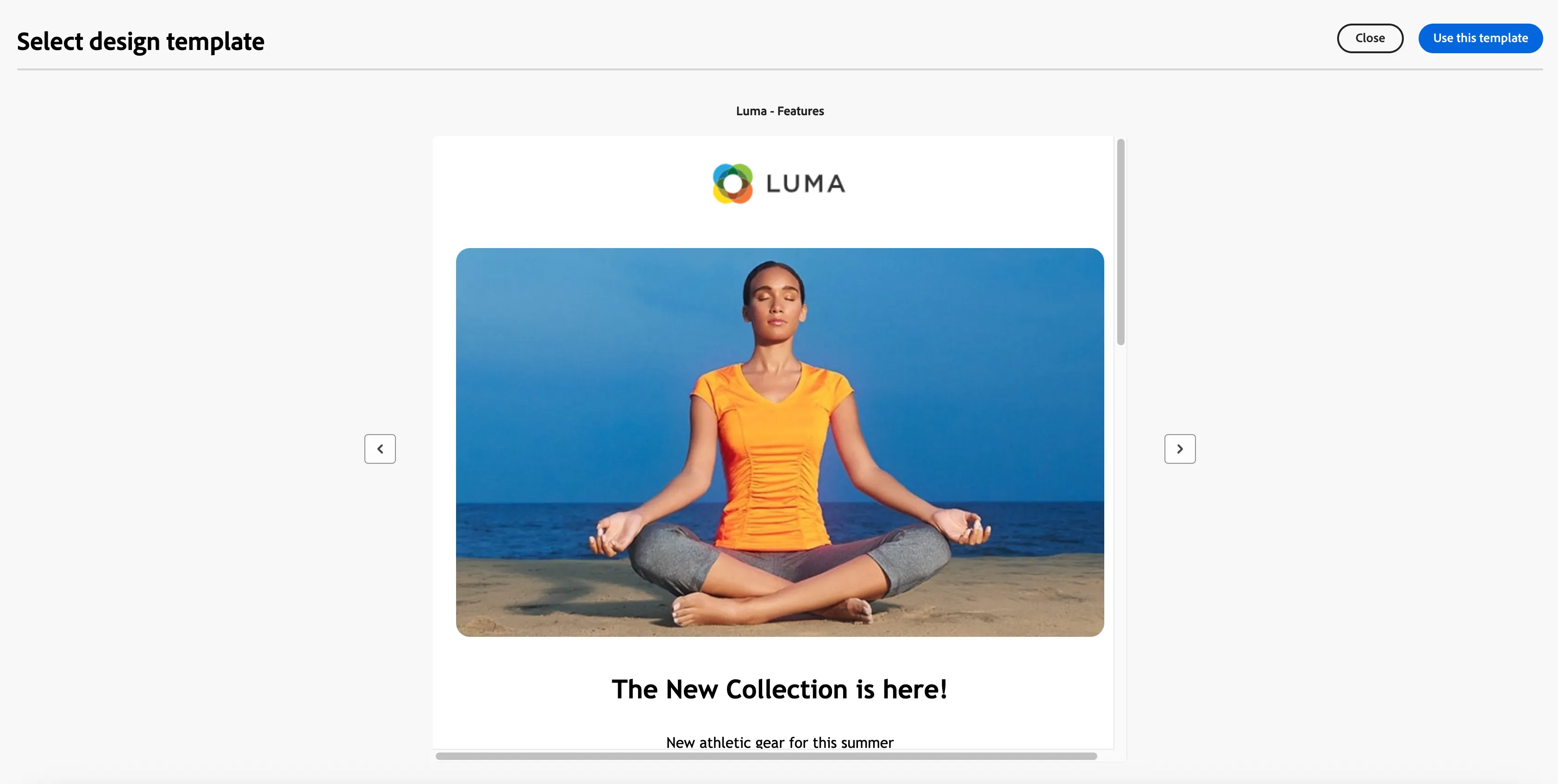
Now, click on Informative emailer and click on edit content > go to body > edit email body > select Luma Features Template.
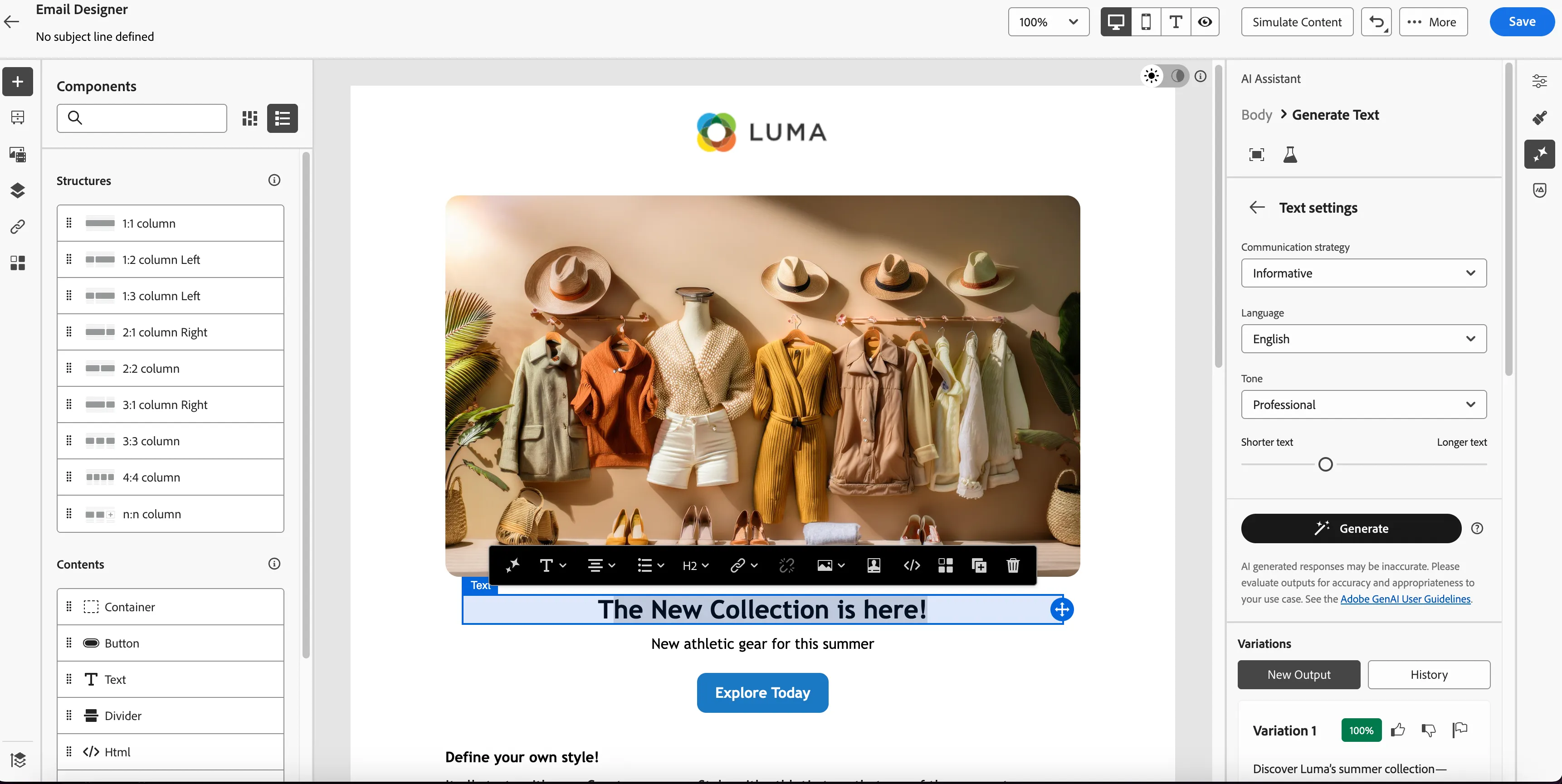
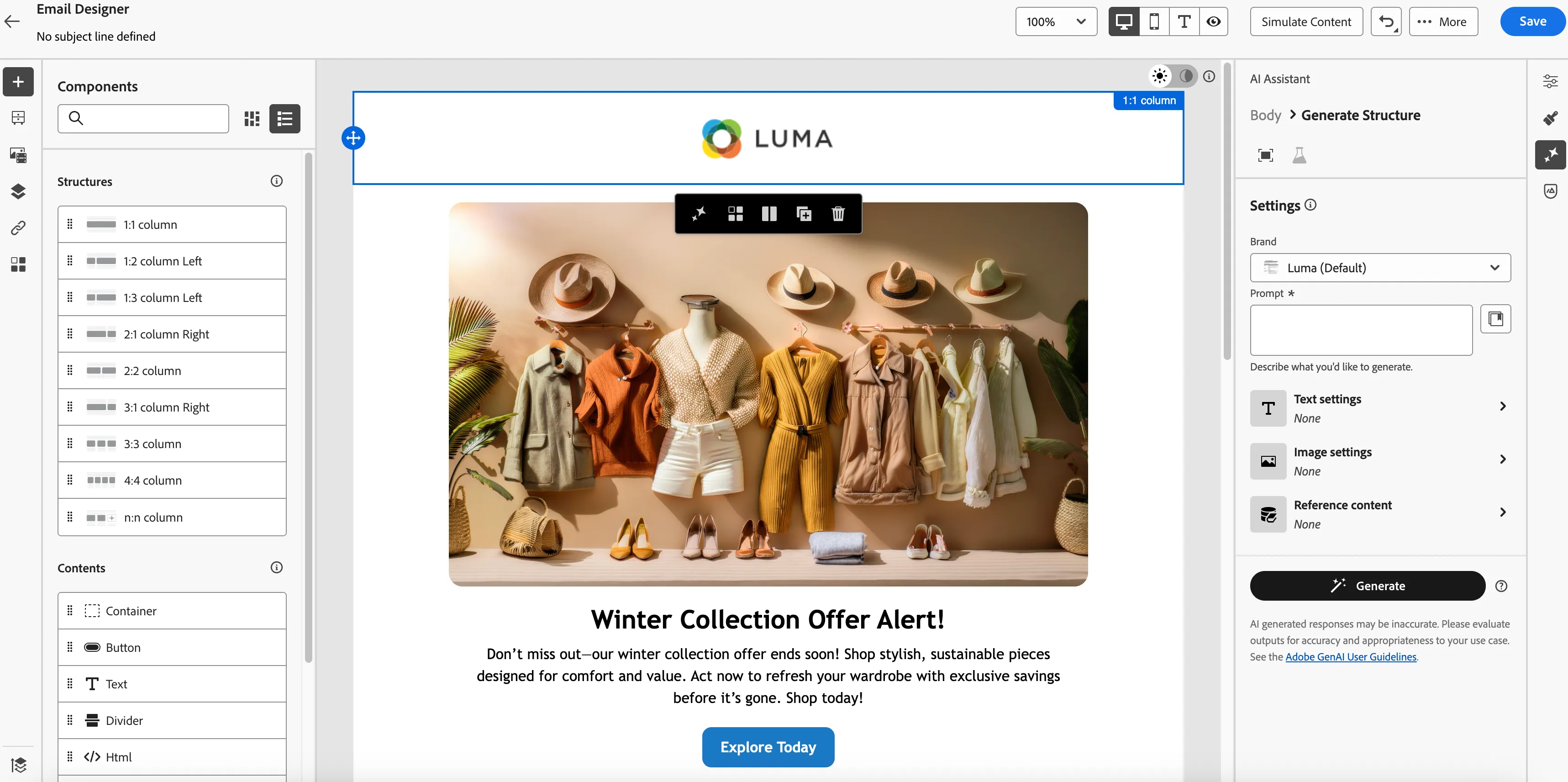
Go to the banner image and change it to the image accordingly, as per your need, and provide an external link to the image. Follow all the guidelines as given above in How to. Click on the star icons on the right and put a communication strategy as Informative and other parameters accordingly. Then click on generate and select the one you like the most.
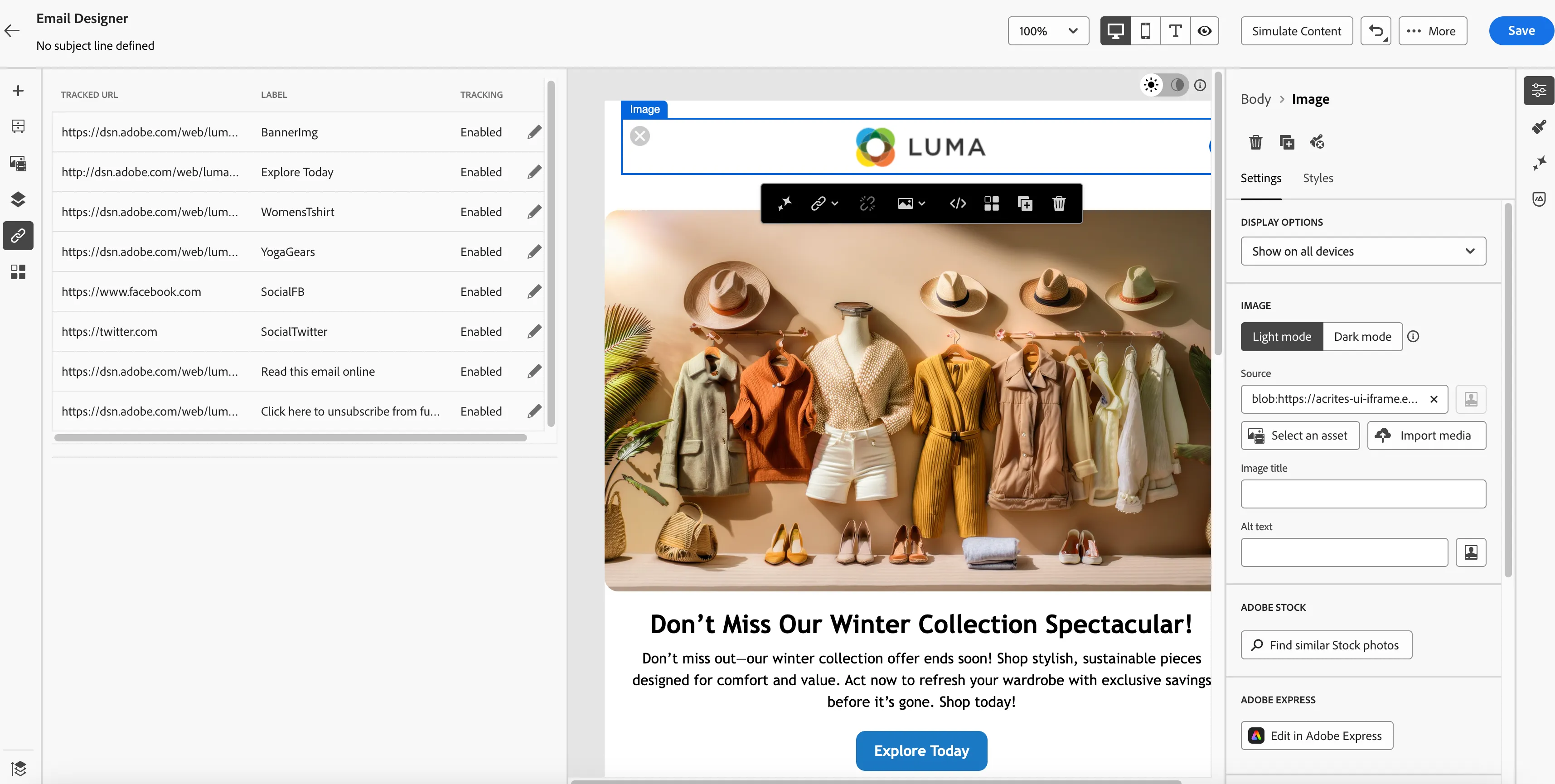
Now, go ahead and provide links and labels to all the CTAs and buttons on the email so Experiment Accelerator can identify some insights and save.
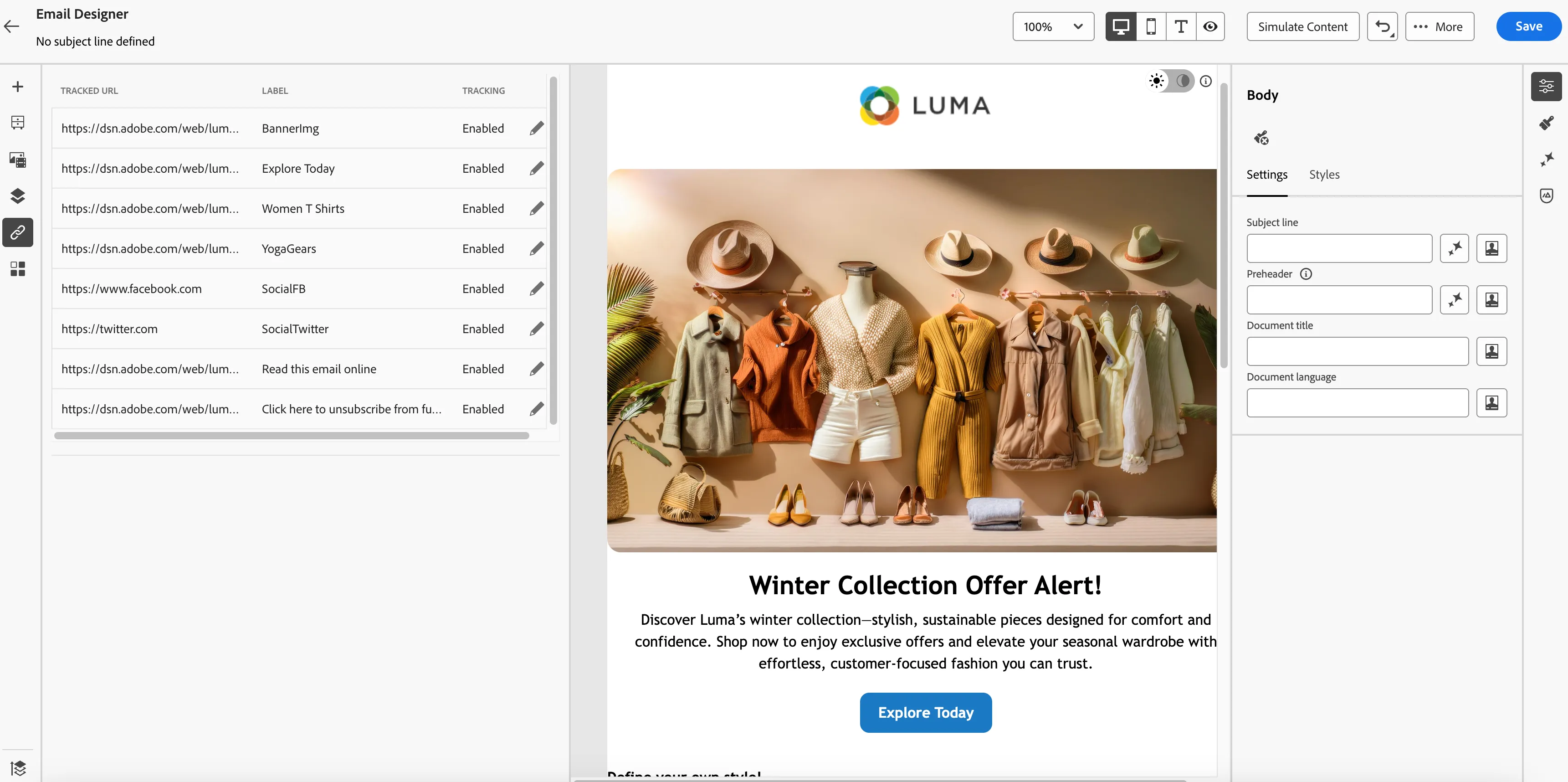
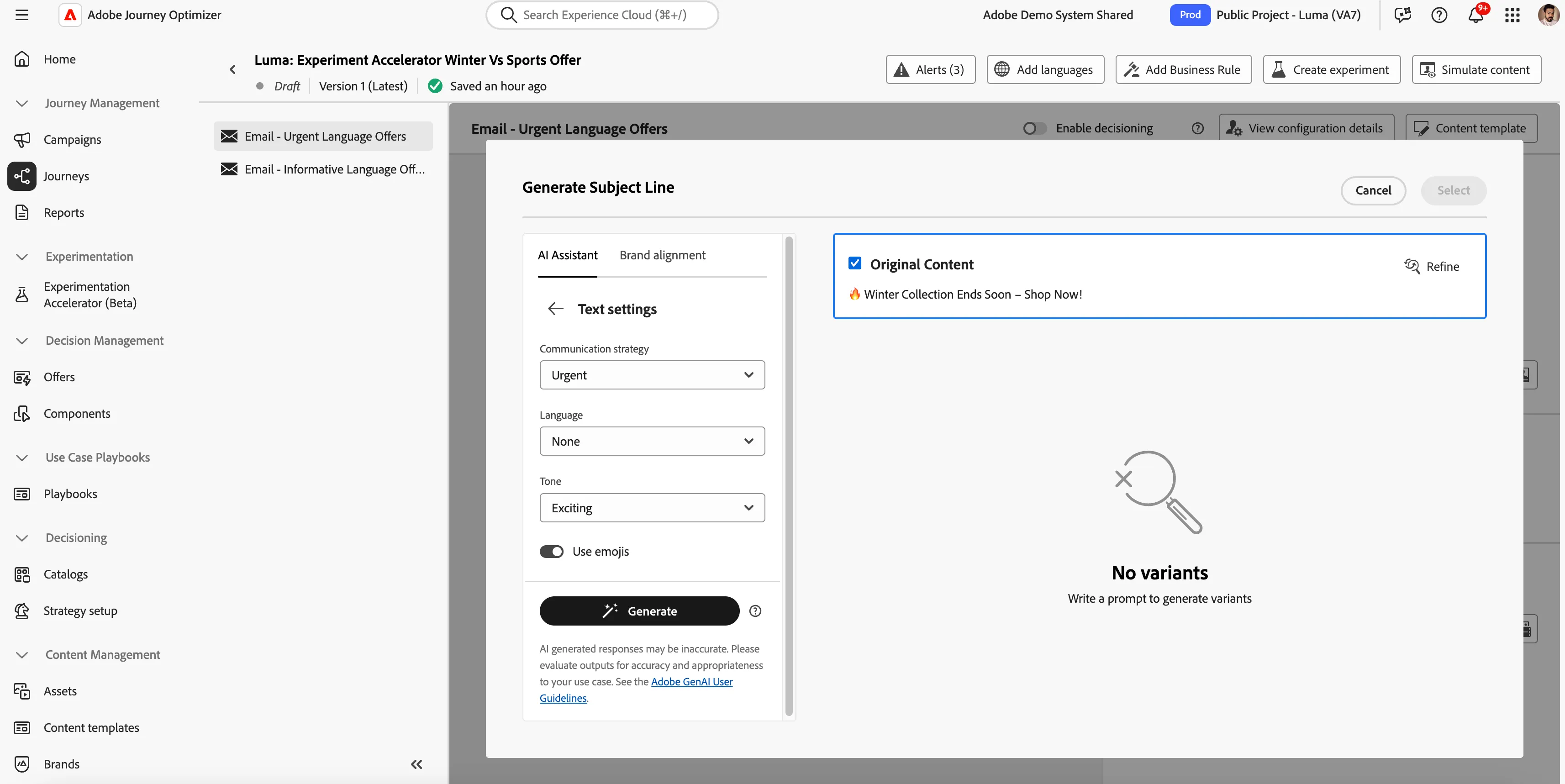
Once the above email is saved, click on the back arrow, and for the Subject line, click on the magic wand icon and use the Informative communication strategy, and give other details accordingly, generate. Choose the most you like.
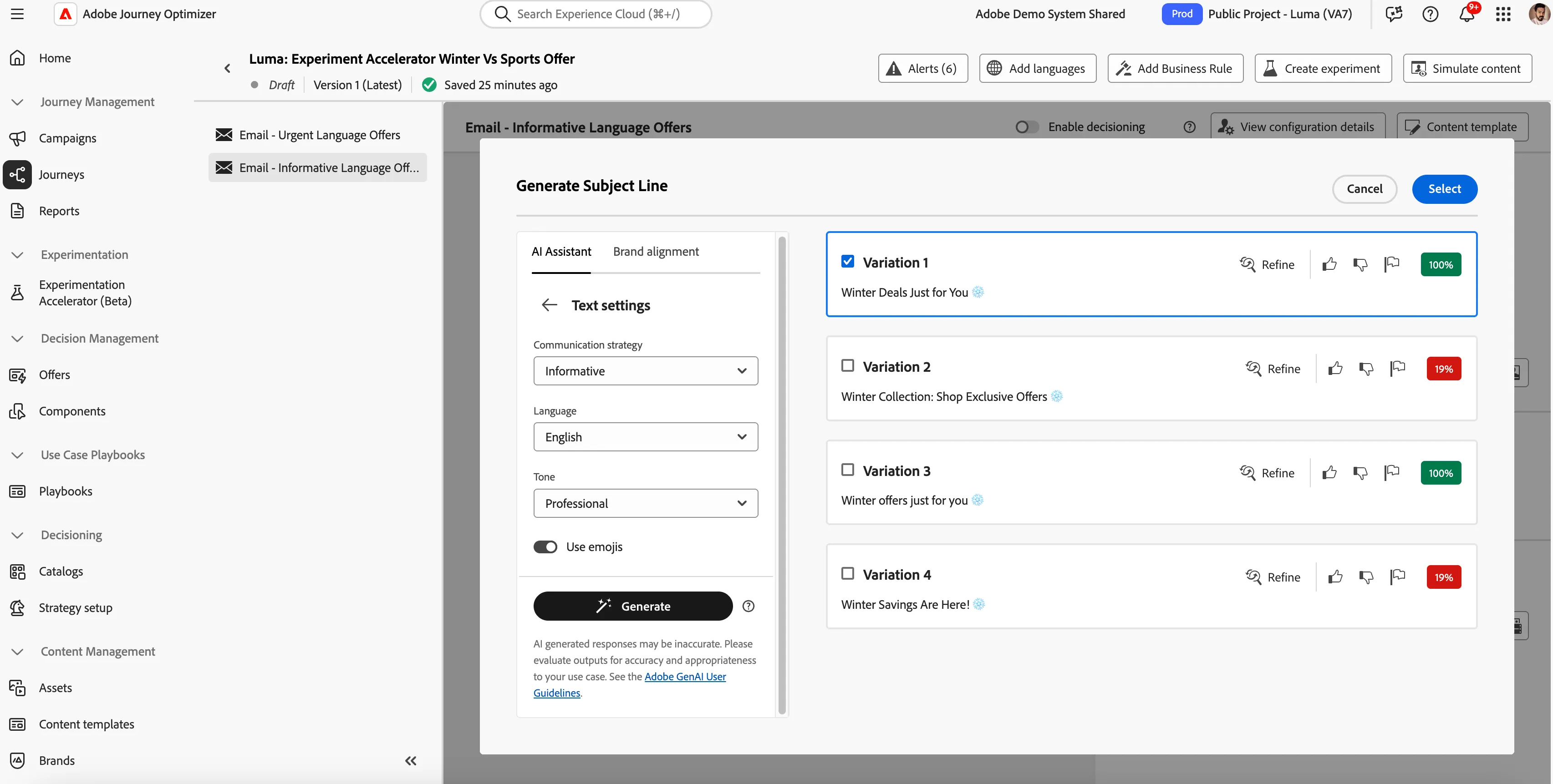
Now, the Email Body and Subject are done as per the informative strategy for Winter Offers, but we need to create a similar informative strategy for Sports Offers.
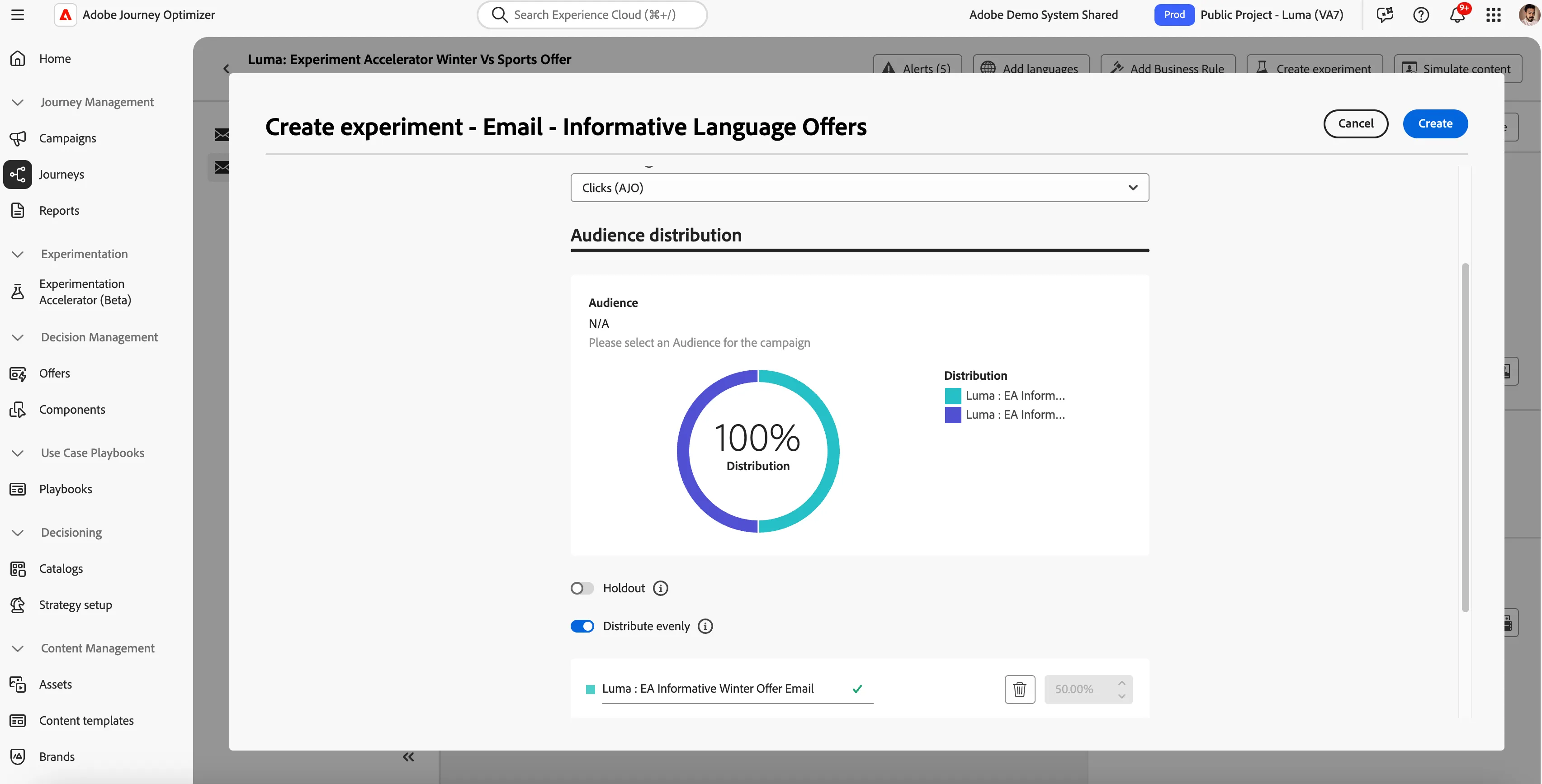
Click on Create Experiment in the top right corner. Provide the success metric as Clicks(AJO) and distribute evenly, and provide the treatment name as Luma: EA Informative Winter Offer Email, and add a new treatment and provide the name as Luma: EA Informative Sports Offer Email. Then, Click on Create.
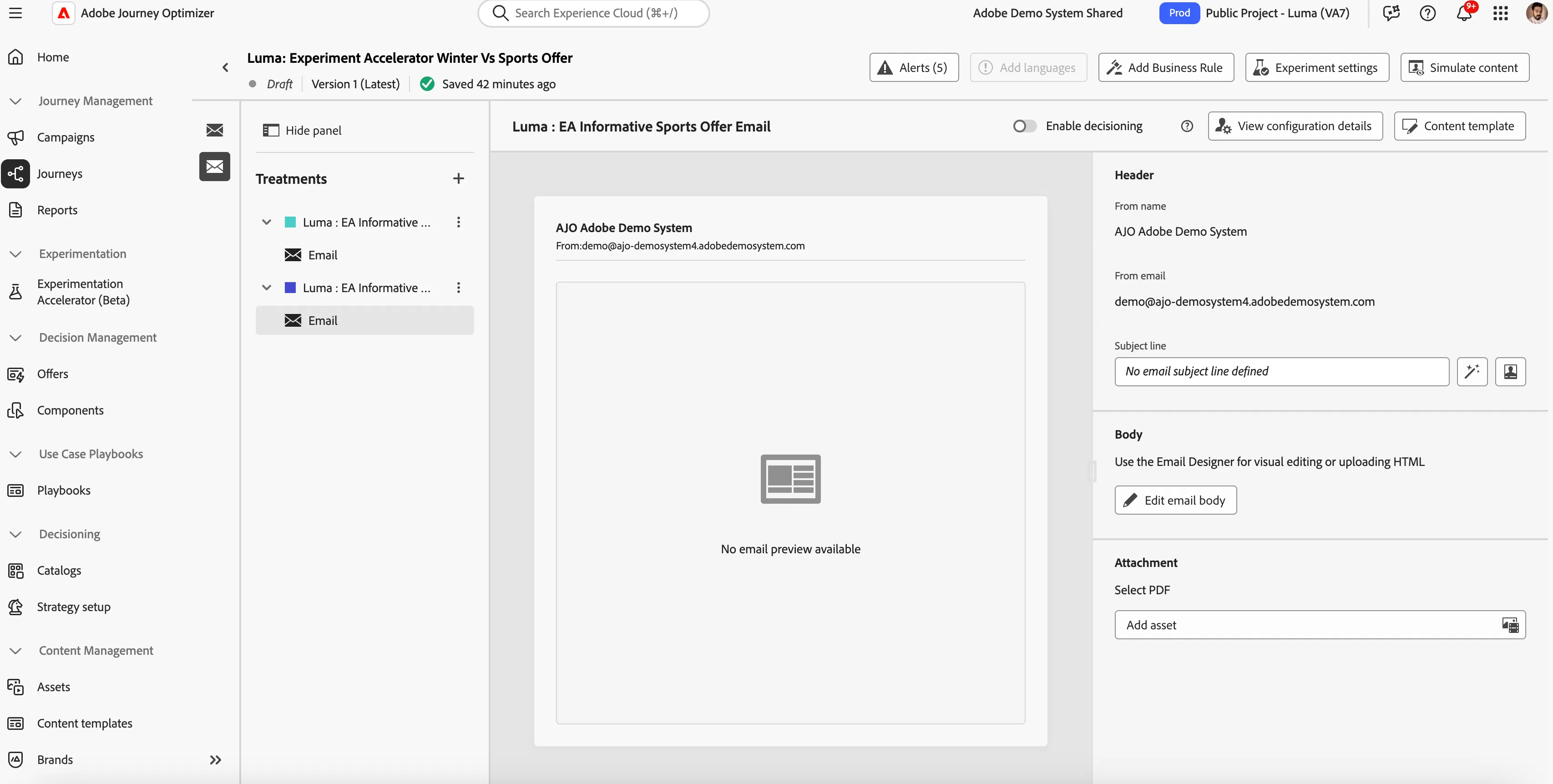
Now go to Luma: EA Informative Sports Offer Email and repeat the steps 6(Select Luma - New Subscription Template), 7, 8, 9, and configure it accordingly for Informative Communication strategy with a changed banner image related to Sports offer.
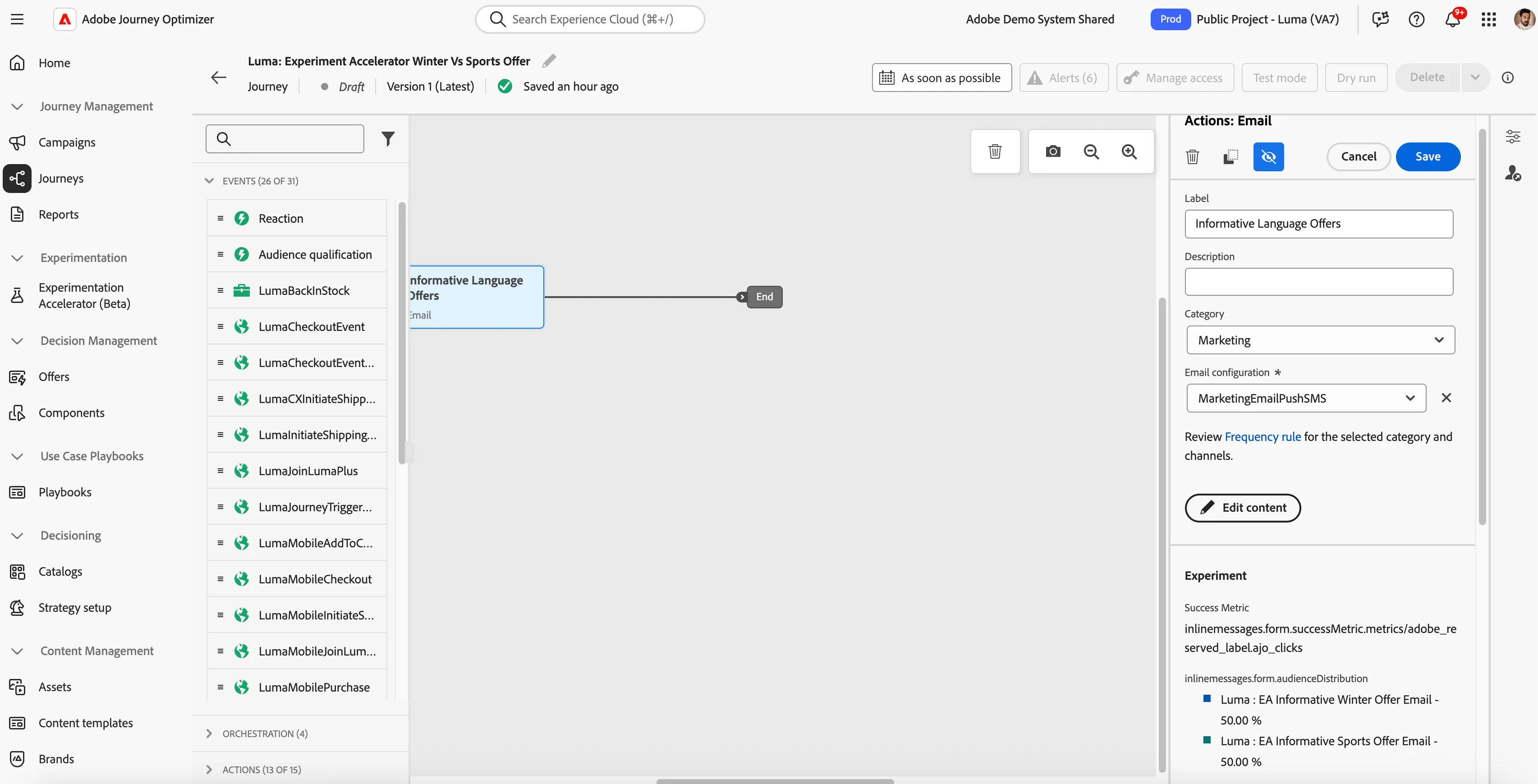
Now go on the journey and click on Urgent emailer and click on edit content > go to body > edit email body > and select Luma Features Template.
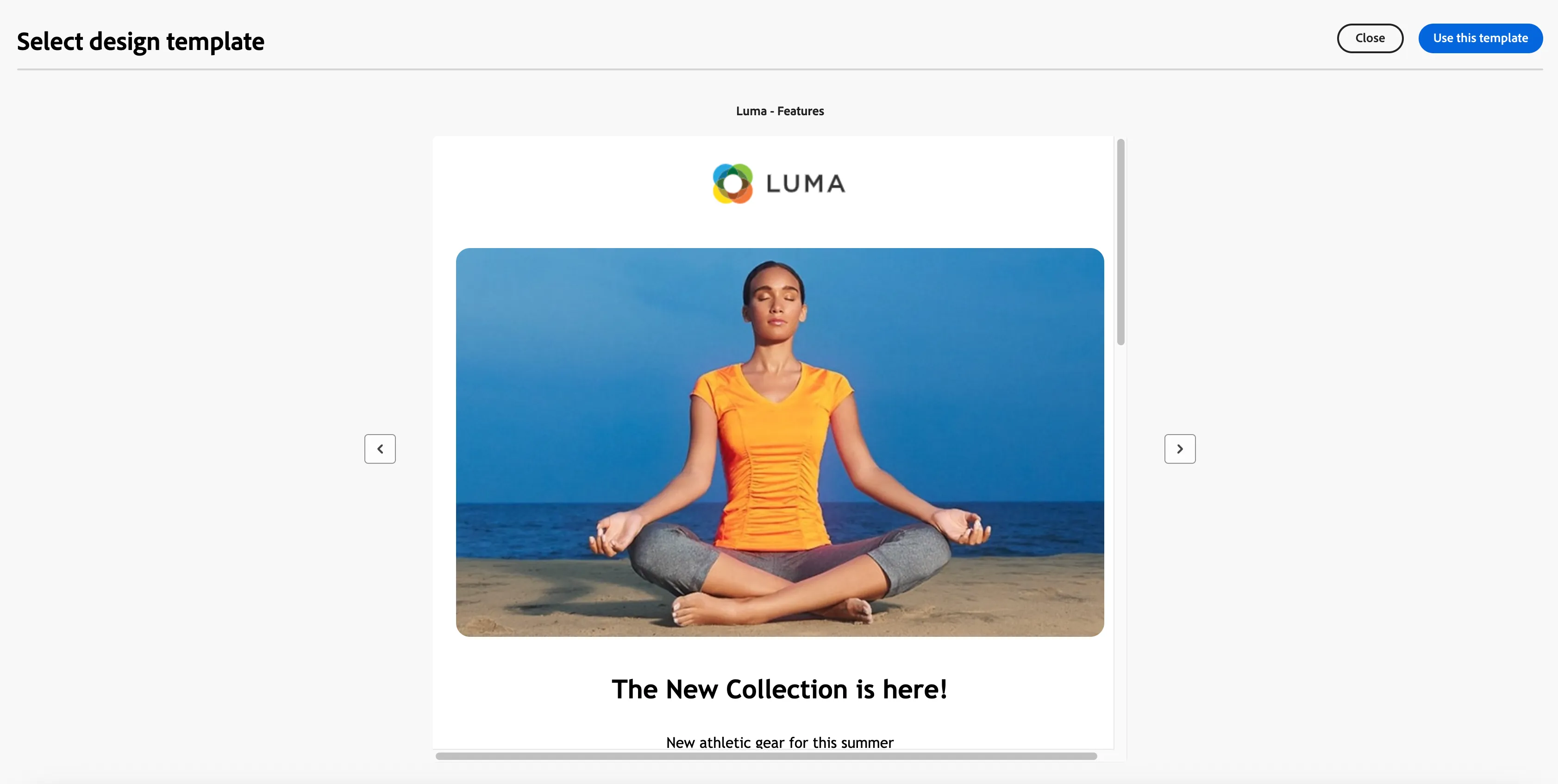
Go to the banner image and change it to the image accordingly, as per your need, and provide an external link to the image. Follow all the guidelines as given above in How to. Click on the star icons on the right and put a communication strategy as Urgent and other parameters accordingly. Then click on generate and select the one you like the most.
Now, go ahead and provide links and labels to all the CTAs and buttons on the email so Experiment Accelerator can identify some insights and save.
Once the above email is saved, click on the back arrow, and for the Subject line, click on the magic wand icon and use the Urgent communication strategy, and give other details accordingly, generate. Choose the most you like.
Now, the Email Body and Subject are done as per the urgent strategy for Winter Offers, but we need to create a similar urgent strategy for Sports Offers.
Click on Create Experiment in the top right corner. Provide the success metric as Clicks(AJO) and distribute evenly, and provide the treatment name as Luma: EA Urgent Winter Offer Email, and add a new treatment and provide the name as Luma: EA Urgent Sports Offer Email. Then, Click on Create.
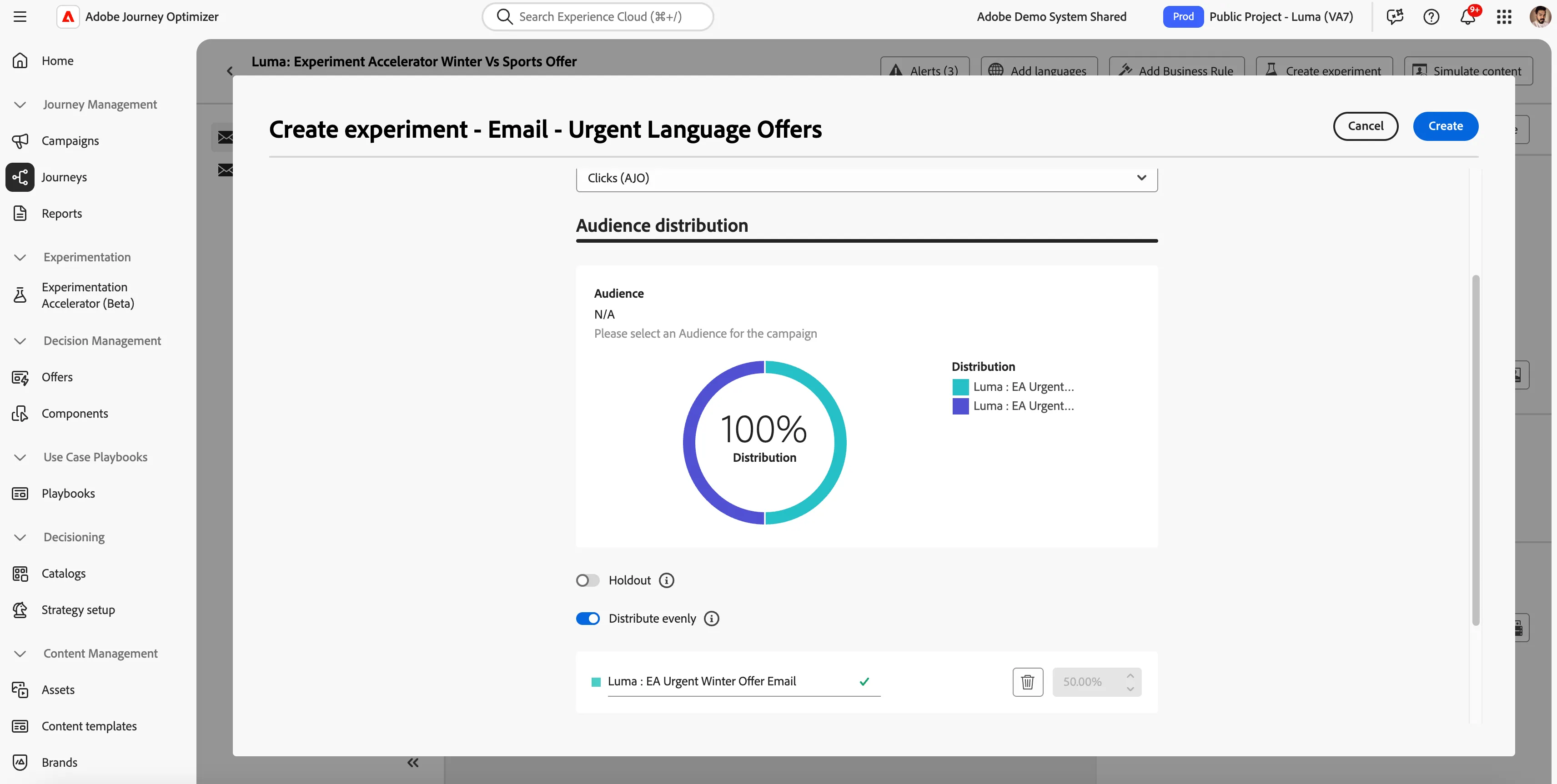
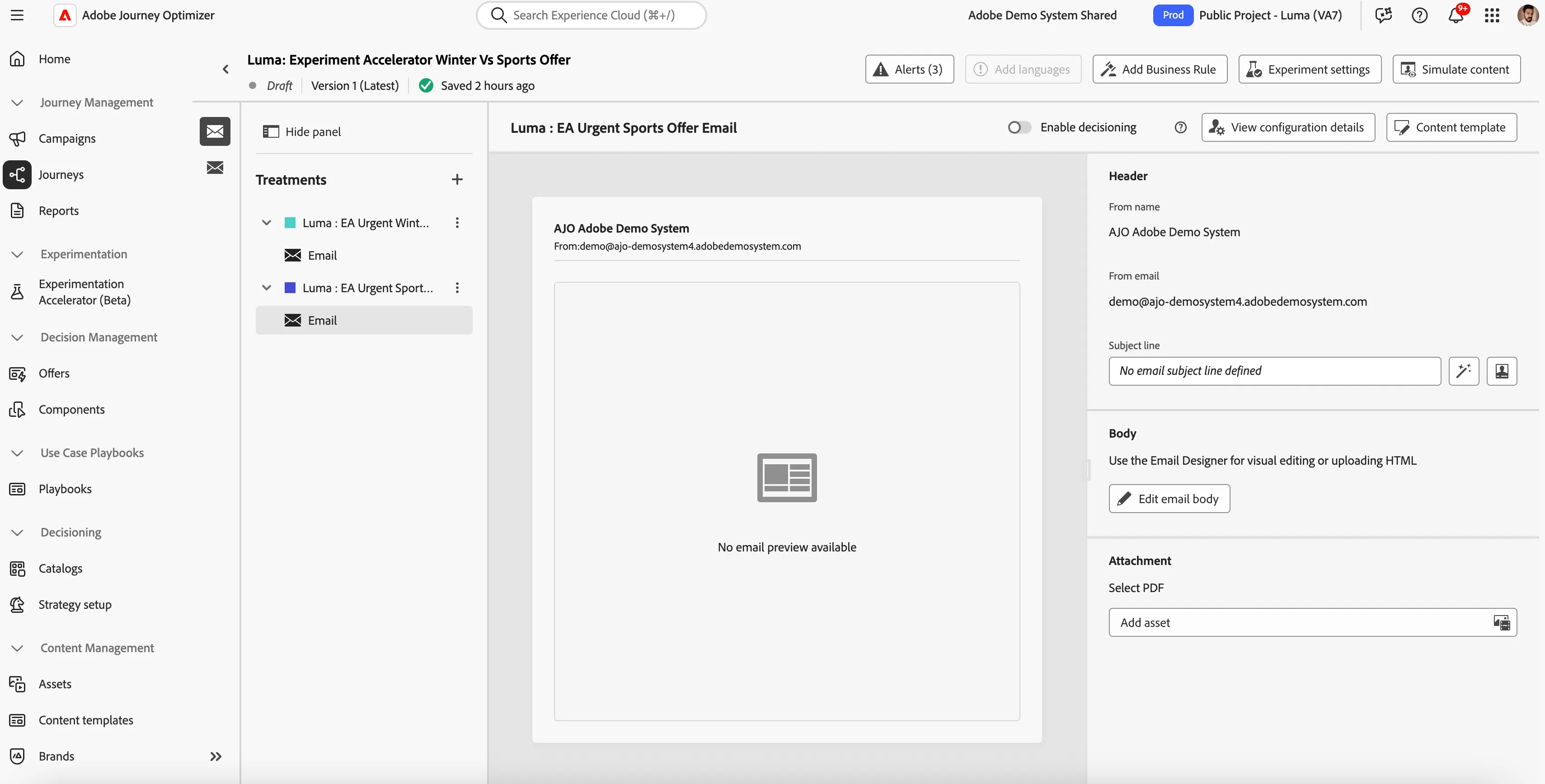
Now go to Luma: EA Urgent Sports Offer Email and repeat the steps 6(Select Luma - New Subscription Template), 7, 8, 9, and configure it accordingly for Urgent Communication strategy with a changed banner image related to the Sports offer.
Target Implementation