Campaign v8 Web UI Enrichment Collection: Luma Discount Offer
Introduction
We have built a demonstration showcasing Enrichment Data Collection from the Orders and Products tables within the Campaign v8 Web UI.
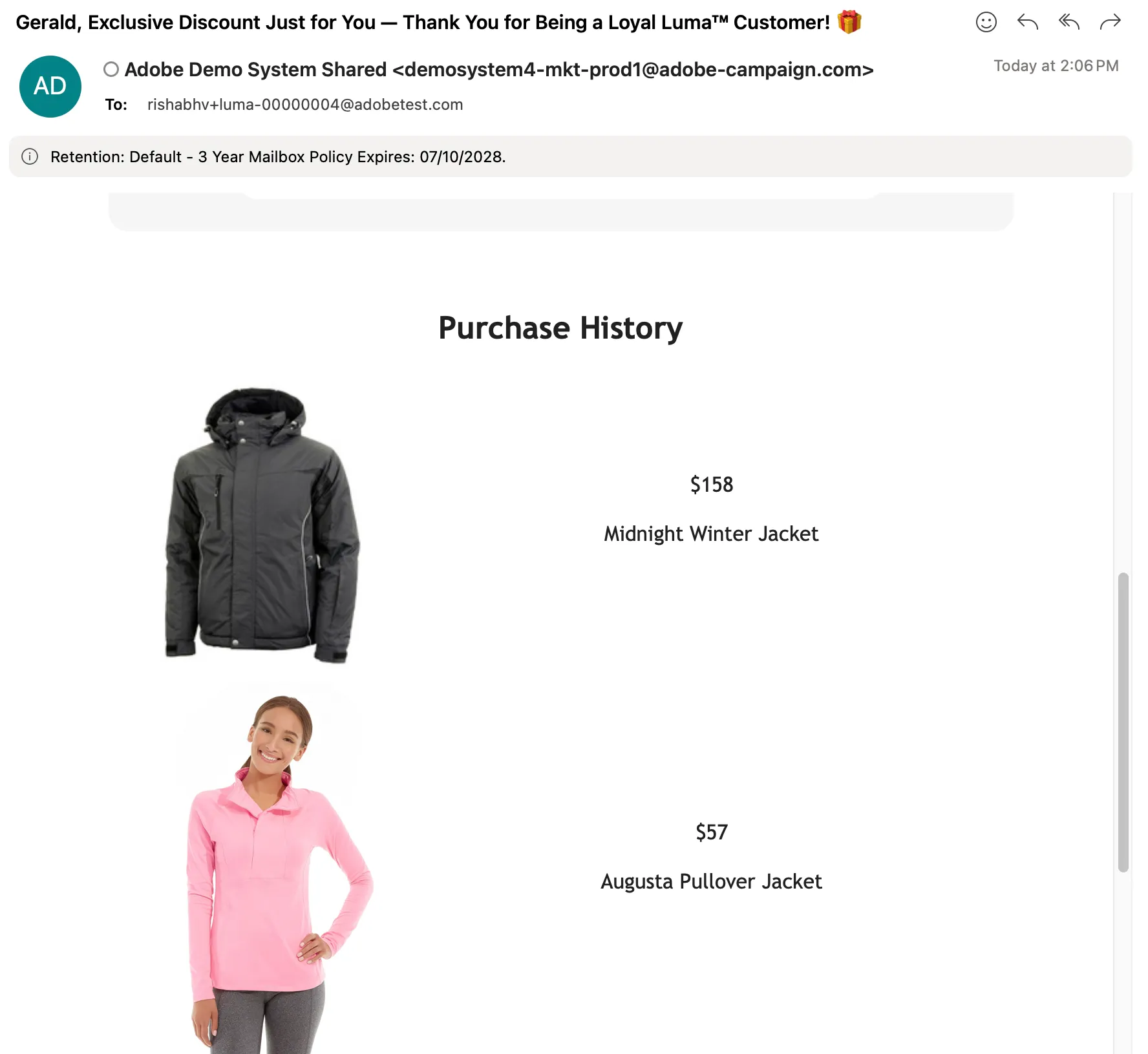
The storyline for this demo focuses on Luma’s loyal customers who have made purchases within the last six months. These customers will receive a discount offer via the email channel, and the email content will dynamically include their purchase history, highlighting details from their last two orders along with corresponding product information.
This demonstration aims to illustrate how enriched customer data can be leveraged to deliver personalized and data-driven marketing campaigns through Campaign v8.
Resources
Demo Environment: ADSS Campaign
Campaign Template: Luma - Loyalty Customers Enrichment Collection
The above Campaign template comprises two workflows. The first workflow is designed to demonstrate the Enrichment Data Collection(Enrichment Collection Workflow) feature within Adobe Campaign, showcasing how enriched data from multiple sources can be effectively utilized in campaign execution.
The second workflow is optional(Test Data Modification) and is intended for test data preparation and alignment specific to this demo scenario.
Steps to execute
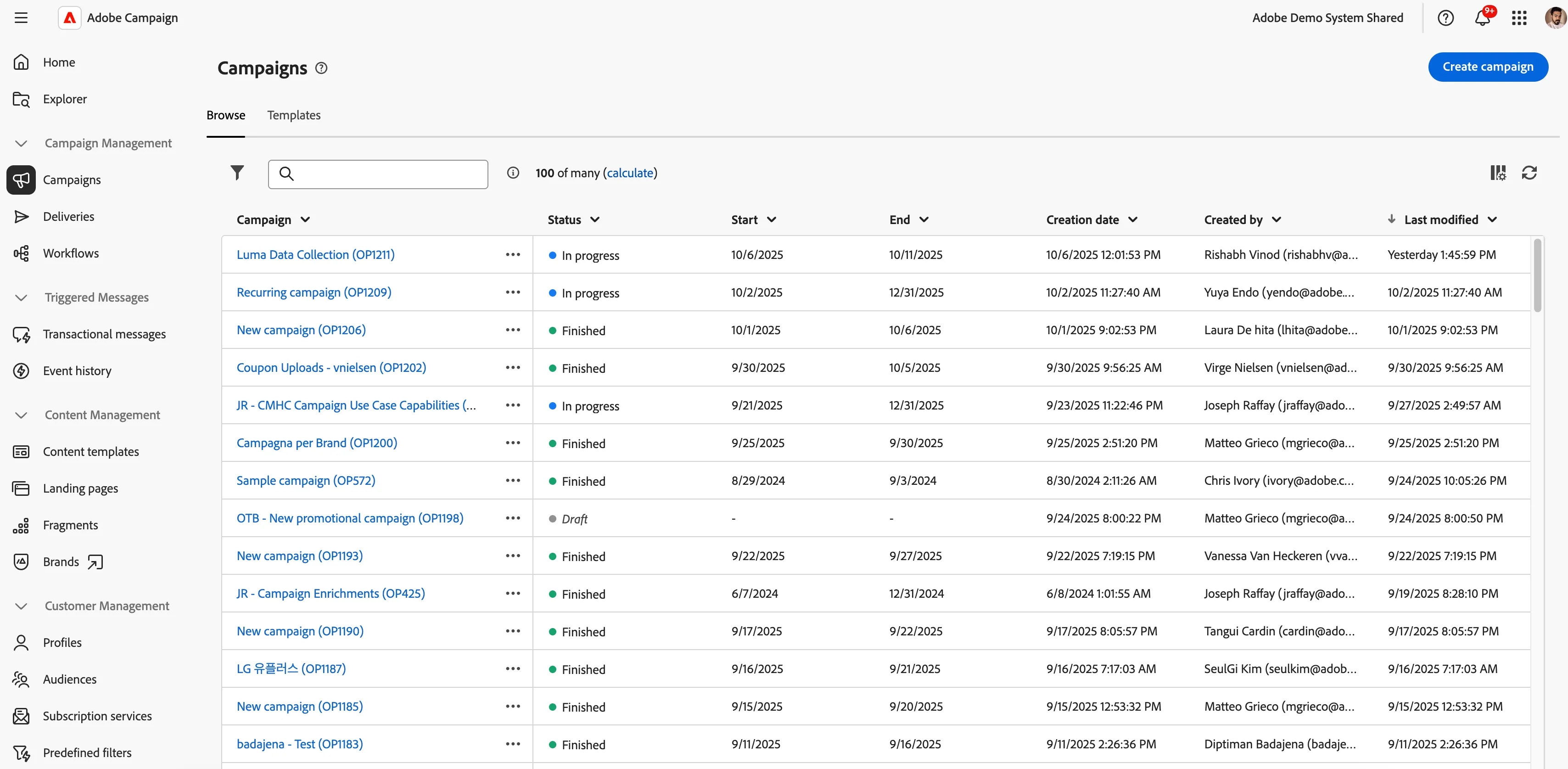
Go to the ADSS Campaign and click on Campaign from the left panel, and then click on Create Campaign Blue Button.
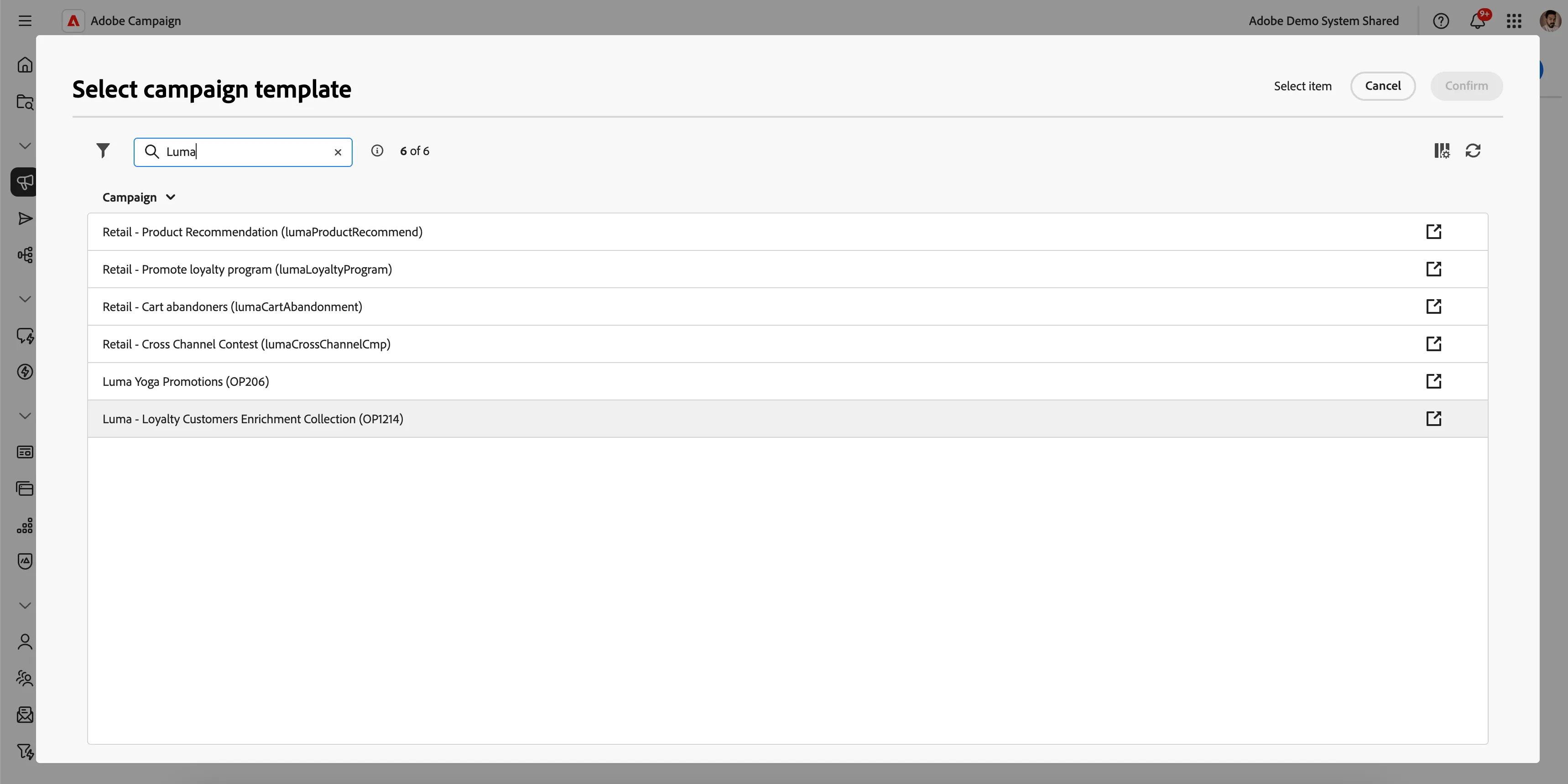
You will see the Campaign Config Window under the Template field, search for Luma, and select the template - Luma - Loyalty Customers Enrichment Collection, hit confirm, and then create.
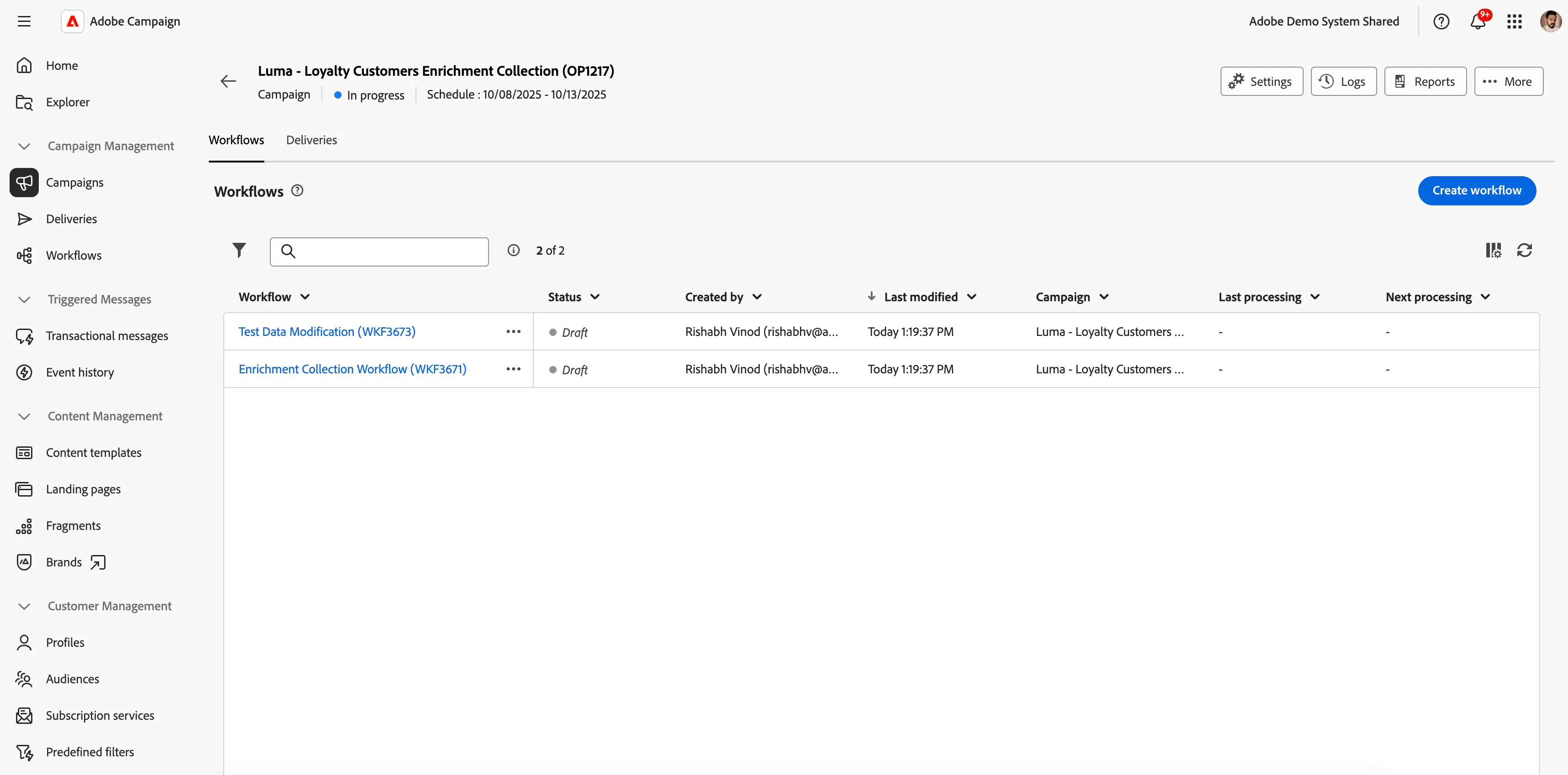
Once the campaign is created, it consists of 2 workflows. The first workflow is designed to demonstrate the Enrichment Data Collection(Enrichment Collection Workflow) feature within Adobe Campaign, showcasing how enriched data from multiple sources can be effectively utilized in campaign execution.
The second workflow is optional(Test Data Modification) and is intended for test data preparation and alignment specific to this demo scenario.
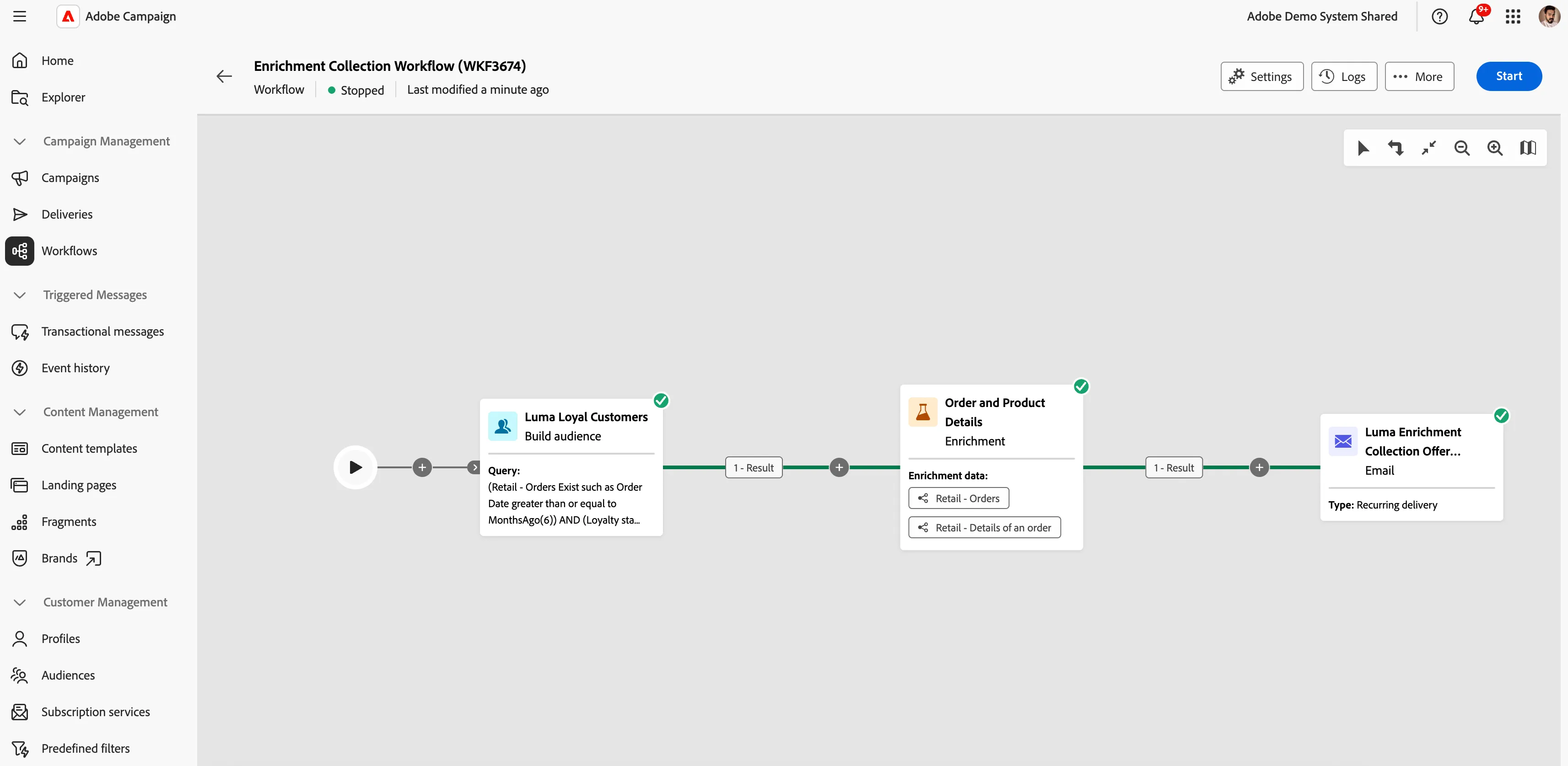
Click on Enrichment Collection Workflow. You can see everything is set up accordingly, from Build Audience to Enrichment and Email with Enrichment Context Data. You can demonstrate to customers how the fields are set up in the enrichment activity.
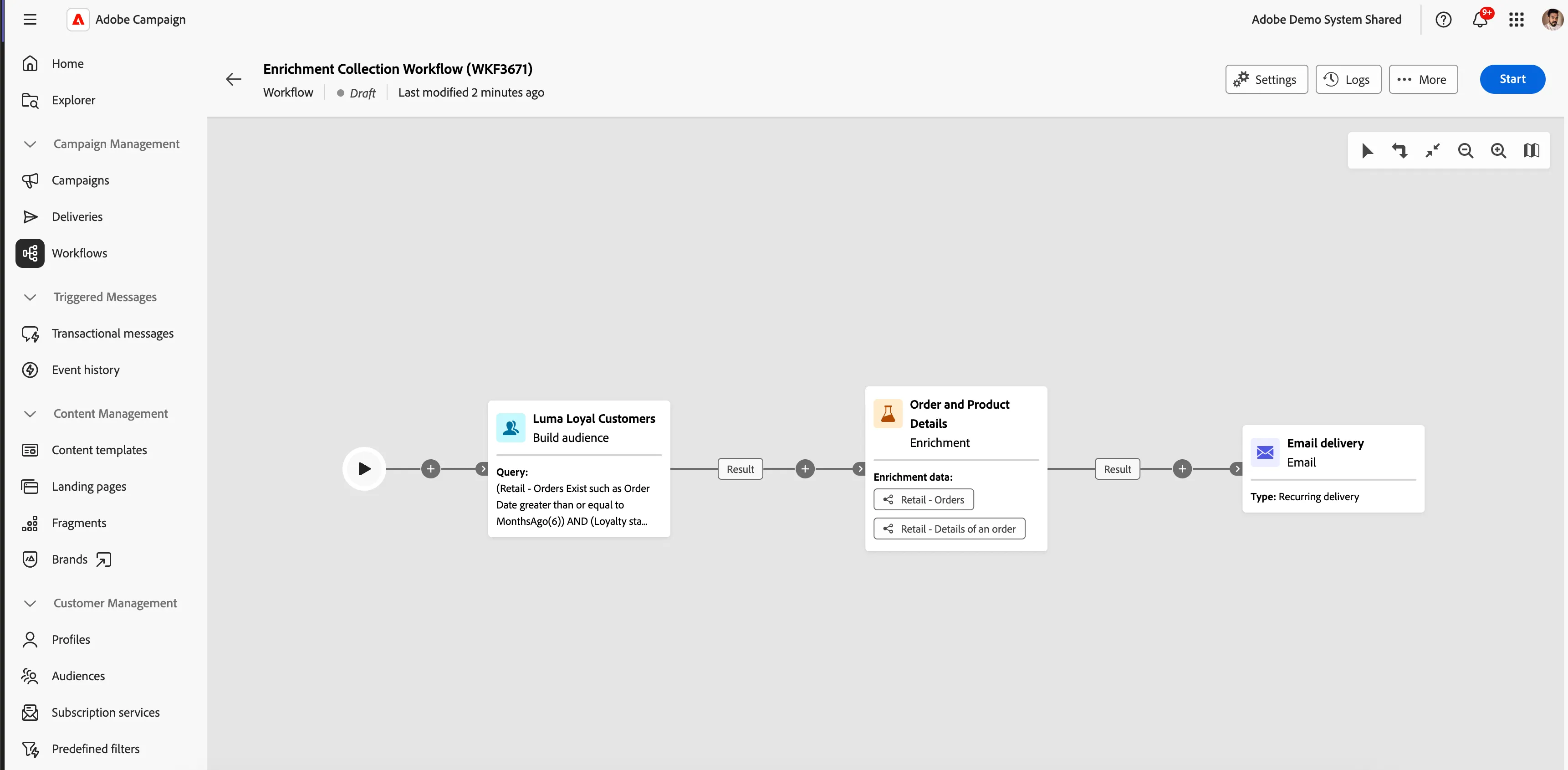
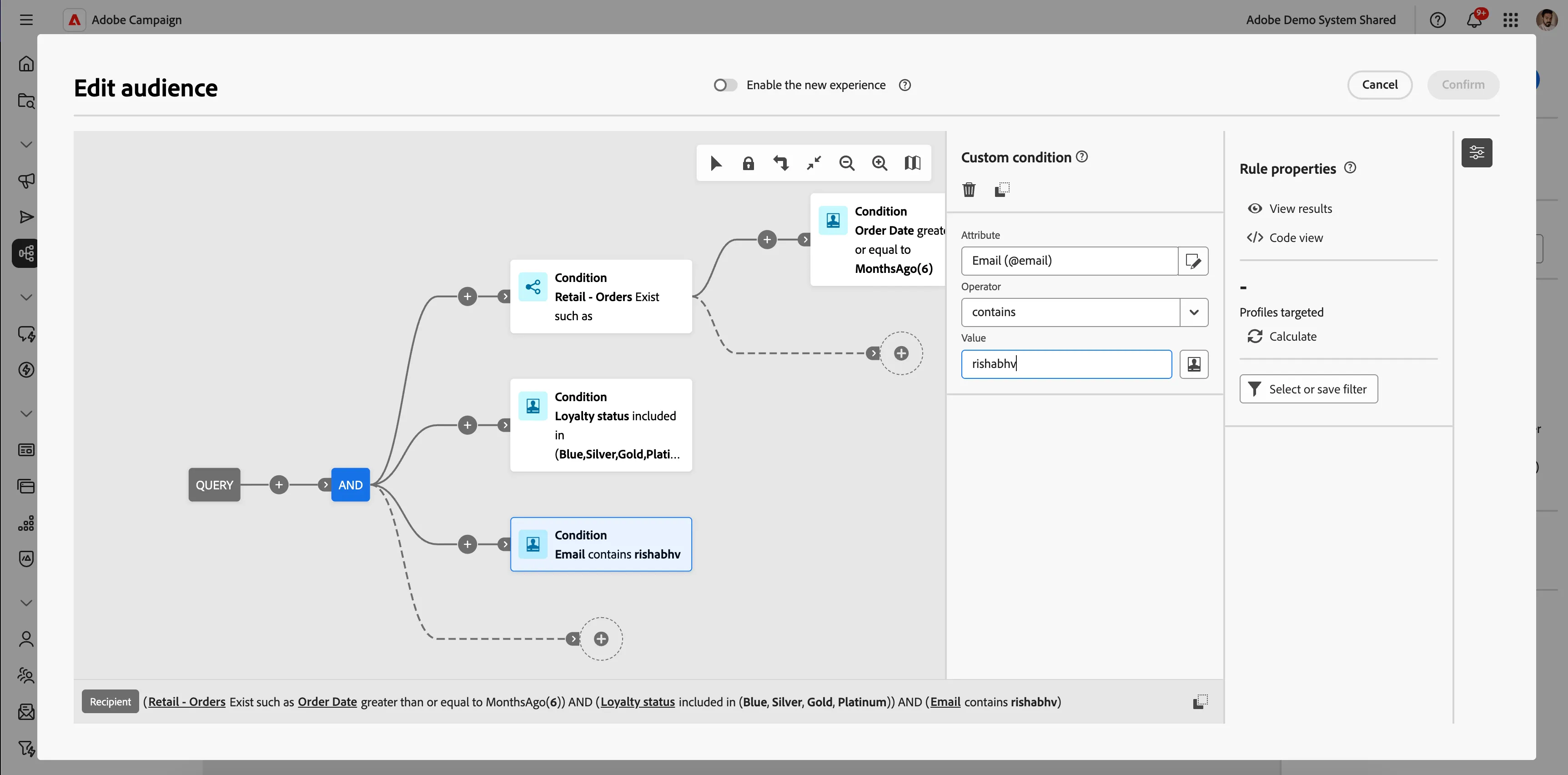
Now got the first activity - Build Audience, and click on edit audience and change the LDAP (if you are targeting multiple test data, and if a single email id, then go with email equal to test email id) with your test data one. (NOTE: You can change the query condition as per your test data requirements)
Now that everything is set up, you simply need to execute the workflow. Once the workflow has successfully completed, you will receive an email containing a Discount Offer along with your purchase history, showcasing details from your last two orders and their corresponding products. (NOTE: No approval is required once you trigger the workflow; you should receive an email at your test email ID.)
Test Data Creation (OPTIONAL)
If you already have your own test data and would like to use it, you may proceed with that. However, if you need to create test data for the above scenarios, please follow the steps outlined below.
Go to the ACC V8 Instance of your respective Orgs.
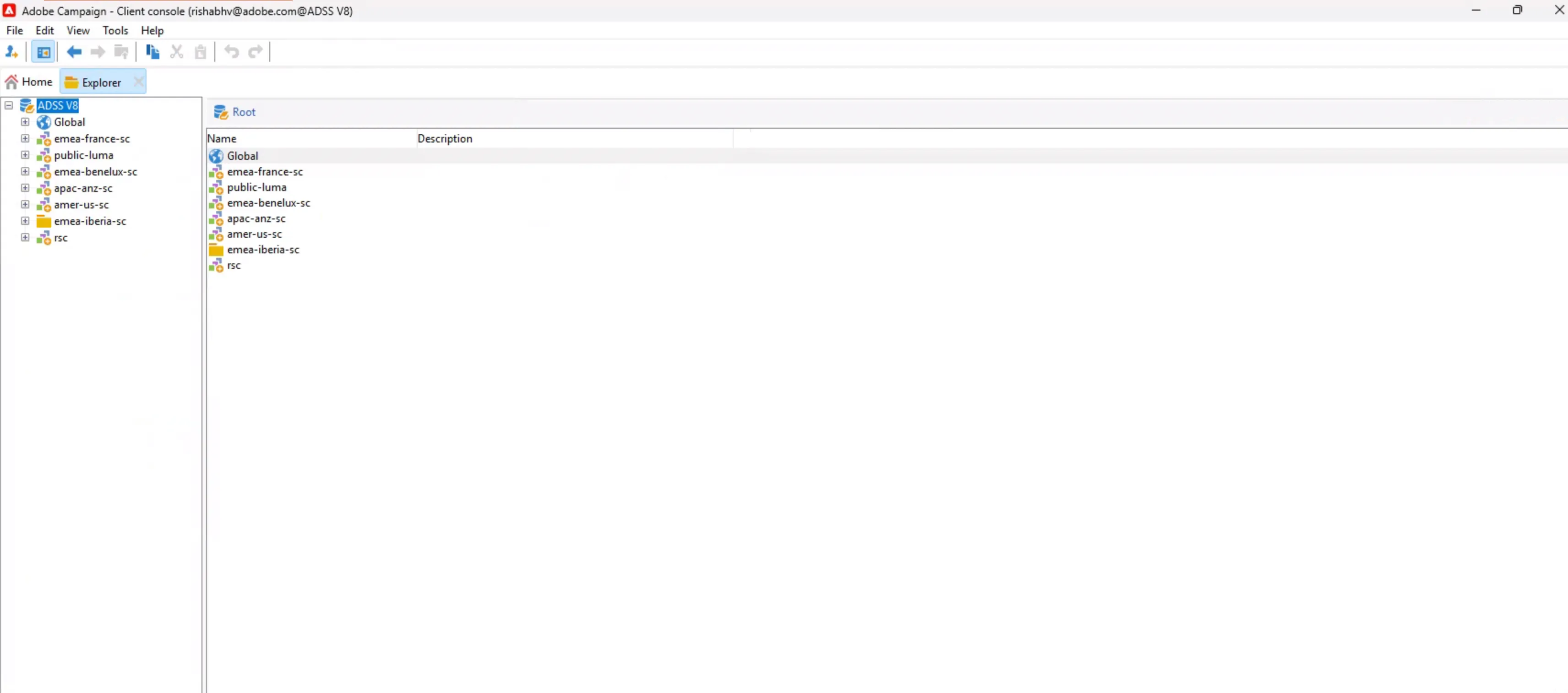
From the top ribbon, click on Tools > Advanced > Generate Random Retail Data.
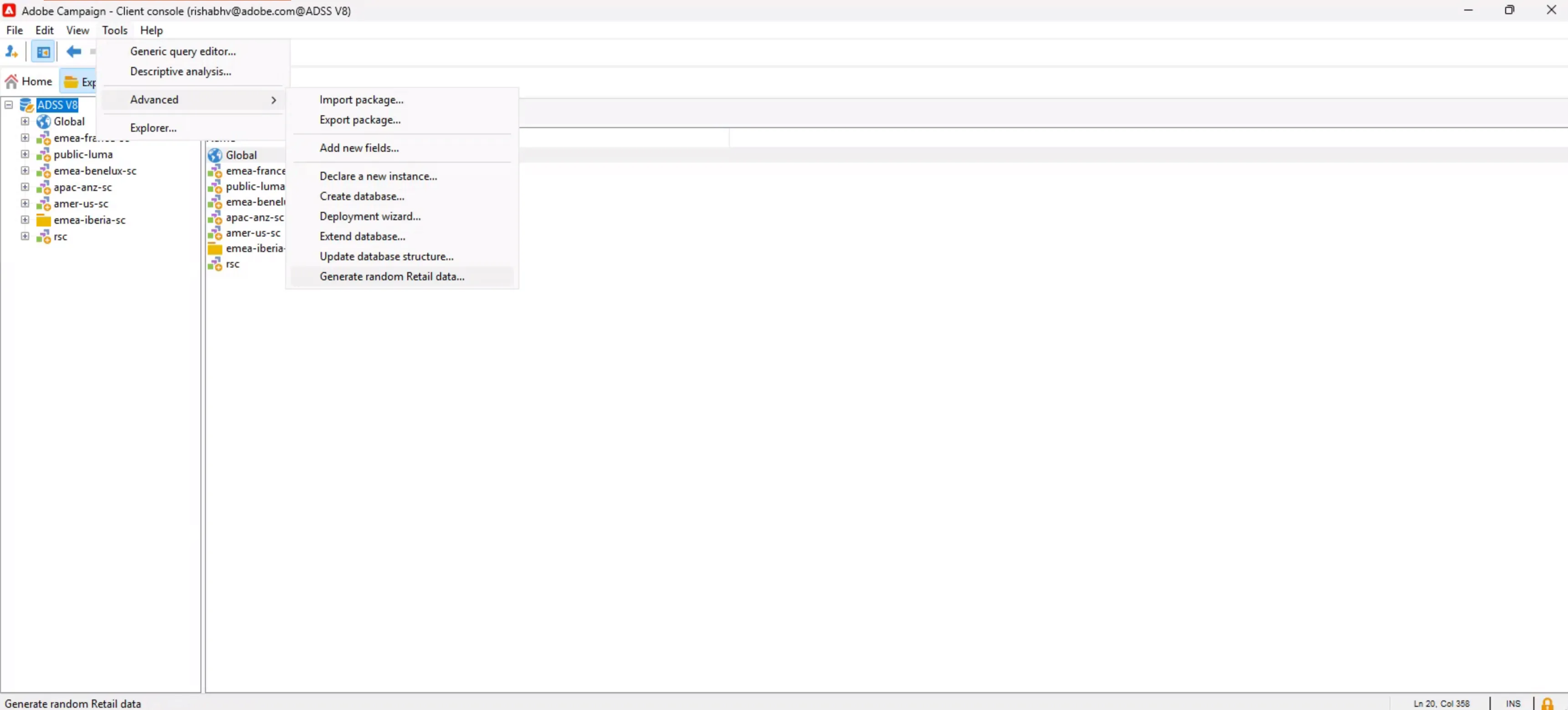
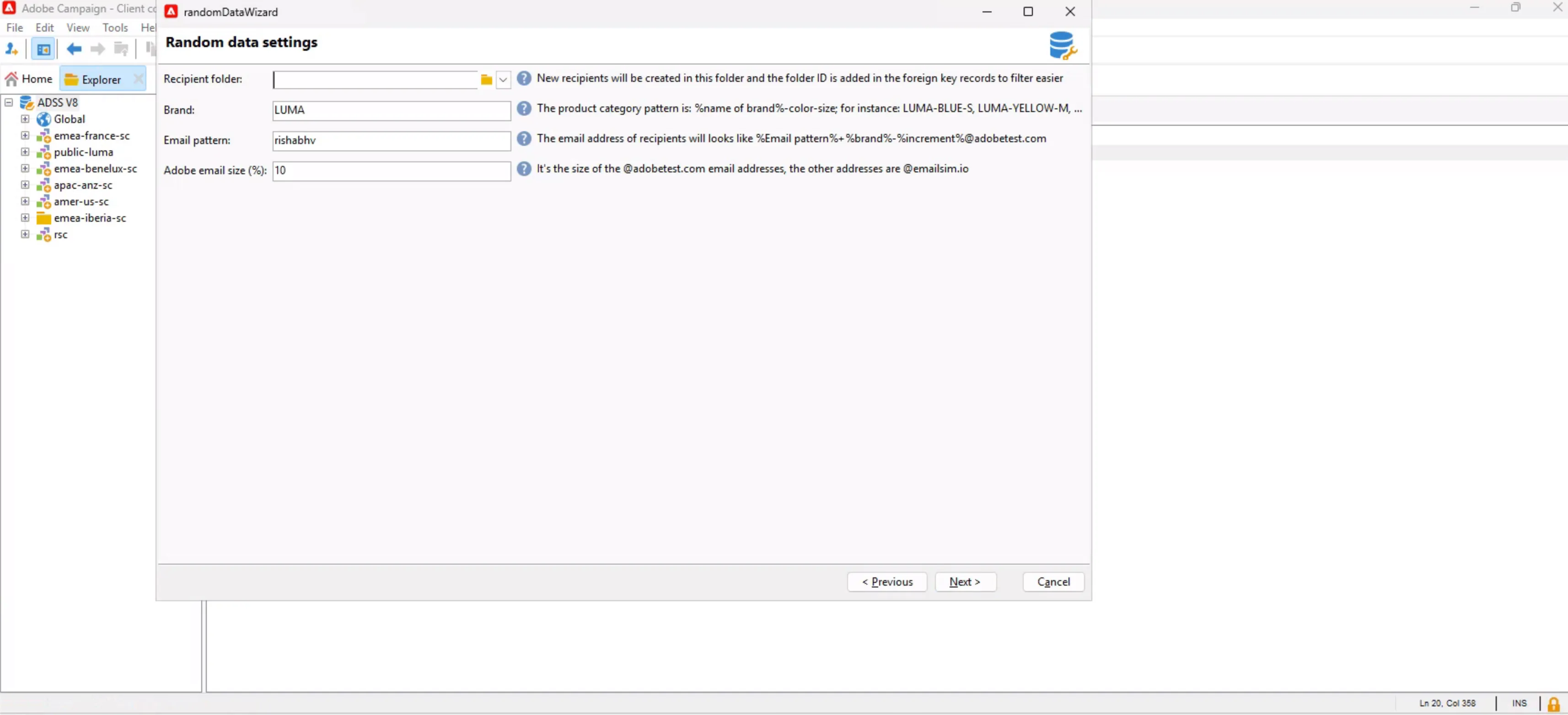
Click on next, then select the recipient folder where you want to generate random data, and select the number of records to generate. Click on Next and follow the wizard. Once done, your test profiles will be created in your provided folder. (NOTE: Click on next, next... till the end of the wizard, your test data will be generated) Please check this link on how to create Random Retail Data using Campaign Instance Data Generator
Then come to the ADSS Campaign and open your created campaign from the above campaign template, and go to the Test Data Modification workflow. Select the first build audience activity and edit accordingly so it picks your test data you created in the above step. (Like email contains your LDAP, or for a single profile, email is equal to the test email ID)
At the end of the workflow, there update data activity(Currently we have put only 2 product details in campaign v8), just enable them depending on how many records you want to update. (NOTE: For example, if you need to update 2 records and their order and product details, just enable the First 4 update data activities and run the workflow.)
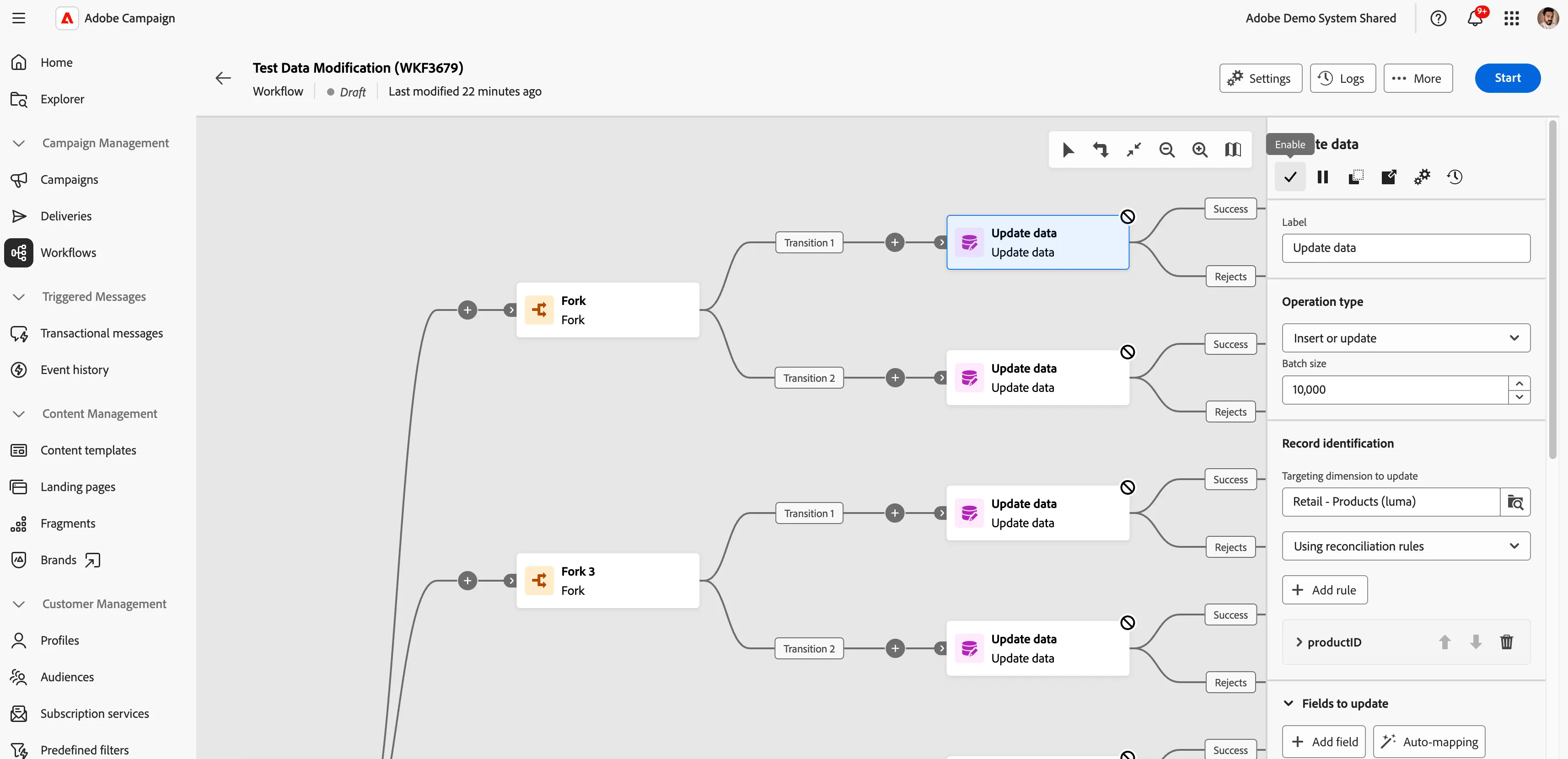
Then just run the workflow, and for the profile, the orders and products will be updated with Luma products details. In some cases, it picks random data, so you can rerun the workflow to get the desired results. (NOTE: If you want to check that your test data is updated with Luma products after the above step, just disable the update data activities and re-run the workflow, and before the split activity, click on the result and preview data.) (Quick Tip: Run this workflow with all the test records created, like email contains test ID LDAP).
STEP BY STEP VIDEO
Click the link to watch the video.