Decisioning Renderer
Showing personalized content from an Adobe Journey Optimizer campaign directly on our internal websites used to require extra effort. We had to configure surfaces in Data Collection and then make additional changes to render the personalized content in the right location on the page.
This feature removes that double effort entirely. There’s no need to configure surfaces in Data Collection. You simply configure the experience decisioning component, and the Profile Viewer can render the personalized content directly on the page.
This makes it especially useful when telling a personalization story or demonstrating how persistent personalization works. It allows people without backend or engineering support to quickly set up and demonstrate the experience without making changes across multiple systems.
You can also demo it live: open the Profile Viewer on the project, click a button, and watch the personalized content appear on the page or apply it permanently on the page.
Before you start
You’ll need a project built from any advanced preset template.
Step 1: Create the project
- Go to Quick Setup - https://dsn.adobe.com/quick-setup
- Choose the Luma - Advanced
-

- Finish creating the project as you normally would. This would set up the website project. It would also set up ExD campaigns.For more information on ExD setup : https://dsn.adobe.com/docs/D0Yv-experience-decisioning
- Open the data stream associated with web project in data collection. Check "Adobe Journey Optimizer"
-

Step 2: Open the project
- Go to dsn.adobe.com.
- Open the project you just created.
Step 3: Configure where the content should appear
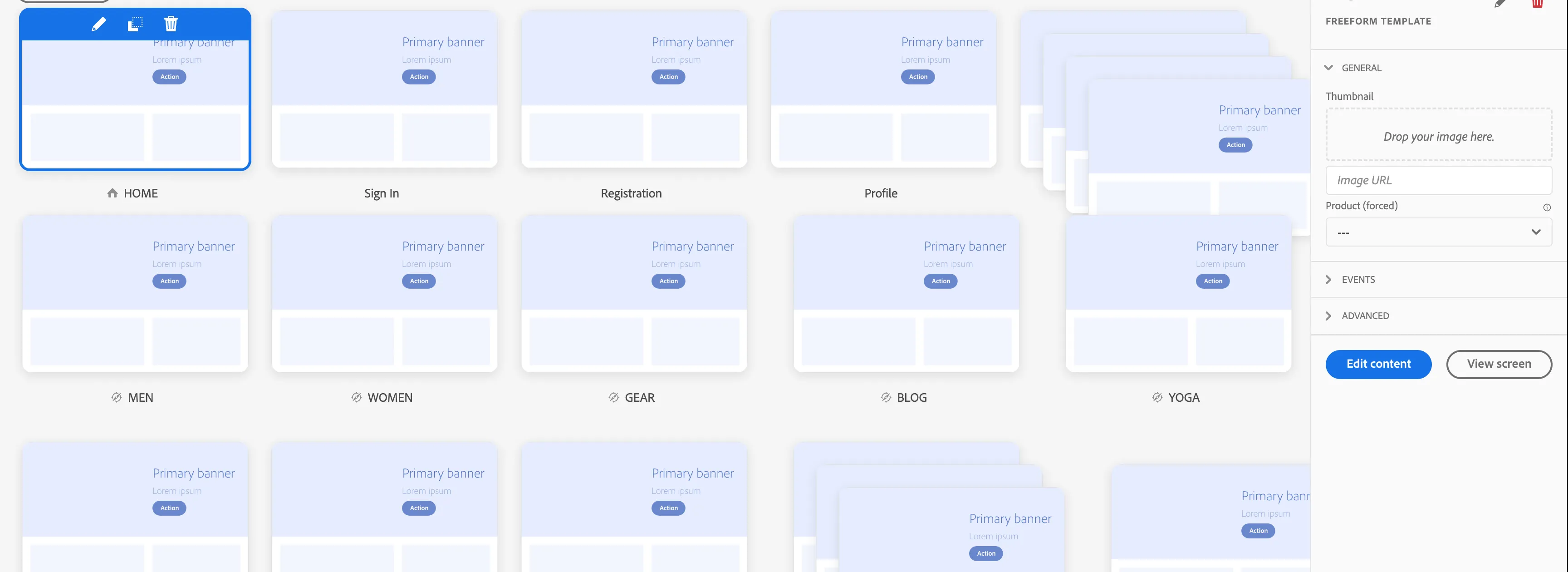
- Go to the project. Edit any screen where you want to add the decisioning. We will choose Home Screen. Choose Edit Content on the right.
-
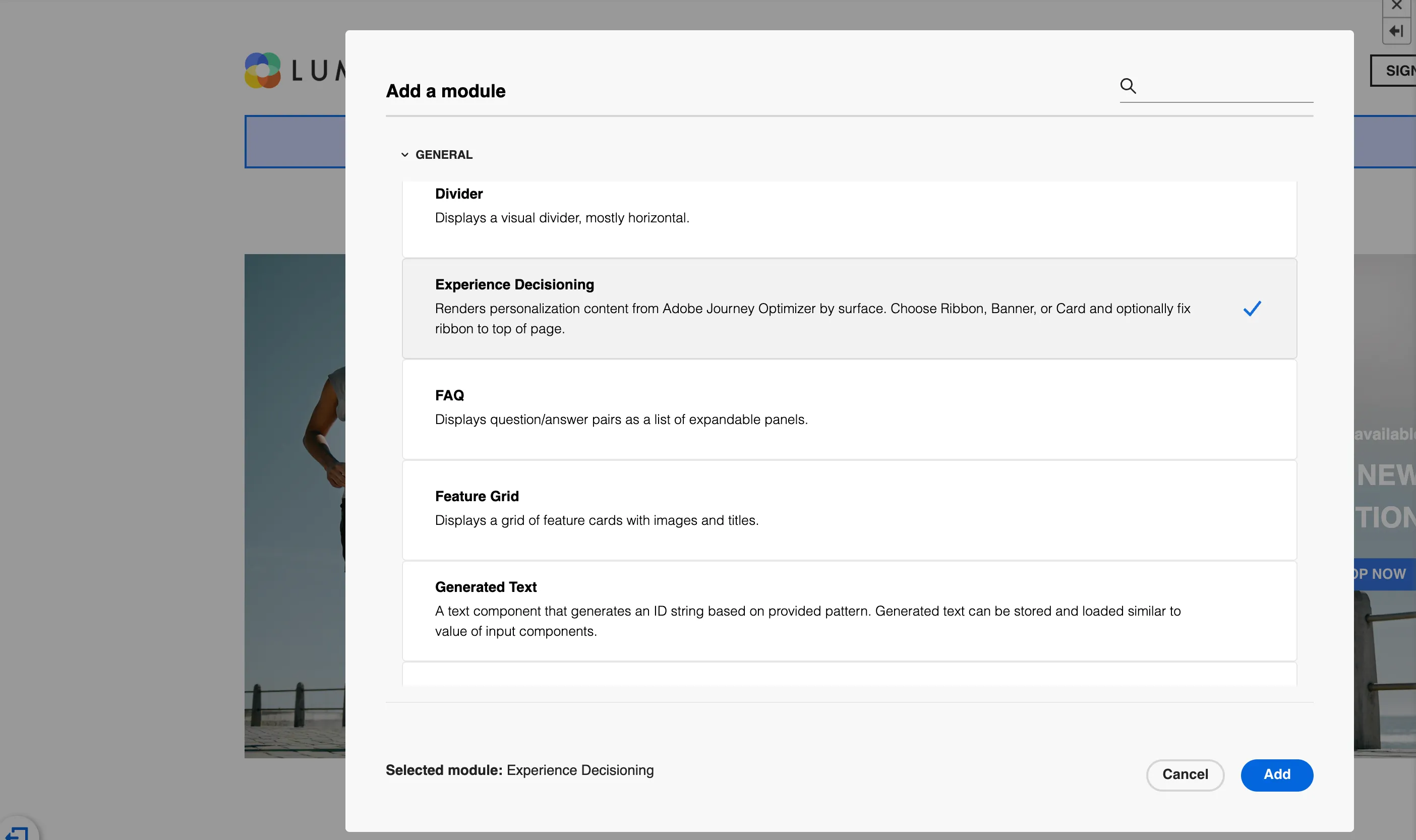
- Add the Experience Decision component on the page.
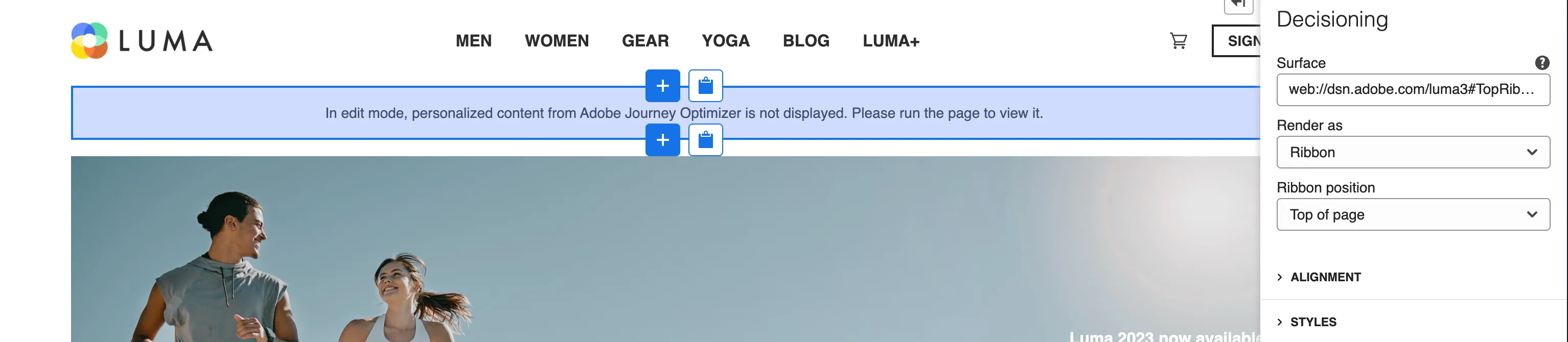
- Edit the component. Provide a surface and select the type you want it to render.
- Click on this icon to go back to run mode.

Run the website. You would see an icon on middle right of the screen for Decisioning Renderer.
a. Open Profile Viewer and click on the Utilities section. Click on Register to create a new profile.
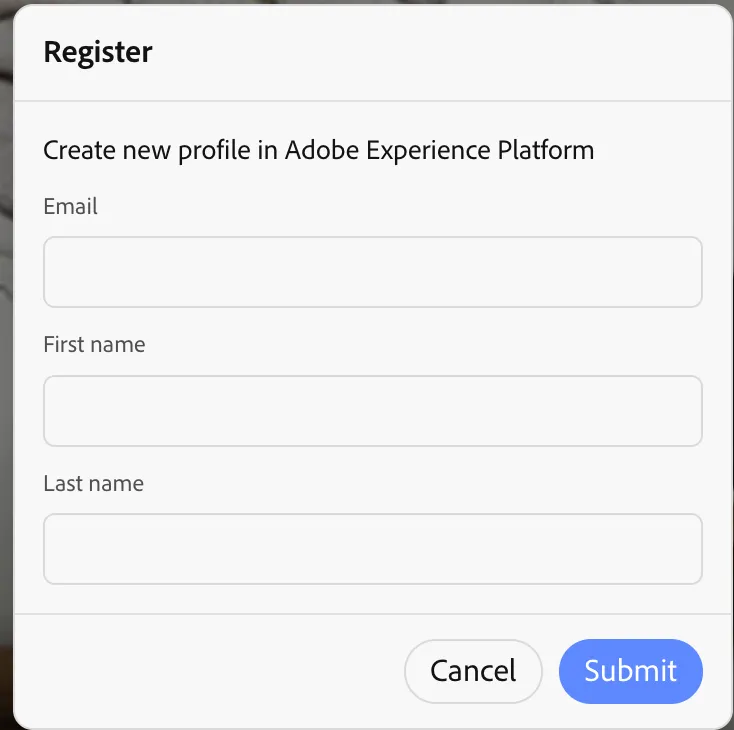
b. Now the account is created. Click the icon in the middle-right of the screen to open the Decisioning Renderer. This will appear by default if surfaces are configured.

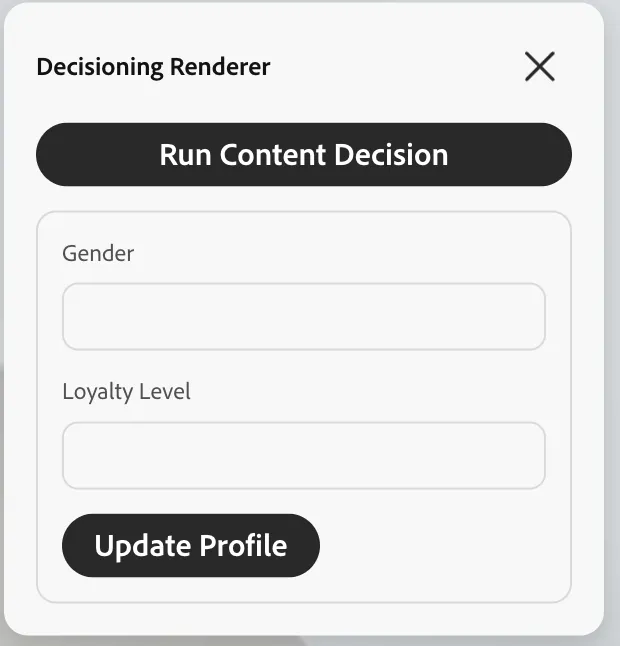
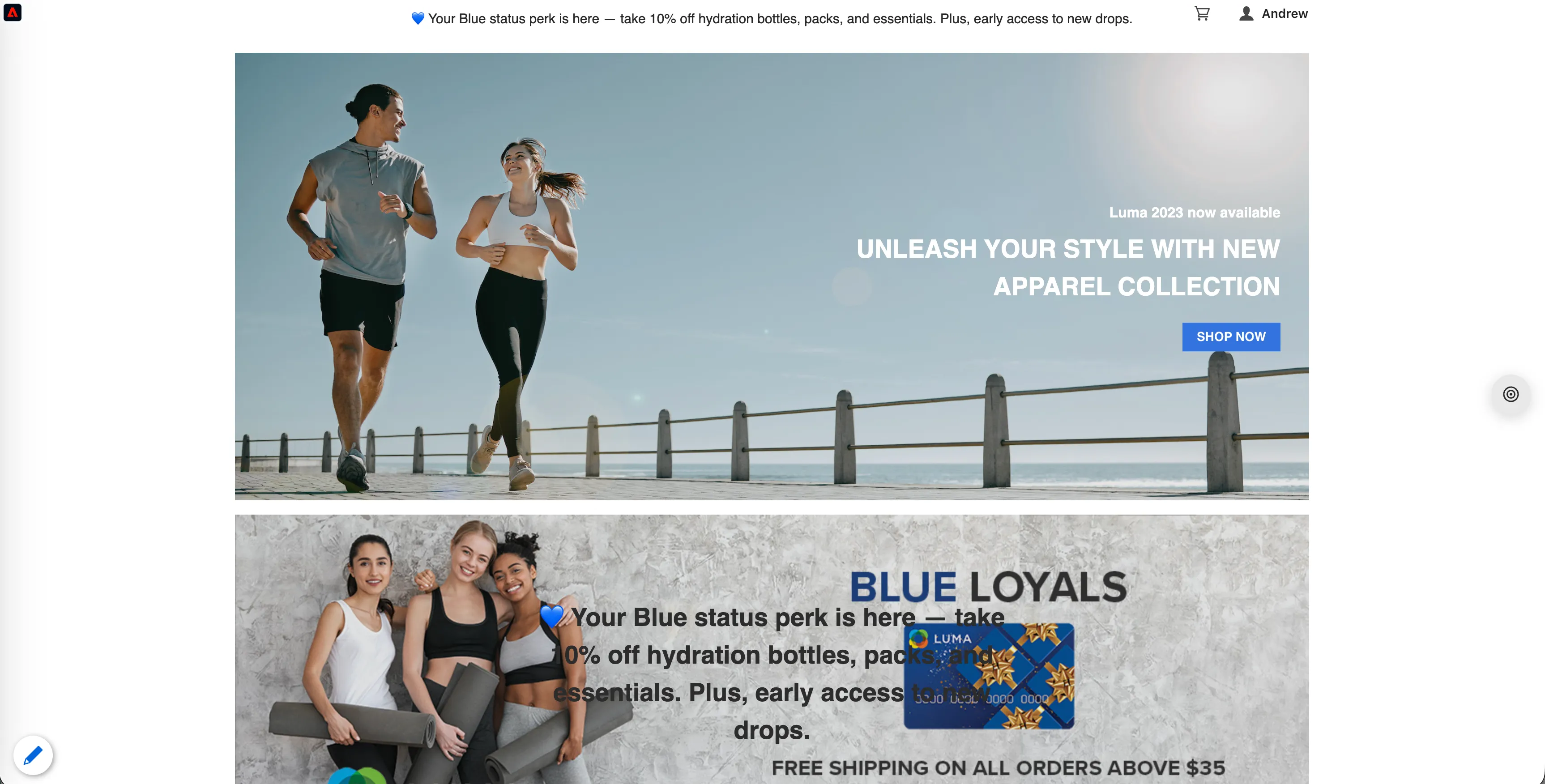
c.Click on Run Content Decision. It is going to run decisioning based on the surfaces configured. You will see content appear on the live website.
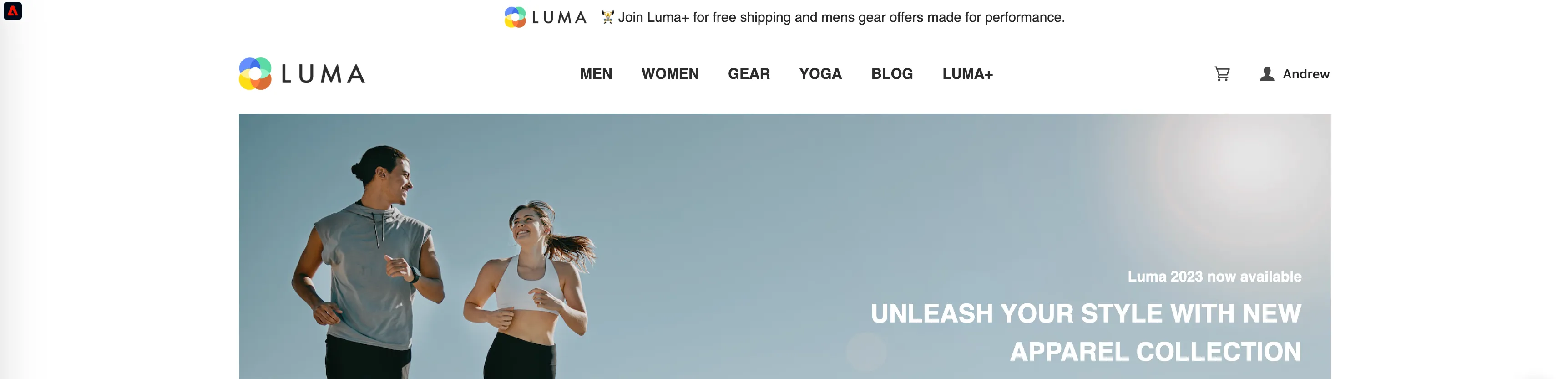

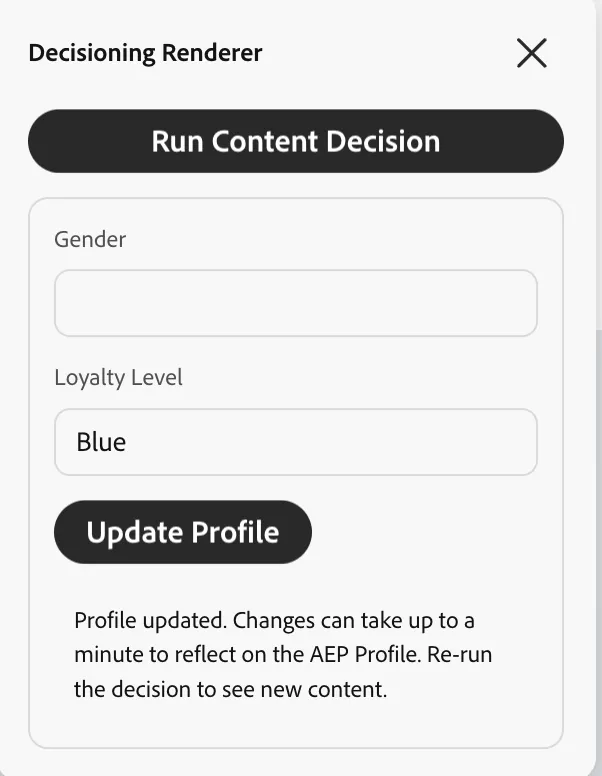
d. Provide Loyalty Level as Blue and click on Update Profile. It will update the profile, but make take a couple of seconds. Once done, then click on Run Content Decision; the content will update on the page.
Step 4: Turn on the Decisioning Simulator
- Click the Profile Viewer tab
-

- Look for the Decisioning
- Check Show decisioning simulator section.

This adds a panel to the Profile Viewer widget on the live site. That panel is what lets you manually trigger and demo the personalized content.
Step 5: Decide when it should appear
Back in the Decisioning section (Step 3), there’s a second checkbox:

- Automatically apply decisioning the content shows automatically for every real visitor, as soon as the page loads, with no one needing to do anything.
- Unchecked: the content only shows after someone manually clicks Evaluate and Apply in the Profile Viewer widget. This is useful for demos, since it gives you full control over exactly when the content appears and it can be used in conjuction with profile updater. Changing profile attributes and then evaluating the response.
Step 6: Test it
- Open the live website.
- Open the Profile Viewer widget.
- Click Evaluate and Apply.
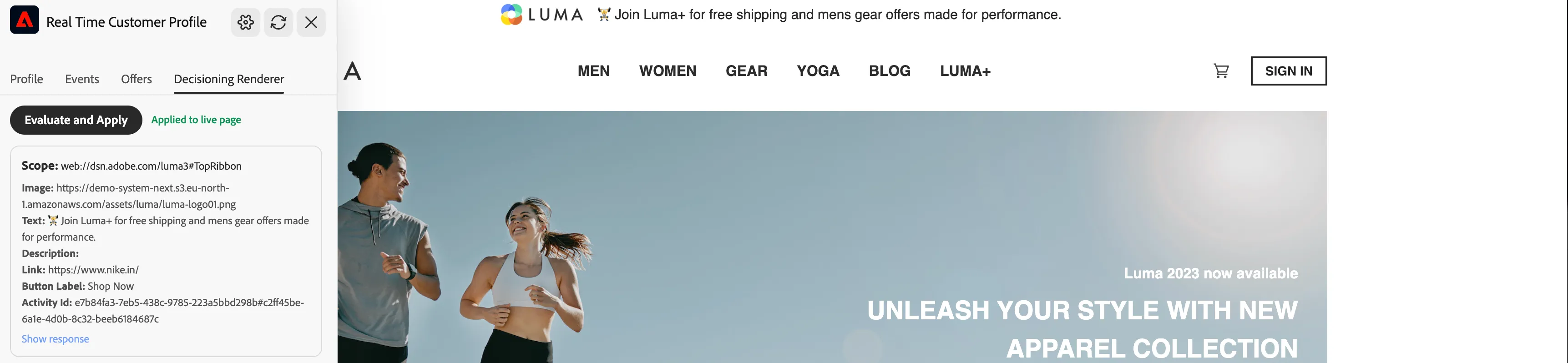
- - It shows the response right there in the Profile Viewer widget, under each surface you configured — so you can see exactly what content was found before it goes anywhere.
- - It applies that content onto the live page, in the spot you set up with the CSS Selector.
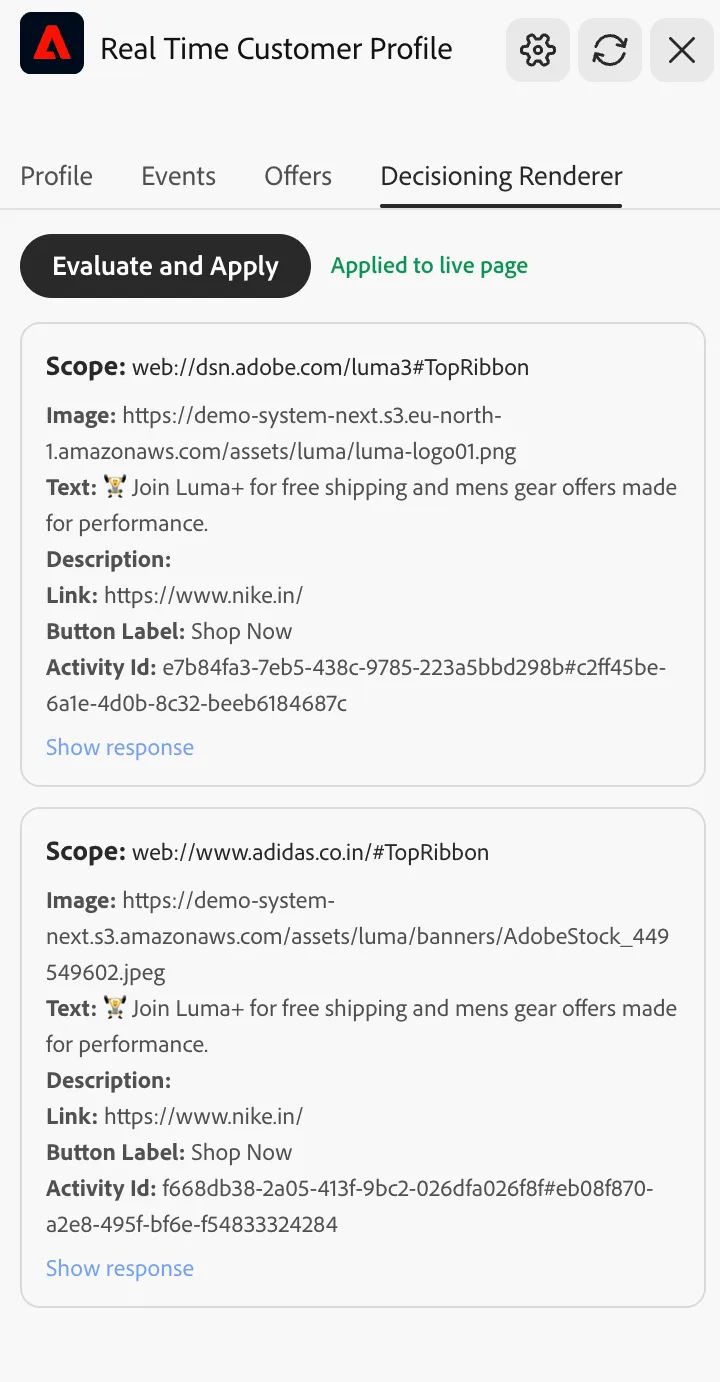
- Confirm the content shows up in the location you configured.
If nothing appears, double-check the Surface name matches the campaign exactly.
Note: If you use Automatic apply decisioning, it will be applied to the page independent of the profile viewer.