Dynamic Media with AJO for Luma and SecurFinancial
Introduction
Dynamic Media lets you manage and publish dynamic digital experiences—a feature unique to Experience Manager Assets. This documentation describes the integration of AEM Assets and dynamic media with AJO and utilises it at the email designer level in AJO.
In this dynamic media with AJO demo, we will use the smart-crop feature available at the AEM instance level, along with a few parameters for different renditions and Dynamic media templates from assets to achieve personalization.
Demo Storyline (Dynamic Media Templates) LUMA
USE CASE (LUMA -PRODUCT UPDATE TO LOYAL CUSTOMERS)
NOTE: If you'd like to replicate the below OOTB demo flow in your sandbox in ADSS or any other org, follow the setup instructions to enable Smart Crop and Renditions for your folder.
Luma, as a brand, wants to send the Latest Product Update email in a more personalised way by using dynamic media templates and showcasing their name on the Loyalty card in the email.
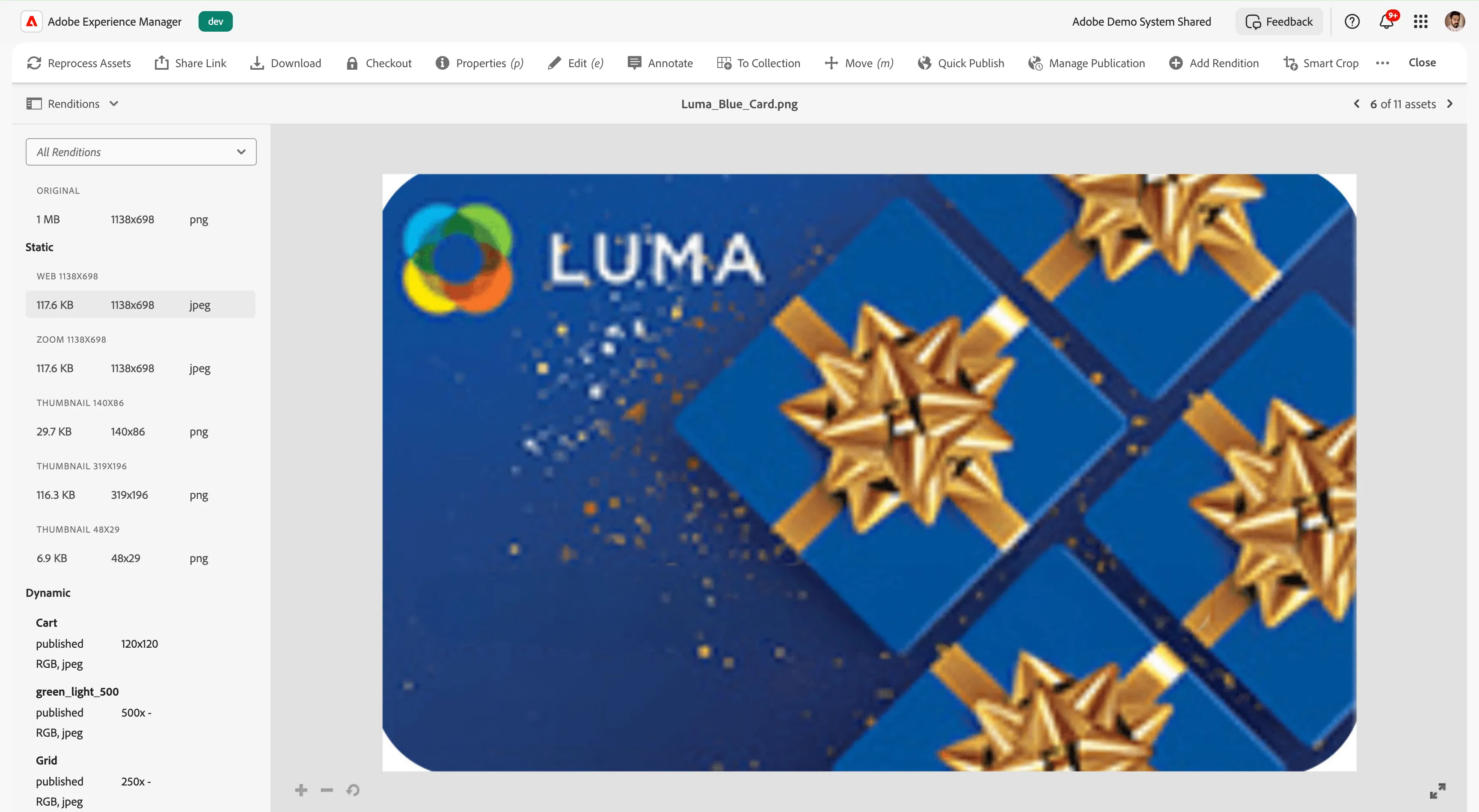
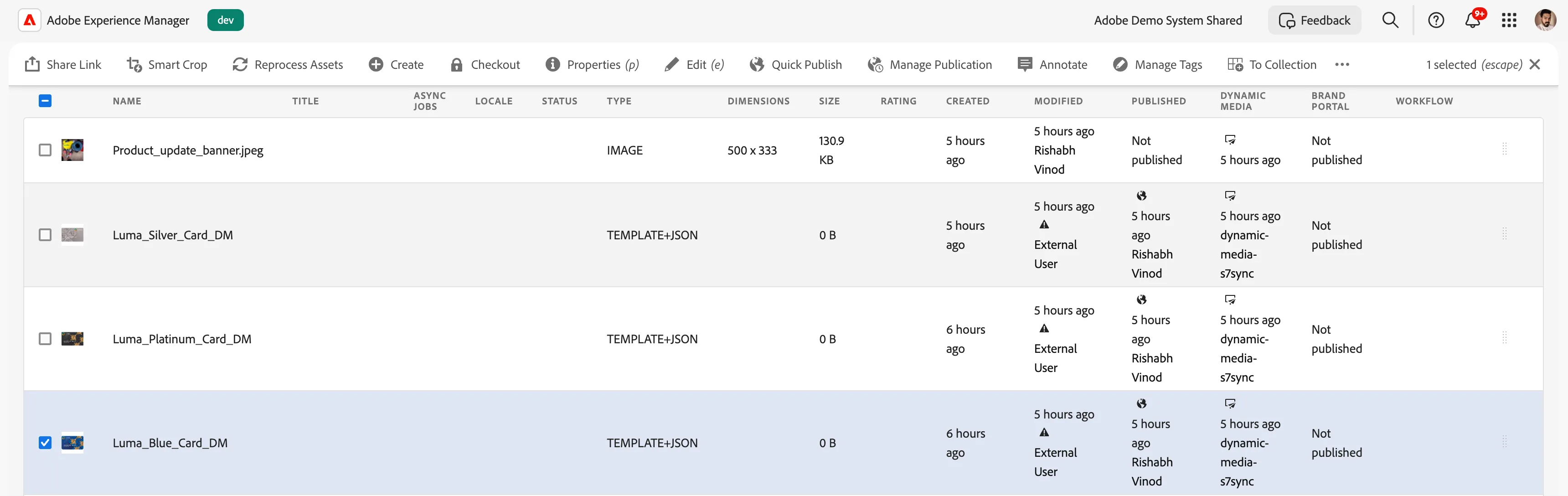
2. Select the base image Luma_Blue_Card.png, click create template from the top nav bar, and give the proper name.
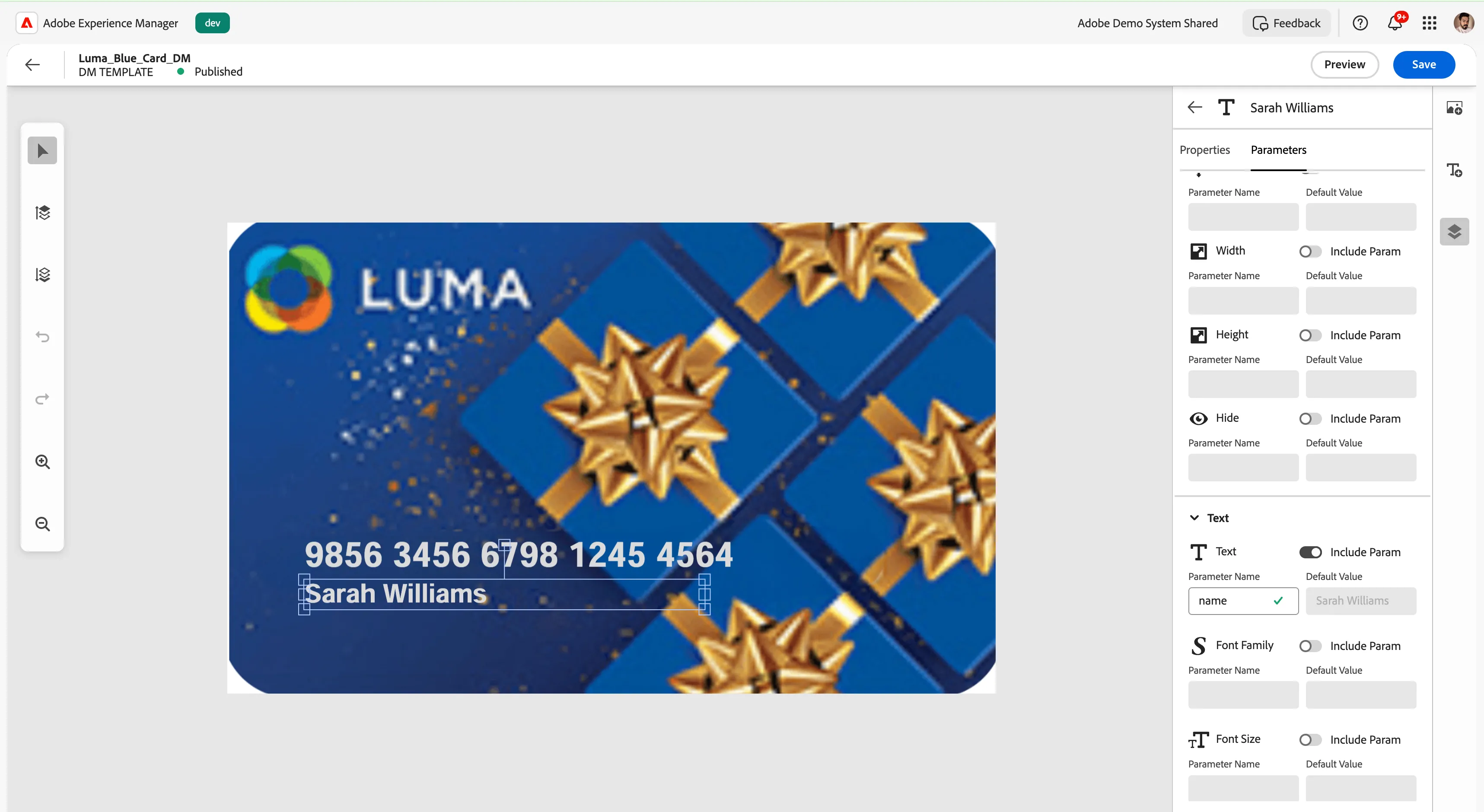
3. From the rightmost panel, select add text(T+ Symbol) and align accordingly as per your look and feel. Also, for those text properties, go on the parameters tab under text, toggle the include param to on, give the parameter name as name, and add a default value, and click on save.
5. Follow the above steps for all the different loyalty level cards, which have base images as: Luma_Gold_Card.png, Luma_Silver_Card.png, Luma_Platinum_Card.png.
6. Publish all the above templates and go to the AJO Prod associated with this instance. Go to Luma Product Update Loyal Customers DM. (You can have your own template copied to your instance, or you can duplicate this template.)
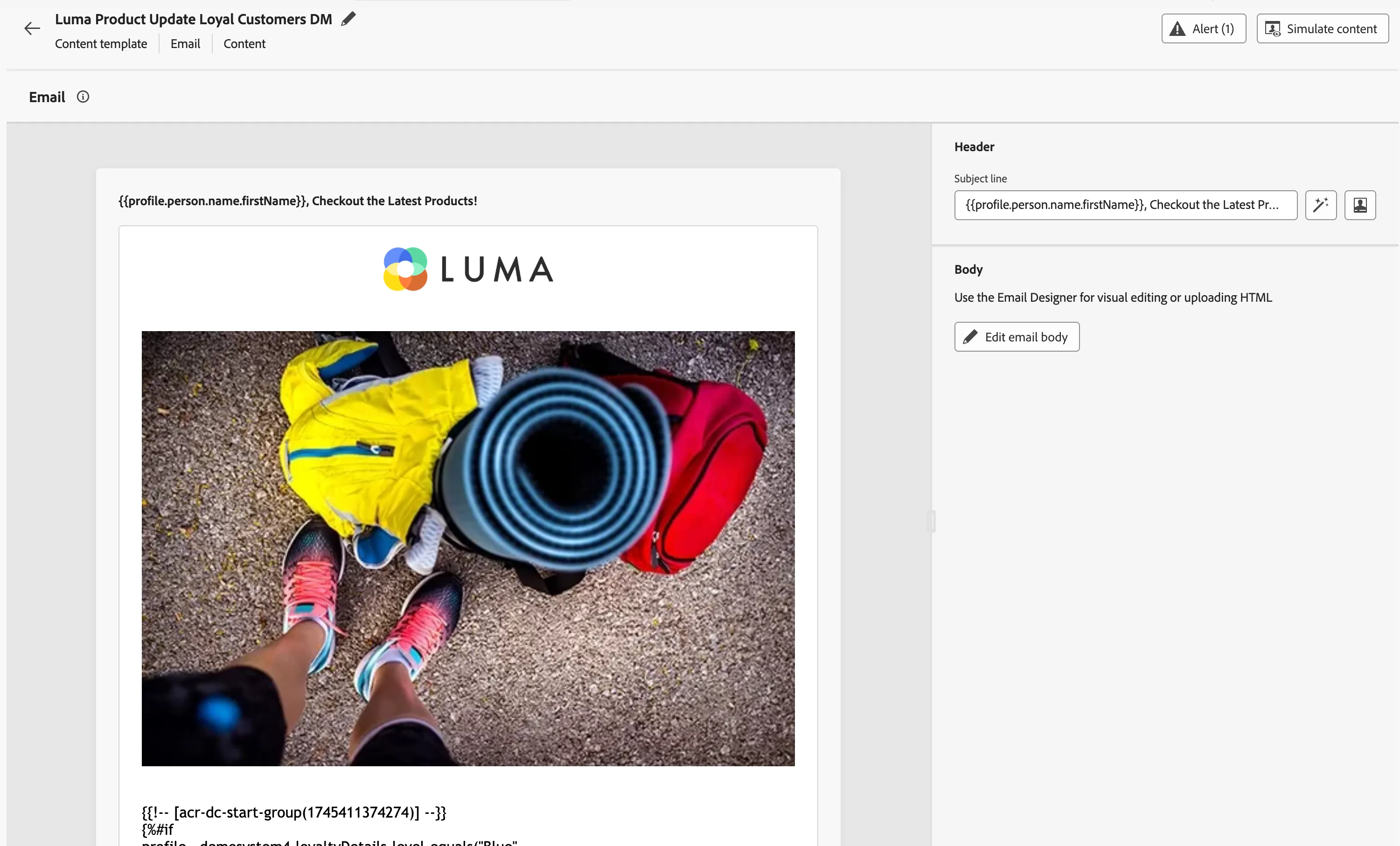
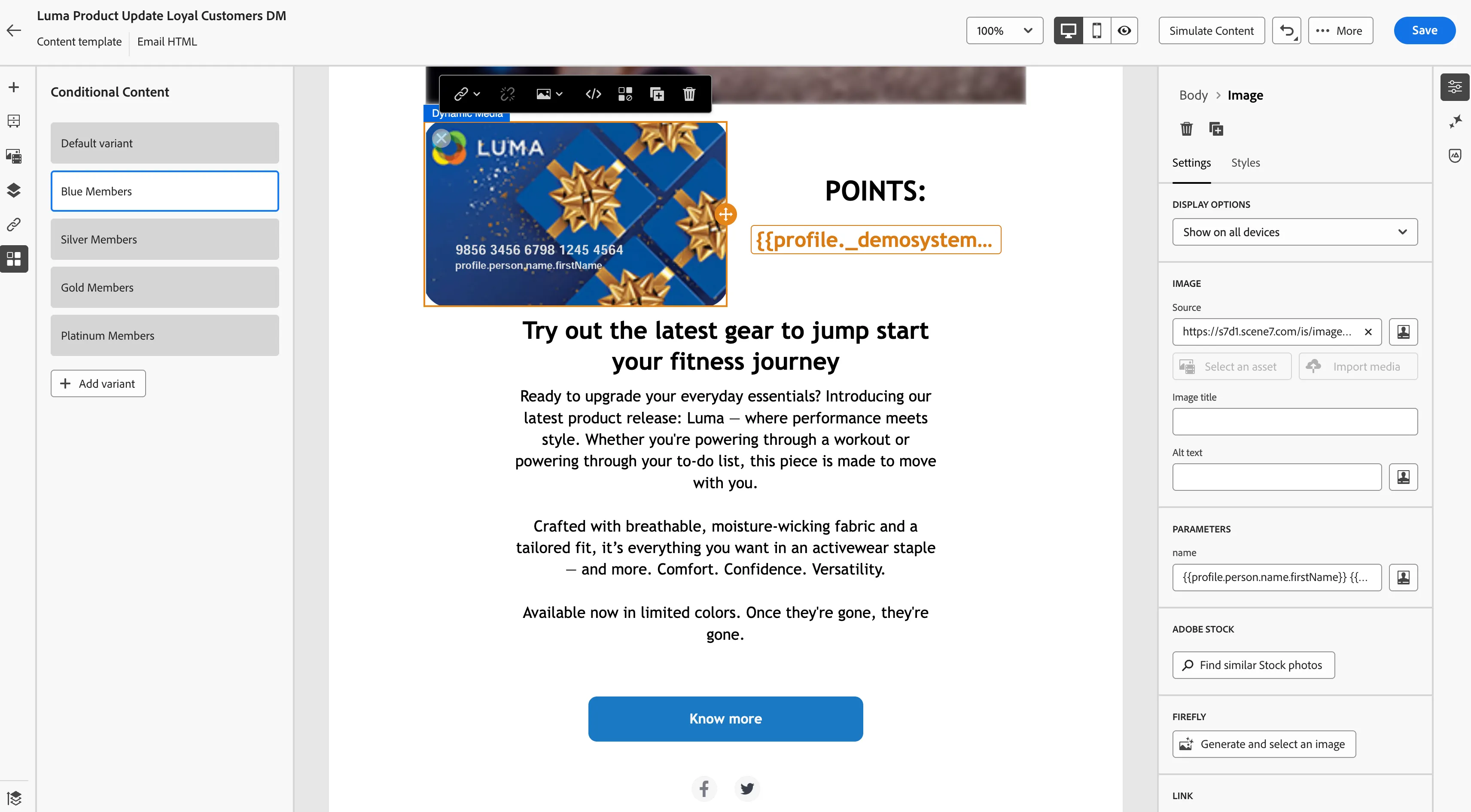
7. Click on edit email body, and you can see that after the email banner image, you can add an Image component.
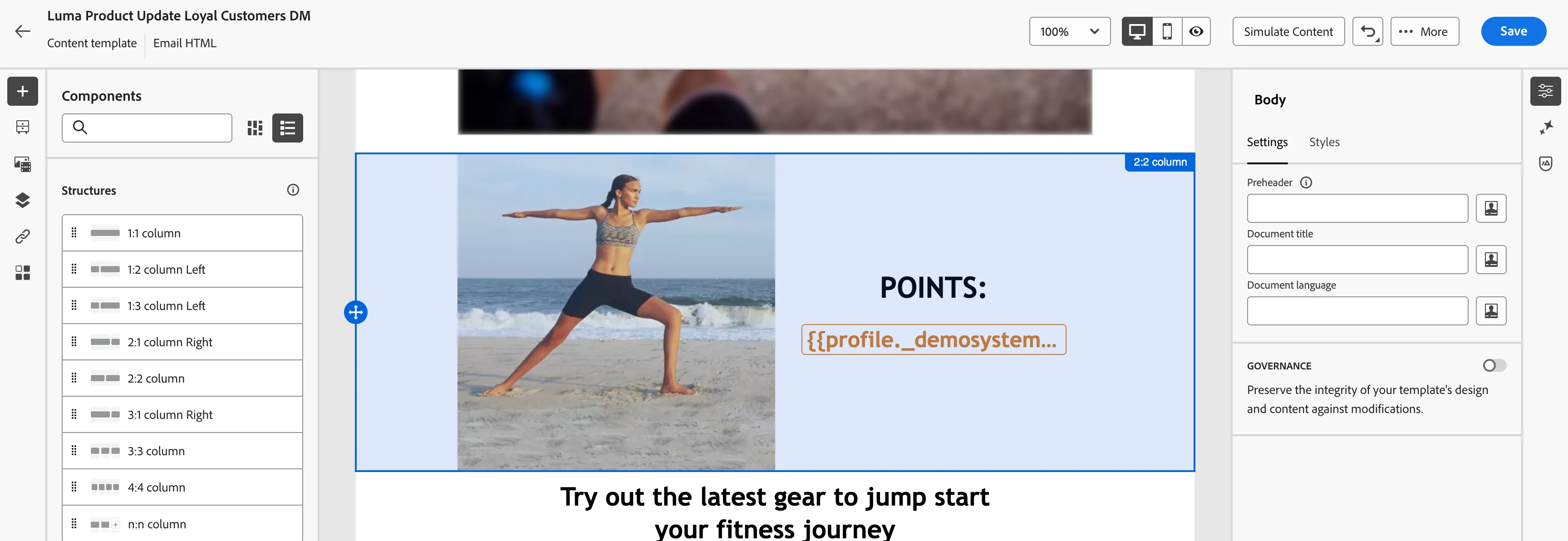
6. Click on Image Component and go to assets from the right panel, and go to asset selector and select the right repository(Adobe Demo System Shared Program Dev 1) from the drop-down.
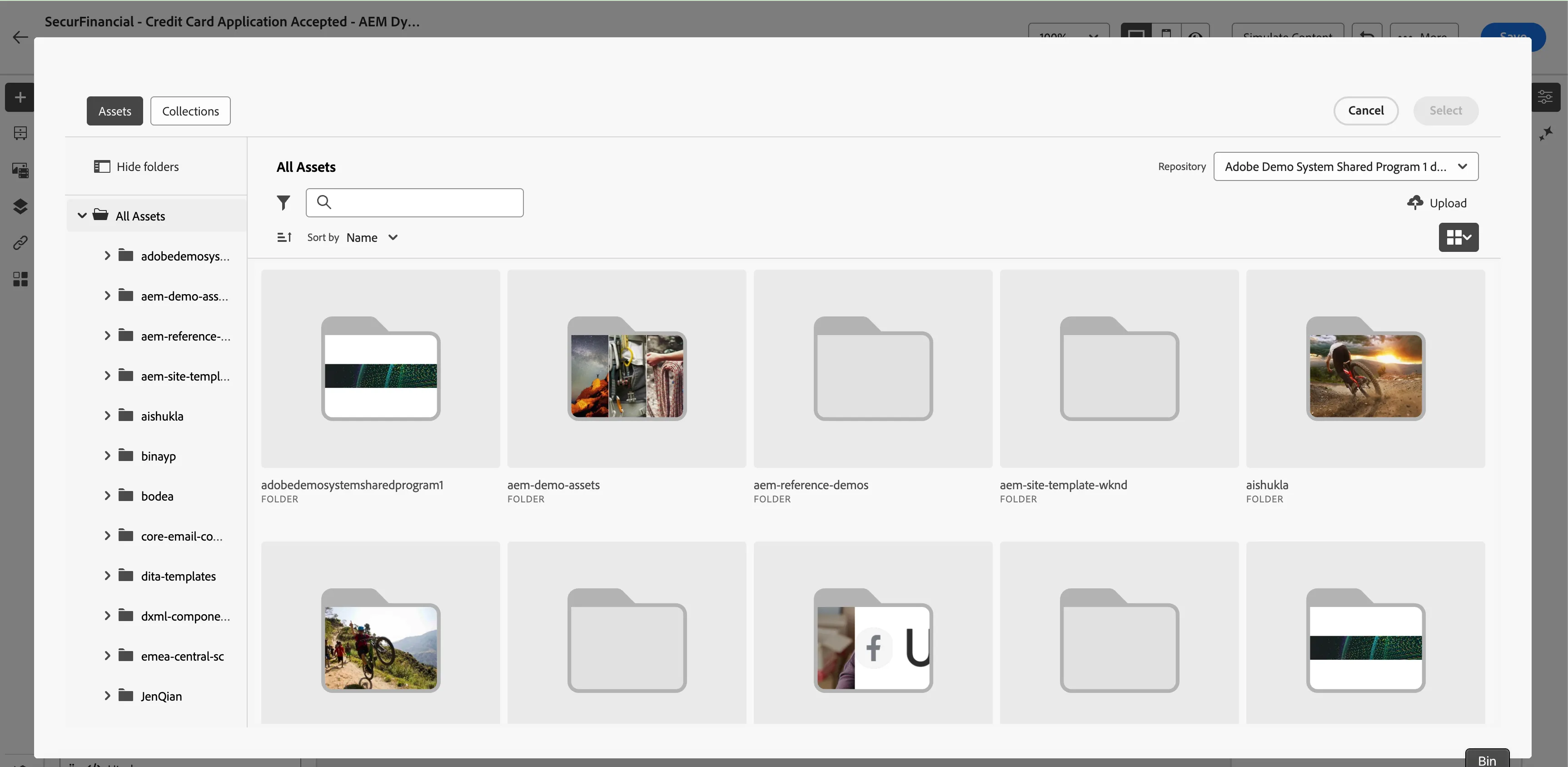
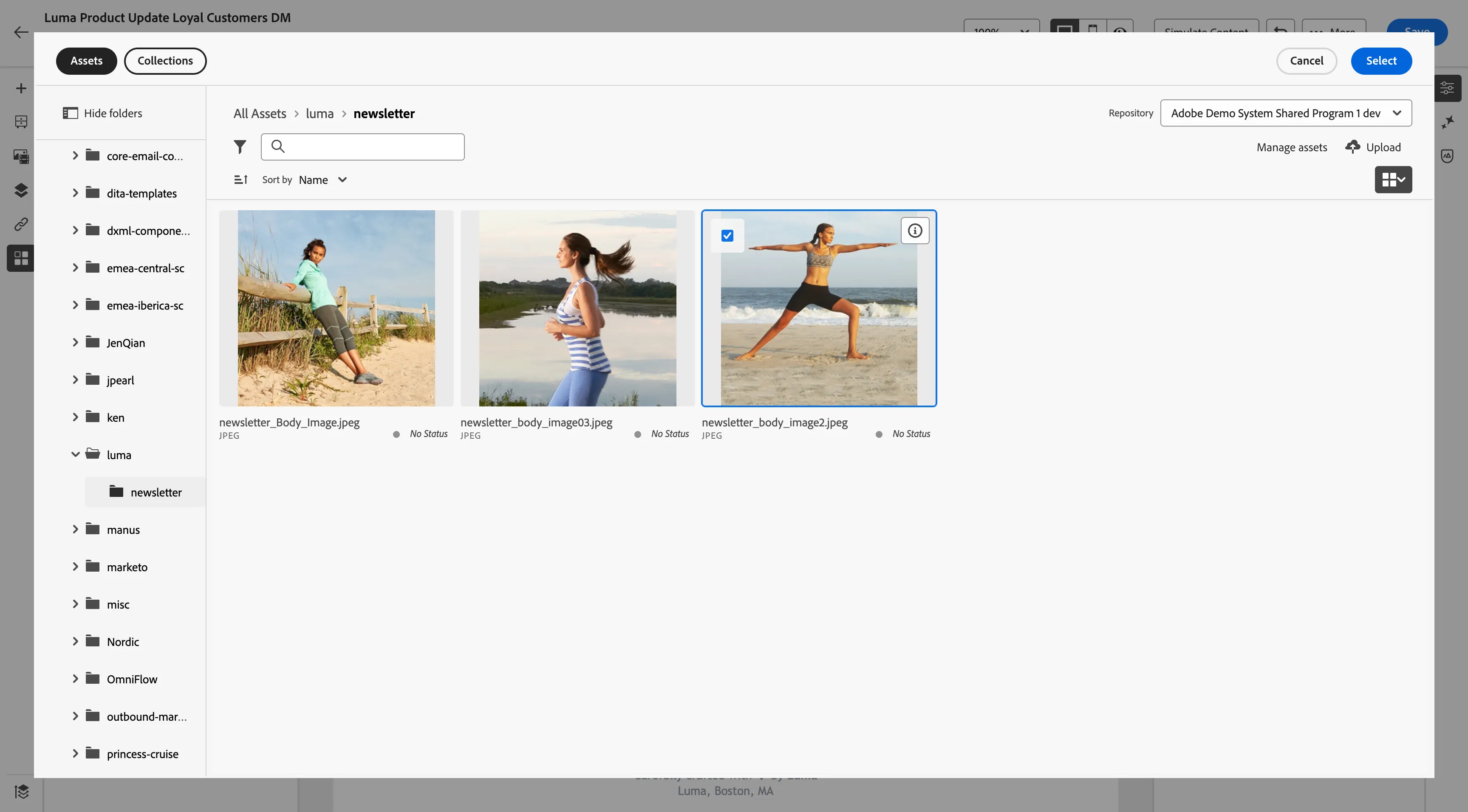
7. Go to your folder and select the template you created in the above step. For now, we will go to the Luma folder and select any image for the default version.
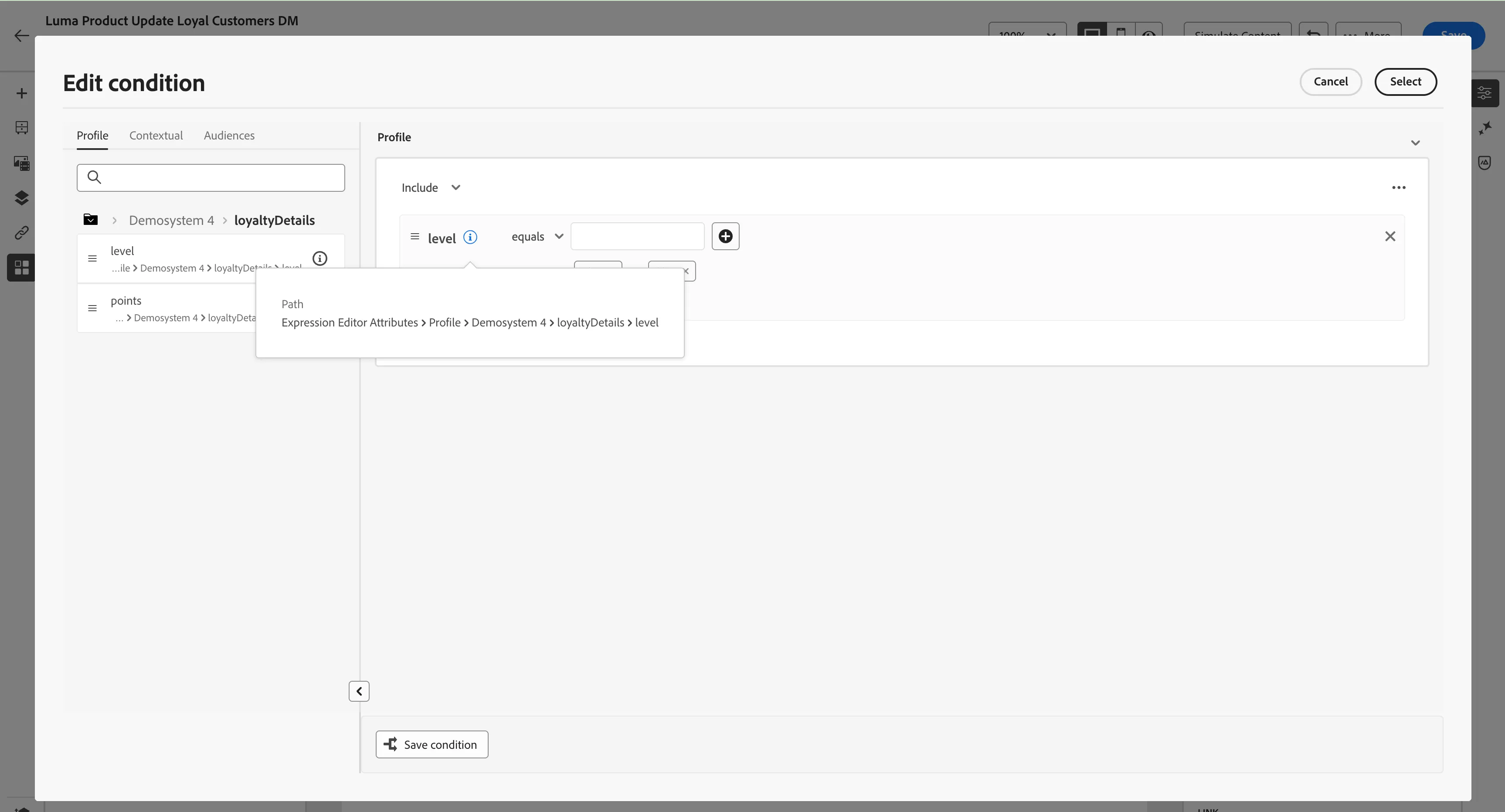
8. Now, go to the designer and select the default image and activate the Conditional Content(3 square box), and create a condition for Luma+ Blue members.
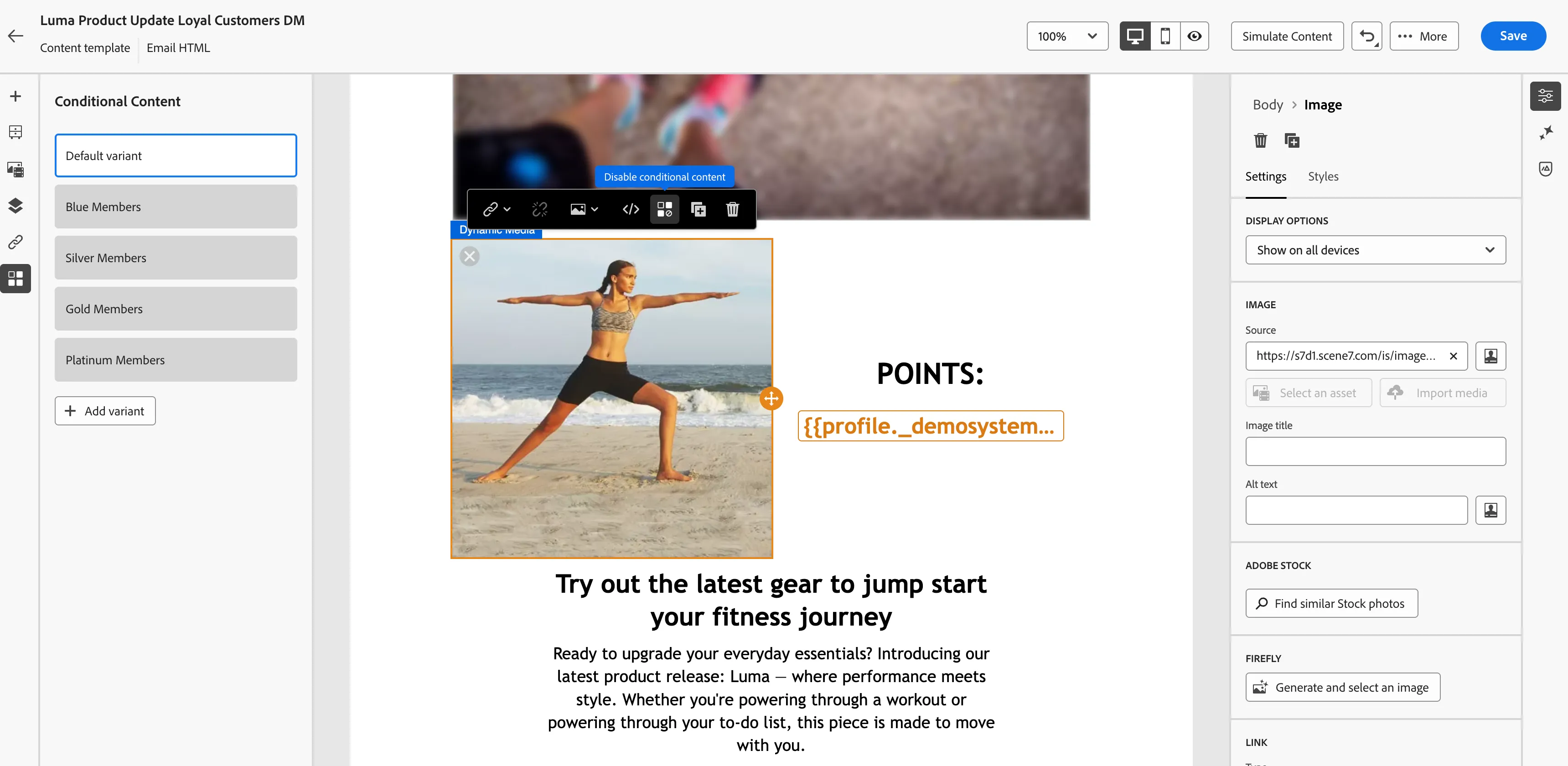
9. From the left rail, click on Add Variant and give the condition accordingly(Follow the path in the image for the field) for Luma+ Blue members add value blue or Blue. (Follow similarly for other loyalty levels like Gold, Silver, and Platinum.)
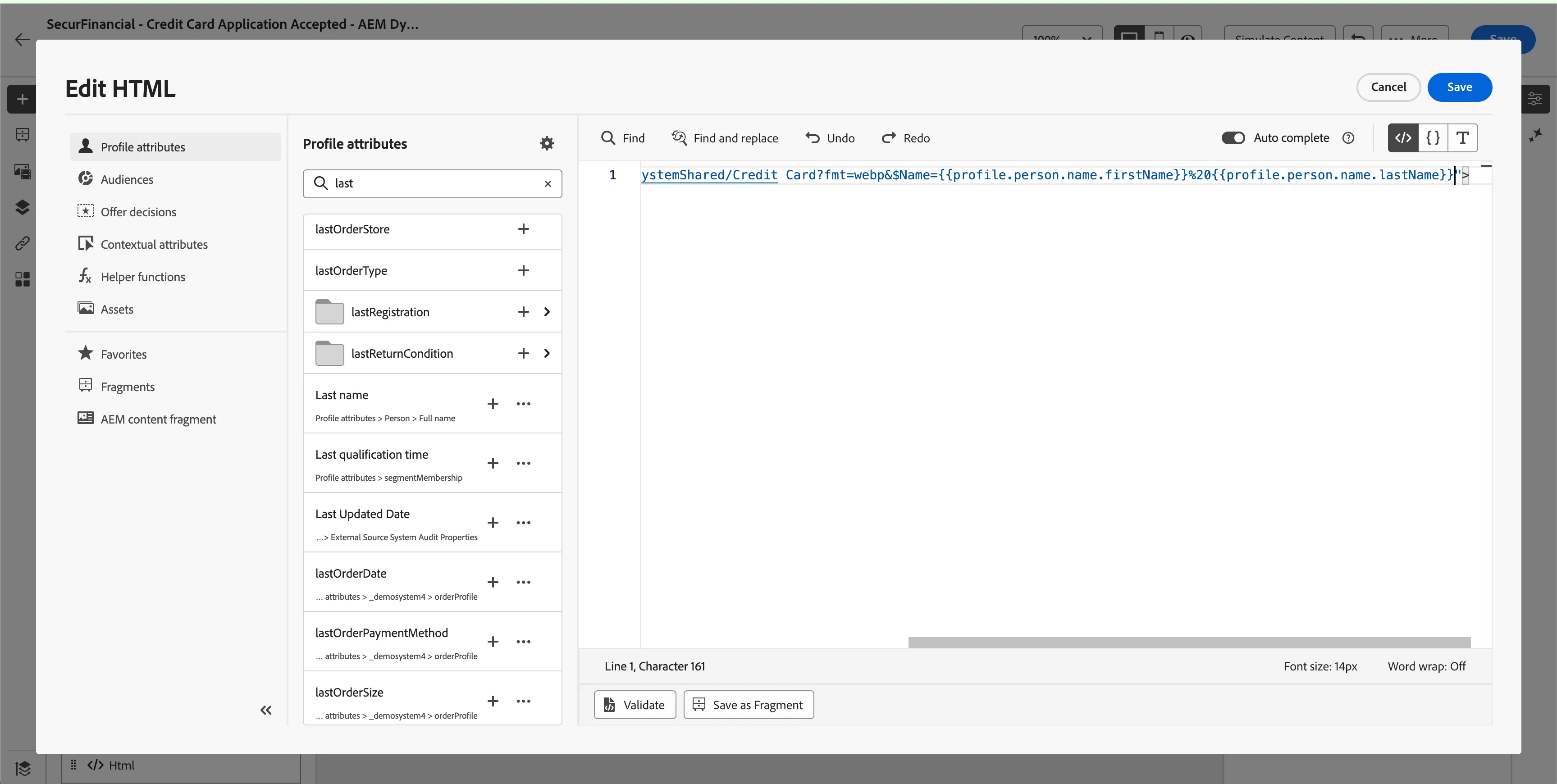
10. Now go to the image component, select the template from the asset picker(Luma_Blue_Card_DM) in the Luma Folder [repository - Adobe Demo System Shared Program Dev 1], and in the image URL, you can see the name parameter that we created in the AEM template. Now, at the place of First name add the first name from profile attributes, and similarly for last name in the URL, and click on Save. Follow similarly for other loyalty levels like Gold, Silver, and Platinum.)


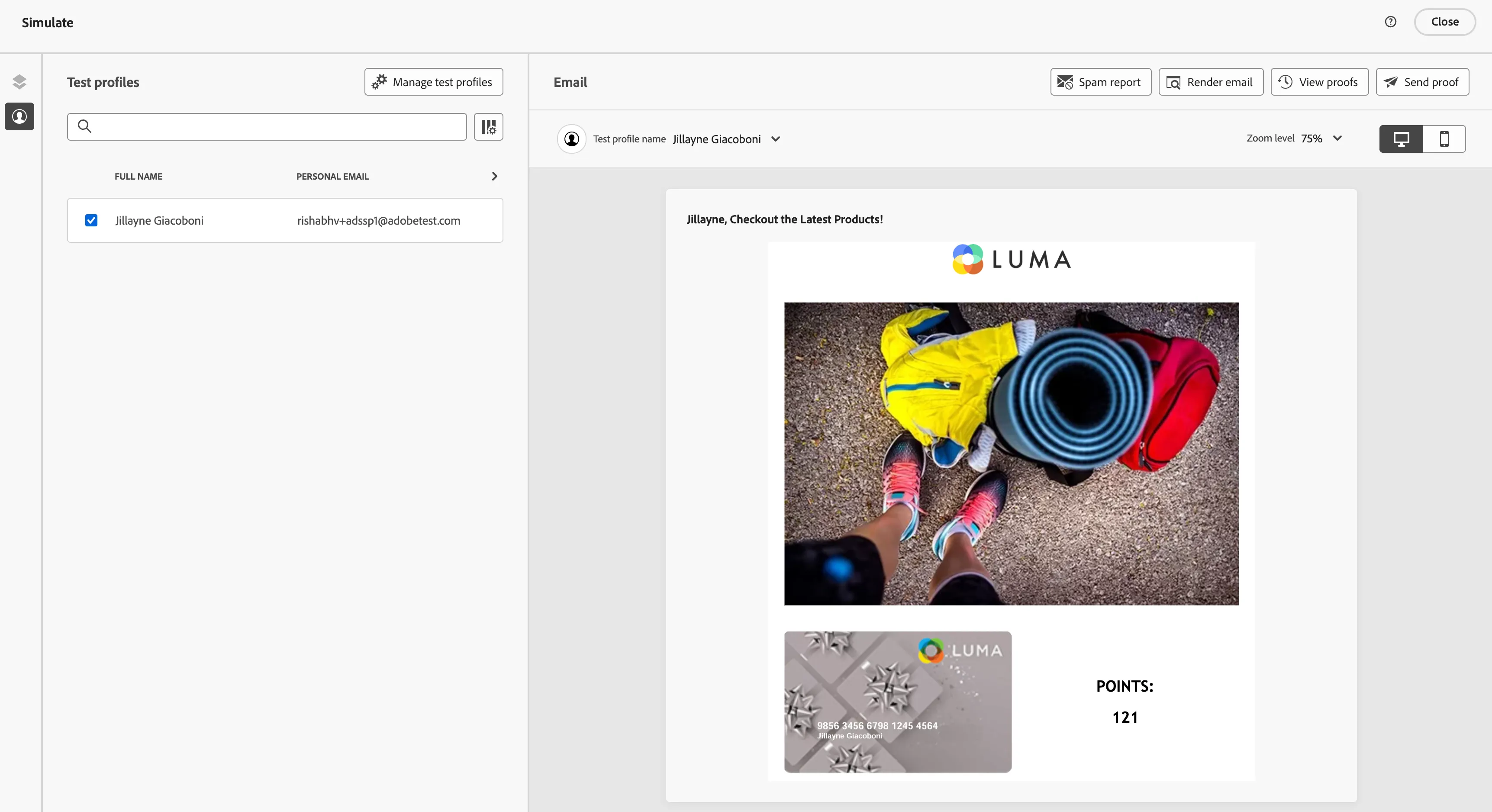
9. Now go to the main banner image and select the image from the right panel image source(Click on the person image) and go inside the personalization tab and now add parameter &smartcrop=169BANNER this is smartcrop rendition for desktop images email. Also, under setting in from left panel under Display options Show only on desktop devices.
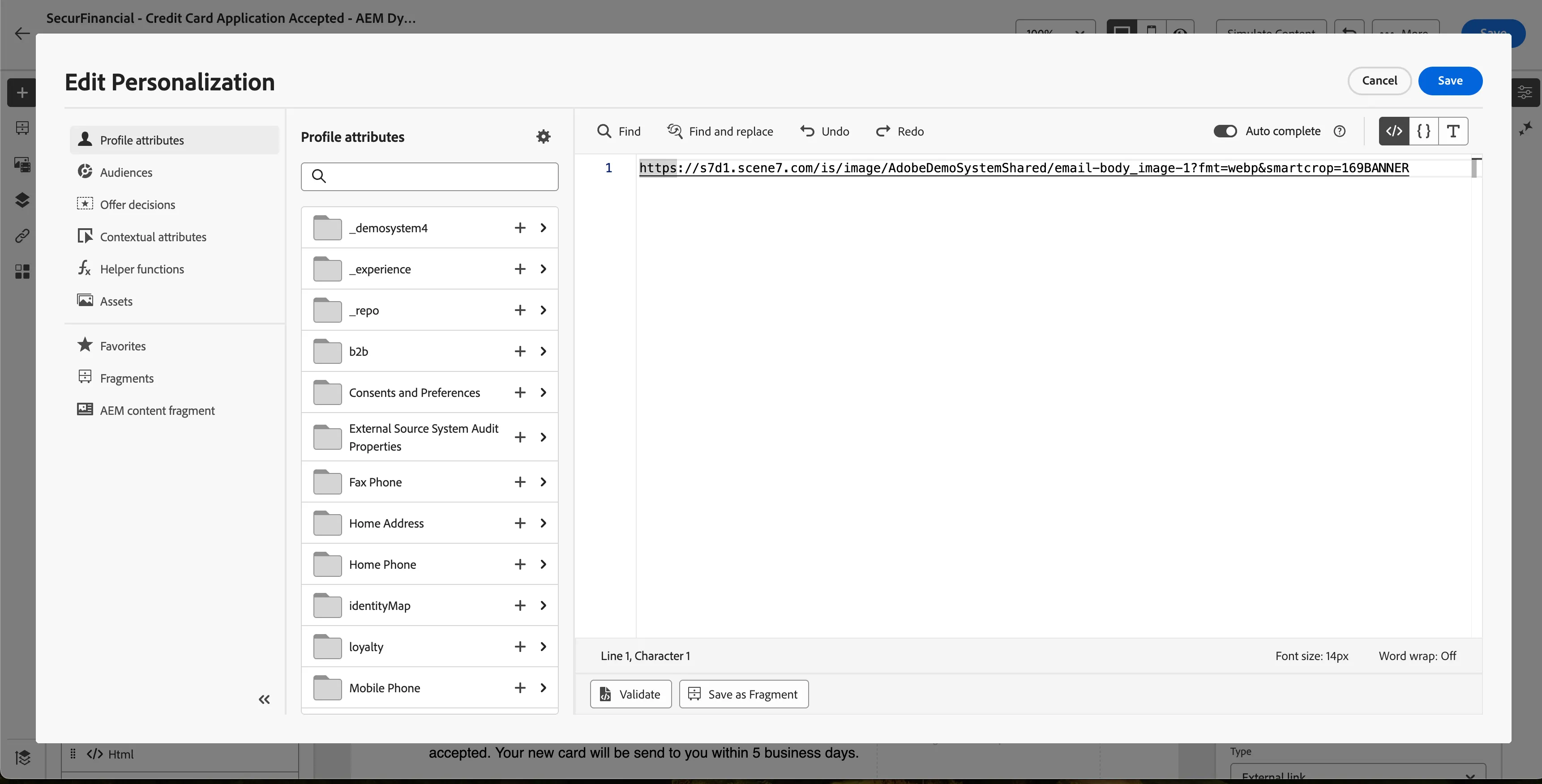
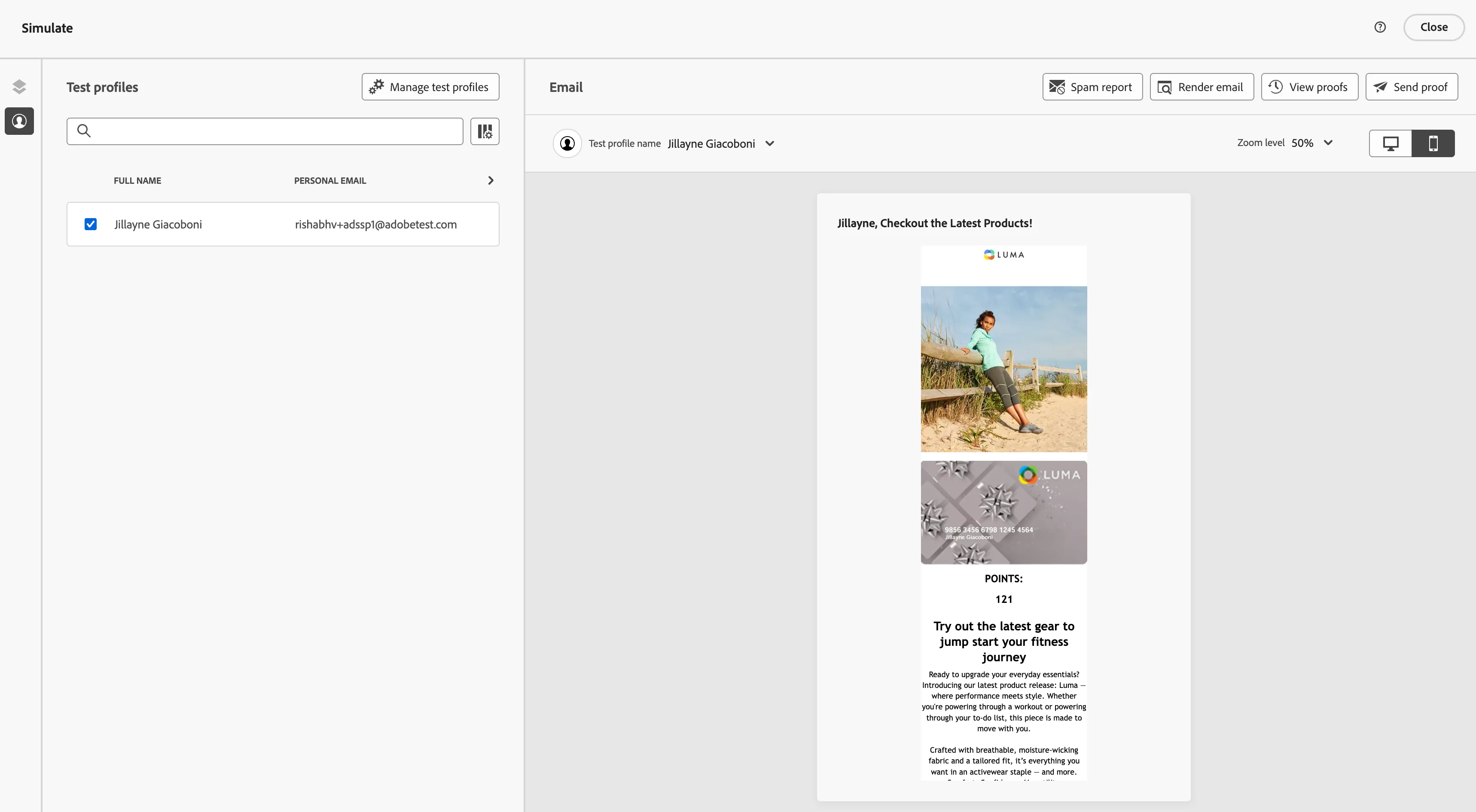
10. Duplicate the same image and repeat the above step. Now we will have a rendition for mobile and add parameter &smartcrop=54VERT. Also, under settings in from left panel, under Display options, Show only on mobile devices. Click on save.
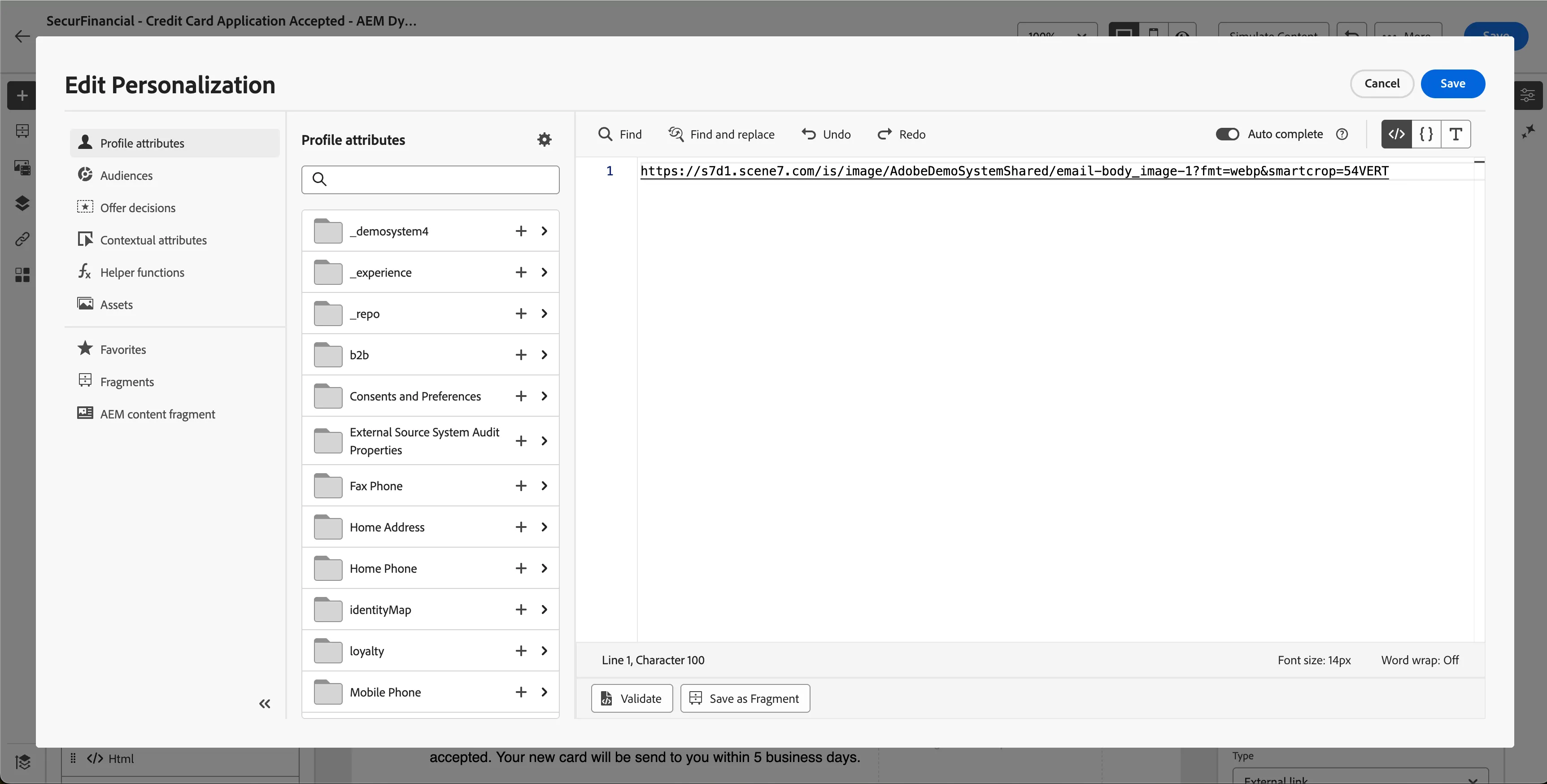
11. Now click on simulate content and select a test profile and see the content for mobile and desktop and you will see different renditions of images and also, you can see the Loyalty Card will be personalised with test profile First name and last name depending on your test profile satisfying the Conditional Content criteria.
Demo Storyline (Dynamic Media Templates) - Securfinancial ( Dynamic media with AJO )
Follow the steps in the above-linked doc for the Securfinancial demo use case.
NOTES:
- Dynamic media templates don't support smart crop renditions only images support smart crop renditions.
Assets:
For the base images of the loyalty card and Luma email templates.