FAQ
TO DO: This page needs updating the links!
This is a list of common questions regarding Web projects. How do I request support? if you have more questions.
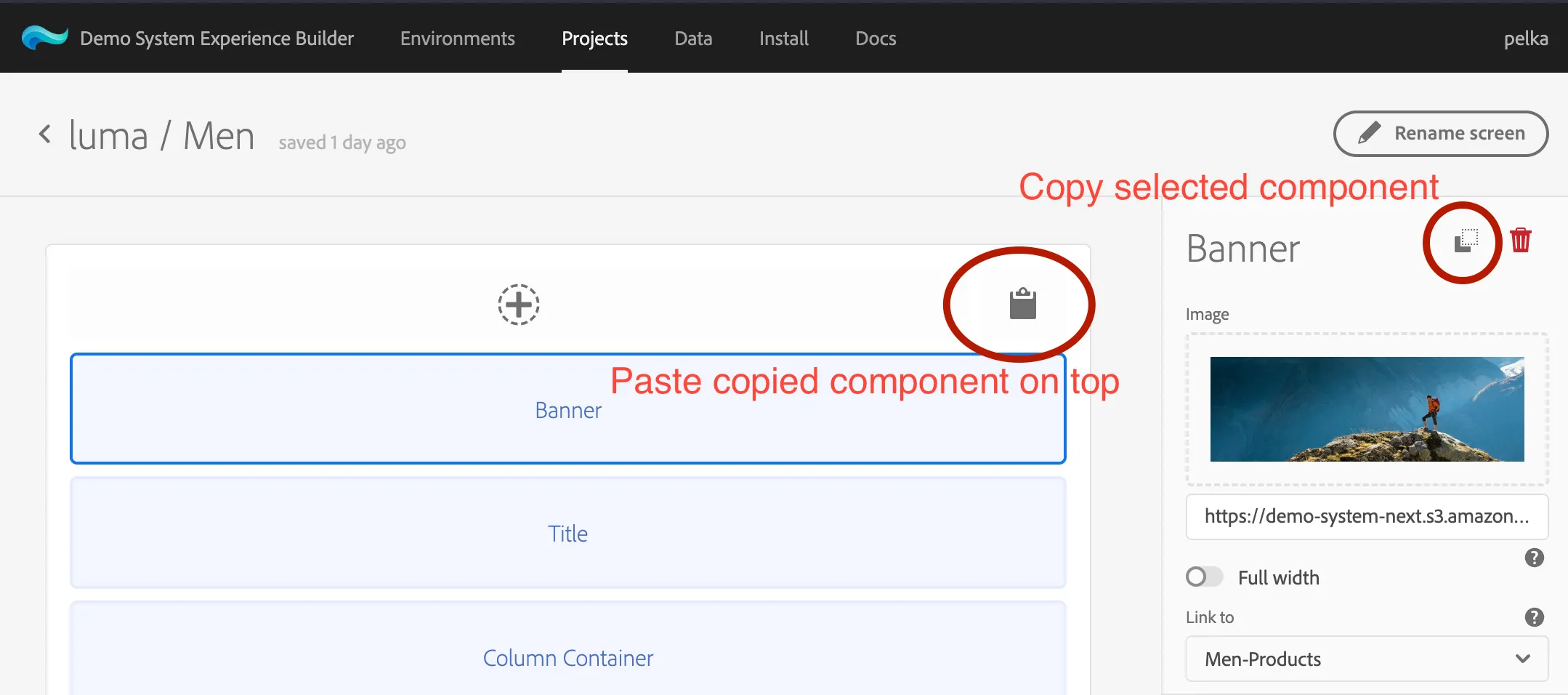
How to copy/paste component between screens or projects?
- Select it and click a copy icon on the top-right part of sidebar.
- Open screen in any project of the same type (eg. web-web, mobile-mobile, etc.) and click paste icon on the top or bottom of component list to paste copied component.
Note: Project type on copy and paste sides need to match. Mobile components will not work on web screens, etc.
How to create a link between pages?
[Modular templates] There are several ways to create a link to another page:
- [Recommended] add Button or any other component with Link to or Button link property and select required screen from dropdown in component configuration sidebar.
- custom code in Tag Property
How to submit selected fields to external URL?
[Modular templates] In order to submit a form to a third-party service, including only selected data:
- Add input components to your page/pages, eg. Textfield or Selection
- For each input component, provide:
- Name - to identify the field (eg. firstName)
- Path - optionally, if you need to structure your data (eg. person.name.firstName)
- Form Id - to filter the fields to be included in payload (eg. account-creation)
- 4.In component properties (actions) set:
- Webhook URL - to specify where to send the data to on click/action.
- Form Id - to filter the fields to be included in payload. It must match Form Id property on your input components (eg. account-creation)
- Run your project, fill in the fields and perform action (eg. button click). This should send the request to specified URL. Only fields with matching Form Id should be included in request payload.
How to use value from input/AEP in texts
[Modular templates] You can use all data gathered in current session or loaded from AEP profile, as long, as this data is available before you navigate to the page that should use them. You cannot display a value that is set on the same field. To access dynamic value in text (eg. Text component's content) use ${selector} syntax, where selector matches
- <Path> property for component that has Path set and no Form ID eg. ${enrollment.selectedPlan}
- Tip: You can also use the path selector in the Profile Viewer options to refer to some information in Experience Events titles! For example: ${timestamp} will refer to entity.timestamp value of the particular event
- <Name> property for component that have Name set but no Path or Form ID, eg. ${email}
- formData.<Form ID>.<Path> for component that has Form ID and Path set, eg. ${formData.registration.name.firstName}
- formData.<Form ID>.<Name> for component that has Form ID and Name set but no Path, eg. ${formData.registration.email}
- <Attribute selector> for AEP Profile Schema attributes, eg. ${person.name.firstName}
The selectors can be used as inputs for the dynamic values formatting functions, e.g. ${formatDate:YOUR_SELECTOR} will attempt to format the value behind your selector as a date. See here for more information on the formatting functions.
How to use properties of product, article or cart in texts
[Modular templates]You can use properties of cart, as well as article and product connected to current page in other texts, like Text or Title component. Simply put ${selector} in text. Examples:
- ${product.price} will try to display price property of a product that is linked to current screen. Common product properties: name, description, category, rating, image, video
- ${rss.title} will try to display the title of an article. Only works on an article template page visited from an RSS Feed list link. Common article properties: title, description, link, image, date, creator, content
- ${cart.discount.value} will try to render the value of applied discount from cart. Common cart properties: productCount, total, subTotal, discount.label, discount.value, shipping.label, shipping.value, shipping.cost
How to generate random text/ID in texts
[Modular templates]
You can use dynamic placeholders to generate random text or load the one generated by Generated Text component.
- If you want to display a new random text, and don't care that it will re-generate on each component re-render, use the following syntax in your text: ${generate:pattern}. For pattern syntax see @Generated Text component doc.
- If you want to display the text that was already generated by Generated Text component, you can reference it just like any other input components, eg. ${path}. For more details see @this FAQ.
How to format dynamic values?
[Modular templates]
There is a set of function exposed to format the dynamic values you provide. The output will be formatted according to the set locale.
Formatting prices
To format a number as a price, use the following syntax in your text: ${formatPrice:NUMBER}. This will format the price using the currency matching the currently set locale.
- Example: for US locale ${formatPrice:9000} will be formatted as $9,000.00
Formatting dates
To format a string as a date, use the following syntax in your text: ${formatDate:DATE}. This will format the date using the settings matching the currently set locale.
- Example: for US locale ${formatDate:2022-01-01} will be formatted as 1/1/2022
Additional formatting
You can use an additional formatting function prefixed with a | symbol to further customize how the dynamic values are to be presented: ${formatDate:DATE|format:FORMAT}, e.g. ${formatDate:2022-11-01|format:DD/MM/YYYY} will result in 01/11/2022
Formatting time
To format a string as time, use the following syntax in your text: ${formatTime:TIME}. This will format the time/date as time using the settings matching the currently set locale.
- Example: for US locale ${formatTime:1695394048} will be formatted as 3:56 PM
Additional formatting
You can use an additional formatting function prefixed with a | symbol to further customize how the dynamic values are to be presented: ${formatTime:TIME|format:FORMAT}, e.g. ${formatTime:1695394048|format:hh} will result in 3 PM
How to pre-fill form fields?
[Modular templates] Most input components allow you to pre-fill them with data gathered earlier in current window or loaded from AEP profile.
TLDR: Create two components with the same Name, Path and Form ID on different screens. Whatever you input in one of them will be used to populate the other(s) that have Pre-fill switched on.
Additionally, you can load data from AEP profile across sessions and devices if your Path matches AEP Profile attribute selector, eg. person.name.firstName. Just make sure that this profile is updated (eg. with Profile Viewer) and wait ~5 seconds before navigating to the page that has a pre-filled component.
Let's use an example to demonstrate both:
- Create two pages: Page A and Page B
- On both pages add similar components:
- @Textfield
- name = firstName
- path = myStructure.firstName (doesn't need to match AEP schema)
- Pre-fill = true (important only on Page B)
- @Textfield
- name = lastName
- path = person.name.lastName (matching AEP schema)
- Pre-fill = true (important only on Page B)
- Add @Button component on Page A that will submit the lastName field to AEP profile. Assuming that your attached Tag Property listens to "update-name" event, set
- Event Type = update-name
- Link to = Page B
- Run your project and go to Page A.
- Fill in firstName and click the button to navigate to Page B.
- firstName textfield on Page B should be populated with the value you inserted earlier. This should be the case as long as path and name properties on both components match, until you close or refresh this browser tab. Hard-links (<a href=""> tags) also count as refresh. This field is pre-filled from local state.
- Go back to Page A
- Fill in lastName and submit.
- You will be redirected to Page B and you should see the field populated there as well. This is however still populated from local state that will be gone on refresh.
- Refresh the page.
- Notice that both fields on Page B are no longer pre-filled.
- Go to Page A and make sure your AEP Profile contains recently submitted lastName (eg. in Profile Viewer). Wait 5-10 seconds and click the button, without entering lastName.
- The lastName should be populated from AEP profile, as long as:
- component path matches property path in AEP Profile schema
- Profile is already updated (you see new value in Profile Viewer/AEP Profile)
- You wait 5 seconds after value appears in profile. This is the interval with which we're checking the profile.