First time installation
1 min
After installing the app for the first time on an iOS device, you might get an error message when trying to open the app which says: Untrusted Enterprise Developer
In order to fix this, in your iPhone, you need to:
- Navigate to Settings > General > VPN & Device Management > Adobe Systems Inc
- Click on Trust Adobe Systems Inc.
- Restart your device
Once the app is installed, you’ll find it on your device’s home screen. Click the icon to open the app. When you’re using the app the first time, you’ll be requested to log in using your Adobe ID. Complete the login process:
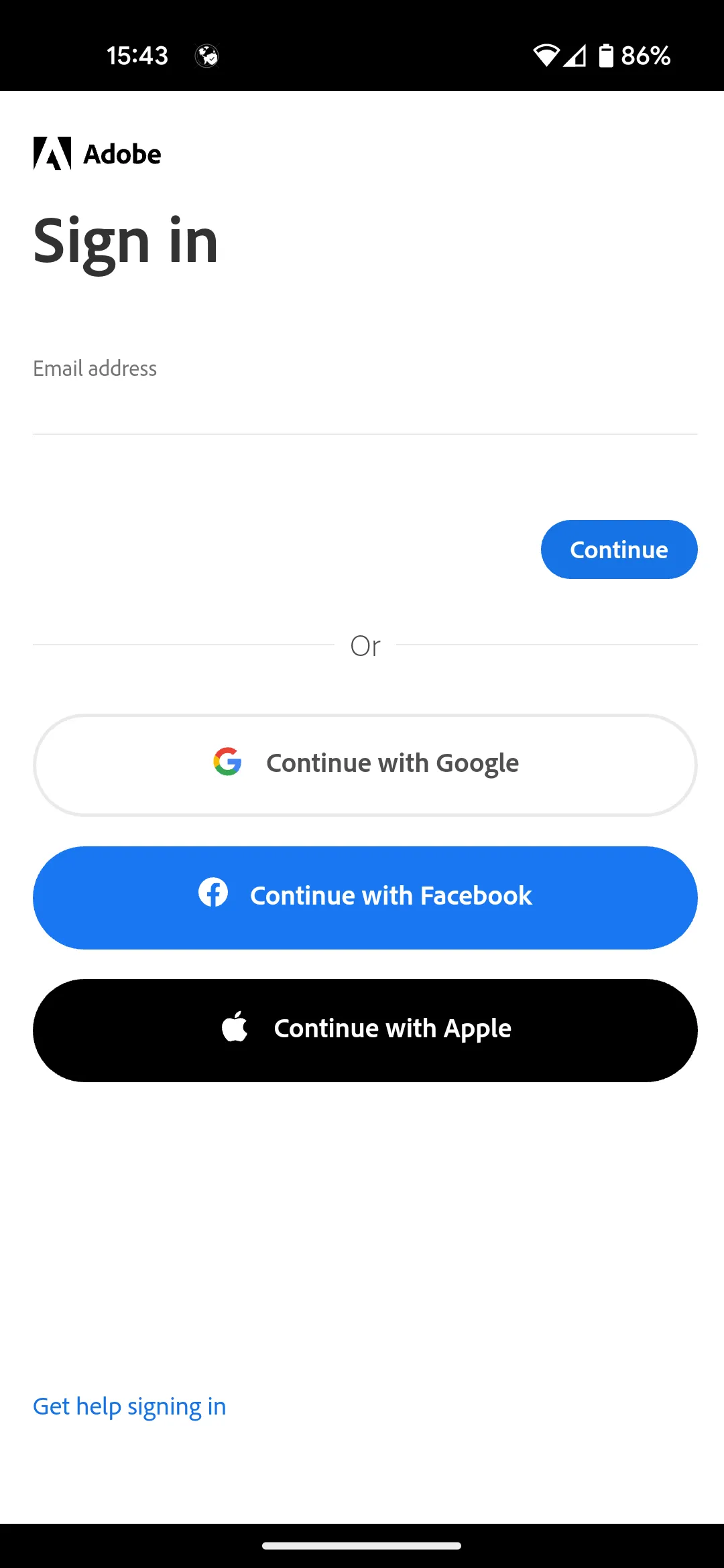
Adobe login
After logging in, you’ll see a notification requesting your permission to send notifications. We’ll send notifications as part of the tutorial, so click Allow.
You’ll then see the app’s homepage.