Forms
The Live Demos application allows you to create forms of various complexity and use the data entered by the user to send events to the platform.
Composition of forms
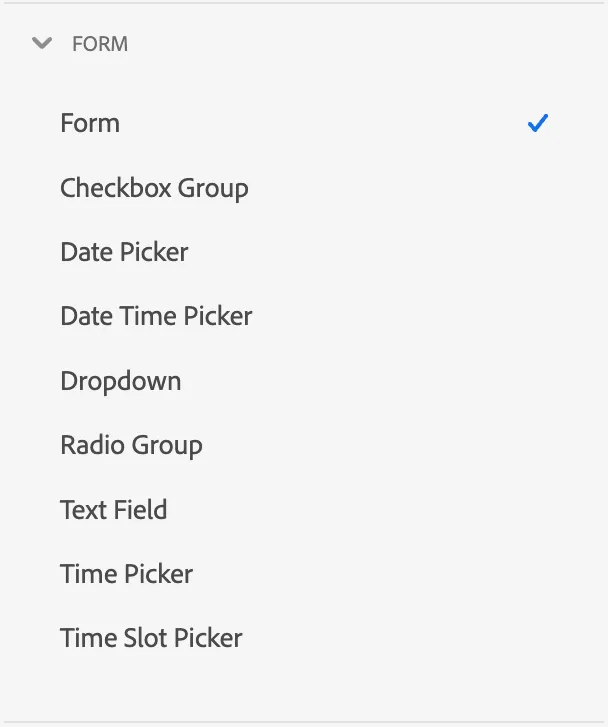
All the form-related components can be found in the Form section of the New Module dialog.
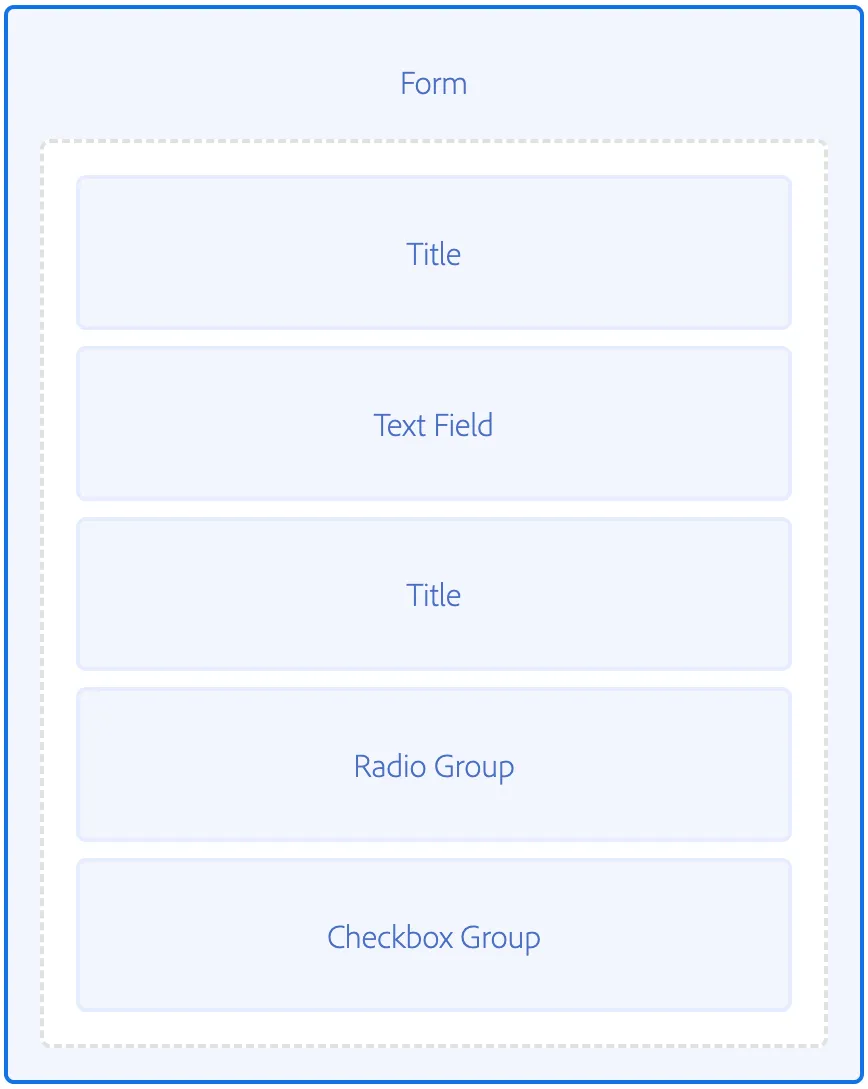
The most important rule of forms composition is that each form you create has to be wrapped in the Form component. The other form-related components - such as Text Field, Dropdown etc. - will not work standalone. The Form component is a container that can be styled as any other component, but most importantly it acts as a store of the data inputted inside of it. An exemplary good composition of the form could look as follows:
Data handling in forms
There are several settings related to data handling. Those settings are split between the wrapping Form component and separate input components (such as Text Field etc.)
On a Form level you can configure:
- an event type to be sent on submit
- a webhook URL send a request to on submit
On a input component level you can configure:
- a path where the data for that component should reside inside the form context
- a default value for that input component
- whether an attempt should be made to prefill the form with data from the profile entity
- if both default value and prefill are enabled, the application will first try to prefill the data and if it fails, it will fallback to the default value
Multi-step forms
The application provides support for multi-step forms with very little configuration. You can now easily set your project up to split your forms into multiple screens.
Below are the steps you need to take to make it happen:
- Follow the same form composition rules as described above. Each screen which you want to be part of your multi-step form process needs to have a Form component present in which your form inputs will reside.
- Set up the relationship between the steps of the form:
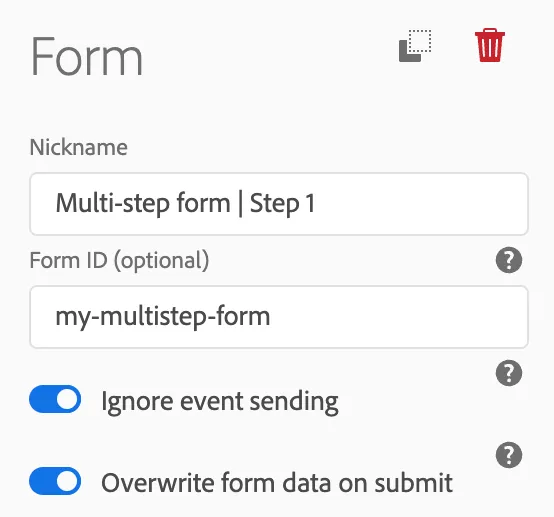
- Set the same unique Form ID on each step of the multi-step form (so as a property of each Form component across different screens)
- Set up the navigation by setting the Navigate on submit property of each Form component (your step 1 Form should navigate to a screen where step 2 Form is present etc.)
- Configure the details of event sending:
- If you want to send an event only after the last step is completed, enable the Ignore event sending property on all the steps that are not the last step.
- If you want some step to send the partial data, disable the Ignore event sending property in a respective Form component
- Set up form data reset as you wish.
- By default the data in forms that have their own Form IDs is preserved between submissions. That means that if you want to fill out the form again and clear the previous data, you need to enable the "Overwrite form data on submit" property on the first step of your form. This way you will make sure that once someone fills out the first step of the form again, the previous data will be cleared out.