Glossary

Quick Setup is a configuration tool. A recommended way to start your new project/demo. It can be accessed from https://dsn.adobe.com/quick-setup. As a result of quick-setup configuration you can get several assets for a selected vertical: Web and Mobile projects, dedicated data structure in AEP, Data Collection properties, Call Center projects, sample journey and offers
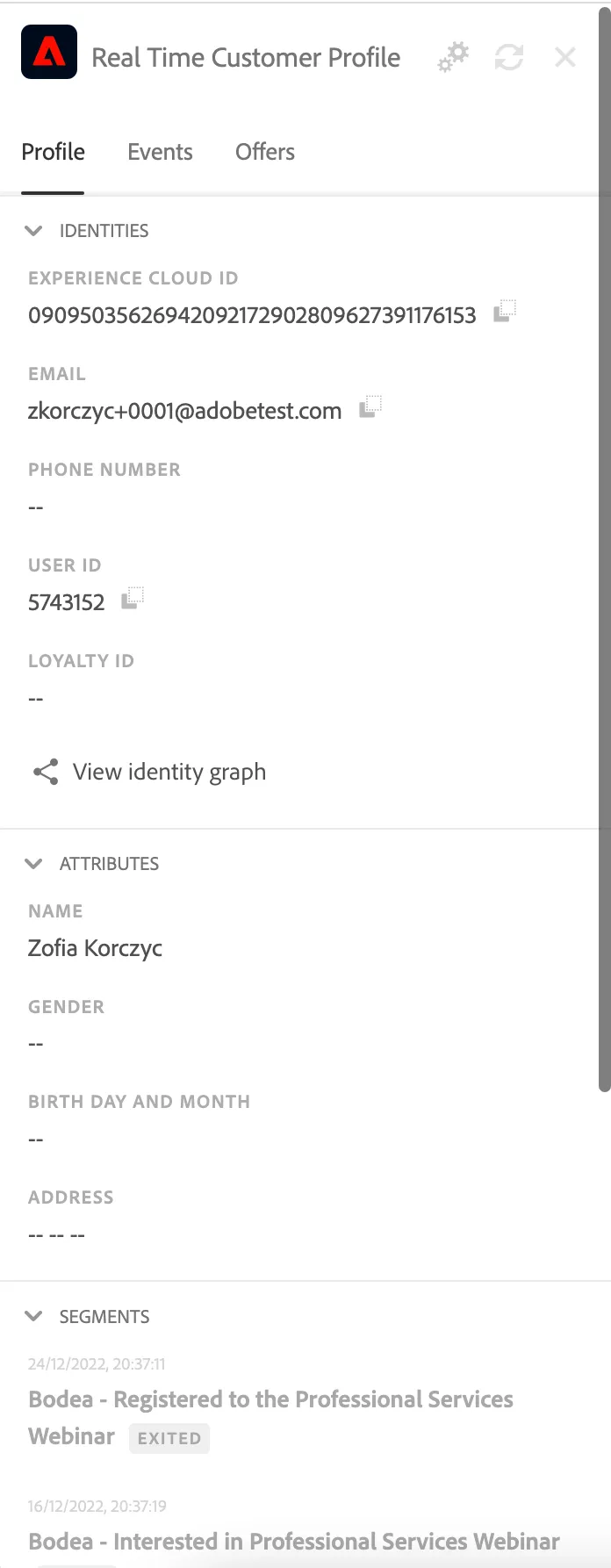
Profile Viewer is a tool that reads profile data directly from AEP. It allows you to tell the story how user profile is build while interacting with the brand in many ways. Profile Viewer is available on every website and mobile app project. Also on the external website. It is accessible after clicking the AEP icon in the top left corner of the screen
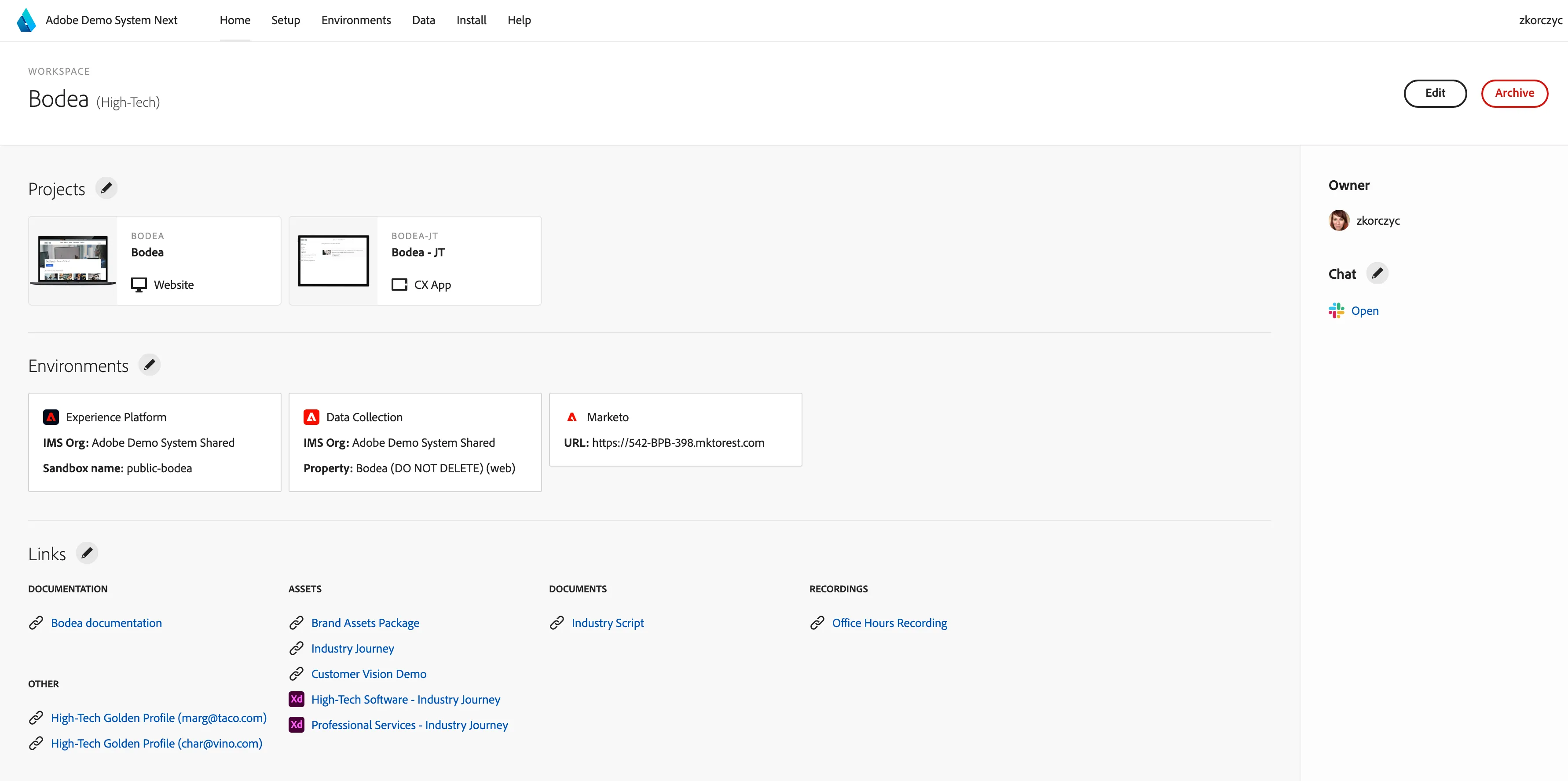
Workspace is a way to keep your assets organized in DSN. It is similar to a folder. In a workspace you can keep your projects, links to environments and many additional links and assets that you want to share with customer. Folder can be shared with other people.
Are a fully working set of different UI’s and environments to help you tell the story without any need to modify or customize anything. It might include: web, mobile, customer experience, call center project types (UI’s). They are organized in Workspaces, which can be found in the sidebar at https://dsn.adobe.com.
Available verticals are: Retail, FSI, Telco, M&E, CPG, Automotive, Healthcare, etc. Read-only and you should have access to AEP to show the configured journeys, segments, schemas etc.
Send data to Adobe Demo System Shared sandboxes.
All public projects' ready-to-go scenarios are described here:
Looking for inspiration from you for more vertical-specific scenarios.
Are configurations of your UI assets within DSN - website, mobile app, Customer Experience App, Microsites (earlier referred to as Customer Hub), and even supporting configuration for the profile viewer component on external websites. They are referred to by ID and optionally a user-friendly alias.
Most projects require intgration with Experience Platform for full capabilities. It is recommended to create new projects along with AEP configuration via Quick Setup . For Microsites projects, it is recommended to create them via Workspace.
A sandbox in Adobe Experience Platform that is shared usually by a team or group of users with similar interests. You can access it by logging in to the correct IMS Org, switching to the Experience Platform tool (if you are not already there), and selecting the sandbox from the drop-down in the top-right corner. AEP structure generation is performed only once by the first user who uses quick-setup.
For the rest of the team, only new Data Collection and Projects will be created with Quick-Setup. (No risk of multiple Datasets) It is up to your team when you want to reset it. It is up to your team what the best practices are in matters of naming conventions, cleaning after a demo, etc. It is up to your team to decide who else has access to it
A sandbox in Adobe Experience Platform that is used by individuals working on a demo with active DR. You can access it by logging in to the correct IMS Org, switching to the Experience Platform tool (if you are not already there), and selecting the sandbox from the drop-down in the top-right corner. It is up to you when you want to reset it.
You don’t have to worry about following the naming convention. It is up to you who you would like to share it with to work on the same opportunity. It requires an active DR number to get it.
From time to time, we will check whether you still need it; if so, we will require a new DR number. We recommend using Quick Setup to configure the required AEP data structure. It needs to be done only the first time; next time, only the required Data Collection Properties and projects will be created
/
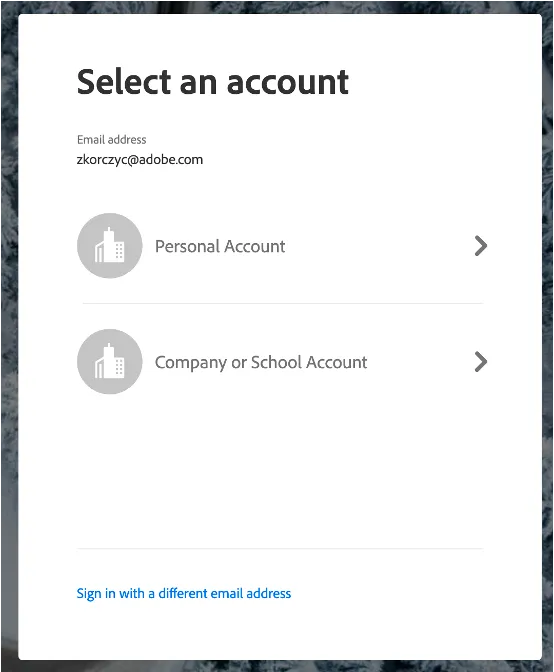
A way to log in to Adobe Products/Pages/Assets. You can always choose between
Personal Account (Personal ID) and Company or School Account (Business ID)
To access the Adobe Demo System Shared org, you need to log in with Business ID