How to Activate AEM Content Fragments to AJO
Objective
The primary objective is to provide a comprehensive guide to using Content Fragments (CF) from Adobe Experience Manager (AEM) with Adobe Journey Optimizer (AJO).
Prerequisites
- Access to AEM instance, Content Fragment UI, and AJO environments.
- Permissions are required to manage tags in AEM and access content fragments.
- A clear understanding of the organizational structure within AJO (Org ID, Sandboxes).
Configuration
To use other sandboxes within the Adobe Demo System Shared org, you will need to create dedicated tags following the example below.
The below steps need to be followed in sequence to activate your Org for this feature.
- Go to your AEM instance.
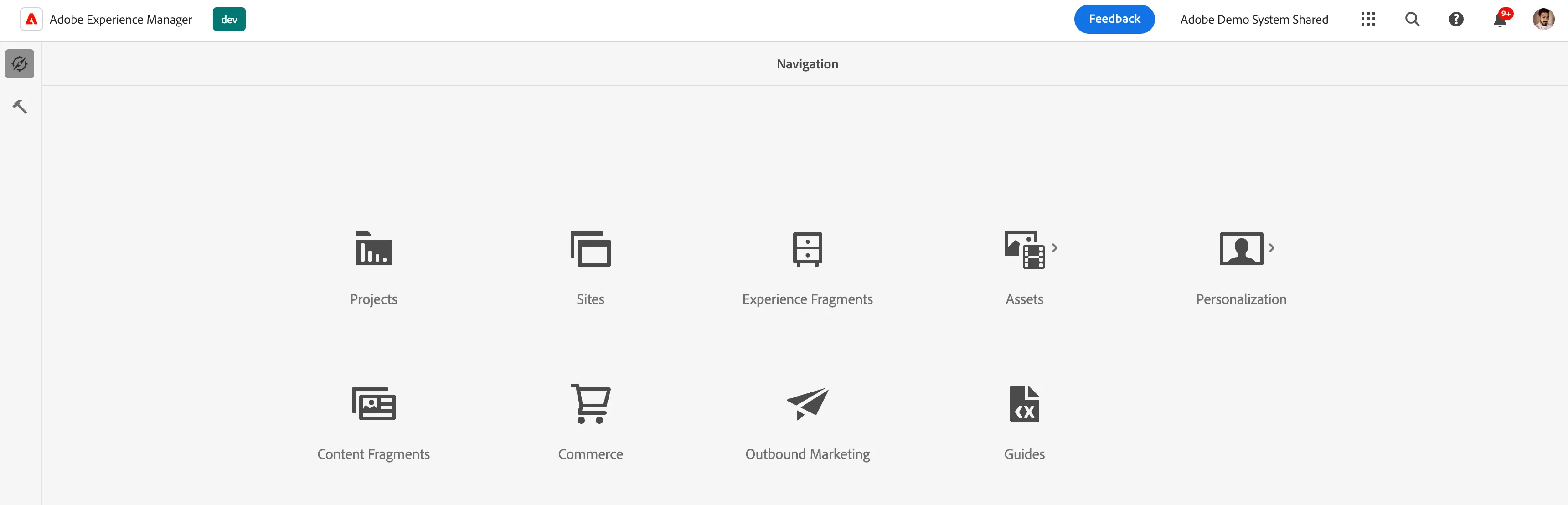
2. Go to AEM > tools > General > Tagging.
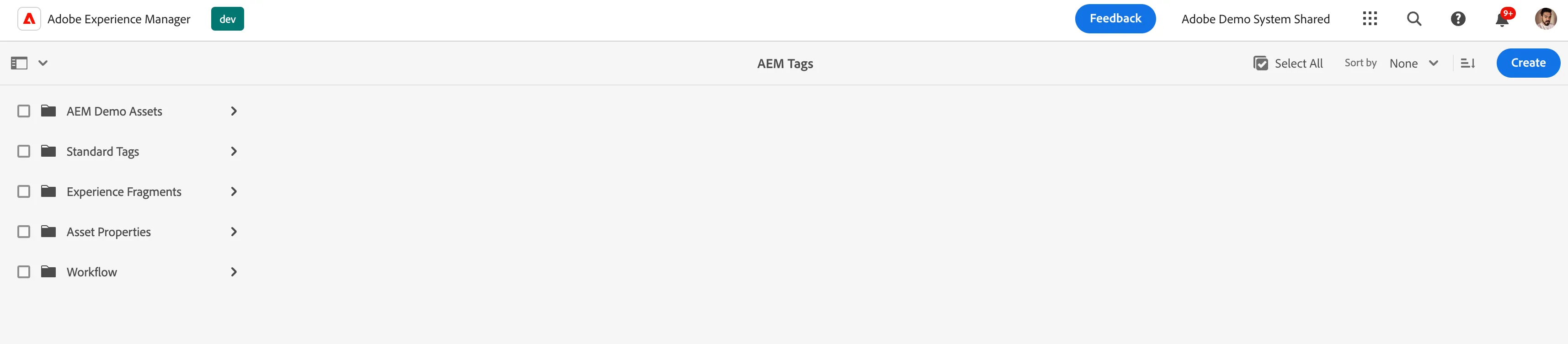
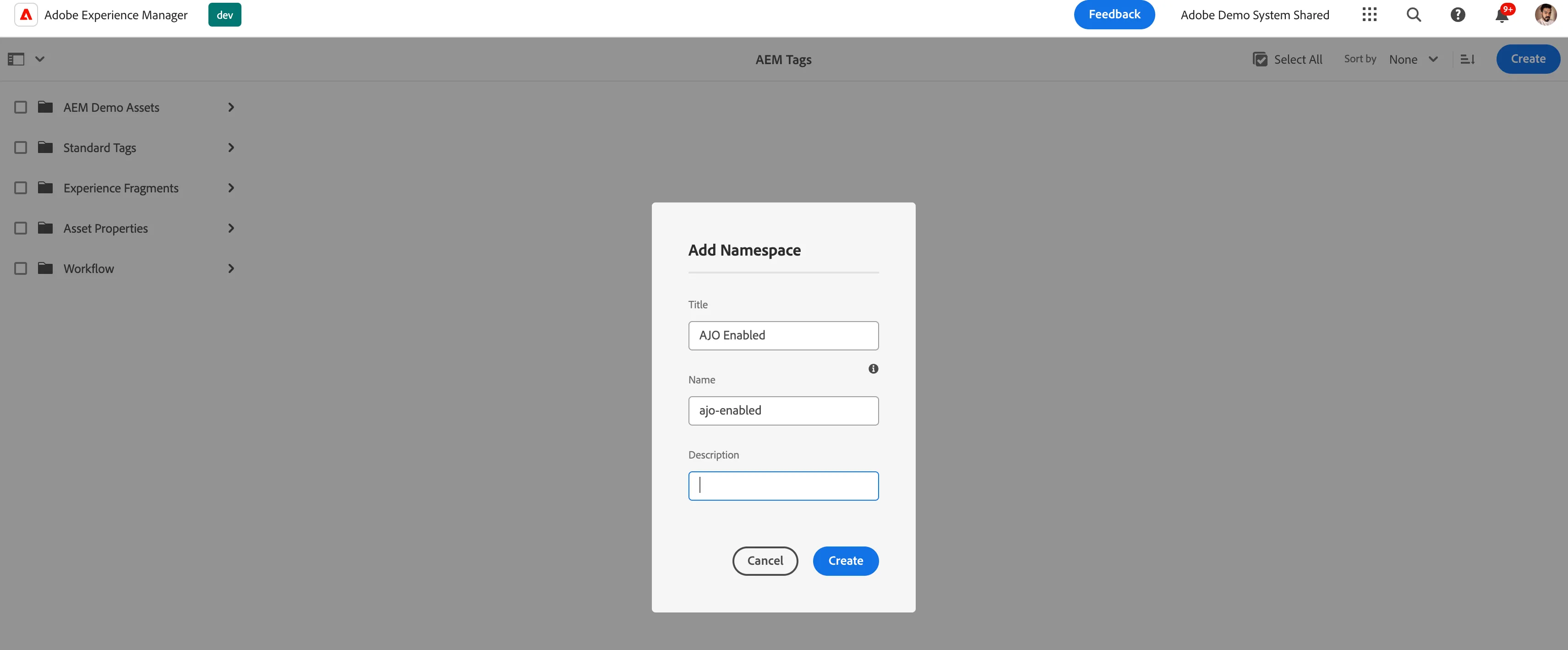
3. Click on Create > Create Namespace. Give the title "AJO Enabled"(Do not Change Name) you will see the Name field already created and add a short description.
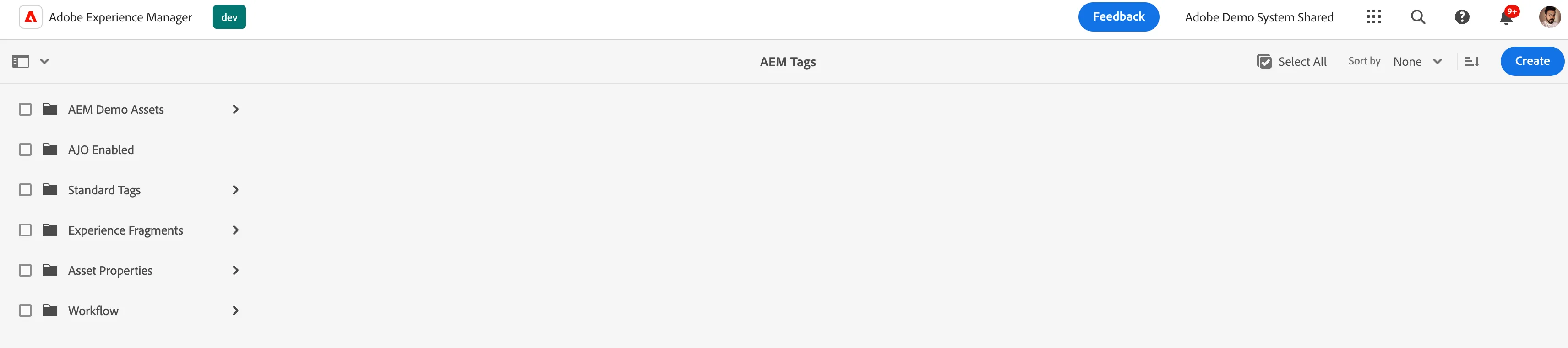
Click on Create and you will see the namespace created in the left rail.
4. Select the namespace by clicking on the checkbox against it and a top bar appears click on Create Tag.
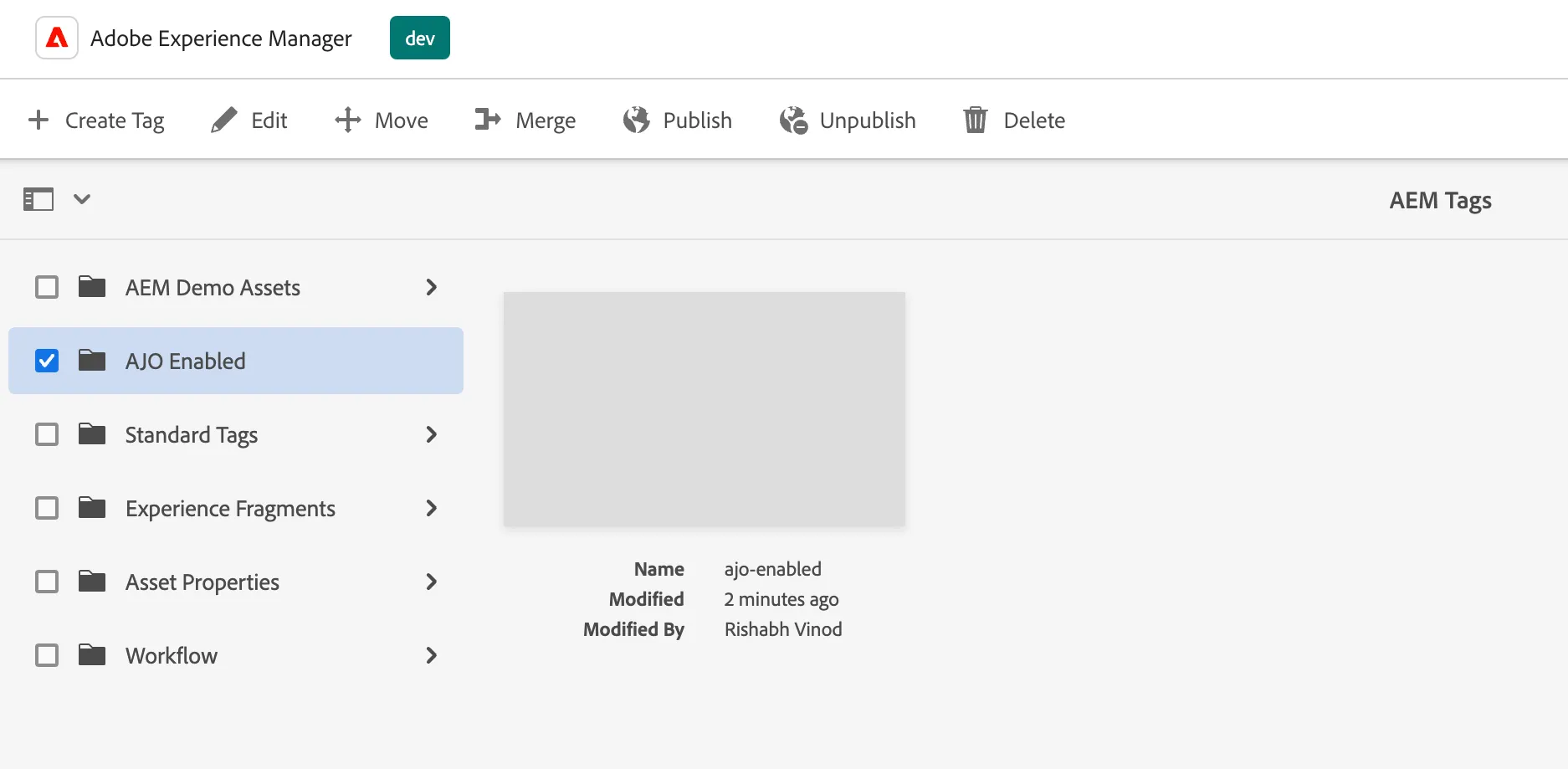
5. Before this step, have AJO Org ID and Sandbox name handy. Now this is the most important step for this integration a form will appear for creating a tag with a Title, Name, and Description.
In the Name field put your AJO-OrgID/AJO-Sandboxname (Do not change the format).
Example:- For ADSS Org and Prod Sandbox we have - 0E061E2D61F93F260A495FD6@AdobeOrg/prod
In the title field, you can give a friendly name to identify the Org and Sandbox and give a short description.
Example:- ADSS Prod
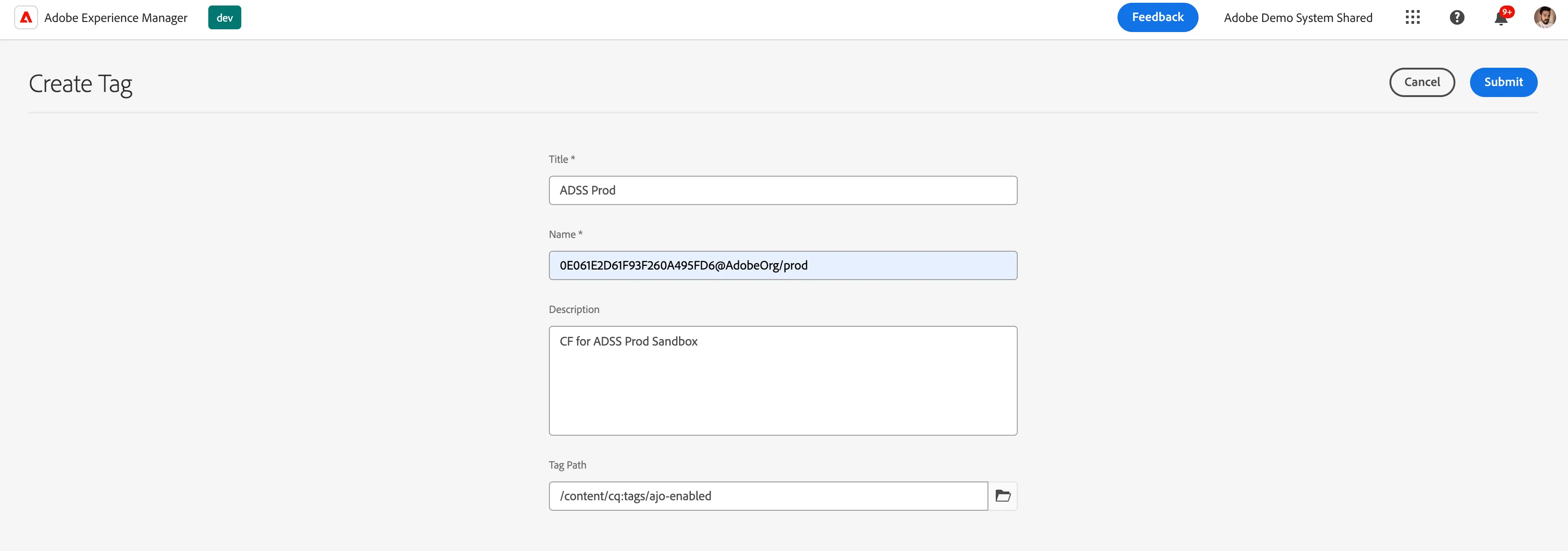
Click on Submit and a tag will be created and your AEM and AJO instances will be integrated for Content Fragments.
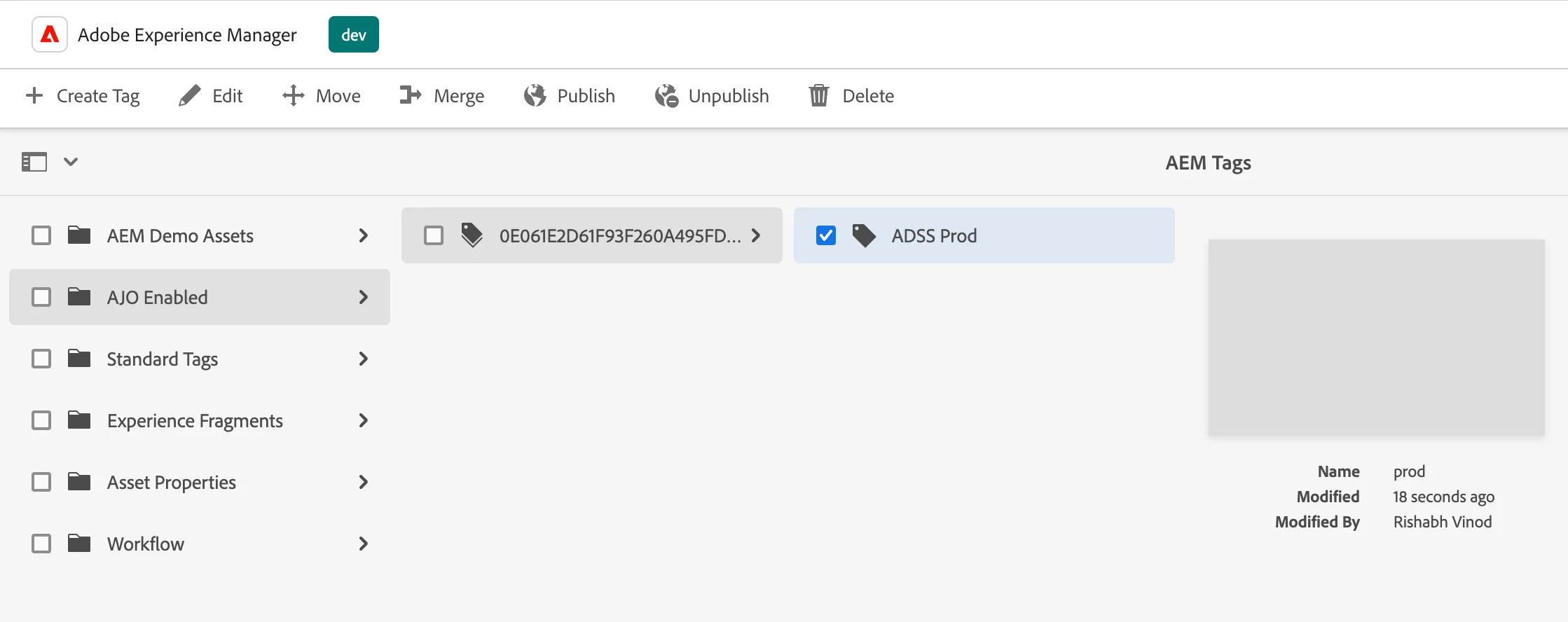
Linking Tags and Content Fragments
- Go to Content Fragments in AEM
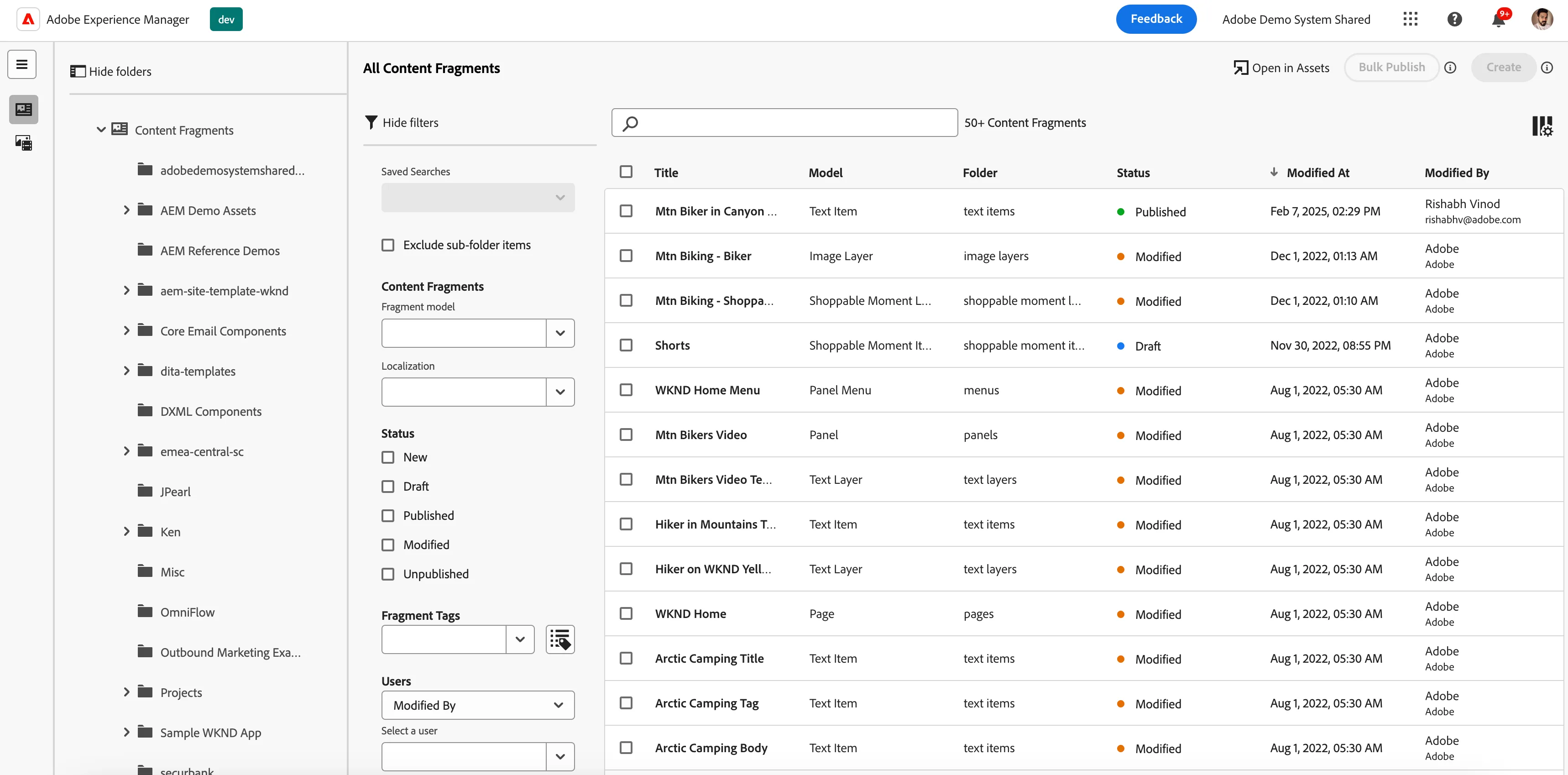
2. Select your Content Fragment open it and apply the ajo-enabled tag to it by clicking Save.
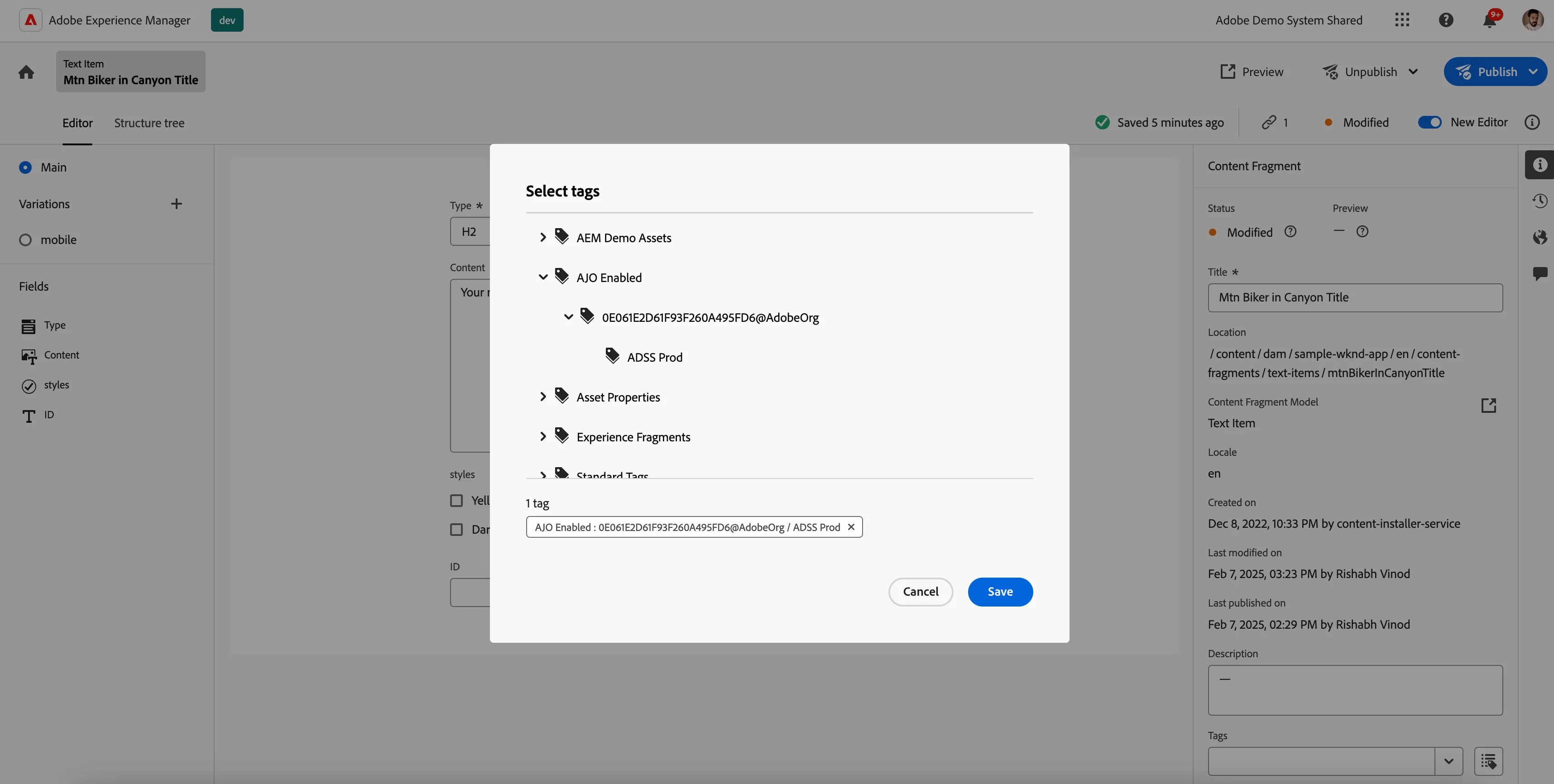
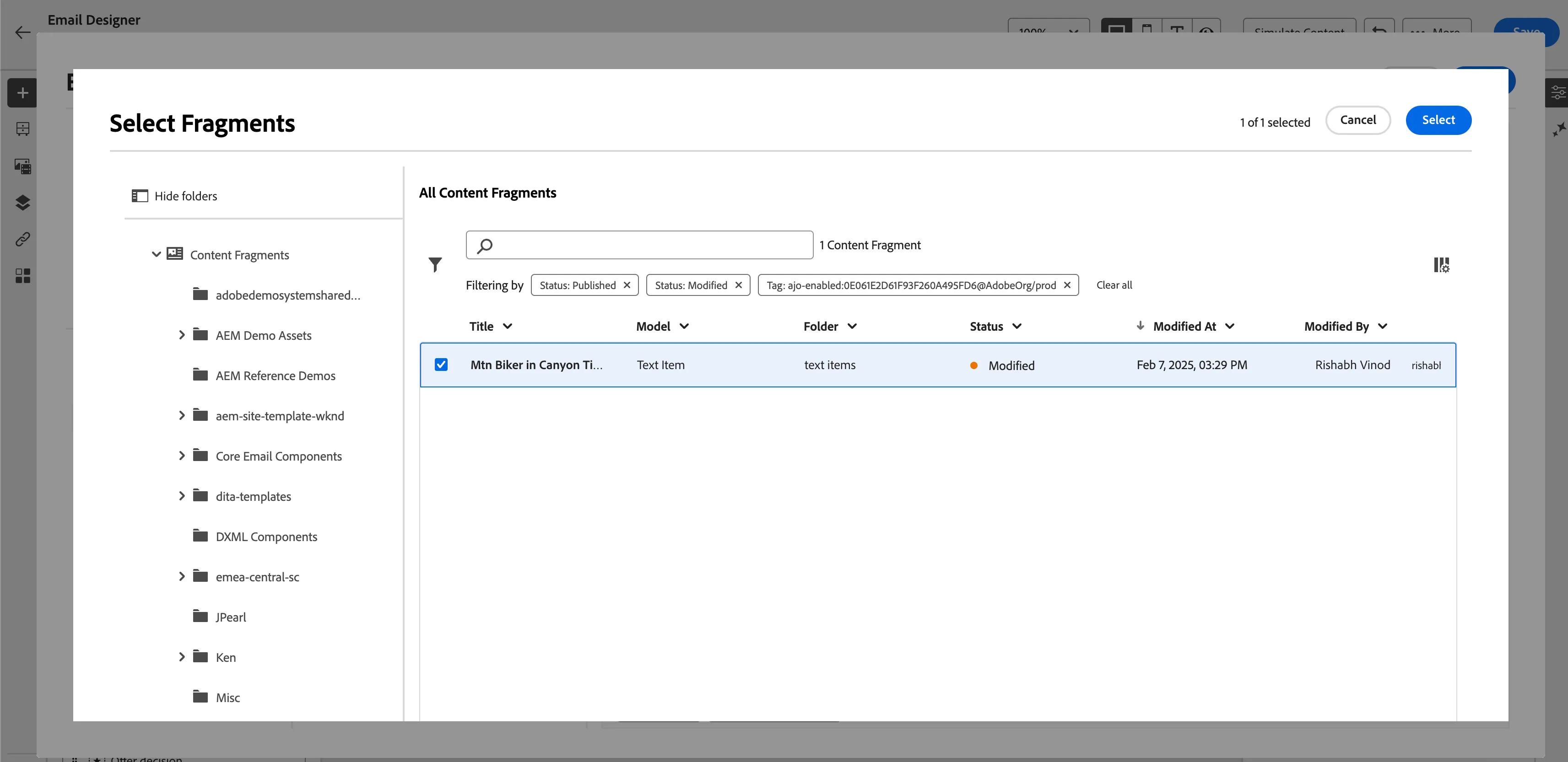
3. You can go to the Content Fragments menu and filter by ajo-enabled tag and you will see your content fragment in the list.
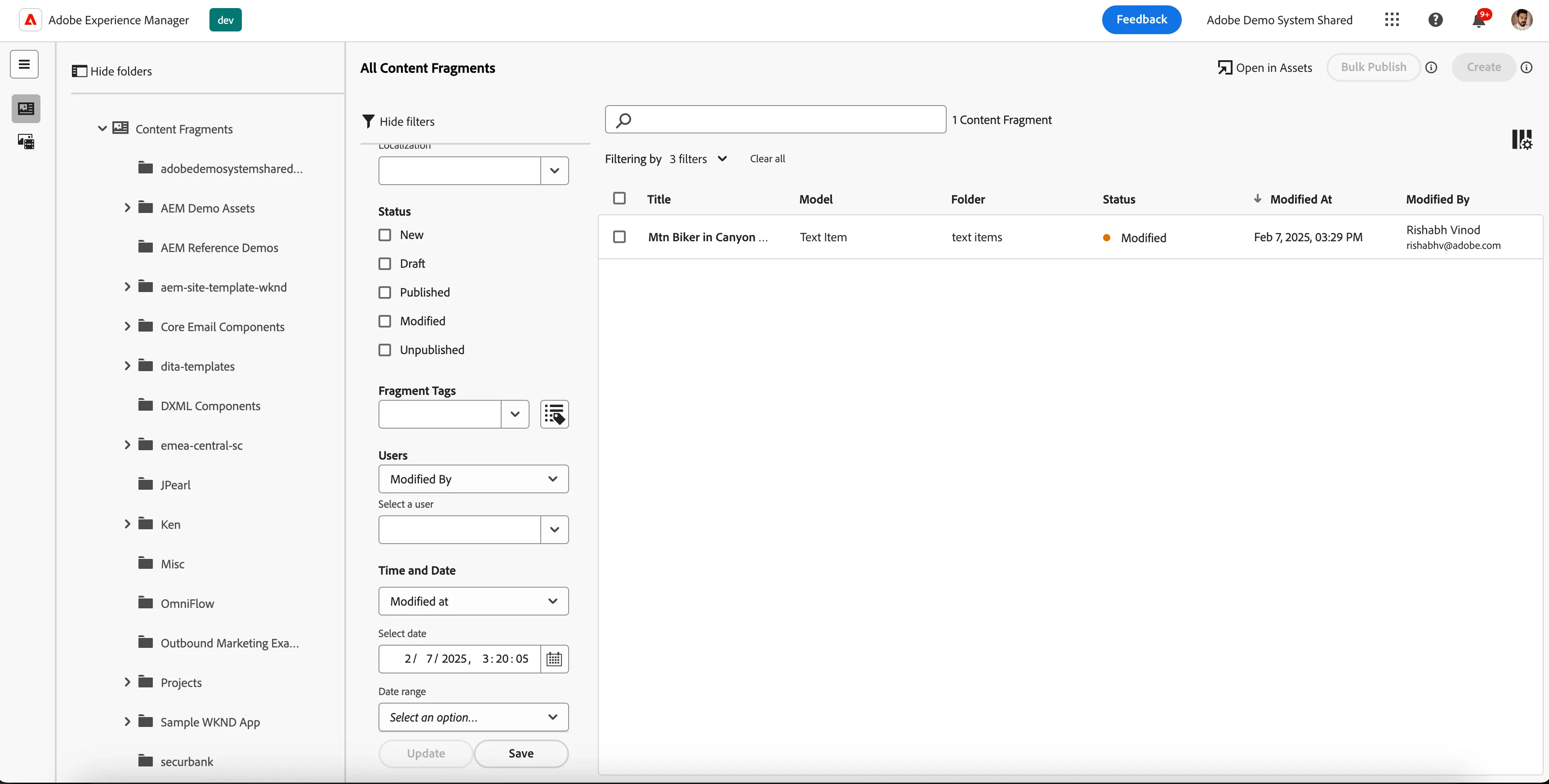
Utilizing AEM Content Fragments in AJO
- Go to your Campaign/Journey in AJO.
- Currently, this feature is only available for the Email Channel. Go to your email content and click on Edit Email body.
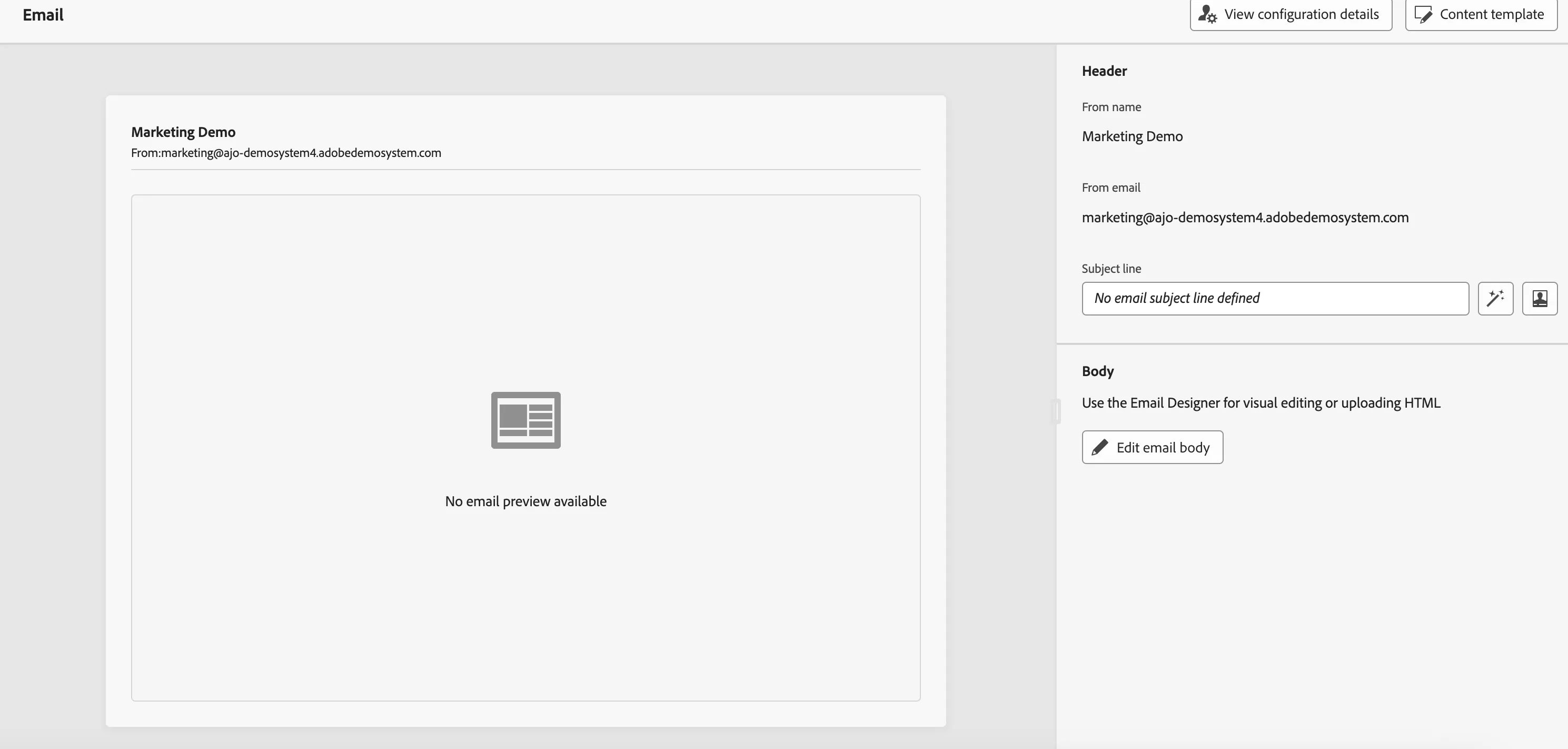
3. Then you can select either Import From HTML or Design From Scratch.
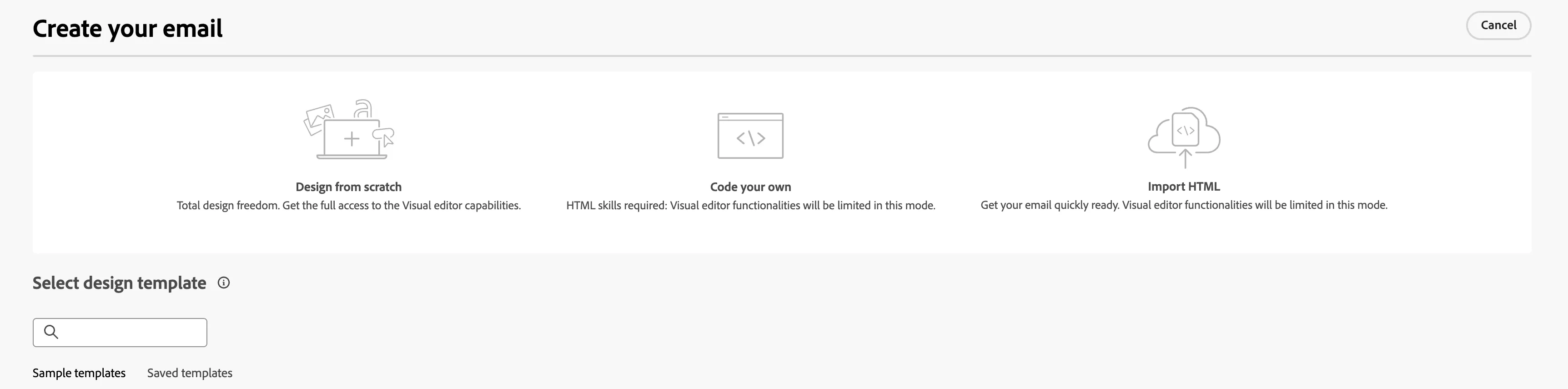
4. Select any of the above options(For Example Selected Design From Scratch) and drop a structure component and inside that drop text or HTML component. (For Example Selected HTML Component)
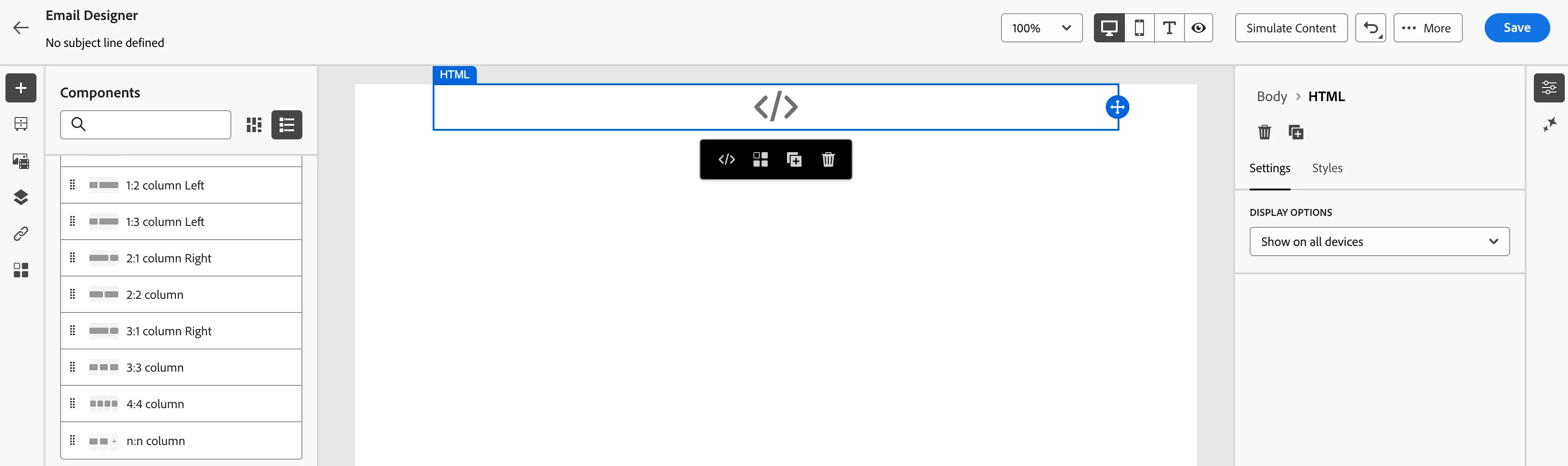
Click on the code block sign (</>) for the HTML Component or Personalization Sign in text component. You will see the editor opened with the AEM Content Fragment option in the left rail.
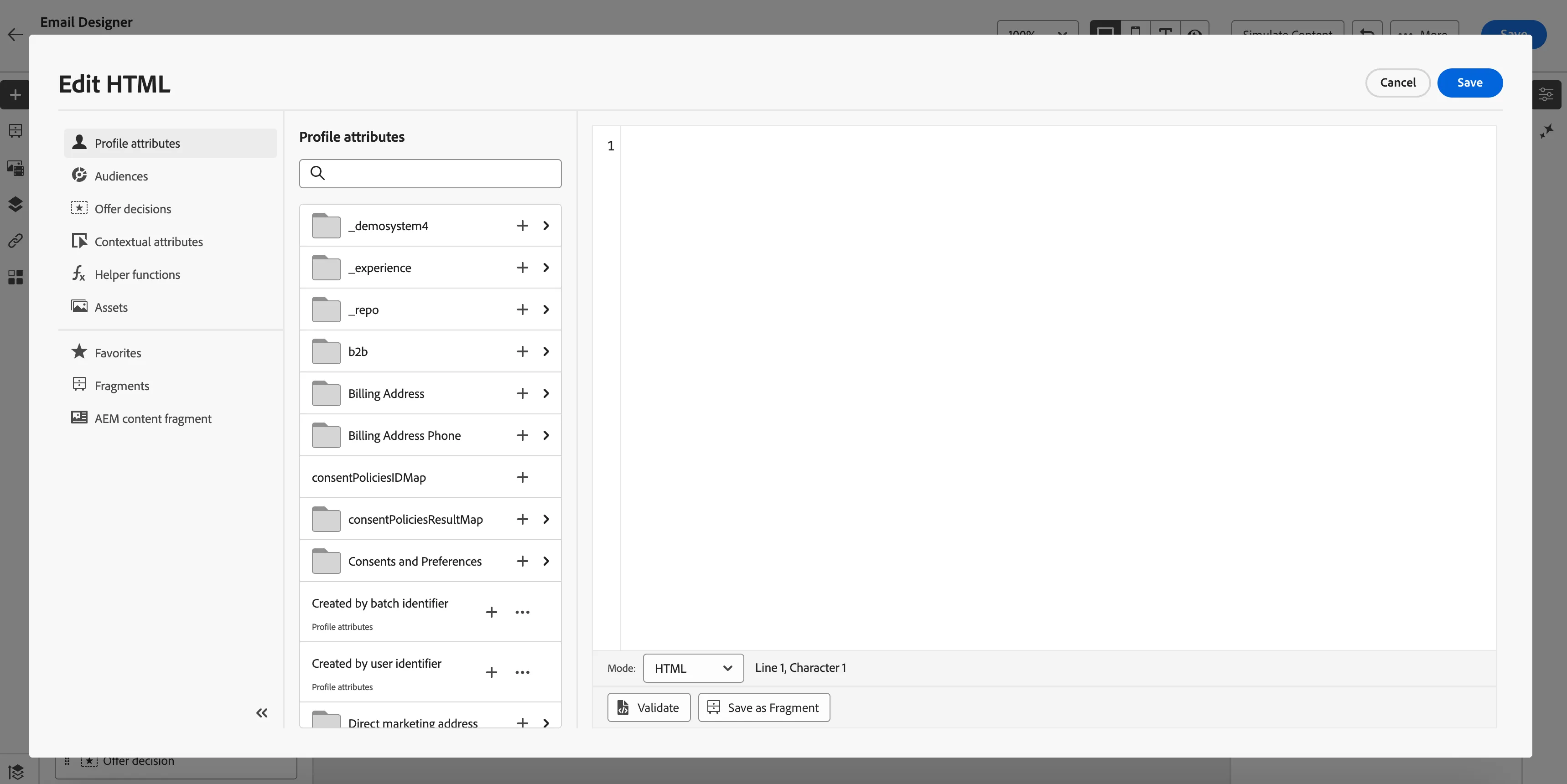
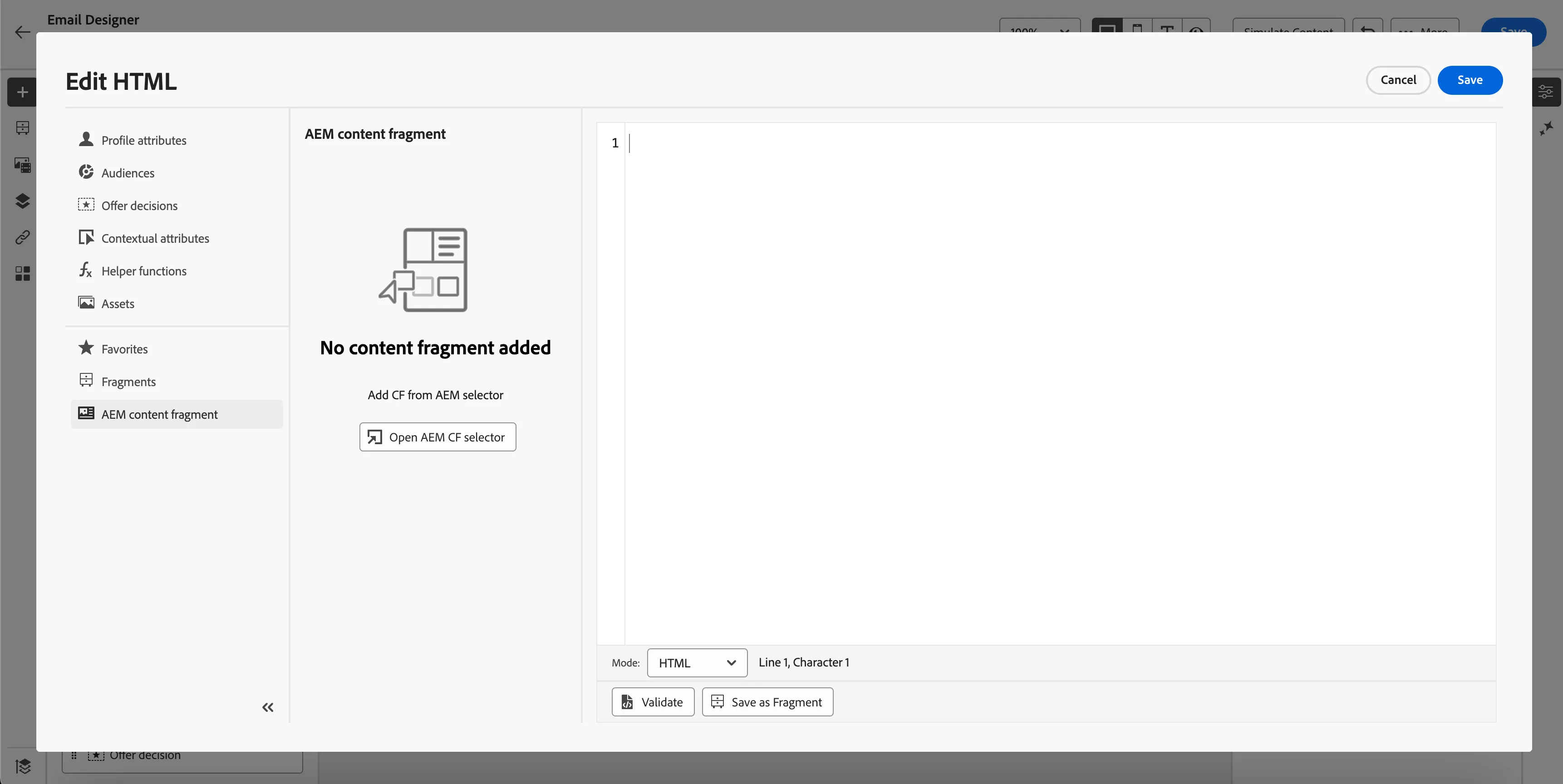
5. Click on the AEM Content fragment and click on the AEM CF Selector.
this will open the AEM Content Fragment menu with your Content Fragment to select and utilize in AJO Emails.
Check out the existing Content Fragment Created for Public Projects and steps related to create Content Fragment in AEM AEM Content Fragments in AJO For Luma, Securfinancial & Bodea
NOTES
- Apply Single Tag: Always apply only one ajo-enabled tag to a Content Fragment. Multiple ajo-enabled tags with different Org IDs/sandboxes are not supported.
- Currently, this feature is only available for the Email Channel.
- Please follow the tag structure and namespace convention strictly as per the Document.
- A content fragment is just a JSON with a key-value pair provided to AJO. So the images coming from assets don't have full path. We created a data type extension in all Content Fragments and assigned them publisher instance value(https://publish-p97303-e890303.adobeaemcloud.com) so a complete image URL is passed in AJO emails and to make the image render.