How to add a new Adobe IMS Org in Demo System Next
This page describes, step by step, the process of adding a new Adobe IMS organization in Demo System Next.
Prerequisites
- You need to be the System Administrator of your Adobe IMS organization
- Your IMS Org needs to be provisioned with all the required AEP applications (RTCDP, AJO, CJA, Target). If your org does not have these products enabled, please submit a Demo Environments & Tool Assists request through here.
Key Steps
To add your Adobe IMS Organization in Demo System Next Tools, you will need to perform the following key steps:
- Create an AEP Product Profile and a Role with the required permissions
- Create a new API Project in the Adobe Developer Console
- Create a new IMS Org in the Demo System Next Tools
- Add AEP Sandboxes to your Environments list
Step 1: Create an AEP Product Profile and a Role with the required permissions
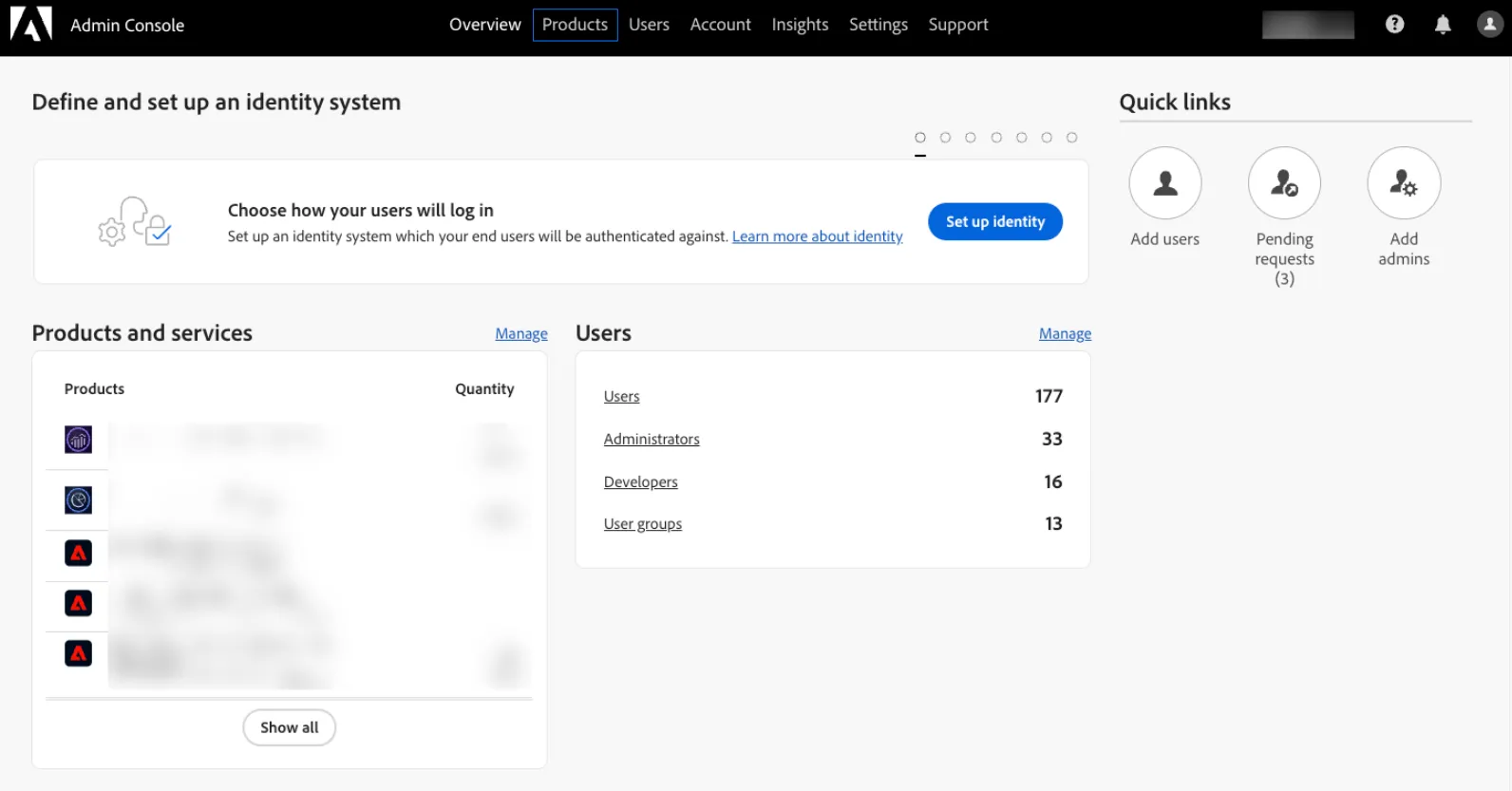
1. Open the Adobe Admin Console and click on Products in the top menu
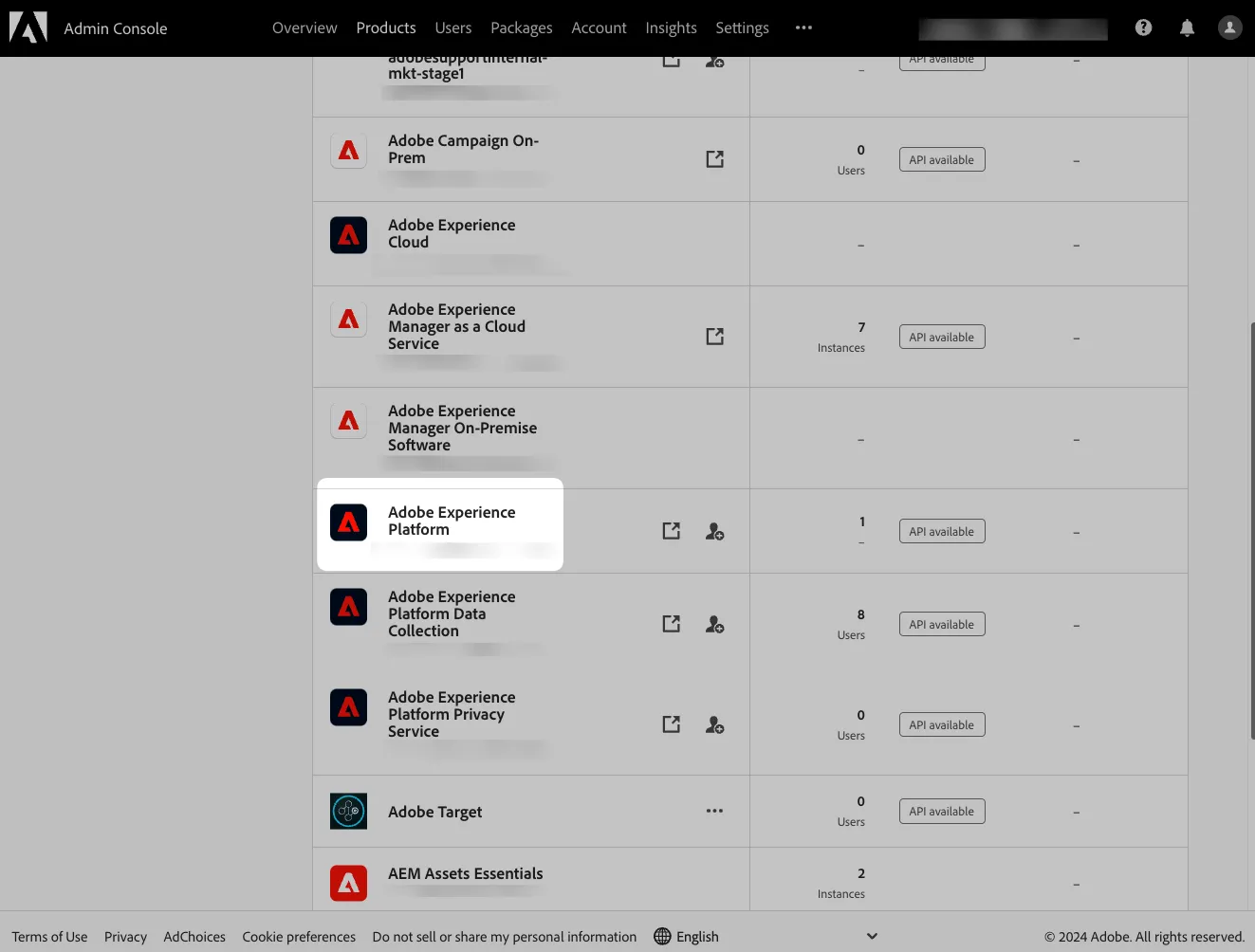
2. Click on Adobe Experience Platform
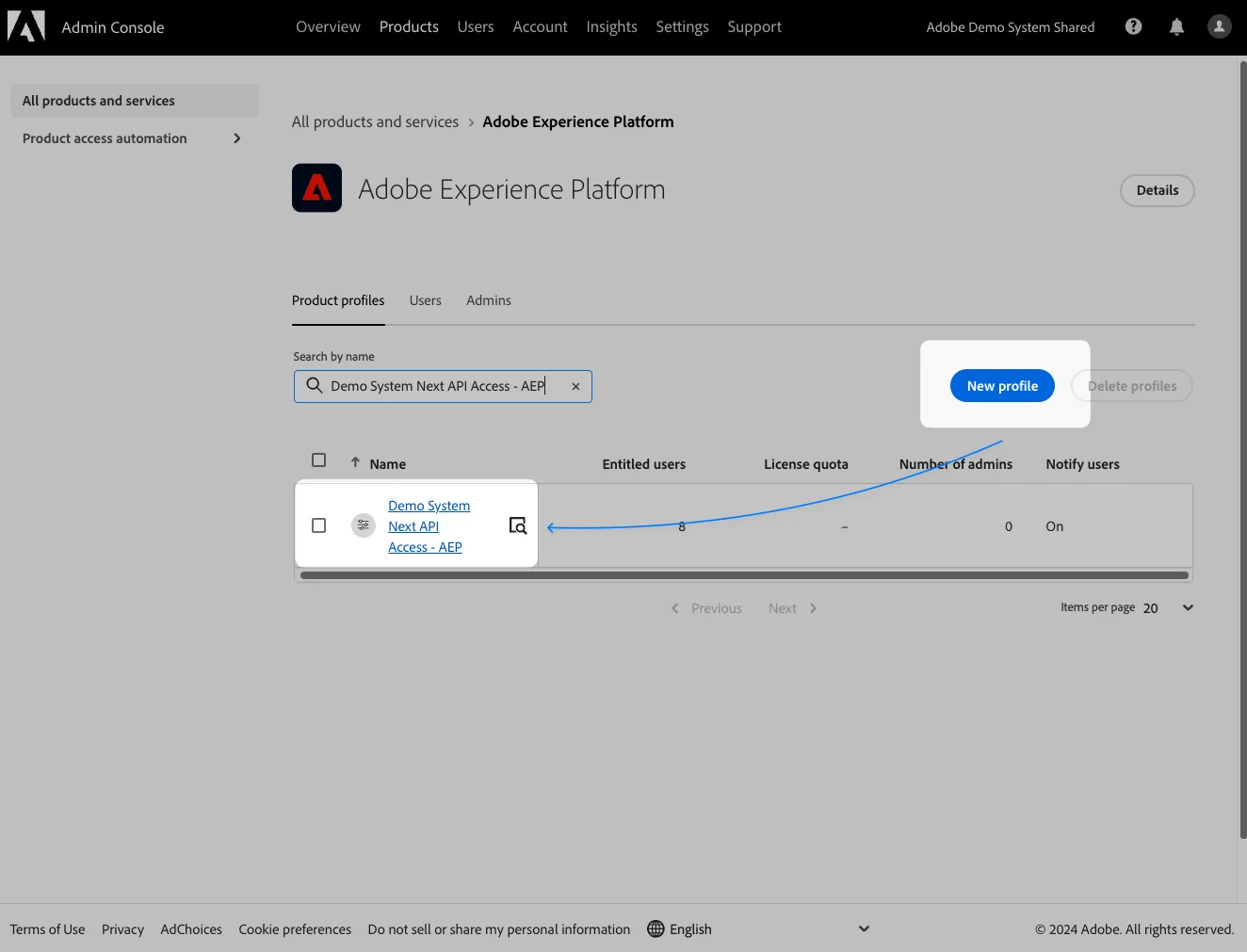
3. Create a new Product Profile Demo System Next API Access - AEP by clicking on New Profile
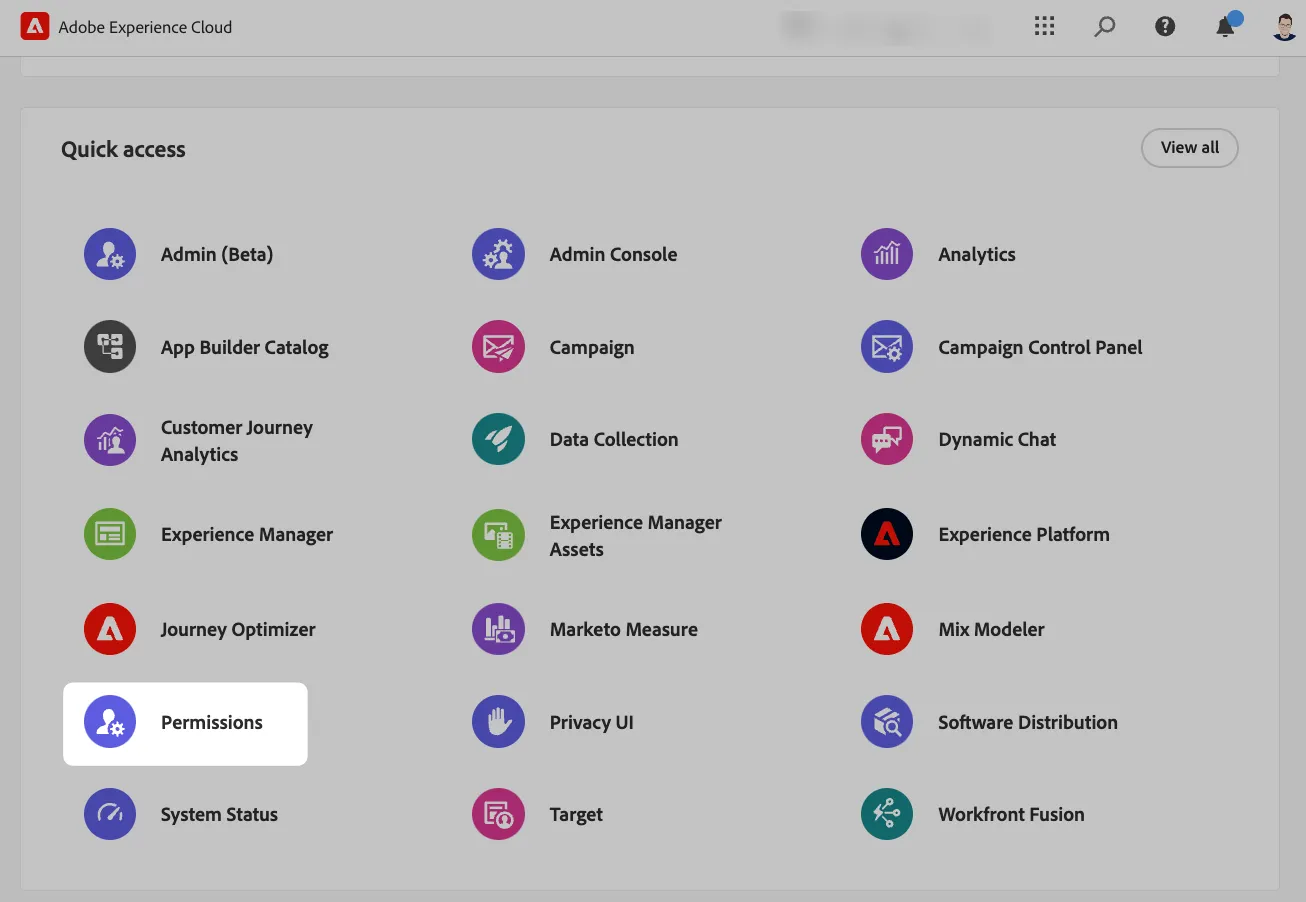
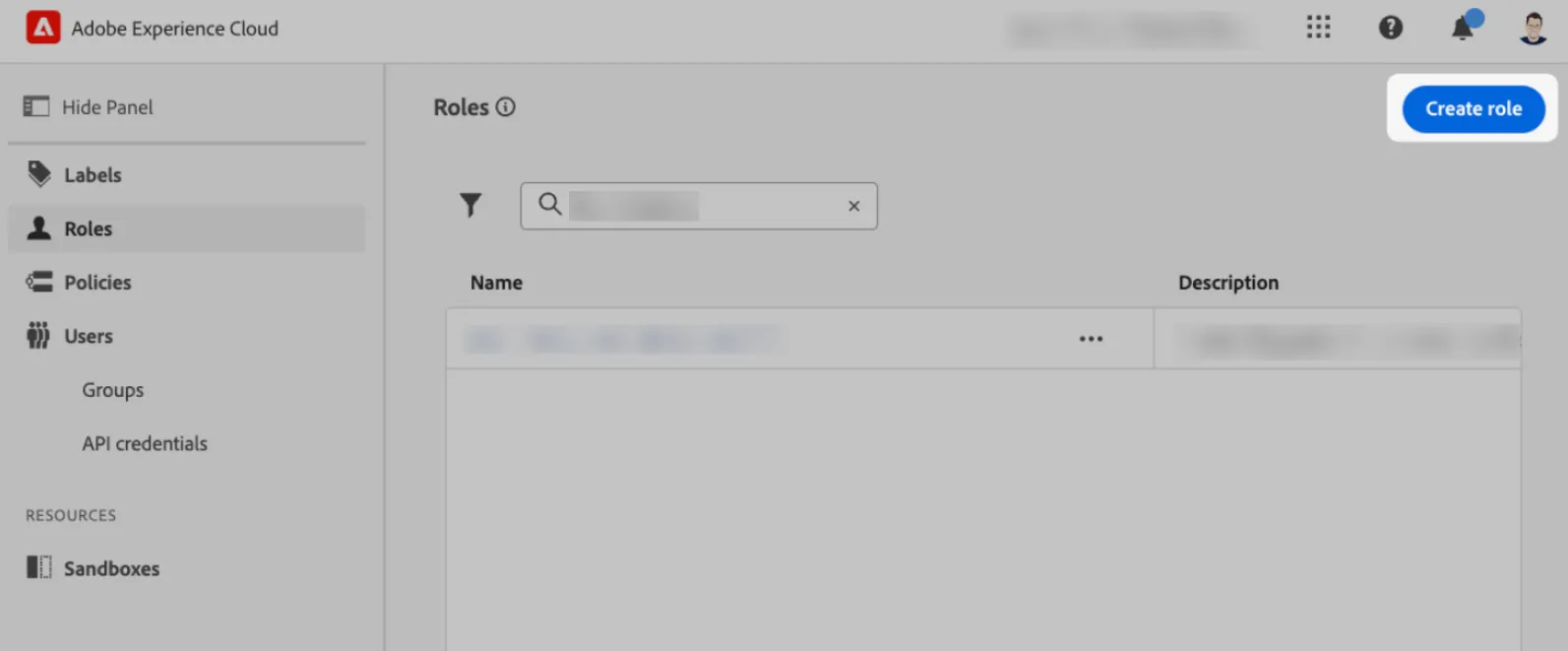
4. Open the Experience Cloud Home and click on Permissions
5. Click on the Create role button and enter the following details:
- Name: Demo System Next API Access - AEP
- Description: This profile groups all sandboxes that should be accessible by Demo System Next API
6. Edit the Role permission and add the Prod + other sandboxes that you need to connect to Demo System Next with all required permissions to manage AEP resources through the APIs e.g. Manage Schemas, Manage Datasets, etc.
IMPORTANT: Please add all the permissions on the left hand rail by clicking on all the '+' and select 'Add all' to populate all the values for each permission. Once all the permissions are added, make sure to click 'Save' on the top right corner.
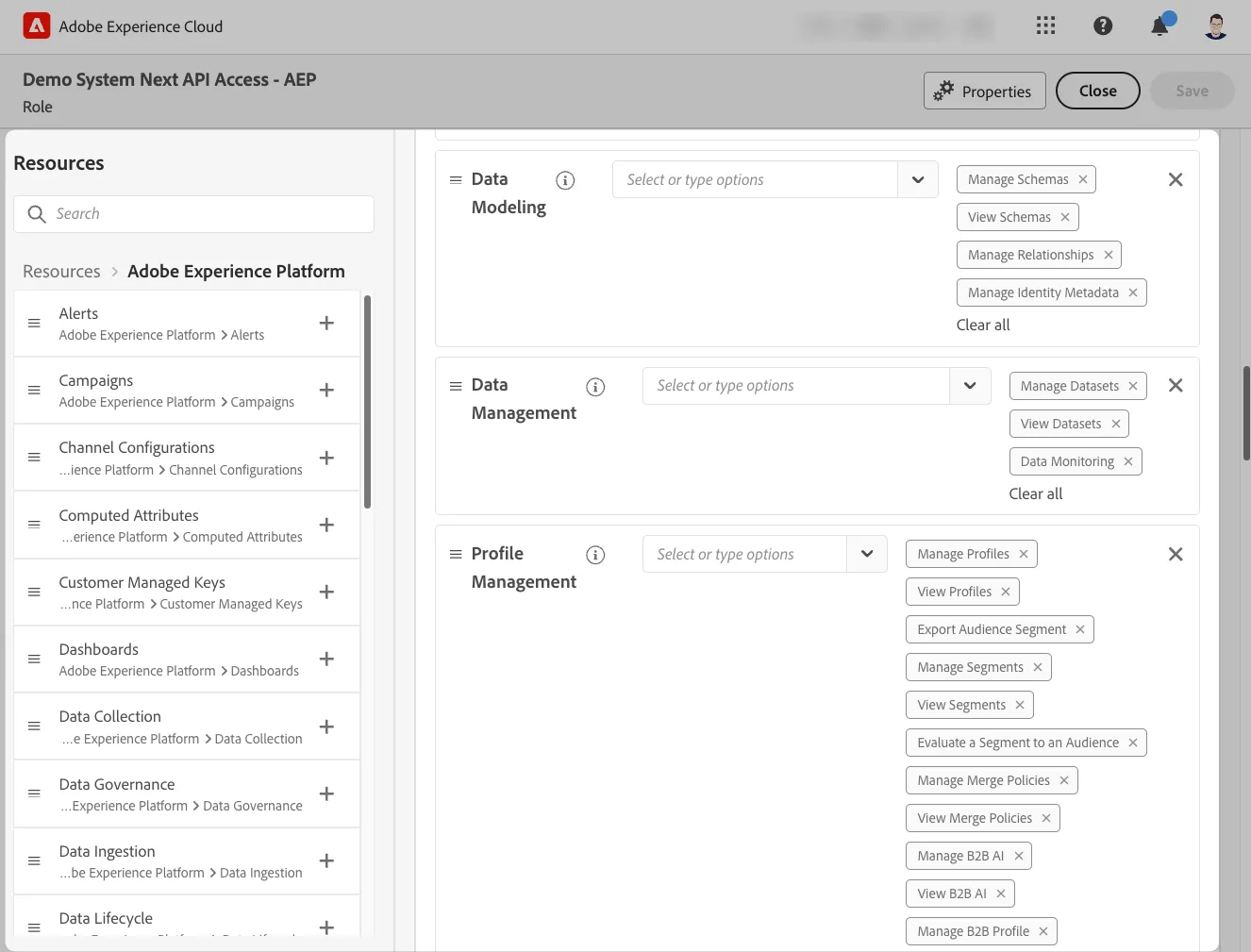
You have now configured the AEP Product Profile and the required Role permissions.
Step 2: Create a new API Project in the Adobe Developer Console
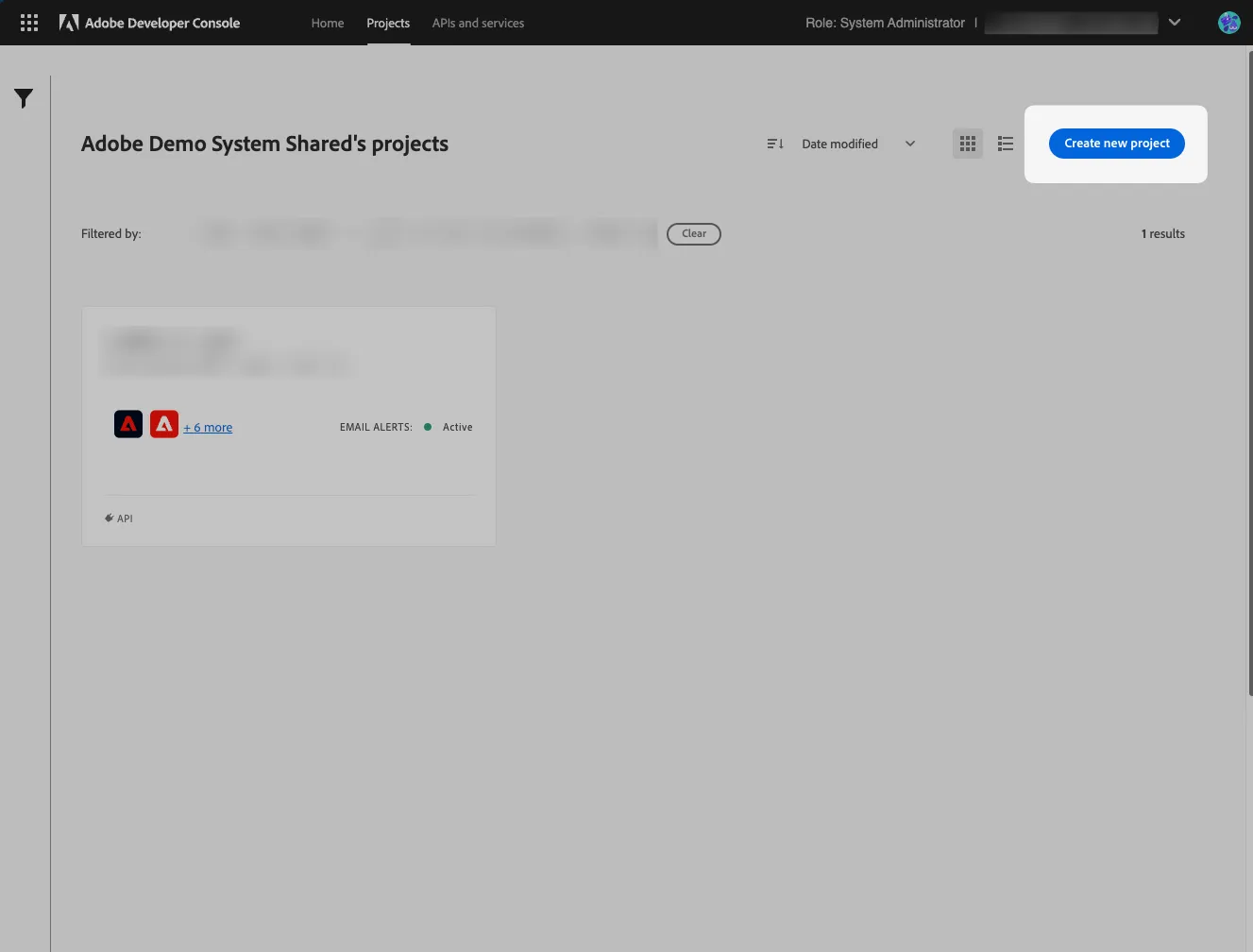
1. Open the Adobe Developer Console project view (make sure you are in the right IMS Org) and click on Create new project
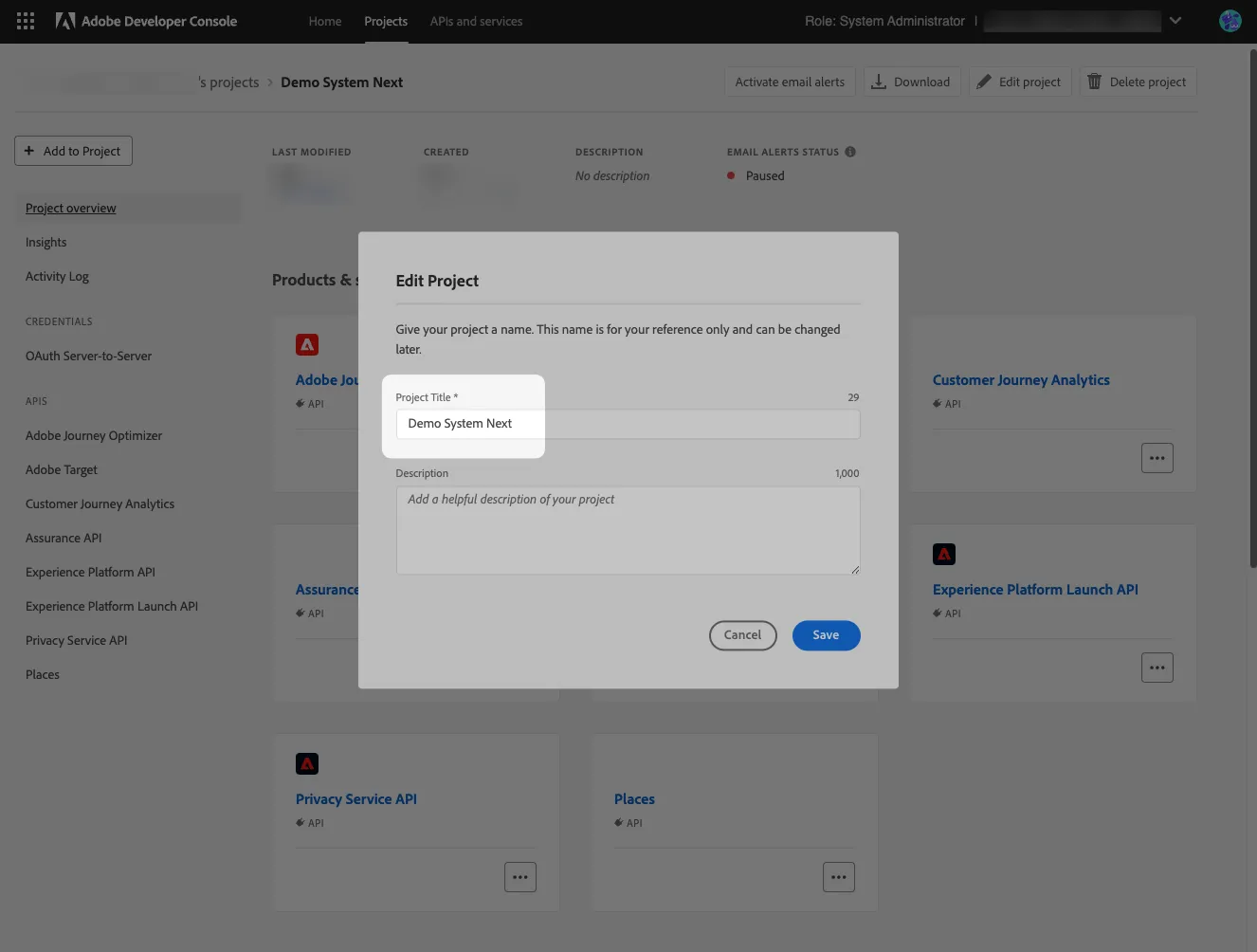
2. Edit the project to set the project Title to:
Demo System Next
3. Add the following APIs to the project using the Product Profile Demo System Next API Access - AEP:
- Experience Platform API
- Experience Platform Launch API
- Adobe Journey Optimizer
- Privacy Service API
- Places
- Assurance API
- Customer Journey Analytics
For each API, select OAuth Server-to-Server and all the product profiles to enable
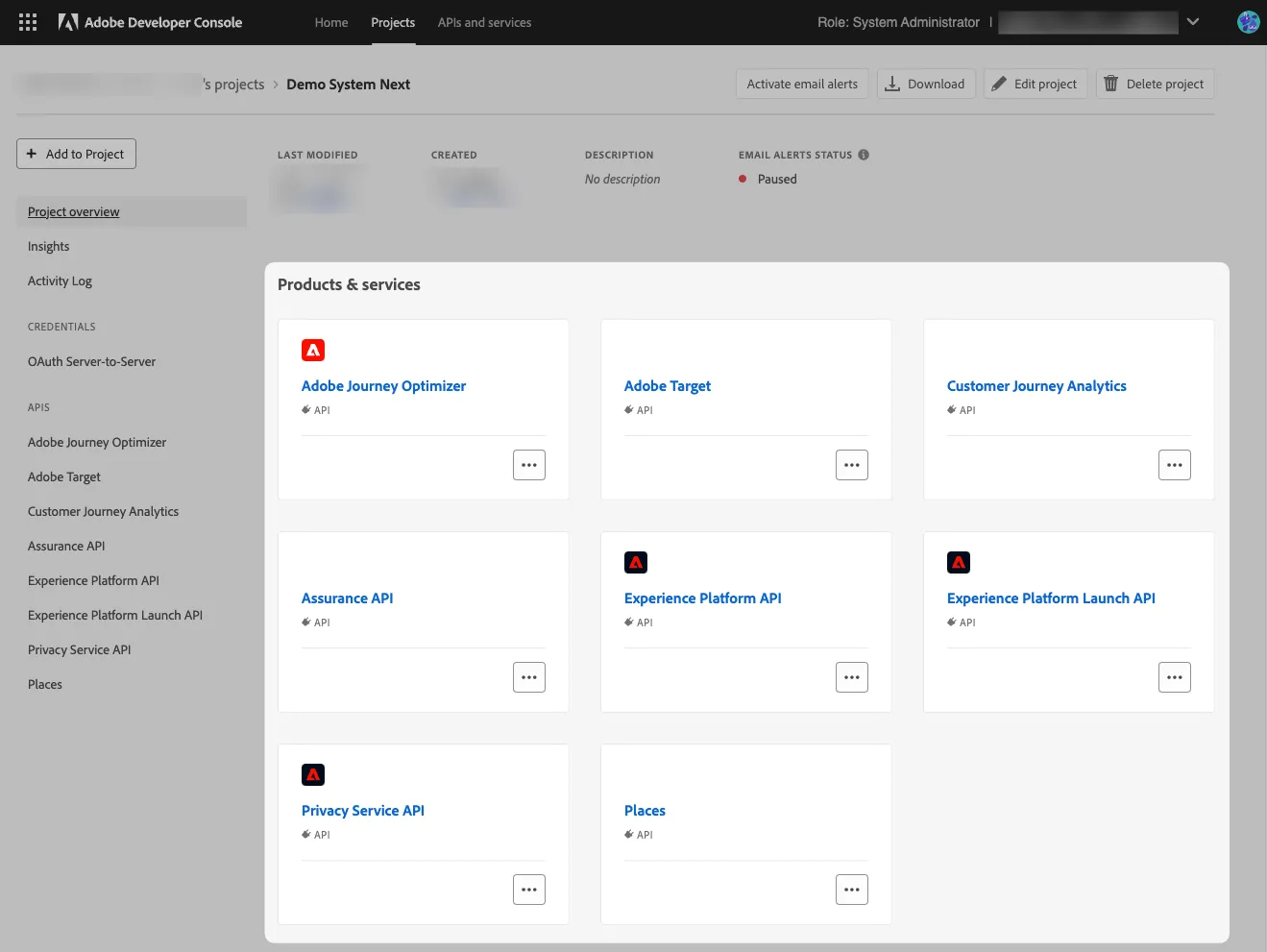
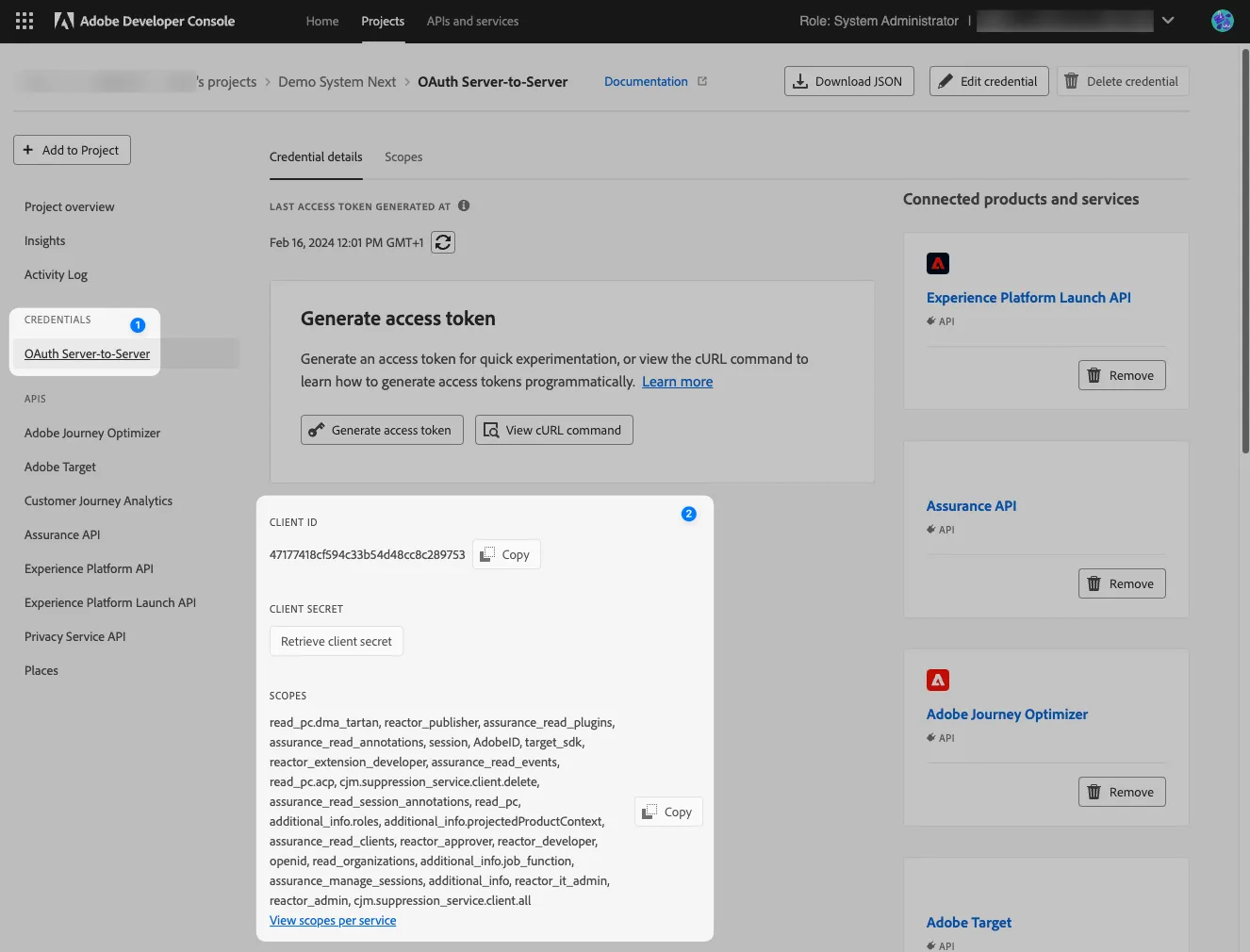
4. Click on OAuth Server-to-Server in the left menu and save the following credential details for later:
- Credential Name
- Client ID
- Client Secret
- Technical Account ID
- Scopes
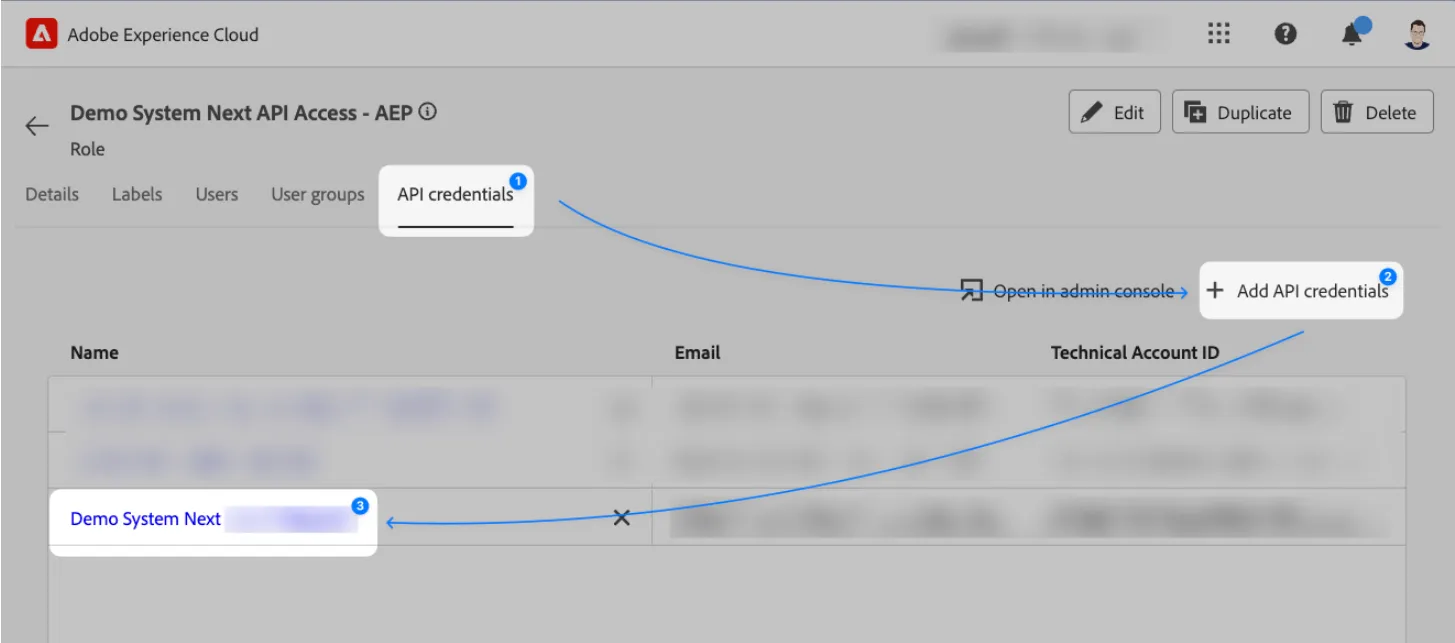
- Return to your 'Demo System Next API Access - AEP' screen within AEP. You should now add this new Demo System Next API Credential to the AEP Role > API Credentials:
Your Developer project is now ready for the Demo System Next integration.
Step 3: Create a new IMS Org in Demo System Next
1. Open Demo System Next Tools and click on IMS Org Admin
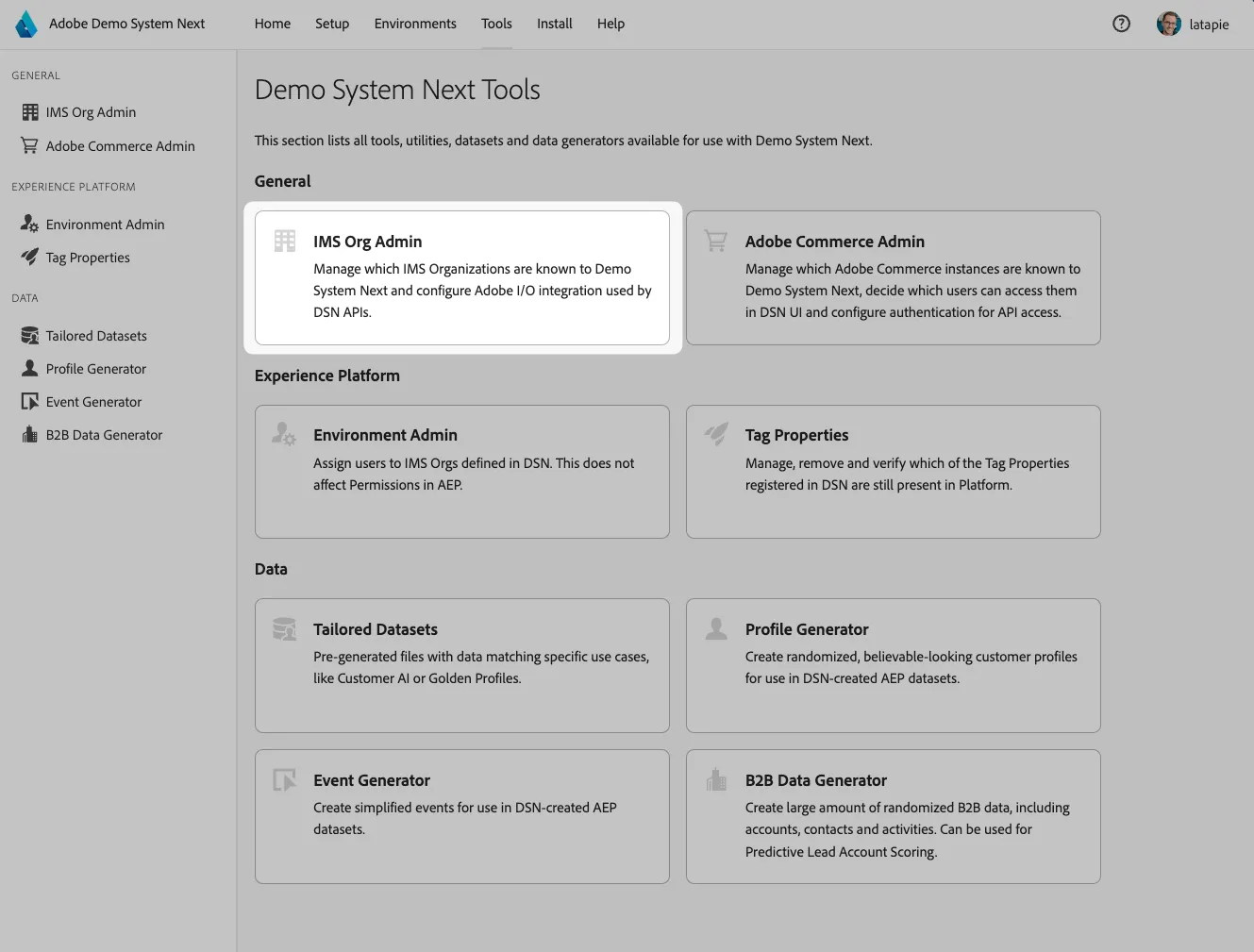
2. Click on Add Org
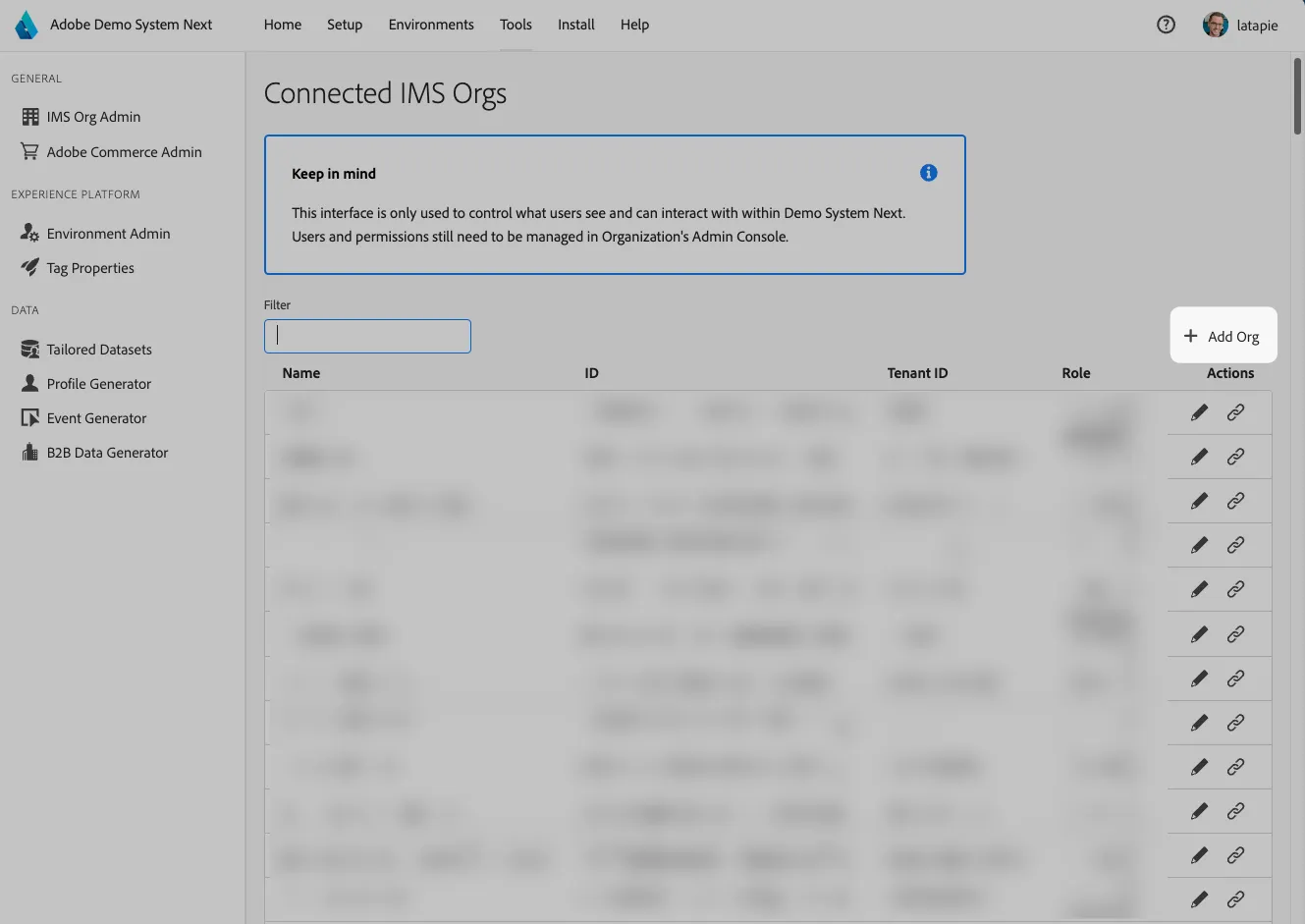
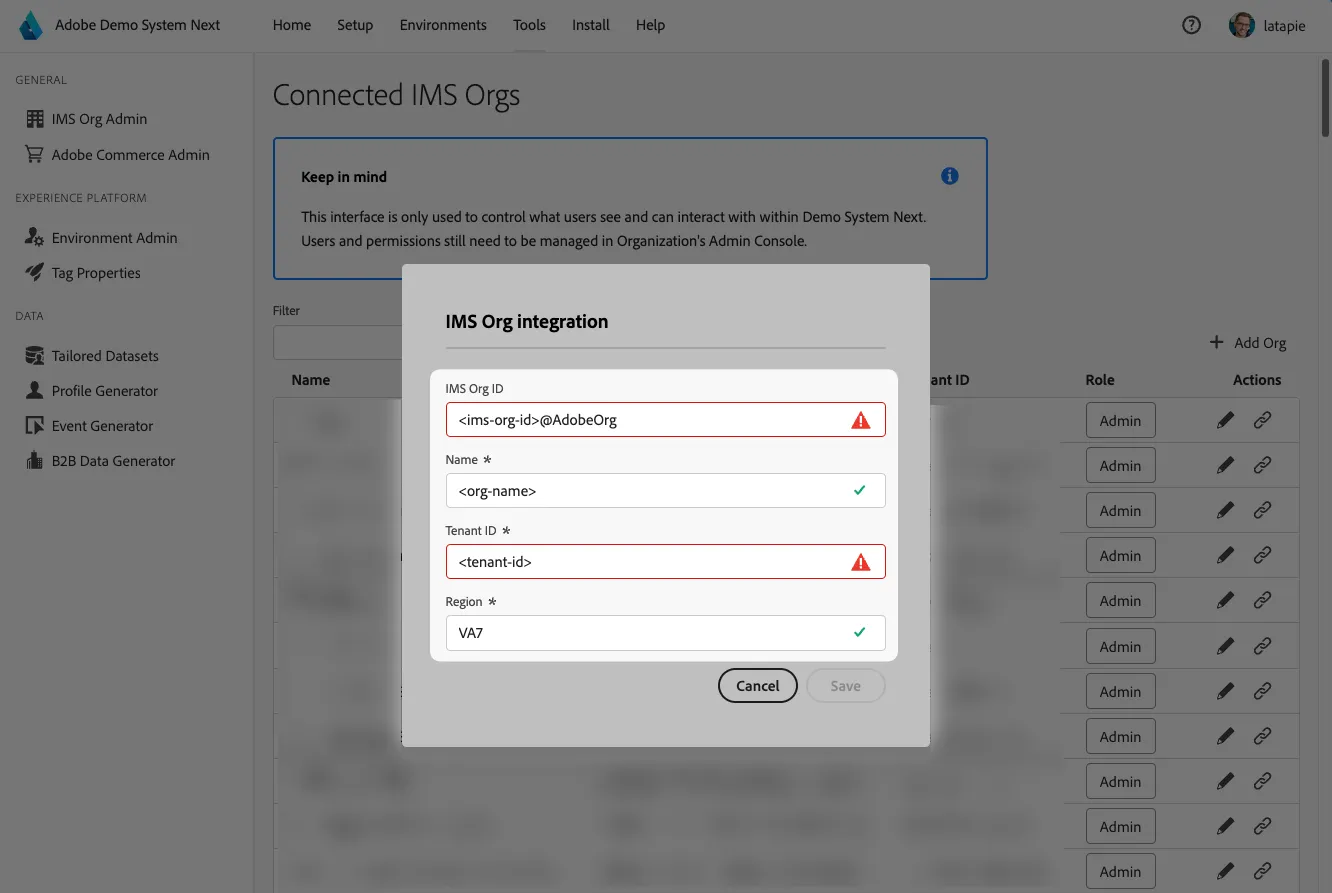
3. Enter the following details and click on the Save button:
- IMS Org ID
- Name
- Tenant ID
- Region
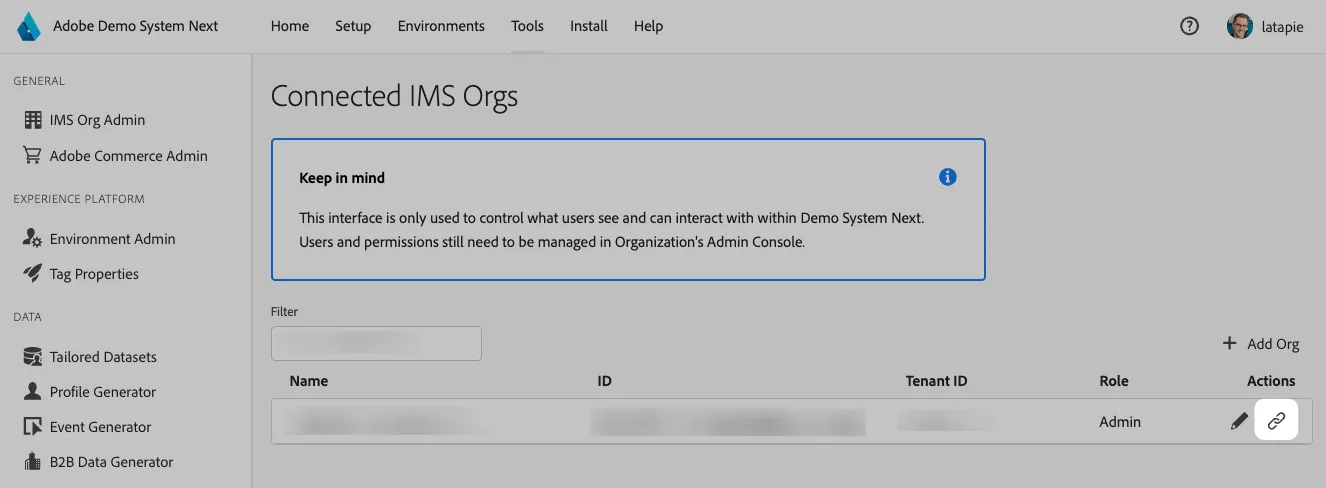
4. Click on the Actions button
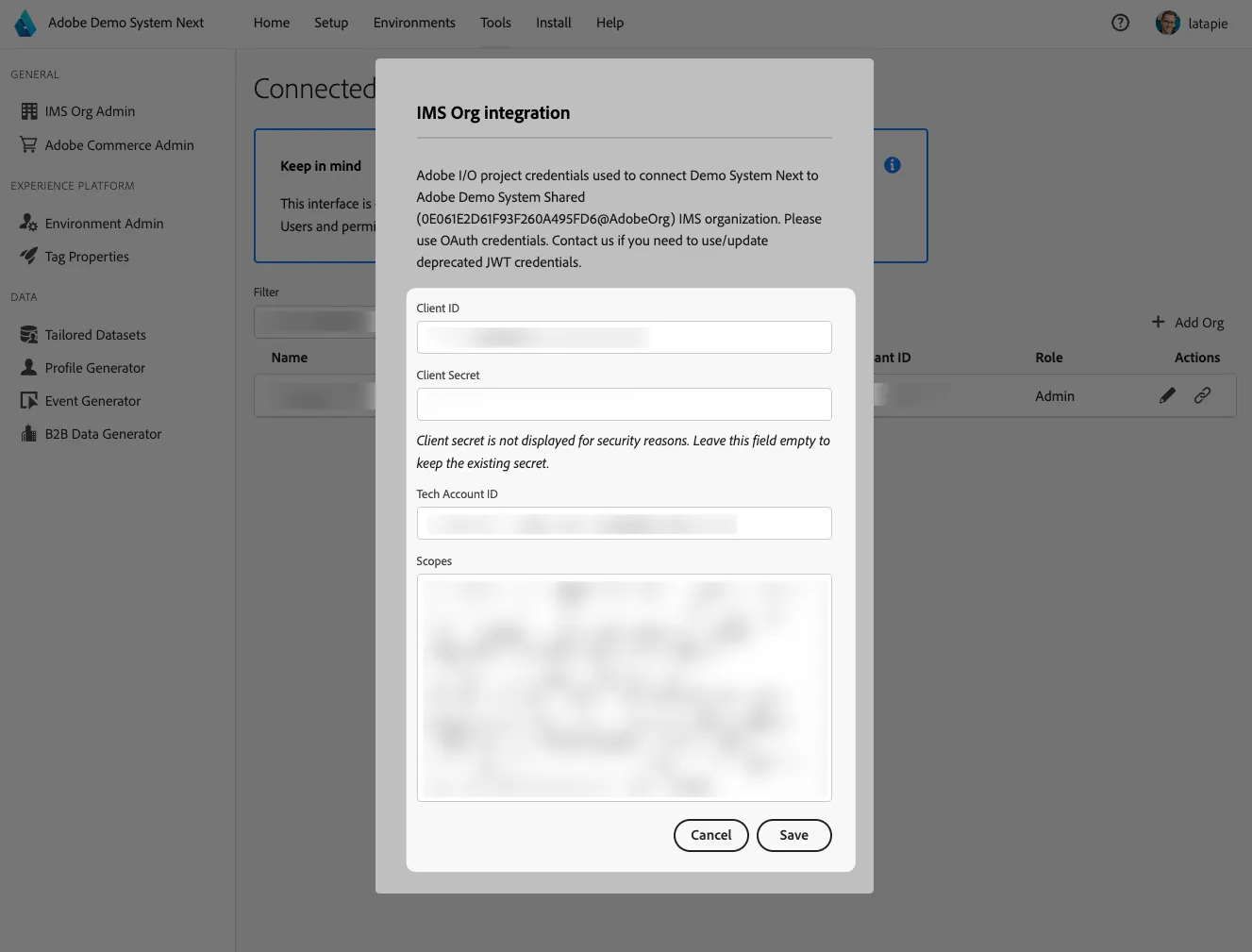
5. Enter the following Credential details copied earlier from the Adobe Developer Console and click on the Save button:
- Client ID
- Client Secret
- Technical Account ID
- Scopes
Your IMS Org has been added to Demo System Next. You can continue in the Environment Admin section to add AEP sandboxes to your Environments list.
Step 4: Add AEP Sandboxes to your Environments list
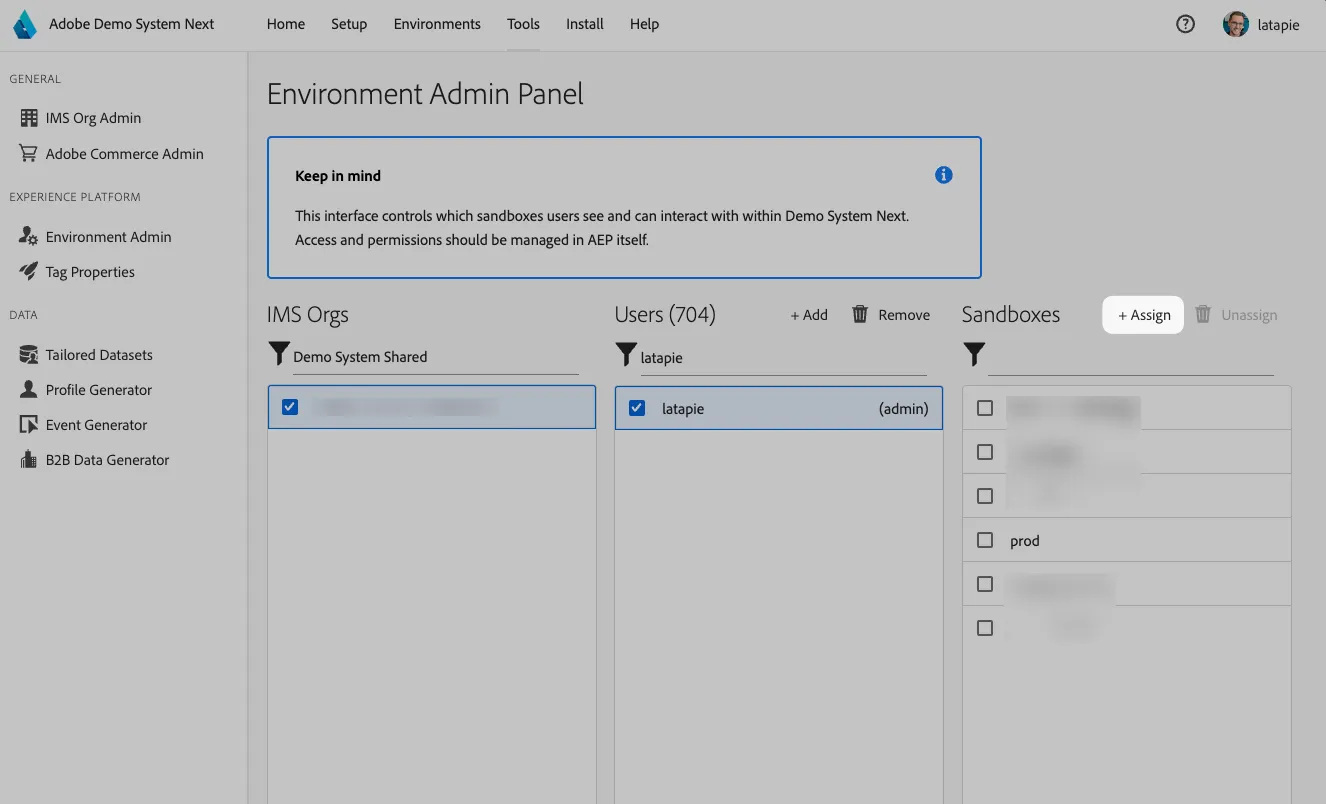
1. Go to Environments Admin using the left menu. Select an IMS Org, select your user then click on +Assign
IMPORTANT: Only one admin can be added per org from the Environments Admin page. If you would like to add multiple admins, please contact our team through #demo-system-next.
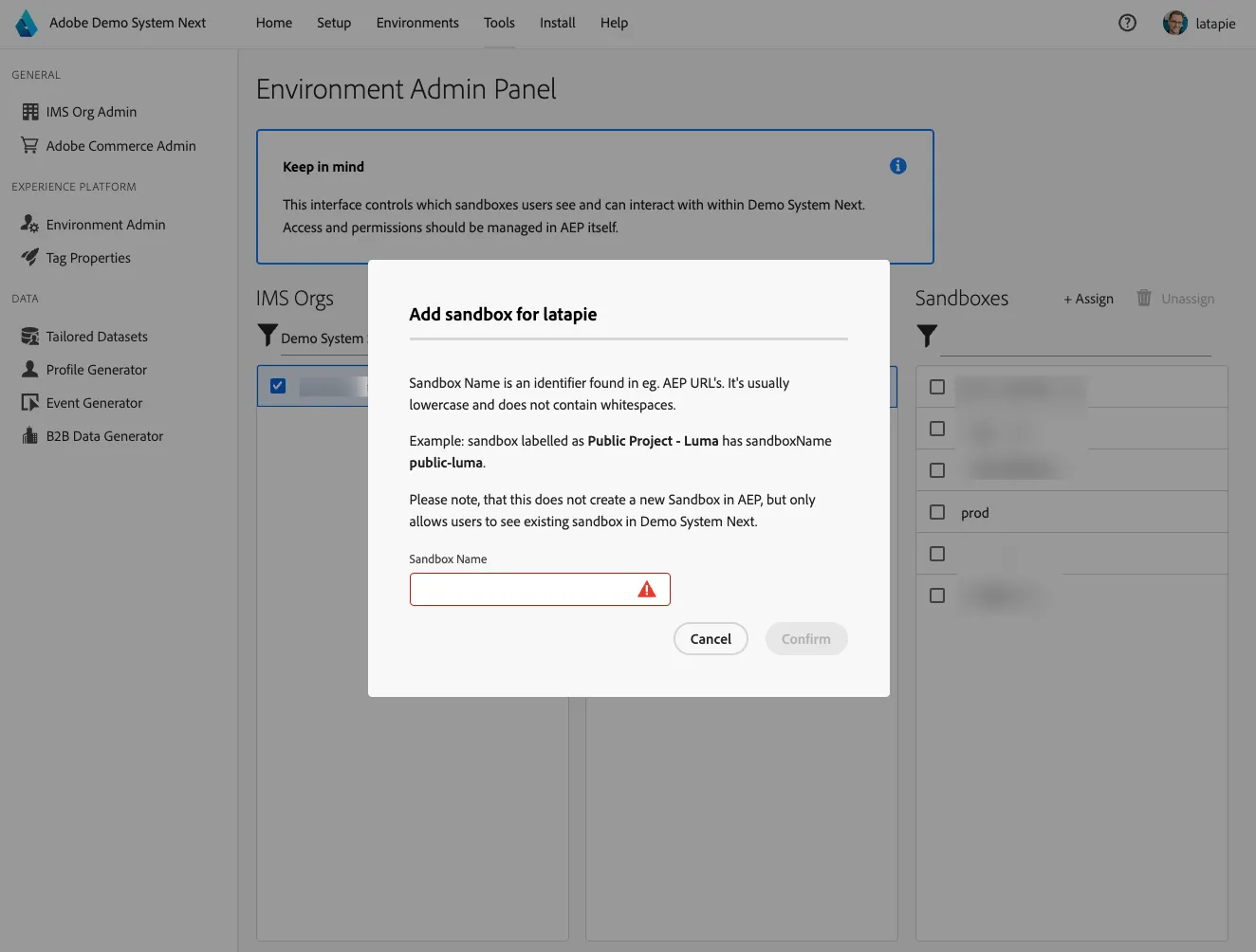
2. Enter the AEP Sandbox name and click on the Confirm button
3. You can now use DSN Quick Setup to deploy a new industry preset configuration on your AEP sandbox
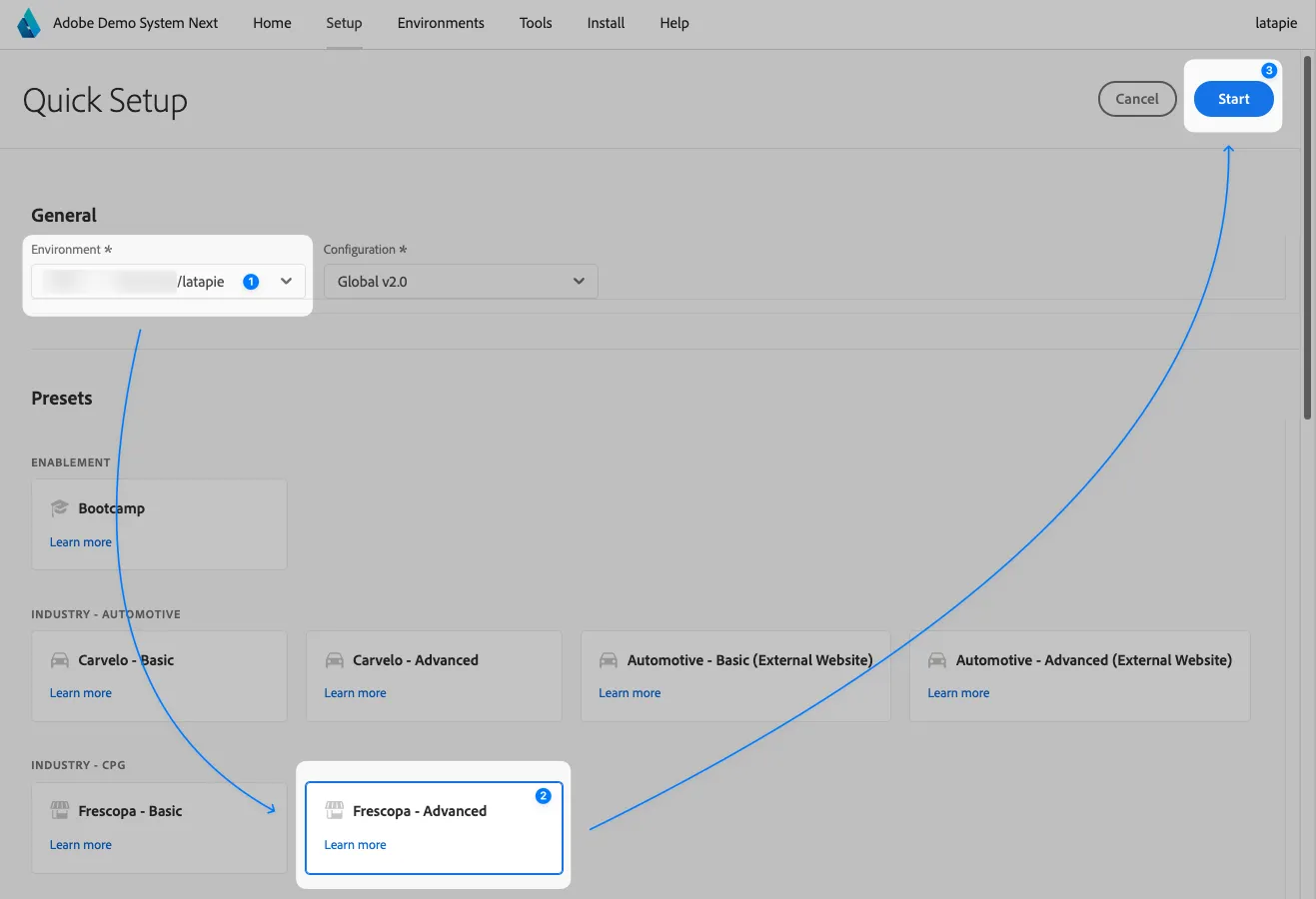
Congratulations 🎉, you have successfully onboarded a new Adobe IMS Org in Demo System Next and configured your AEP sandbox with an industry preset using the Quick Setup.
Troubleshooting
If you face an issue during the configuration of your AEP sandbox in Quick Setup, you should verify that the Demo System Next API Credential has been added to the AEP Permission API Credentials: