Improved Customer Support
Business Objectives
It is a high priority for Luma to provide a great customer experience. Important role in their strategy playing advisors, who are helping customers with their problems e.g. with purchase process and take care of after sales support. Luma has the branded call center and a dedicated website chat bot, with which their customers can interact to fail a complain, ask for advise or inform about a problem.
Prerequisites
- Create an account on the Luma website
- Purchase any product
- Log in to the Luma mobile app project with the same email as used on the web
Scenario
Use a new incognito browser session to start with a fresh ECID and make sure your profile won't be merged with a previously created profile.
After a successful purchase, Alice receives her product: Juno Jacket. The package was damaged and so was the Jacket. Alice decides to file a complain. She visits Luma website to learn how to do that and starts interacting with Luma chatbot.
Go to the Luma website and open chatbot by clicking the icon in the bottom right corner.
(All instructions in green are actions for the demonstrator to perform)
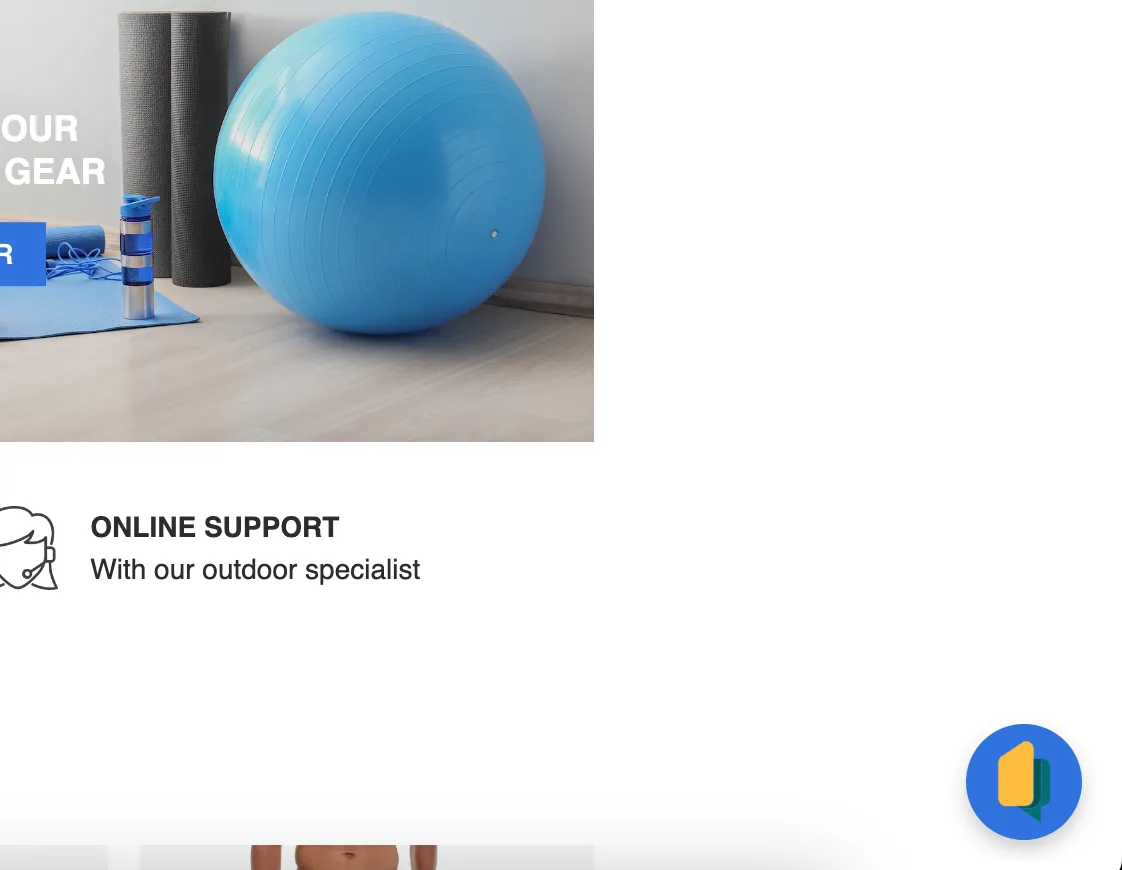
Select "I have a complaint" from the list of chatbot options
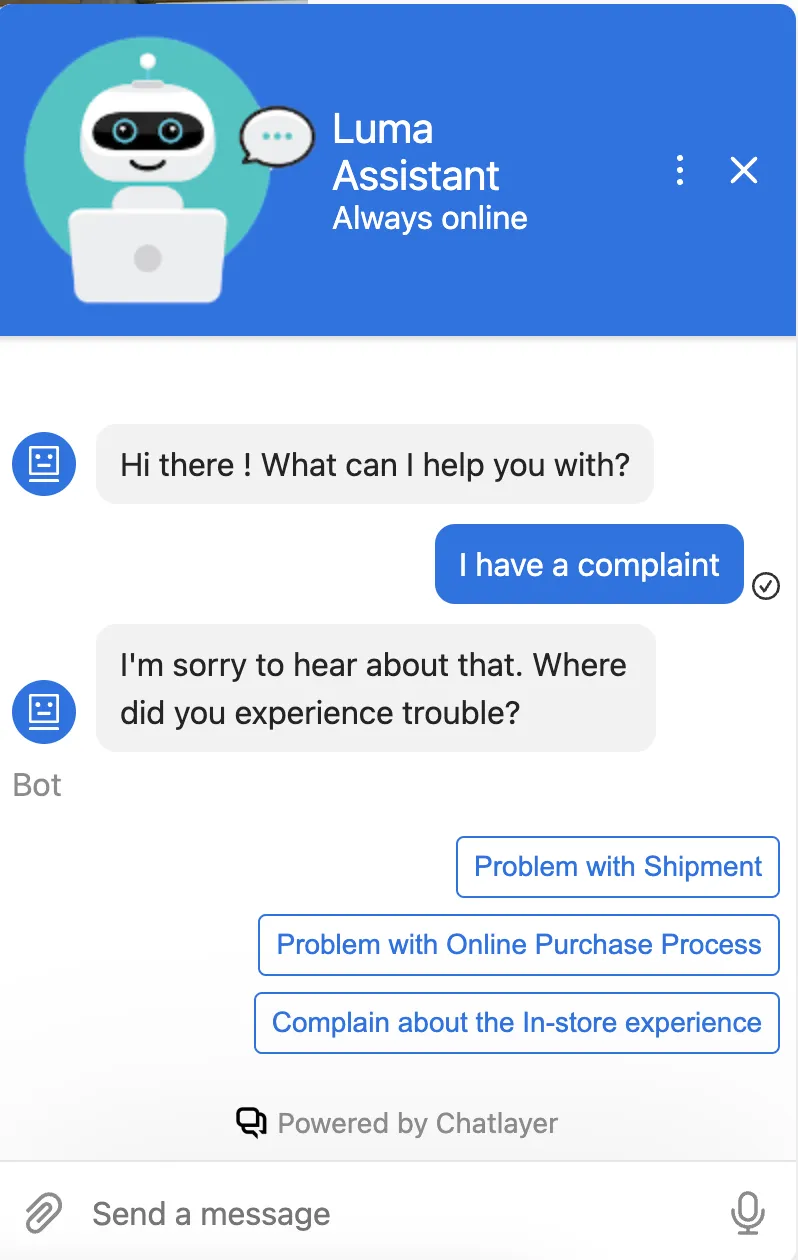
Alice is selecting the answer: Problem with the shipment
Select "Problem with the shipment" in chatbot window
Describe the situation and finish the conversation with bot
Alice's complain from chatbot is assigned to Melanie - Luma Customer Advisor. Melanie searches for Alice's profile in the Call Center app to learn more about her case and her previous experience with Luma.
Go to the Luma Call Center UI: https://dsn.adobe.com/cx2/luma3-cx-app and search for Alice's profile. Use her email address.
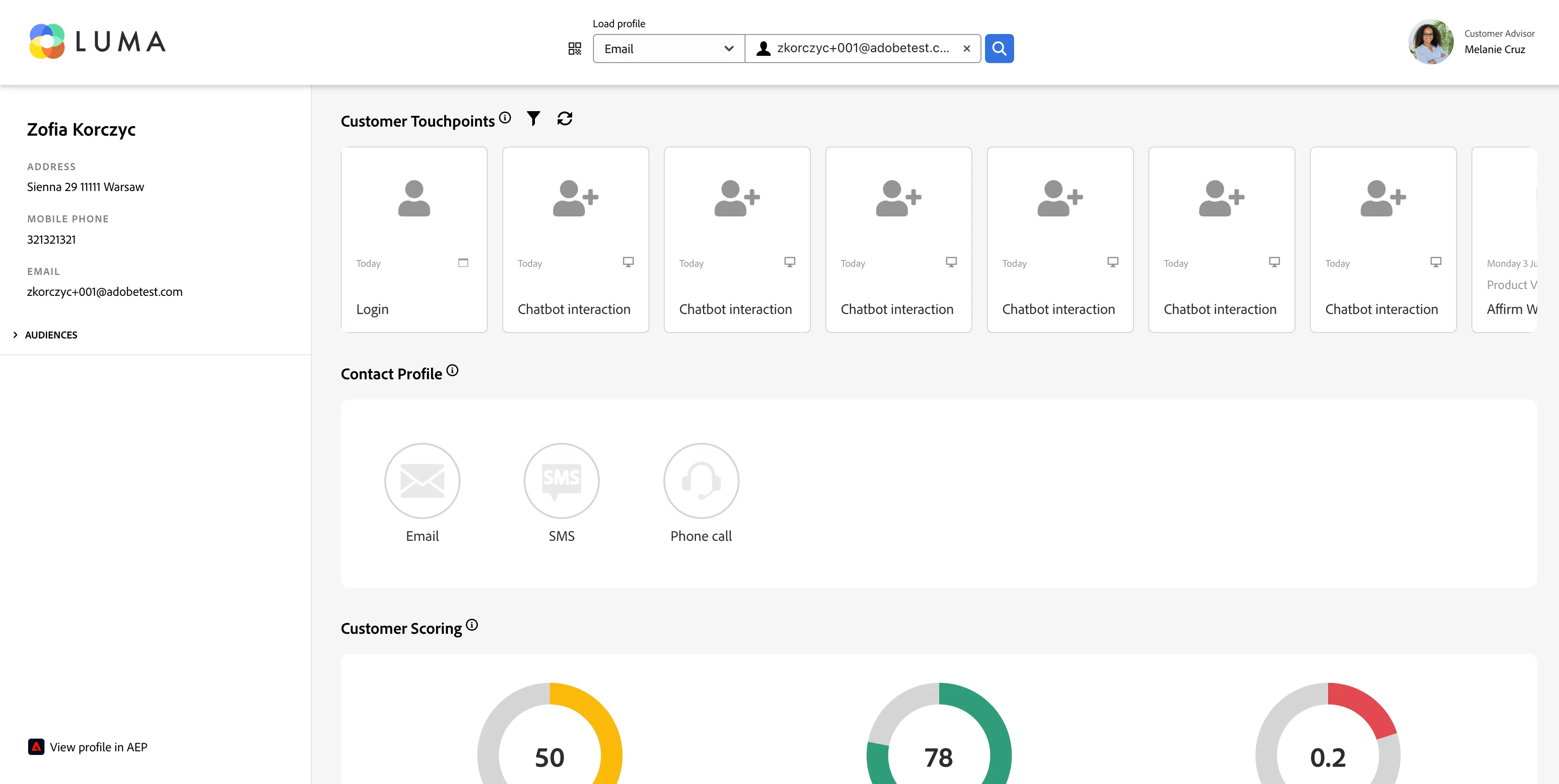
Using the call center UI Melanie, can evaluate Alice's profile. Considering her purchase history and scores it is required to take care of Alice's good customer satisfaction.
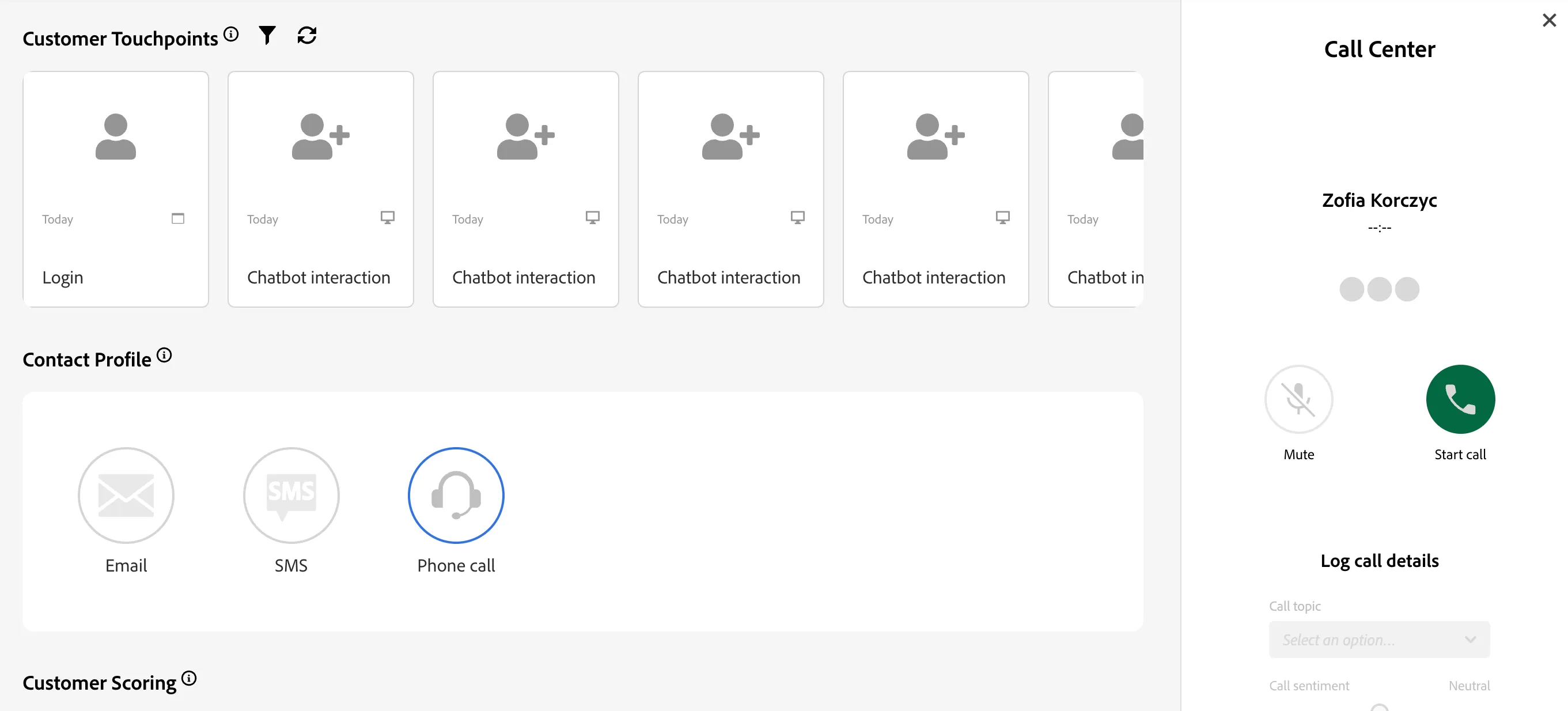
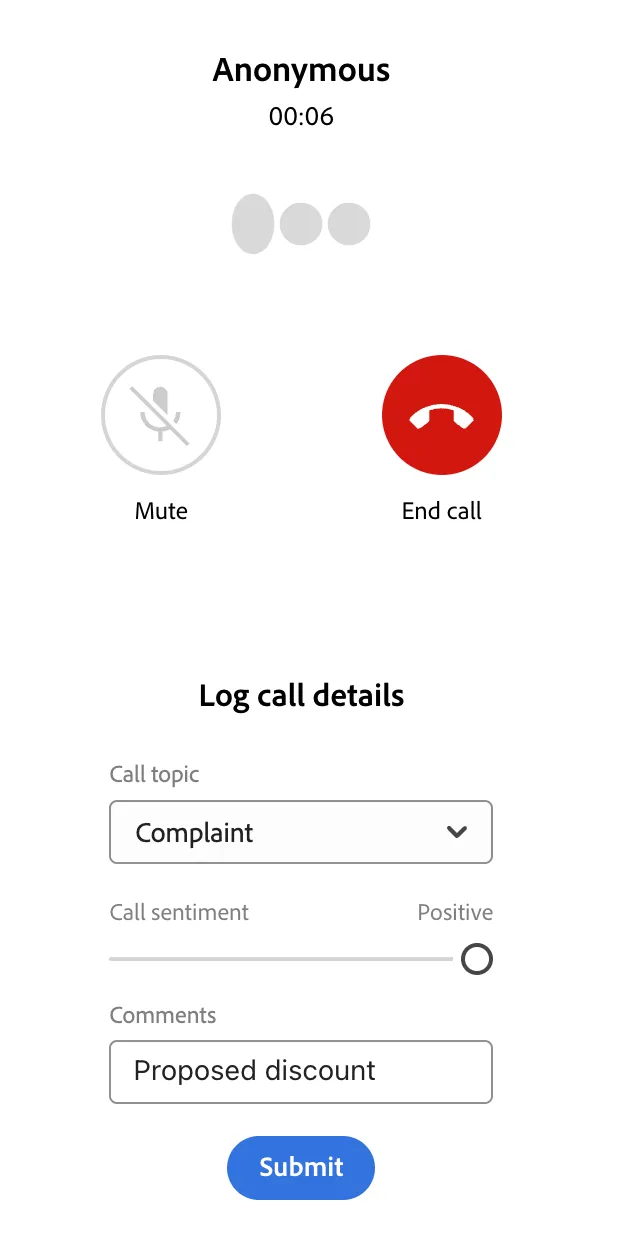
Melanie calls Alice on her phone and talks with her about her complain.
Find the contact module and click "Phone Call".
Click "Start the call"
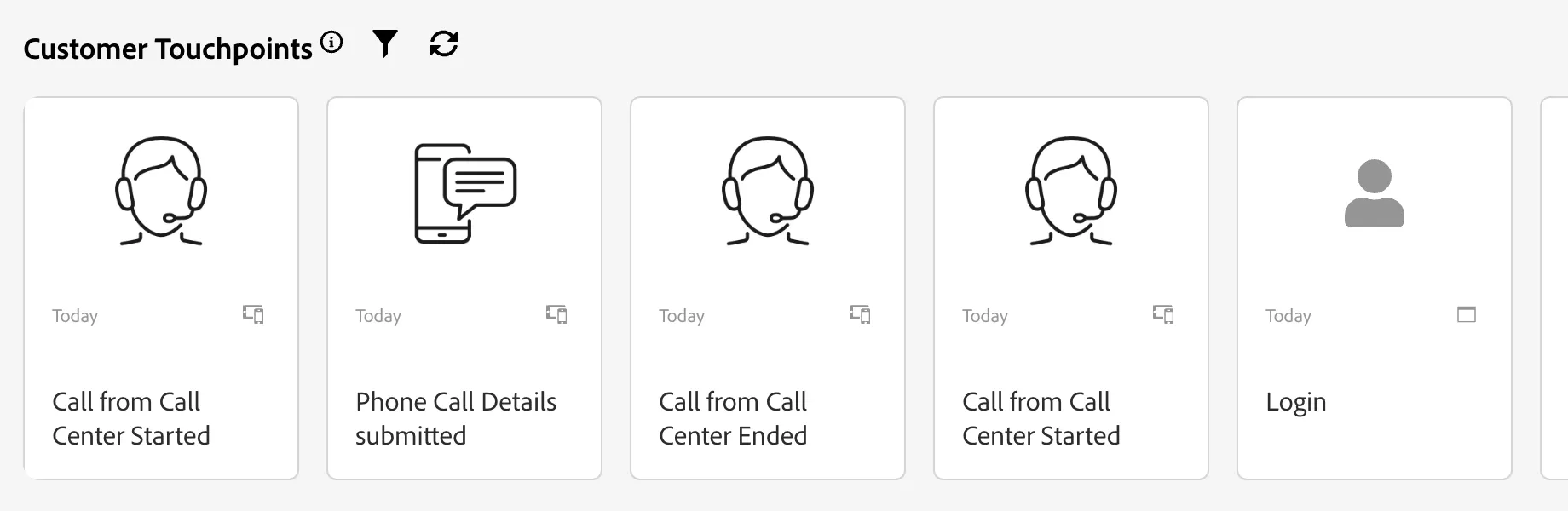
Select Call Topic: Complaint, add sentiment and comments if needed. Click "Submit" - all these details will be available in the user profile in AEP and on the activity timeline
End the call
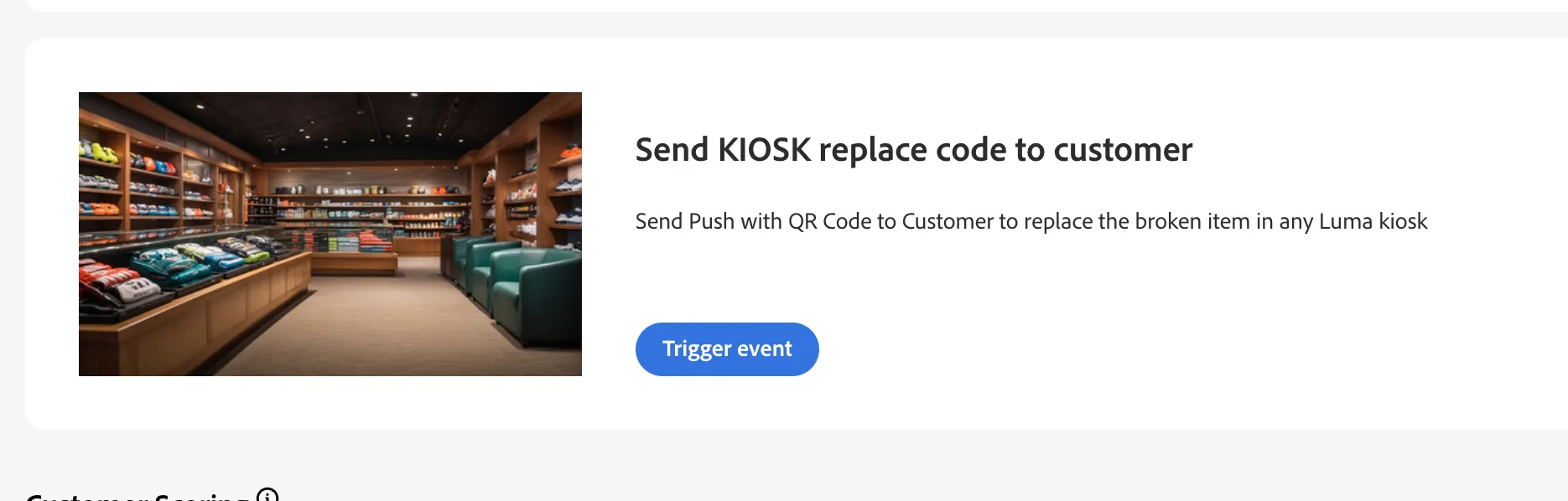
During the call, Melanie propose Alice that she can replace the Jacket in the closest Luma KIOS. She sends a push notification with a QR code to pick up the item.
Trigger the push notification using the Event Trigger Module located in the Call Center UI (Send KIOSK replace code to customer)
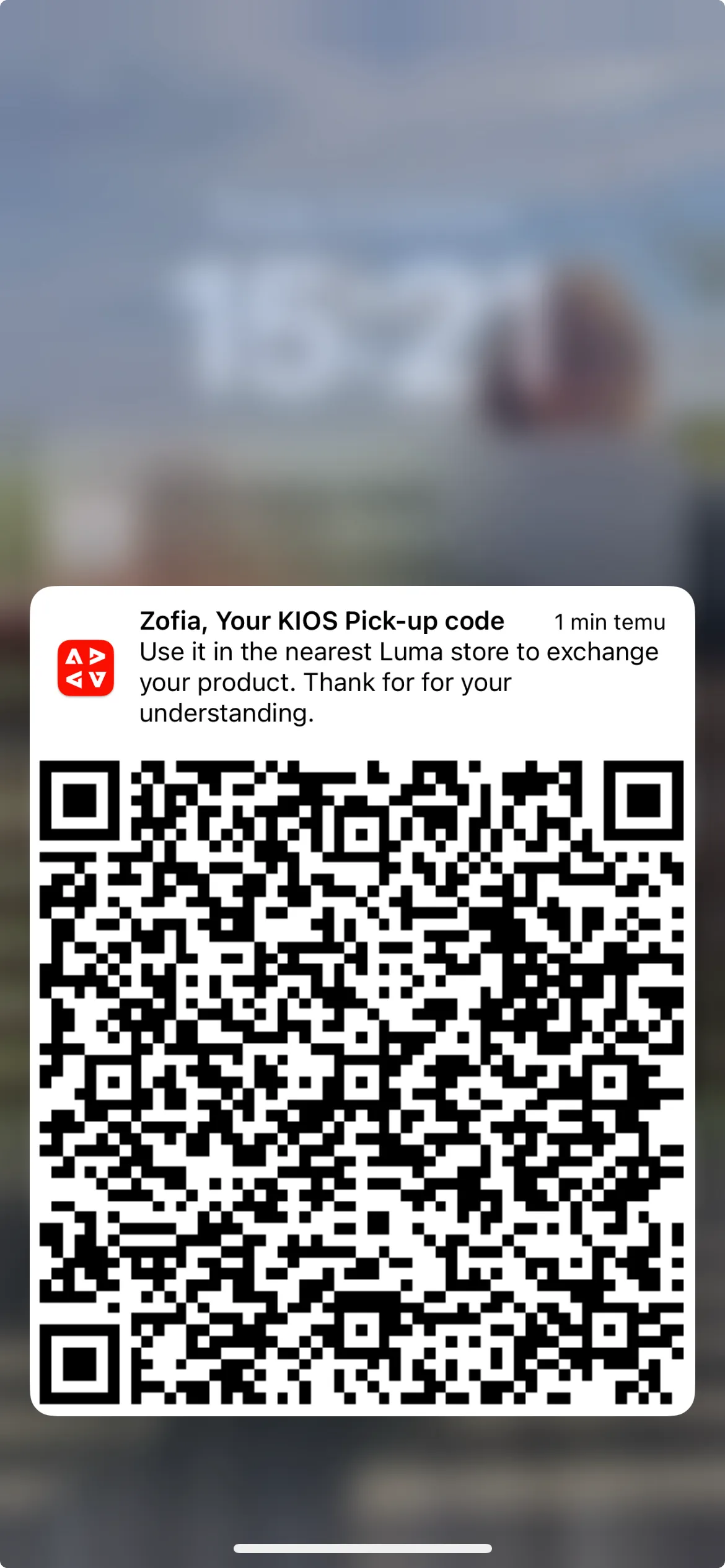
Alice receives the link to QR code in a push message.
Long press on the push message to see the qr code.
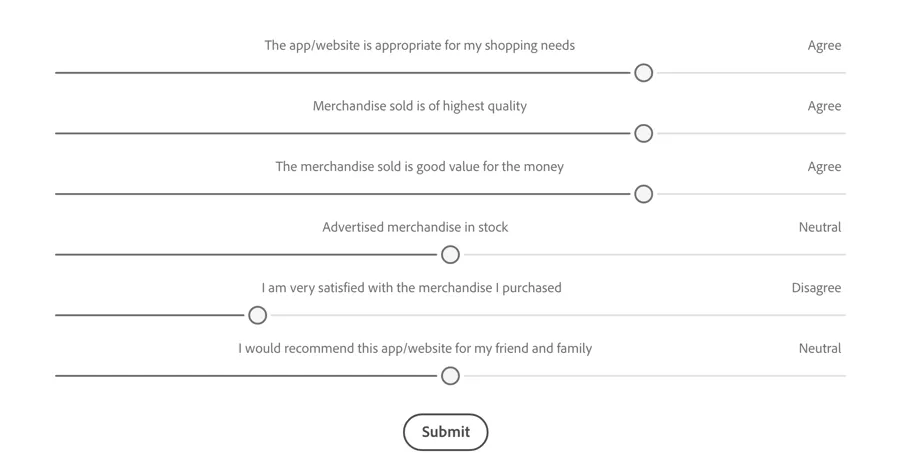
Melanie also asks Alice if she wants to answer few questions about her general experience.
Using the survey module, you can choose the appropriate response, ranging from strongly disagree to strongly agree. Submit buttons trigger a customer satisfaction score update.
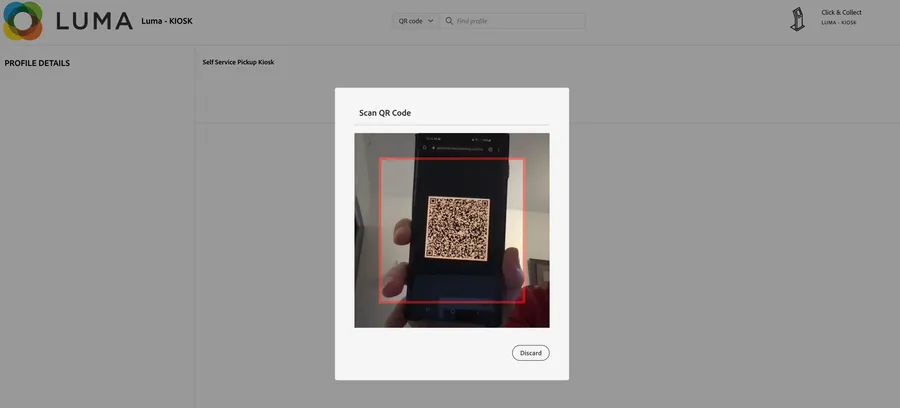
Next day Alice goes to Luma KIOS and scans the QR Code to pick up the replacement for her Juno Jacket.
All interactions with Call Center are stored in Alice's profile. You can also refresh Activity view to see the events there.