Loyalty Challenge Setup
Introduction
The guide below provides step-by-step instructions for creating a loyalty challenge using the configuration established in the previous document. It also explains how to execute, validate, and demonstrate the challenge effectively in a customer-facing scenario.
STEP BY STEP GUIDE
- TASK CREATION
Go to AJO and under Loyalty tab click on Gamification > Task tab. Click on create a task.
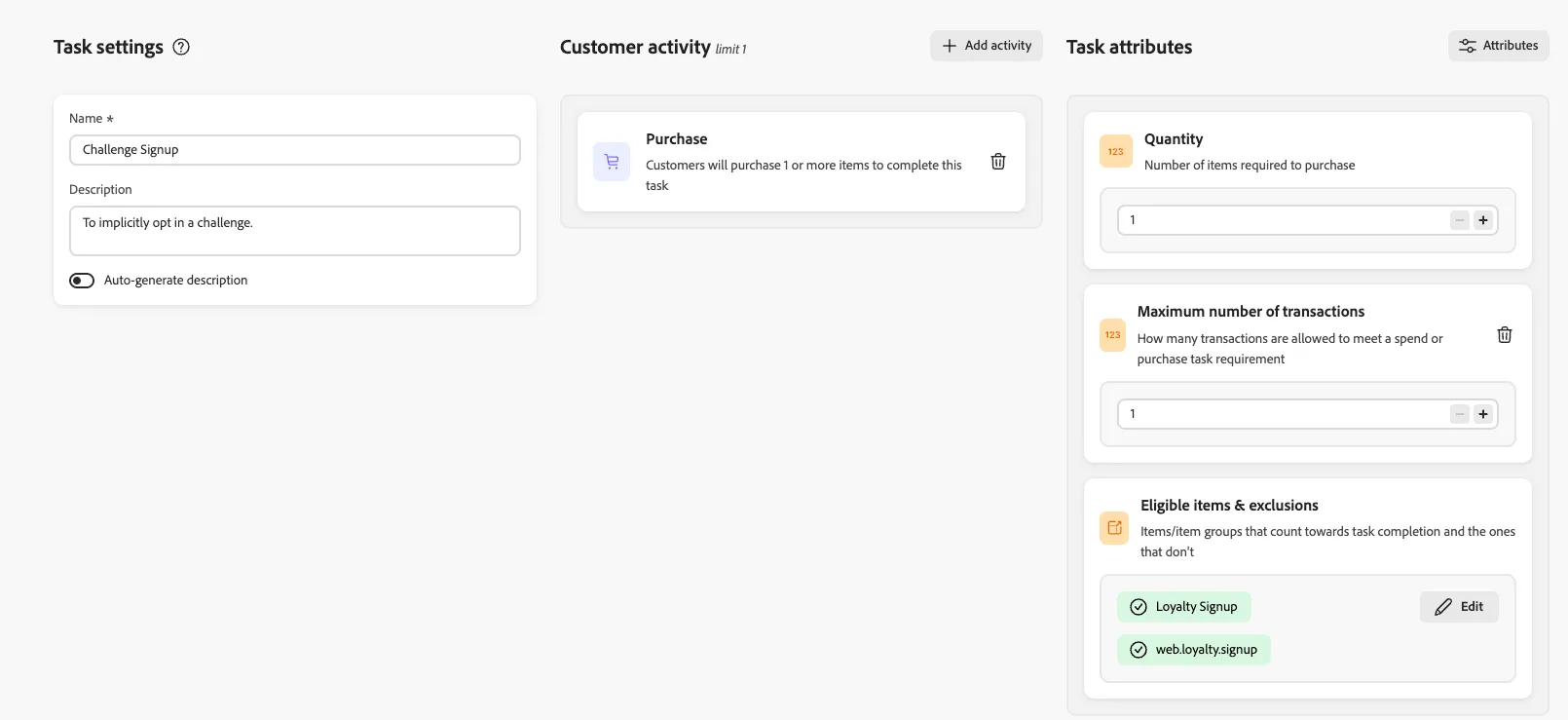
Create a Challenge Signup Task as showcased in below screenshot:
Customer Activity = Purchase
Quantity = 1
Maximum number of Transaction = 1
Eligible items & Exclusions > Eligible items & groups > Search for loyalty signup and select. Don't add anything in exclusion.
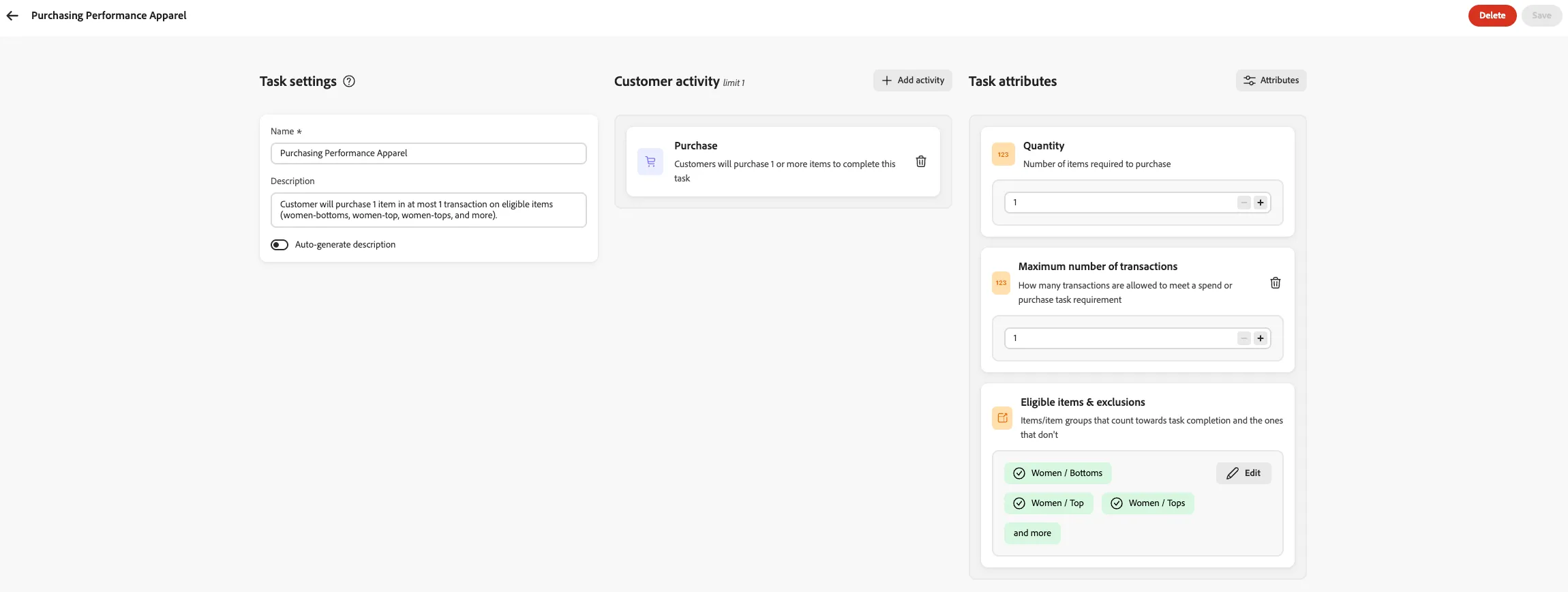
Similarly Create a Purchasing Performance Apparel as showcased in below screenshot:
Customer Activity = Purchase
Quantity = 1
Maximum number of Transaction = 1
Eligible items & Exclusions > Eligible items & groups > Search for Women / Bottoms, Women / Top, Men / Bottoms, Men / Jackets, Men / Tops, Women / Tops and select. Don't add anything in exclusion.
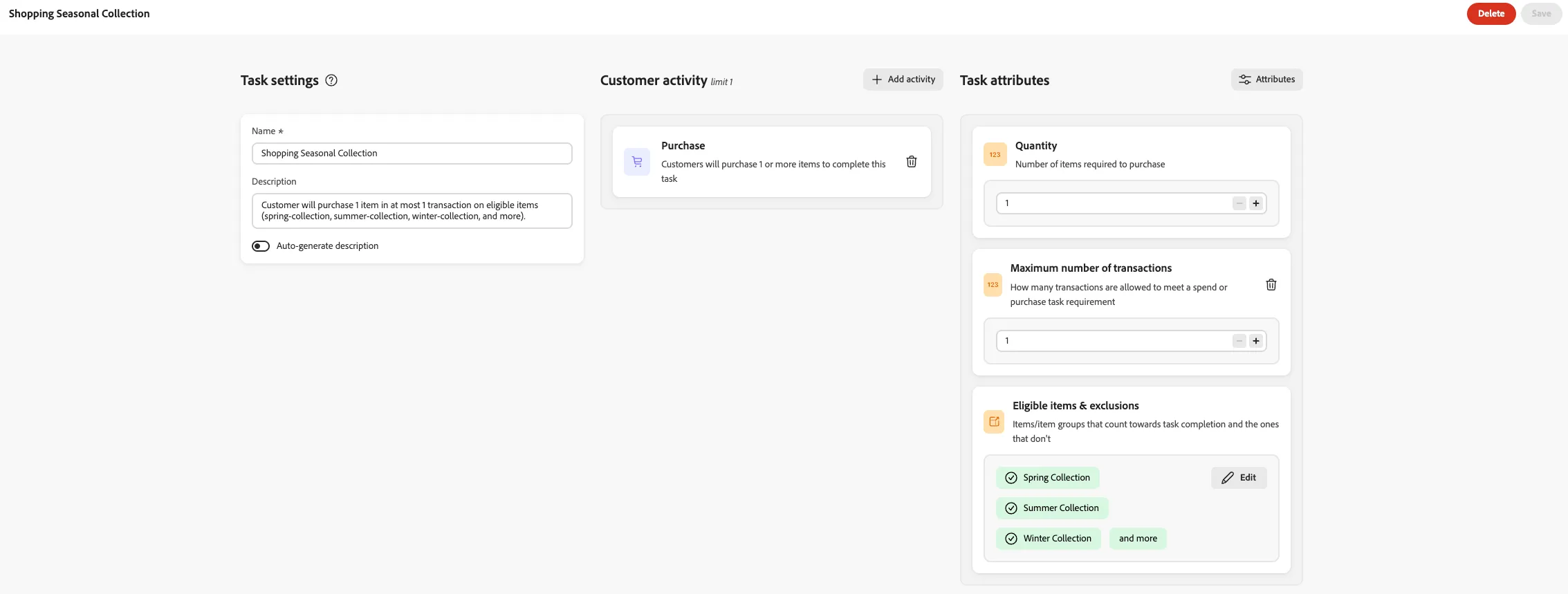
Then, Create a Shopping Seasonal Collection as showcased in below screenshot:
Customer Activity = Purchase
Quantity = 1
Maximum number of Transaction = 1
Eligible items & Exclusions > Eligible items & groups > Search for Spring Collection, Summer Collection, Winter Collection, Fall '24 Collection and select. Don't add anything in exclusion.
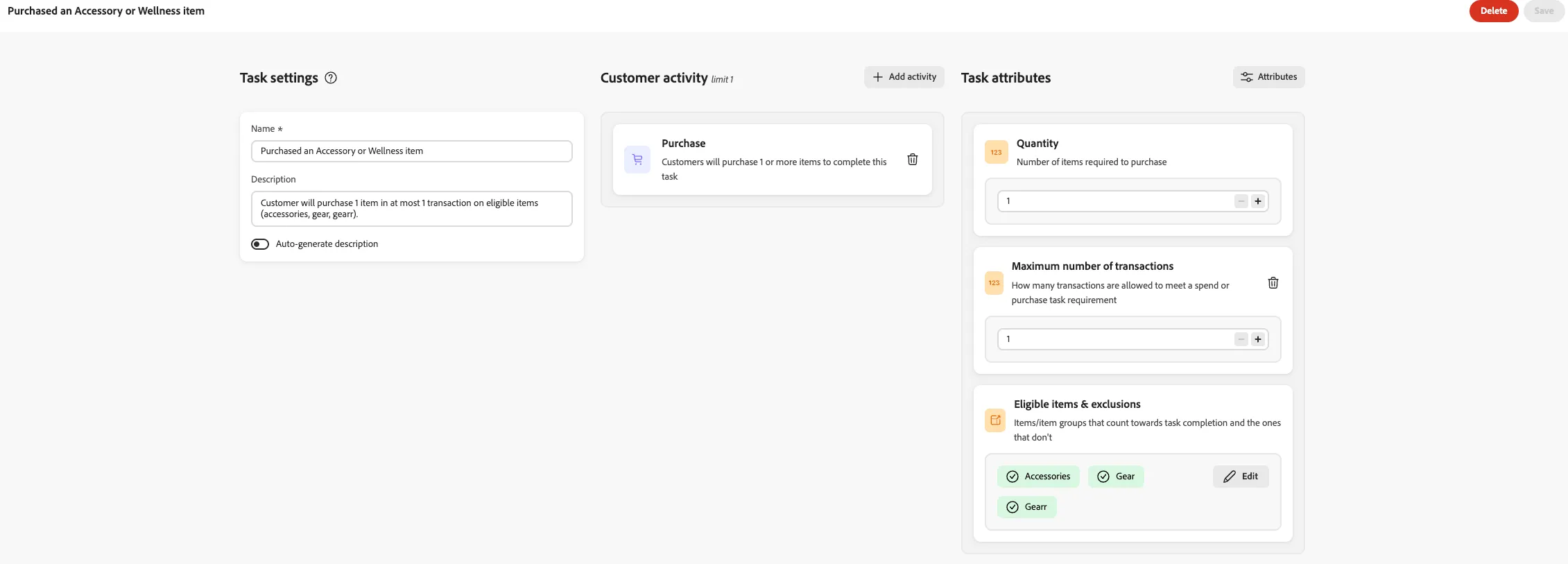
Create a Purchased an Accessory or Wellness item as showcased in below screenshot:
Customer Activity = Purchase
Quantity = 1
Maximum number of Transaction = 1
Eligible items & Exclusions > Eligible items & groups > Search for Accessories, Gear, Gearr and select. Don't add anything in exclusion.
- CHALLENGE CREATION
Go to AJO Loyalty tab > Gamification >Challenges. Click on Create Challenge.
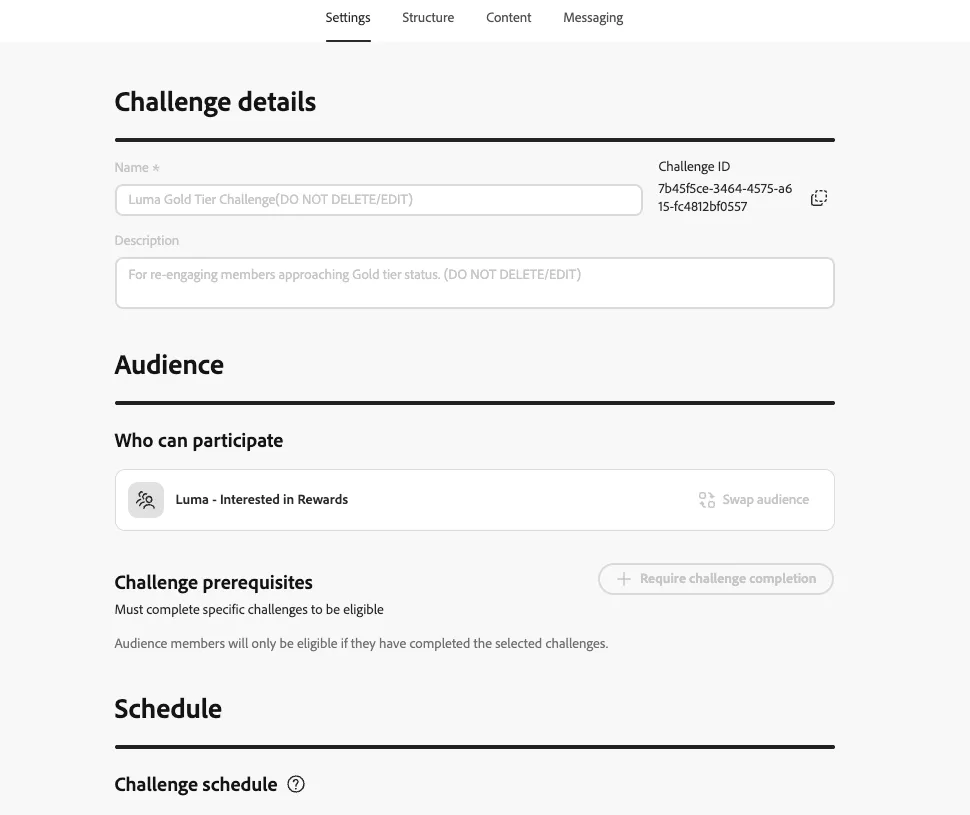
Provide a suitable name and description. Also, select the desired audience to whom you want to activate this challenge. For Luma we have used Luma - Interested in Rewards audience. Define the schedule for how long you want to run the challenge.
Under Rules > Start Tracking Progress > Select When Challenge Starts(After Optin).
Also for Repeat Limits > Once.
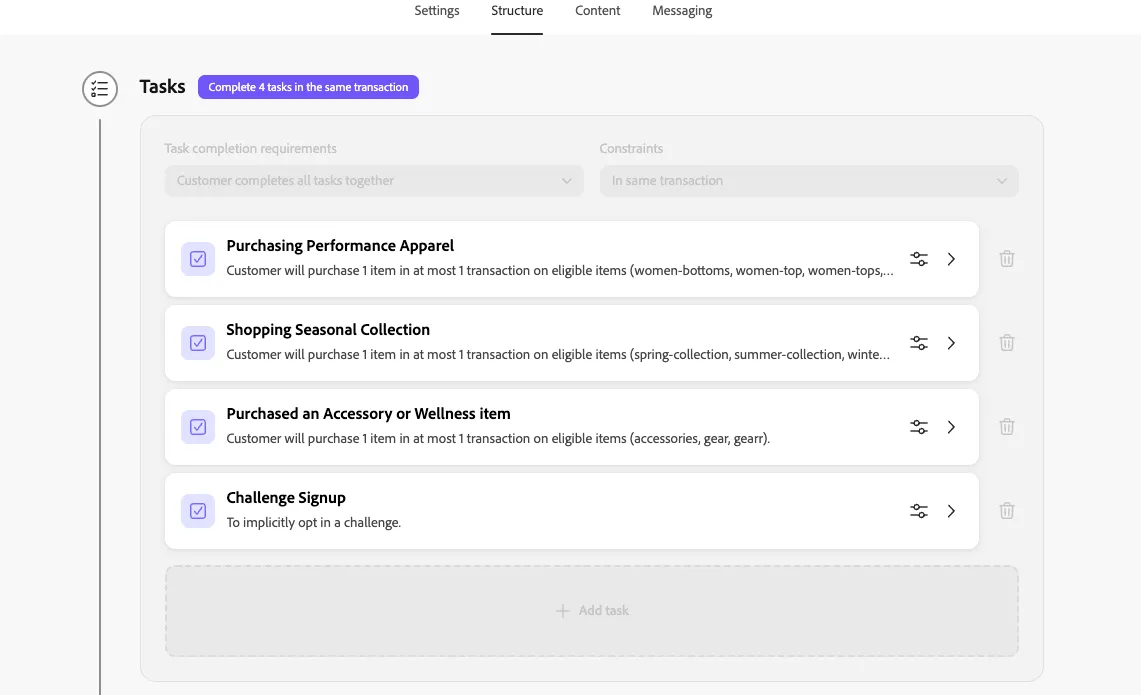
Now to go to the structure tab and under tasks > select all tasks which you created in previous steps.
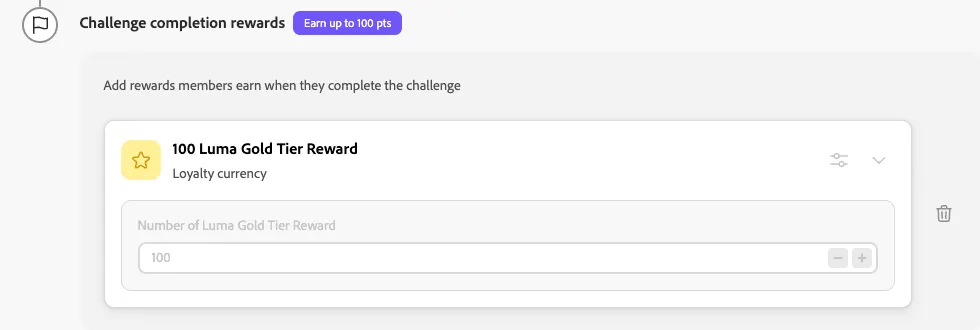
Below Challenge Completion Rewards Config Select the Reward Provider and Reward Definition which you created during Loyalty Configuration.
Now move to next tab Content > This part will showcase the status to Customer like Challenge Signup, In progress and Completion for this challenge.
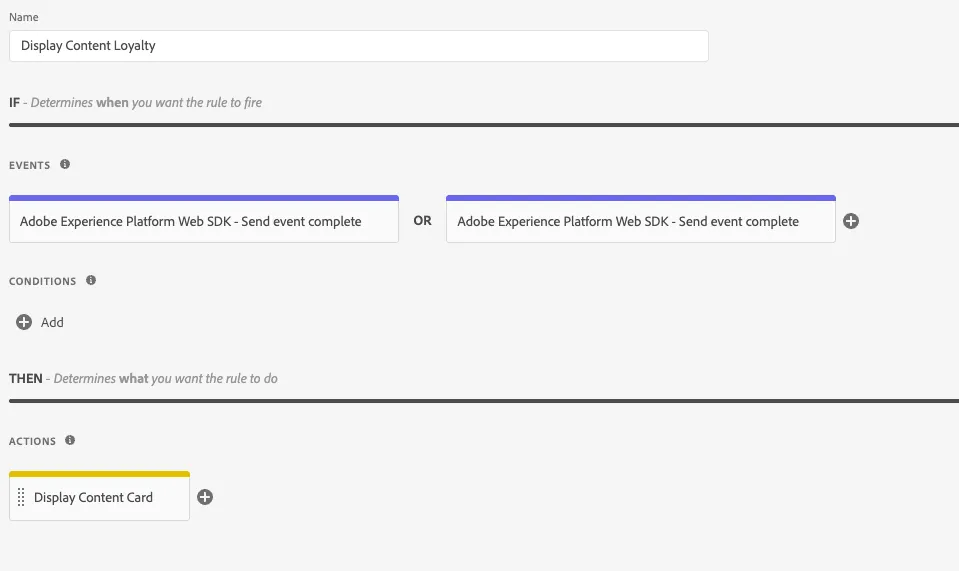
For Luma we have used Content Card and Content Cards on a Website .(How to Configure Content Card), Channel Surface, Class on page - ContentCardLoyalty.
Launch Code for Rendering Content Card:
const CONTENT_CARD_SCOPE = 'web://dsn.adobe.com/web/luma3/rewards#ContentCardLoyalty';
const CARD_FORMATS = ['ImageOnly', 'SmallImage', 'LargeImage'];
const DEFAULT_CARD_FORMAT = 'LargeImage';
if (!Array.isArray(event?.propositions)) {
console.log('::: ⚠️ No personalization content to evaluate for Loyalty Challenge Content Card!');
return;
}
const contentCardPropositions = event.propositions.filter(
(proposition) => proposition?.scope === CONTENT_CARD_SCOPE
);
if (contentCardPropositions.length === 0) {
console.log(`::: ⚠️ No matching personalization with scope "${CONTENT_CARD_SCOPE}"!`);
return;
}
const contentCardContainer = document.querySelector('.ContentCardLoyalty');
if (!contentCardContainer) {
console.log('::: ⚠️ Container ".ContentCardLoyalty" not found on the page!');
return;
}
// Collect every valid consequence from every matching proposition,
const bestCandidate = contentCardPropositions
.flatMap((proposition) => {
const propositionRank = getRankValue(proposition?.scopeDetails?.rank);
return extractValidConsequences(proposition).map((consequence) => {
const consequenceRank = getRankValue(consequence?.detail?.data?.meta?.rank);
const rank = consequenceRank !== Number.NEGATIVE_INFINITY
? consequenceRank
: propositionRank;
return {
proposition,
consequence,
rank
};
});
})
.reduce((best, current) => {
if (!best) return current;
return current.rank > best.rank ? current : best;
}, null);
if (!bestCandidate) {
console.log('::: ⚠️ No valid content-card consequence found to render!');
return;
}
console.log(
`::: ✅ Selected only one card with max rank: "${bestCandidate.rank}"`
);
const cardMarkup = buildContentCardHtml(
bestCandidate.consequence.detail.data.content,
bestCandidate.consequence.id,
bestCandidate.consequence.detail.data.meta?.adobe?.template
);
const CARD_HEIGHT_PX = 370;
const CARD_STYLES = `
.ContentCardLoyalty--cards {
position: relative;
display: flex;
width: 100%;
max-width: 400px;
height: ${CARD_HEIGHT_PX}px;
background: #ffffff;
border: 1px solid #e6e6e6;
border-radius: 12px;
box-shadow: 0 1px 4px rgba(0, 0, 0, 0.08);
overflow: hidden;
font-family: adobe-clean, 'Source Sans Pro', -apple-system, BlinkMacSystemFont, 'Segoe UI', Roboto, sans-serif;
color: #222222;
box-sizing: border-box;
}
.ContentCardLoyalty--cards.cc-format-LargeImage {
flex-direction: column;
}
.ContentCardLoyalty--cards.cc-format-LargeImage .cc-image {
width: 100%;
height: 180px;
flex-shrink: 0;
}
.ContentCardLoyalty--cards.cc-format-LargeImage .cc-content {
flex: 1;
min-height: 0;
padding: 16px 20px 20px;
}
.ContentCardLoyalty--cards.cc-format-SmallImage {
flex-direction: row;
align-items: center;
padding: 16px;
gap: 16px;
}
.ContentCardLoyalty--cards.cc-format-SmallImage .cc-image {
width: 120px;
height: 120px;
flex-shrink: 0;
border-radius: 8px;
}
.ContentCardLoyalty--cards.cc-format-SmallImage .cc-content {
flex: 1;
min-height: 0;
justify-content: center;
}
.ContentCardLoyalty--cards.cc-format-ImageOnly .cc-image {
width: 100%;
height: 100%;
}
.ContentCardLoyalty--cards .cc-image {
object-fit: cover;
display: block;
}
.ContentCardLoyalty--cards .cc-content {
display: flex;
flex-direction: column;
gap: 8px;
overflow: hidden;
}
.ContentCardLoyalty--cards .cc-title {
margin: 0;
font-size: 17px;
font-weight: 700;
line-height: 1.3;
text-align: -webkit-left;
}
.ContentCardLoyalty--cards .cc-description {
margin: 0;
font-size: 14px;
line-height: 1.4;
color: #4b4b4b;
display: -webkit-box;
-webkit-line-clamp: 3;
-webkit-box-orient: vertical;
overflow: hidden;
text-align: -webkit-left;
}
.ContentCardLoyalty--cards .cc-buttons {
display: flex;
flex-wrap: wrap;
gap: 8px;
margin-top: 8px;
}
.ContentCardLoyalty--cards .cc-button {
border: none;
border-radius: 8px;
background-color: #1473e6;
color: #ffffff;
font-size: 14px;
padding: 8px 14px;
cursor: pointer;
}
.ContentCardLoyalty--cards .cc-button:hover {
background-color: #0d66d0;
}
.ContentCardLoyalty--cards .cc-dismiss {
position: absolute;
top: 8px;
right: 8px;
width: 24px;
height: 24px;
border-radius: 50%;
border: none;
background: rgba(255, 255, 255, 0.85);
color: #333333;
font-size: 14px;
line-height: 1;
cursor: pointer;
z-index: 1;
}
`;
const CARD_STYLE_TAG_ID = 'content-card-loyalty-styles';
if (cardMarkup) {
injectStylesOnce();
contentCardContainer.innerHTML = cardMarkup;
contentCardContainer.style.height = 'auto';
contentCardContainer.style.display = 'flex';
contentCardContainer.style.justifyContent = 'center';
if (!contentCardContainer.dataset.contentCardListenerAttached) {
contentCardContainer.addEventListener('click', handleContentCardClick);
contentCardContainer.dataset.contentCardListenerAttached = 'true';
}
}
function getRankValue(rank) {
const value = Number(rank);
return Number.isFinite(value) ? value : Number.NEGATIVE_INFINITY;
}
function extractValidConsequences(proposition) {
const validConsequences = [];
const items = proposition?.items || [];
console.log(`::: ℹ️ Number of "items" to process: ${items.length}`);
for (const item of items) {
const rules = item?.data?.rules;
if (!rules?.length) {
console.log(`::: ⚠️ No data to process for data ID: "${item?.data?.id || 'undefined'}"!`);
continue;
}
console.log(`::: ℹ️ Number of rules to process: ${rules.length}`);
for (const rule of rules) {
const consequences = rule?.consequences;
if (!consequences?.length) {
console.log(`::: ⚠️ No rule-consequences to process (Rule type: "${rule?.meta?.ruleType || 'unknown'}")!`);
continue;
}
for (const consequence of consequences) {
const content = consequence?.detail?.data?.content;
const contentType = consequence?.detail?.data?.contentType;
if (!content) {
console.log(`::: ⚠️ No consequence content to personalize for consequence ID: "${consequence?.id || 'unknown'}"!`);
continue;
}
if (contentType !== 'application/json') {
console.log('::: 🔺 Content type presentation is out of scope!');
continue;
}
validConsequences.push(consequence);
}
}
}
return validConsequences;
}
function injectStylesOnce() {
if (document.getElementById(CARD_STYLE_TAG_ID)) {
return;
}
const styleTag = document.createElement('style');
styleTag.id = CARD_STYLE_TAG_ID;
styleTag.textContent = CARD_STYLES;
document.head.appendChild(styleTag);
}
function buildContentCardHtml(content, consequenceId, template) {
const format = CARD_FORMATS.includes(template) ? template : DEFAULT_CARD_FORMAT;
const titleText = escapeHtml(content.title?.content);
const bodyText = escapeHtml(content.body?.content);
const imageUrl = escapeHtml(content.image?.url);
const imageAlt = escapeHtml(content.image?.alt);
const cardActionUrl = escapeHtml(content.actionUrl?.trim());
const actionButtons = Array.isArray(content.buttons) ? content.buttons : [];
const dismissButton = content.dismissBtn;
const image = imageUrl ? `<img class="cc-image" src="${imageUrl}" alt="${imageAlt}" />` : '';
const textContent = format === 'ImageOnly' ? '' : `
<div class="cc-content">
<h3 class="cc-title">${titleText}</h3>
${bodyText ? `<p class="cc-description">${bodyText}</p>` : ''}
${actionButtons.length ? `<div class="cc-buttons">${buildActionButtonsHtml(actionButtons)}</div>` : ''}
</div>`;
return `
<div class="ContentCardLoyalty--cards cc-format-${format}" role="presentation" data-consequence-id="${escapeHtml(consequenceId)}" data-card-action-url="${cardActionUrl}">
${isDismissButtonVisible(dismissButton) ? buildDismissButtonHtml(dismissButton) : ''}
${image}${textContent}
</div>`;
}
function buildActionButtonsHtml(buttons) {
return buttons.map((button) => {
const actionUrl = escapeHtml(button?.actionUrl?.trim());
const label = escapeHtml(button?.text?.content);
const buttonId = escapeHtml(button?.id);
return `<button type="button" class="cc-button" data-button-id="${buttonId}" data-action-url="${actionUrl}">${label}</button>`;
}).join('');
}
function isDismissButtonVisible(dismissButton) {
return Boolean(dismissButton?.style) && dismissButton.style !== 'none';
}
function buildDismissButtonHtml(dismissButton) {
const style = escapeHtml(dismissButton.style);
return `<button type="button" class="cc-dismiss" aria-label="Dismiss" data-style="${style}" data-action="dismiss">×</button>`;
}
function handleContentCardClick(event) {
const card = event.target.closest('.ContentCardLoyalty--cards');
if (!card) {
return;
}
if (event.target.closest('[data-action="dismiss"]')) {
card.remove();
return;
}
const buttonTarget = event.target.closest('button[data-action-url]');
if (buttonTarget) {
if (buttonTarget.dataset.actionUrl) {
window.location.href = buttonTarget.dataset.actionUrl;
}
return;
}
if (card.dataset.cardActionUrl) {
window.location.href = card.dataset.cardActionUrl;
}
}
function escapeHtml(value) {
return String(value ?? '')
.replace(/&/g, '&')
.replace(/</g, '<')
.replace(/>/g, '>')
.replace(/"/g, '"')
.replace(/'/g, ''');
}Under content tab > select the content card and content card surface where you want place this on web or mobile. For luma we have used the Website.
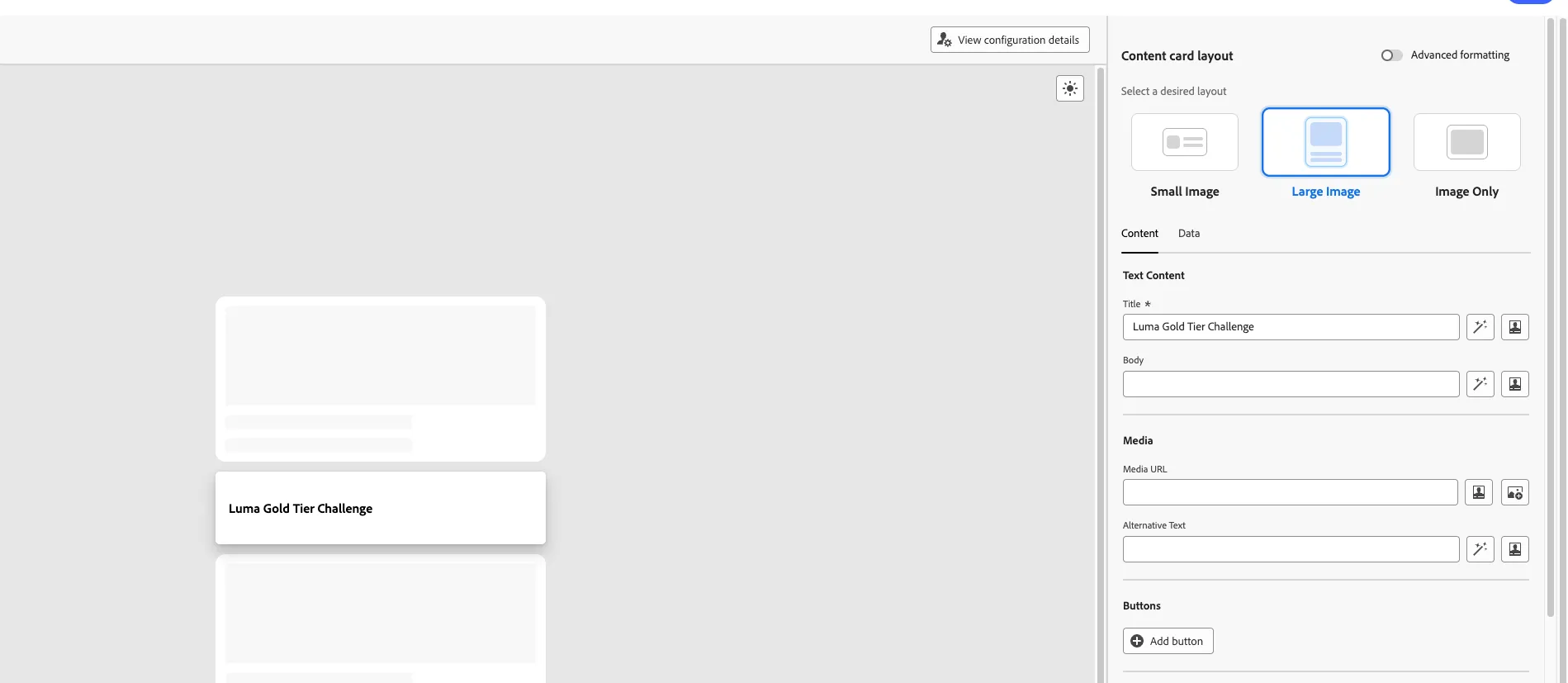
Inside the content card define the layout, Image, Title, description and Button.
Under the Data tab inside the Content Card pass the challengeId and Rank 1.
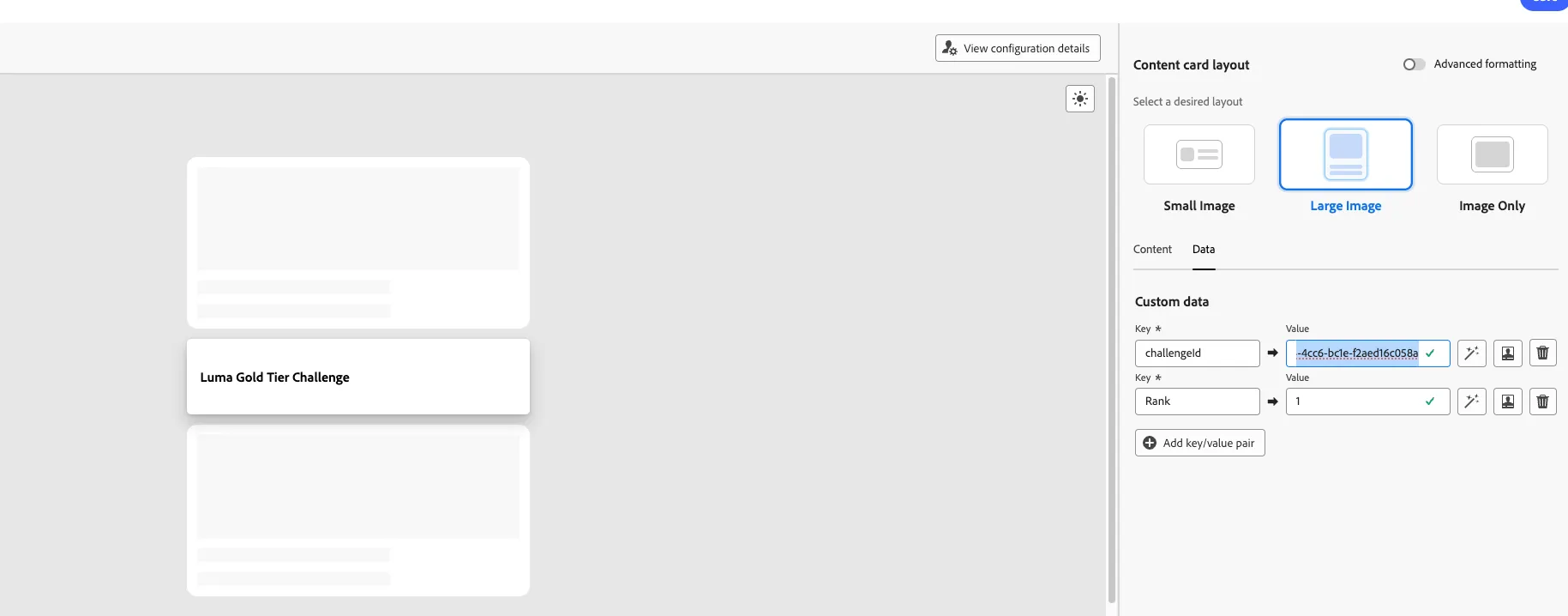
Similarly, create the content card for in progress and Completion under data tab as Rank 2 and Rank 3 along with challengeId.
Now, go to Messaging tab and create Email and push as per your Challenge requirement for different status. For Luma we have created Email and Push for each state to provide communication to customer.
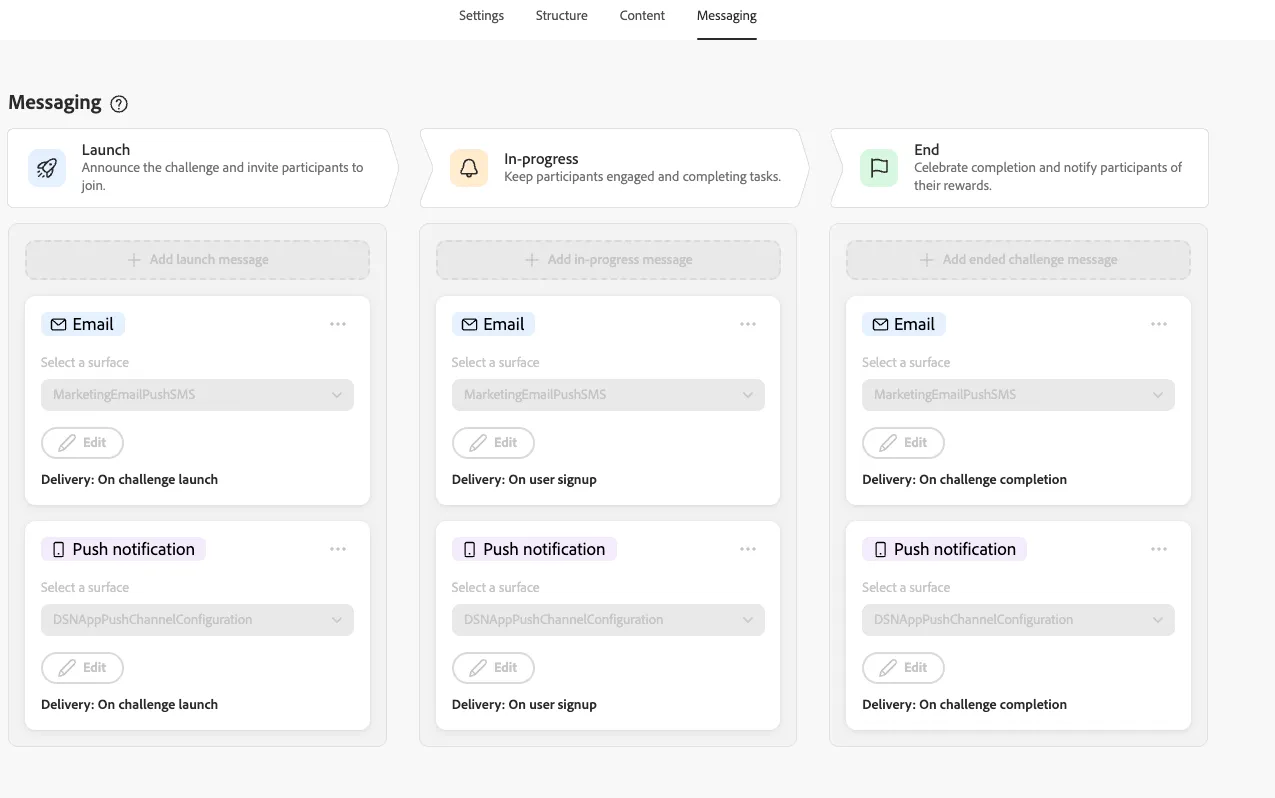
Now, Save Changes and Generate Journey. Once you generate the journey your Challenge is published and now don't make any changes at challenge level.
- JOURNEY
Now go to Challenge journey and you would see a sequential journey(all 3 content cards together) is created with read audience.

We need to modify the journey so all the Signup, In progress and Completion content and action grouped collectively. For Luma use case we have used Audience Qualification instead of Read Audience for real time use cases demo. Journey
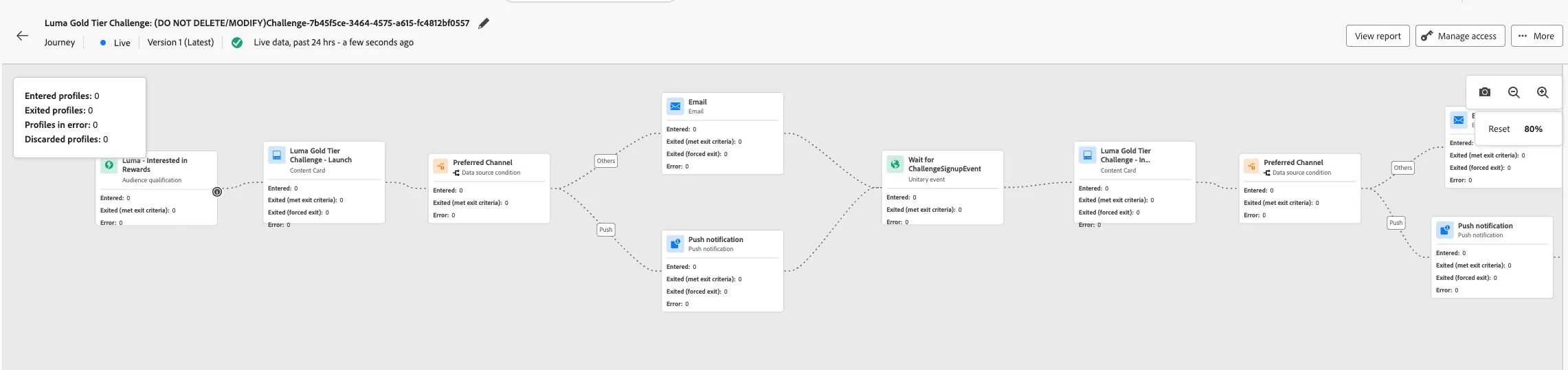
Once you modify the journey as shown above and then publish the journey.
Now you can execute the full flow using demo script AJO Loyalty .
NOTES
- Use the Event definition JSONata mapper very carefully for your events with Global Loyalty schema.
- In journey for each content card under data tab please check to pass right challengeId and Rank.
- Modify the journey to collate Signup, In Progress and Completion actions together.