Profile
The profile section in Profile Viewer is responsible for displaying information about the current user. It also has registration and sign-in utilities
Identities and Profile Details
The top section shows the identities information as well as profile details, which are available in AEP for the current user. If you would like to change the fields being displayed there, you can do that by modifying your connected builder project.
Modifying displayed profile fields in profile viewer
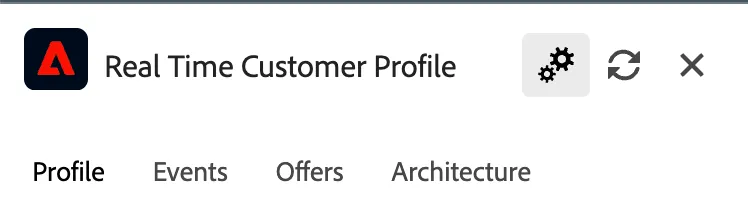
Open the profile viewer on the website and click the gear icon at the top
or
Open your project and switch to the profile viewer tab
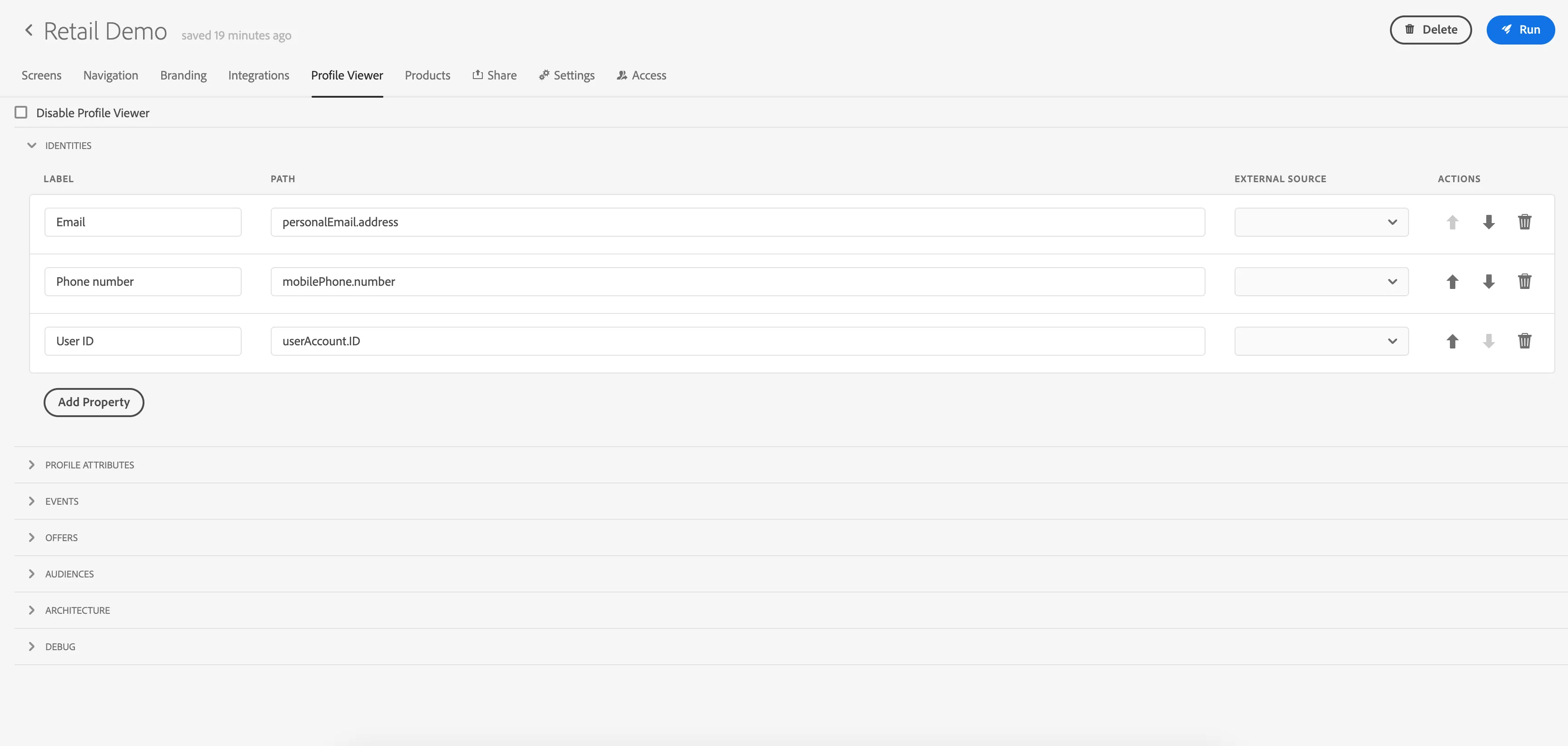
In your project, review the fields available in the Profile Viewer tab section. They match the fields that are currently displayed in Profile Viewer on the customer website.
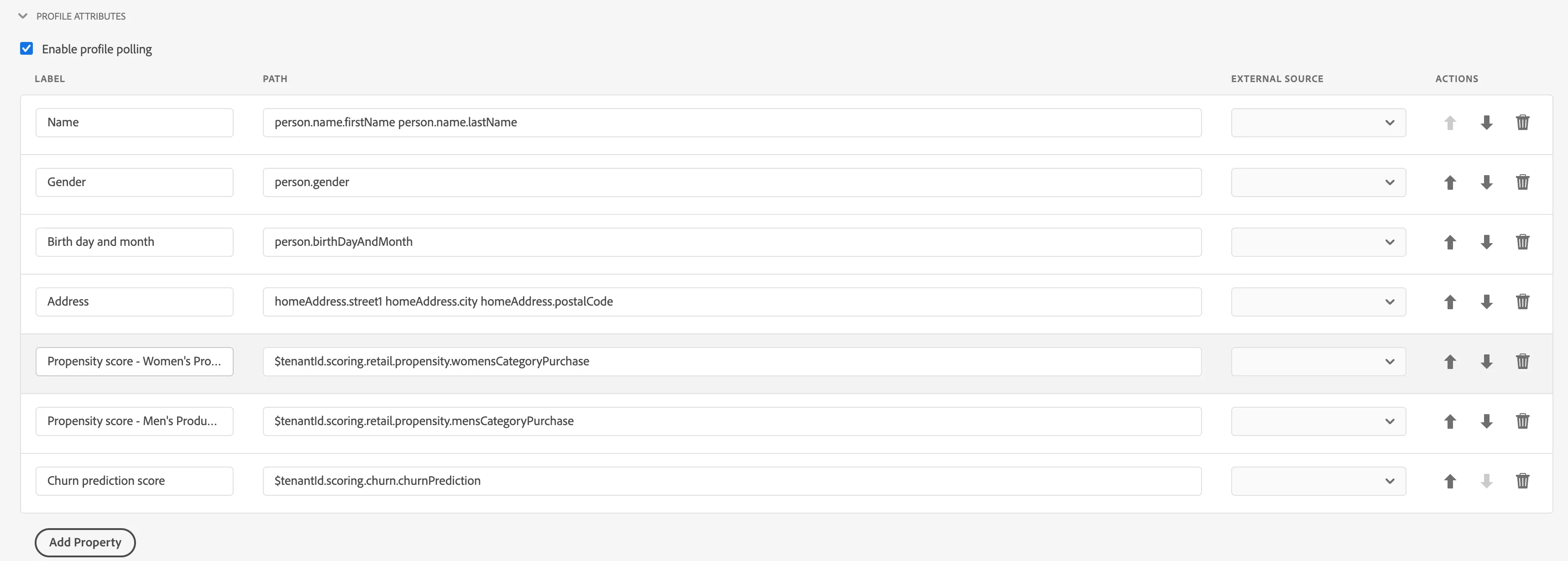
You can add/remove/modify field names to match your story. In the project example we will add an extra profile field: Shoe size. To do that, click
Add a property in the Profile section.
Label: Shoe size
Path:$tenantId.individualCharacteristic.retail.shoeSize
Path can be copied from the AEP UI. You can either use your exact tenant or $tenantId variable - it will be replaced automatically with your proper tenant name
In case of arrays use [] brackets
When your changes are done, refresh the web page(website) with the profile viewer to see that the new fields are visible there
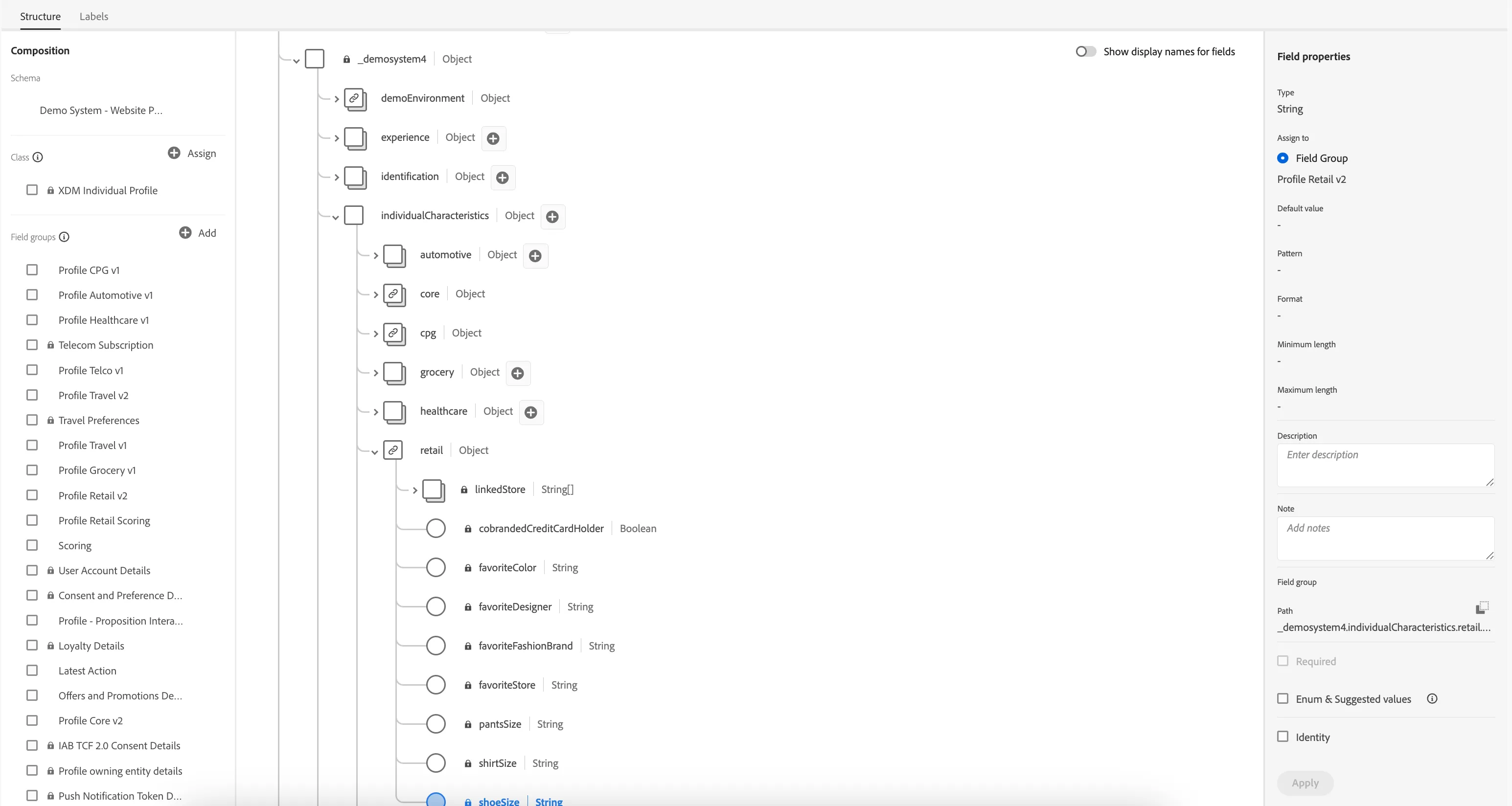

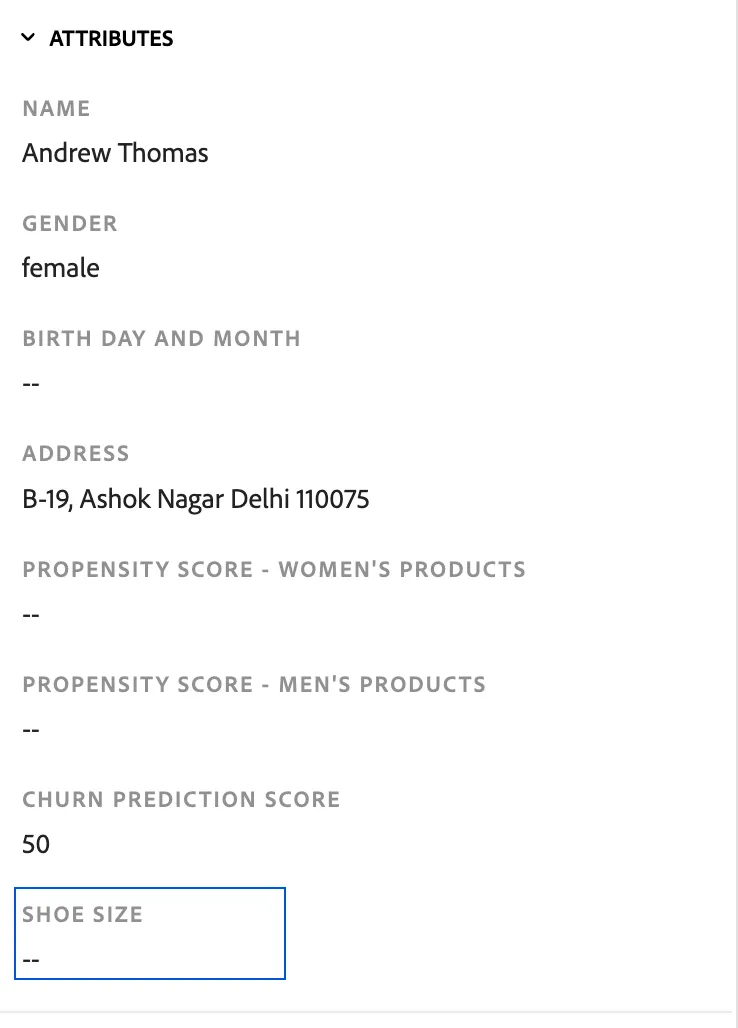
You can update the values displayed in profile viewer also using dynamic values.
To access dynamic value in text (eg. Text component's content) use ${selector} syntax, where selector matches
- <Path> property for component that has Path set and no Form ID eg. ${enrollment.selectedPlan}
- Tip: You can also use the path selector in the Profile Viewer options to refer to some information in Experience Events titles! For example: ${timestamp} will refer to entity.timestamp value of the particular event
- <Name> property for component that have Name set but no Path or Form ID, eg. ${email}
- formData.<Form ID>.<Path> for component that has Form ID and Path set, eg. ${formData.registration.name.firstName}
- formData.<Form ID>.<Name> for component that has Form ID and Name set but no Path, eg. ${formData.registration.email}
- <Attribute selector> for AEP Profile Schema attributes, eg. ${person.name.firstName}
The selectors can be used as inputs for the dynamic values formatting functions, e.g. ${formatDate:YOUR_SELECTOR} will attempt to format the value behind your selector as a date. See here for more information on the formatting functions.
Segments
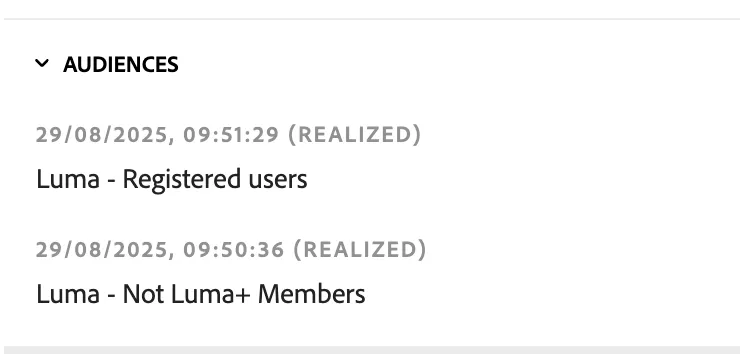
This section displays segments that match the current profile. It should display the same segments you defined and are resolved for the profile in AEP UI.
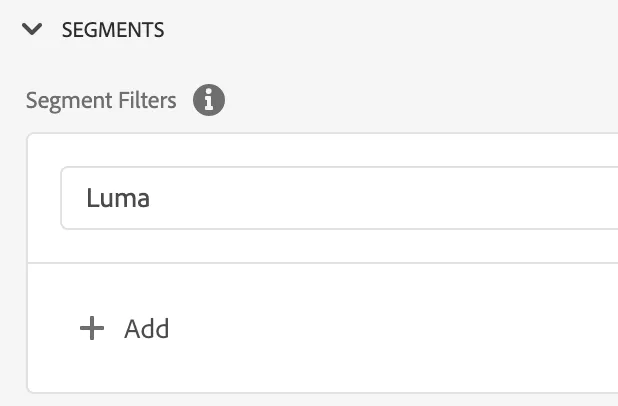
In order to narrow the amount of displayed segments, use the filter available in the project.
Utilities
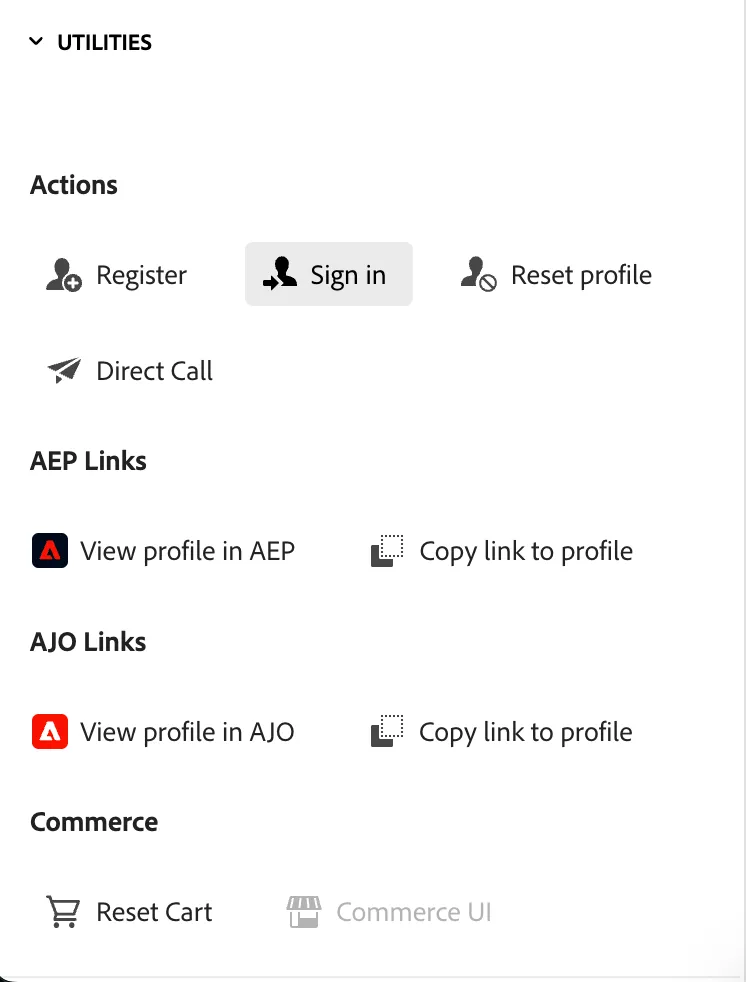
The Utilities panel provides quick access to key actions and integrations.
- Actions: Options to Register, Sign in, Reset profile, and Direct Call.
- AEP Links: Ability to View profile in AEP or Copy link to profile.
- AJO Links: Ability to View profile in AJO or Copy link to profile.
- Commerce: Includes Reset Cart and a disabled Commerce UI option.
This panel acts as a centralized utility hub, allowing users to manage profiles, access linked platforms (AEP and AJO), and perform commerce-related tasks.
Registration and sign-in utilities will allow you, instead of connecting registration/sign-in form on external website, to use a generic dialog that will send data directly to AEP.