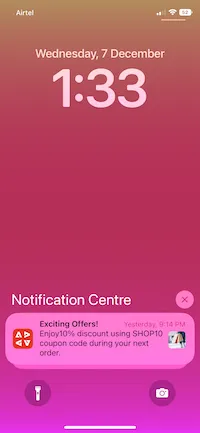
Receive Push Notification from Campaign
GOAL:
Send push notifications on DX Demo v2.x from Adobe Campaign.
Instructions:
1) Create a Mobile Application in ACC
Create iOS Mobile App
Log in to the Campaign instance
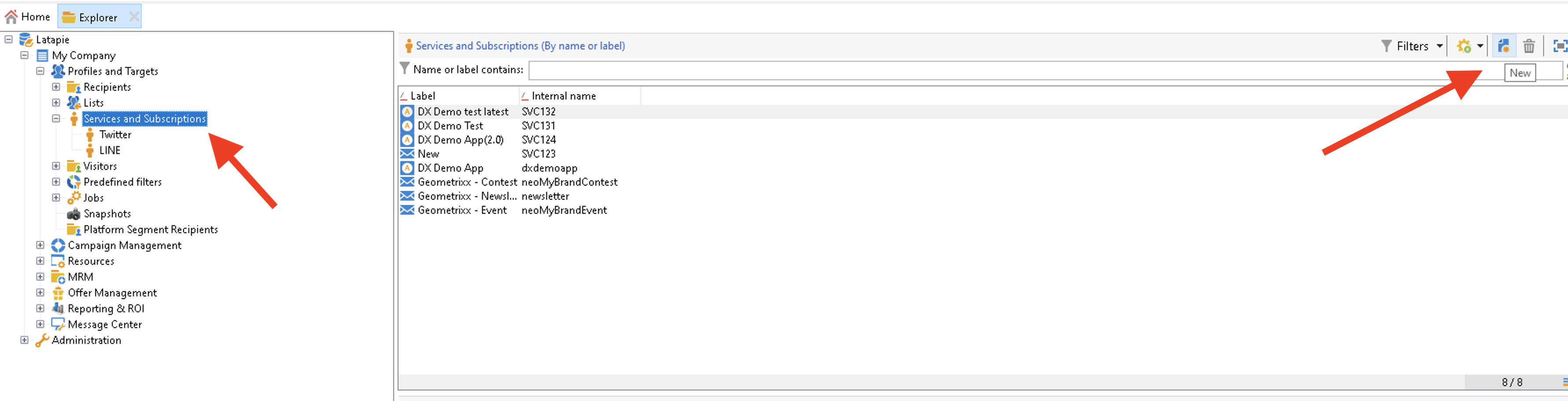
Go to the Profiles and Targets > Services and Subscriptions node under Explorer and click New
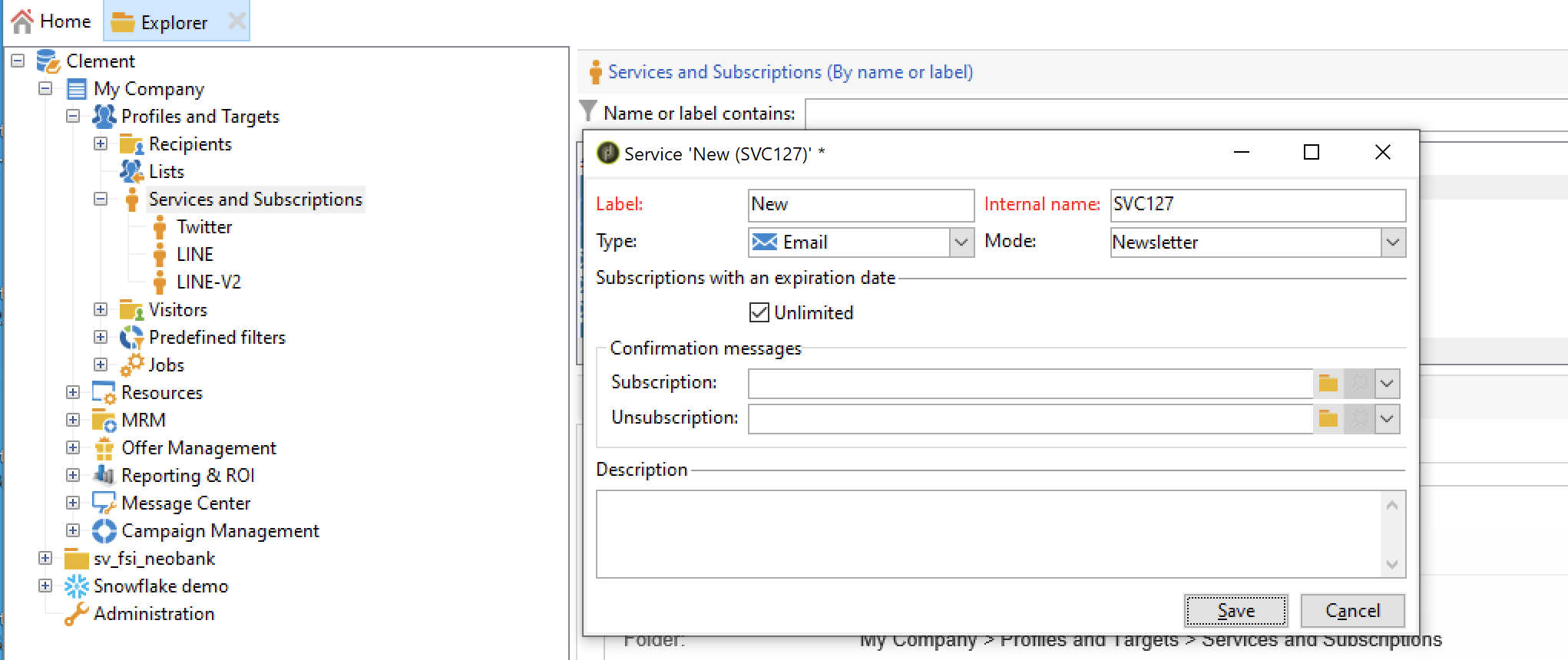
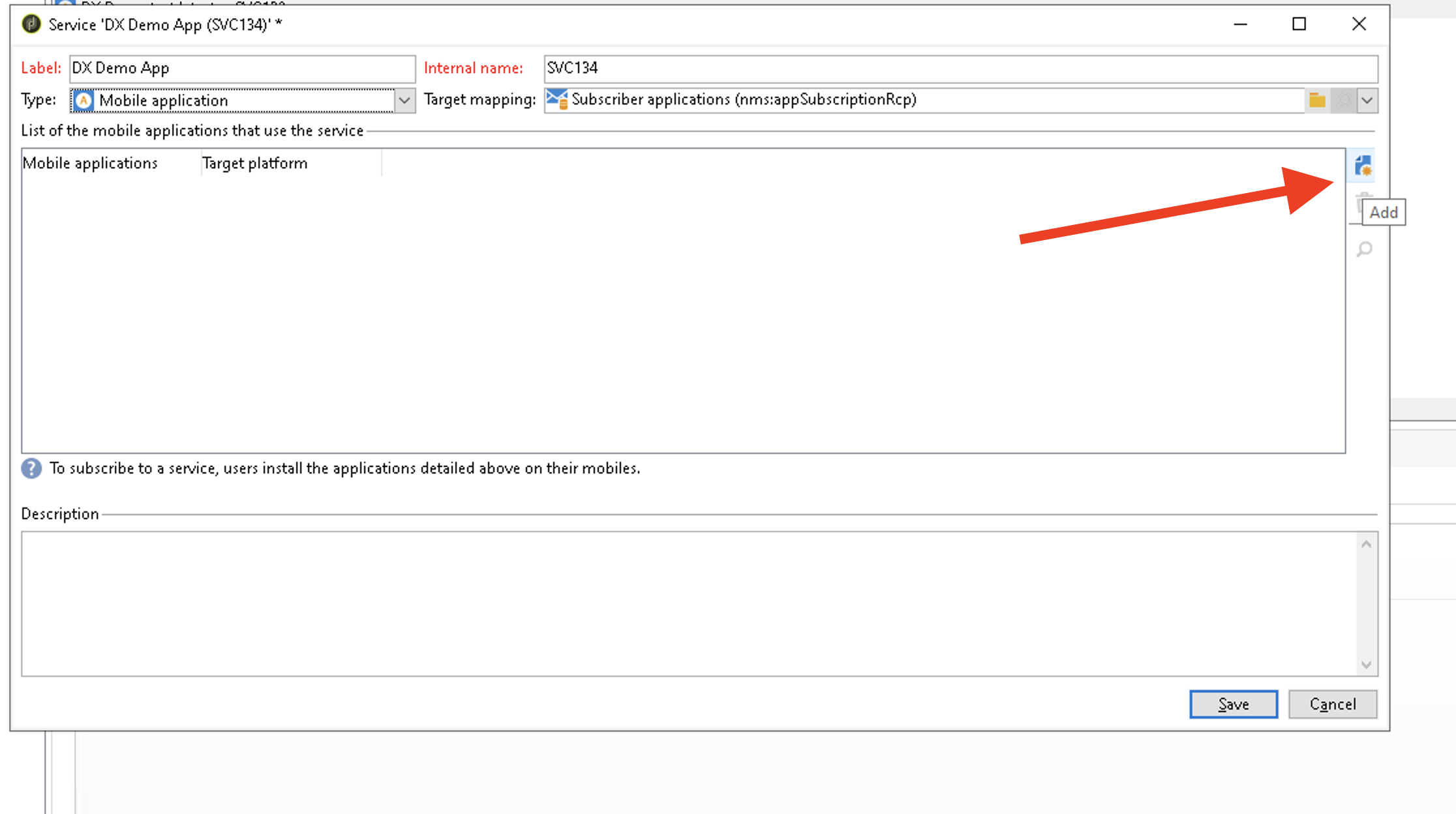
2.Define a Label and an Internal name. Select Type field as Mobile application.
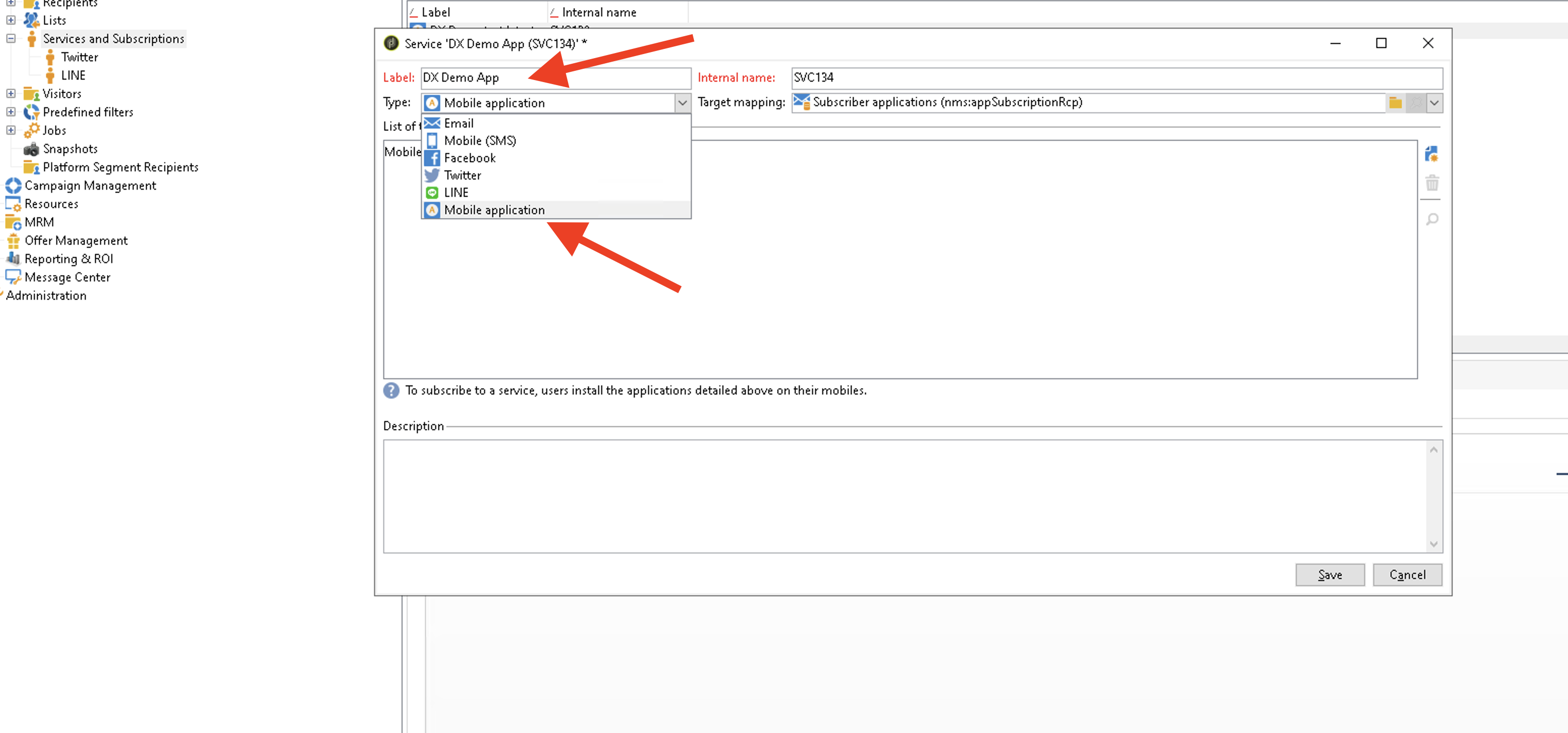
Then click the Add button to define the various versions of your mobile application.
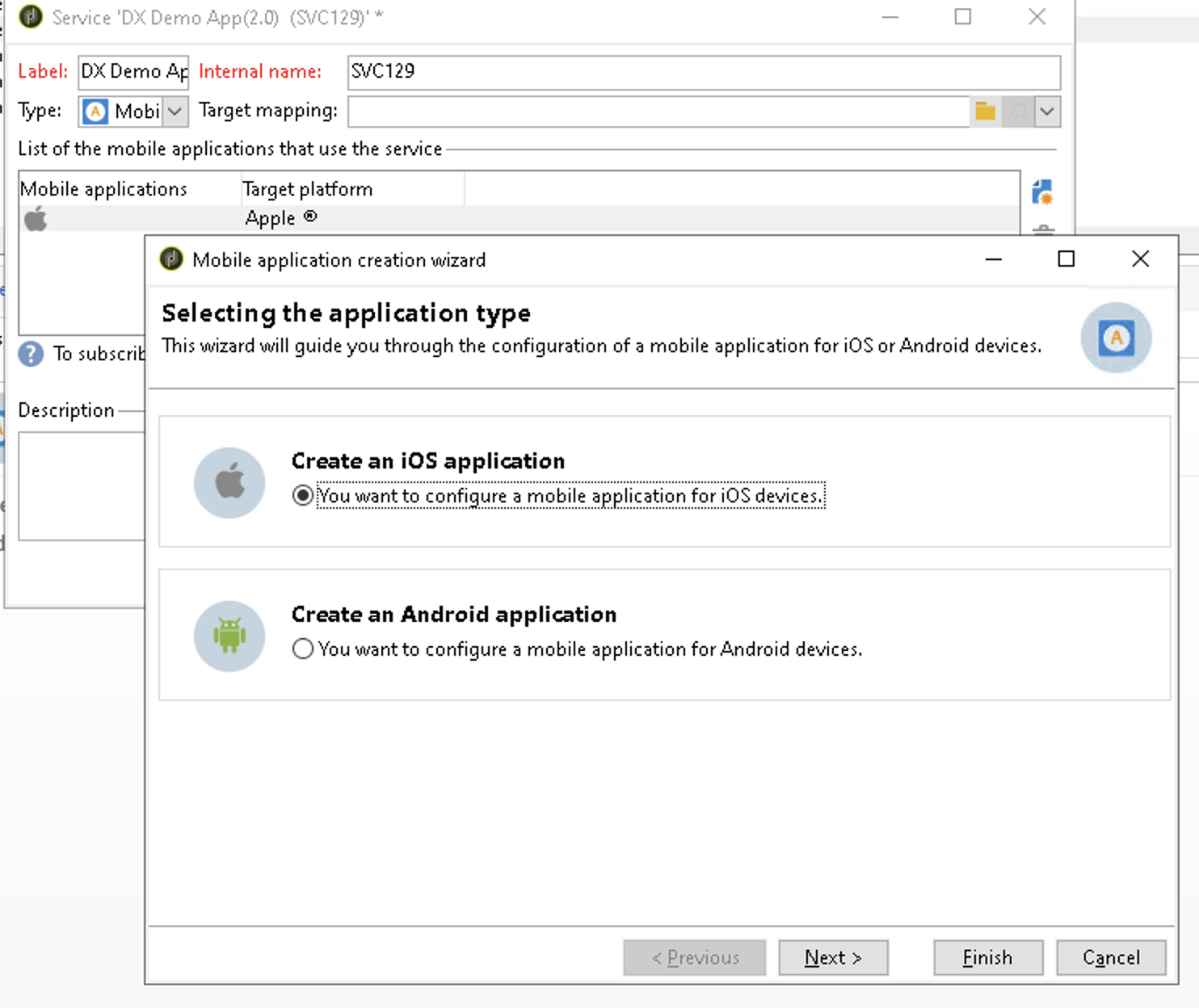
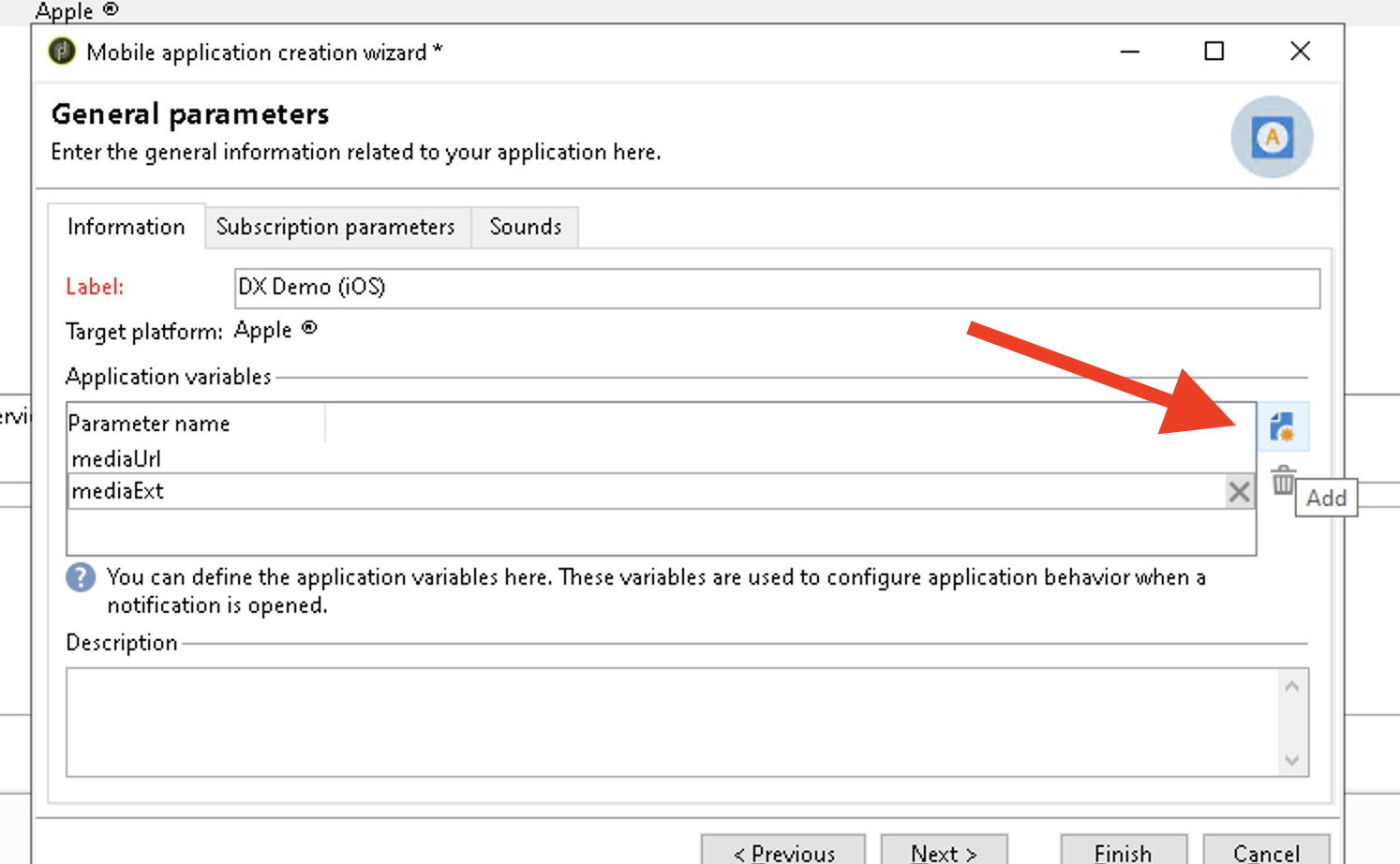
Click next and create an iOS application. Start by entering the Label.
Add application variables:
- mediaUrl
- mediaExt
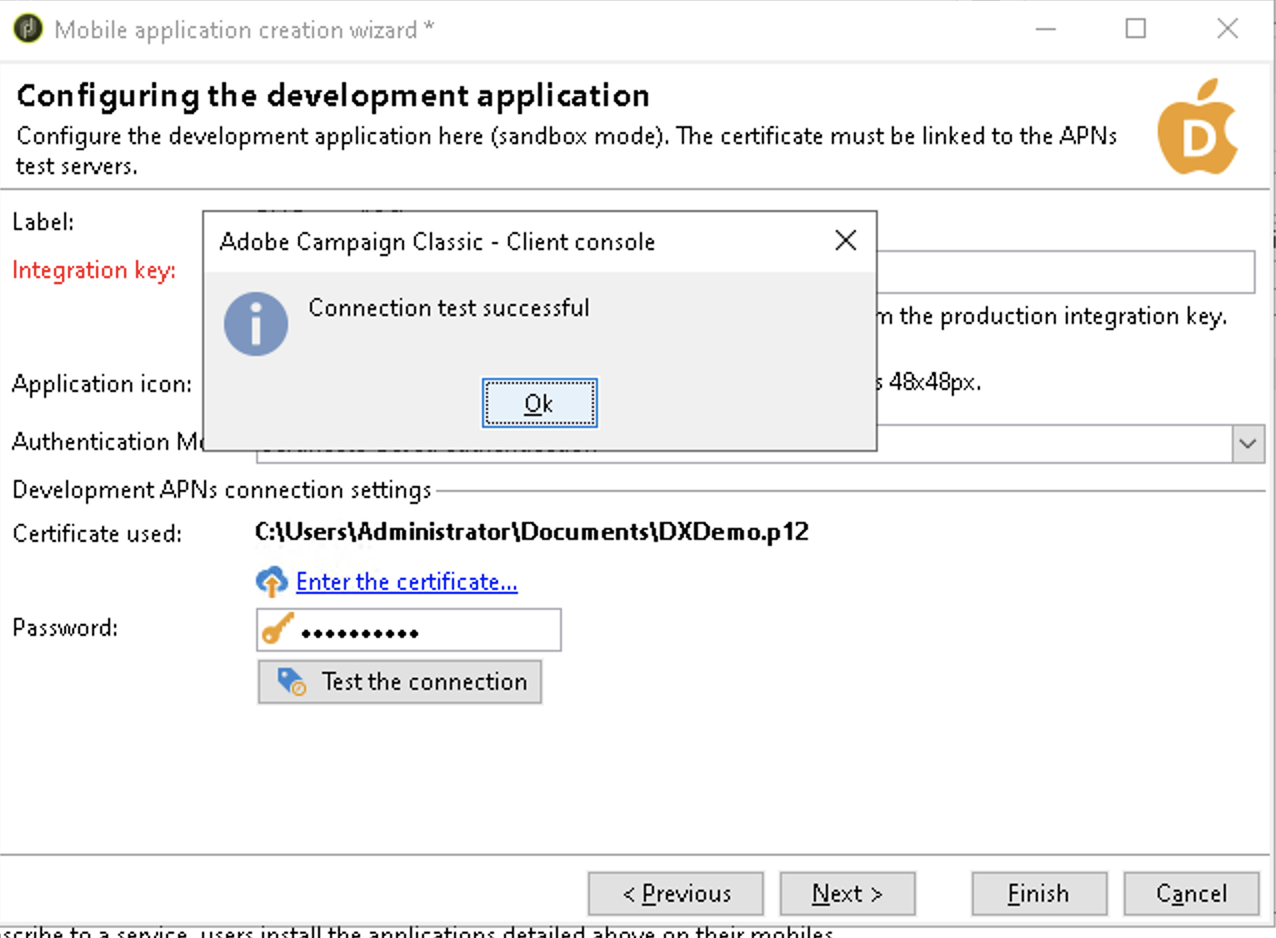
Click Next -> Click the Enter the certificate iOS (GET iOS CERTIFICATE FROM ACC certificate(DX Demo App 2.0) LINK), then select the authentication certificate and enter the password for the certificate.
IMPORTANT: This certificate works with Campaign V7, for Campaign V8, you would need Token based authentication and its details are also available here ACC certificate(DX Demo App 2.0)
NOTE: You are configuring the development and production application with the same iOS certificate or token-based authentication.
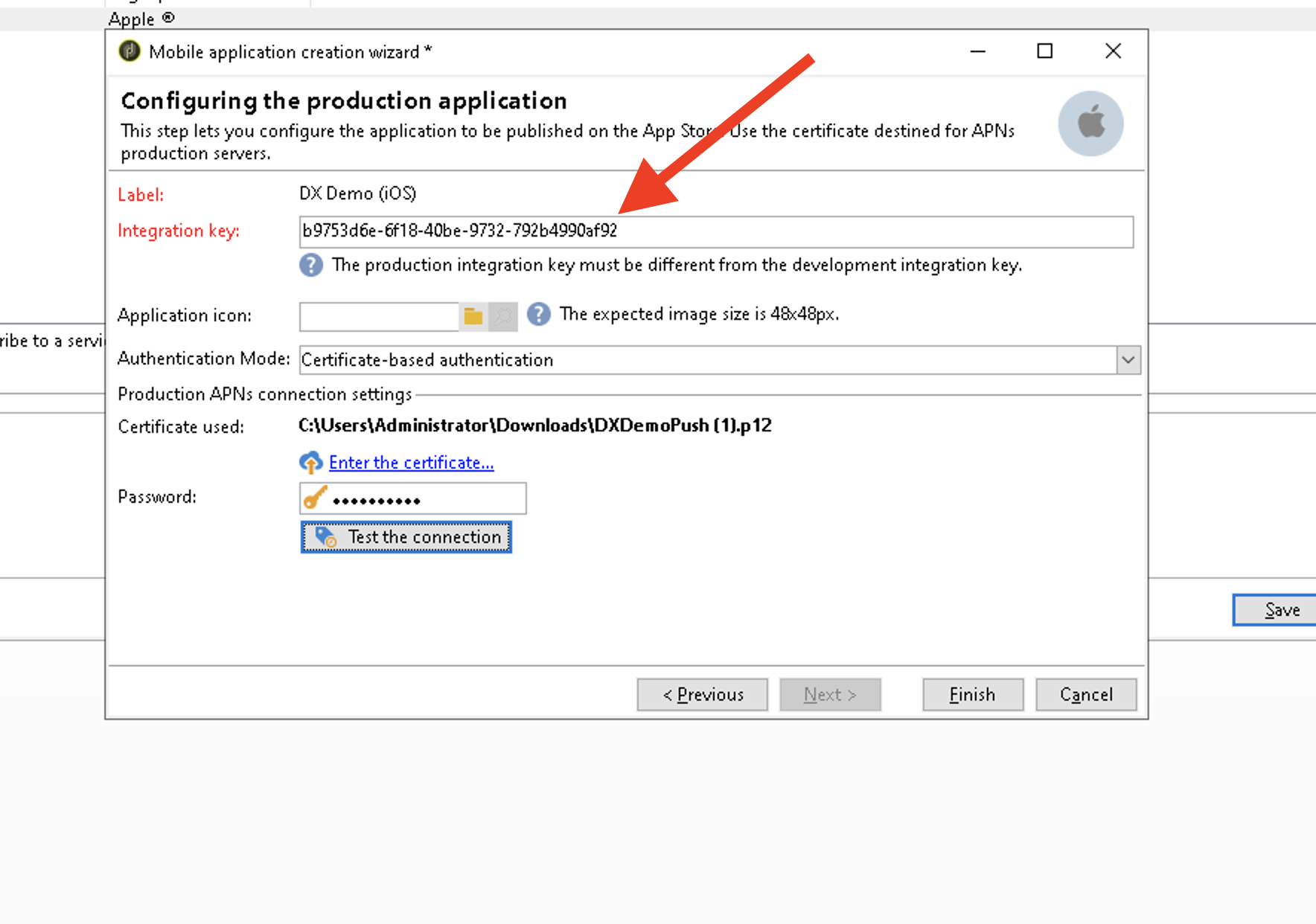
Click Next to configure the production application and note the INTEGRATION KEY
on the notepad since you would need to add this in the launch property.
Upload the certificate, test the connection, and click finish.
This integration key, specific to each application, lets you link the mobile application to Adobe Campaign Classic.
Create Android Application
If you are an Android user, create a subscriber application for Android.
Provide project key:
AAAAaqOt1nM:APA91bGD2vfQFDun3t7dCQcbOobPY8Rad0Elh3dyIpYspIx4otRPbi0eMahVQUJf4CF2U1osTyp6D2HvwlcvMRQtVzUcxF6zZ43j8LAzl_GK8birmzUcfDMM0fuQDPPgZ--16MrBwqA6
Create mobile application using Demo System Next
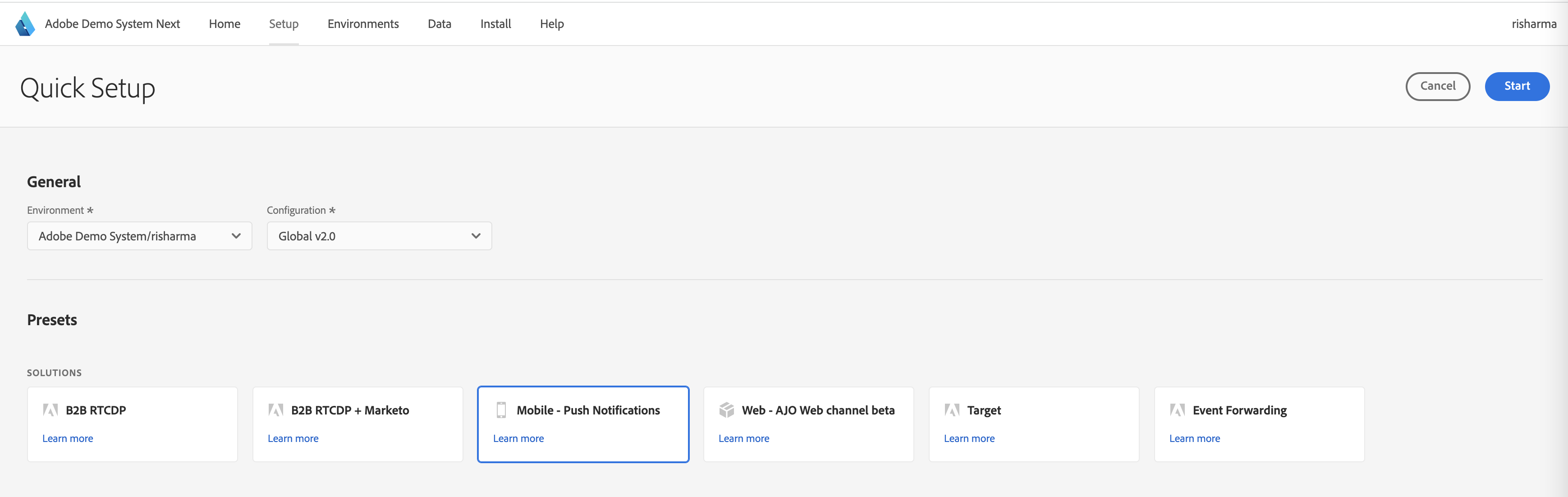
1) Go to https://dsn.adobe.com/quick-setup, select the environment and under "Solutions" -> select "Mobile - Push Notifications" and start the configuration
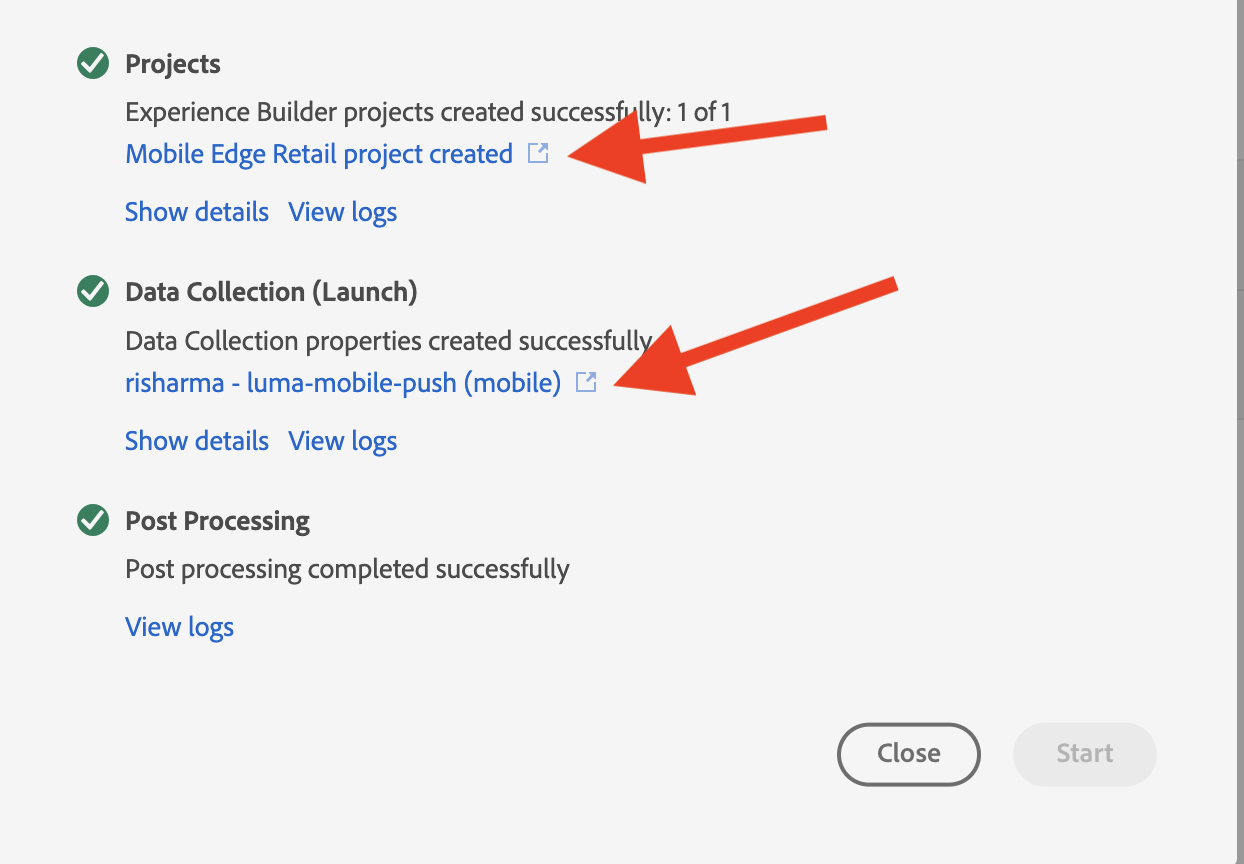
2) Once the configuration is successful, open the project and the launch property
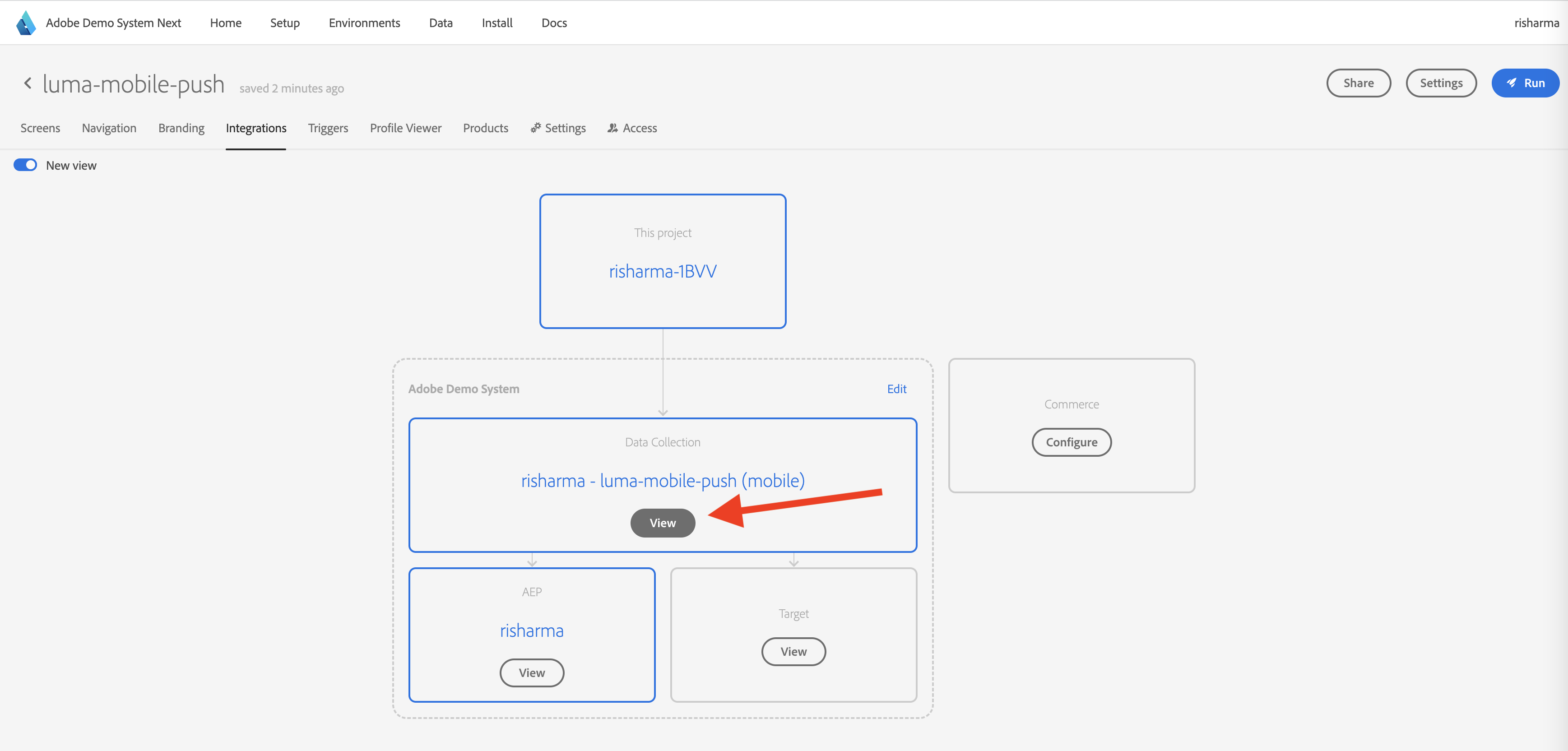
3) Attach the launch property to the project by navigating to the "Integrations" tab and clicking the "Edit" button.
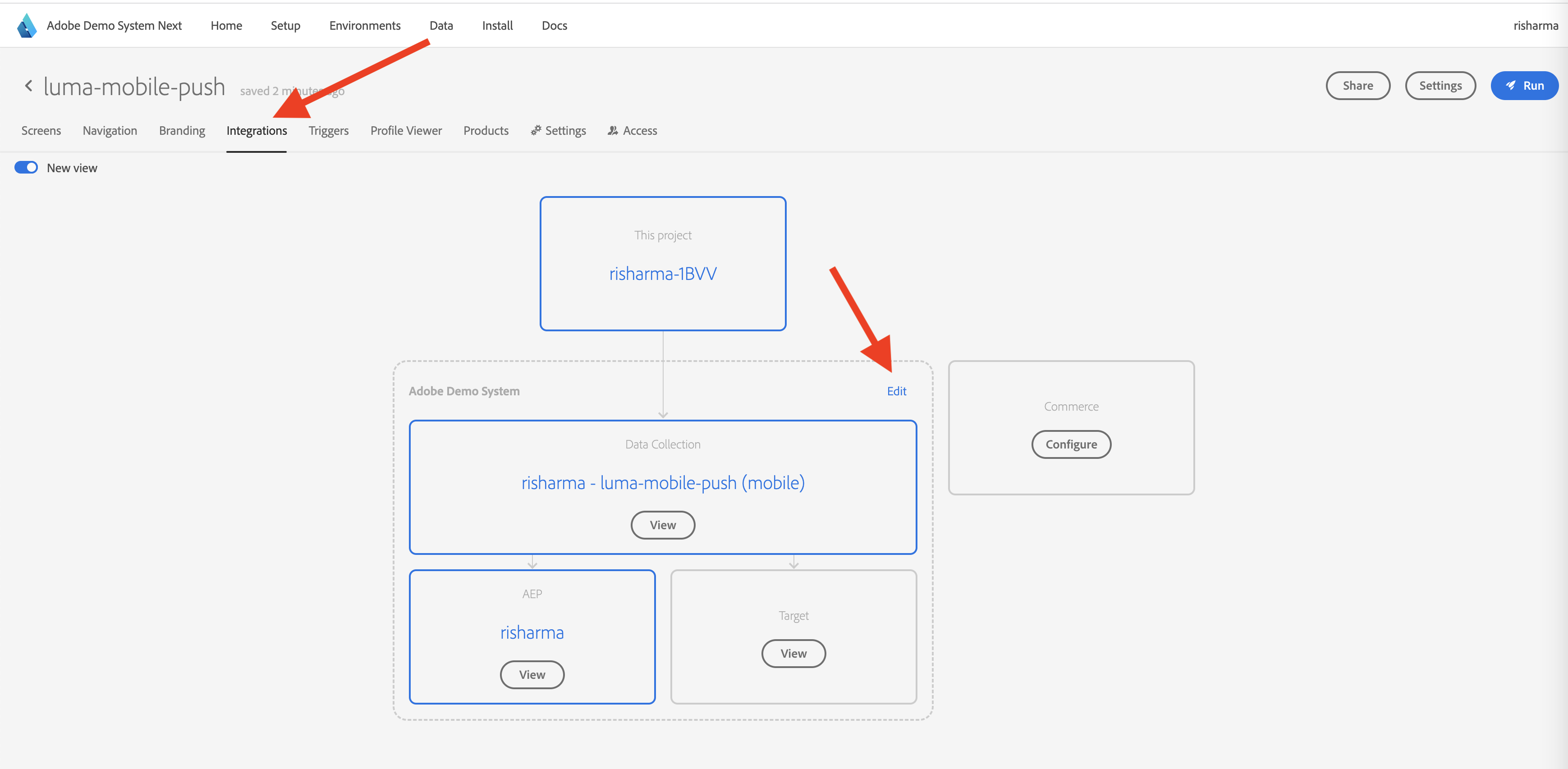
4) Open the Launch property by clicking view and configure campaign classic in the launch extensions.
5) Open Extensions tab in the launch property. Click "Catalog" -> click "Catalog" -> search "Campaign" and click "Install" on Adobe Campaign Classic
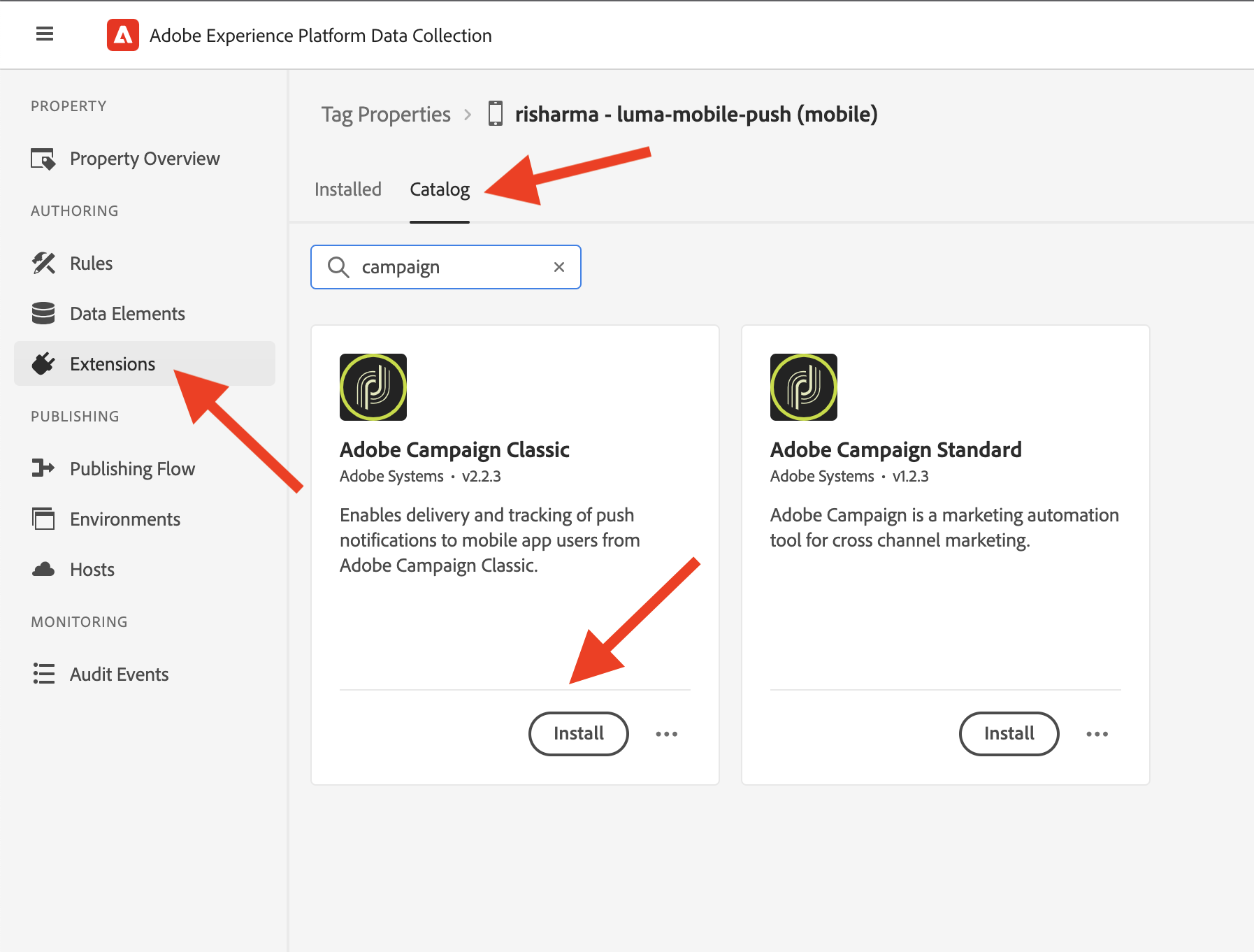
6) Add the campaign classic instance URL and integration key that you saved earlier.
Campaign Classic registration or tracking endpoint URLs can be retrieved under the Tools > Advanced > Deployment wizard menu in the Campaign Classic interface. The endpoint for push notifications is usually the same as the URL used for web forms and surveys.
For this extension, the registration endpoint URLs/tracking endpoint URLs should be entered without a prefixing https://.
.png?alt=media&token=539988d1-859b-430b-8698-d4f1de5d4997 "Document image")
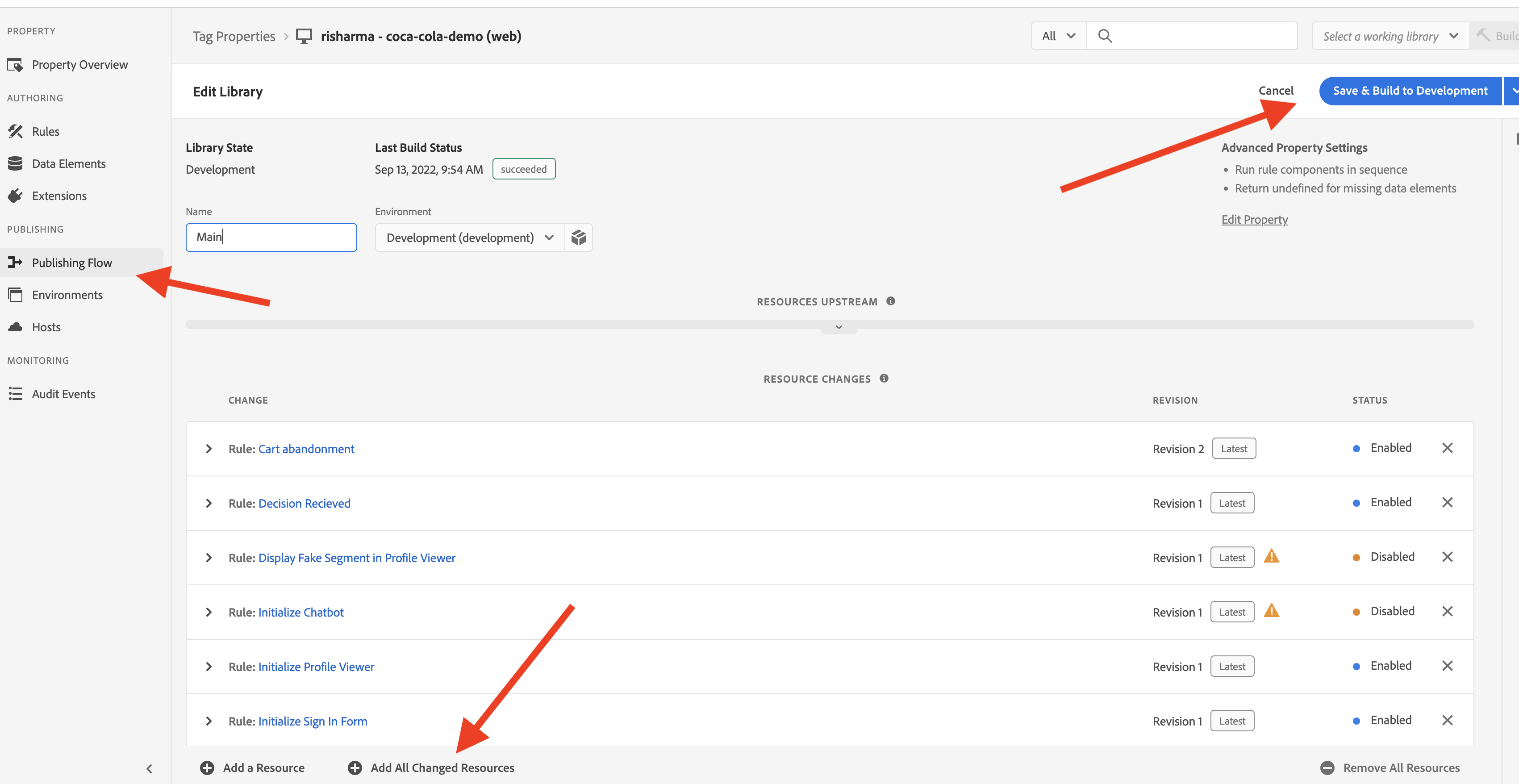
7) Click "Publishing Flow" and build the library.
8) Go to your project and click run and scan the code in the DX Demo mobile app.
Install the latest app on your phone by scanning the QR code available here:
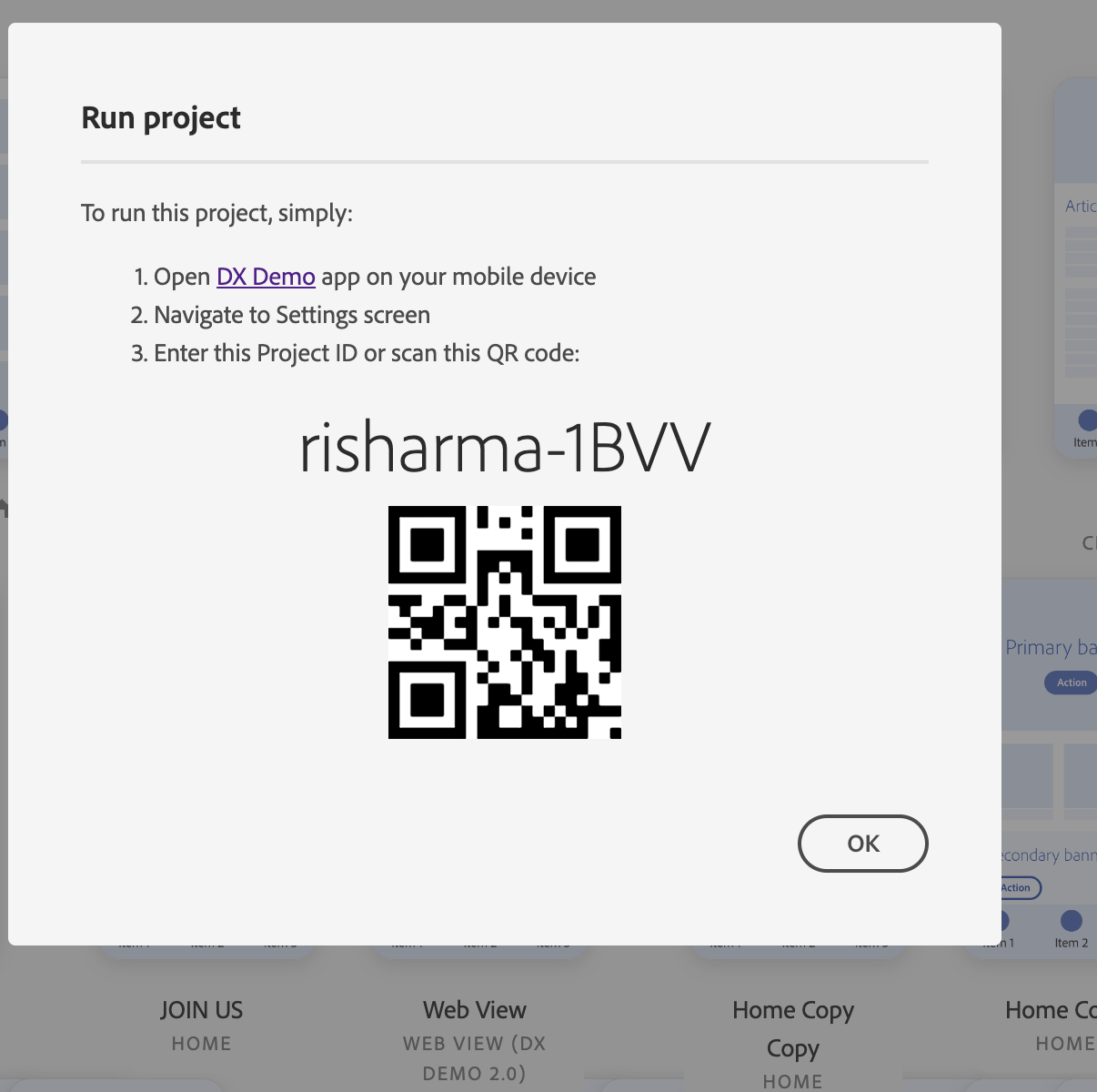
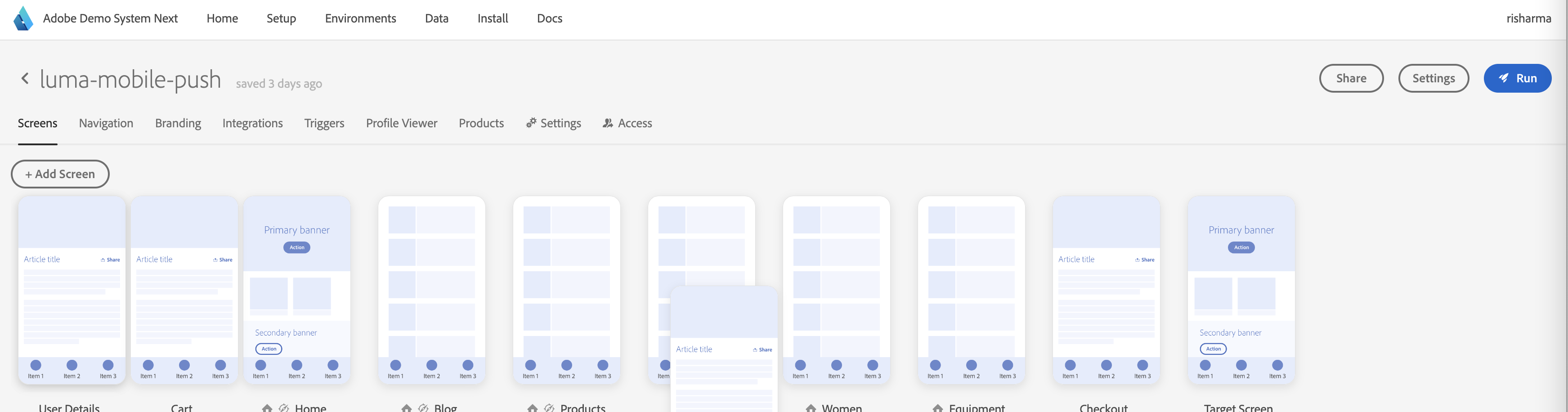
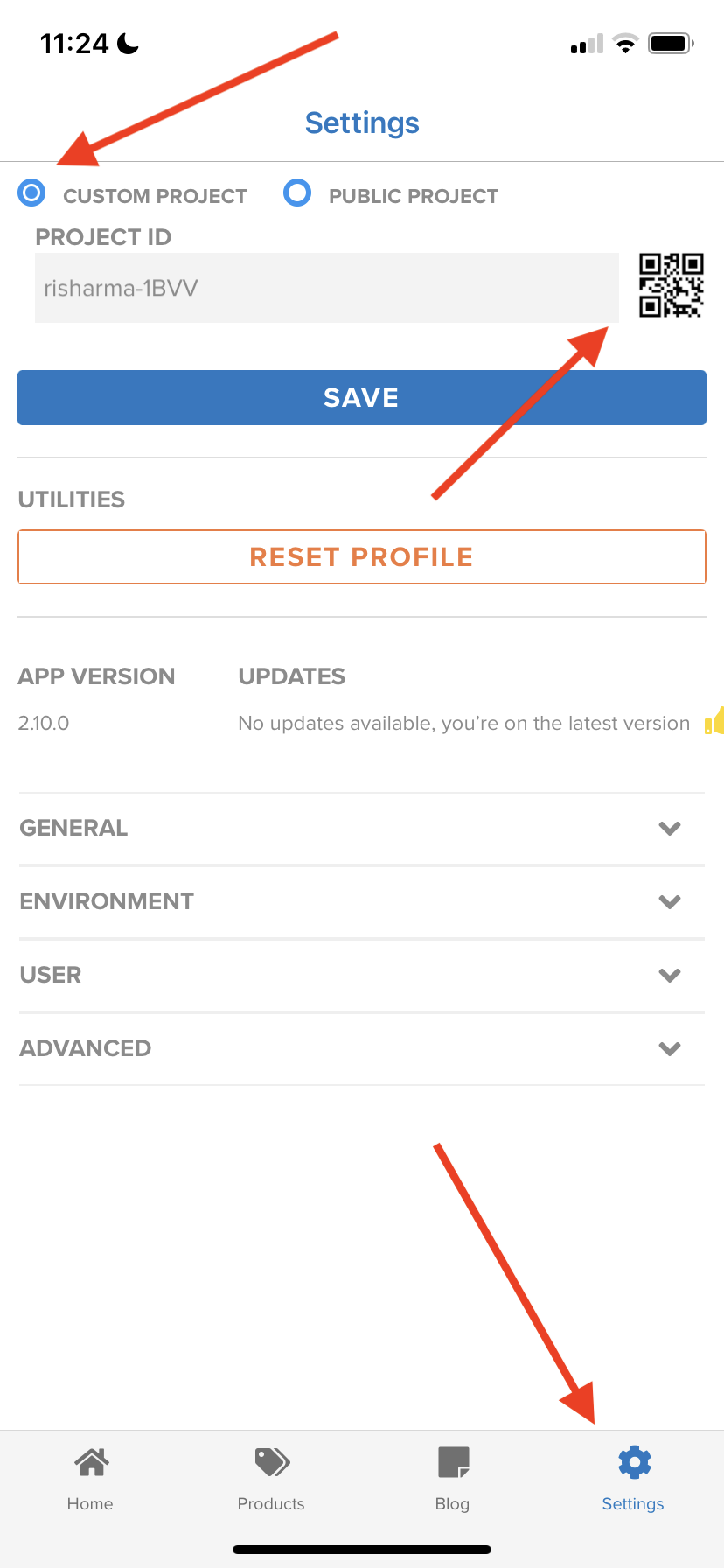
9) Open the DX Demo app, go to the Settings screen, click "Custom Project" and scan the project code.
10) Make sure you see the device token in the app created in ACC.
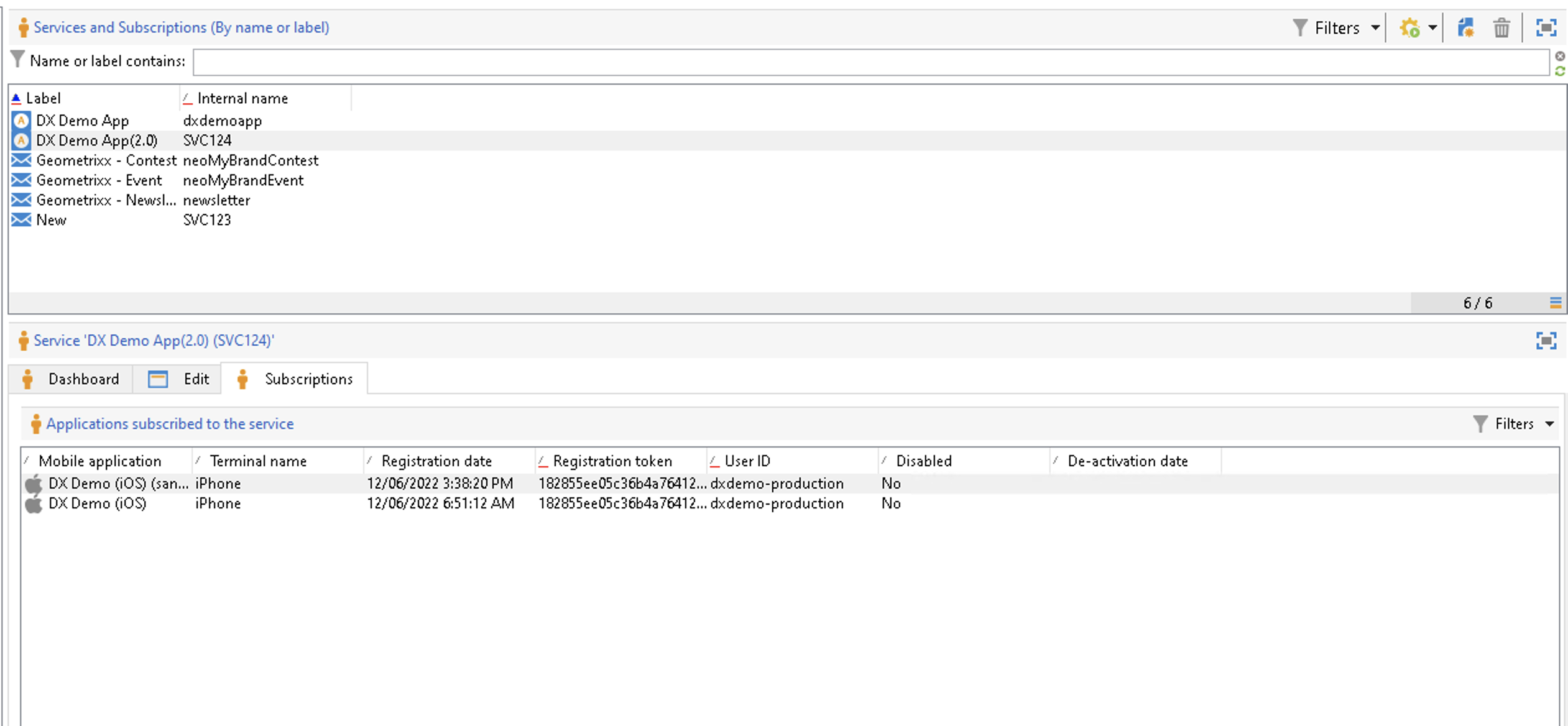
Click on user icon on left in app on device. It will take you to login screen. Click on Create Account.Once you register you will also see the email in ACC next to Registration token.

ACC instance need not be in the same org as AEP.
Create push notifications
1) Create a new push notification using the default push template
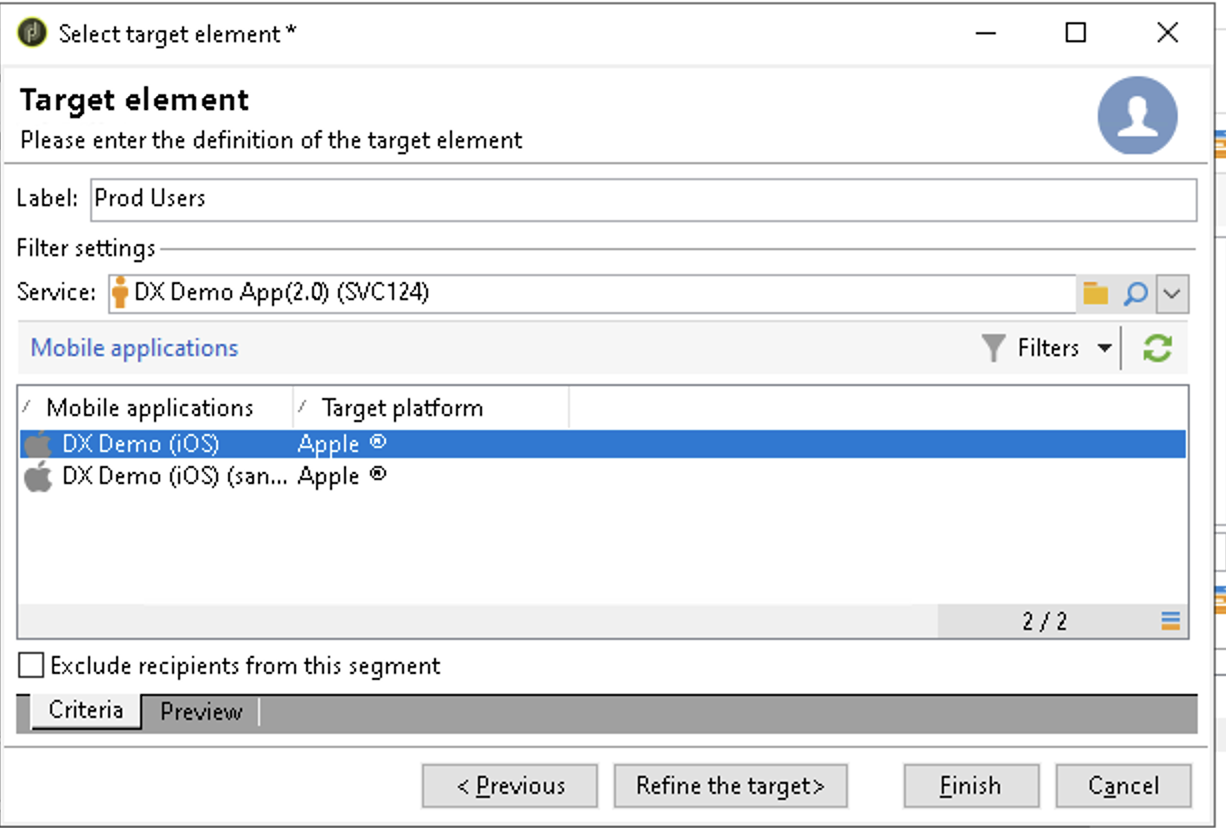
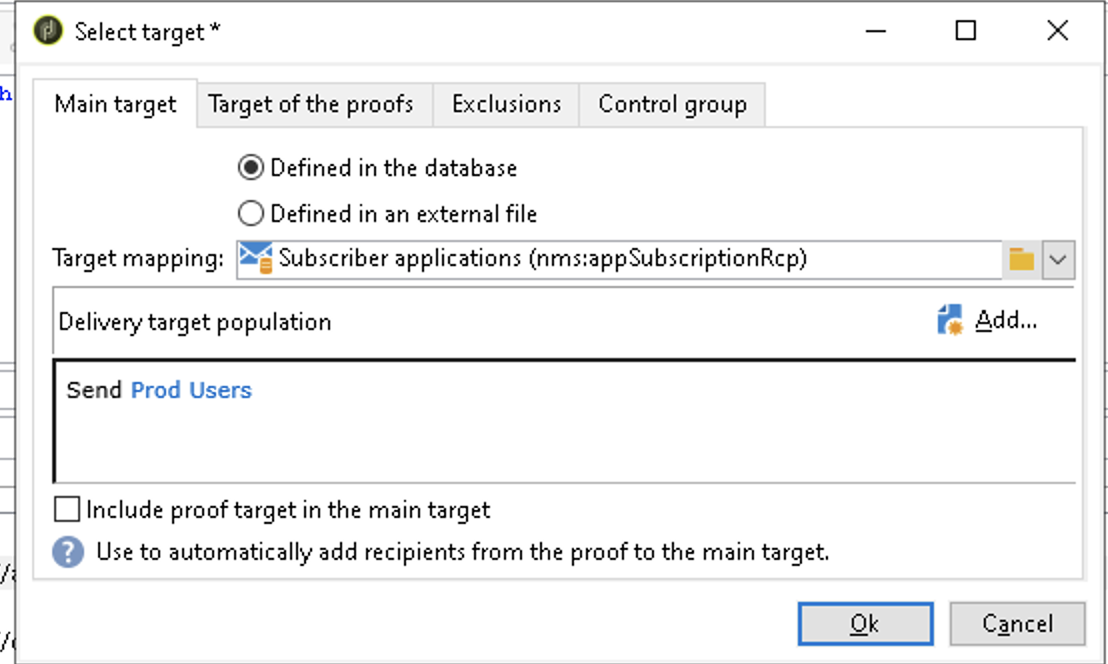
2) Click on the "To" to configure the Target
3) Select Subscribers of an iOS mobile application (iPhone, iPad), select the service relevant to your mobile application, then select the iOS version of the application.
4) Edit the title, message, and mediaUrl then click on save.
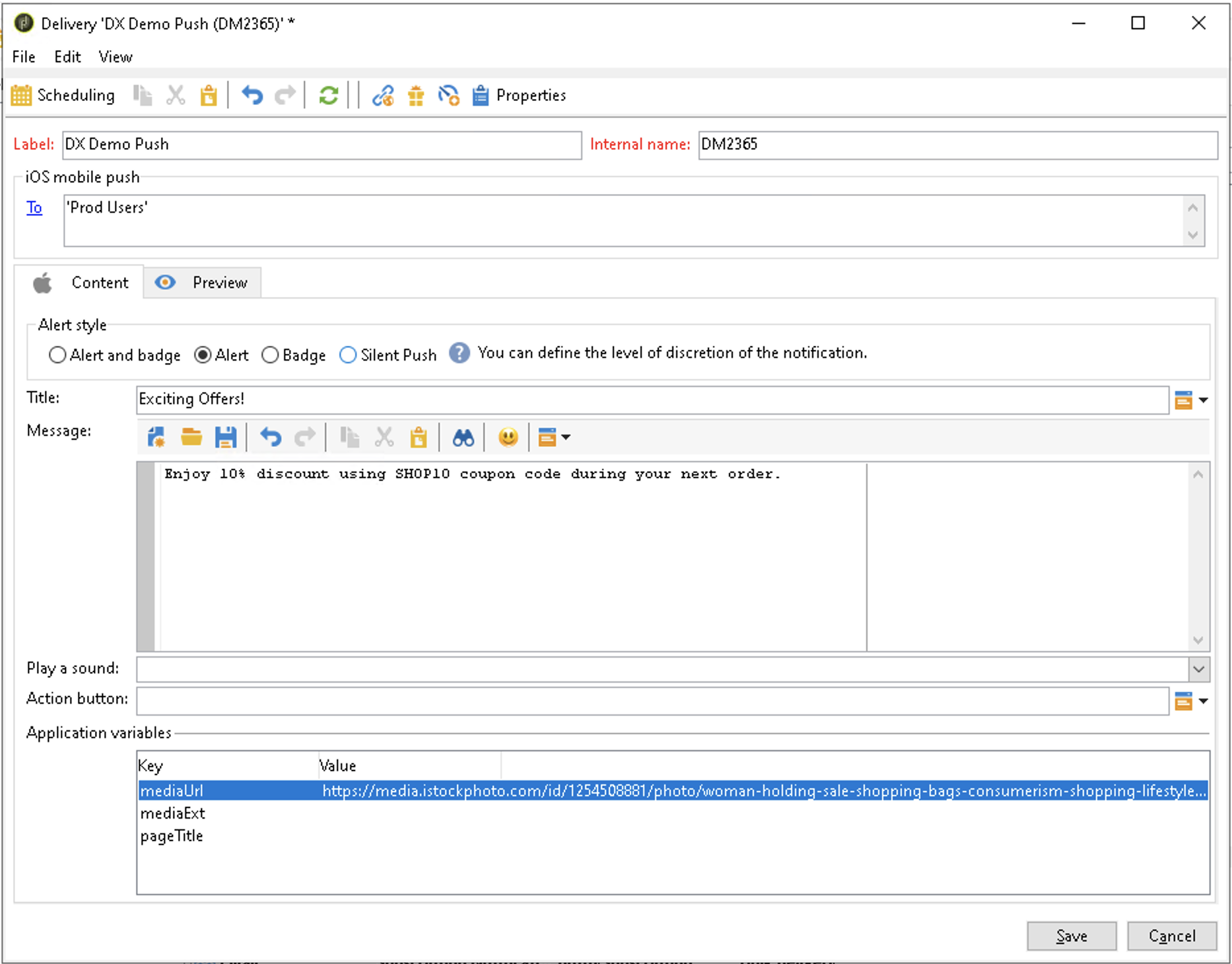
You can now send your message using the Send button of the delivery.